2019 FORD MUSTANG deactivate
[x] Cancel search: deactivatePage 12 of 495

Horn control
Panic alarm
Parking aid
Parking brake
Power steering fluid
Power windows front/rear
Power window lockout
Requires registered technician
Safety alert
See Owner's Manual
See Service Manual
Service engine soon
Passenger airbag activated
Passenger airbag deactivated
Side airbag Shield the eyes
Stability control
Hill descent control
Trail control
Windshield wiping system
Windshield wash and wipe
DATA RECORDING
Service Data Recording
Service data recorders in your vehicle are
capable of collecting and storing
diagnostic information about your vehicle.
This potentially includes information about
the performance or status of various
systems and modules in the vehicle, such
as engine, throttle, steering or brake
systems. In order to properly diagnose and
service your vehicle, Ford Motor Company
(Ford of Canada in Canada), and service
and repair facilities may access or share
among them vehicle diagnostic
information received through a direct
connection to your vehicle when
diagnosing or servicing your vehicle.
Additionally, Ford Motor Company (Ford
of Canada, in Canada) may, where
permitted by law, use vehicle diagnostic
information for vehicle improvement or
with other information we may have about
you, (for example, your contact
information), to offer you products or
services that may interest you. Data may
be provided to our service providers such
9
Mustang (CZG) Canada/United States of America, Vehicles Built From: 14-05-2018, enUSA, Edition date: 201804, Second-Printing IntroductionE270945 E139213 E231159 E231158 E270849 E270850 E167012 E138639 E163957 E272858 E270969
Page 38 of 495

Then...
If...
The Belt-Minder feature will not activate.
You and the front seat passenger buckle
your seatbelts before you switch the igni-
tion on or less than 1-2 minutes elapse after you switch the ignition on...
The Belt-Minder feature activates, the
seatbelt warning light illuminates and a
warning tone sounds for 6 seconds every
25 seconds, repeating for about 5 minutes or until you and the front seat passenger buckle your seatbelts.
You or the front seat passenger do not
buckle your seatbelts before your vehicle
reaches at least 6 mph (9.7 km/h) and 1-2
minutes elapse after you switch the ignition on...
The Belt-Minder feature activates, the
seatbelt warning light illuminates and a
warning tone sounds for 6 seconds every
25 seconds, repeating for about 5 minutes or until you and the front seat passenger buckle your seatbelts.
The seatbelt for the driver or front
passenger is unbuckled for about 1 minute
while the vehicle is traveling at least 6 mph (9.7 km/h)
and more than 1-2 minutes
elapse after you switch the ignition on...
Deactivating and Activating the
Belt-Minder Feature WARNING:
While the system
allows you to deactivate it, this system
is designed to improve your chances of
being safely belted and surviving an
accident. We recommend you leave the
system activated for yourself and others
who may use the vehicle.
Note: The driver and front passenger
warnings switch on and off independently.
When you perform this procedure for one
seating position, do not buckle the other
position as this will terminate the process.
Note: If you are using MyKey, you cannot
disable the Belt-Minder. Also, if you have
previously disabled the Belt-Minder, it will
be re-enabled during the use of MyKey.
Read Steps 1 - 4 thoroughly before
proceeding with the programming
procedure. Before following the procedure, make sure
that:
•
You set the parking brake.
• You put the transmission in park (P)
(automatic transmission) or neutral
(N) (manual transmission).
• You switch the ignition off.
• You unbuckle the driver and front
passenger seatbelts.
1. Switch the ignition on. Do not start the
vehicle.
2. Wait until the seatbelt warning light turns off (about one minute). After
Step 2, wait an additional 5 seconds
before proceeding with Step 3. Once
you start Step 3, you must complete
the procedure within 30 seconds.
3. For the seating position you are switching off, buckle then unbuckle the
seatbelt three times at a moderate
speed, ending in the unbuckled state.
After Step 3, the seatbelt warning light
turns on.
35
Mustang (CZG) Canada/United States of America, Vehicles Built From: 14-05-2018, enUSA, Edition date: 201804, Second-Printing Seatbelts
Page 107 of 495
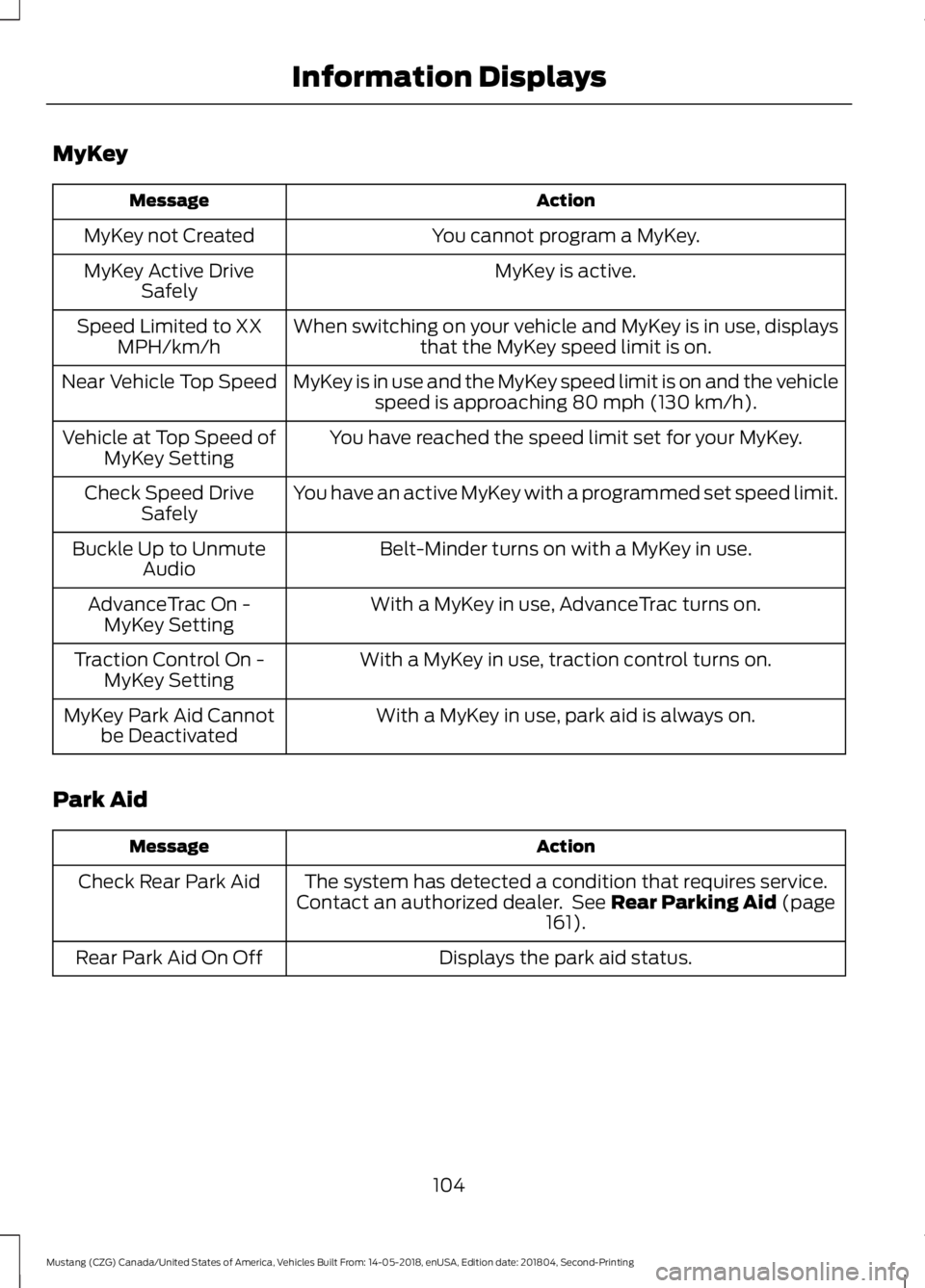
MyKey
Action
Message
You cannot program a MyKey.
MyKey not Created
MyKey is active.
MyKey Active Drive
Safely
When switching on your vehicle and MyKey is in use, displaysthat the MyKey speed limit is on.
Speed Limited to XX
MPH/km/h
MyKey is in use and the MyKey speed limit is on and the vehiclespeed is approaching 80 mph (130 km/h).
Near Vehicle Top Speed
You have reached the speed limit set for your MyKey.
Vehicle at Top Speed of
MyKey Setting
You have an active MyKey with a programmed set speed limit.
Check Speed Drive
Safely
Belt-Minder turns on with a MyKey in use.
Buckle Up to Unmute
Audio
With a MyKey in use, AdvanceTrac turns on.
AdvanceTrac On -
MyKey Setting
With a MyKey in use, traction control turns on.
Traction Control On -
MyKey Setting
With a MyKey in use, park aid is always on.
MyKey Park Aid Cannot
be Deactivated
Park Aid Action
Message
The system has detected a condition that requires service.
Contact an authorized dealer. See
Rear Parking Aid (page
161).
Check Rear Park Aid
Displays the park aid status.
Rear Park Aid On Off
104
Mustang (CZG) Canada/United States of America, Vehicles Built From: 14-05-2018, enUSA, Edition date: 201804, Second-Printing Information Displays
Page 188 of 495
Active Braking: Active braking may
activate if the system determines that a
collision is imminent. The system may help
the driver reduce impact damage or avoid
the crash completely.
Note: If you perceive Pre-Collision Assist
alerts as being too frequent or disturbing,
then you can reduce the alert sensitivity,
though the manufacturer recommends
using the highest sensitivity setting where
possible. Setting lower sensitivity would
lead to fewer and later system warnings.
Note: The system turns off when you
manually disable AdvanceTrac ™, or when
you select
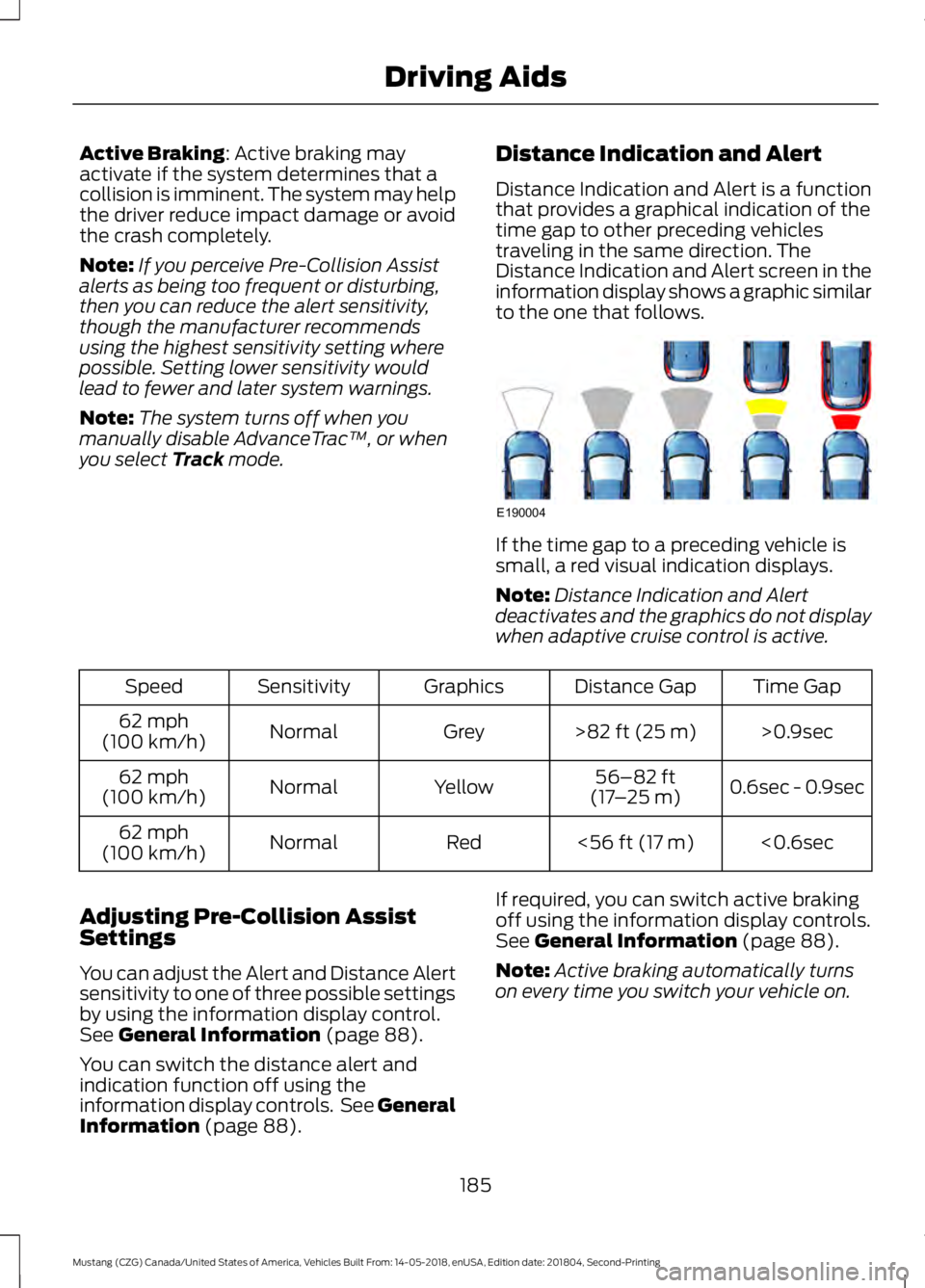
Track mode. Distance Indication and Alert
Distance Indication and Alert is a function
that provides a graphical indication of the
time gap to other preceding vehicles
traveling in the same direction. The
Distance Indication and Alert screen in the
information display shows a graphic similar
to the one that follows. If the time gap to a preceding vehicle is
small, a red visual indication displays.
Note:
Distance Indication and Alert
deactivates and the graphics do not display
when adaptive cruise control is active. Time Gap
Distance Gap
Graphics
Sensitivity
Speed
>0.9sec
>
82 ft (25 m)
Grey
Normal
62 mph
(100 km/h)
0.6sec - 0.9sec
56–82 ft
(17 –25 m)
Yellow
Normal
62 mph
(100 km/h)
<0.6sec
<
56 ft (17 m)
Red
Normal
62 mph
(100 km/h)
Adjusting Pre-Collision Assist
Settings
You can adjust the Alert and Distance Alert
sensitivity to one of three possible settings
by using the information display control.
See
General Information (page 88).
You can switch the distance alert and
indication function off using the
information display controls. See General
Information
(page 88). If required, you can switch active braking
off using the information display controls.
See
General Information (page 88).
Note: Active braking automatically turns
on every time you switch your vehicle on.
185
Mustang (CZG) Canada/United States of America, Vehicles Built From: 14-05-2018, enUSA, Edition date: 201804, Second-Printing Driving AidsE190004
Page 190 of 495

Note:
Proper system operation requires a
clear view of the road by the camera. Have
any windshield damage in the area of the
camera's field of view repaired.
Note: If something hits the front end of your
vehicle or damage occurs, the radar sensing
zone may change. This could cause missed
or false vehicle detections. Contact an
authorized dealer to have the radar checked
for proper coverage and operation.
Note: If your vehicle detects excessive heat
at the camera or a potential misalignment
condition, a message may display in the
information display indicating temporary
sensor unavailability. When operational
conditions are correct, the message
deactivates. For example, when the ambient
temperature around the sensor decreases
or the sensor automatically recalibrates
successfully.
DRIVE CONTROL (IF EQUIPPED)
Selectable Drive Modes
(If Equipped)
Selectable drive modes deliver a
customized driving experience using a
variety of electronic vehicle systems. The
systems optimize vehicle dynamics and
powertrain response based on your
selected mode. Systems associated with
selectable drive modes are:
• Electronically power assisted steering.
See
Steering (page 183).
• Electronic stability control and traction
control maintain your vehicle control
in adverse conditions or high
performance driving.
See Stability
Control (page 158).
• Electronic throttle control enhances
the powertrain response to your driving
input. •
Adaptive dampers (if equipped).
• Active exhaust adjusts the sound
characteristics of your vehicle (if
equipped).
Using Selectable Drive Modes
Note: Your vehicle may have some of the
drive modes that follow. To change the drive mode setting, press
the mode button on the instrument panel
under the display. The first press
illuminates the selected mode, subsequent
presses change the selected mode.
Note:
Mode changes are not available when
the ignition is off or when the transmission
is in reverse (R). Some modes may be
unavailable when the transmission is in drive
(D) or sport (S).
187
Mustang (CZG) Canada/United States of America, Vehicles Built From: 14-05-2018, enUSA, Edition date: 201804, Second-Printing Driving AidsE294773
Page 391 of 495

Note:
Available AppLink enabled apps will
vary by market.
Note: You must pair and connect your
smartphone via Bluetooth to SYNC 3 to
access AppLink.
Note: iPhone users may have to connect
the phone to a USB port with an Apple USB
cable.
Note: For information on available apps,
supported smartphone devices and
troubleshooting tips please visit: Websites
owner.ford.com
www.syncmyride.ca
www.syncmaroute.ca
Note: Make sure you have an active account
for the app that you have downloaded.
Some apps will work automatically with no
setup. Other apps will want you to configure
your personal settings and personalize your
experience by creating stations or
favorites.We recommend you do this at
home or outside of your vehicle.
Note: We encourage you to review the
smartphone app ’s terms of service and
privacy policies because Ford is not
responsible for your app or its use of data.
Note: AppLink is a native SYNC system
feature. Accessing mobile apps through
AppLink is only possible when Android Auto
or Apple CarPlay are disabled. Some apps
may only be accessible in the car through
AppLink and others only through Android
Auto or Apple CarPlay. Please refer to the
Smartphone Connectivity information to
disable Android Auto or Apple CarPlay.
Note: In order to use an app with SYNC 3,
the app needs to be running in the
background of your phone. If you shut down
the app on your phone, it shuts down the
app on SYNC 3 as well. Note:
If a SYNC 3 AppLink compatible app
is not shown in the Apps Domain, make sure
the required app is running on the mobile
device. Action and Descrip-
tion
Menu Item
SYNC 3 will search
and connect to
compatible app(s)
running on your
mobile device.
Find Mobile Apps
Enabling SYNC 3 Mobile Apps
In order to enable mobile apps, SYNC 3
requires user consent to send and receive
app authorization information and updates
using the data plan associated with the
connected device.
The connected device sends data to Ford
in the United States. The information is
encrypted and includes your VIN, SYNC 3
module number, odometer, usage
statistics and debugging information. We
retain this data for only as long as
necessary to provide this service,
troubleshoot, and improve products and
services and to offer you products and
services that may interest you where
allowed by law.
Note: You must enable mobile apps for
each connected device the first time you
select a mobile app using the system.
Note: Ford reserves the right to limit
functionality or deactivate mobile apps at
any time.
Note: Standard data rates apply. Ford is
not responsible for any additional charges
you may receive from your service provider,
when your vehicle sends or receives data
through the connected device. This includes
any additional charges incurred due to
driving in areas when roaming out of a home
network.
388
Mustang (CZG) Canada/United States of America, Vehicles Built From: 14-05-2018, enUSA, Edition date: 201804, Second-Printing SYNC™ 3 (If Equipped)
Page 392 of 495

You can enable and disable apps through
settings. See Settings (page 390).
App Permissions
The system organizes the App permissions
into groups. You can grant these group
permissions individually. You can change
a permission group status any time when
not driving, by using the settings menu.
While in the settings menu, you can also
see the data included in each group.
When you launch an app using SYNC 3,
the system may ask you to grant certain
permissions, for example Vehicle
information, Driving characteristics, GPS
and Speed, and/or Push notifications. You
can enable all groups or none of them
during the initial app permissions prompts.
The settings menu offers individual group
permission control.
Note: You are only prompted to grant
permissions the first time you use an app
with SYNC 3.
Note: If you disable group permissions,
apps will still be enabled to work with SYNC
3 unless you deactivate All Apps in the
settings menu.
SiriusXM Traffic and Travel Link (If
Equipped) WARNING:
Driving while
distracted can result in loss of vehicle
control, crash and injury. We strongly
recommend that you use extreme
caution when using any device that may
take your focus off the road. Your primary responsibility is the safe
operation of your vehicle. We
recommend against the use of any
hand-held device while driving and
encourage the use of voice-operated
systems when possible. Make sure you
are aware of all applicable local laws
that may affect the use of electronic
devices while driving.
Note: SiriusXM Traffic and Travel Link may
not be available in all markets.
Note: In order to use SiriusXM Traffic and
Travel Link, your vehicle must have
navigation.
Note: A paid subscription is required to
access and use these features. Go to
www.siriusxm.com/travellink for more
information.
Note: Visit www.siriusxm.com/traffic and
click on Coverage map and details for a
complete listing of all traffic areas covered
by SiriusXM Traffic and Travel Link.
Note: Neither Sirius nor Ford is responsible
for any errors or inaccuracies in the SiriusXM
Traffic and Travel Link services or its use in
vehicles.
When you subscribe to SiriusXM Traffic
and Travel Link, it can help you locate the
best gas prices, find movie listings, get
current traffic alerts, view the current
weather map, get accurate ski conditions
and see scores to current sports games.
389
Mustang (CZG) Canada/United States of America, Vehicles Built From: 14-05-2018, enUSA, Edition date: 201804, Second-Printing SYNC™ 3
(If Equipped)