Page 90 of 644

Use the control on the side of the steering
column to adjust the position.
To adjust:
•
Tilt: Press the top or bottom of the
control.
• Telescope: Press the front or rear of
the control.
End of Travel Position
The steering column sets a stopping
position just short of the end of the column
position to prevent damage to the steering
column. A new stopping position sets if
the steering column encounters an object
when tilting or telescoping.
To reset the steering column to its normal
stopping position:
1. Confirm there is nothing obstructing the motion of the steering column.
2. Press and hold the steering column control until the steering column stops
moving.
3. Press the steering column control again. Note:
The steering column may begin to
move again.
4. When the steering column stops, continue holding the control for a few
seconds.
5. Repeat for each direction as necessary.
A new stopping position sets. The next
time you tilt or telescope the steering
column, it stops just short of the end of the
column position.
Memory Feature (If Equipped)
You can save and recall the steering
column position with the memory
function. See
Memory Function (page
161).
Pressing the adjustment control during a
memory recall cancels the operation.
Easy Entry and Exit Feature
The column moves up when you switch
the ignition off. Switch the ignition on to
return the system to its previous settings.
You can switch this feature on or off in the
information display. See
Information
Displays (page 116).
Note: If you press any adjustment or
memory button when in easy exit mode, the
system cancels the operation.
Note: Depending on your vehicle, the
column may move up and in.
AUDIO CONTROL
You can operate the following functions
with the control:
87
F-150 (TFC) Canada/United States of America, enUSA, Edition date: 201808, Third-Printing- Steering WheelE261582
Page 91 of 644
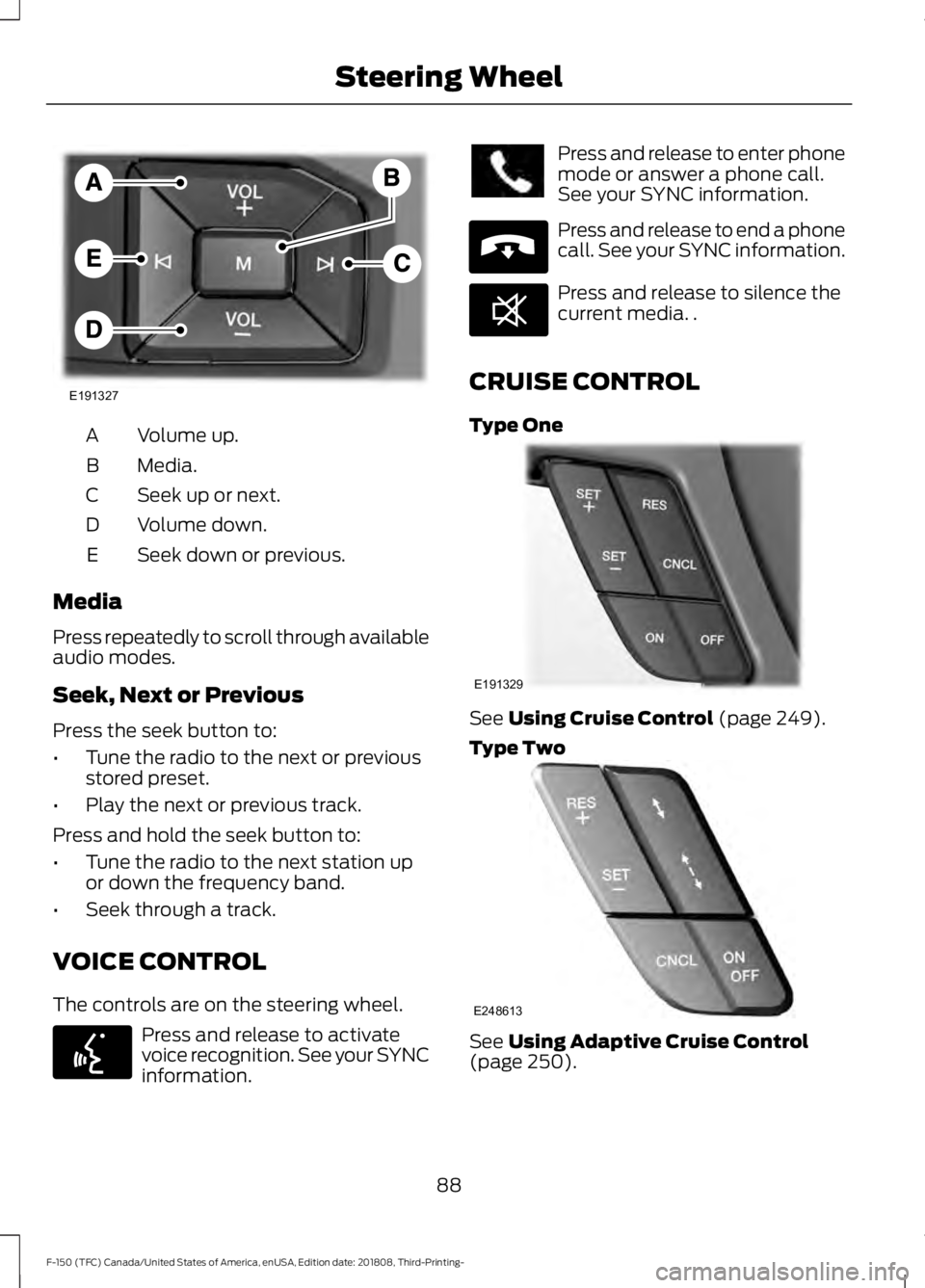
Volume up.
A
Media.
B
Seek up or next.
C
Volume down.
D
Seek down or previous.
E
Media
Press repeatedly to scroll through available
audio modes.
Seek, Next or Previous
Press the seek button to:
• Tune the radio to the next or previous
stored preset.
• Play the next or previous track.
Press and hold the seek button to:
• Tune the radio to the next station up
or down the frequency band.
• Seek through a track.
VOICE CONTROL
The controls are on the steering wheel. Press and release to activate
voice recognition. See your SYNC
information. Press and release to enter phone
mode or answer a phone call.
See your SYNC information.
Press and release to end a phone
call. See your SYNC information.
Press and release to silence the
current media. .
CRUISE CONTROL
Type One See Using Cruise Control (page 249).
Type Two See
Using Adaptive Cruise Control
(page 250).
88
F-150 (TFC) Canada/United States of America, enUSA, Edition date: 201808, Third-Printing- Steering WheelE191327 E142599 E265040 E268549 E191329 E248613
Page 92 of 644
INFORMATION DISPLAY
CONTROL
See Information Displays (page 116).
HEATED STEERING WHEEL
(IF
EQUIPPED)
Switch the heated steering wheel on and
off using the touchscreen. Touch the button to switch the
heated steering wheel on and
off.
Note: You can use the heated steering
wheel only when the engine is running.
Note: The system uses a sensor and is
designed to control the temperature of the
steering wheel and to prevent it from
overheating.
Note: In warm temperatures, the steering
wheel quickly reaches its maximum
temperature and the system reduces the
current to the heating element. This could
cause you to think that the system has
stopped working but it has not. This is
normal.
89
F-150 (TFC) Canada/United States of America, enUSA, Edition date: 201808, Third-Printing- Steering WheelE191336
Page 93 of 644

ADJUSTING THE PEDALS (IF
EQUIPPED) WARNING:
Never use the pedal
adjustment controls when your feet are
on the accelerator or brake pedal when
the vehicle is moving.
Note: Adjust the pedals only when your
vehicle is in park (P).
Depending on your vehicle and equipment
level, the shape and location of your
power-adjustable pedal control can vary.
• If your control is vertical, then it is to
the left of the steering column and on
the instrument panel.
• If your control is horizontal, then it is on
the left side of the steering column.
Vertical Control Farther.
A.
Closer.
B. Horizontal Control
Farther.
A.
Closer.
B.
Both horizontal and vertical controls
operate the same way:
1. Press and hold A to move the pedals away from you.
2. Press and hold B to move the pedals closer to you.
You can save and recall the pedal positions
with the memory feature. See
Memory
Function (page 161).
90
F-150 (TFC) Canada/United States of America, enUSA, Edition date: 201808, Third-Printing- Adjustable Pedals
(If Equipped)E176213 AB
E162916
Page 119 of 644

GENERAL INFORMATION
WARNING: Driving while
distracted can result in loss of vehicle
control, crash and injury. We strongly
recommend that you use extreme
caution when using any device that may
take your focus off the road. Your
primary responsibility is the safe
operation of your vehicle. We
recommend against the use of any
hand-held device while driving and
encourage the use of voice-operated
systems when possible. Make sure you
are aware of all applicable local laws
that may affect the use of electronic
devices while driving.
Various systems on your vehicle can be
controlled using the information display
controls on the steering wheel.
Corresponding information is displayed in
the information display.
Note: Some options may appear slightly
different or not at all if the items are
optional.
Note: Trailer options are not available if
your vehicle speed is greater than
3 mph
(5 km/h).
Note: Some MyKey menu options only
appear if MyKey is enabled and at least one
MyKey is programmed. This icon gives you the ability to
switch a feature on or off. A
check in the box indicates the
feature is switched on, and unchecked
indicates the feature is switched off. Information Display Controls
(Type 1 and 2)
•
Press the up and down arrow buttons
to scroll through and highlight the
options within a menu.
• Press the right arrow button to enter a
sub-menu.
• Press the left arrow button to exit a
menu.
• Press the
OK button to choose and
confirm a setting or messages.
Main menu (Type 1)
• Trip 1 & 2
• Fuel economy
• Driver assist
• Settings
116
F-150 (TFC) Canada/United States of America, enUSA, Edition date: 201808, Third-Printing- Information DisplaysE204495 E176092
Page 121 of 644
Fuel Economy
Average Speed
Auto StartStop
• Distance to E - Shows the approximate distance your vehicle can travel before running
out of fuel.
• Instant Fuel Economy - Shows your instantaneous fuel usage.
• Average Fuel Economy - Shows the average fuel usage based on time. Press and hold
OK to reset this value.
• Average Speed - Shows the average speed your vehicle travels.
• Auto StartStop - Shows the current status of the Auto StartStop system.
Note: You can reset your average fuel economy by pressing and holding the
OK button on
the left hand steering wheel controls.
Driver Assist
Note: Use the arrow buttons to configure different driver setting choices. Driver Assist
Prog Range Sel
Driver Assist
DEF Gauge
Exhaust Filter
Engine Hours
Tire Pressure
Trans. Temp.
Rear Park Aid
Brake Type
Brake Effort
Trailer Sway
118
F-150 (TFC) Canada/United States of America, enUSA, Edition date: 201808, Third-Printing- Information Displays
Page 125 of 644
Towing
Enter the submenu and select your
setting
Change Trailer Settings
Enter the submenu and select your
setting
Add Trailer
Conventional
Connection
Checklist
Fifth Wheel
Gooseneck
Off Road
Note: Use the arrow buttons to configure different off road choices. Off Road
Pitch, Steering Angle, Roll, Elocker and
4X4
Off Road Status
Power Distribution
Settings Settings
Auto Regen
Blind Spot
Cross Traffic Alert Enter the submenu and select your setting
DTE Calcula-
tion
Rear Park Aid
Trailer Blind Spot
Easy Entry/Exit
Vehicle
Advanced
Settings
Lighting
Locks
Remote Start
Wiper Controls
122
F-150 (TFC) Canada/United States of America, enUSA, Edition date: 201808, Third-Printing- Information Displays
Page 129 of 644
Truck Info
Engine Information
Transmission Temperature
• Gauge View - Shows the turbo boost or transmission temp value.
• Tire Pressure - Shows the tire pressure. See Tire Pressure Monitoring System
(page 403).
• Digital Speedometer - Shows a digital display of your vehicle speed.
• Diesel Exhaust Fluid Status - Shows diesel exhaust fluid status on demand screen
and DEF distance to empty.
• Diesel Exhaust Filter Status - Shows exhaust filter on demand screen.
• Engine Information - Shows engine information.
• Transmission Temperature - Shows the transmission temperature of your vehicle.
Towing Use the arrow buttons to choose
between the following towing
options.
Note: Once you select a trailer, it remains active until you set it as no longer active. An active
trailer still accumulates miles even after you physically disconnect it from your vehicle. Towing
Enter the submenu for items such as % Grade, steering angle, gain and
output display
Towing
Status
Enter the submenu for items such as Trailer Name, Accumulated Miles, Pro
Trailer Backup Assist Status and Trailer BLIS Status - Press
OK for Trailer
Options
Towing
Informa-
tion
Enter the submenu for items such as Running, Brake and Turn Signal Light
Status or No Trailer Detected
Trailer
Light
Check
Trailer Sway Control
Trailer
Setup
Enter the submenu and select your
setting
Select trailer
Enter the submenu and select your
setting
Change Trailer Settings
Enter the submenu and select your
setting
Add Trailer
126
F-150 (TFC) Canada/United States of America, enUSA, Edition date: 201808, Third-Printing- Information DisplaysE176096


