2019 FORD EXPLORER ESP
[x] Cancel search: ESPPage 464 of 571

Note:
Available AppLink enabled apps will
vary by market.
Note: You must pair and connect your
smartphone via Bluetooth to SYNC 3 to
access AppLink.
Note: iPhone users need to connect the
phone to the USB port.
Note: For information on available apps,
supported smartphone devices and
troubleshooting tips please visit: Websites
owner.ford.com
www.syncmyride.ca
www.syncmaroute.ca
Note: Make sure you have an active account
for the app that you have downloaded.
Some apps will work automatically with no
setup. Other apps will want you to configure
your personal settings and personalize your
experience by creating stations or
favorites.We recommend you do this at
home or outside of your vehicle.
Note: We encourage you to review the
smartphone app ’s terms of service and
privacy policies because Ford is not
responsible for your app or its use of data.
Note: AppLink is a native SYNC system
feature. Accessing mobile apps through
AppLink is only possible when Android Auto
or Apple CarPlay are disabled. Some apps
may only be accessible in the car through
AppLink and others only through Android
Auto or Apple CarPlay. Please refer to the
Smartphone Connectivity information to
disable Android Auto or Apple CarPlay.
Note: In order to use an app with SYNC 3,
the app needs to be running in the
background of your phone. If you shut down
the app on your phone, it shuts down the
app on SYNC 3 as well. Note:
If a SYNC 3 AppLink compatible app
is not shown in the Apps Domain, make sure
the required app is running on the mobile
device. Action and Descrip-
tion
Menu Item
SYNC 3 will search
and connect to
compatible app(s)
running on your
mobile device.
Find Mobile Apps
Enabling SYNC 3 Mobile Apps
In order to enable mobile apps, SYNC 3
requires user consent to send and receive
app authorization information and updates
using the data plan associated with the
connected device.
The connected device sends data to Ford
in the United States. The information is
encrypted and includes your VIN, SYNC 3
module number, odometer, usage
statistics and debugging information. We
retain this data for only as long as
necessary to provide this service,
troubleshoot, and improve products and
services and to offer you products and
services that may interest you where
allowed by law.
Note: You must enable mobile apps for
each connected device the first time you
select a mobile app using the system.
Note: Ford reserves the right to limit
functionality or deactivate mobile apps at
any time.
Note: Standard data rates apply. Ford is
not responsible for any additional charges
you may receive from your service provider,
when your vehicle sends or receives data
through the connected device. This includes
any additional charges incurred due to
driving in areas when roaming out of a home
network.
461
Explorer (TUB) Canada/United States of America, enUSA, Edition date: 201807, Second-Printing SYNC™ 3 (If Equipped)
Page 465 of 571
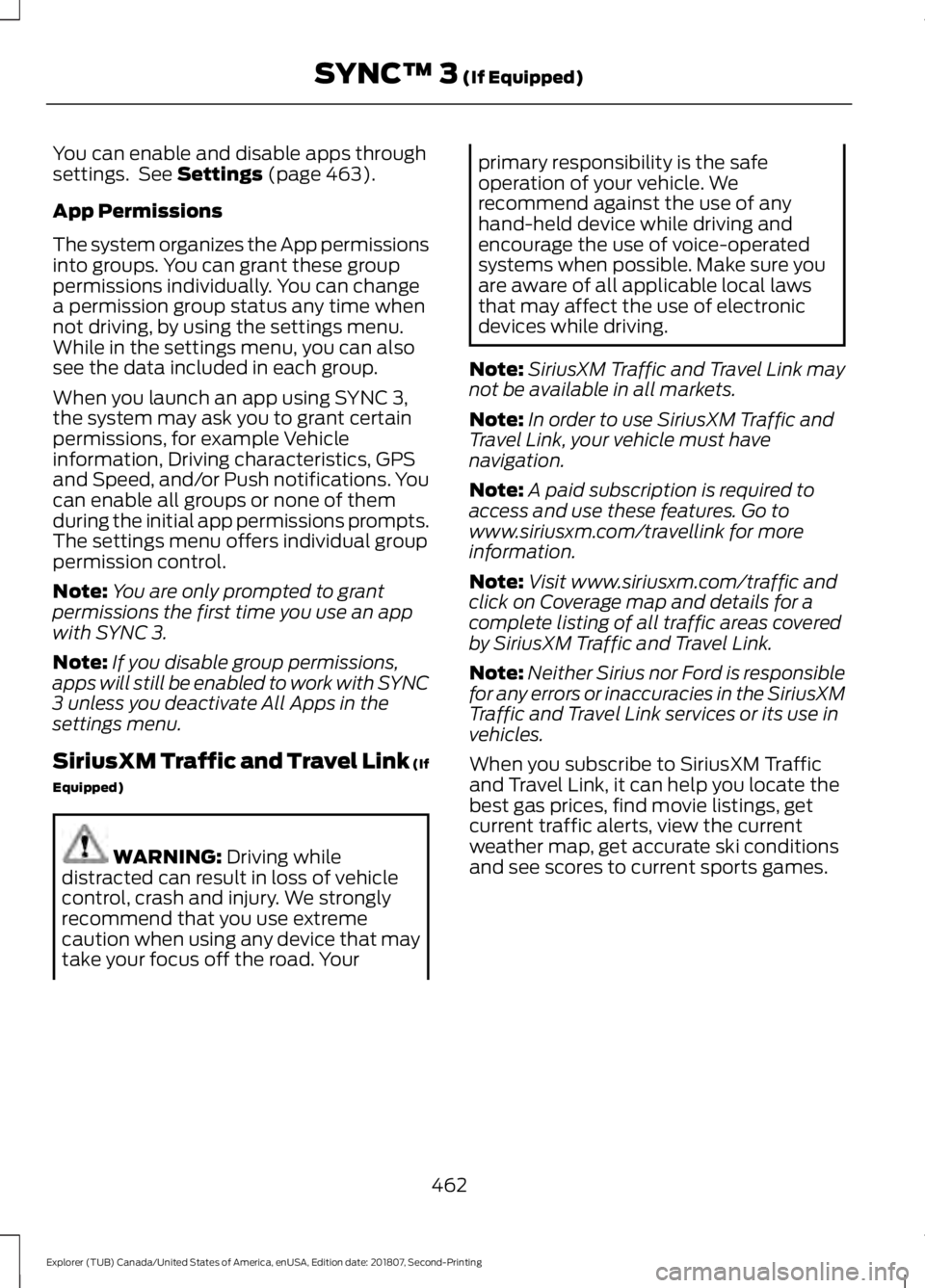
You can enable and disable apps through
settings. See Settings (page 463).
App Permissions
The system organizes the App permissions
into groups. You can grant these group
permissions individually. You can change
a permission group status any time when
not driving, by using the settings menu.
While in the settings menu, you can also
see the data included in each group.
When you launch an app using SYNC 3,
the system may ask you to grant certain
permissions, for example Vehicle
information, Driving characteristics, GPS
and Speed, and/or Push notifications. You
can enable all groups or none of them
during the initial app permissions prompts.
The settings menu offers individual group
permission control.
Note: You are only prompted to grant
permissions the first time you use an app
with SYNC 3.
Note: If you disable group permissions,
apps will still be enabled to work with SYNC
3 unless you deactivate All Apps in the
settings menu.
SiriusXM Traffic and Travel Link (If
Equipped) WARNING:
Driving while
distracted can result in loss of vehicle
control, crash and injury. We strongly
recommend that you use extreme
caution when using any device that may
take your focus off the road. Your primary responsibility is the safe
operation of your vehicle. We
recommend against the use of any
hand-held device while driving and
encourage the use of voice-operated
systems when possible. Make sure you
are aware of all applicable local laws
that may affect the use of electronic
devices while driving.
Note: SiriusXM Traffic and Travel Link may
not be available in all markets.
Note: In order to use SiriusXM Traffic and
Travel Link, your vehicle must have
navigation.
Note: A paid subscription is required to
access and use these features. Go to
www.siriusxm.com/travellink for more
information.
Note: Visit www.siriusxm.com/traffic and
click on Coverage map and details for a
complete listing of all traffic areas covered
by SiriusXM Traffic and Travel Link.
Note: Neither Sirius nor Ford is responsible
for any errors or inaccuracies in the SiriusXM
Traffic and Travel Link services or its use in
vehicles.
When you subscribe to SiriusXM Traffic
and Travel Link, it can help you locate the
best gas prices, find movie listings, get
current traffic alerts, view the current
weather map, get accurate ski conditions
and see scores to current sports games.
462
Explorer (TUB) Canada/United States of America, enUSA, Edition date: 201807, Second-Printing SYNC™ 3
(If Equipped)
Page 475 of 571
Note:
Standard data rates will apply. We
are not responsible for any additional
charges you may receive from your service
provider, when your vehicle sends or receives
data through the connected device. This
includes any additional charges incurred due
to driving in areas when roaming out of a
home network. Action and Description
Menu Item
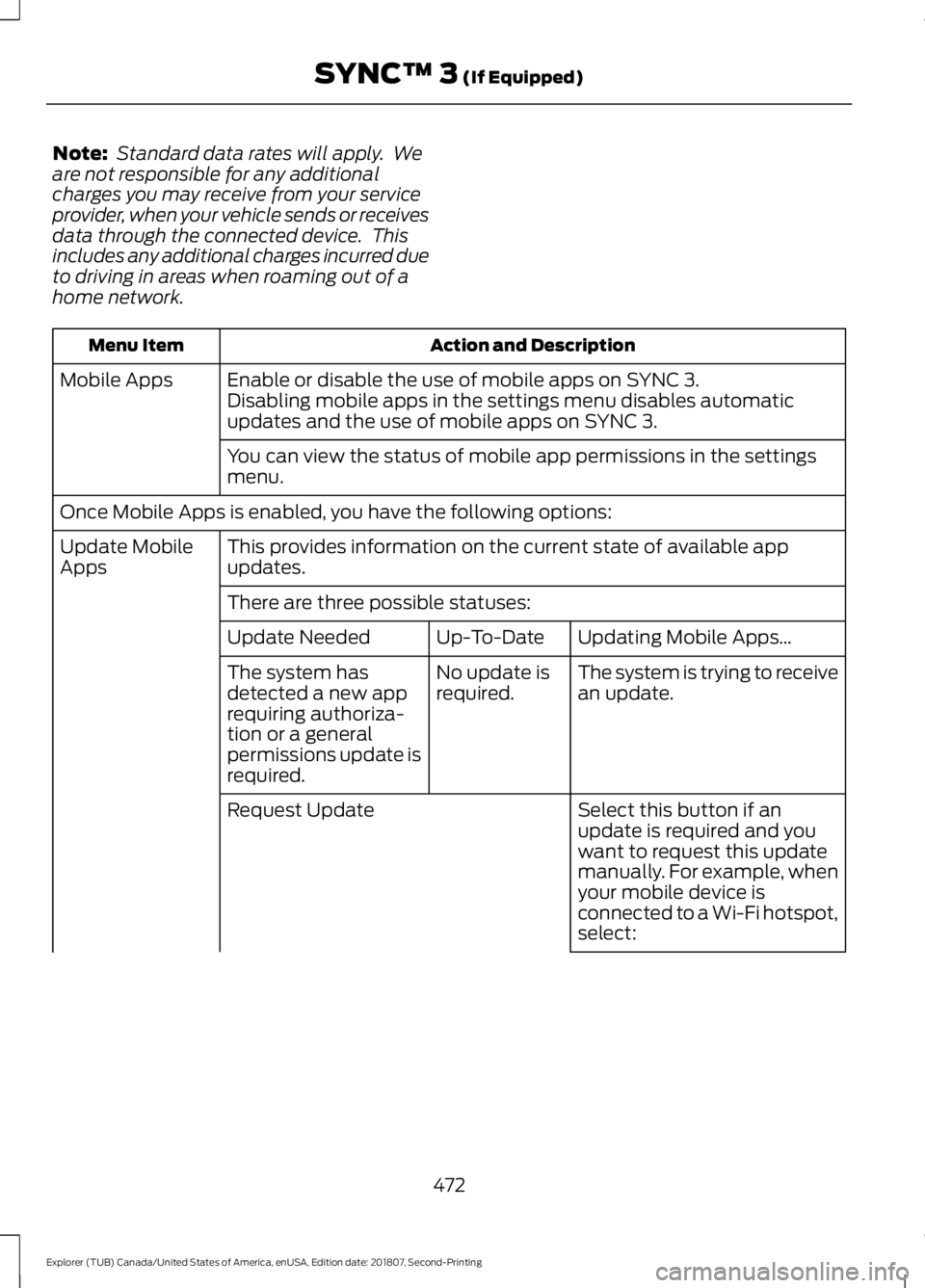
Enable or disable the use of mobile apps on SYNC 3.
Mobile Apps
Disabling mobile apps in the settings menu disables automatic
updates and the use of mobile apps on SYNC 3.
You can view the status of mobile app permissions in the settings
menu.
Once Mobile Apps is enabled, you have the following options: This provides information on the current state of available app
updates.
Update Mobile
Apps
There are three possible statuses: Updating Mobile Apps…
Up-To-Date
Update Needed
The system is trying to receive
an update.
No update is
required.
The system has
detected a new app
requiring authoriza-
tion or a general
permissions update is
required.
Select this button if an
update is required and you
want to request this update
manually. For example, when
your mobile device is
connected to a Wi-Fi hotspot,
select:
Request Update
472
Explorer (TUB) Canada/United States of America, enUSA, Edition date: 201807, Second-Printing SYNC™ 3 (If Equipped)
Page 476 of 571
Action and Description
Menu Item
Request Update
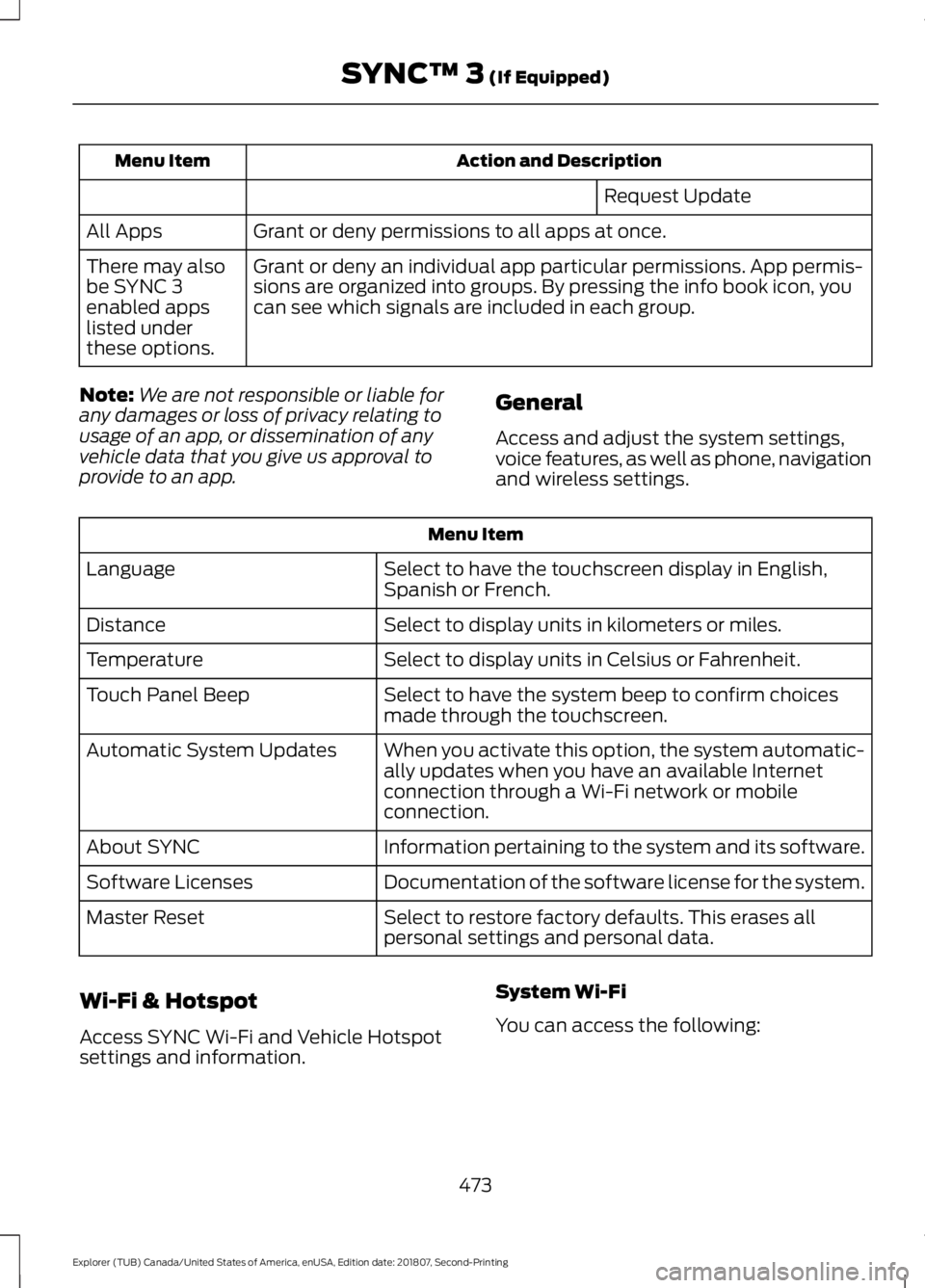
Grant or deny permissions to all apps at once.
All Apps
Grant or deny an individual app particular permissions. App permis-
sions are organized into groups. By pressing the info book icon, you
can see which signals are included in each group.
There may also
be SYNC 3
enabled apps
listed under
these options.
Note: We are not responsible or liable for
any damages or loss of privacy relating to
usage of an app, or dissemination of any
vehicle data that you give us approval to
provide to an app. General
Access and adjust the system settings,
voice features, as well as phone, navigation
and wireless settings.Menu Item
Select to have the touchscreen display in English,
Spanish or French.
Language
Select to display units in kilometers or miles.
Distance
Select to display units in Celsius or Fahrenheit.
Temperature
Select to have the system beep to confirm choices
made through the touchscreen.
Touch Panel Beep
When you activate this option, the system automatic-
ally updates when you have an available Internet
connection through a Wi-Fi network or mobile
connection.
Automatic System Updates
Information pertaining to the system and its software.
About SYNC
Documentation of the software license for the system.
Software Licenses
Select to restore factory defaults. This erases all
personal settings and personal data.
Master Reset
Wi-Fi & Hotspot
Access SYNC Wi-Fi and Vehicle Hotspot
settings and information. System Wi-Fi
You can access the following:
473
Explorer (TUB) Canada/United States of America, enUSA, Edition date: 201807, Second-Printing SYNC™ 3 (If Equipped)
Page 477 of 571
Action and Description
Menu Item
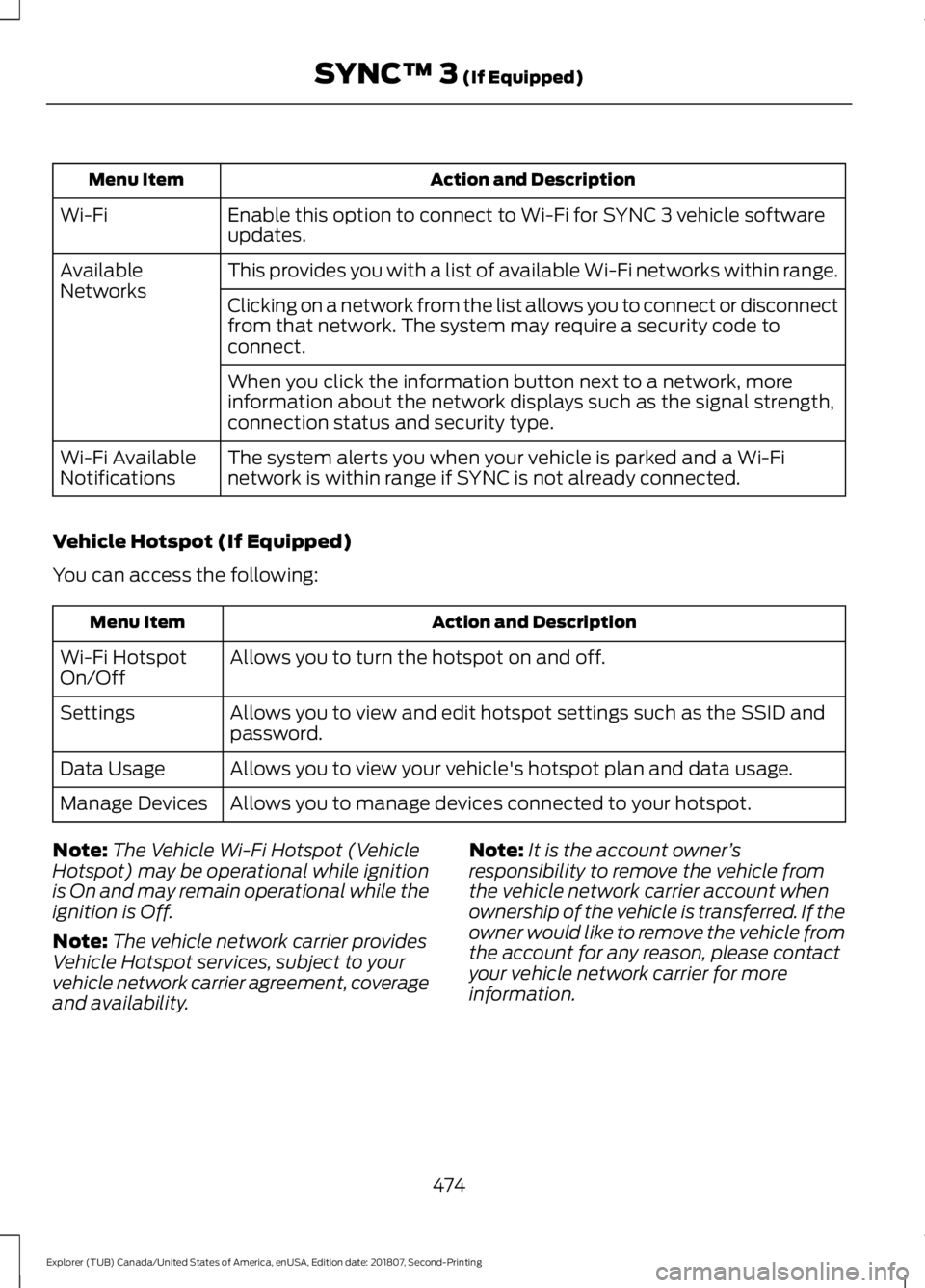
Enable this option to connect to Wi-Fi for SYNC 3 vehicle software
updates.
Wi-Fi
This provides you with a list of available Wi-Fi networks within range.
Available
Networks
Clicking on a network from the list allows you to connect or disconnect
from that network. The system may require a security code to
connect.
When you click the information button next to a network, more
information about the network displays such as the signal strength,
connection status and security type.
The system alerts you when your vehicle is parked and a Wi-Fi
network is within range if SYNC is not already connected.
Wi-Fi Available
Notifications
Vehicle Hotspot (If Equipped)
You can access the following: Action and Description
Menu Item
Allows you to turn the hotspot on and off.
Wi-Fi Hotspot
On/Off
Allows you to view and edit hotspot settings such as the SSID and
password.
Settings
Allows you to view your vehicle's hotspot plan and data usage.
Data Usage
Allows you to manage devices connected to your hotspot.
Manage Devices
Note: The Vehicle Wi-Fi Hotspot (Vehicle
Hotspot) may be operational while ignition
is On and may remain operational while the
ignition is Off.
Note: The vehicle network carrier provides
Vehicle Hotspot services, subject to your
vehicle network carrier agreement, coverage
and availability. Note:
It is the account owner ’s
responsibility to remove the vehicle from
the vehicle network carrier account when
ownership of the vehicle is transferred. If the
owner would like to remove the vehicle from
the account for any reason, please contact
your vehicle network carrier for more
information.
474
Explorer (TUB) Canada/United States of America, enUSA, Edition date: 201807, Second-Printing SYNC™ 3 (If Equipped)
Page 478 of 571
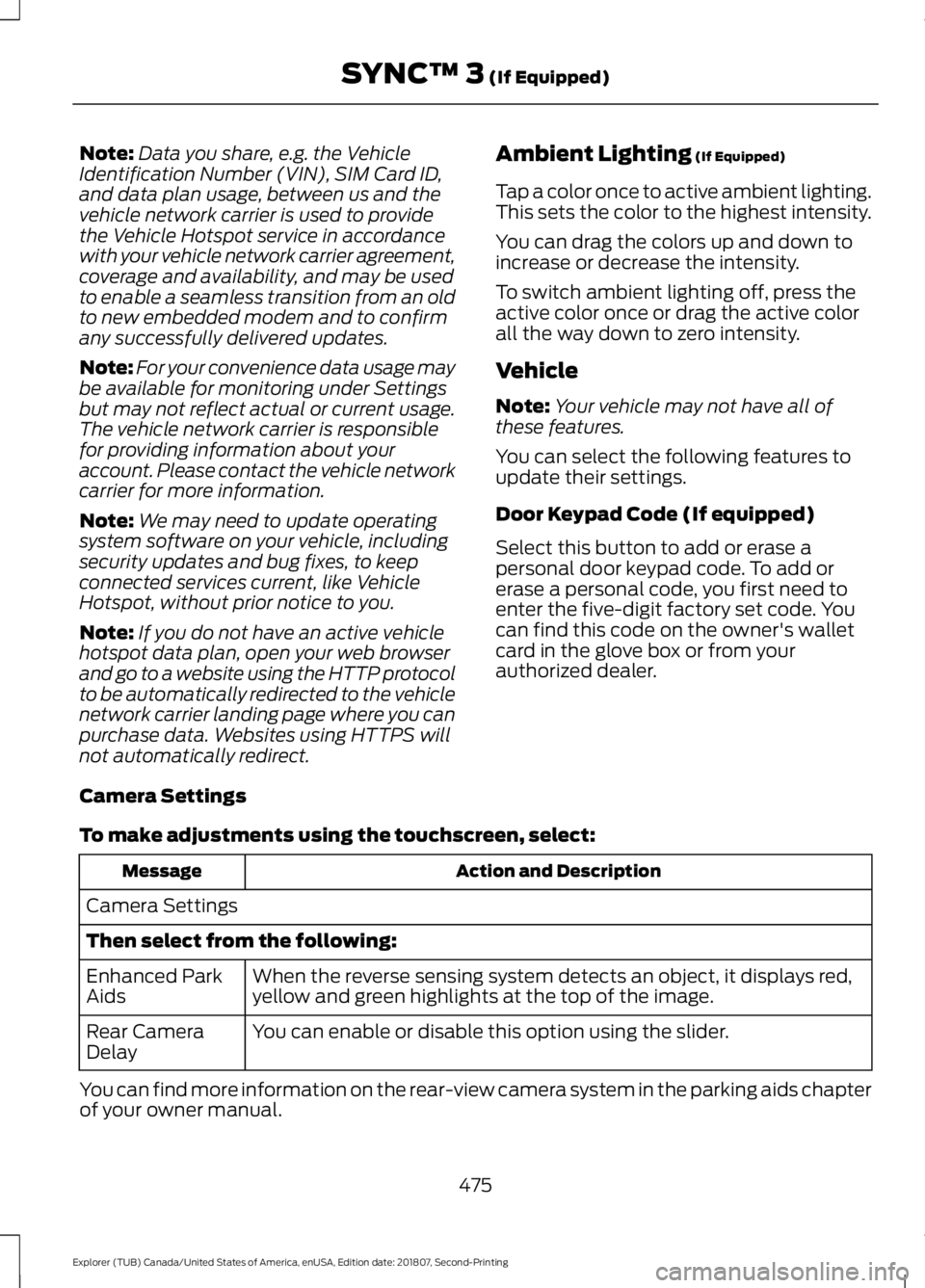
Note:
Data you share, e.g. the Vehicle
Identification Number (VIN), SIM Card ID,
and data plan usage, between us and the
vehicle network carrier is used to provide
the Vehicle Hotspot service in accordance
with your vehicle network carrier agreement,
coverage and availability, and may be used
to enable a seamless transition from an old
to new embedded modem and to confirm
any successfully delivered updates.
Note: For your convenience data usage may
be available for monitoring under Settings
but may not reflect actual or current usage.
The vehicle network carrier is responsible
for providing information about your
account. Please contact the vehicle network
carrier for more information.
Note: We may need to update operating
system software on your vehicle, including
security updates and bug fixes, to keep
connected services current, like Vehicle
Hotspot, without prior notice to you.
Note: If you do not have an active vehicle
hotspot data plan, open your web browser
and go to a website using the HTTP protocol
to be automatically redirected to the vehicle
network carrier landing page where you can
purchase data. Websites using HTTPS will
not automatically redirect. Ambient Lighting (If Equipped)
Tap a color once to active ambient lighting.
This sets the color to the highest intensity.
You can drag the colors up and down to
increase or decrease the intensity.
To switch ambient lighting off, press the
active color once or drag the active color
all the way down to zero intensity.
Vehicle
Note: Your vehicle may not have all of
these features.
You can select the following features to
update their settings.
Door Keypad Code (If equipped)
Select this button to add or erase a
personal door keypad code. To add or
erase a personal code, you first need to
enter the five-digit factory set code. You
can find this code on the owner's wallet
card in the glove box or from your
authorized dealer.
Camera Settings
To make adjustments using the touchscreen, select: Action and Description
Message
Camera Settings
Then select from the following: When the reverse sensing system detects an object, it displays red,
yellow and green highlights at the top of the image.
Enhanced Park
Aids
You can enable or disable this option using the slider.
Rear Camera
Delay
You can find more information on the rear-view camera system in the parking aids chapter
of your owner manual.
475
Explorer (TUB) Canada/United States of America, enUSA, Edition date: 201807, Second-Printing SYNC™ 3
(If Equipped)
Page 485 of 571
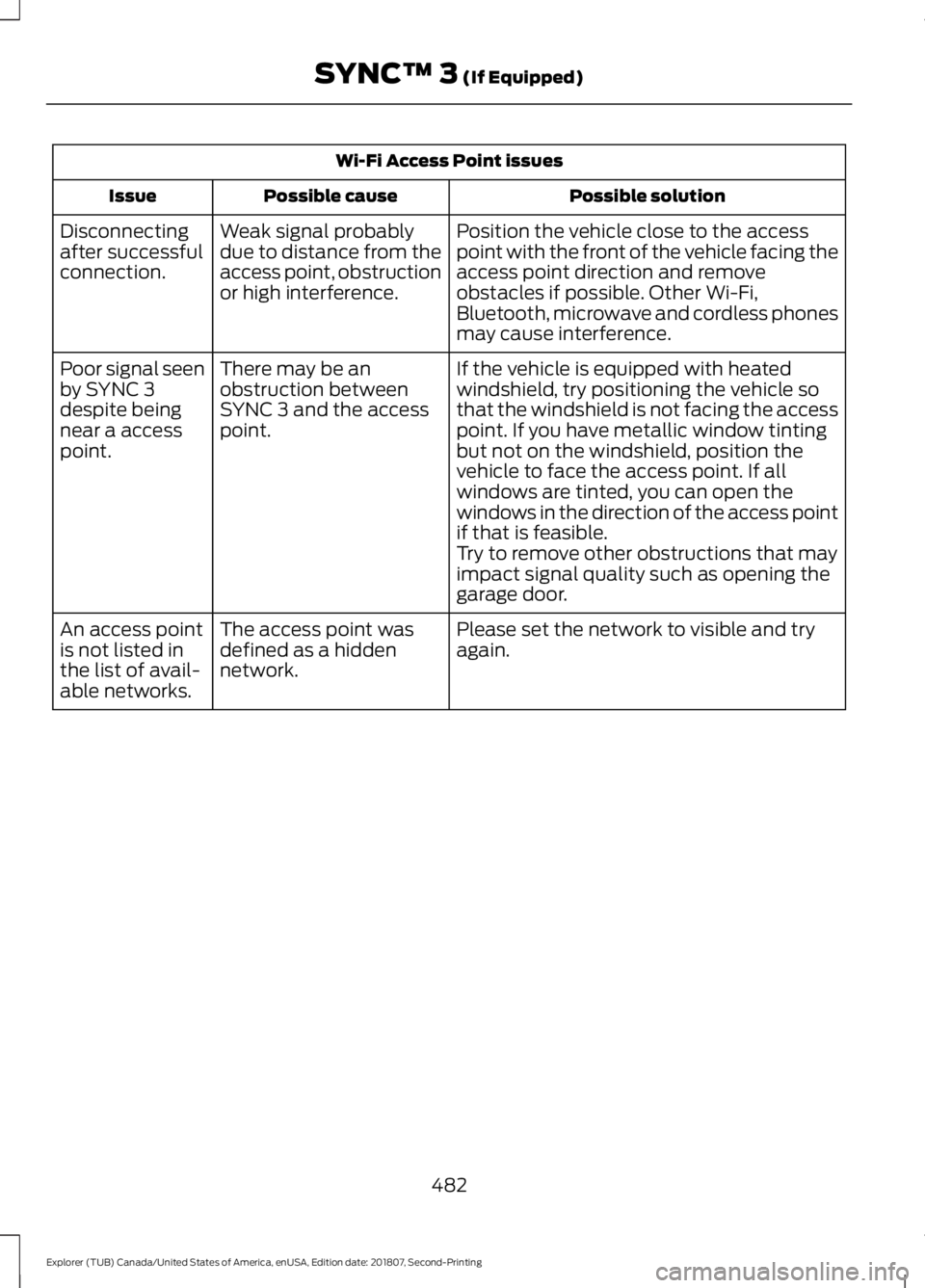
Wi-Fi Access Point issues
Possible solution
Possible cause
Issue
Position the vehicle close to the access
point with the front of the vehicle facing the
access point direction and remove
obstacles if possible. Other Wi-Fi,
Bluetooth, microwave and cordless phones
may cause interference.
Weak signal probably
due to distance from the
access point, obstruction
or high interference.
Disconnecting
after successful
connection.
If the vehicle is equipped with heated
windshield, try positioning the vehicle so
that the windshield is not facing the access
point. If you have metallic window tinting
but not on the windshield, position the
vehicle to face the access point. If all
windows are tinted, you can open the
windows in the direction of the access point
if that is feasible.
There may be an
obstruction between
SYNC 3 and the access
point.
Poor signal seen
by SYNC 3
despite being
near a access
point.
Try to remove other obstructions that may
impact signal quality such as opening the
garage door.
Please set the network to visible and try
again.
The access point was
defined as a hidden
network.
An access point
is not listed in
the list of avail-
able networks.
482
Explorer (TUB) Canada/United States of America, enUSA, Edition date: 201807, Second-Printing SYNC™ 3 (If Equipped)
Page 489 of 571
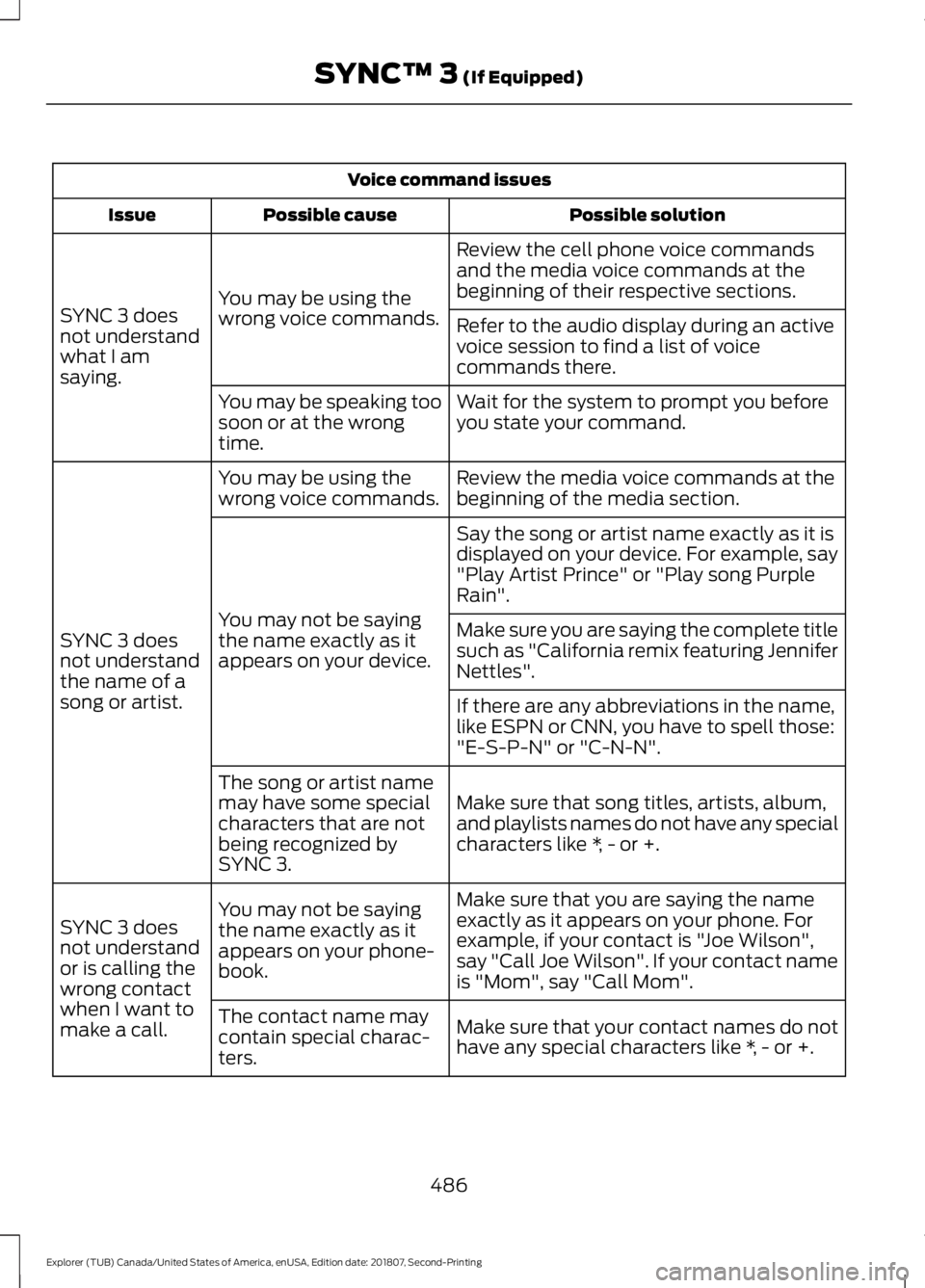
Voice command issues
Possible solution
Possible cause
Issue
Review the cell phone voice commands
and the media voice commands at the
beginning of their respective sections.
You may be using the
wrong voice commands.
SYNC 3 does
not understand
what I am
saying. Refer to the audio display during an active
voice session to find a list of voice
commands there.
Wait for the system to prompt you before
you state your command.
You may be speaking too
soon or at the wrong
time.
Review the media voice commands at the
beginning of the media section.
You may be using the
wrong voice commands.
SYNC 3 does
not understand
the name of a
song or artist. Say the song or artist name exactly as it is
displayed on your device. For example, say
"Play Artist Prince" or "Play song Purple
Rain".
You may not be saying
the name exactly as it
appears on your device. Make sure you are saying the complete title
such as "California remix featuring Jennifer
Nettles".
If there are any abbreviations in the name,
like ESPN or CNN, you have to spell those:
"E-S-P-N" or "C-N-N".
Make sure that song titles, artists, album,
and playlists names do not have any special
characters like *, - or +.
The song or artist name
may have some special
characters that are not
being recognized by
SYNC 3.
Make sure that you are saying the name
exactly as it appears on your phone. For
example, if your contact is "Joe Wilson",
say "Call Joe Wilson". If your contact name
is "Mom", say "Call Mom".
You may not be saying
the name exactly as it
appears on your phone-
book.
SYNC 3 does
not understand
or is calling the
wrong contact
when I want to
make a call.
Make sure that your contact names do not
have any special characters like *, - or +.
The contact name may
contain special charac-
ters.
486
Explorer (TUB) Canada/United States of America, enUSA, Edition date: 201807, Second-Printing SYNC™ 3 (If Equipped)