2019 FORD EDGE cruise control
[x] Cancel search: cruise controlPage 221 of 547

The selected gap appears in the
information display as shown by the bars
in the image.
Note:
The gap setting is time dependent
and therefore the distance adjusts with your
vehicle speed.
Note: It is your responsibility to select a gap
appropriate to the driving conditions.
Adaptive Cruise Control Gap Settings Dynamic
Behavior
Distance Gap
Graphic
Display,
Bars Indic- ated
Between Vehicles
Sport.
Closest.
1
Normal.
Close.
2
Normal.
Medium.
3
Comfort.
Far.
4
Each time you switch the system on, it
selects the last chosen gap setting.
Overriding the Set Speed WARNING: If you override the
system by pressing the accelerator
pedal, it does not automatically apply
the brakes to maintain a gap from any
vehicle ahead.
When you press the accelerator pedal, you
override the set speed and gap distance. Use the accelerator pedal
normally to intentionally exceed
the set speed limit.
When you override the system, the green
indicator light illuminates and the vehicle
graphic does not appear in the information
display. The system resumes operation when you
release the accelerator pedal. The vehicle
speed decreases to the set speed, or a
lower speed if following a slower vehicle.
Changing the Set Speed
Press and release to increase the
set speed in small increments.
Press and release to decrease
the set speed in small
increments.
Press and hold either button to change the
set speed in large increments. Release the
button when you reach the speed you
prefer.
The system may apply the brakes to slow
the vehicle to the new set speed. The set
speed displays continuously in the
information display when the system is
active.
Canceling the Set Speed Press and release the button or
tap the brake pedal.
Note: The system remembers the set
speed.
Resuming the Set Speed Press and release the button.
Your vehicle speed returns to the
previously set speed and gap setting. The
set speed displays continuously in the
information display when the system is
active.
Note: Only use resume if you are aware of
the set speed and intend to return to it.
218
Edge (CDQ) Canada/United States of America, enUSA, Edition date: 201806, Third-Printing- Cruise ControlE144529 E265299 E265298 E265299
Page 222 of 547

Automatic Cancellation
Automatic cancellation can also occur
when:
•
The tires lose traction.
• You apply the parking brake.
Park Brake Application
Automatic parking brake application and
cancellation occurs if:
• You unbuckle the seatbelt and open
the driver door after you stop your
vehicle.
• You hold your vehicle at a stop
continuously for more than three
minutes.
Hilly Condition Usage
You should select a lower gear when the
system is active in situations such as
prolonged downhill driving on steep
grades, for example in mountainous areas.
The system needs additional engine
braking in these situations to reduce the
load on the vehicle ’s regular brake system
to prevent it from overheating.
Note: An audible alarm sounds and the
system shuts down if it applies brakes for
an extended period of time. This allows the
brakes to cool. The system functions
normally again after the brakes cool.
Switching Adaptive Cruise Control
Off For vehicles without Speed
Limiter, press and release the
button when the system is in
standby mode or switch the ignition off. For vehicles with Speed Limiter,
press and release the button
when the system is in standby
mode or switch the ignition off.
Note: You erase the set speed when you
switch the system off. Detection Issues WARNING: On rare occasions,
detection issues can occur due to the
road infrastructures, for example bridges,
tunnels and safety barriers. In these
cases, the system may brake late or
unexpectedly. At all times, you are
responsible for controlling your vehicle,
supervising the system and intervening,
if required. WARNING:
If the system
malfunctions, have your vehicle checked
as soon as possible.
The radar sensor has a limited field of view.
It may not detect vehicles at all or detect
a vehicle later than expected in some
situations. The lead vehicle graphic does
not illuminate if the system does not
detect a vehicle in front of you.
219
Edge (CDQ) Canada/United States of America, enUSA, Edition date: 201806, Third-Printing- Cruise ControlE294678 E144529
Page 223 of 547
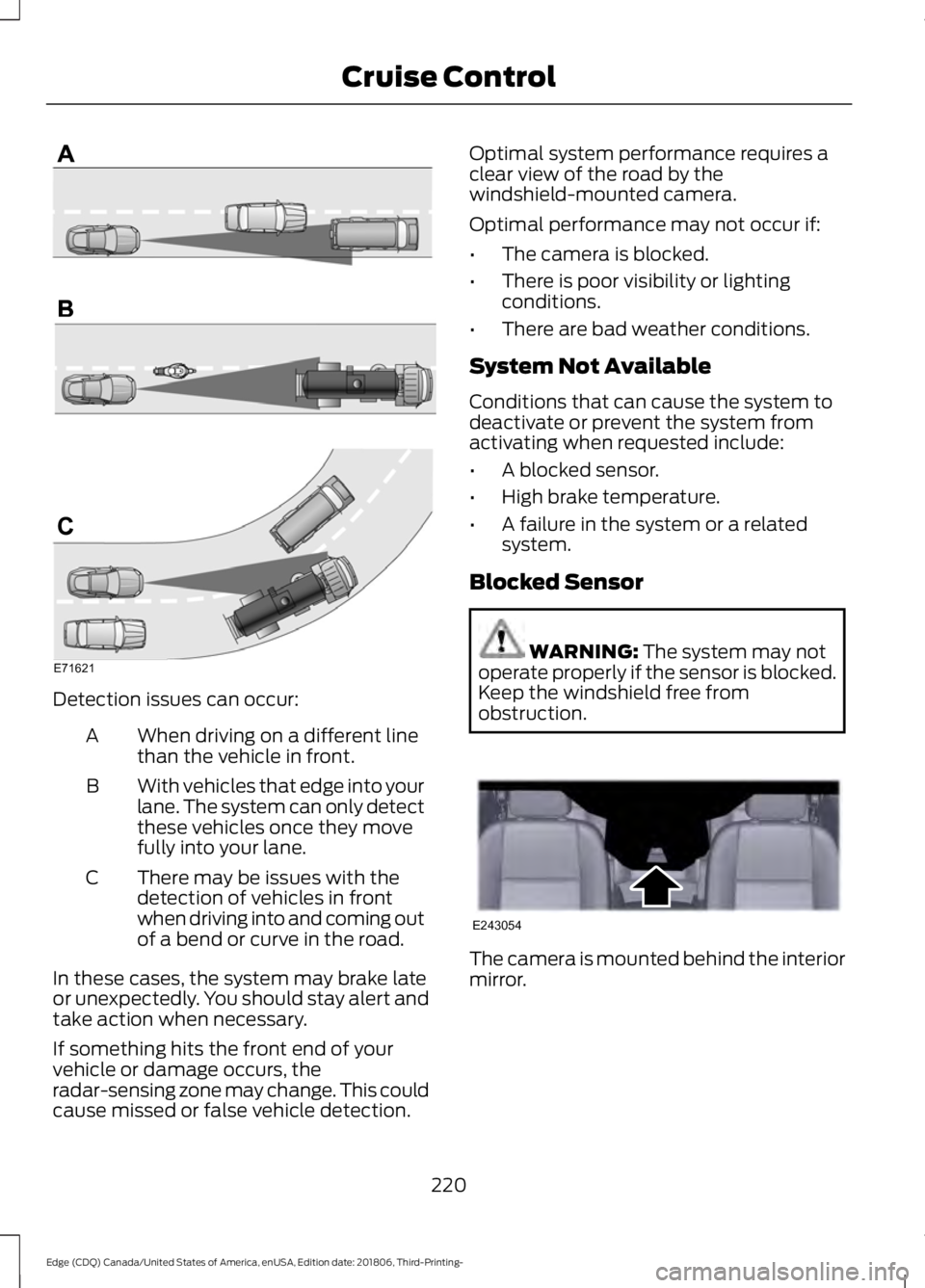
Detection issues can occur:
When driving on a different line
than the vehicle in front.
A
With vehicles that edge into your
lane. The system can only detect
these vehicles once they move
fully into your lane.
B
There may be issues with the
detection of vehicles in front
when driving into and coming out
of a bend or curve in the road.
C
In these cases, the system may brake late
or unexpectedly. You should stay alert and
take action when necessary.
If something hits the front end of your
vehicle or damage occurs, the
radar-sensing zone may change. This could
cause missed or false vehicle detection. Optimal system performance requires a
clear view of the road by the
windshield-mounted camera.
Optimal performance may not occur if:
•
The camera is blocked.
• There is poor visibility or lighting
conditions.
• There are bad weather conditions.
System Not Available
Conditions that can cause the system to
deactivate or prevent the system from
activating when requested include:
• A blocked sensor.
• High brake temperature.
• A failure in the system or a related
system.
Blocked Sensor WARNING: The system may not
operate properly if the sensor is blocked.
Keep the windshield free from
obstruction. The camera is mounted behind the interior
mirror.
220
Edge (CDQ) Canada/United States of America, enUSA, Edition date: 201806, Third-Printing- Cruise ControlE71621 E243054
Page 224 of 547

The sensor is in the lower grille.
Note:
You cannot see the sensor. It is
behind a fascia panel.
A message displays if something obstructs
the camera or the sensor. When something
blocks the sensor, the system cannot
detect a vehicle ahead and does not
function.
Possible Causes and Actions for This Message Displaying: Action
Cause
Clean the grille surface in front of the radar
or remove the object causing the obstruc-
tion.
The surface of the radar is dirty or
obstructed.
Wait a short time. It may take several
minutes for the radar to detect that it is free
from obstruction.
The surface of the radar is clean but the
message remains in the display.
Do not use the system in these conditions
because it may not detect any vehicles
ahead.
Heavy rain or snow is interfering with the
radar signals.
Do not use the system in these conditions
because it may not detect any vehicles
ahead.
Water, snow or ice on the surface of the
road may interfere with the radar signals.
Wait a short time or switch to normal cruise
control.
You are in a desert or remote area with no
other vehicles and no roadside objects.
Contact an authorized dealer to have the
radar checked for proper coverage and
operation.
Radar is out of alignment due to a front-
end impact.
Clean the outside of the windshield in front
of the camera.
The windshield in front of the camera is
dirty or obstructed.
Wait a short time. It may take several
minutes for the camera to detect that it is
free from obstruction.
The windshield in front of the camera is
clean, but the message remains in the
display.
221
Edge (CDQ) Canada/United States of America, enUSA, Edition date: 201806, Third-Printing- Cruise ControlE244279
Page 225 of 547

Keep the front of your vehicle free of dirt,
metal badges or objects. Vehicle front
protectors and aftermarket lights may also
block the sensor.
Due to the nature of radar technology, it is
possible to get a blockage warning with no
actual block. This happens, for example,
when driving in sparse rural or desert
environments. A false blocked condition
either self clears, or clears after you restart
your vehicle.
Switching to Normal Cruise
Control
WARNING: Normal cruise control
will not brake when your vehicle is
approaching slower vehicles. Always be
aware of which mode you have selected
and apply the brakes when necessary.
You can change from adaptive cruise
control to normal cruise control through
the information display. The cruise control indicator light
replaces the adaptive cruise
control indicator light if you
select normal cruise control. The gap
setting does not display, and the system
does not respond to lead vehicles.
Automatic braking remains active to
maintain set speed.
Using Lane Centering WARNING:
You are responsible
for controlling your vehicle at all times.
The system is designed to be an aid and
does not relieve you of your responsibility
to drive with due care and attention.
Failure to follow this instruction could
result in the loss of control of your
vehicle, personal injury or death. WARNING:
Do not use the system
when entering or leaving a highway, on
roads with intersections or roundabouts
or non-vehicular traffic or roads that are
winding, slippery, unpaved, or steep
slopes. WARNING:
Do not use the system
in poor visibility, for example fog, heavy
rain, spray or snow. WARNING:
Large contrasts in
outside lighting can limit sensor
performance. WARNING:
The sensor may
incorrectly track lane markings as other
structures or objects. This can result in
a false or missed warning. WARNING:
Do not use the system
when towing a trailer. Failure to follow
this instruction could result in the loss of
control of your vehicle, personal injury or
death.
The system is designed to help keep your
vehicle in the center of the lane by applying
continuous assistance steering torque
input toward the lane center on highways.
Note: The assistance steering torque is
limited and may not be sufficient for all
driving situations.
Note: In exceptional conditions, the system
may deviate from the center line.
The system only activates when the all of
the following occur:
• You have adaptive cruise control with
stop-and-go on.
• The system detects both lane
markings.
• Your hands are on the steering wheel
at all times.
222
Edge (CDQ) Canada/United States of America, enUSA, Edition date: 201806, Third-Printing- Cruise ControlE71340
Page 226 of 547

Note:
The system may not function if the
front camera or sensor is blocked or not
available.
Switching Lane Centering On and Off Press and release the button.
The indicator appears in the information
display. When the system is on, the color
of the indicator changes to indicate the
system status.
Gray indicates the system is on but
inactive.
Green indicates the system is active and
applying assistance steering torque input
to keep your vehicle in the center of the
lane.
The system activates when it detects valid
lane markings. If it does not detect valid
lane markings, the system stays inactive
until valid markings are available.
The system may not correctly operate in
any of the following conditions:
• Your vehicle is not centered in the lane.
• The lane is too narrow or wide.
• The system does not detect at least
one lane marking or when lanes merge
or split.
• You switch the direction indicator on.
• Limited steering torque input is applied.
• Areas under construction or new
infrastructure.
• When modifications to the steering
system have been made.
• When using a spare tire. When the system is active and detects no
steering activity for a certain period of time,
the system alerts you to put your hands on
the steering wheel. If you do not react to
the warnings the system cancels and slows
your vehicle down to idle speeds while
maintaining steering control.
The system also alerts you if your vehicle
crosses lane markings without detected
steering activity.
Note:
The system may detect a light grip
or touch on the steering wheel as hands-off
driving.
You can override the system at any time
by steering your vehicle.
Automatic Cancellation
When an external condition cancels the
system, for example, no lane markings
available, a tone sounds and a message
appears in the information display. If your vehicle starts to slow
down, you must contribute to
the steering control and press
and release the button to regain full
system performance.
Automatic cancellation can also occur if:
• The lane becomes too wide or too
narrow.
• The system cannot detect valid lane
markings.
• Lane markings are crossed.
Note: The system disables until the next
key cycle if your vehicle slows down due to
driver inactivity twice within a key cycle.
Blocked Sensor WARNING: The system may not
operate properly if the sensor is blocked.
Keep the windshield free from
obstruction.
223
Edge (CDQ) Canada/United States of America, enUSA, Edition date: 201806, Third-Printing- Cruise ControlE262175 E265299
Page 227 of 547

The camera is mounted behind the interior
mirror.
The sensor is in the lower grille.
Note:
You cannot see the sensor. It is
behind a fascia panel.
224
Edge (CDQ) Canada/United States of America, enUSA, Edition date: 201806, Third-Printing- Cruise ControlE243054 E244279
Page 240 of 547

running pedestrians, partly obscured
pedestrians, or pedestrians that the
system cannot distinguish from a group.
Failure to take care may result in the loss
of control of your vehicle, serious
personal injury or death.
WARNING: The system cannot
help prevent all crashes. Do not rely on
this system to replace driver judgment
and the need to maintain a safe distance
and speed.
Using the Pre-Collision Assist
System
The system is active at speeds above
approximately
3 mph (5 km/h) and
pedestrian detection is active at speeds
up to
50 mph (80 km/h). If your vehicle is rapidly approaching
another stationary vehicle, a vehicle
traveling in the same direction as yours, or
a pedestrian within your driving path, the
system is designed to provide three levels
of functionality:
1. Alert
2. Brake Support
3. Active Braking Alert
: When active, a flashing visual
warning appears and an audible warning
tone sounds.
Brake Support
: The system is designed
to help reduce the impact speed by
preparing the brakes for rapid braking.
Brake support does not automatically
apply the brakes. If you press the brake
pedal, the system could apply additional
braking up to maximum braking force, even
if you lightly press the brake pedal.
Active Braking
: Active braking may
activate if the system determines that a
collision is imminent. The system may help
the driver reduce impact damage or avoid
the crash completely.
Note: Brake Support and Active Braking are
active at speeds up to
75 mph (120 km/h).
If the vehicle is equipped with a radar
sensor, included with Adaptive Cruise
Control, then Brake Support and Active
Braking are active up to the maximum speed
of the vehicle.
Note: If you perceive Pre-Collision Assist
alerts as being too frequent or disturbing,
then you can reduce the alert sensitivity,
though the manufacturer recommends
using the highest sensitivity setting where
possible. Setting lower sensitivity would
lead to fewer and later system warnings.
237
Edge (CDQ) Canada/United States of America, enUSA, Edition date: 201806, Third-Printing- Driving AidsE156130 E255268