2019 FORD EDGE radio controls
[x] Cancel search: radio controlsPage 375 of 547
AUDIO INPUT JACK (IF EQUIPPED)
WARNING:
Driving while
distracted can result in loss of vehicle
control, crash and injury. We strongly
recommend that you use extreme
caution when using any device that may
take your focus off the road. Your
primary responsibility is the safe
operation of your vehicle. We
recommend against the use of any
hand-held device while driving and
encourage the use of voice-operated
systems when possible. Make sure you
are aware of all applicable local laws
that may affect the use of electronic
devices while driving. WARNING:
Always place your
device in a secure location in your vehicle
so it does not become a projectile in a
sudden stop or crash. Failure to follow
this instruction could result in personal
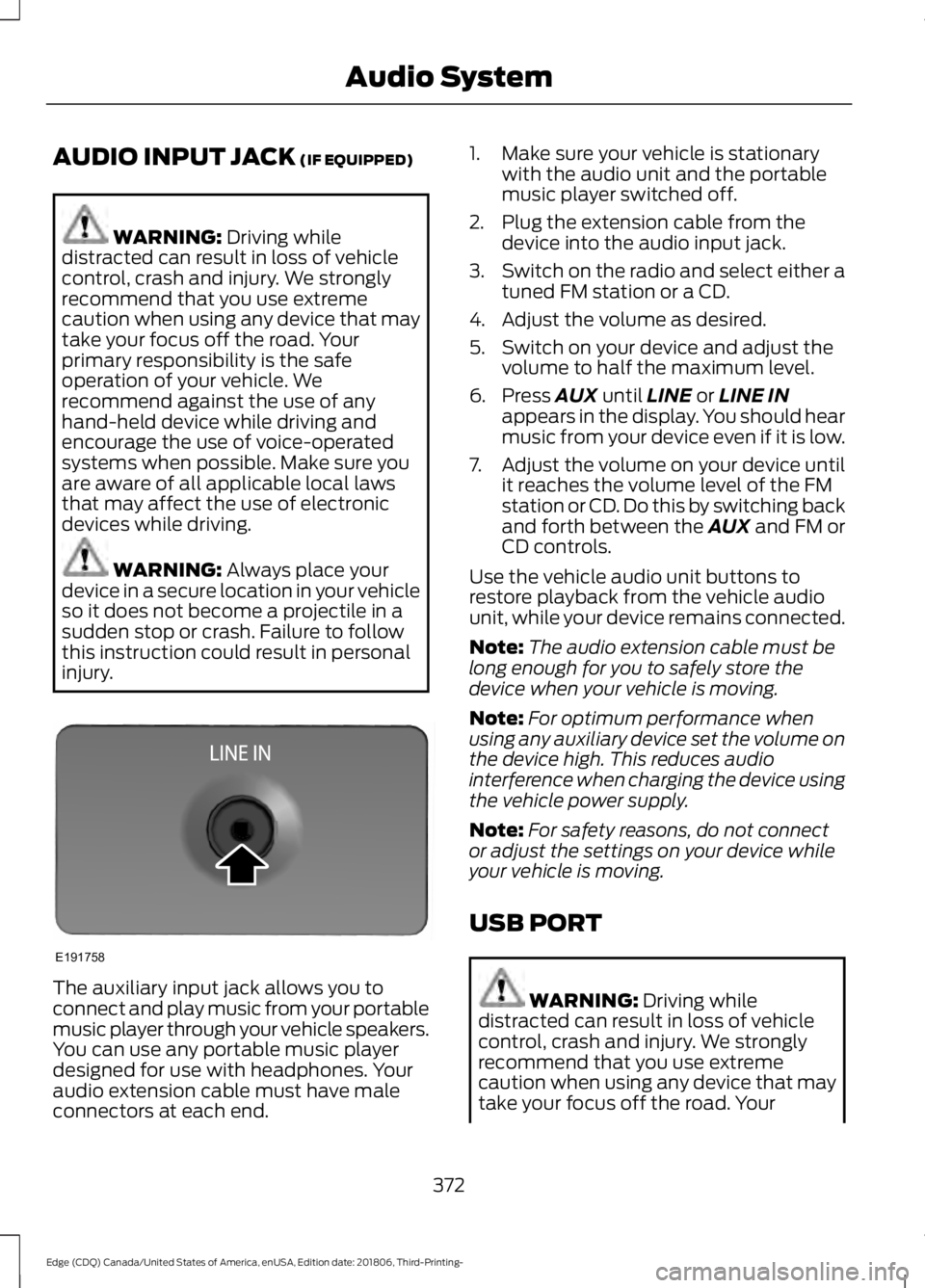
injury. The auxiliary input jack allows you to
connect and play music from your portable
music player through your vehicle speakers.
You can use any portable music player
designed for use with headphones. Your
audio extension cable must have male
connectors at each end. 1. Make sure your vehicle is stationary
with the audio unit and the portable
music player switched off.
2. Plug the extension cable from the device into the audio input jack.
3. Switch on the radio and select either a
tuned FM station or a CD.
4. Adjust the volume as desired.
5. Switch on your device and adjust the volume to half the maximum level.
6. Press
AUX until LINE or LINE IN
appears in the display. You should hear
music from your device even if it is low.
7. Adjust the volume on your device until
it reaches the volume level of the FM
station or CD. Do this by switching back
and forth between the AUX and FM or
CD controls.
Use the vehicle audio unit buttons to
restore playback from the vehicle audio
unit, while your device remains connected.
Note: The audio extension cable must be
long enough for you to safely store the
device when your vehicle is moving.
Note: For optimum performance when
using any auxiliary device set the volume on
the device high. This reduces audio
interference when charging the device using
the vehicle power supply.
Note: For safety reasons, do not connect
or adjust the settings on your device while
your vehicle is moving.
USB PORT WARNING:
Driving while
distracted can result in loss of vehicle
control, crash and injury. We strongly
recommend that you use extreme
caution when using any device that may
take your focus off the road. Your
372
Edge (CDQ) Canada/United States of America, enUSA, Edition date: 201806, Third-Printing- Audio SystemE191758
Page 385 of 547

Note:
You must enable mobile apps for
each connected device the first time you
select a mobile app using the system.
Note: Standard data rates apply. Ford is
not responsible for any additional charges
you may receive from your service provider,
when your vehicle sends or receives data
through the connected device. This includes
any additional charges incurred due to
driving in areas when roaming out of a home
network.
USING SYNC™ WITH YOUR
MEDIA PLAYER
SYNC supports digital media sources
including: iPod, Bluetooth devices, and
most USB drives. SYNC also supports
audio formats, such as MP3, WMA, WAV
and ACC.
Media Sources
The AUX or MEDIA button allows you to
view and select available media sources.
Press the
AUX or MEDIA button to view
your sources. Use the directional arrows
and OK button to select your source. You
can also use the steering wheel audio
controls.
Audio Voice Commands Press the voice button. You can
do things like play a specific song
or album, skip to the next song,
or tune to a radio station. When prompted,
say a command. See the following table
for example commands. Not all
commands may be available on your
vehicle. Command
___ List of Commands Help
Pause Play
Next Track
Previous Track AM ___FM ___
CD Player
Sirius Channel ___ USB
Bluetooth Audio
__ is a dynamic listing, meaning that it
could be the name of anything, such as an
artist, station, or media source.
SYNC™ TROUBLESHOOTING
Your SYNC system is easy to use. However,
should questions arise, see the tables
below.
Use your regional Ford website at any time
to check your phone's compatibility,
register your account and set preferences
as well as access a customer
representative via an online chat (during
certain hours). Website(s)
Market
www.SYNCMyRide.com
North America
www.SYNCMyRide.cawww.sync-
maroute.ca
382
Edge (CDQ) Canada/United States of America, enUSA, Edition date: 201806, Third-Printing- SYNC™
(If Equipped)E142599
Page 399 of 547

Information
Option
View current route, next turn, time to your destination (depending on cluster
level), distance to destination (depending on cluster level), and ability to
cancel route.
If you do not have an active navigation route programed, the compass is
shown.
If you are not on a call, a call can be made by selecting: 1
Phone
Missed calls
Outgoing calls
Incoming calls
All calls
If you are on a call, the call information is displayed on the information display.
If you are receiving a call, you can accept it by selecting OK on the right-hand
steering wheel controls.
1 Depending on your vehicle options, all of these choices may not display.
Use the OK and arrow buttons on the right
side of your steering wheel to scroll
through the available modes.
The selection menu expands and different
options appear.
• Press the up and down arrows to scroll
through the modes.
• Press the right arrow to enter the mode,
use the left arrow to exit the mode.
• Press the up and down arrows to make
adjustments within the chosen mode.
• Press
OK to confirm your selection.
Note: If your vehicle is not equipped with
navigation, compass appears in the display
instead of navigation. If you press the right
arrow to go into the compass menu, you can
see the compass graphic. The compass
displays the direction in which the vehicle
is traveling, not true direction (for example,
if the vehicle is traveling west, the middle
of the compass graphic displays west; north
displays to the left of west though its true
direction is to the right of west). Using the Controls on the Steering
Wheel
Depending on your vehicle and option
package, you can use different controls on
your steering wheel to interact with the
touchscreen system in different ways.
VOL:
Control the volume of audio output.
Mute:
Mute the audio output.
Voice:
Press to start a voice session. Press
again to stop the voice prompt and
immediately begin speaking. Press and
hold to end a voice session.
SEEK NEXT:
• While in radio mode, press to seek
between memory presets.
• While in USB, Bluetooth Audio or CD
mode, press to seek between songs or
press and hold to fast seek.
SEEK PREVIOUS:
• While in radio mode, press to seek
between memory presets.
• While in USB, Bluetooth Audio or CD
mode, press to seek between songs or
press and hold to fast seek.
396
Edge (CDQ) Canada/United States of America, enUSA, Edition date: 201806, Third-Printing- SYNC™ 3
(If Equipped)
Page 415 of 547

Note:
Your vehicle may allow you to save
presets from different audio sources on the
same page.
You can access these options using the
touchscreen or voice commands. Sources
Press this button to select the source of
media you want to listen to.Menu Item
AM
FM 1
SIRIUS
1
CD
The name of the USB that is plugged in displays here.
USB
Bluetooth Stereo
If you have SYNC 3 compatible apps on your connected smart phone, they
display here as individual source selections.
Apps
1 This feature may not be available in all markets and requires an active subscription.
AM/FM Radio
Tuning a Station
You can use the tune or seek controls on
the radio bezel to select a station.
To tune a station using the
touchscreen, select: Menu Item
Direct Tune
A pop up appears, allowing you to type in
the frequency of a station. You can only
enter a valid station for the source you are
currently listening to.
You can press the backspace button to
delete the previously entered number. Once you have entered the station's
call numbers, you can select: Action and Descrip-
tion
Menu Item
Press to begin
playing the station
you have entered.
Enter
Press to exit
without changing
the station.
Cancel
Presets
To set a new preset, tune to the station
and then press and hold one of the
memory preset buttons. The audio mutes
briefly while the system saves the station
and then returns.
412
Edge (CDQ) Canada/United States of America, enUSA, Edition date: 201806, Third-Printing- SYNC™ 3 (If Equipped)
Page 532 of 547

China
Radio Frequency Certifications for
Cruise Control Module
Canada
IC: 3432A-0065TR
United States of America
FCC ID: L2C0065TR
Radio Frequency Certifications for
Body Control Module
Canada
IC: 7812A-A2C738448
Model # : M : A2C750526
Model # : M : A2C750561
United States of America
FCC ID: M3NA2C738448
Model # : M : A2C750526
Model # : M : A2C750561
Radio Frequency Certification for
Keys and Remote Controls
Canada
IC : 7812A-A2C931423
IC: 7812A-A2C931426 IC: 3248A-A08TAA
IC: 3248A-A08TDA
China
United States of America
FCC ID : M3N-A2C931423
FCC ID : M3N-A2C931426
FCC ID : N5F-A08TAA
FCC ID : N5F-A08TDA
Radio Frequency Statement for
Audio Unit
Canada
IC: 3043A-UP375AHU
529
Edge (CDQ) Canada/United States of America, enUSA, Edition date: 201806, Third-Printing- AppendicesE291427 E291429 E291430
Page 545 of 547

Tire Repair Kit
See: Tire Sealant and Inflator Kit................308
Tire Sealant and Inflator Kit....................308
First Stage: Inflating the Tire with Sealing
Compound and Air........................................ 310
General Information......................................... 309
Second Stage: Checking Tire Pressure............................................................. 312
Tips for Use of the Kit...................................... 309
What to Do After the Tire Has Been Sealed................................................................ 313
What to do When a Tire Is Punctured........310
Tires See: Wheels and Tires..................................... 307
Towing a Trailer.............................................247 Load Placement................................................. 247
Towing the Vehicle on Four Wheels - 2.0L.................................................................252
Emergency Towing............................................ 252
Recreational Towing......................................... 252
Towing the Vehicle on Four Wheels - 2.7L.................................................................252
Emergency Towing............................................ 252
Recreational Towing......................................... 252
Towing..............................................................247
Traction Control............................................188 Principle of Operation...................................... 188
Trailer Sway Control...................................248
Transmission Code Designation
............349
Transmission...................................................173
Transporting the Vehicle..........................260
Type Approvals
.............................................518
China...................................................................... 529
Radio Frequency Certification for Keys and Remote Controls........................................... 529
Radio Frequency Certifications for Blind Spot Information System........................... 527
Radio Frequency Certifications for Body Control Module.............................................. 529
Radio Frequency Certifications for Cruise Control Module.............................................. 529
Radio Frequency Certifications for Mid Range Radar.................................................... 521
Radio Frequency Certifications for Passive Anti-Theft System........................................ 522
Radio Frequency Certifications for Radio Transceiver Module...................................... 525Radio Frequency Certifications for SYNC
3........................................................................\
... 528
Radio Frequency Certifications for Tire Pressure Monitoring Sensor(s)................518
Radio Frequency Certifications for Wireless Charging........................................................... 528
Radio Frequency Statement for Audio Unit..................................................................... 529
U
Under Hood Overview - 2.0L EcoBoost™.................................................282
Under Hood Overview - 2.7L EcoBoost™.................................................283
Unique Driving Characteristics................160
Universal Garage Door Opener...............146 HomeLink Wireless Control System...........146
USB Port
..........................................................372
Using Adaptive Cruise Control - Vehicles With: Adaptive Cruise Control With
Stop and Go/Lane Centering................215
Automatic Cancellation................................... 219
Blocked Sensor................................................... 220
Canceling the Set Speed................................. 218
Changing the Set Speed.................................. 218
Detection Issues.................................................. 219
Following a Vehicle............................................. 217
Following a Vehicle to a Complete Stop..................................................................... 217
Hilly Condition Usage........................................ 219
Overriding the Set Speed................................ 218
Park Brake Application..................................... 219
Resuming the Set Speed................................. 218
Setting the Adaptive Cruise Speed..............216
Setting the Adaptive Cruise Speed When Your Vehicle is Stationary........................... 216
Setting the Gap Distance................................. 217
Switching Adaptive Cruise Control Off........................................................................\
219
Switching Adaptive Cruise Control On........................................................................\
216
Switching to Normal Cruise Control...........222
System Not Available...................................... 220
Using Lane Centering....................................... 222
542
Edge (CDQ) Canada/United States of America, enUSA, Edition date: 201806, Third-Printing- Index