2019 FORD E-450 reset
[x] Cancel search: resetPage 265 of 329
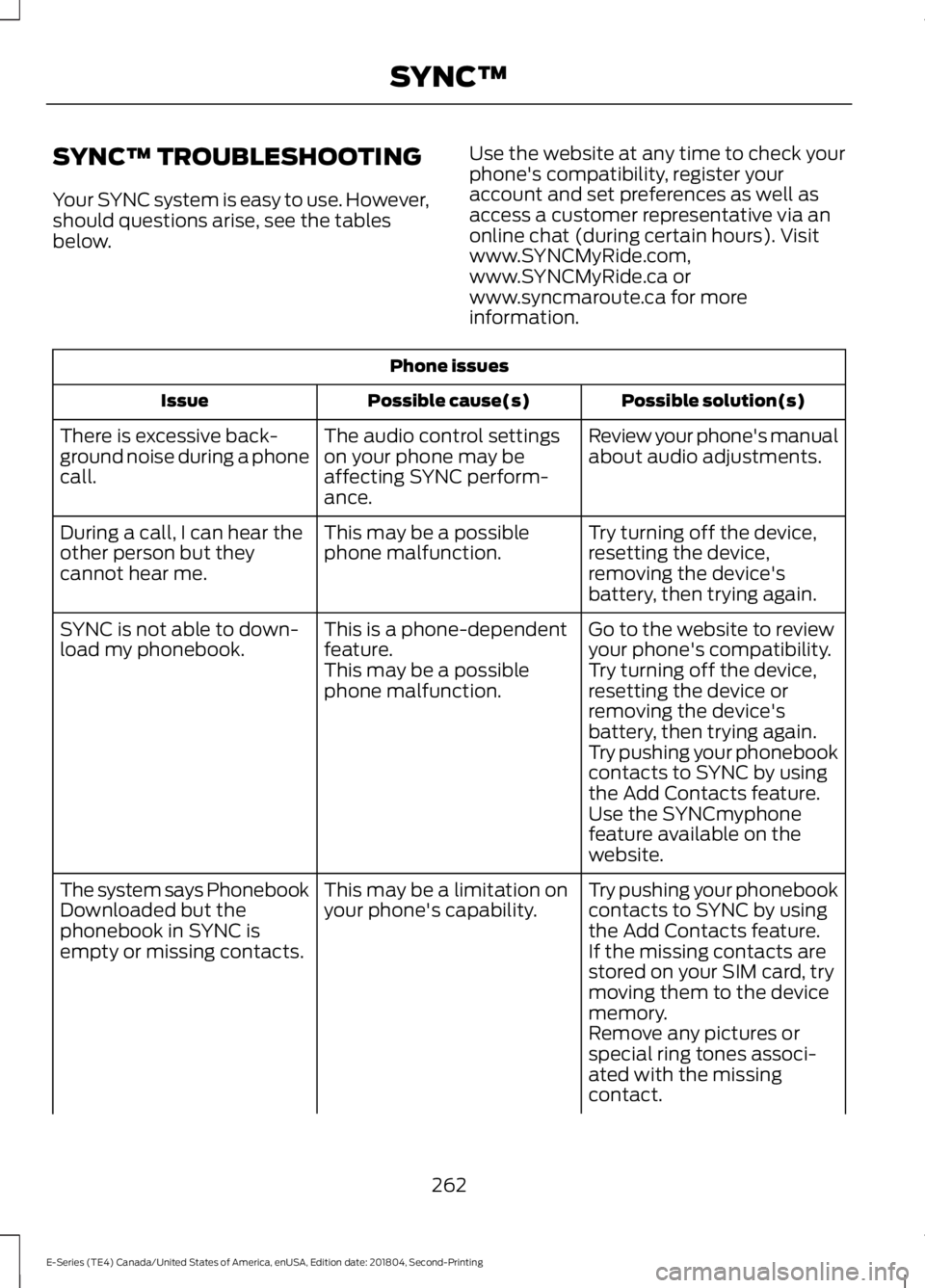
SYNC™ TROUBLESHOOTING
Your SYNC system is easy to use. However,
should questions arise, see the tables
below.
Use the website at any time to check your
phone's compatibility, register your
account and set preferences as well as
access a customer representative via an
online chat (during certain hours). Visit
www.SYNCMyRide.com,
www.SYNCMyRide.ca or
www.syncmaroute.ca for more
information.Phone issues
Possible solution(s)
Possible cause(s)
Issue
Review your phone's manual
about audio adjustments.
The audio control settings
on your phone may be
affecting SYNC perform-
ance.
There is excessive back-
ground noise during a phone
call.
Try turning off the device,
resetting the device,
removing the device's
battery, then trying again.
This may be a possible
phone malfunction.
During a call, I can hear the
other person but they
cannot hear me.
Go to the website to review
your phone's compatibility.
This is a phone-dependent
feature.
SYNC is not able to down-
load my phonebook.
Try turning off the device,
resetting the device or
removing the device's
battery, then trying again.
This may be a possible
phone malfunction.
Try pushing your phonebook
contacts to SYNC by using
the Add Contacts feature.
Use the SYNCmyphone
feature available on the
website.
Try pushing your phonebook
contacts to SYNC by using
the Add Contacts feature.
This may be a limitation on
your phone's capability.
The system says Phonebook
Downloaded but the
phonebook in SYNC is
empty or missing contacts.
If the missing contacts are
stored on your SIM card, try
moving them to the device
memory.
Remove any pictures or
special ring tones associ-
ated with the missing
contact.
262
E-Series (TE4) Canada/United States of America, enUSA, Edition date: 201804, Second-Printing SYNC™
Page 266 of 329
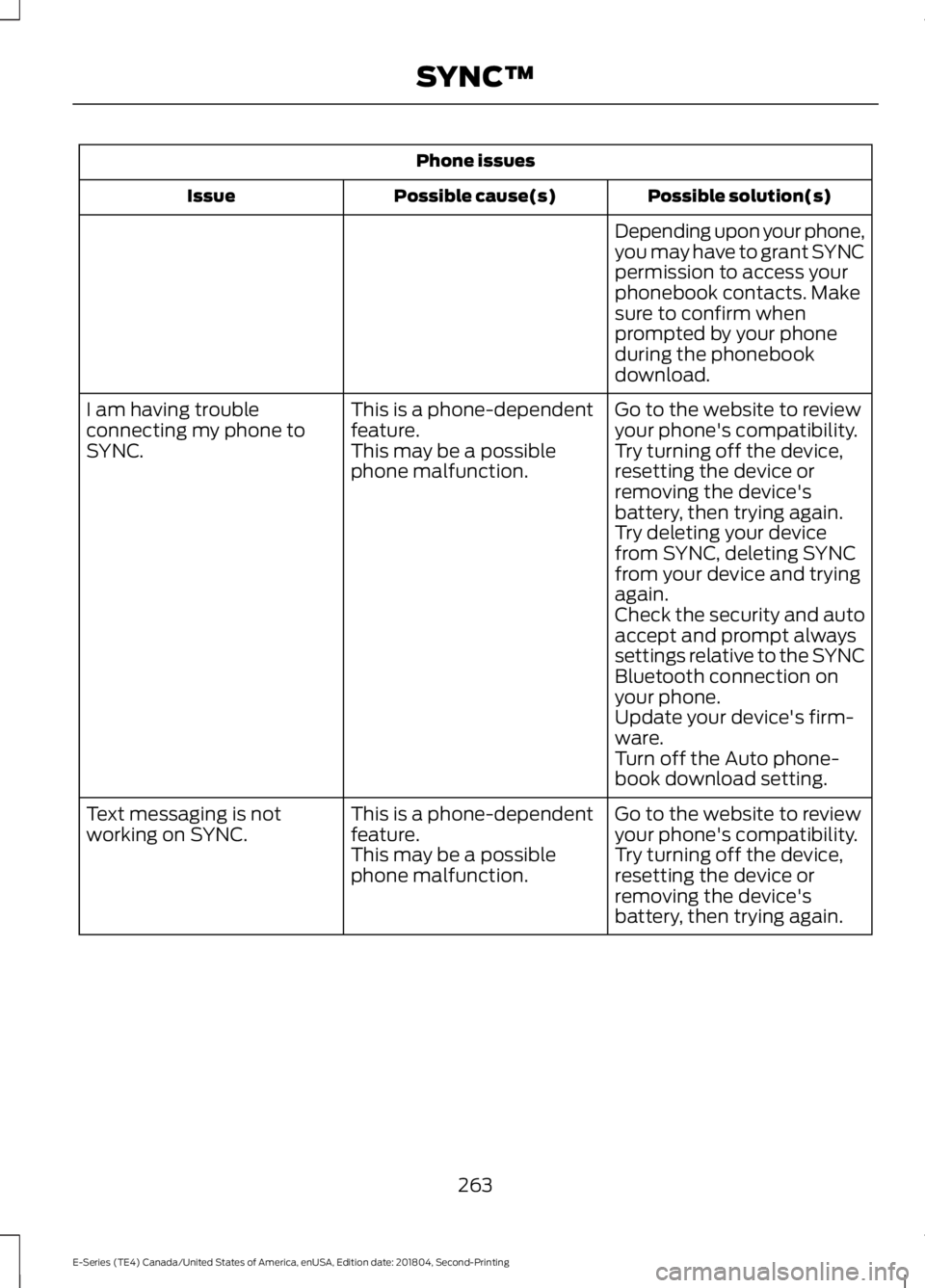
Phone issues
Possible solution(s)
Possible cause(s)
Issue
Depending upon your phone,
you may have to grant SYNC
permission to access your
phonebook contacts. Make
sure to confirm when
prompted by your phone
during the phonebook
download.
Go to the website to review
your phone's compatibility.
This is a phone-dependent
feature.
I am having trouble
connecting my phone to
SYNC.
Try turning off the device,
resetting the device or
removing the device's
battery, then trying again.
This may be a possible
phone malfunction.
Try deleting your device
from SYNC, deleting SYNC
from your device and trying
again.
Check the security and auto
accept and prompt always
settings relative to the SYNC
Bluetooth connection on
your phone.
Update your device's firm-
ware.
Turn off the Auto phone-
book download setting.
Go to the website to review
your phone's compatibility.
This is a phone-dependent
feature.
Text messaging is not
working on SYNC.
Try turning off the device,
resetting the device or
removing the device's
battery, then trying again.
This may be a possible
phone malfunction.
263
E-Series (TE4) Canada/United States of America, enUSA, Edition date: 201804, Second-Printing SYNC™
Page 267 of 329
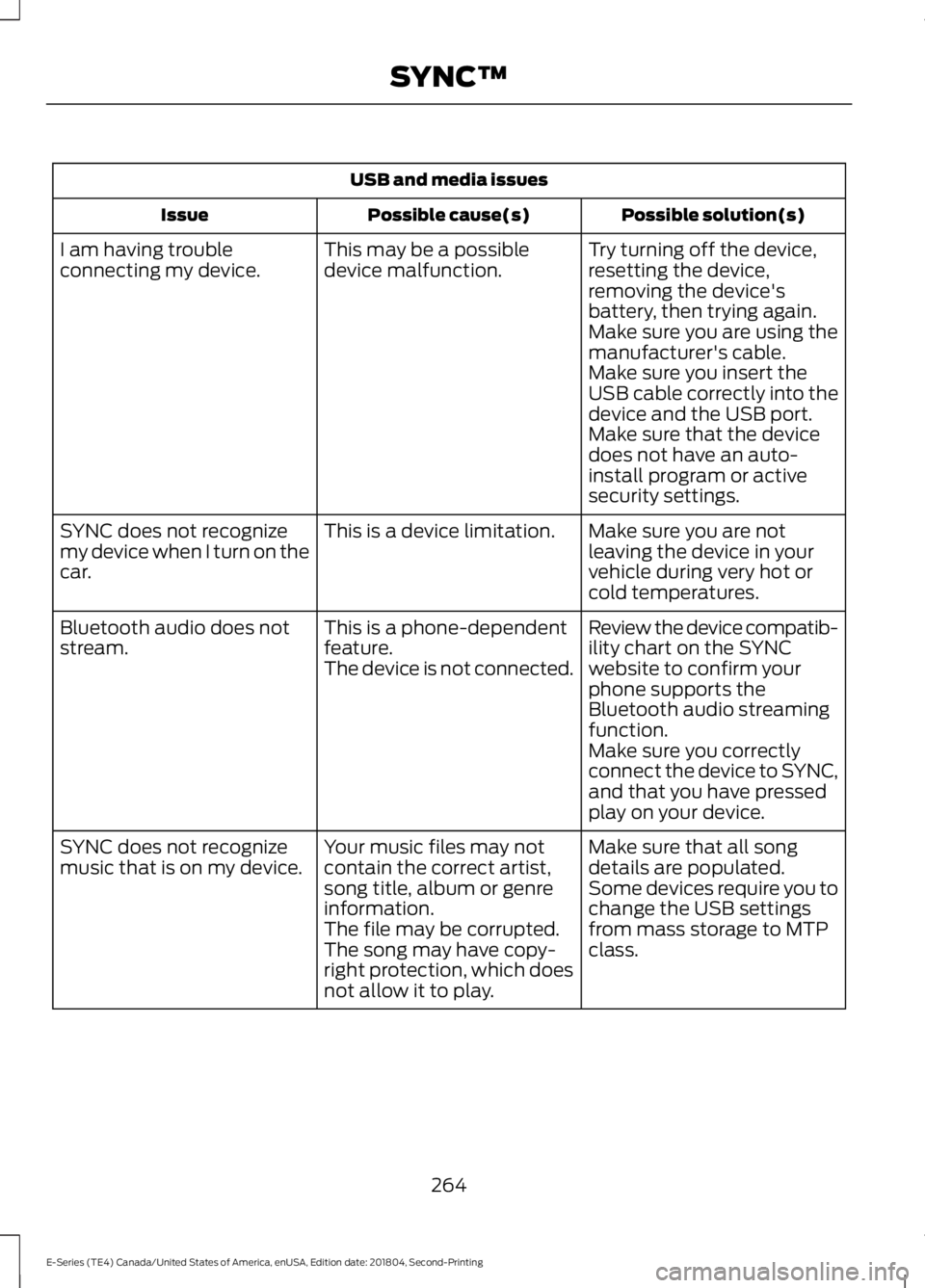
USB and media issues
Possible solution(s)
Possible cause(s)
Issue
Try turning off the device,
resetting the device,
removing the device's
battery, then trying again.
This may be a possible
device malfunction.
I am having trouble
connecting my device.
Make sure you are using the
manufacturer's cable.
Make sure you insert the
USB cable correctly into the
device and the USB port.
Make sure that the device
does not have an auto-
install program or active
security settings.
Make sure you are not
leaving the device in your
vehicle during very hot or
cold temperatures.
This is a device limitation.
SYNC does not recognize
my device when I turn on the
car.
Review the device compatib-
ility chart on the SYNC
website to confirm your
phone supports the
Bluetooth audio streaming
function.
This is a phone-dependent
feature.
The device is not connected.
Bluetooth audio does not
stream.
Make sure you correctly
connect the device to SYNC,
and that you have pressed
play on your device.
Make sure that all song
details are populated.
Your music files may not
contain the correct artist,
song title, album or genre
information.
SYNC does not recognize
music that is on my device.
Some devices require you to
change the USB settings
from mass storage to MTP
class.
The file may be corrupted.
The song may have copy-
right protection, which does
not allow it to play.
264
E-Series (TE4) Canada/United States of America, enUSA, Edition date: 201804, Second-Printing SYNC™
Page 272 of 329
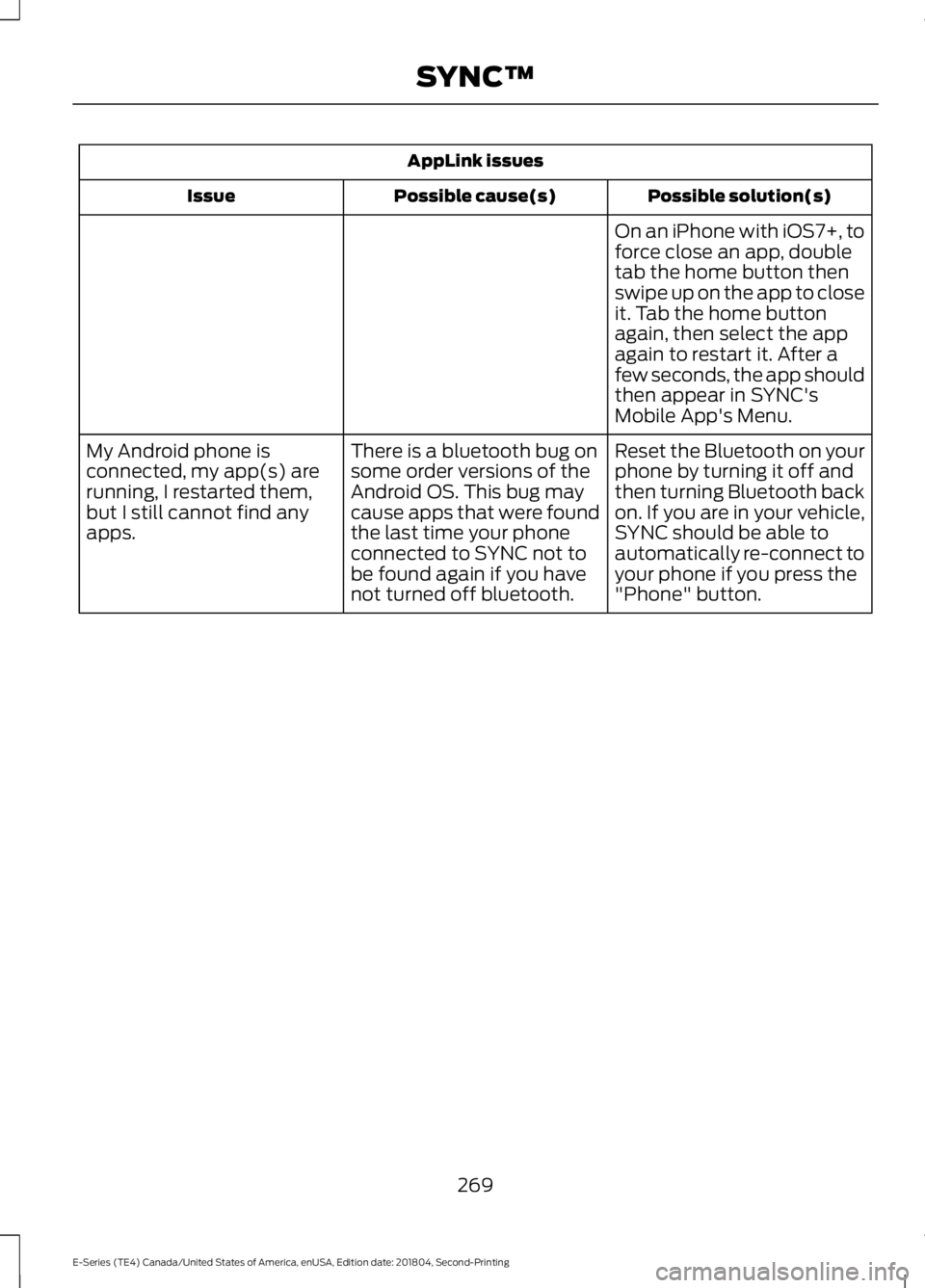
AppLink issues
Possible solution(s)
Possible cause(s)
Issue
On an iPhone with iOS7+, to
force close an app, double
tab the home button then
swipe up on the app to close
it. Tab the home button
again, then select the app
again to restart it. After a
few seconds, the app should
then appear in SYNC's
Mobile App's Menu.
Reset the Bluetooth on your
phone by turning it off and
then turning Bluetooth back
on. If you are in your vehicle,
SYNC should be able to
automatically re-connect to
your phone if you press the
"Phone" button.
There is a bluetooth bug on
some order versions of the
Android OS. This bug may
cause apps that were found
the last time your phone
connected to SYNC not to
be found again if you have
not turned off bluetooth.
My Android phone is
connected, my app(s) are
running, I restarted them,
but I still cannot find any
apps.
269
E-Series (TE4) Canada/United States of America, enUSA, Edition date: 201804, Second-Printing SYNC™
Page 273 of 329
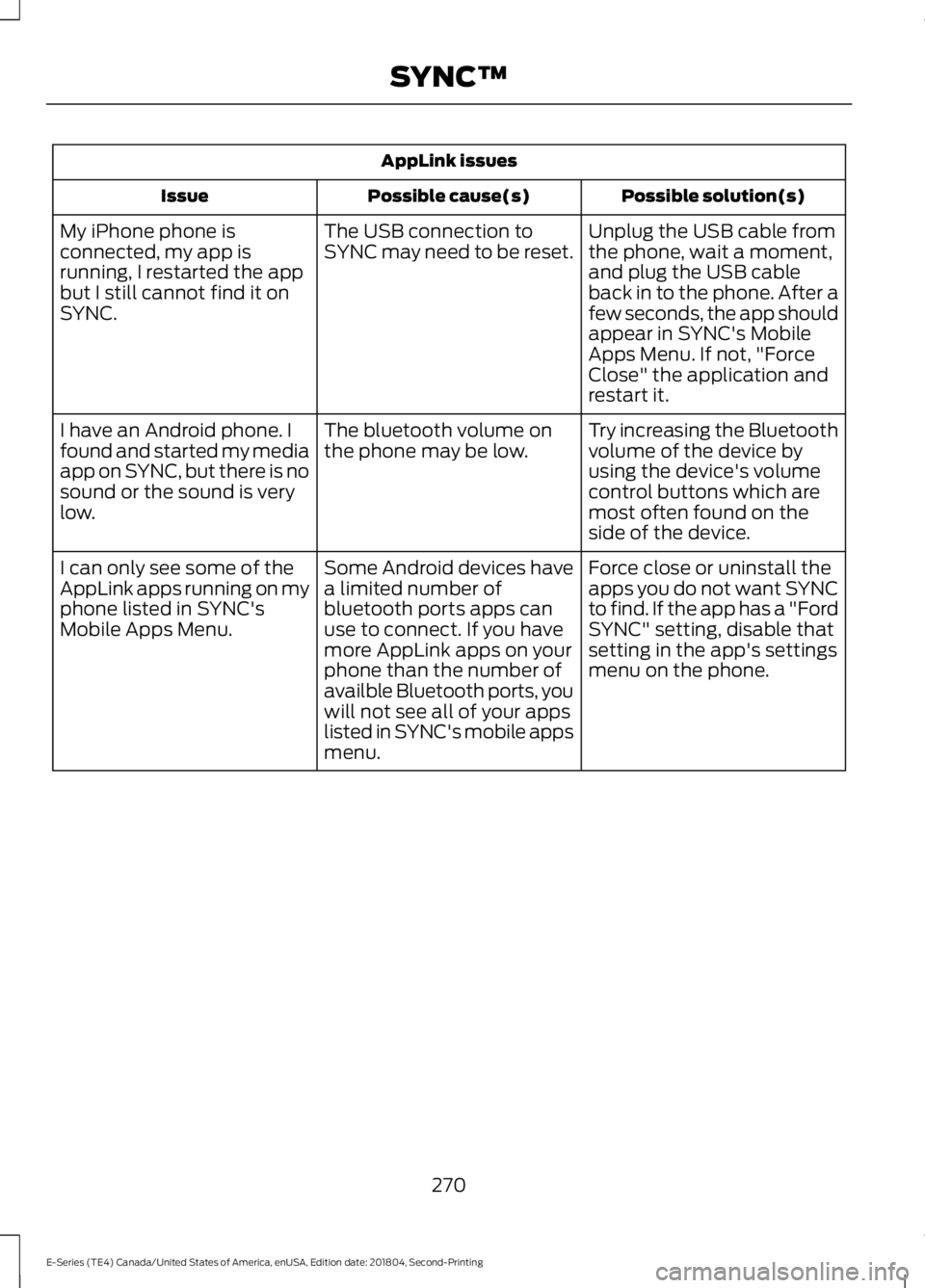
AppLink issues
Possible solution(s)
Possible cause(s)
Issue
Unplug the USB cable from
the phone, wait a moment,
and plug the USB cable
back in to the phone. After a
few seconds, the app should
appear in SYNC's Mobile
Apps Menu. If not, "Force
Close" the application and
restart it.
The USB connection to
SYNC may need to be reset.
My iPhone phone is
connected, my app is
running, I restarted the app
but I still cannot find it on
SYNC.
Try increasing the Bluetooth
volume of the device by
using the device's volume
control buttons which are
most often found on the
side of the device.
The bluetooth volume on
the phone may be low.
I have an Android phone. I
found and started my media
app on SYNC, but there is no
sound or the sound is very
low.
Force close or uninstall the
apps you do not want SYNC
to find. If the app has a "Ford
SYNC" setting, disable that
setting in the app's settings
menu on the phone.
Some Android devices have
a limited number of
bluetooth ports apps can
use to connect. If you have
more AppLink apps on your
phone than the number of
availble Bluetooth ports, you
will not see all of your apps
listed in SYNC's mobile apps
menu.
I can only see some of the
AppLink apps running on my
phone listed in SYNC's
Mobile Apps Menu.
270
E-Series (TE4) Canada/United States of America, enUSA, Edition date: 201804, Second-Printing SYNC™
Page 284 of 329

SPECIAL OPERATING
CONDITIONS SCHEDULED
MAINTENANCE
If you operate your vehicle primarily in any
of the following conditions, you need to
perform extra maintenance as indicated.
If you operate your vehicle
occasionally
under any of these conditions, it is not
necessary to perform the extra
maintenance. For specific
recommendations, see your dealership
service advisor or technician. Perform the services shown in the
following tables when specified or within
3,000 mi (4,800 km)
of the message
appearing in the information display
prompting you to change your oil.
• Example 1: The message comes on at
28,751 mi (46,270 km)
. Perform the
30,000 mi (48,000 km) automatic
transmission fluid replacement.
• Example 2
: The message has not
come on, but the odometer reads
30,000 mi (48,000 km) (for example,
the Intelligent Oil-Life Monitor was
reset at
25,000 mi (40,000 km)).
Perform the engine air filter
replacement. Towing a Trailer or Using a Car-top Carrier
Change engine oil and filter as indicated by the information
display and perform services listed in the Normal Sched-
uled Maintenance chart.
As required
Inspect U-joints.
Inspect frequently, service
as required
Replace rear axle fluid. See axle maintenance items under
Exceptions
.
Every 22,500 mi
(36,000 km)
Change automatic transmission fluid.
Every
30,000 mi
(48,000 km)
Replace spark plugs.
Every
60,000 mi
(96,000 km)
281
E-Series (TE4) Canada/United States of America, enUSA, Edition date: 201804, Second-Printing Scheduled Maintenance
Page 285 of 329

Extensive Idling or Low-speed Driving for Long Distances, as in Heavy Commercial Use
(Such as Delivery, Taxi, Patrol Car or Livery)
Change engine oil and filter as indicated by the information
display and perform services listed in the Normal Sched-
uled Maintenance chart.
As required
Replace engine air filter.
Inspect frequently, service
as required
Replace rear axle fluid. See axle maintenance items under
Exceptions.
Every 22,500 mi
(36,000 km)
Change automatic transmission fluid.
Every
30,000 mi
(48,000 km)
Replace spark plugs.
Every
60,000 mi
(96,000 km) Operating in Dusty or Sandy Conditions (Such as Unpaved or Dusty Roads)
Replace engine air filter.
Inspect frequently, service
as required
Inspect the wheels and related components for abnormal
noise, wear, looseness or drag.
Every
5,000 mi (8,000 km)
Rotate tires1
, inspect tires for wear and measure tread
depth.
Change engine oil and filter. 2
Every
5,000 mi (8,000 km)
or six months
Perform multi-point inspection.
Change automatic transmission fluid.
Every
30,000 mi
(48,000 km)
1 Vehicles equipped with dual rear wheels should rotate the front wheels when specified;
rear wheels only if unusual wear is noted.
2 Reset your Intelligent Oil-Life Monitor after each engine oil and filter change. See
Oil
Change Indicator Reset (page 144). Exclusive Use of E85 (Flex Fuel Vehicles Only)
If ran exclusively on E85, fill the fuel tank with regular
unleaded fuel.
Every oil change
282
E-Series (TE4) Canada/United States of America, enUSA, Edition date: 201804, Second-Printing Scheduled Maintenance
Page 322 of 329

A
A/C
See: Climate Control.......................................... 66
About This Manual...........................................5
ABS See: Brakes.............................................................. 91
ABS driving hints See: Hints on Driving With Anti-Lock
Brakes................................................................... 91
Accessories......................................................271 Exterior Style......................................................... 271
Interior Style.......................................................... 271
Peace of Mind....................................................... 271
Accessories See: Replacement Parts
Recommendation............................................ 12
Adjusting the Headlamps.........................156
Vertical Aim Adjustment Procedure...........156
Adjusting the Steering Wheel....................47
Airbag Disposal
...............................................38
Air Conditioning See: Climate Control.......................................... 66
Air Filter See: Changing the Engine Air Filter..............159
Appendices
....................................................294
At a Glance........................................................16
Audible Warnings and Indicators..............57 Fail-Safe Cooling Warning Chime.................. 57
Headlamps On Warning Chime...................... 57
Key in Ignition Warning Chime......................... 57
Parking Brake On Warning Chime.................. 57
Shift to Park Warning Chime............................ 57
Audio System.................................................214 General Information.......................................... 214
Audio Unit - Vehicles With: AM/FM/CD/ SYNC..............................................................216
Accessing CD or MP3 Mode............................ 217
Accessing the Auxiliary Media Sources.............................................................. 216
Accessing the Folders........................................ 217
Accessing the Menu........................................... 217
Accessing the Phone Features....................... 217
Adjusting the Volume........................................ 217
Changing Radio Stations................................. 218
Ejecting the CD.................................................... 218
Fast Forwarding the Media............................. 218
Inserting a CD....................................................... 218Muting the Audio................................................
218
Playing or Pausing Media................................ 218
Rewinding the Media......................................... 218
Scanning the Audio........................................... 218
Selecting a Frequency Band.......................... 218
Setting the Memory Presets........................... 218
Switching Shuffle Mode On and Off...........218
Switching the Audio Unit On and Off.........218
Using Seek, Fast Forward and Reverse.............................................................. 219
Audio Unit - Vehicles With: AM/FM.......215 Accessing the Clock Settings......................... 215
Accessing the Sound Settings....................... 216
Adjusting the Volume........................................ 216
Changing Radio Stations................................. 216
Selecting the Audio Modes............................. 216
Setting the Memory Presets........................... 216
Switching the Audio Unit On and Off.........216
Using Seek, Fast Forward and Reverse.............................................................. 216
Automatic Transmission.............................87 Brake-Shift Interlock.......................................... 88
If Your Vehicle Gets Stuck In Mud or Snow.................................................................... 89
Putting your vehicle in or out of gear:...........87
Automatic Transmission Fluid Check.............................................................149
Automatic Transmission Fluid Filter............152
Checking Automatic Transmission Fluid.................................................................... 149
Auxiliary Power Points..................................72 110 Volt AC Power Point..................................... 72
12 Volt DC Power Point....................................... 72
Locations.................................................................. 72
Auxiliary Switches
........................................272
B
Battery See: Changing the 12V Battery...................... 153
Bonnet Lock See: Opening and Closing the Hood............141
Booster Seats
..................................................22
Types of Booster Seats...................................... 23
Brake Fluid Check.........................................152
Brakes..................................................................91 General Information............................................. 91
Breaking-In.......................................................116
319
E-Series (TE4) Canada/United States of America, enUSA, Edition date: 201804, Second-Printing Index