2019 FORD E-350 USB
[x] Cancel search: USBPage 271 of 329
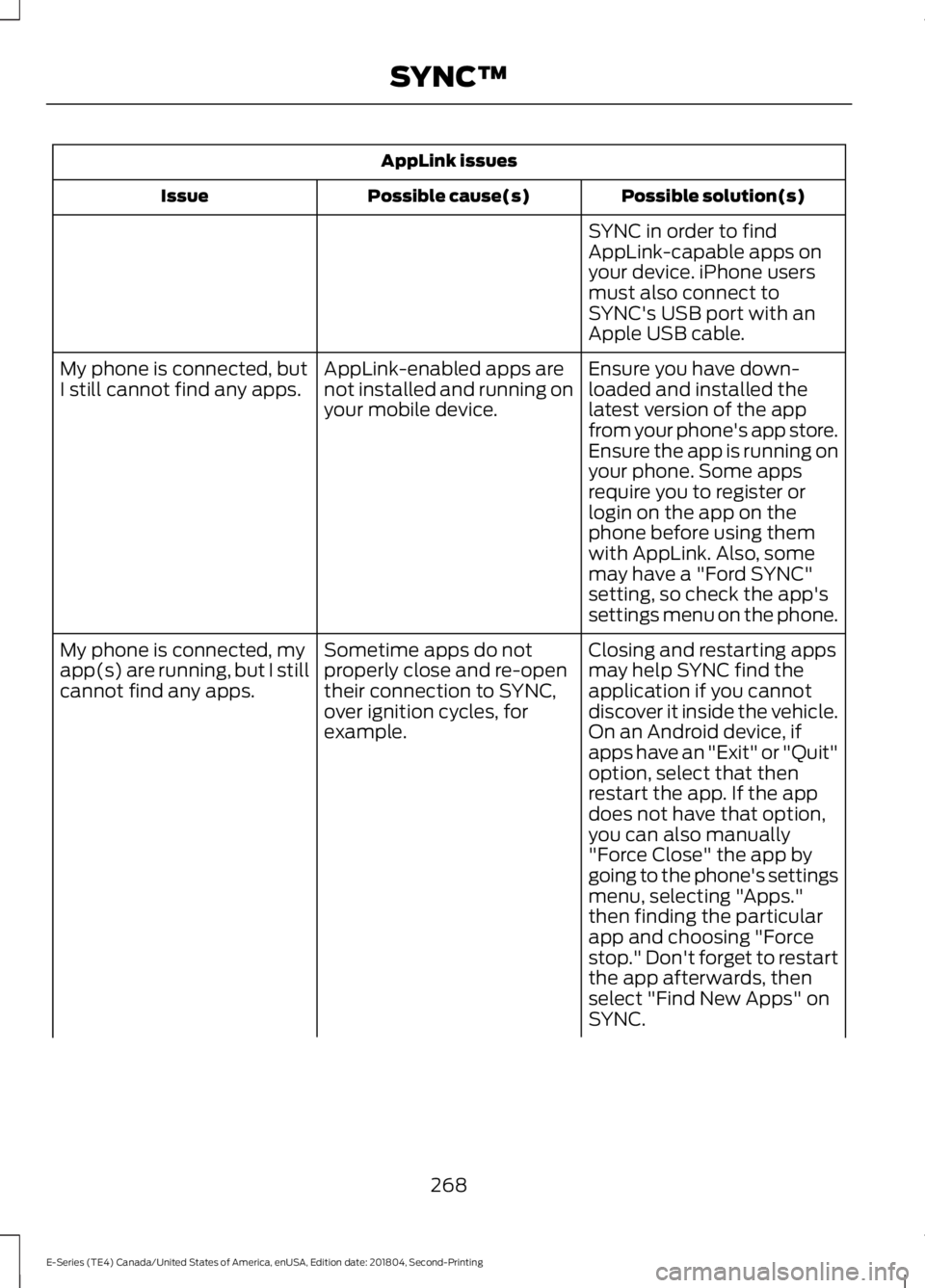
AppLink issues
Possible solution(s)
Possible cause(s)
Issue
SYNC in order to find
AppLink-capable apps on
your device. iPhone users
must also connect to
SYNC's USB port with an
Apple USB cable.
Ensure you have down-
loaded and installed the
latest version of the app
from your phone's app store.
Ensure the app is running on
your phone. Some apps
AppLink-enabled apps are
not installed and running on
your mobile device.
My phone is connected, but
I still cannot find any apps.
require you to register or
login on the app on the
phone before using them
with AppLink. Also, some
may have a "Ford SYNC"
setting, so check the app's
settings menu on the phone.
Closing and restarting apps
may help SYNC find the
application if you cannot
discover it inside the vehicle.
On an Android device, if
apps have an "Exit" or "Quit"
Sometime apps do not
properly close and re-open
their connection to SYNC,
over ignition cycles, for
example.
My phone is connected, my
app(s) are running, but I still
cannot find any apps.
option, select that then
restart the app. If the app
does not have that option,
you can also manually
"Force Close" the app by
going to the phone's settings
menu, selecting "Apps."
then finding the particular
app and choosing "Force
stop." Don't forget to restart
the app afterwards, then
select "Find New Apps" on
SYNC.
268
E-Series (TE4) Canada/United States of America, enUSA, Edition date: 201804, Second-Printing SYNC™
Page 273 of 329

AppLink issues
Possible solution(s)
Possible cause(s)
Issue
Unplug the USB cable from
the phone, wait a moment,
and plug the USB cable
back in to the phone. After a
few seconds, the app should
appear in SYNC's Mobile
Apps Menu. If not, "Force
Close" the application and
restart it.
The USB connection to
SYNC may need to be reset.
My iPhone phone is
connected, my app is
running, I restarted the app
but I still cannot find it on
SYNC.
Try increasing the Bluetooth
volume of the device by
using the device's volume
control buttons which are
most often found on the
side of the device.
The bluetooth volume on
the phone may be low.
I have an Android phone. I
found and started my media
app on SYNC, but there is no
sound or the sound is very
low.
Force close or uninstall the
apps you do not want SYNC
to find. If the app has a "Ford
SYNC" setting, disable that
setting in the app's settings
menu on the phone.
Some Android devices have
a limited number of
bluetooth ports apps can
use to connect. If you have
more AppLink apps on your
phone than the number of
availble Bluetooth ports, you
will not see all of your apps
listed in SYNC's mobile apps
menu.
I can only see some of the
AppLink apps running on my
phone listed in SYNC's
Mobile Apps Menu.
270
E-Series (TE4) Canada/United States of America, enUSA, Edition date: 201804, Second-Printing SYNC™
Page 328 of 329
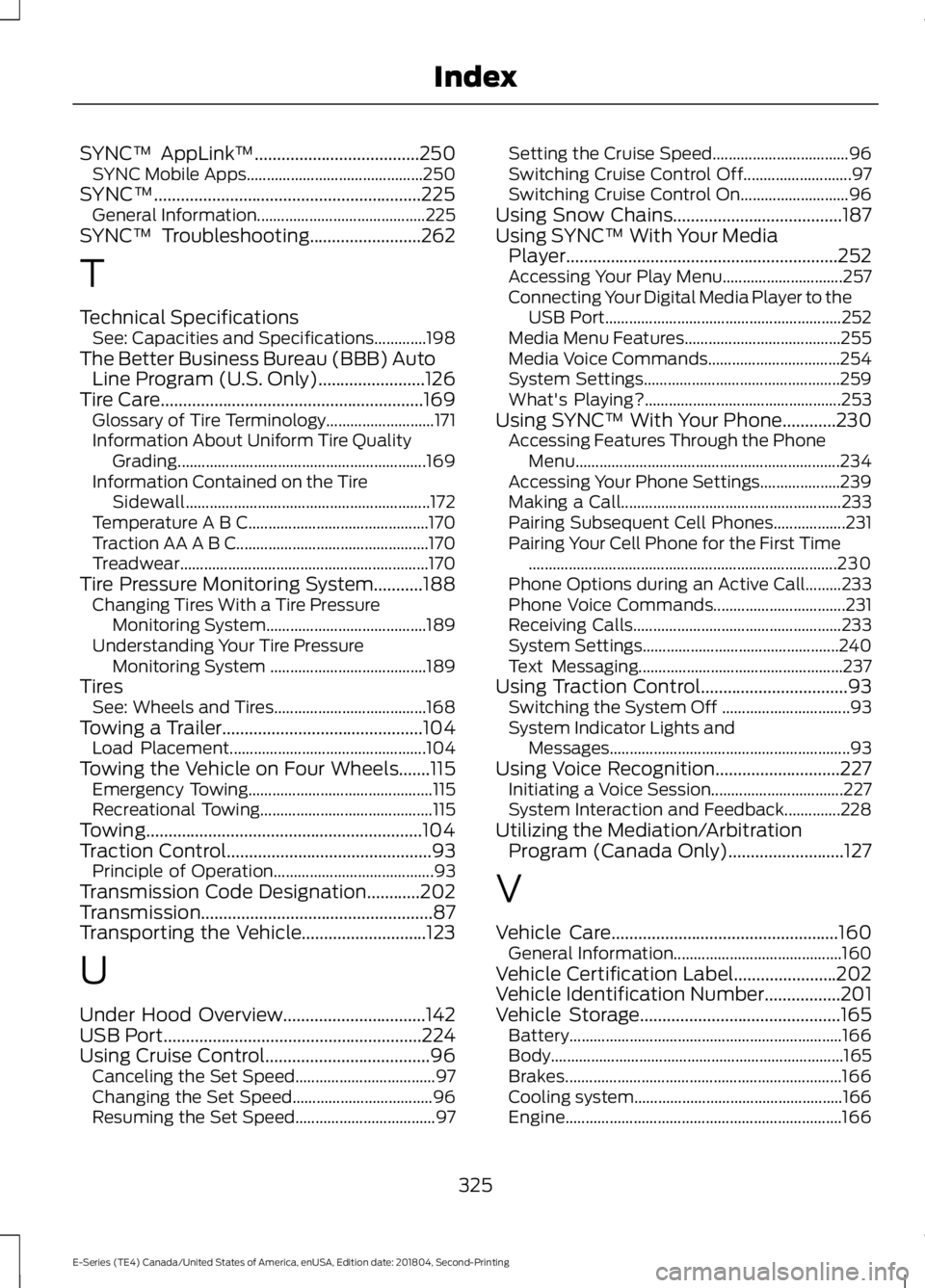
SYNC™ AppLink
™.....................................250
SYNC Mobile Apps............................................ 250
SYNC™............................................................225 General Information.......................................... 225
SYNC™ Troubleshooting
.........................262
T
Technical Specifications See: Capacities and Specifications.............198
The Better Business Bureau (BBB) Auto Line Program (U.S. Only)........................126
Tire Care
...........................................................169
Glossary of Tire Terminology........................... 171
Information About Uniform Tire Quality Grading.............................................................. 169
Information Contained on the Tire Sidewall............................................................. 172
Temperature A B C............................................. 170
Traction AA A B C................................................ 170
Treadwear.............................................................. 170
Tire Pressure Monitoring System...........188 Changing Tires With a Tire Pressure
Monitoring System........................................ 189
Understanding Your Tire Pressure Monitoring System ....................................... 189
Tires See: Wheels and Tires...................................... 168
Towing a Trailer.............................................104 Load Placement................................................. 104
Towing the Vehicle on Four Wheels.......115 Emergency Towing.............................................. 115
Recreational Towing........................................... 115
Towing..............................................................104
Traction Control
..............................................93
Principle of Operation........................................ 93
Transmission Code Designation............202
Transmission....................................................87
Transporting the Vehicle............................123
U
Under Hood Overview................................142
USB Port
..........................................................224
Using Cruise Control.....................................96
Canceling the Set Speed................................... 97
Changing the Set Speed................................... 96
Resuming the Set Speed................................... 97Setting the Cruise Speed..................................
96
Switching Cruise Control Off........................... 97
Switching Cruise Control On........................... 96
Using Snow Chains
......................................187
Using SYNC™ With Your Media Player.............................................................252
Accessing Your Play Menu.............................. 257
Connecting Your Digital Media Player to the USB Port........................................................... 252
Media Menu Features....................................... 255
Media Voice Commands................................. 254
System Settings................................................. 259
What's Playing?................................................. 253
Using SYNC™ With Your Phone
............230
Accessing Features Through the Phone
Menu.................................................................. 234
Accessing Your Phone Settings.................... 239
Making a Call....................................................... 233
Pairing Subsequent Cell Phones.................. 231
Pairing Your Cell Phone for the First Time ........................................................................\
..... 230
Phone Options during an Active Call.........233
Phone Voice Commands................................. 231
Receiving Calls.................................................... 233
System Settings................................................. 240
Text Messaging................................................... 237
Using Traction Control.................................93 Switching the System Off ................................ 93
System Indicator Lights and Messages............................................................ 93
Using Voice Recognition............................227 Initiating a Voice Session................................. 227
System Interaction and Feedback..............228
Utilizing the Mediation/Arbitration Program (Canada Only)..........................127
V
Vehicle Care
...................................................160
General Information.......................................... 160
Vehicle Certification Label
.......................202
Vehicle Identification Number.................201
Vehicle Storage
.............................................165
Battery.................................................................... 166
Body........................................................................\
. 165
Brakes..................................................................... 166
Cooling system.................................................... 166
Engine..................................................................... 166
325
E-Series (TE4) Canada/United States of America, enUSA, Edition date: 201804, Second-Printing Index