2019 FORD E-350 CD player
[x] Cancel search: CD playerPage 255 of 329

To Access Using Voice Commands
Press the voice button and when prompted say:
Action and description
Voice command
Say the name of the application after the tone.
The app should start. While an app is running through SYNC,
you can press the voice button and speak commands specific
to the app, for example, "Playlist Road Trip".
Mobile Apps
You can also say the following:
To discover the available voice commands.
The name of an app
(such as Stitcher)
followed by "help".
USING SYNC™ WITH YOUR
MEDIA PLAYER
You can access and play music from your
digital music player over your vehicle's
speaker system using the system's media
menu or voice commands. You can also
sort and play your music by specific
categories, for example artist and album.
Note: The system is capable of indexing up
to 6,000 songs.
SYNC is capable of hosting nearly any
digital media player including: iPod®,
Zune ™, plays from device players, and
most USB drives. SYNC also supports the
following audio formats MP3, WMA, WAV
and ACC. Connecting Your Digital Media
Player to the USB Port
Note:
If your digital media player has a
power switch, make sure you switch it on
before plugging it in.
To Connect Using Voice Commands
Plug the device into the USB port. See
USB Port (page 224). Press the voice button and when prompted say:
Action and Description
Voice command
You can now play music by saying any of the appropriate
voice commands. See Media voice commands.
USB [1]
You do not need to say words that appear within square brackets. For example, for where
USB[1]appears, you can say USB or USB one.
252
E-Series (TE4) Canada/United States of America, enUSA, Edition date: 201804, Second-Printing SYNC™E142599
Page 257 of 329
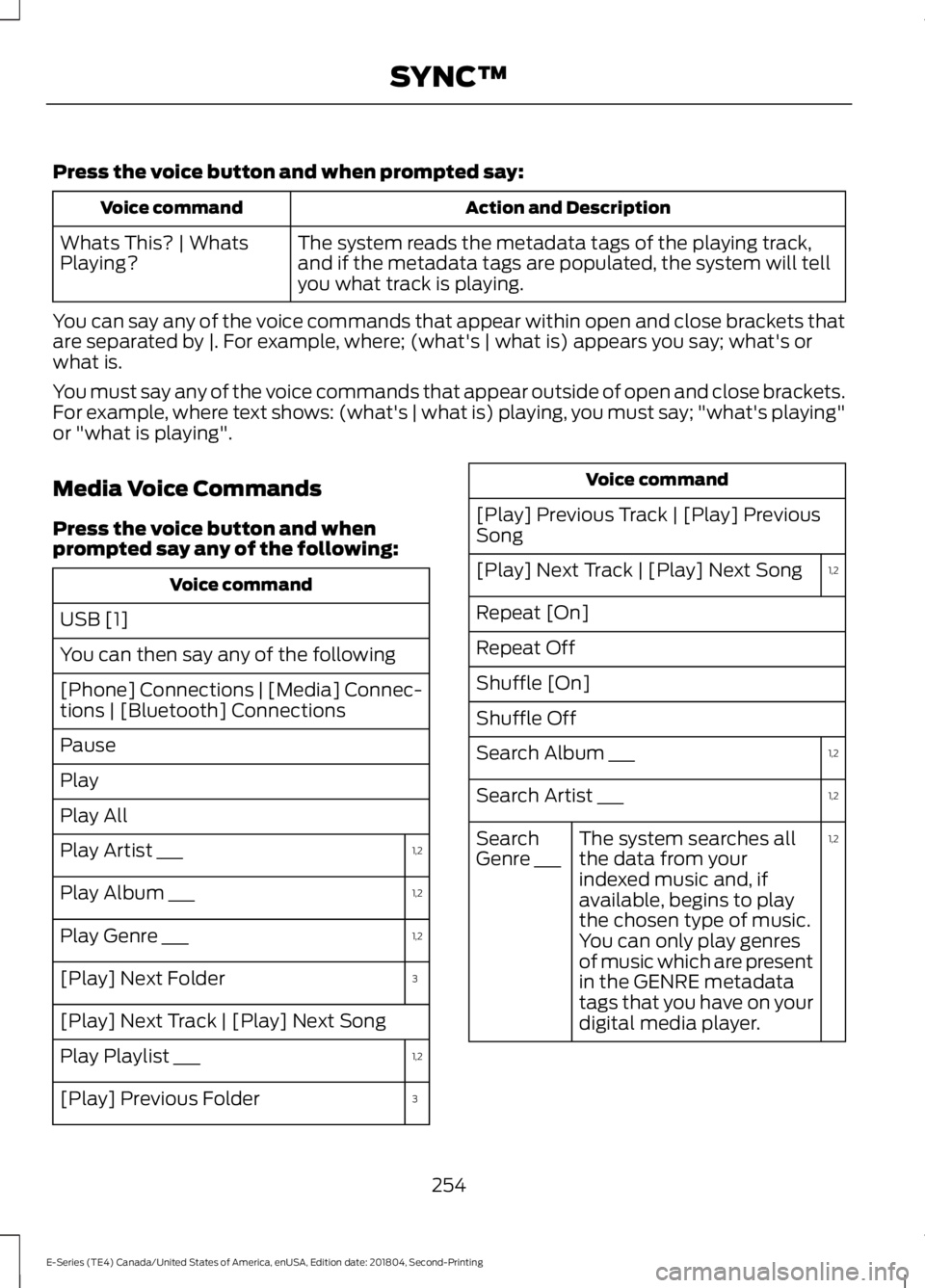
Press the voice button and when prompted say:
Action and Description
Voice command
The system reads the metadata tags of the playing track,
and if the metadata tags are populated, the system will tell
you what track is playing.
Whats This? | Whats
Playing?
You can say any of the voice commands that appear within open and close brackets that
are separated by |. For example, where; (what's | what is) appears you say; what's or
what is.
You must say any of the voice commands that appear outside of open and close brackets.
For example, where text shows: (what's | what is) playing, you must say; "what's playing"
or "what is playing".
Media Voice Commands
Press the voice button and when
prompted say any of the following: Voice command
USB [1]
You can then say any of the following
[Phone] Connections | [Media] Connec-
tions | [Bluetooth] Connections
Pause
Play
Play All 1,2
Play Artist ___
1,2
Play Album ___
1,2
Play Genre ___
3
[Play] Next Folder
[Play] Next Track | [Play] Next Song
1,2
Play Playlist ___
3
[Play] Previous Folder Voice command
[Play] Previous Track | [Play] Previous
Song 1,2
[Play] Next Track | [Play] Next Song
Repeat [On]
Repeat Off
Shuffle [On]
Shuffle Off
1,2
Search Album ___
1,2
Search Artist ___
1,2
The system searches all
the data from your
indexed music and, if
available, begins to play
the chosen type of music.
You can only play genres
of music which are present
in the GENRE metadata
tags that you have on your
digital media player.
Search
Genre ___
254
E-Series (TE4) Canada/United States of America, enUSA, Edition date: 201804, Second-Printing SYNC™
Page 259 of 329
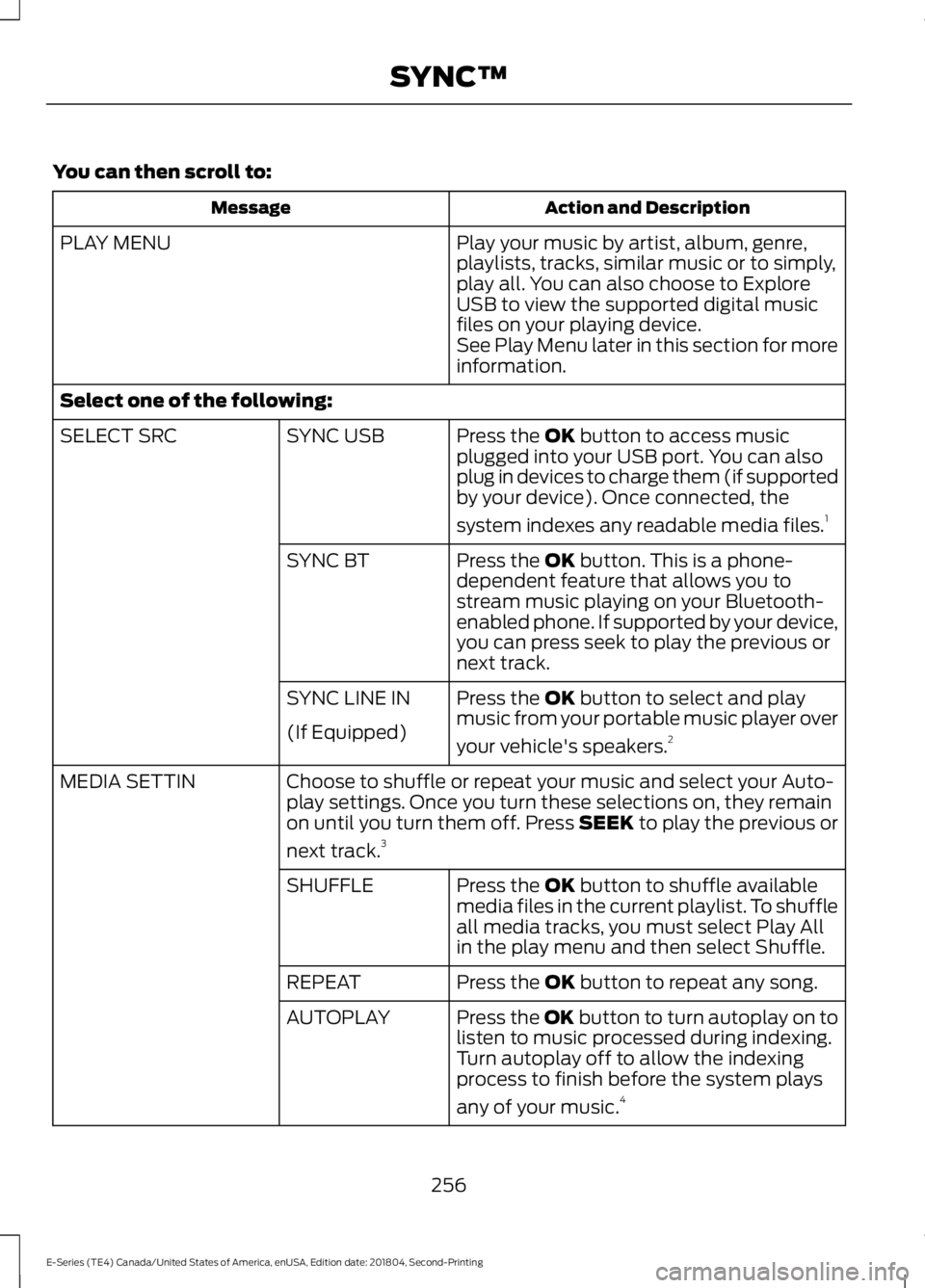
You can then scroll to:
Action and Description
Message
Play your music by artist, album, genre,
playlists, tracks, similar music or to simply,
play all. You can also choose to Explore
USB to view the supported digital music
files on your playing device.
PLAY MENU
See Play Menu later in this section for more
information.
Select one of the following: Press the OK button to access music
plugged into your USB port. You can also
plug in devices to charge them (if supported
by your device). Once connected, the
system indexes any readable media files. 1
SYNC USB
SELECT SRC
Press the
OK button. This is a phone-
dependent feature that allows you to
stream music playing on your Bluetooth-
enabled phone. If supported by your device,
you can press seek to play the previous or
next track.
SYNC BT
Press the
OK button to select and play
music from your portable music player over
your vehicle's speakers. 2
SYNC LINE IN
(If Equipped)
Choose to shuffle or repeat your music and select your Auto-
play settings. Once you turn these selections on, they remain
on until you turn them off. Press SEEK to play the previous or
next track.
3
MEDIA SETTIN
Press the
OK button to shuffle available
media files in the current playlist. To shuffle
all media tracks, you must select Play All
in the play menu and then select Shuffle.
SHUFFLE
Press the
OK button to repeat any song.
REPEAT
Press the OK button to turn autoplay on to
listen to music processed during indexing.
Turn autoplay off to allow the indexing
process to finish before the system plays
any of your music.4
AUTOPLAY
256
E-Series (TE4) Canada/United States of America, enUSA, Edition date: 201804, Second-Printing SYNC™
Page 260 of 329
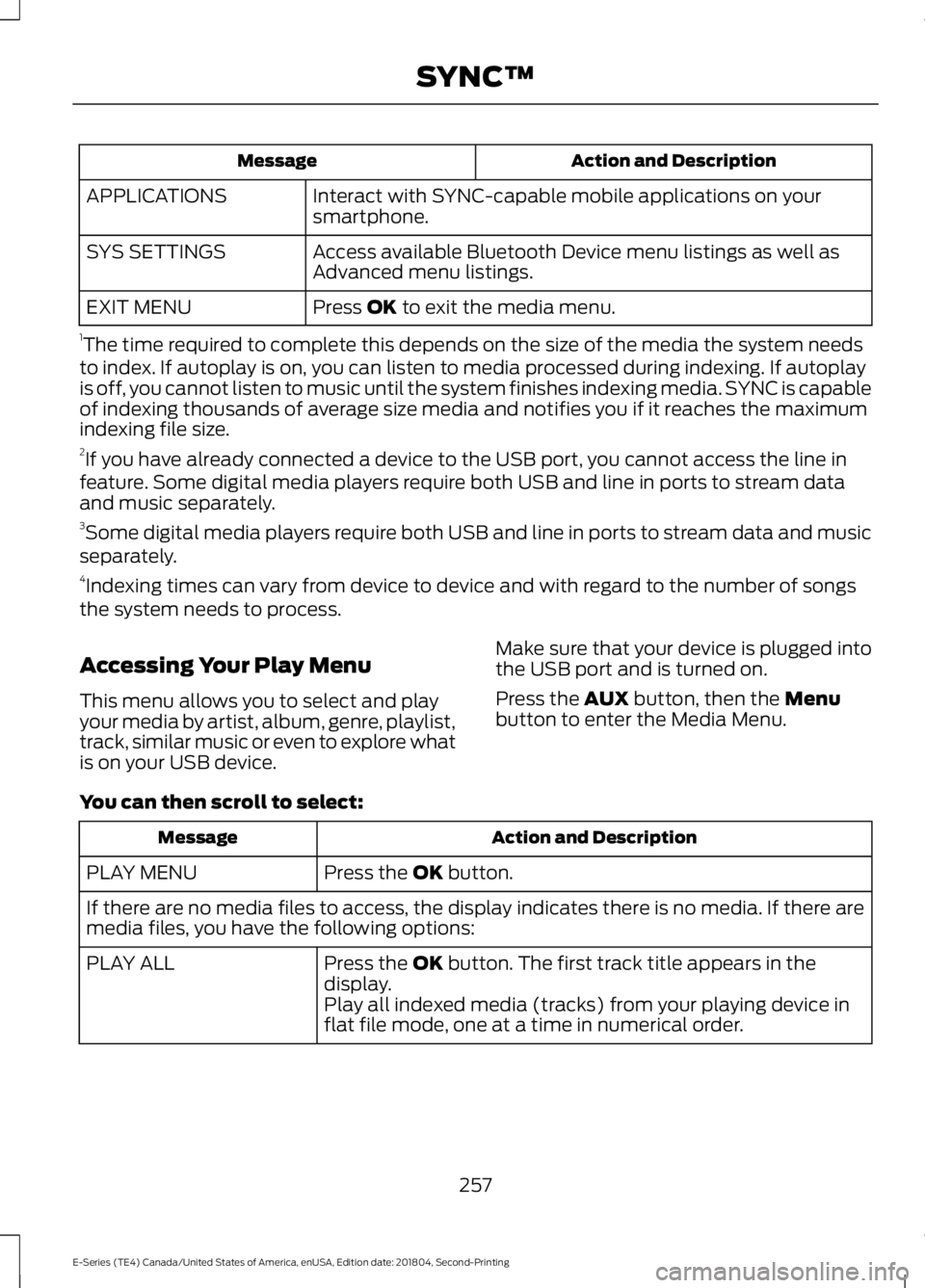
Action and Description
Message
Interact with SYNC-capable mobile applications on your
smartphone.
APPLICATIONS
Access available Bluetooth Device menu listings as well as
Advanced menu listings.
SYS SETTINGS
Press OK to exit the media menu.
EXIT MENU
1 The time required to complete this depends on the size of the media the system needs
to index. If autoplay is on, you can listen to media processed during indexing. If autoplay
is off, you cannot listen to music until the system finishes indexing media. SYNC is capable
of indexing thousands of average size media and notifies you if it reaches the maximum
indexing file size.
2 If you have already connected a device to the USB port, you cannot access the line in
feature. Some digital media players require both USB and line in ports to stream data
and music separately.
3 Some digital media players require both USB and line in ports to stream data and music
separately.
4 Indexing times can vary from device to device and with regard to the number of songs
the system needs to process.
Accessing Your Play Menu
This menu allows you to select and play
your media by artist, album, genre, playlist,
track, similar music or even to explore what
is on your USB device. Make sure that your device is plugged into
the USB port and is turned on.
Press the
AUX button, then the Menu
button to enter the Media Menu.
You can then scroll to select: Action and Description
Message
Press the
OK button.
PLAY MENU
If there are no media files to access, the display indicates there is no media. If there are
media files, you have the following options:
Press the
OK button. The first track title appears in the
display.
PLAY ALL
Play all indexed media (tracks) from your playing device in
flat file mode, one at a time in numerical order.
257
E-Series (TE4) Canada/United States of America, enUSA, Edition date: 201804, Second-Printing SYNC™
Page 304 of 329
![FORD E-350 2019 Owners Manual •
THERE ARE NO WARRANTIES OTHER
THAN THOSE THAT MAY EXPRESSLY
BE PROVIDED FOR YOUR NEW
VEHICLE.
Adobe
Contains Adobe® [Flash® Player] or
[AIR®] technology by Adobe Systems
Incorporated. This [Lic](/manual-img/11/40680/w960_40680-303.png "FORD E-350 2019 Owners Manual •
THERE ARE NO WARRANTIES OTHER
THAN THOSE THAT MAY EXPRESSLY
BE PROVIDED FOR YOUR NEW
VEHICLE.
Adobe
Contains Adobe® [Flash® Player] or
[AIR®] technology by Adobe Systems
Incorporated. This [Lic")
•
THERE ARE NO WARRANTIES OTHER
THAN THOSE THAT MAY EXPRESSLY
BE PROVIDED FOR YOUR NEW
VEHICLE.
Adobe
Contains Adobe® [Flash® Player] or
[AIR®] technology by Adobe Systems
Incorporated. This [Licensee Product]
contains [Adobe® Flash® Player]
[Adobe® AIR®] software under license
from Adobe Systems Incorporated,
Copyright ©1995-2009 Adobe
Macromedia Software LLC. All rights
reserved. Adobe, Flash and AIR are
trademarks of Adobe Systems
Incorporated.
End User Notice
Microsoft® Windows® Mobile for
Automotive Important Safety
Information
This system Ford SYNC contains software
that is licensed to Manufacturer FORD
MOTOR COMPANY by an affiliate of
Microsoft Corporation pursuant to a license
agreement. Any removal, reproduction,
reverse engineering or other unauthorized
use of the software from this system in
violation of the license agreement is strictly
prohibited and may subject you to legal
action.
Read and follow instructions: Before
using your Windows Automotive- based
system, read and follow all instructions
and safety information provided in this end
user manual ("User's Guide"). Not
following precautions found in this User's
Guide can lead to an accident or other
serious consequences. Keep User's Guide in vehicle: When kept
in the vehicle, the User's Guide will be a
ready reference for you and other users
unfamiliar with the Windows
Automotive-based system. Please make
certain that before using the system for
the first time, all persons have access to
the User's Guide and read its instructions
and safety information carefully. WARNING:
Operating certain
parts of this system while driving can
distract your attention away from the
road, and possibly cause an accident or
other serious consequences. Do not
change system settings or enter data
non-verbally (using your hands) while
driving. Stop the vehicle in a safe and
legal manner before attempting these
operations. This is important since while
setting up or changing some functions
you might be required to distract your
attention away from the road and
remove your hands from the wheel.
General Operation
Voice Command Control:
Functions
within the Windows Automotive-based
system may be accomplished using only
voice commands. Using voice commands
while driving allows you to operate the
system without removing your hands from
the wheel.
Prolonged Views of Screen:
Do not
access any function requiring a prolonged
view of the screen while you are driving.
Pull over in a safe and legal manner before
attempting to access a function of the
system requiring prolonged attention. Even
occasional short scans to the screen may
be hazardous if your attention has been
diverted away from your driving task at a
critical time.
301
E-Series (TE4) Canada/United States of America, enUSA, Edition date: 201804, Second-Printing Appendices
Page 328 of 329
SYNC™ AppLink
™.....................................250
SYNC Mobile Apps............................................ 250
SYNC™............................................................225 General Information.......................................... 225
SYNC™ Troubleshooting
.........................262
T
Technical Specifications See: Capacities and Specifications.............198
The Better Business Bureau (BBB) Auto Line Program (U.S. Only)........................126
Tire Care
...........................................................169
Glossary of Tire Terminology........................... 171
Information About Uniform Tire Quality Grading.............................................................. 169
Information Contained on the Tire Sidewall............................................................. 172
Temperature A B C............................................. 170
Traction AA A B C................................................ 170
Treadwear.............................................................. 170
Tire Pressure Monitoring System...........188 Changing Tires With a Tire Pressure
Monitoring System........................................ 189
Understanding Your Tire Pressure Monitoring System ....................................... 189
Tires See: Wheels and Tires...................................... 168
Towing a Trailer.............................................104 Load Placement................................................. 104
Towing the Vehicle on Four Wheels.......115 Emergency Towing.............................................. 115
Recreational Towing........................................... 115
Towing..............................................................104
Traction Control
..............................................93
Principle of Operation........................................ 93
Transmission Code Designation............202
Transmission....................................................87
Transporting the Vehicle............................123
U
Under Hood Overview................................142
USB Port
..........................................................224
Using Cruise Control.....................................96
Canceling the Set Speed................................... 97
Changing the Set Speed................................... 96
Resuming the Set Speed................................... 97Setting the Cruise Speed..................................
96
Switching Cruise Control Off........................... 97
Switching Cruise Control On........................... 96
Using Snow Chains
......................................187
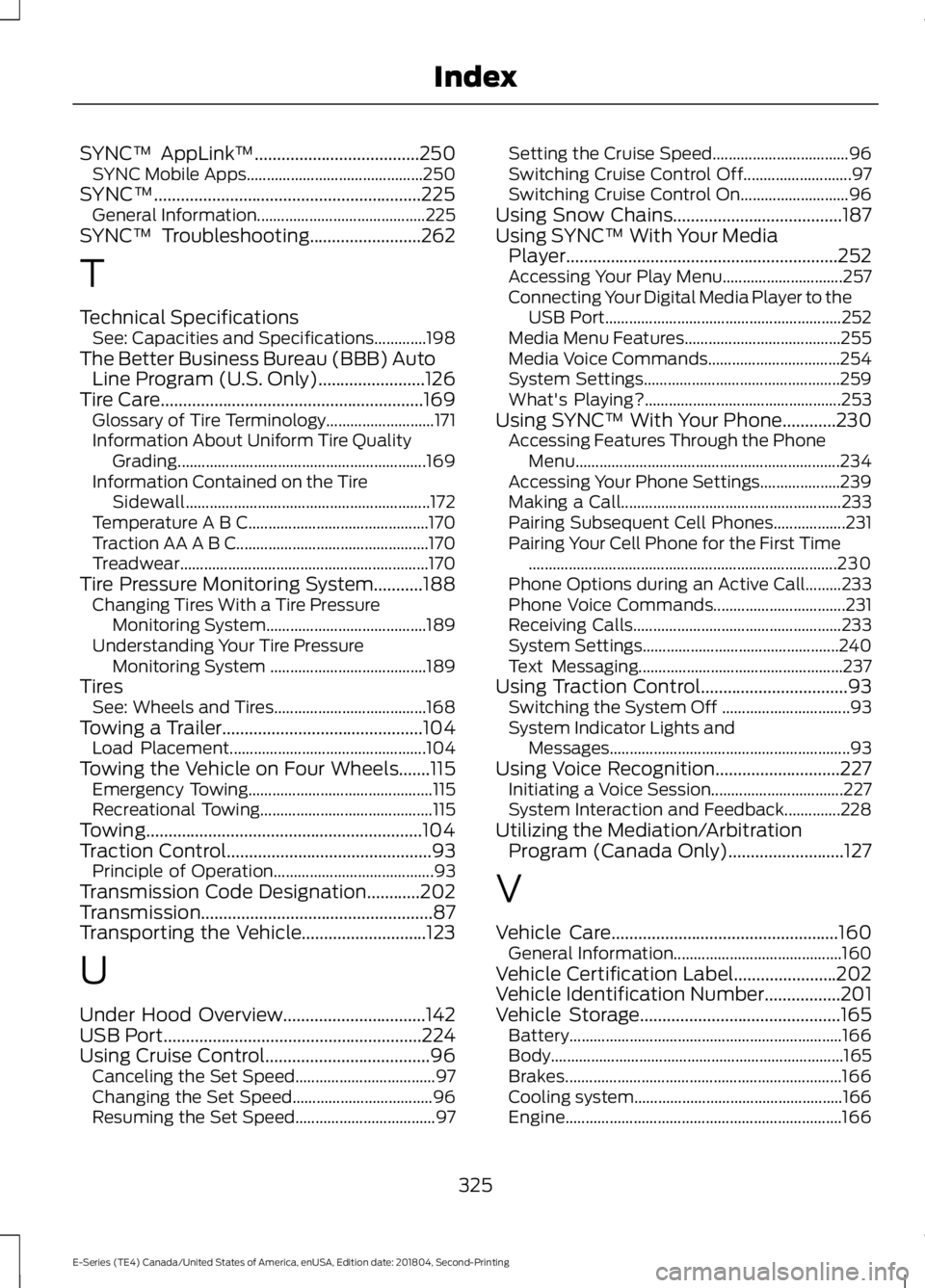
Using SYNC™ With Your Media Player.............................................................252
Accessing Your Play Menu.............................. 257
Connecting Your Digital Media Player to the USB Port........................................................... 252
Media Menu Features....................................... 255
Media Voice Commands................................. 254
System Settings................................................. 259
What's Playing?................................................. 253
Using SYNC™ With Your Phone
............230
Accessing Features Through the Phone
Menu.................................................................. 234
Accessing Your Phone Settings.................... 239
Making a Call....................................................... 233
Pairing Subsequent Cell Phones.................. 231
Pairing Your Cell Phone for the First Time ........................................................................\
..... 230
Phone Options during an Active Call.........233
Phone Voice Commands................................. 231
Receiving Calls.................................................... 233
System Settings................................................. 240
Text Messaging................................................... 237
Using Traction Control.................................93 Switching the System Off ................................ 93
System Indicator Lights and Messages............................................................ 93
Using Voice Recognition............................227 Initiating a Voice Session................................. 227
System Interaction and Feedback..............228
Utilizing the Mediation/Arbitration Program (Canada Only)..........................127
V
Vehicle Care
...................................................160
General Information.......................................... 160
Vehicle Certification Label
.......................202
Vehicle Identification Number.................201
Vehicle Storage
.............................................165
Battery.................................................................... 166
Body........................................................................\
. 165
Brakes..................................................................... 166
Cooling system.................................................... 166
Engine..................................................................... 166
325
E-Series (TE4) Canada/United States of America, enUSA, Edition date: 201804, Second-Printing Index