Page 68 of 490

Dimmer Controls
The dimmer switch is located next to the headlight switch.
With the parking lights or headlights on, rotating the left
dimmer control upward will increase the brightness of the
instrument panel lights.
Rotating the left dimmer control completely upward to the
second detent (extreme top position) will turn on the
interior lights. The interior lights will remain on when the
dimmer control is in this position.
Rotating the left dimmer control to the off position (ex-
treme bottom) will turn the interior lights off, and will
remain off when the doors or liftgate are opened.
Parade Mode (Daytime Brightness Feature)
Rotate the dimmer control upward to the first detent. This
feature brightens all text displays such as the odometer,
instrument cluster display, and radio when the parking
lights or headlights are on.
WINDSHIELD WIPER AND WASHERS
The wipers and washers are operated by a switch within
the multifunction lever. Rotate the end of the multifunction
lever to select the desired wiper speed.
Instrument Panel Dimmer Control
Washer And Wiper Controls
66 GETTING TO KNOW YOUR VEHICLE
Page 70 of 490
NOTE:The mist feature does not activate the washer
pump; therefore, no washer fluid will be sprayed on the
windshield. The wash function must be used in order to
spray the windshield with washer fluid.
Rear Wiper And Washer
Rotating the center ring of the wiper lever to the first detent
activates the rear intermittent wipers. To activate the
washers, rotate the center ring fully forward and the
washers will spray until the ring is released, and then
resume the intermittent interval.
NOTE: Rear window wipers function in the intermittent
wiper speed only.
CLIMATE CONTROLS
The Climate Control System allows you to regulate the
temperature, air flow, and direction of air circulating
throughout the vehicle. The controls are located on the
touchscreen (if equipped) and on the instrument panel
below the radio.
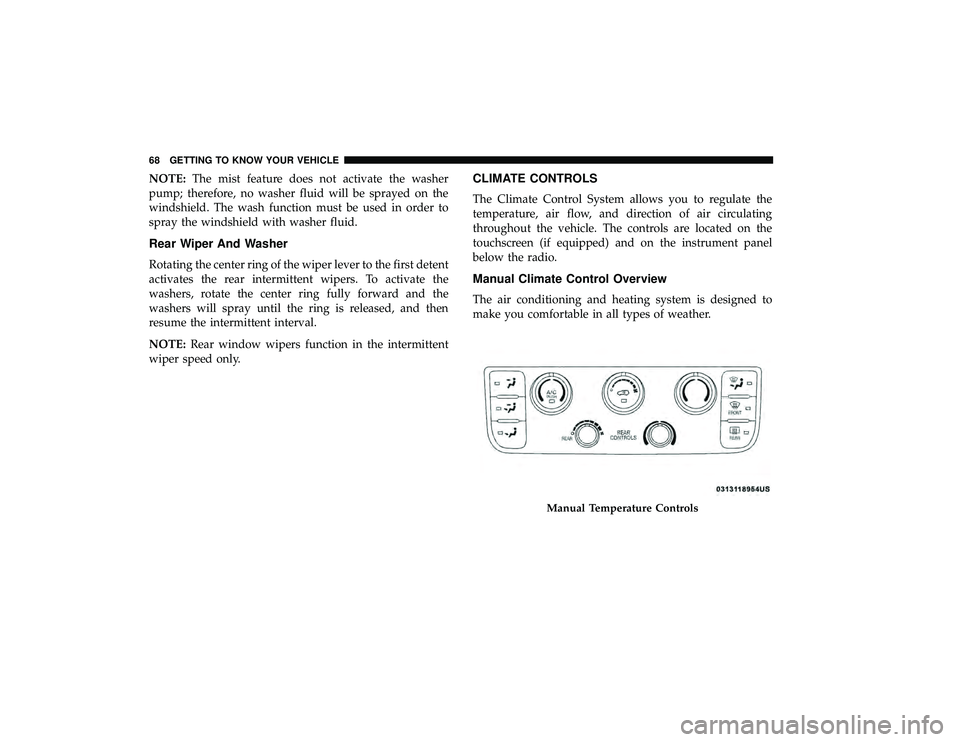
Manual Climate Control Overview
The air conditioning and heating system is designed to
make you comfortable in all types of weather.
Manual Temperature Controls
68 GETTING TO KNOW YOUR VEHICLE
Page 74 of 490
Controlling The Rear Climate Controls From The
Front Panel Controls
The rear MTC system has floor air outlets at the rear right
side of the 3rd Row seats and overhead outlets at each
outboard rear seating position. The system provides heated
air through the floor outlets or cool, dehumidified air
through the headliner outlets.
The rear system temperature control buttons on the face-
plate are located below the radio system, located on the
instrument panel.
Rear Manual Climate Controls
72 GETTING TO KNOW YOUR VEHICLE
Page 100 of 490
GARAGE DOOR OPENER — IF EQUIPPED
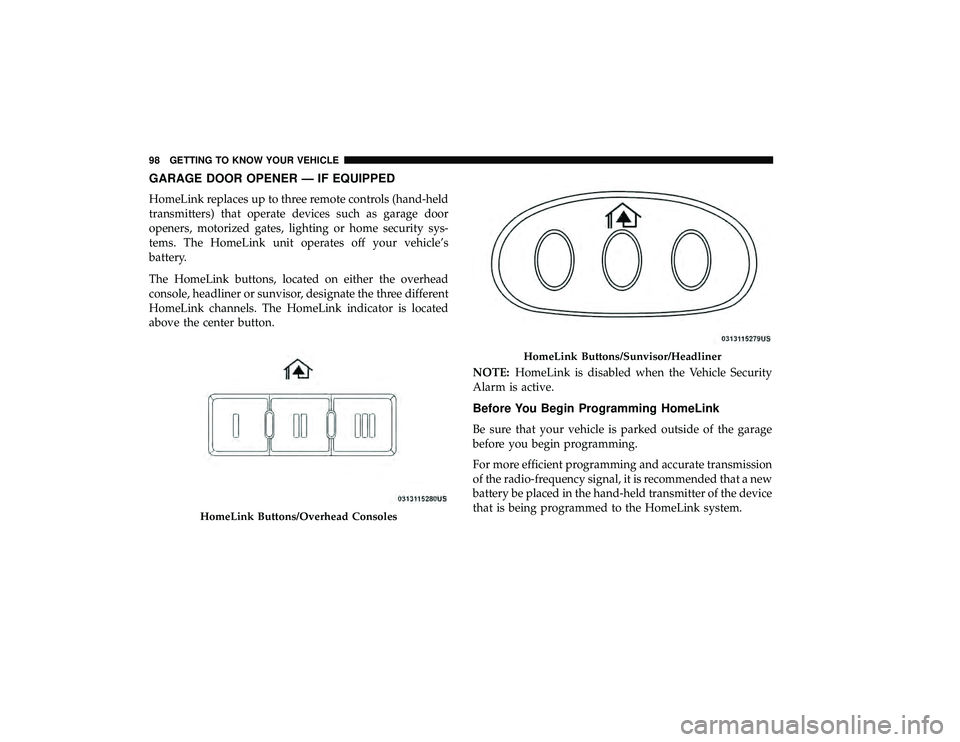
HomeLink replaces up to three remote controls (hand-held
transmitters) that operate devices such as garage door
openers, motorized gates, lighting or home security sys-
tems. The HomeLink unit operates off your vehicle’s
battery.
The HomeLink buttons, located on either the overhead
console, headliner or sunvisor, designate the three different
HomeLink channels. The HomeLink indicator is located
above the center button.NOTE:HomeLink is disabled when the Vehicle Security
Alarm is active.
Before You Begin Programming HomeLink
Be sure that your vehicle is parked outside of the garage
before you begin programming.
For more efficient programming and accurate transmission
of the radio-frequency signal, it is recommended that a new
battery be placed in the hand-held transmitter of the device
that is being programmed to the HomeLink system.
HomeLink Buttons/Overhead Consoles
HomeLink Buttons/Sunvisor/Headliner
98 GETTING TO KNOW YOUR VEHICLE
Page 403 of 490

MULTIMEDIA
CONTENTS
�CYBERSECURITY ...................... .403
� RADIO 430/430N CD/DVD/HDD/NAV —
IF EQUIPPED ......................... .404
▫ Operating Instructions (Voice Command System) —
If Equipped .......................... .404
▫ Operating Instructions (Uconnect Phone) —
If Equipped .......................... .404
▫ Accessibility — If Equipped ...............404
� STEERING WHEEL AUDIO CONTROLS —
IF EQUIPPED ......................... .405
▫ Radio Operation ....................... .405
▫ CD Player ........................... .405
� IPOD/USB/MP3 CONTROL — IF EQUIPPED . . .406
▫ Connecting The iPod Or External USB Device . . .406
▫ Using This Feature ..................... .407▫
Controlling The iPod Or External USB Device
Using Radio Buttons .................... .407
▫ Play Mode ........................... .407
▫ List Or Browse Mode ................... .408
▫ Bluetooth Streaming Audio (BTSA) ..........410
� UCONNECT MULTIMEDIA — VIDEO
ENTERTAINMENT SYSTEM (VES) —
IF EQUIPPED ..........................411
▫ Getting Started ........................411
▫ Play Video Games ..................... .412
▫ Play A DVD Using The Touchscreen Radio .....413
▫ Play A DVD Using The VES Player —
If Equipped .......................... .414
▫ VES Remote Control — If Equipped .........416
▫ Remote Control Storage ..................418
10
Page 404 of 490
▫Locking The Remote Control ...............419
▫ Replacing The Remote Control Batteries .......419
▫ Headphones Operation .................. .420
▫ Controls ............................ .420
▫ Replacing The Headphone Batteries ..........421
▫ Accessibility — If Equipped ...............421
▫ Stereo Headphone Lifetime Limited Warranty . . .421
▫ System Information .................... .422
� UCONNECT PHONE — IF EQUIPPED ........432
▫ Operation ........................... .434
▫ Help Command ....................... .435
▫ Cancel Command ...................... .435
▫ Pair (Link) Uconnect Phone To A Mobile
Phone .............................. .435
▫ Dial By Saying A Number .................436
▫ Call By Saying A Name ..................436
▫ Phonebook Download – Automatic Phonebook
Transfer From Mobile Phone ...............437 ▫
Add Names To Your Uconnect Phonebook .....437
▫ Edit Uconnect Phonebook Entries ...........438
▫ Delete Uconnect Phonebook Entry ...........438
▫
Delete/Erase “All” Uconnect Phonebook Entries . .439
▫ List All Names In The Uconnect Phonebook . . . .439
▫ Phone Call Features .................... .440
▫ Uconnect Phone Features .................442
▫ Advanced Phone Connectivity .............446
▫ Things You Should Know About Your Uconnect
Phone .............................. .447
▫ General Information ................... .456
� RADIO OPERATION AND MOBILE PHONES . . .456
▫ Regulatory And Safety Information ..........457
� VOICE COMMAND — IF EQUIPPED .........458
▫ Voice Command System Operation ..........458
▫ Commands .......................... .459
▫ Voice Training ........................ .462
� CD/DVD DISC MAINTENANCE ............463
402 MULTIMEDIA
Page 407 of 490

STEERING WHEEL AUDIO CONTROLS — IF
EQUIPPED
The remote sound system controls are located on the rear
surface of the steering wheel, at the three and nine o’clock
positions.
The right-hand rocker switch has a push-button in the
center, and controls the volume and mode of the sound
system. Pushing the top of the rocker switch will increase
the volume. Pushing the bottom of the rocker switch will
decrease the volume. Pushing the center button changes
the operation of the radio from AM to FM, or to CD mode,
depending on which radio is in the vehicle.The left-hand rocker switch has a push-button in the center.
The function of the left-hand switch is different, depending
on which mode you are in.
The following describes the left-hand rocker switch opera-
tion in each mode.
Radio Operation
Pushing the top of the switch will SEEK up for the next
listenable station, and pushing the bottom of the switch
will SEEK down for the next listenable station.
The button located in the center of the left-hand switch will
tune to the next preset station that you have programmed
in the radio preset push-button.
CD Player
Pushing the top of the switch once will go to the next track
on the CD. Pushing the bottom of the switch once will go
to the beginning of the current track, or to the beginning of
the previous track if it is within one second after the
current track begins to play.
If you push the switch up or down twice it plays the
second track; three times, it will play the third, etc.
The button in the center of the left-hand switch has no
function in this mode.
Remote Sound System Controls (Back View Of Steering Wheel)
10
MULTIMEDIA 405
Page 415 of 490

Using The Touchscreen Radio Controls
1. Push the MENU button on the radio faceplate.
2. Press the Rear VES button on the touchscreen to displaythe Rear VES Controls. If a channel list is displayed,
press the HIDE LIST button on the touchscreen to
display the Rear VES Controls screen.
3. Press the 1 button on the touchscreen and then press either AUX 1 or AUX 2 in the VES column (depending
which AUX input is used). To exit press the back arrow
button at the top of the touchscreen.
Play A DVD Using The Touchscreen Radio
NOTE: Headunit DVD player does not play Blu-ray Discs.
1. Push the OPEN/CLOSE or LOAD button on the radio faceplate (Touchscreen).
2. Insert the DVD with the label facing up. The radio automatically selects the appropriate mode after the disc
is recognized and displays the menu screen or starts
playing the first track.
Using The Remote Control
1. Push the SOURCE button on the Remote Control.
2. Highlight DISC by either pushing Up/Down/Left/Right buttons or by repeatedly pushing the SOURCE
button, then push ENTER/OK.
NOTE: The VES will retain the last setting when turned off.
Rear VES Button On The Touchscreen
10
MULTIMEDIA 413