Page 471 of 572
Customer Programmable Features — Uconnect
4C/4C NAV Settings
Press the “Apps” button, then press the “Settings”
button on the touchscreen to display the menu setting
screen. In this mode the Uconnect system allows you to
access programmable features that may be equipped
such as Language, Display, Units, Voice, Clock, Safety &
Driving Assistance, Mirrors & Wipers, Lights, Doors &
Locks, Auto-On Comfort, Engine Off Options, Suspen-
sion, Audio, Phone/Bluetooth, SiriusXM Setup, Acces-
sibility, Reset, and System Information.
NOTE: Depending on the vehicles options, feature settings
may vary. When making a selection, press the button on the touch-
screen to enter the desired mode. Once in the desired
mode, press and release the preferred setting “option” until
a check-mark appears next to the setting, showing that
setting has been selected. Once the setting is complete,
either press the “Back” Arrow button on the touchscreen to
return to the previous menu, or press the “X” button on the
touchscreen to close out of the settings screen. Pressing the
“Up” or “Down” Arrow button on the right side of the
screen will allow you to toggle up or down through the
available settings.Language
After pressing the “Language” button on the touchscreen,
the following settings will be available:
Setting Name
Selectable Options
Language EnglishEspanolFrancais
When the “Set Language” feature is selected, you may select one of multiple languages (English / Français / Espa-
ñol) for all display nomenclature, including the trip functions and the navigation system (if equipped). Press the “Set
Language” button on the touchscreen, then press the desired language button on the touchscreen until a check-mark
appears next to the language, showing that setting has been selected.10
MULTIMEDIA 469
Page 488 of 572
Setting NameSelectable Options
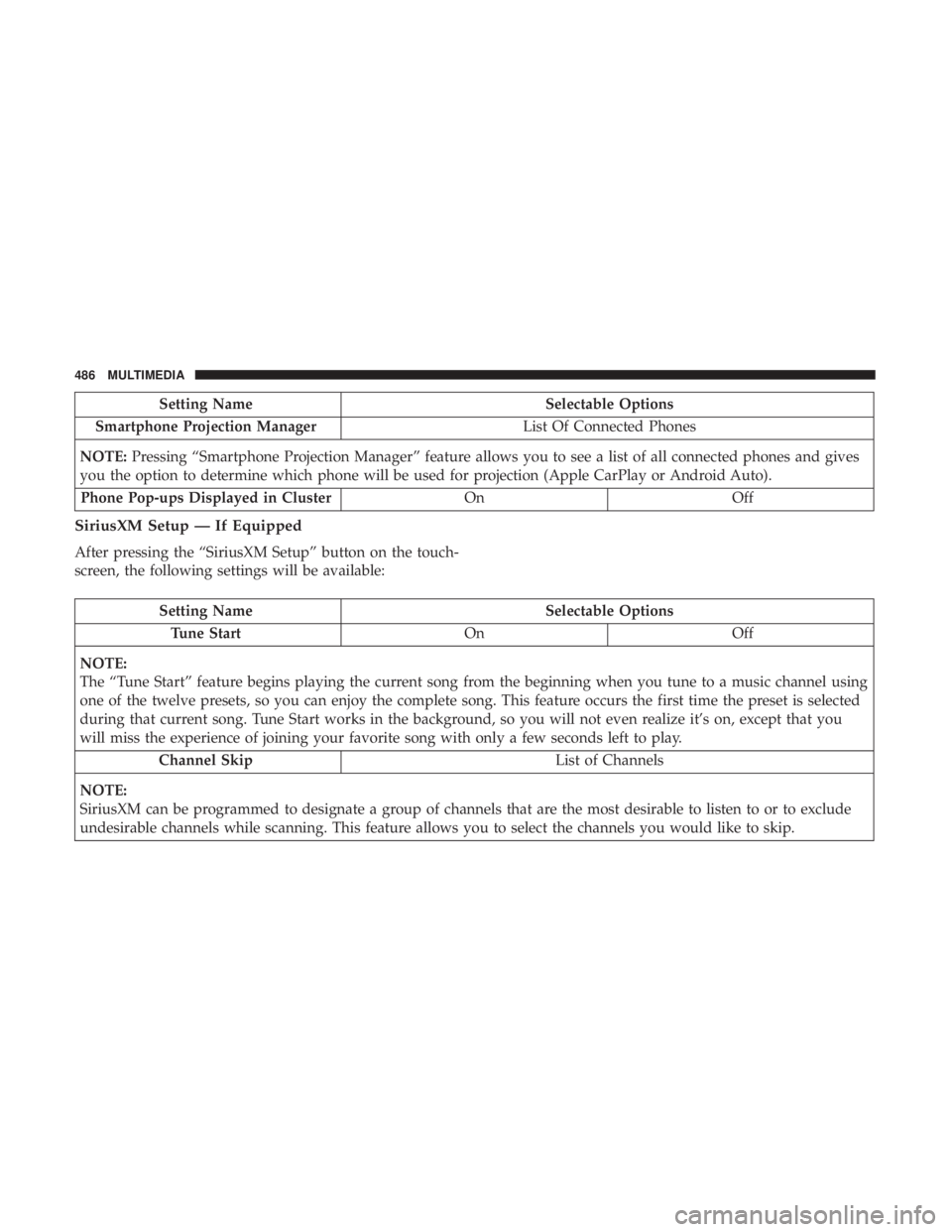
Smartphone Projection Manager List Of Connected Phones
NOTE: Pressing “Smartphone Projection Manager” feature allows you to see a list of all connected phones and gives
you the option to determine which phone will be used for projection (Apple CarPlay or Android Auto).
Phone Pop-ups Displayed in Cluster OnOff
SiriusXM Setup — If Equipped
After pressing the “SiriusXM Setup” button on the touch-
screen, the following settings will be available:
Setting Name Selectable Options
Tune Start OnOff
NOTE:
The “Tune Start” feature begins playing the current song from the beginning when you tune to a music channel using
one of the twelve presets, so you can enjoy the complete song. This feature occurs the first time the preset is selected
during that current song. Tune Start works in the background, so you will not even realize it’s on, except that you
will miss the experience of joining your favorite song with only a few seconds left to play. Channel Skip List of Channels
NOTE:
SiriusXM can be programmed to designate a group of channels that are the most desirable to listen to or to exclude
undesirable channels while scanning. This feature allows you to select the channels you would like to skip.
486 MULTIMEDIA
Page 490 of 572
Reset
After pressing the “Reset” button on the touchscreen, the
following settings will be available:
Setting NameSelectable Options
Reset App Drawer to De- fault OK
Cancel
Restore Apps OK Cancel
Restore Settings to Default OKCancel X
NOTE:
When this feature is selected, it will reset all of the radio features to their default settings. To restore the settings to
their default setting, press the “Restore Settings” button on the touchscreen. A pop-up will appear asking �Are you
sure you want to reset your settings to default?”
Clear Personal Data OKCancel X
NOTE:
When this feature is selected, it will remove all personal data including Bluetooth devices and presets. To remove per-
sonal information, press the “Clear Personal Data” button and a pop-up will appear asking �Are you sure you want
to clear all personal data?”
Modem Reset OK Cancel
488 MULTIMEDIA
Page 498 of 572
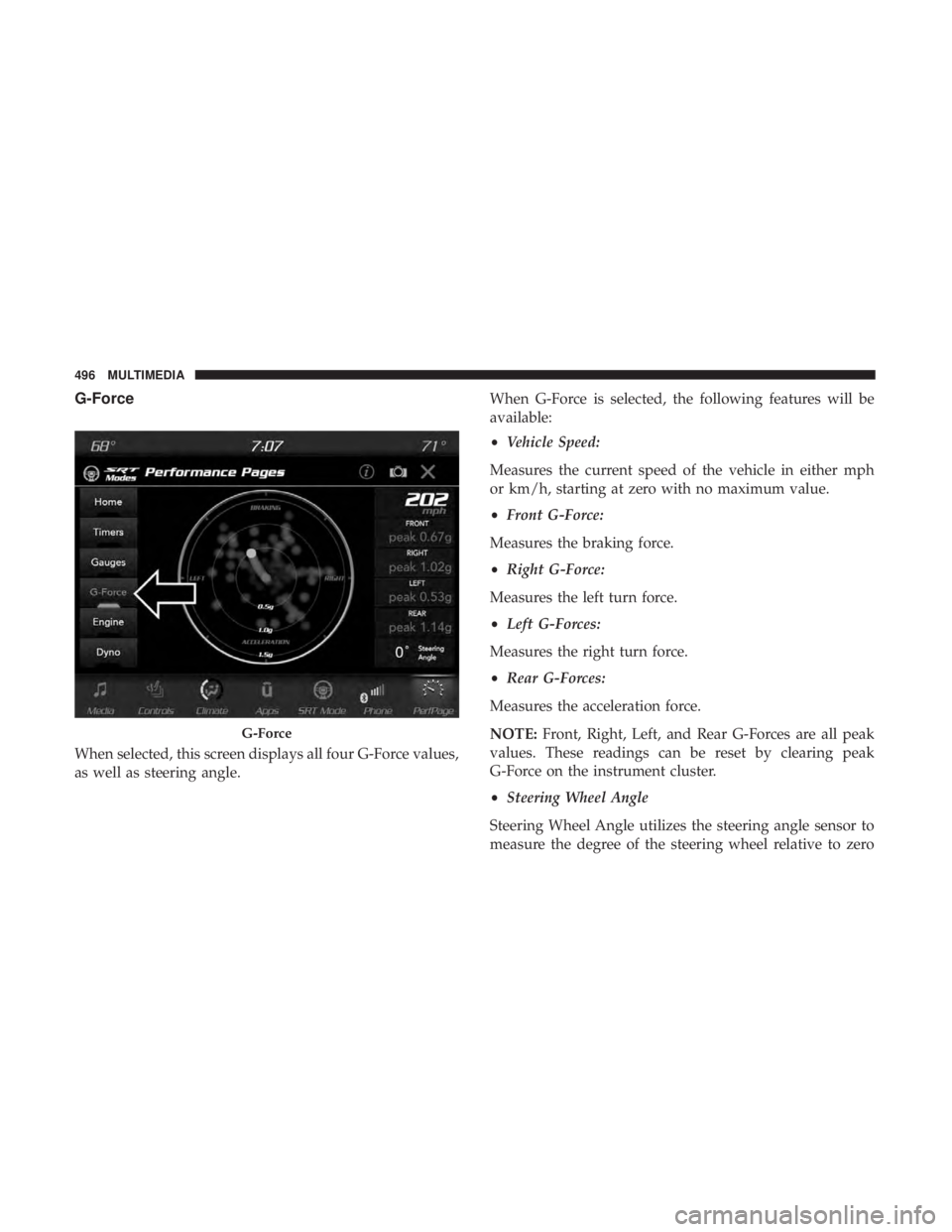
G-Force
When selected, this screen displays all four G-Force values,
as well as steering angle.When G-Force is selected, the following features will be
available:
•
Vehicle Speed:
Measures the current speed of the vehicle in either mph
or km/h, starting at zero with no maximum value.
• Front G-Force:
Measures the braking force.
• Right G-Force:
Measures the left turn force.
• Left G-Forces:
Measures the right turn force.
• Rear G-Forces:
Measures the acceleration force.
NOTE: Front, Right, Left, and Rear G-Forces are all peak
values. These readings can be reset by clearing peak
G-Force on the instrument cluster.
• Steering Wheel Angle
Steering Wheel Angle utilizes the steering angle sensor to
measure the degree of the steering wheel relative to zero
G-Force
496 MULTIMEDIA
Page 502 of 572

•Selecting “Drive Modes” from within the Performance
Pages menu.
The SRT Drive Modes main screen displays the current
drive mode and real-time status of the vehicle’s perfor-
mance configuration. The selectable Drive Modes are
Track, Sport, Auto, Snow, Tow, or Custom. Information
shown will indicate the actual status of each system, along
with a vehicle graphic that displays the active drive mode
status. The color red indicates “Track,” orange indicates
“Sport,” yellow indicates “Street”, and blue indicates
“Snow.” These features will reset to AUTO upon an igni-
tion cycle. If the system status shown does not match the
current drive mode set up, a message will be displayed
indicating which values are not matching the current
mode. Listed below are the available Drive Modes:
Track Mode
Selecting “Track” with the head unit will activate the
configuration for typical track driving. The Transmission,
Stability Control, All-Wheel Drive, Steering, and Suspen-
sion systems are all set to their “Track” settings, high-
lighted in red. The Paddle Shifters are enabled.
Drive Modes (Track)
500 MULTIMEDIA
Page 509 of 572

To adjust the Launch RPM, drag the slider bar or press the
arrows on the touchscreen to adjust the holding RPM. The
launch RPM limit will display in the head units tachometer
display.
Shift Light
Your vehicle is equipped with a shift light feature that
illuminates the back lighting of the tachometer (in red)
within the instrument cluster display. This feature is a
visual cue to manually up-shift using the paddle shifters.
To activate the Shift Light feature, press the “Shift Light”
button on the touchscreen, then press the “Shift Light On”
button on the touchscreen. Activation is shown on the
instrument cluster display. Pressing the “Shift Light RPM
Set-Up” button on the touchscreen will take you to the
Shift Light RPM Set-Up screen.
NOTE:You must be in Paddle Shift Mode, or the
electronic-shifter must be in the M position, in order to
activate the shift light. Refer to “Automatic Transmission”
in “Starting And Operating” for further information. The Shift Light RPM Set-Up allows you to set the shift light
to illuminate for gears 1, 2, 3, 4, and 5-8. Pressing and
releasing the up/down arrow buttons above and below
each listed gear, the RPM values will change in increments
of 250 RPM. Pressing and holding the arrows will change
the RPM values in increments of 500 RPM, ranging from
6250 RPM. The Shift Light setup screen may only be
accessed if the feature is enabled, press the “Reset to
Shift Light RPM Set-Up10
MULTIMEDIA 507
Page 514 of 572

amount of operating conditions where the vehicle is al-
lowed to operate in four cylinder shutoff mode.
The Paddle Shifters will be disabled while in ECO mode.
•ECO will be disabled when another Drive Mode is
selected or ECO button is pushed.
STEERING WHEEL AUDIO CONTROLS —
IF EQUIPPED
The remote sound system controls are located on the rear
surface of the steering wheel. Reach behind the wheel to
access the switches. The right-hand control is a rocker-type switch with a
push-button in the center and controls the volume and
mode of the sound system. Pushing the top of the rocker
switch increases the volume, and pushing the bottom of the
rocker switch decreases the volume.
Pushing the center button makes the radio switch between
the various modes available (AM/FM/SXM or Media etc.)
The left-hand control is a rocker-type switch with a push-
button in the center. The function of the left-hand control is
different depending on which mode you are in.
The following describes the left-hand control operation in
each mode.
Radio Operation
Pushing the top of the switch will “Seek” up for the next
listenable station and pushing the bottom of the switch will
“Seek” down for the next listenable station.
The button located in the center of the left-hand control
will tune to the next preset station that you have pro-
grammed in the radio preset button.
Steering Wheel Audio Controls
(Back View Of Steering Wheel)
512 MULTIMEDIA
Page 528 of 572

System Information
Disc Menu
When listening to a CD Audio or CD Data disc, pushing
the remote control’s POP UP/MENU button displays a list
of all commands which control playback of the disc.
Display Settings
When watching a video source (Blu-ray Disc or DVD Video
with the disc in Play mode, Aux Video, etc.), pushing the
remote control’s SETUP button activates the Display Set-
tings menu. These settings control the appearance of thevideo on the screen. The factory default settings are already
set for optimum viewing, so there is no need to change
these settings under normal circumstances.
To change the settings, push the remote control’s naviga-
tion buttons (�,
�) to select an item, then push the remote
control’s navigation buttons (�, �) to change the value for
the currently selected item. To reset all values back to the
original settings, select the Default Settings menu option
and push the remote control’s ENTER/OK button.
Disc Features control the remote Blu-ray Disc player’s
settings of DVD being watched in the remote player.
Listening To Audio With The Screen Closed
To listen to only audio portion of the channel with the
screen closed:
• Set the audio to the desired source and channel.
• Close the video screen.
• To change the current audio mode, push the remote
control’s SOURCE button. This will automatically select
the next available audio mode without using the Mode/
Source Select menu.
Video Screen Display Settings
526 MULTIMEDIA