Page 470 of 572

NOTE:
•FCA US LLC or your dealer may contact you directly
regarding software updates.
• To help further improve vehicle security and minimize
the potential risk of a security breach, vehicle owners
should:
• Routinely check www.driveuconnect.com (U.S. Resi-
dents) or www.driveuconnect.ca (Canadian Residents)
to learn about available Uconnect software updates.
• Only connect and use trusted media devices (e.g.
personal mobile phones, USBs, CDs).
Privacy of any wireless and wired communications cannot
be assured. Third parties may unlawfully intercept infor-
mation and private communications without your consent.
For further information, refer to “Data Collection & Pri-
vacy” in your Uconnect Owner ’s Manual Supplement or
“Onboard Diagnostic System (OBD II) Cybersecurity” in
“Getting To Know Your Instrument Panel”.UCONNECT SETTINGS
The Uconnect system uses a combination of buttons on the
touchscreen and buttons on the faceplate located on the
center of the instrument panel that allow you to access and
change the customer programmable features. Many fea-
tures can vary by vehicle.
Uconnect 4C/4C NAV Buttons On Faceplate And Buttons On Touchscreen
1 — Uconnect Buttons On The Touchscreen
2 — Uconnect Buttons On The Faceplate
468 MULTIMEDIA
Page 471 of 572
Customer Programmable Features — Uconnect
4C/4C NAV Settings
Press the “Apps” button, then press the “Settings”
button on the touchscreen to display the menu setting
screen. In this mode the Uconnect system allows you to
access programmable features that may be equipped
such as Language, Display, Units, Voice, Clock, Safety &
Driving Assistance, Mirrors & Wipers, Lights, Doors &
Locks, Auto-On Comfort, Engine Off Options, Suspen-
sion, Audio, Phone/Bluetooth, SiriusXM Setup, Acces-
sibility, Reset, and System Information.
NOTE: Depending on the vehicles options, feature settings
may vary. When making a selection, press the button on the touch-
screen to enter the desired mode. Once in the desired
mode, press and release the preferred setting “option” until
a check-mark appears next to the setting, showing that
setting has been selected. Once the setting is complete,
either press the “Back” Arrow button on the touchscreen to
return to the previous menu, or press the “X” button on the
touchscreen to close out of the settings screen. Pressing the
“Up” or “Down” Arrow button on the right side of the
screen will allow you to toggle up or down through the
available settings.Language
After pressing the “Language” button on the touchscreen,
the following settings will be available:
Setting Name
Selectable Options
Language EnglishEspanolFrancais
When the “Set Language” feature is selected, you may select one of multiple languages (English / Français / Espa-
ñol) for all display nomenclature, including the trip functions and the navigation system (if equipped). Press the “Set
Language” button on the touchscreen, then press the desired language button on the touchscreen until a check-mark
appears next to the language, showing that setting has been selected.10
MULTIMEDIA 469
Page 473 of 572
Setting NameSelectable Options
Touchscreen Beep OnOff
Control Screen Time-Out — If Equipped On
Off
NOTE:
When the “Control Screen Time-Out” feature is selected, the Controls Screen will stay open for five seconds before
the screen times out. With the feature deselected, the screen will stay open until it is manually closed. Navigation Turn-By-Turn In Cluster — If Equipped On
Off
NOTE:
When the “Navigation Turn-By-Turn In Cluster” feature is selected, the turn-by-turn directions will appear in the in-
strument cluster display as the vehicle approaches a designated turn within a programmed route. Phone Pop-ups Displayed in Cluster OnOff
10
MULTIMEDIA 471
Page 485 of 572
Engine Off Options
After pressing the “Engine Off Options” button on the
touchscreen, the following settings will be available:
Setting NameSelectable Options
Engine Off Power Delay — If Equipped 0 sec
45 sec
5 min 10 min
NOTE:
When the “Engine Off Power Delay” feature is selected, the power window switches, radio, Uconnect phone system
(if equipped), DVD video system (if equipped), power sunroof (if equipped), and power outlets remains active for up
to ten minutes after the ignition is cycled to OFF. Opening either front door cancels this feature. Headlight Off Delay 0 sec30 sec
60 sec 90 sec
NOTE:
When the “Headlight Off Delay” feature is selected, it allows the adjustment of the amount of time the headlights
remain on after the engine is shut off. Easy Exit Seat — If Equipped OnOff
NOTE:
When the “Easy Exit Seat” feature is selected, it provides automatic driver seat positioning to enhance driver mobility
when entering and exiting the vehicle.
10
MULTIMEDIA 483
Page 487 of 572
Setting NameSelectable Options
AUX Volume Offset — If Equipped +-
NOTE:
This feature provides the ability to tune the audio level for portable devices connected through the AUX input. Auto Play On Off
Phone/Bluetooth Settings
After pressing the “Phone/Bluetooth Settings” button on
the touchscreen, the following settings will be available:
Setting Name Selectable Options
Do Not Disturb List of Settings
NOTE:
Press “Do Not Disturb” to access the available settings. The following settings are: Auto Reply (both, text, call), Auto
Reply Message (custom, default) and Custom Auto Reply Message (create message). Paired Phones and Audio Sources List Of Paired Phones and Audio Sources
NOTE:
The “Paired Phones and Audio Sources” feature shows which phones and audio sources are paired to the Phone and
Audio Sources Settings system. For further information, refer to the Uconnect Owner ’s Manual Supplement.
10
MULTIMEDIA 485
Page 488 of 572
Setting NameSelectable Options
Smartphone Projection Manager List Of Connected Phones
NOTE: Pressing “Smartphone Projection Manager” feature allows you to see a list of all connected phones and gives
you the option to determine which phone will be used for projection (Apple CarPlay or Android Auto).
Phone Pop-ups Displayed in Cluster OnOff
SiriusXM Setup — If Equipped
After pressing the “SiriusXM Setup” button on the touch-
screen, the following settings will be available:
Setting Name Selectable Options
Tune Start OnOff
NOTE:
The “Tune Start” feature begins playing the current song from the beginning when you tune to a music channel using
one of the twelve presets, so you can enjoy the complete song. This feature occurs the first time the preset is selected
during that current song. Tune Start works in the background, so you will not even realize it’s on, except that you
will miss the experience of joining your favorite song with only a few seconds left to play. Channel Skip List of Channels
NOTE:
SiriusXM can be programmed to designate a group of channels that are the most desirable to listen to or to exclude
undesirable channels while scanning. This feature allows you to select the channels you would like to skip.
486 MULTIMEDIA
Page 515 of 572

Media Mode
Pushing the top of the switch once goes to the next track on
the selected media (AUX/USB/Bluetooth). Pushing the
bottom of the switch once goes to the beginning of the
current track, or to the beginning of the previous track if it
is within eight seconds after the current track begins to
play.
IPOD/USB/MP3 CONTROL — IF EQUIPPED
This feature allows an iPod or external USB device to be
plugged into the USB port, located inside the storage area
on the center stack of the instrument panel.
iPod control supports Mini, 4G, Photo, Nano, 5G iPod and
iPhone devices. Some iPod software versions may not fully
support the iPod control features. Please visit Apple’s
website for software updates.
For further information, refer to the Uconnect Owner ’s
Manual Supplement.
Connecting The iPod Or External USB Device
Use the connection cable to connect an iPod or external
USB device to the vehicles USB/AUX connector port which
is located in the center console.The USB ports on the Media Hub are equipped with a
Smart Electronic Voltage Regulator (Smart Charge) feature.
This feature allows a device to charge for up to one hour
after the vehicle is powered off.
Once the audio device is connected and synchronized to
the vehicles iPod/USB/MP3 control system (iPod or exter-
nal USB device may take a few minutes to connect), the
audio device starts charging and is ready for use.
NOTE:If the audio device battery is completely discharged,
it may not communicate with the iPod/USB/MP3 control
system until a minimum charge is attained. Leaving the
Integrated Center Console USB/AUX Media HUB10
MULTIMEDIA 513
Page 517 of 572
UCONNECT REAR SEAT ENTERTAINMENT (RSE)
SYSTEM — IF EQUIPPED
Your Rear Seat Entertainment System is designed to give
your family years of enjoyment. You can play your favorite
CDs, DVDs or Blu-ray Discs, listen to audio over the
wireless headphones, or plug and play a variety of stan-
dard video games or audio devices.
Please review this Owner’s Manual to become familiar
with its features and operation.
Getting Started
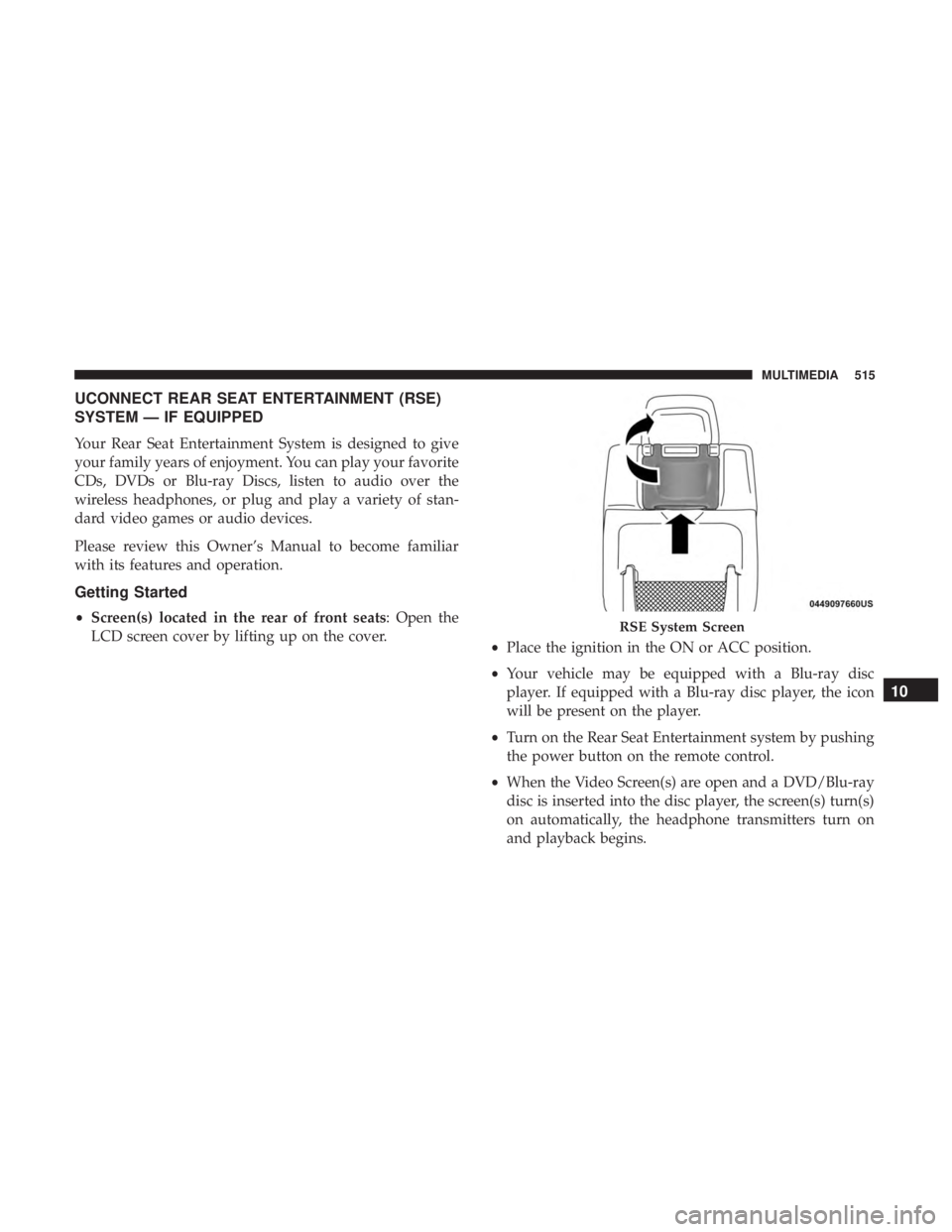
•Screen(s) located in the rear of front seats: Open the
LCD screen cover by lifting up on the cover. •Place the ignition in the ON or ACC position.
• Your vehicle may be equipped with a Blu-ray disc
player. If equipped with a Blu-ray disc player, the icon
will be present on the player.
• Turn on the Rear Seat Entertainment system by pushing
the power button on the remote control.
• When the Video Screen(s) are open and a DVD/Blu-ray
disc is inserted into the disc player, the screen(s) turn(s)
on automatically, the headphone transmitters turn on
and playback begins.RSE System Screen
10
MULTIMEDIA 515


