Page 486 of 560
Setting NameSelectable Options
AUX Volume Offset — If Equipped -3+3
NOTE:
The “AUX Volume Offset” feature provides the ability to tune the audio level for portable devices connected through
the AUX input. To make your selection, press the AUX Volume Match button on the touchscreen, choose a level from
–3 to +3. Auto Play OnOff
NOTE:
The “Auto Play” feature allows a media device to begin playing when the media device is plugged in. To make your
selection, press the On or Off buttons to activate or deactivate Auto Play.
Phone/Bluetooth Settings
After pressing the “Phone/Bluetooth Settings” button on
the touchscreen, the following settings will be available:
Setting Name Selectable Options
Do Not Disturb List of Settings
NOTE:
Press “Do Not Disturb” to access the available settings. The following settings are: Auto Reply (both, text, call), Auto
Reply Message (custom, default), and Custom Auto Reply Message (create message).
484 MULTIMEDIA
Page 499 of 560
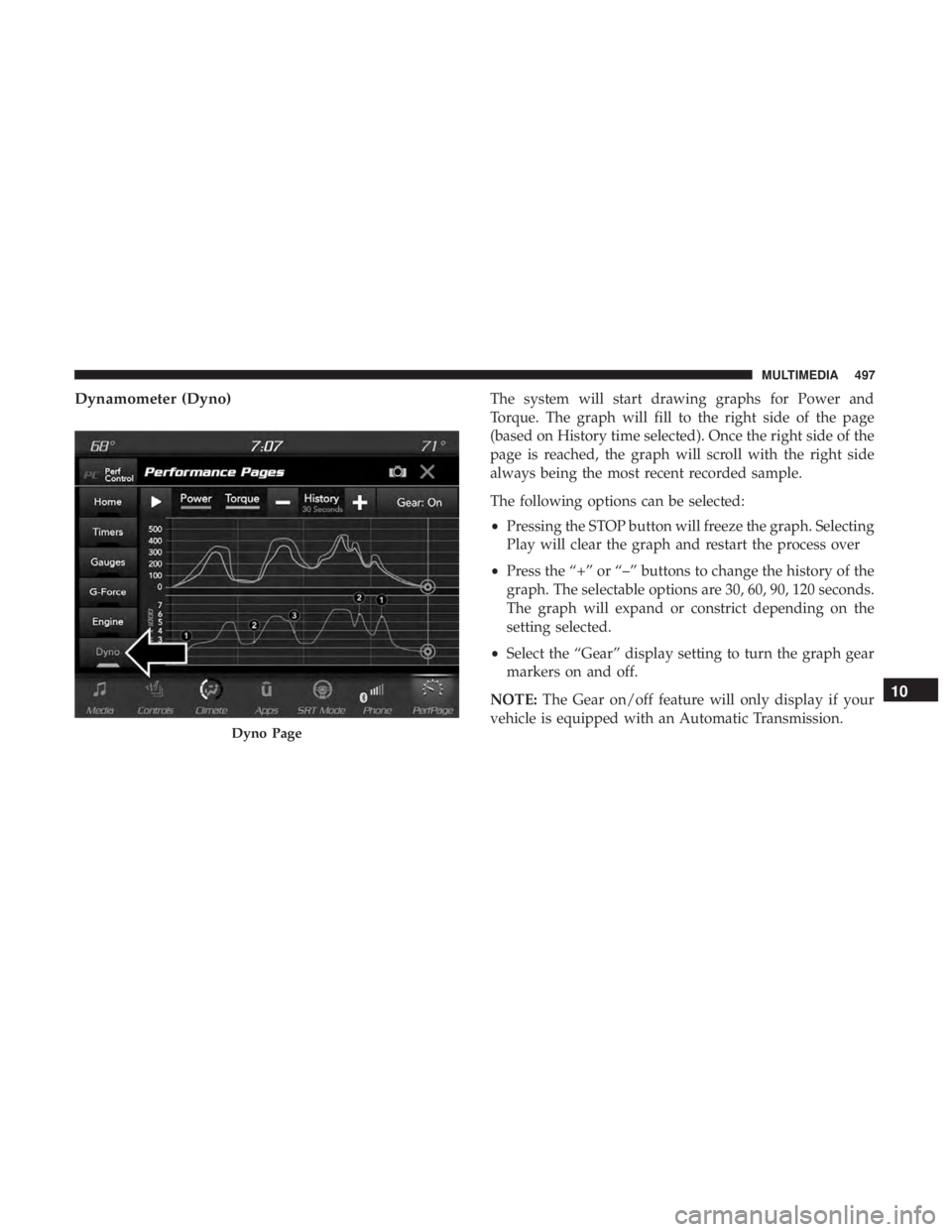
Dynamometer (Dyno)The system will start drawing graphs for Power and
Torque. The graph will fill to the right side of the page
(based on History time selected). Once the right side of the
page is reached, the graph will scroll with the right side
always being the most recent recorded sample.
The following options can be selected:
•Pressing the STOP button will freeze the graph. Selecting
Play will clear the graph and restart the process over
• Press the “+” or “–” buttons to change the history of the
graph. The selectable options are 30, 60, 90, 120 seconds.
The graph will expand or constrict depending on the
setting selected.
• Select the “Gear” display setting to turn the graph gear
markers on and off.
NOTE: The Gear on/off feature will only display if your
vehicle is equipped with an Automatic Transmission.
Dyno Page
10
MULTIMEDIA 497
Page 502 of 560
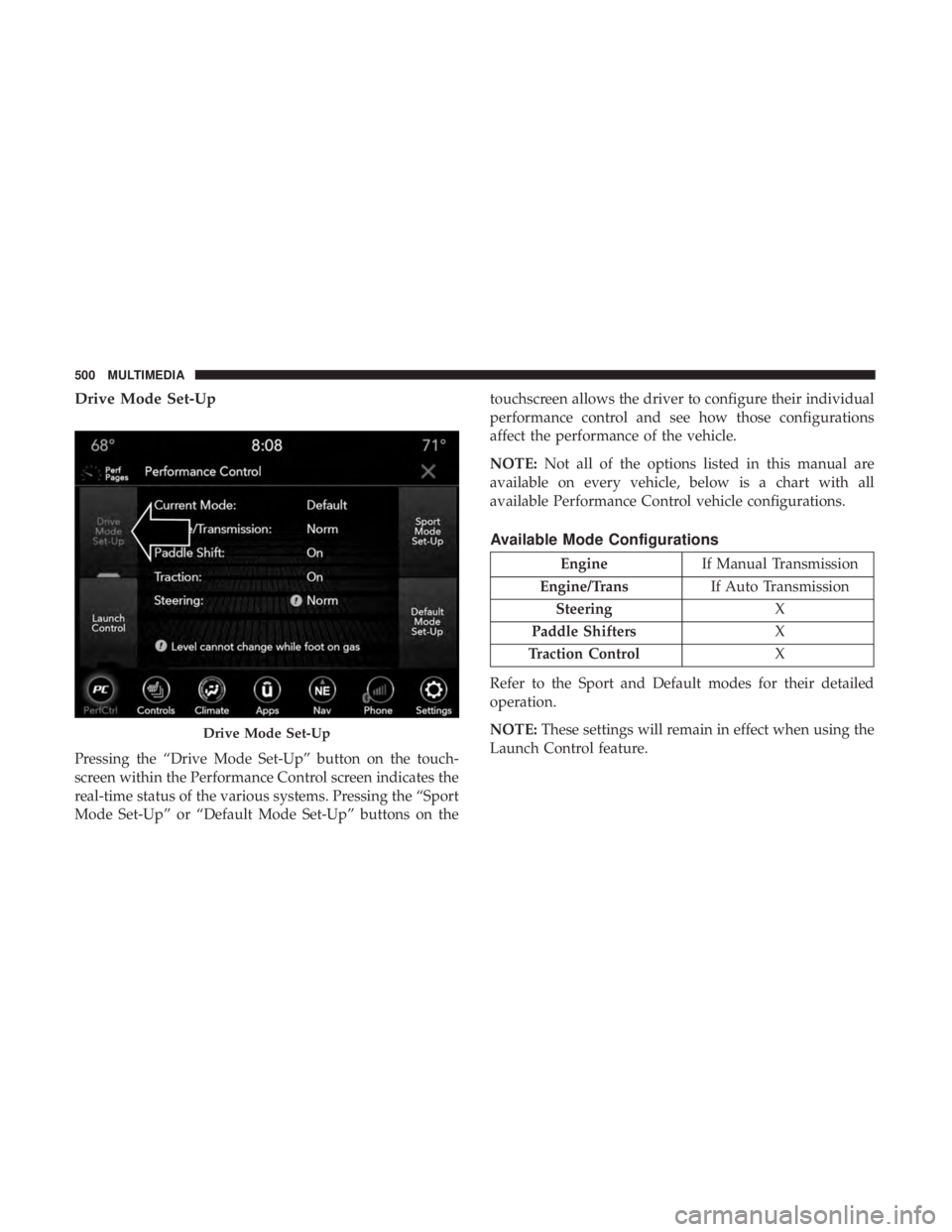
Drive Mode Set-Up
Pressing the “Drive Mode Set-Up” button on the touch-
screen within the Performance Control screen indicates the
real-time status of the various systems. Pressing the “Sport
Mode Set-Up” or “Default Mode Set-Up” buttons on thetouchscreen allows the driver to configure their individual
performance control and see how those configurations
affect the performance of the vehicle.
NOTE:
Not all of the options listed in this manual are
available on every vehicle, below is a chart with all
available Performance Control vehicle configurations.
Available Mode Configurations
Engine If Manual Transmission
Engine/Trans If Auto Transmission
Steering X
Paddle Shifters X
Traction Control X
Refer to the Sport and Default modes for their detailed
operation.
NOTE: These settings will remain in effect when using the
Launch Control feature.
Drive Mode Set-Up
500 MULTIMEDIA
Page 503 of 560
Default Mode
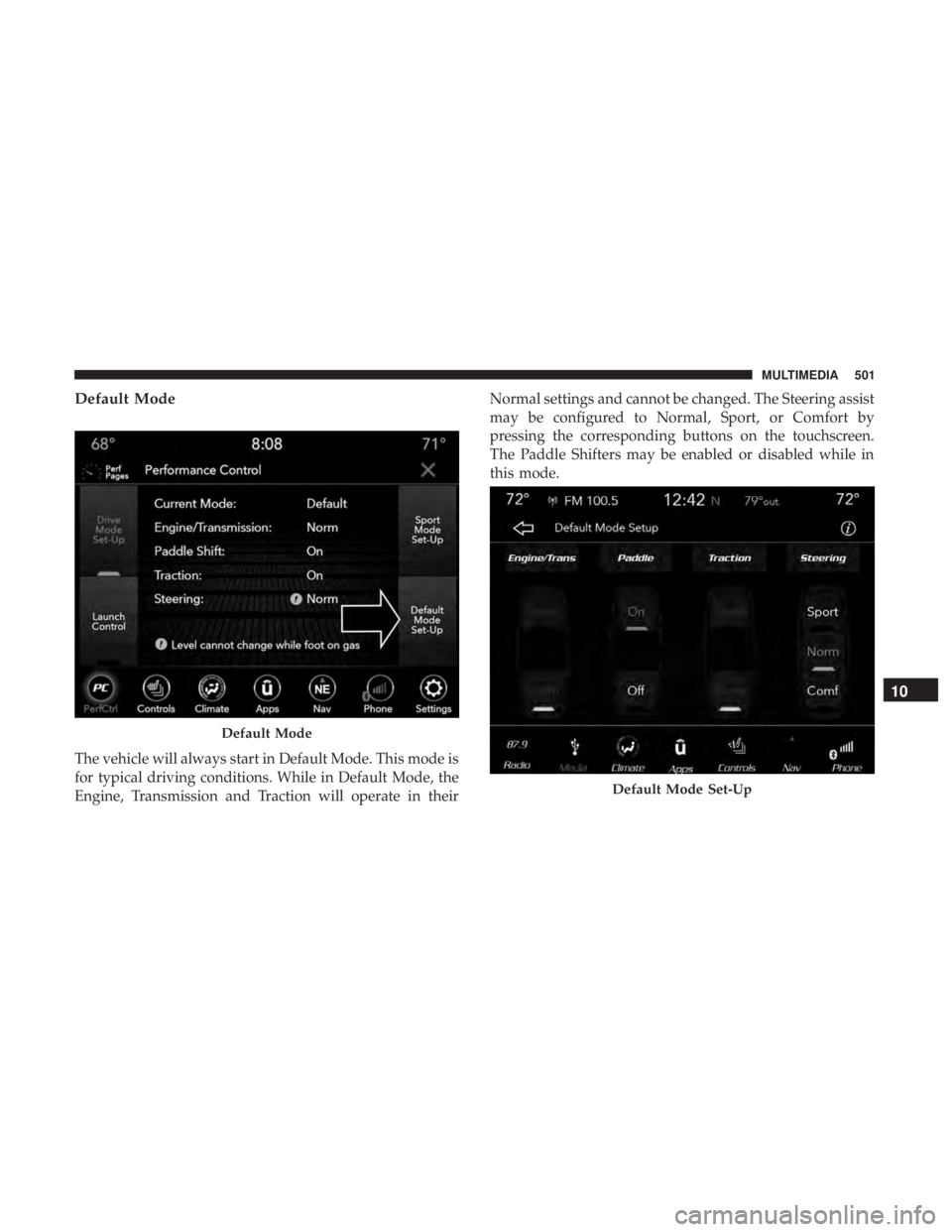
The vehicle will always start in Default Mode. This mode is
for typical driving conditions. While in Default Mode, the
Engine, Transmission and Traction will operate in theirNormal settings and cannot be changed. The Steering assist
may be configured to Normal, Sport, or Comfort by
pressing the corresponding buttons on the touchscreen.
The Paddle Shifters may be enabled or disabled while in
this mode.
Default Mode
Default Mode Set-Up
10
MULTIMEDIA 501
Page 504 of 560
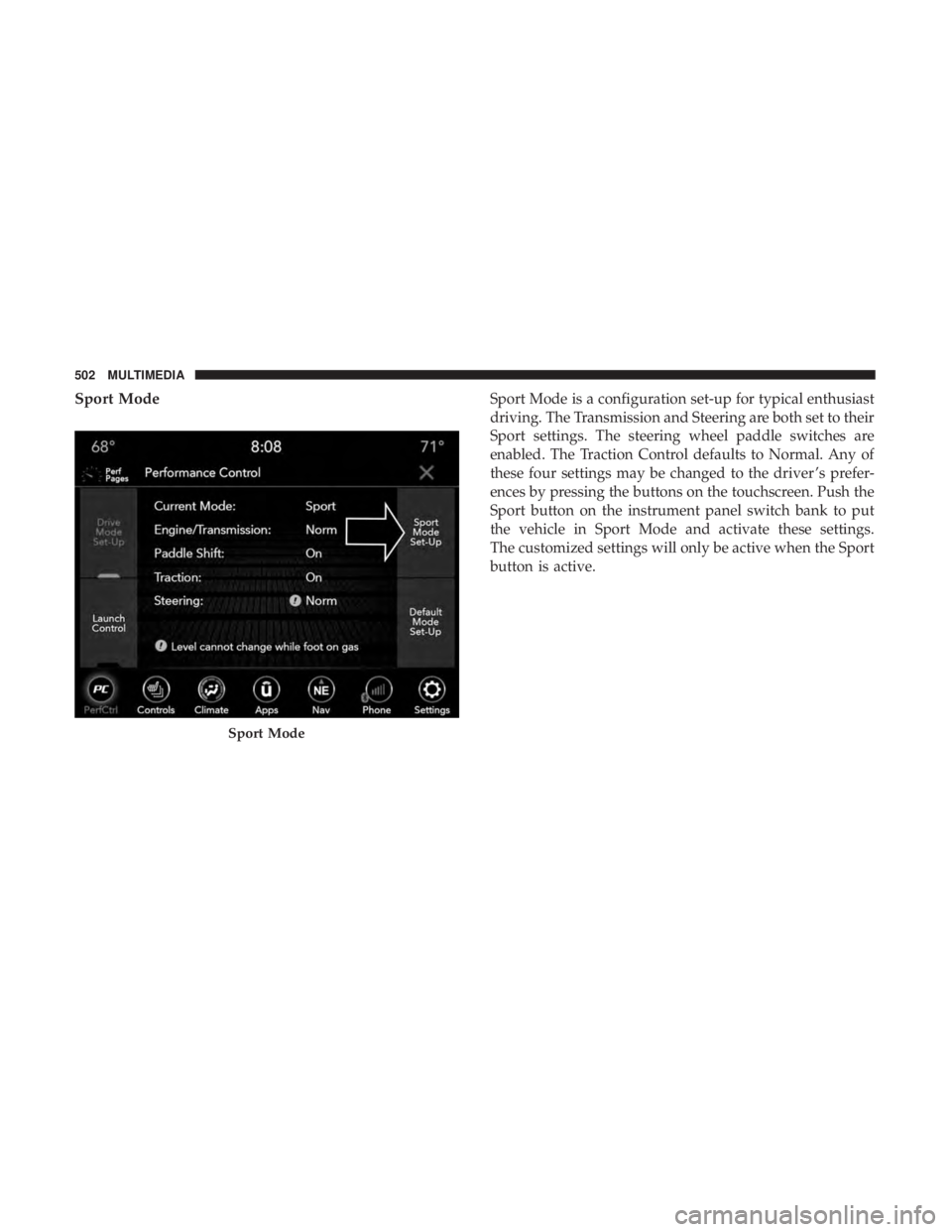
Sport ModeSport Mode is a configuration set-up for typical enthusiast
driving. The Transmission and Steering are both set to their
Sport settings. The steering wheel paddle switches are
enabled. The Traction Control defaults to Normal. Any of
these four settings may be changed to the driver ’s prefer-
ences by pressing the buttons on the touchscreen. Push the
Sport button on the instrument panel switch bank to put
the vehicle in Sport Mode and activate these settings.
The customized settings will only be active when the Sport
button is active.
Sport Mode
502 MULTIMEDIA
Page 516 of 560
Get Started
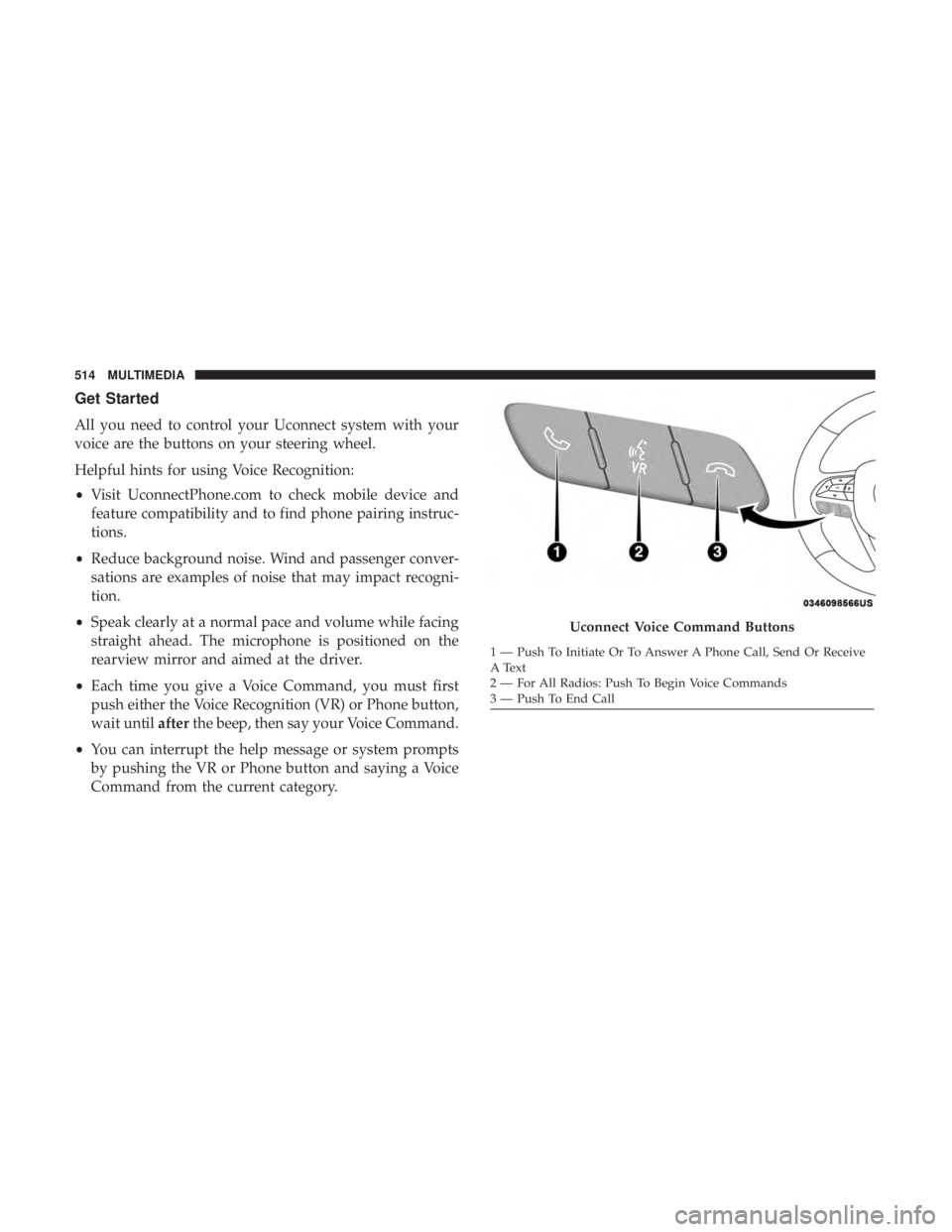
All you need to control your Uconnect system with your
voice are the buttons on your steering wheel.
Helpful hints for using Voice Recognition:
•Visit UconnectPhone.com to check mobile device and
feature compatibility and to find phone pairing instruc-
tions.
• Reduce background noise. Wind and passenger conver-
sations are examples of noise that may impact recogni-
tion.
• Speak clearly at a normal pace and volume while facing
straight ahead. The microphone is positioned on the
rearview mirror and aimed at the driver.
• Each time you give a Voice Command, you must first
push either the Voice Recognition (VR) or Phone button,
wait until afterthe beep, then say your Voice Command.
• You can interrupt the help message or system prompts
by pushing the VR or Phone button and saying a Voice
Command from the current category.
Uconnect Voice Command Buttons
1 — Push To Initiate Or To Answer A Phone Call, Send Or Receive
A Text
2 — For All Radios: Push To Begin Voice Commands
3 — Push To End Call
514 MULTIMEDIA