Page 419 of 500
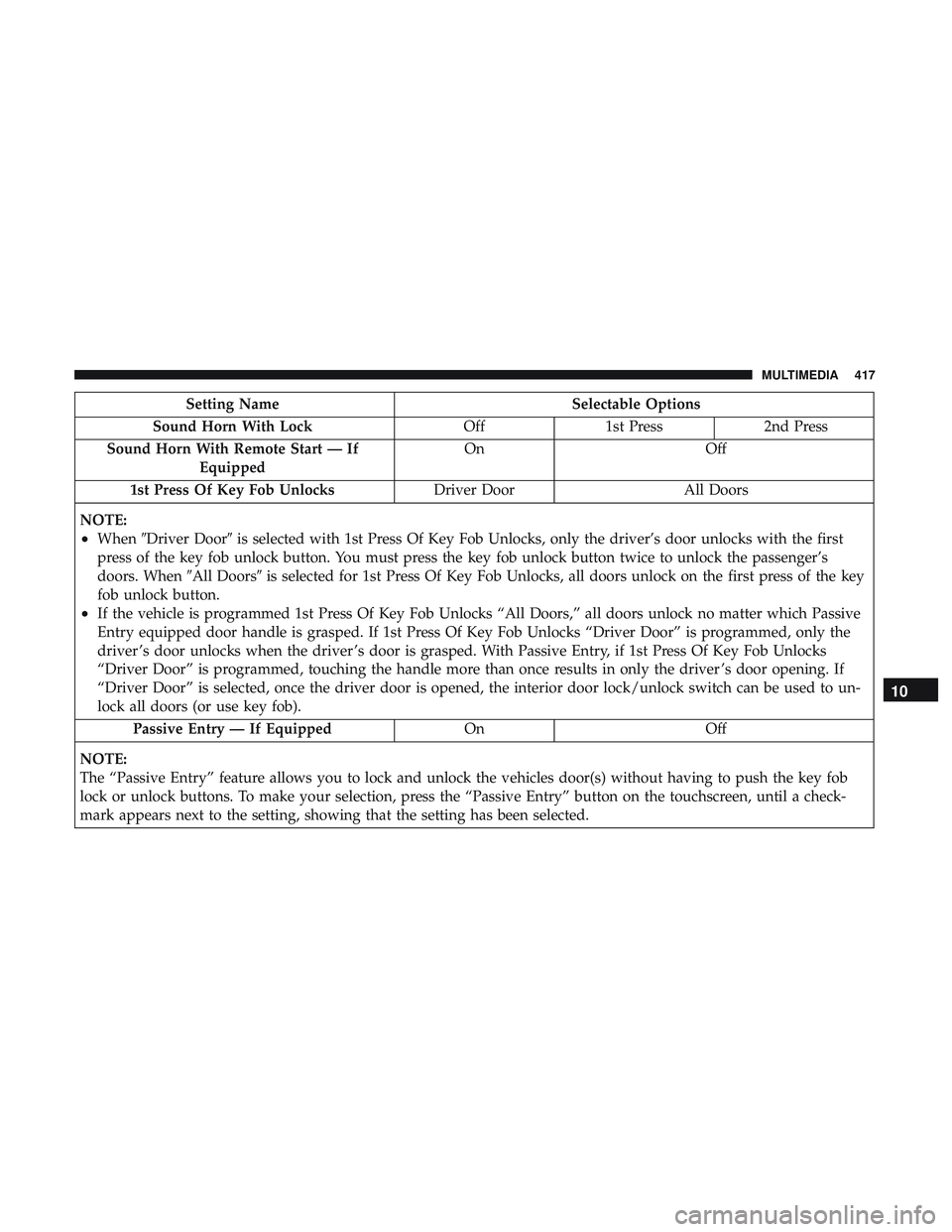
Setting NameSelectable Options
Sound Horn With Lock Off1st Press 2nd Press
Sound Horn With Remote Start — If Equipped On
Off
1st Press Of Key Fob Unlocks Driver DoorAll Doors
NOTE:
•When �Driver Door� is selected with 1st Press Of Key Fob Unlocks, only the driver’s door unlocks with the first
press of the key fob unlock button. You must press the key fob unlock button twice to unlock the passenger’s
doors. When �All Doors�is selected for 1st Press Of Key Fob Unlocks, all doors unlock on the first press of the key
fob unlock button.
•If the vehicle is programmed 1st Press Of Key Fob Unlocks “All Doors,” all doors unlock no matter which Passive
Entry equipped door handle is grasped. If 1st Press Of Key Fob Unlocks “Driver Door” is programmed, only the
driver ’s door unlocks when the driver ’s door is grasped. With Passive Entry, if 1st Press Of Key Fob Unlocks
“Driver Door” is programmed, touching the handle more than once results in only the driver ’s door opening. If
“Driver Door” is selected, once the driver door is opened, the interior door lock/unlock switch can be used to un-
lock all doors (or use key fob).
Passive Entry — If Equipped OnOff
NOTE:
The “Passive Entry” feature allows you to lock and unlock the vehicles door(s) without having to push the key fob
lock or unlock buttons. To make your selection, press the “Passive Entry” button on the touchscreen, until a check-
mark appears next to the setting, showing that the setting has been selected.
10
MULTIMEDIA 417
Page 469 of 500
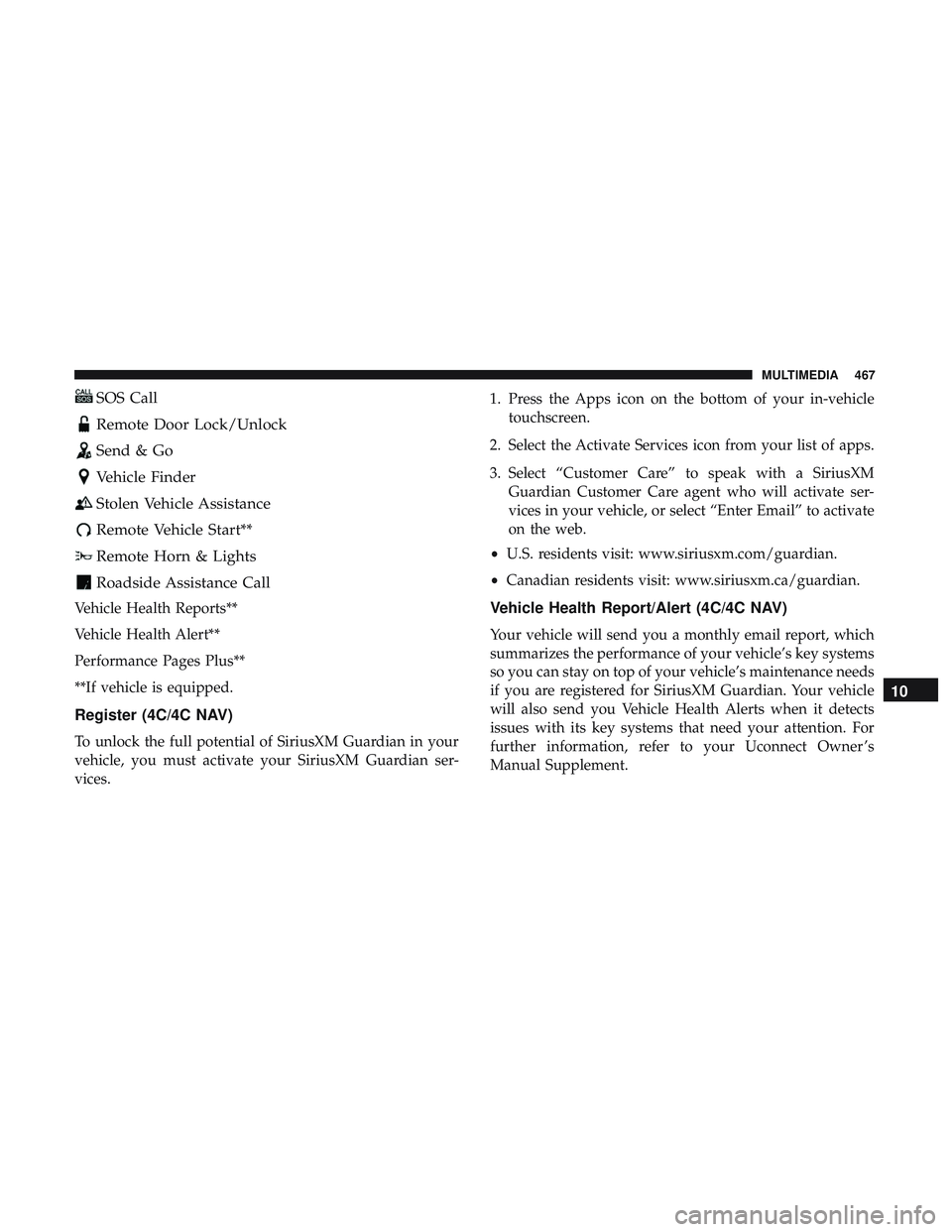
SOS
Call
Remote Door Lock/Unlock
Send & Go
Vehicle Finder
Stolen Vehicle Assistance
Remote Vehicle Start**
Remote Horn & Lights
Roadside Assistance CallVehicle Health Reports**
Vehicle Health Alert**
Performance Pages Plus**
**If vehicle is equipped.
Register (4C/4C NAV)
To unlock the full potential of SiriusXM Guardian in your
vehicle, you must activate your SiriusXM Guardian ser-
vices.1. Press the Apps icon on the bottom of your in-vehicle
touchscreen.
2. Select the Activate Services icon from your list of apps.
3. Select “Customer Care” to speak with a SiriusXM Guardian Customer Care agent who will activate ser-
vices in your vehicle, or select “Enter Email” to activate
on the web.
• U.S. residents visit: www.siriusxm.com/guardian.
• Canadian residents visit: www.siriusxm.ca/guardian.
Vehicle Health Report/Alert (4C/4C NAV)
Your vehicle will send you a monthly email report, which
summarizes the performance of your vehicle’s key systems
so you can stay on top of your vehicle’s maintenance needs
if you are registered for SiriusXM Guardian. Your vehicle
will also send you Vehicle Health Alerts when it detects
issues with its key systems that need your attention. For
further information, refer to your Uconnect Owner ’s
Manual Supplement.
10
MULTIMEDIA 467
Page 470 of 500
Mobile App (4C/4C NAV)
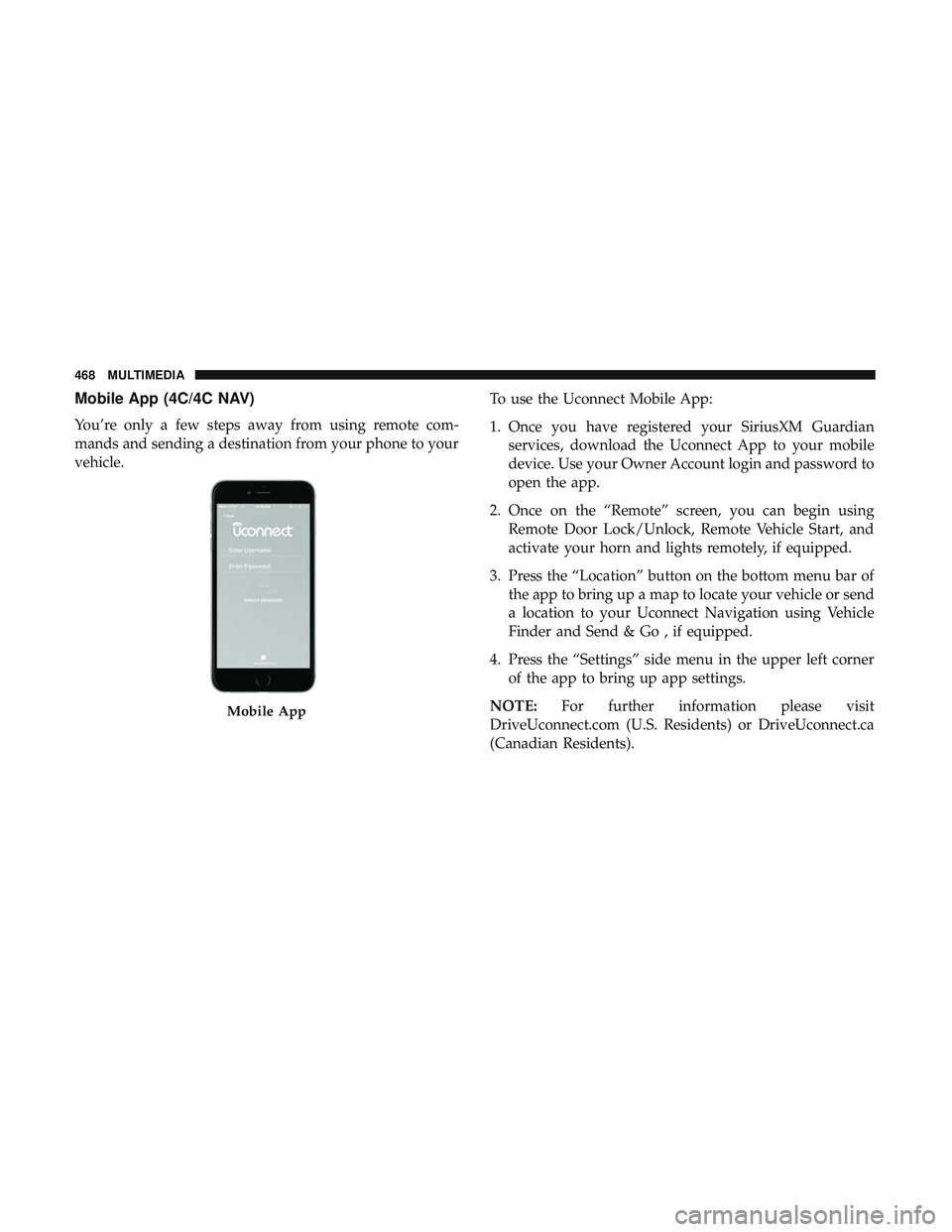
You’re only a few steps away from using remote com-
mands and sending a destination from your phone to your
vehicle.To use the Uconnect Mobile App:
1. Once you have registered your SiriusXM Guardian
services, download the Uconnect App to your mobile
device. Use your Owner Account login and password to
open the app.
2. Once on the “Remote” screen, you can begin using Remote Door Lock/Unlock, Remote Vehicle Start, and
activate your horn and lights remotely, if equipped.
3. Press the “Location” button on the bottom menu bar of the app to bring up a map to locate your vehicle or send
a location to your Uconnect Navigation using Vehicle
Finder and Send & Go , if equipped.
4. Press the “Settings” side menu in the upper left corner of the app to bring up app settings.
NOTE: For further information please visit
DriveUconnect.com (U.S. Residents) or DriveUconnect.ca
(Canadian Residents).
Mobile App
468 MULTIMEDIA