Page 443 of 532

Setting NameSelectable Options
Subscription Information Subscription Info
NOTE:
New vehicle purchasers or lessees will receive a free limited time subscription to SiriusXM Satellite Radio with your
radio. Following the expiration of the free services, it will be necessary to access the information on the Subscription
Information screen to re-subscribe.
1. Press the “Subscription Info” button on the touchscreen to access the Subscription Information screen.
2. Write down the SIRIUS ID numbers for your receiver. To reactivate your service, either call the number listed on the screen or visit the provider online.
Restore Settings
After pressing the “Restore Settings” button on the touch-
screen, the following settings will be available:
Setting Name Selectable Options
Restore Settings YesCancel
NOTE:
When the “Restore Settings” feature is selected it will reset the Display, Clock, Audio, and Radio Settings to their de-
fault settings. If “Yes” is selected, a pop-up will appear asking �Are you sure you want to reset your settings to de-
fault?” Select “Yes” to restore, or “Cancel” to exit.10
MULTIMEDIA 441
Page 463 of 532
SiriusXM Setup — If Equipped
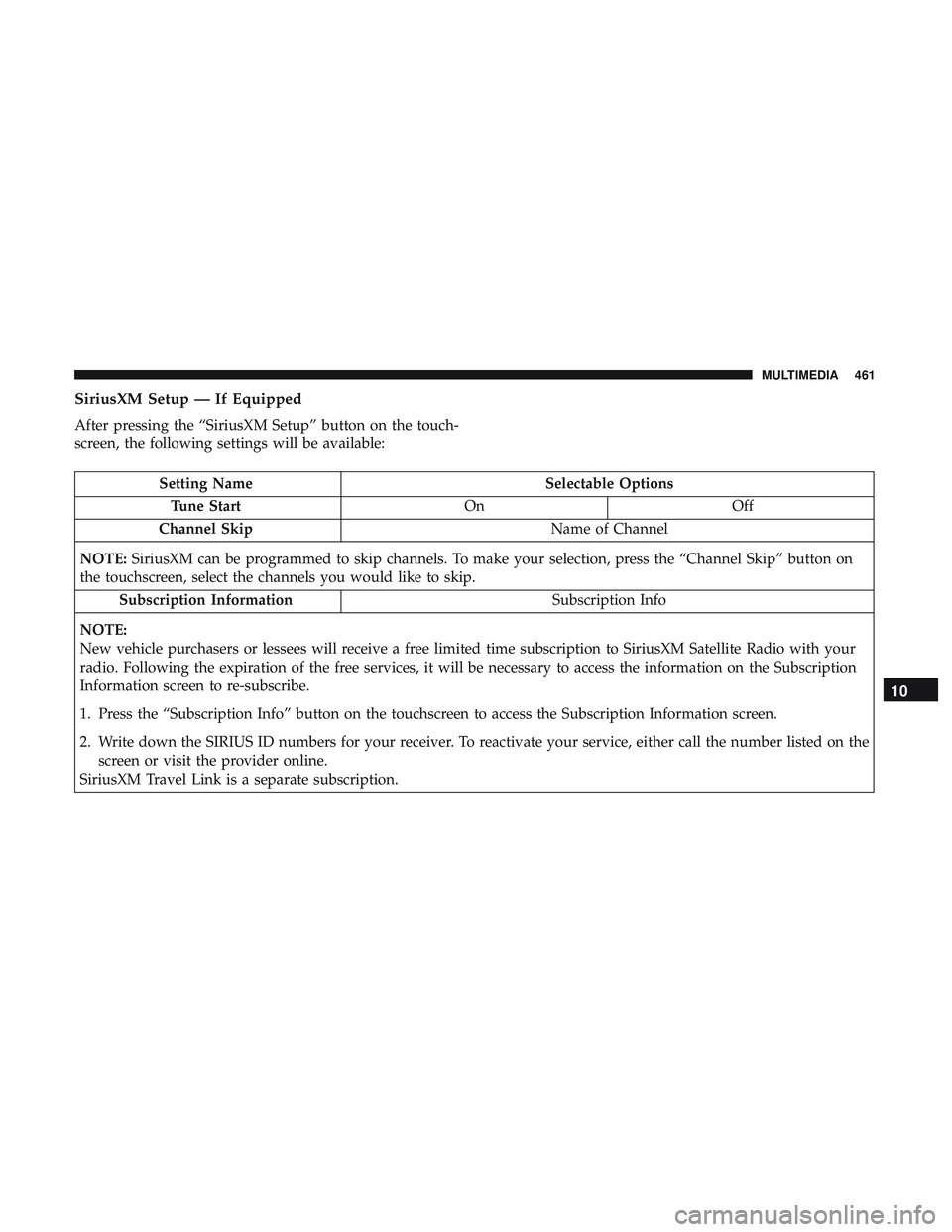
After pressing the “SiriusXM Setup” button on the touch-
screen, the following settings will be available:
Setting NameSelectable Options
Tune Start OnOff
Channel Skip Name of Channel
NOTE: SiriusXM can be programmed to skip channels. To make your selection, press the “Channel Skip” button on
the touchscreen, select the channels you would like to skip.
Subscription Information Subscription Info
NOTE:
New vehicle purchasers or lessees will receive a free limited time subscription to SiriusXM Satellite Radio with your
radio. Following the expiration of the free services, it will be necessary to access the information on the Subscription
Information screen to re-subscribe.
1. Press the “Subscription Info” button on the touchscreen to access the Subscription Information screen.
2. Write down the SIRIUS ID numbers for your receiver. To reactivate your service, either call the number listed on the screen or visit the provider online.
SiriusXM Travel Link is a separate subscription.
10
MULTIMEDIA 461
Page 497 of 532
SiriusXM Guardian (4C/4C NAV) — If Equipped
CAUTION!
Some SiriusXM Guardian services, including SOS Call
and Roadside Assistance Call will NOT work without
an operable LTE (voice/data) or 3G or 4G (data) net-
work connection compatible with your device.
NOTE: Your vehicle may be transmitting data as autho-
rized by the subscriber.
An included trial and/or subscription is required to take
advantage of the SiriusXM Guardian services in the next
section of this guide. To register with SiriusXM Guardian,
press the Apps button on the Uconnect 4C/4C NAV
touchscreen to get started.
NOTE: SiriusXM Guardian is available only on equipped
vehicles purchased within the continental United States,
Alaska, Hawaii and Canada. Services can only be used
where coverage is available; see coverage map for details. SOS
Call
Remote Door Lock/Unlock
Send & Go
Vehicle Finder
Stolen Vehicle Assistance
Remote Vehicle Start**
Remote Horn & Lights
Roadside Assistance Call
Vehicle Health Reports**
Vehicle Health Alert**
Performance Pages Plus**
**If vehicle is equipped.
Register (4C/4C NAV)
To unlock the full potential of SiriusXM Guardian in your
vehicle, you must activate your SiriusXM Guardian ser-
vices.
1. Press the Apps icon on the bottom of your in-vehicle
touchscreen.
2. Select the Activate Services icon from your list of apps.10
MULTIMEDIA 495
Page 498 of 532
3. Select “Customer Care” to speak with a SiriusXMGuardian Customer Care agent who will activate ser-
vices in your vehicle, or select “Enter Email” to activate
on the web.
• U.S. residents visit: www.siriusxm.com/guardian.
• Canadian residents visit: www.siriusxm.ca/guardian.
Vehicle Health Report/Alert (4C/4C NAV)
Your vehicle will send you a monthly email report, which
summarizes the performance of your vehicle’s key systems
so you can stay on top of your vehicle’s maintenance needs
if you are registered for SiriusXM Guardian. Your vehicle
will also send you Vehicle Health Alerts when it detects
issues with its key systems that need your attention. For
further information, refer to your Uconnect Owner ’s
Manual Supplement.
Mobile App (4C/4C NAV)
You’re only a few steps away from using remote com-
mands and sending a destination from your phone to your
vehicle. To use the Uconnect Mobile App:
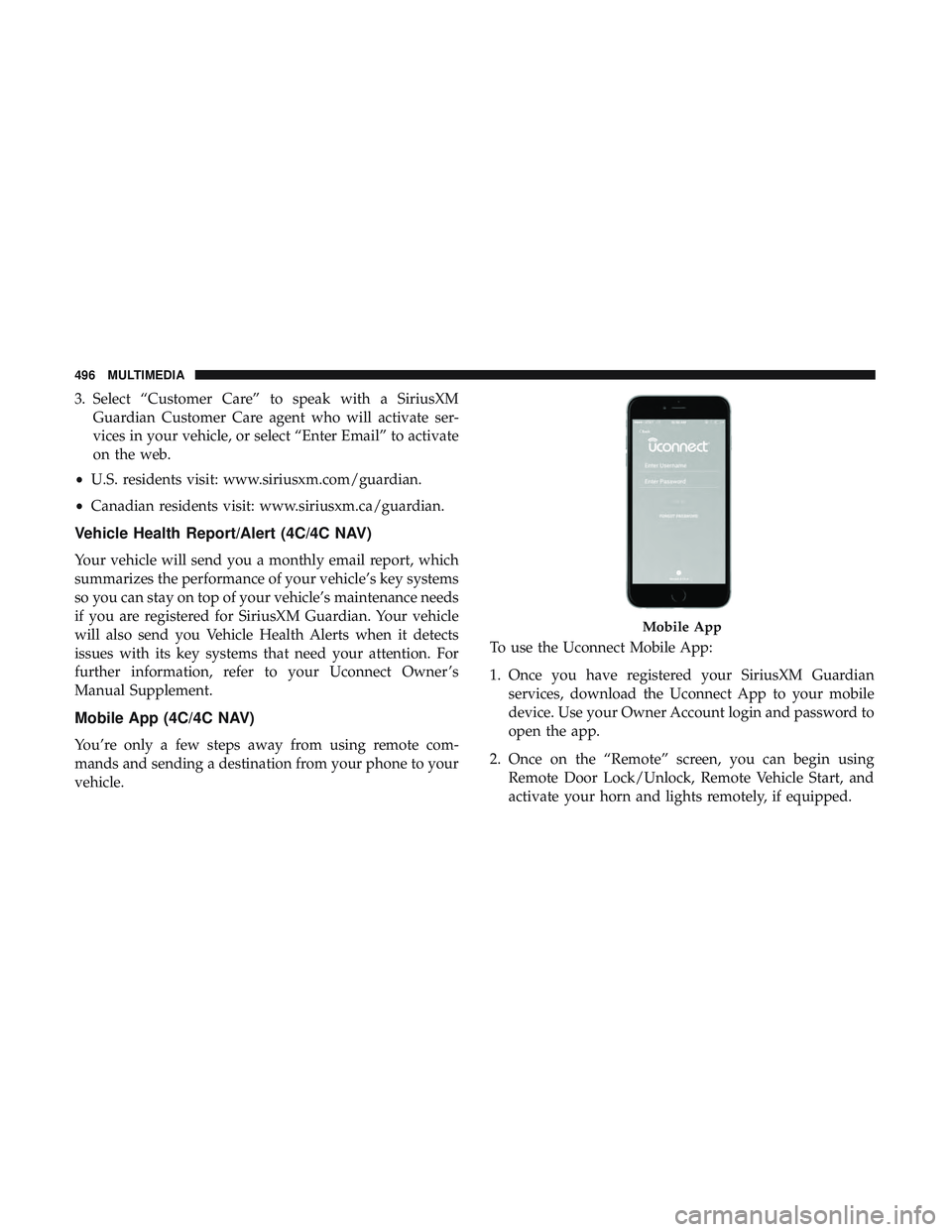
1. Once you have registered your SiriusXM Guardian
services, download the Uconnect App to your mobile
device. Use your Owner Account login and password to
open the app.
2. Once on the “Remote” screen, you can begin using Remote Door Lock/Unlock, Remote Vehicle Start, and
activate your horn and lights remotely, if equipped.
Mobile App
496 MULTIMEDIA
Page 499 of 532
3. Press the “Location” button on the bottom menu bar ofthe app to bring up a map to locate your vehicle or send
a location to your Uconnect Navigation using Vehicle
Finder and Send & Go , if equipped.
4. Press the “Settings” side menu in the upper left corner of the app to bring up app settings.
NOTE: For further information please visit
DriveUconnect.com (U.S. Residents) or DriveUconnect.ca
(Canadian Residents).
SiriusXM Travel Link (4C NAV)
Need to find a gas station, view local movie listings, check
a sports score or the 5 - day weather forecast? SiriusXM
Travel Link is a suite of services that brings a wealth of
information right to your Uconnect 4C NAV system. (Not
available for Uconnect 4 system.) Push the VR button
. After the beep, say one of the
following commands:
• “Show fuel prices”
• “Show 5 - day weather forecast”
• “Show extended weather”
TIP: Traffic alerts are not accessible with Voice Command.
SiriusXM Travel Link
10
MULTIMEDIA 497
Page 505 of 532
General Information
The following regulatory statement applies to all Radio
Frequency (RF) devices equipped in this vehicle:
This device complies with Part 15 of the FCC Rules and
with Industry Canada license-exempt RSS standard(s).
Operation is subject to the following two conditions:
1. This device may not cause harmful interference, and
2. This device must accept any interference received, in-cluding interference that may cause undesired opera-
tion.
NOTE: Changes or modifications not expressly approved
by the party responsible for compliance could void the
user ’s authority to operate the equipment. Additional
Information
© 2021 FCA US LLC. All rights reserved. Mopar and
Uconnect are registered trademarks and Mopar Owner
Connect is a trademark of FCA US LLC. Android is a
trademark of Google Inc. SiriusXM and all related marks
and logos are trademarks of SiriusXM Radio Inc.
Uconnect System Support:
•U.S. residents visit www.DriveUconnect.com or call:
1-877-855-8400(24 hours a day 7 days a week)
• Canadian residents visit www.DriveUconnect.ca or call:
1-800-465-2001(English) or 1-800-387-9983(French)
SiriusXM Guardian services support:
• U.S. residents visit www.siriusxm.com/guardian or call:
1-844-796-4827
• Canadian residents visit www.siriusxm.ca/guardian or
call: 1-877-324-9091
10
MULTIMEDIA 503
Page 507 of 532
CUSTOMER ASSISTANCE
CONTENTS
�SUGGESTIONS FOR OBTAINING SERVICE FOR
YOUR VEHICLE ....................... .506
▫ Prepare For The Appointment ..............506
▫ Prepare A List ........................ .506
▫ Be Reasonable With Requests ..............506
� IF YOU NEED ASSISTANCE ................506
▫ FCA US LLC Customer Center .............507
▫ FCA Canada Inc. Customer Center ...........507
▫ In Mexico Contact ..................... .507
▫ Puerto Rico And U.S. Virgin Islands ..........507▫
Customer Assistance For The Hearing Or Speech
Impaired (TDD/TTY) ....................508
▫ Service Contract ...................... .508
� WARRANTY INFORMATION ...............509
� MOPARPARTS .........................509
� REPORTING SAFETY DEFECTS .............509
▫ In The 50 United States And Washington, D.C. . .509
▫ In Canada ........................... .510
� PUBLICATION ORDER FORMS .............510
11
Page 508 of 532
SUGGESTIONS FOR OBTAINING SERVICE FOR
YOUR VEHICLE
Prepare For The Appointment
If you are having warranty work done, be sure to have the
right papers with you. Take your warranty folder. All work
to be performed may not be covered by the warranty.
Discuss additional charges with the service manager. Keep
a maintenance log of your vehicle’s service history. This
can often provide a clue to the current problem.
Prepare A List
Make a written list of your vehicle’s problems or the
specific work you want done. If you’ve had an accident or
work done that is not on your maintenance log, let the
service advisor know.
Be Reasonable With Requests
If you list a number of items and you must have your
vehicle by the end of the day, discuss the situation with the
service advisor and list the items in order of priority. At
many authorized dealers, you may obtain a rental vehicle
at a minimal daily charge. If you need a rental, it is
advisable to make these arrangements when you call for an
appointment.
IF YOU NEED ASSISTANCE
The manufacturer and its authorized dealer are vitally
interested in your satisfaction. We want you to be happy
with our products and services.
Warranty service must be done by an authorized dealer. We
strongly recommend that you take the vehicle to an autho-
rized dealer. They know your vehicle the best, and are most
concerned that you get prompt and high quality service.
The manufacturer’s authorized dealer have the facilities,
factory-trained technicians, special tools, and the latest
information to ensure the vehicle is fixed correctly and in a
timely manner.
This is why you should always talk to an authorized dealer
service manager first. Most matters can be resolved with
this process.
•If for some reason you are still not satisfied, talk to the
general manager or owner of the authorized dealer.
They want to know if you need assistance.
• If an authorized dealer is unable to resolve the concern,
you may contact the manufacturer’s customer center.
506 CUSTOMER ASSISTANCE