Page 615 of 718
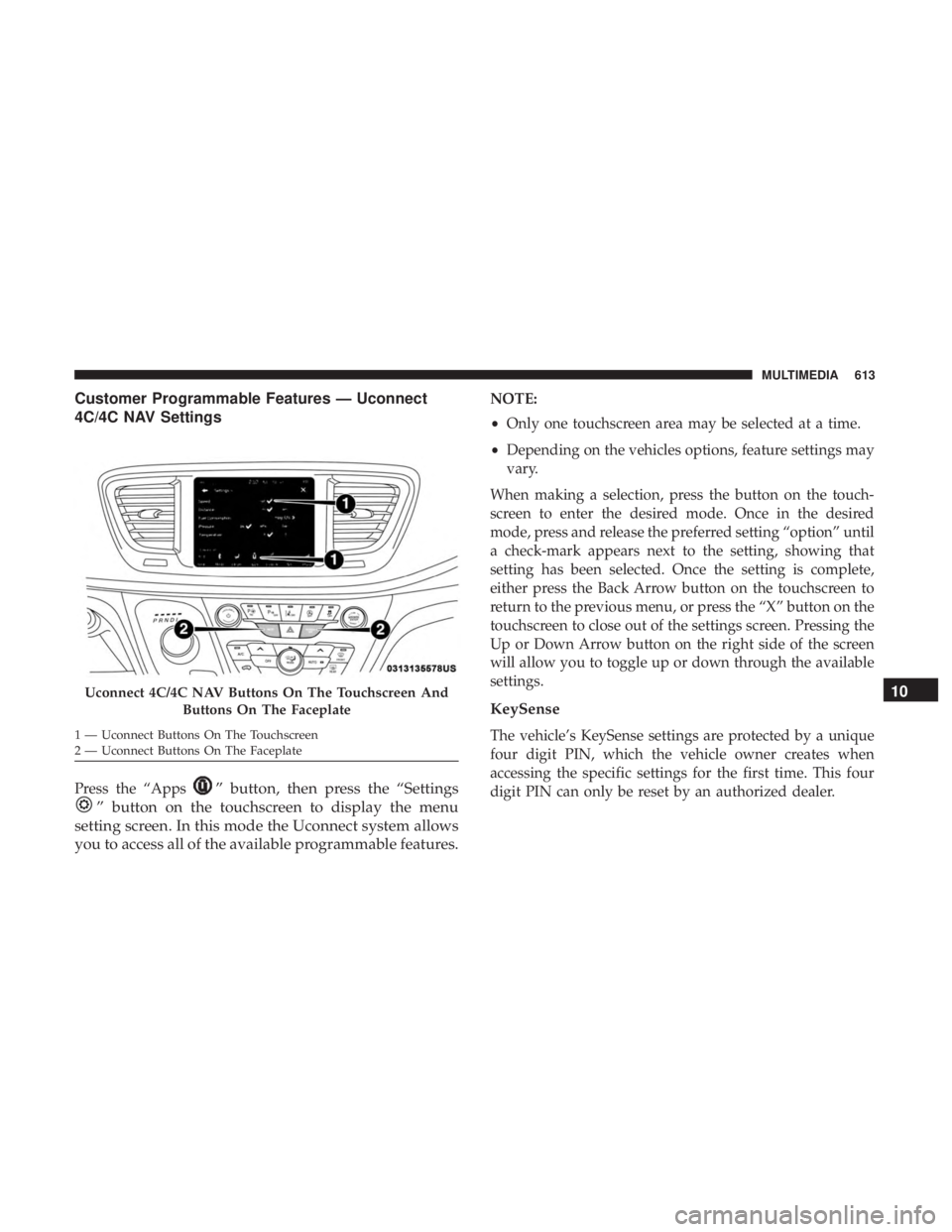
Customer Programmable Features — Uconnect
4C/4C NAV Settings
Press the “Apps” button, then press the “Settings
” button on the touchscreen to display the menu
setting screen. In this mode the Uconnect system allows
you to access all of the available programmable features.
NOTE:
• Only one touchscreen area may be selected at a time.
• Depending on the vehicles options, feature settings may
vary.
When making a selection, press the button on the touch-
screen to enter the desired mode. Once in the desired
mode, press and release the preferred setting “option” until
a check-mark appears next to the setting, showing that
setting has been selected. Once the setting is complete,
either press the Back Arrow button on the touchscreen to
return to the previous menu, or press the “X” button on the
touchscreen to close out of the settings screen. Pressing the
Up or Down Arrow button on the right side of the screen
will allow you to toggle up or down through the available
settings.
KeySense
The vehicle’s KeySense settings are protected by a unique
four digit PIN, which the vehicle owner creates when
accessing the specific settings for the first time. This four
digit PIN can only be reset by an authorized dealer.
Uconnect 4C/4C NAV Buttons On The Touchscreen And Buttons On The Faceplate
1 — Uconnect Buttons On The Touchscreen
2 — Uconnect Buttons On The Faceplate
10
MULTIMEDIA 613
Page 636 of 718
Audio
After pressing the “Audio” button on the touchscreen, the
following settings will be available:
Setting NameSelectable Options
Balance/Fade Speaker Icon
NOTE:
When in this display you may adjust the “Balance/Fade” of the audio by pressing and dragging the “Speaker Icon”
toward any location in the box. Equalizer BassMid Treble
NOTE:
When in this display you may adjust the “Bass”, “Mid” and “Treble” settings. Adjust the settings with the “+” and
“–” setting buttons on the touchscreen or by selecting any point on the scale between the “+” and “–” buttons on the
touchscreen. Bass/Mid/Treble also allow you to simply slide your finger up or down to change the setting, as well as
press directly on the desired setting. Speed Adjusted Volume Off12 3
Surround Sound — If Equipped OnOff
AUX Volume Offset — If Equipped +-
NOTE:
This feature provides the ability to tune the audio level for portable devices connected through the AUX input. Auto Play OnOff
634 MULTIMEDIA
Page 650 of 718

Uconnect Theater Remote Control
1.Gesture Pad — Control pointer position by running
your finger over this area and tapping to select items on
the touchscreen, functions similar to a computer/laptop
mouse.
2. Mute Button — Mutes headphone audio.
3. Home Button — Push to access available “Sources”.
4. Arrow Buttons — Push the arrow
buttons
to highlight an item or scroll through menus.
5. Fast Forward Button— Push and hold to fast
forward through the current audio track or video
chapter. Push once to skip to the next track.
6. Play/Pause Button�— Begin/resume or pause
disc play.
7. Fast Rewind Button— Push and hold to fast
rewind through the current audio track or video
chapter. Push once to revert back to the previous
track.
8. OK Button — Push to select the highlighted option in a
menu.
9. Screen Selector Button — Push the screen selector to
toggle between screen 1 (Driver Side), or screen 2
(Passenger Side).
10. Back Button — Push to exit out of menus or return to
previous screen.
11 . Power Button — Turns the screen for the selected
channel on or off.
12. Screen Indicator — Indicates which screen (1 or 2) is
being controlled by the remote control.
Remote Control
648 MULTIMEDIA
Page 656 of 718
Disc Menu
When listening to a CD Audio disc, CD Data disc, DVD or
Blu-ray, pushing the remote control’s arrow buttons will
navigate the cursor on the rear touchscreen in the desired
direction, on whichever touchscreen is selected. The UP,
DOWN, LEFT, and RIGHT arrow buttons, and the OK and
MENU buttons on the remote, along with the correspond-
ing buttons overlaid on the radio touchscreen, can be used
to navigate the disc menu when it appears. This can be
used to select specific chapters in a movie, navigate special
features, or to play the movie from the menu.
NOTE:Inserting a disc into the player will “auto play” the
disc if already in the �Disc�source menu on the rear
screens, and the disc supports “auto play.”
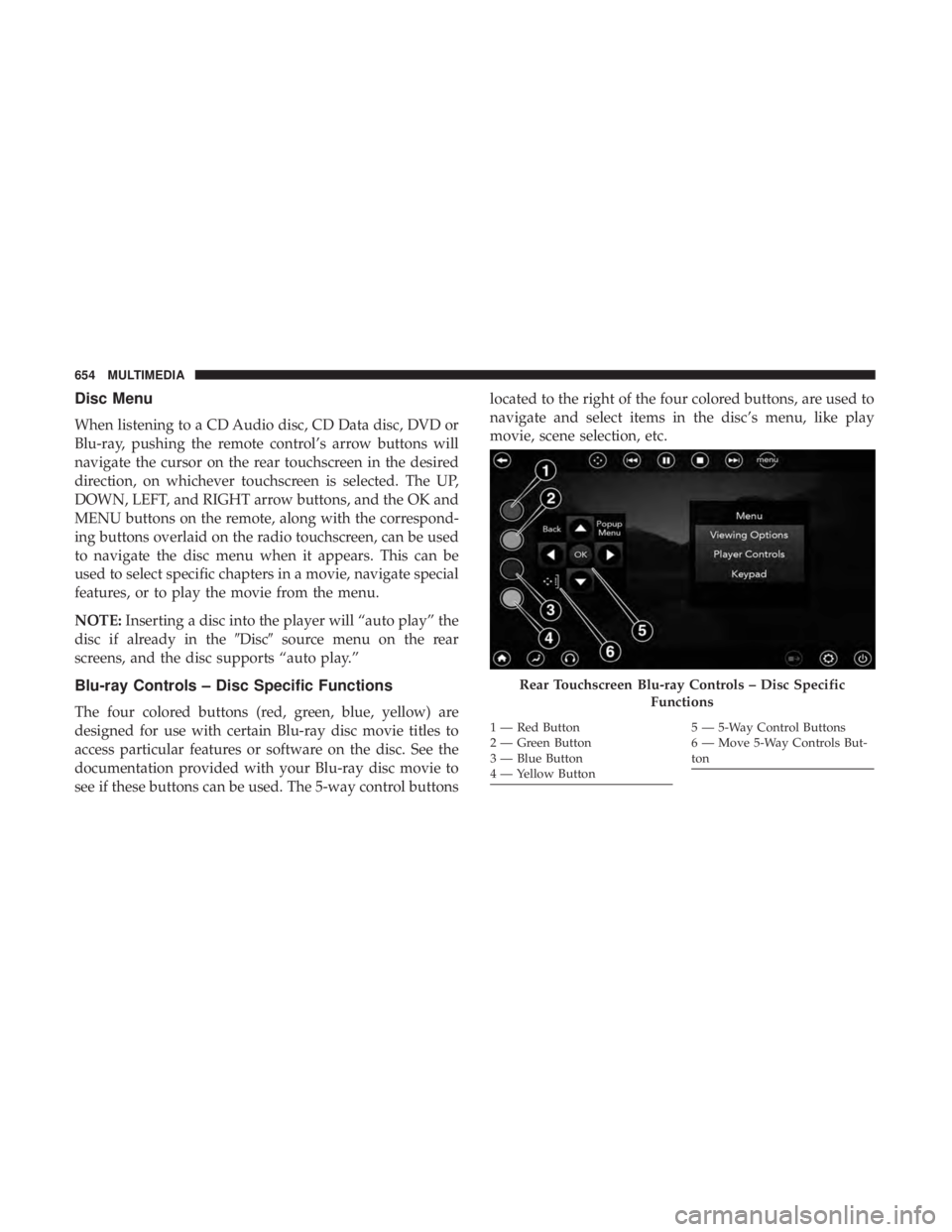
Blu-ray Controls – Disc Specific Functions
The four colored buttons (red, green, blue, yellow) are
designed for use with certain Blu-ray disc movie titles to
access particular features or software on the disc. See the
documentation provided with your Blu-ray disc movie to
see if these buttons can be used. The 5-way control buttons located to the right of the four colored buttons, are used to
navigate and select items in the disc’s menu, like play
movie, scene selection, etc.
Rear Touchscreen Blu-ray Controls – Disc Specific
Functions
1 — Red Button
2 — Green Button
3 — Blue Button
4 — Yellow Button5 — 5-Way Control Buttons
6 — Move 5-Way Controls But-
ton
654 MULTIMEDIA
Page 659 of 718
their frequency can be set up for route information by
using the arrow buttons, and can be turned on and off
using the “Notifications” button on the “Are We There
Yet?” App. Estimated time of arrival notifications pop-up
at the bottom center of the screen.
Using The Rear Video USB Port
Plug in a USB drive, iPhone, iPod or mass storage device
and play your favorite music or movies.NOTE:
To view USB media on the rear theater screens,
insert a USB drive into the port next to the DVD/Blu-ray
disc player. The USB drive port is located under the radio
controls in the instrument panel.
On the rear screen you can browse the content of the USB
device by going to the USB source. Use the search feature
to find your music faster.
Rear Video USB Port
Search Screen
10
MULTIMEDIA 657
Page 661 of 718
The headphone power indicator and controls are located
on the right ear cup.
NOTE:Uconnect Theater must be turned on before sound
can be heard from the headphones. To conserve battery life,
the headphones will automatically turn off approximately
three minutes after the Uconnect Theater system is turned
off. Changing The Audio Mode For Headphones
1. Ensure the remote control and the headphones are on
the same channel.
2. Push the Home button on the remote control.
3. When the Home menu appears on the touchscreen, use the arrow buttons on the remote control to navigate to
the available modes and push the OK button to select
the new mode or use the Gesture Pad at the top of the
remote control.
Uconnect Theater Headphones
1 — Power ON/OFF Button
2 — Volume Control Wheel
3 — Channel Selector Button
Headphone Channel Selector Button
10
MULTIMEDIA 659
Page 665 of 718
IconDescription
Rear Passenger Temperature Up and Down Buttons
Provides the rear passengers with independent temperature control. Press the button on the touchscreen
to increase or decrease the temperature. The temperature will get warmer as you move up toward the
red arrow and colder as you move down toward the blue arrow.
Headliner Mode
Headliner Mode
Air comes from the outlets in the headliner. Each of these outlets can be individually adjusted to direct
the flow of air. Moving the air vanes of the outlets to one side will shut off the airflow.
Bi-Level Mode
Bi-Level Mode
Air comes from both the headliner outlets and the floor outlets.
NOTE: In many temperature positions, the Bi-Level mode is designed to provide cooler air out of the
headliner outlets and warmer air from the floor outlets.
Floor
Mode
Floor Mode
Air comes from the floor outlets.
10
MULTIMEDIA 663
Page 670 of 718

Do not use adhesive labels as they may separate from the
disc, become stuck, and cause permanent damage to the
DVD player.
Compressed Audio Files (MP3, WMA and AAC)
The Blu-ray Disc player is capable of playing MP3
(MPEG-1 Audio Layer 3), WMA (Windows Media Audio)
files and AAC (Advanced Audio Coding) from a CD Data
disc (usually a CD-R or CD-RW) or DVD Data disc (usually
a DVD-R or DVD-RW).
•The Blu-ray Disc player always uses the file extension to
determine the audio format, so MP3 files must always
end with the extension “.mp3” or “.MP3” and WMA
files must always end with the extension “.wma” or
“.WMA” and AAC files must always end with the
extension and “.aac” or “.AAC” or “m4a”. To prevent
incorrect playback, do not use these extensions for any
other types of files.
• For MP3 files, ID3v1, ID3v2 tag data (such as artist
name, track title, album, etc.) are supported.
• Any file that is copy protected (such as those down-
loaded from many online music stores) will not play. The
Blu-ray player will automatically skip the file and begin
playing the next available file. •
Other compression formats such as MP3 Pro, Ogg
Vorbis, and ATRAC3 will not play. The Blu-ray player
will automatically skip the file and begin playing the
next available file.
• If you are creating your own files, the recommended
fixed bit rate for MP3 files is between 32 and 320Kbps
and the recommended fixed bit rate for WMA files is
between 16 and 192Kbps. Variable bit rates are also
supported. For both formats, the recommended sample
rate is either 44.1kHz or 48kHz.
• To change the current file, use the remote control “Seek
Forward” or “Seek Back” buttons to return to the start of
the current or previous file.
• AAC (MPEG-4 AAC, Low Complexity Profile) support.
• AAC HE v1 (AAC High Efficiency v1 aka. AAC/
MPEG4v2 AAC+) support.
• HE-AAC v1, v2 support.
Disc Errors
If the Blu-ray Disc player is unable to read the disc, a �Disc
Error� message is displayed on the rear screen and Radio
displays. A dirty, damaged, or incompatible disc format are
all potential causes for a �Disc Error�message.
668 MULTIMEDIA


