2019 CHRYSLER PACIFICA net
[x] Cancel search: netPage 610 of 718

Compass Settings — If Equipped
After pressing the “Compass Settings” button on the
touchscreen, the following settings will be available:NOTE:
Before compass calibration is performed, the com-
pass variance zone should be set for best results.
Setting Name Selectable Options
Compass Variance 1 2 3 4 5 6 7 8 9 10 11 12 13 14 15
NOTE:
When the “Compass Variance” feature is selected, it allows the compass variance to be set to any number from 1 to
15 per the compass variance zone map figure.
Compass Variance is the difference between Magnetic North and Geographic North. To compensate for the differ-
ences the variance should be set for the zone where the vehicle is being driven, illustrated in the zone map. Once
properly set, the compass will automatically compensate for the differences when calibrated, and provide the most
accurate compass headings. Compass
Calibration Ye s
NOTE:
Press “Compass Calibration” on the touchscreen to enter calibration. To start calibration of the compass, press the
“Yes” button on the touchscreen and complete one or more 360-degree turns (in an area free from large metal or me-
tallic objects). A message will appear on the touchscreen when the compass has been successfully calibrated.
Keep magnetic materials away from the rear view mirror, such as Mobile Phones, Laptops and Radar Detectors. This
is where the compass module is located, and it can cause interference with the compass sensor, and it may give false
readings.
608 MULTIMEDIA
Page 667 of 718
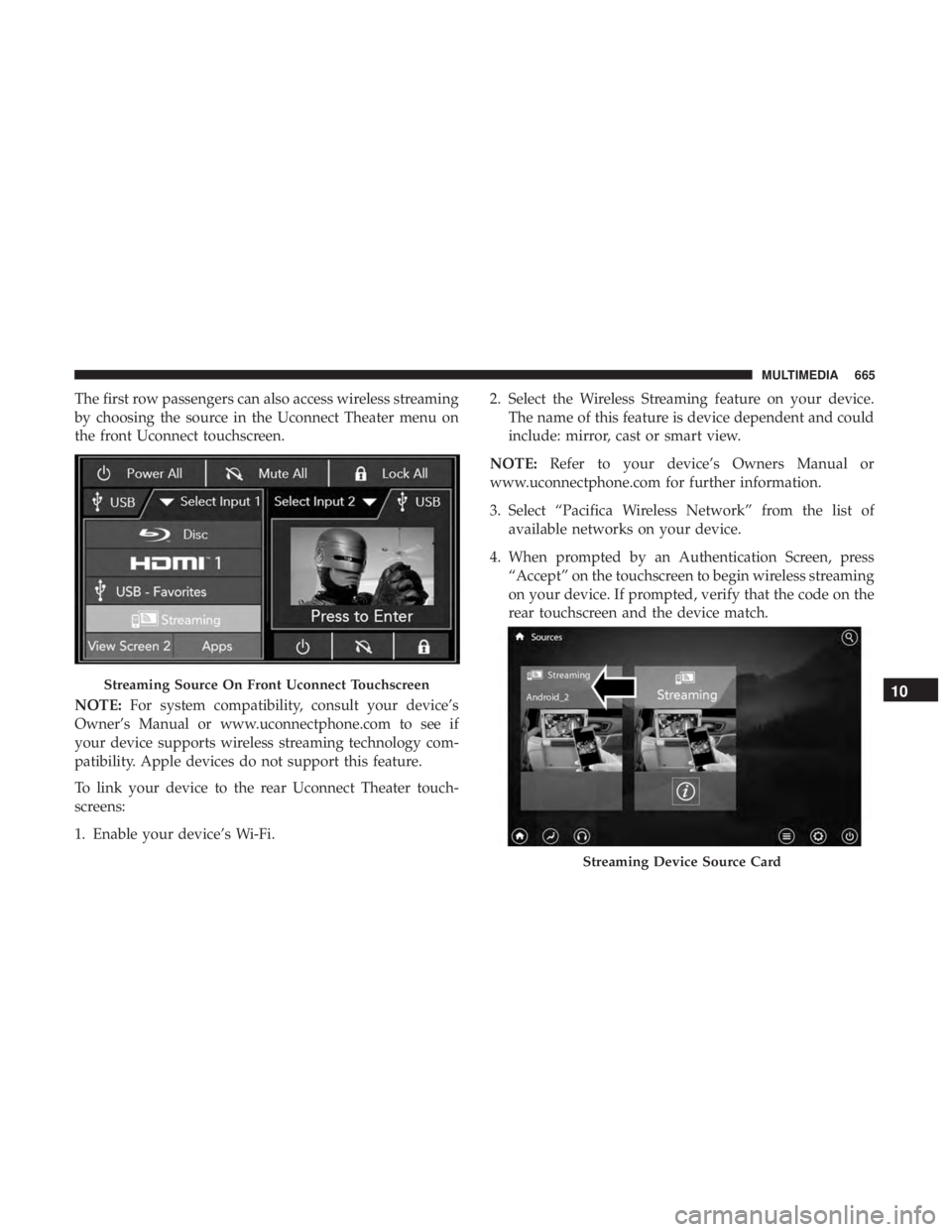
The first row passengers can also access wireless streaming
by choosing the source in the Uconnect Theater menu on
the front Uconnect touchscreen.
NOTE:For system compatibility, consult your device’s
Owner’s Manual or www.uconnectphone.com to see if
your device supports wireless streaming technology com-
patibility. Apple devices do not support this feature.
To link your device to the rear Uconnect Theater touch-
screens:
1. Enable your device’s Wi-Fi. 2. Select the Wireless Streaming feature on your device.
The name of this feature is device dependent and could
include: mirror, cast or smart view.
NOTE: Refer to your device’s Owners Manual or
www.uconnectphone.com for further information.
3. Select “Pacifica Wireless Network” from the list of available networks on your device.
4. When prompted by an Authentication Screen, press “Accept” on the touchscreen to begin wireless streaming
on your device. If prompted, verify that the code on the
rear touchscreen and the device match.
Streaming Source On Front Uconnect Touchscreen
Streaming Device Source Card
10
MULTIMEDIA 665
Page 668 of 718

Your phone will be added as an additional source card on
the Uconnect Theater touchscreens.
NOTE:The Authentication Screen will appear on both rear
touchscreens. The touchscreen screen on which “Accept” is
selected will be the primary controller for the wireless
streaming session.
NOTE:
• Some devices will allow you to control your device
through the Uconnect Theater rear touchscreens. They
will react to your selections from the touchscreen and be
represented on your device as well. When supported,
the Uconnect Theater task bar will appear at the top and
bottom of the Uconnect Theater touchscreen, framing
your streaming device.
• Devices that do not support this feature will not respond
to Uconnect Theater touchscreen but can still be con-
trolled using the streaming device.Settings
Below is a list of the settings available for the Wireless
Streaming feature of your Uconnect Theater system:
• Wireless: ON/OFF – Turn on and off the wireless feature
of the Uconnect Theater system.
• Manage Devices – Allows the user to delete the paired
devices.
• Local Network Name – Allows the user to rename the
Pacifica Wireless Network.
Wireless Streaming Settings
666 MULTIMEDIA
Page 675 of 718

is no guarantee that interference will not occur in a
particular installation. If this equipment does cause harm-
ful interference to radio or television reception, which can
be determined by turning the equipment off and on, the
user is encouraged to try to correct the interference by one
or more of the following measures:
•Reorient or relocate the receiving antenna.
• Increase the separation between the equipment and
receiver.
• Connect the equipment into an outlet on a circuit
different from that to which the receiver is connected.
• Consult the dealer or an experienced radio/TV techni-
cian for help.
CAN ICES-3 (B) / NMB-3 (B)
This Class B digital apparatus complies with Canadian
ICES-003.
RADIO OPERATION AND MOBILE PHONES
Under certain conditions, the mobile phone being on in
your vehicle can cause erratic or noisy performance from
your radio. This condition may be lessened or eliminated
by relocating the mobile phone antenna. This condition is
not harmful to the radio. If your radio performance does not satisfactorily “clear” by the repositioning of the an-
tenna, it is recommended that the radio volume be turned
down or off during mobile phone operation when not
using Uconnect (if equipped).
Regulatory And Safety Information
USA/CANADA
Exposure to Radio Frequency Radiation
The radiated output power of the internal wireless radio is
far below the FCC and IC radio frequency exposure limits.
Nevertheless, the wireless radio will be used in such a
manner that the radio is 8 in (20 cm) or further from the
human body.
The internal wireless radio operates within guidelines
found in radio frequency safety standards and recommen-
dations, which reflect the consensus of the scientific com-
munity.
The radio manufacturer believes the internal wireless radio
is safe for use by consumers. The level of energy emitted is
far less than the electromagnetic energy emitted by wire-
less devices such as mobile phones. However, the use of
wireless radios may be restricted in some situations or
10
MULTIMEDIA 673
Page 679 of 718

Basic Voice Commands
The basic Voice Commands below can be given at any
point while using your Uconnect system.
Push the VR button
. After the beep, say:
•“Cancel” to stop a current voice session
• “Help” to hear a list of suggested Voice Commands
• “Repeat” to listen to the system prompts again
Notice the visual cues that inform you of your voice
recognition system’s status. Cues appear on the touch-
screen.
Radio
Use your voice to quickly get to the AM, FM or SiriusXM
Satellite Radio stations you would like to hear. (Subscrip-
tion or included SiriusXM Satellite Radio trial required.)
Push the VR button
. After the beep, say:
• “Tune to ninety-five-point-five FM”
• “Tune to Satellite Channel Hits 1” TIP:
At any time, if you are not sure of what to say or want
to learn a Voice Command, push the VR button
and say,
“ Help.” The system provides you with a list of com-
mands.
Uconnect 4 Radio
10
MULTIMEDIA 677
Page 686 of 718
SiriusXM Guardian (4C/4C NAV) — If Equipped
CAUTION!
Some SiriusXM Guardian services, including SOS Call
and Roadside Assistance Call will NOT work without
an operable LTE (voice/data) or 3G or 4G (data) net-
work connection compatible with your device.
NOTE: Your vehicle may be transmitting data as autho-
rized by the subscriber.
An included trial and/or subscription is required to take
advantage of the SiriusXM Guardian services in the next
section of this guide. To register with SiriusXM Guardian,
press the Apps button on the Uconnect 4C/4C NAV
touchscreen to get started.
NOTE: SiriusXM Guardian is available only on equipped
vehicles purchased within the continental United States,
Alaska, Hawaii and Canada. Services can only be used
where coverage is available; see coverage map for details.
SOS Call
Theft Alarm Notification
Remote Door Lock/Unlock
Send & Go
Vehicle Finder
Stolen Vehicle Assistance
Remote Vehicle Start**
Remote Horn & Lights
Roadside Assistance Call
Vehicle Health Reports**
Vehicle Health Alert**
Performance Pages Plus**
**If vehicle is equipped.
Register (4C/4C NAV)
To unlock the full potential of SiriusXM Guardian in your
vehicle, you must activate your SiriusXM Guardian ser-
vices.
1. Press the Apps icon on the bottom of your in-vehicle touchscreen.
2. Select the Activate Services icon from your list of apps.
684 MULTIMEDIA
Page 717 of 718

INSTALLATION OF RADIO TRANSMITTING
EQUIPMENT
Special design considerations are incorporated into this
vehicle’s electronic system to provide immunity to radio
frequency signals. Mobile two-way radios and telephone
equipment must be installed properly by trained person-
nel. The following must be observed during installation.
The positive power connection should be made directly
to the battery and fused as close to the battery as possible.
The negative power connection should be made to body
sheet metal adjacent to the negative battery connection.
This connection should not be fused.
Antennas for two-way radios should be mounted on the
roof or the rear area of the vehicle. Care should be used
in mounting antennas with magnet bases. Magnets may
affect the accuracy or operation of the compass on
vehicles so equipped.
The antenna cable should be as short as practical and
routed away from the vehicle wiring when possible. Use
only fully shielded coaxial cable.
Carefully match the antenna and cable to the radio to
ensure a low Standing Wave Ratio (SWR).Mobile radio equipment with output power greater than
normal may require special precautions.
All installations should be checked for possible interfer-
ence between the communications equipment and the
vehicle’s electronic systems.
WARNING:
Operating, servicing and maintaining a
passenger vehicle or off-road highway
motor vehicle can expose you to chemicals
including engine exhaust, carbon monoxide,
phthalates, and lead, which are known to
the State of California to cause cancer and
birth defects or other reproductive harm.
To minimize exposure, avoid breathing
exhaust, do not idle the engine except as
necessary, service your vehicle in a
well-ventilated area and wear gloves or
wash your hands frequently when servicing
your vehicle. For more information go to
www.P65Warnings.ca.gov/passenger-vehicle.