Page 391 of 492
WARNING!
•Do not use a tire, wheel size, load rating, or speed
rating other than that specified for your vehicle.
Some combinations of unapproved tires and wheels
may change suspension dimensions and perfor-
mance characteristics, resulting in changes to steer-
ing, handling, and braking of your vehicle. This can
cause unpredictable handling and stress to steering
and suspension components. You could lose control
and have a collision resulting in serious injury or
death. Use only the tire and wheel sizes with load
ratings approved for your vehicle.
• Never use a tire with a smaller load index or capacity,
other than what was originally equipped on your
vehicle. Using a tire with a smaller load index could
result in tire overloading and failure. You could lose
control and have a collision.
• Failure to equip your vehicle with tires having ad-
equate speed capability can result in sudden tire
failure and loss of vehicle control.
CAUTION!
Replacing original tires with tires of a different size
may result in false speedometer and odometer read-
ings.
Tire Types
All Season Tires — If Equipped
All Season tires provide traction for all seasons (Spring,
Summer, Fall, and Winter). Traction levels may vary be-
tween different all season tires. All season tires can be
identified by the M+S, M&S, M/S or MS designation on the
tire sidewall. Use all season tires only in sets of four; failure
to do so may adversely affect the safety and handling of
your vehicle.
Summer Or Three Season Tires — If Equipped
Summer tires provide traction in both wet and dry condi-
tions, and are not intended to be driven in snow or on ice.
If your vehicle is equipped with Summer tires, be aware
these tires are not designed for Winter or cold driving
conditions. Install Winter tires on your vehicle when am-
bient temperatures are less than 40°F (5°C) or if roads are
covered with ice or snow. For more information, contact an
authorized dealer.
8
SERVICING AND MAINTENANCE 389
Page 421 of 492
MULTIMEDIA
CONTENTS
�UCONNECT SYSTEMS ...................421
� DRAG & DROP MENU BAR ................421
� CYBERSECURITY ...................... .422
� UCONNECT SETTINGS ...................423
▫ Customer Programmable Features — Uconnect
4C/4C NAV Settings ....................424
� STEERING WHEEL AUDIO CONTROLS .......445
▫ Radio Operation ....................... .446
▫ Media Mode ......................... .446
� AUX/USB/MP3 CONTROL ................447
� RADIO OPERATION AND MOBILE PHONES . . .448
▫ Regulatory And Safety Information ..........448
� UCONNECT VOICE RECOGNITION QUICK
TIPS ................................ .449
▫ Introducing Uconnect ....................449 ▫
Get Started .......................... .450
▫ Basic Voice Commands ...................450
▫ Radio .............................. .451
▫ Media .............................. .452
▫ Phone .............................. .453
▫ Voice Text Reply — If Equipped ............454
▫ Climate ............................. .455
▫ Navigation (4C NAV) ....................456
▫ SiriusXM Guardian (4C/4C NAV) — If
Equipped ........................... .457
▫ Register (4C/4C NAV) ...................458
▫ Vehicle Health Report/Alert (4C/4C NAV) .....458
▫ Mobile App (4C/4C NAV) ................458
▫ SiriusXM
Travel Link (4C NAV) .............459
10
Page 432 of 492
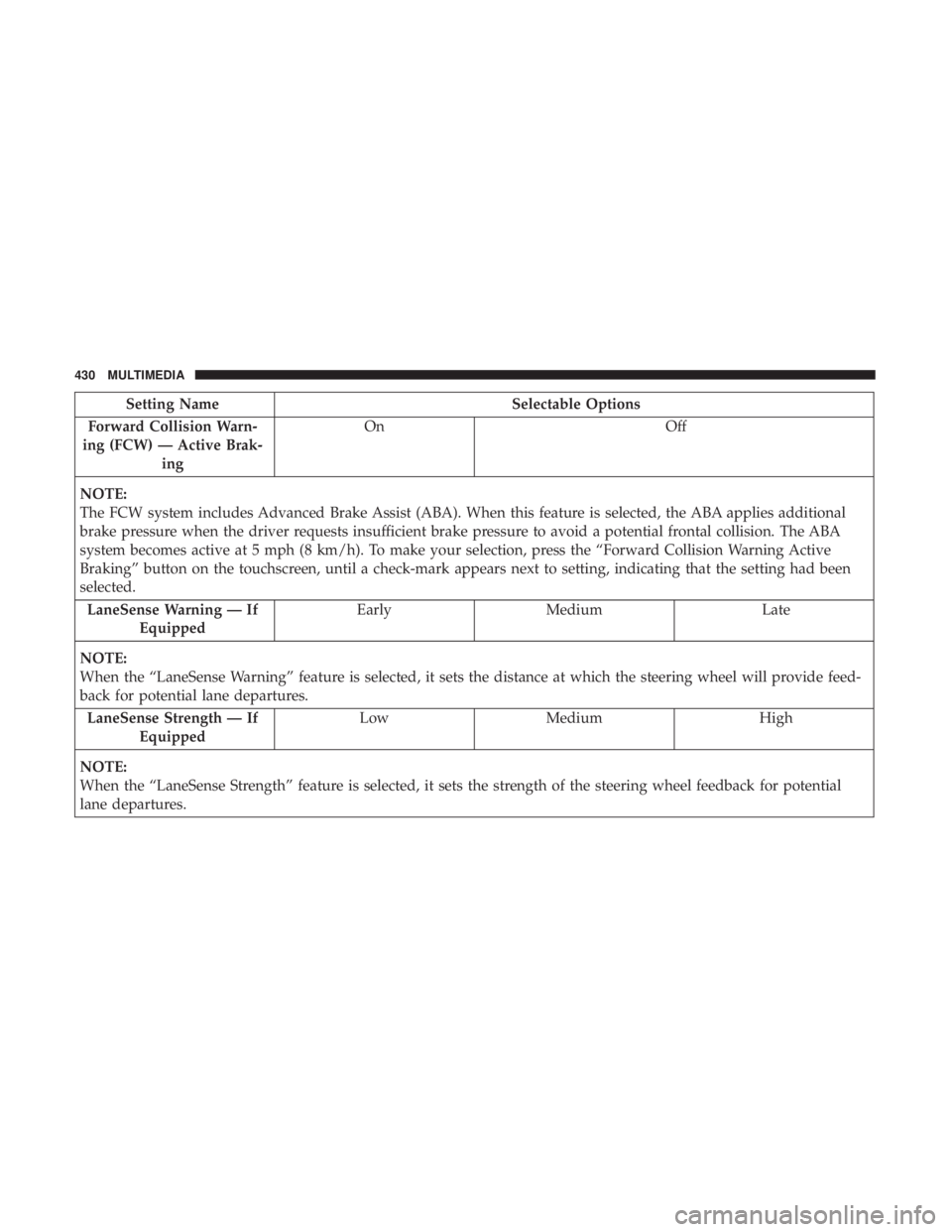
Setting NameSelectable Options
Forward Collision Warn-
ing (FCW) — Active Brak- ing On
Off
NOTE:
The FCW system includes Advanced Brake Assist (ABA). When this feature is selected, the ABA applies additional
brake pressure when the driver requests insufficient brake pressure to avoid a potential frontal collision. The ABA
system becomes active at 5 mph (8 km/h). To make your selection, press the “Forward Collision Warning Active
Braking” button on the touchscreen, until a check-mark appears next to setting, indicating that the setting had been
selected. LaneSense Warning — If Equipped Early
Medium Late
NOTE:
When the “LaneSense Warning” feature is selected, it sets the distance at which the steering wheel will provide feed-
back for potential lane departures. LaneSense Strength — If Equipped Low
Medium High
NOTE:
When the “LaneSense Strength” feature is selected, it sets the strength of the steering wheel feedback for potential
lane departures.
430 MULTIMEDIA
Page 440 of 492
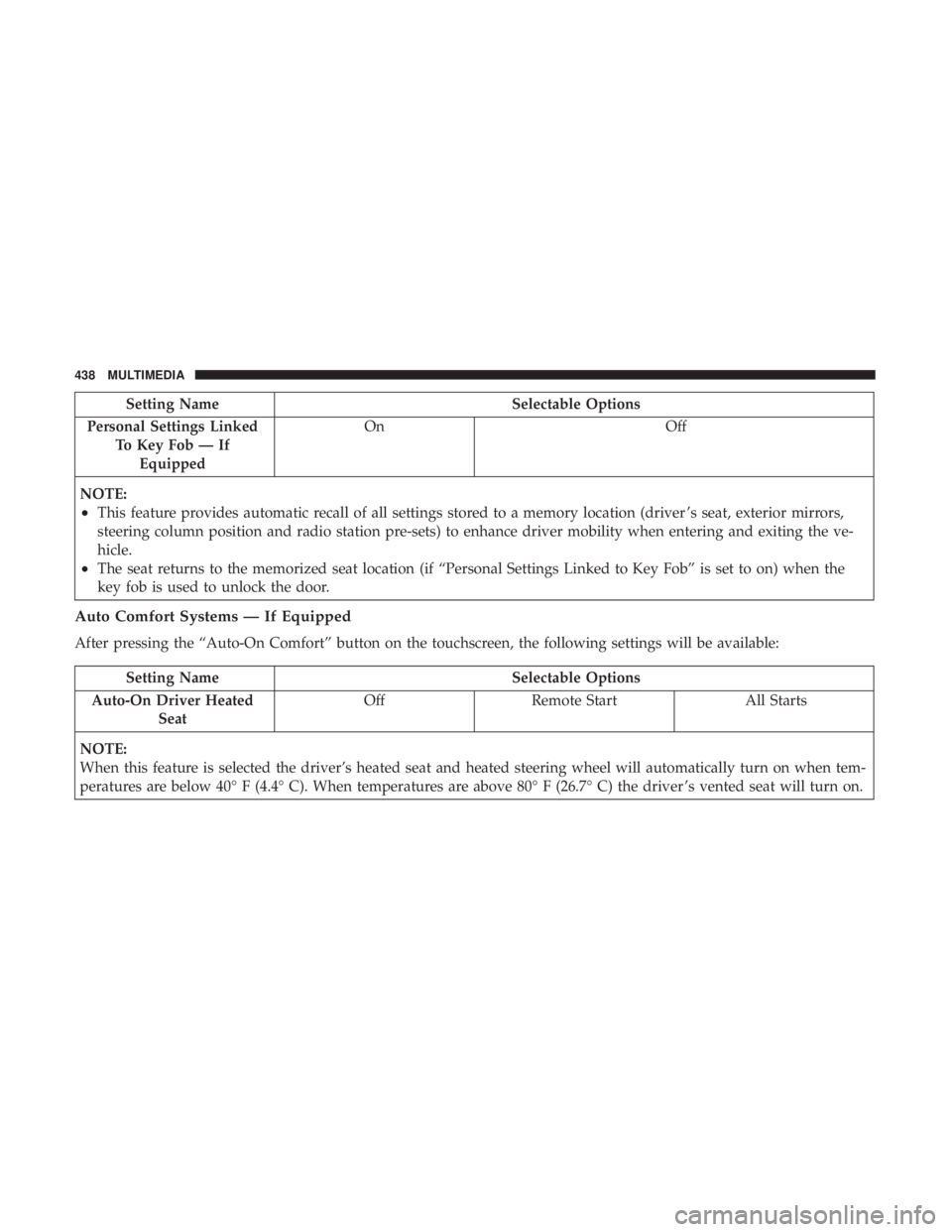
Setting NameSelectable Options
Personal Settings Linked To Key Fob — IfEquipped On
Off
NOTE:
•This feature provides automatic recall of all settings stored to a memory location (driver ’s seat, exterior mirrors,
steering column position and radio station pre-sets) to enhance driver mobility when entering and exiting the ve-
hicle.
•The seat returns to the memorized seat location (if “Personal Settings Linked to Key Fob” is set to on) when the
key fob is used to unlock the door.
Auto Comfort Systems — If Equipped
After pressing the “Auto-On Comfort” button on the touchscreen, the following settings will be available:
Setting Name Selectable Options
Auto-On Driver Heated Seat Off
Remote Start All Starts
NOTE:
When this feature is selected the driver’s heated seat and heated steering wheel will automatically turn on when tem-
peratures are below 40° F (4.4° C). When temperatures are above 80° F (26.7° C) the driver ’s vented seat will turn on.
438 MULTIMEDIA
Page 447 of 492
System Information
After pressing the “System Information” button on the touchscreen, the following settings will be available:
Setting NameSelectable Options
Software License System Software Information Screen
NOTE:
When the “System Information” feature is selected, a “System Software Information” screen will appear, displaying
the system software version.
STEERING WHEEL AUDIO CONTROLS
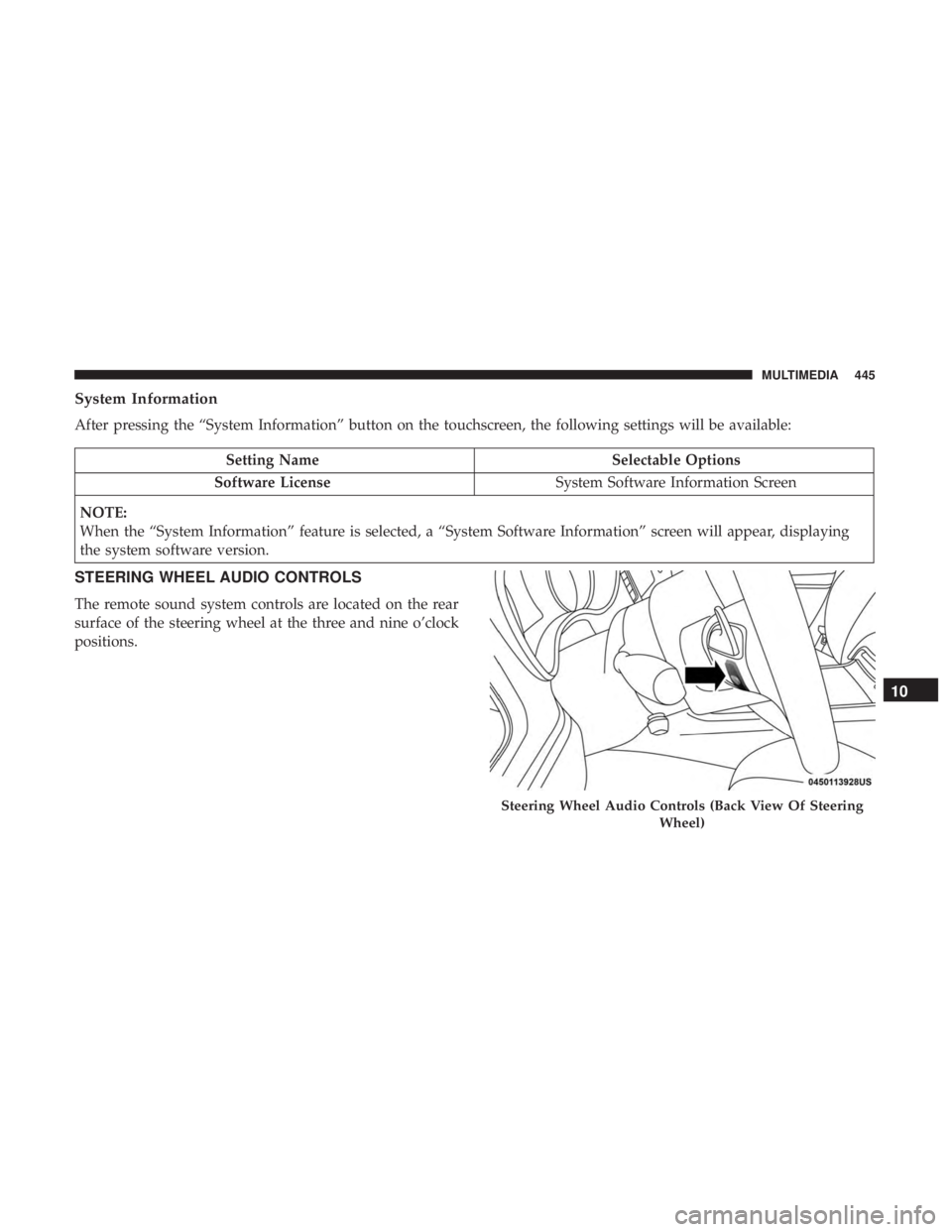
The remote sound system controls are located on the rear
surface of the steering wheel at the three and nine o’clock
positions.
Steering Wheel Audio Controls (Back View Of Steering Wheel)
10
MULTIMEDIA 445
Page 452 of 492
NOTE:If you see the NAV icon on the bottom bar, or in the
Apps menus, of your touchscreen, you have the Uconnect
4C NAV system. If not, you have a Uconnect 4C system.
Get Started
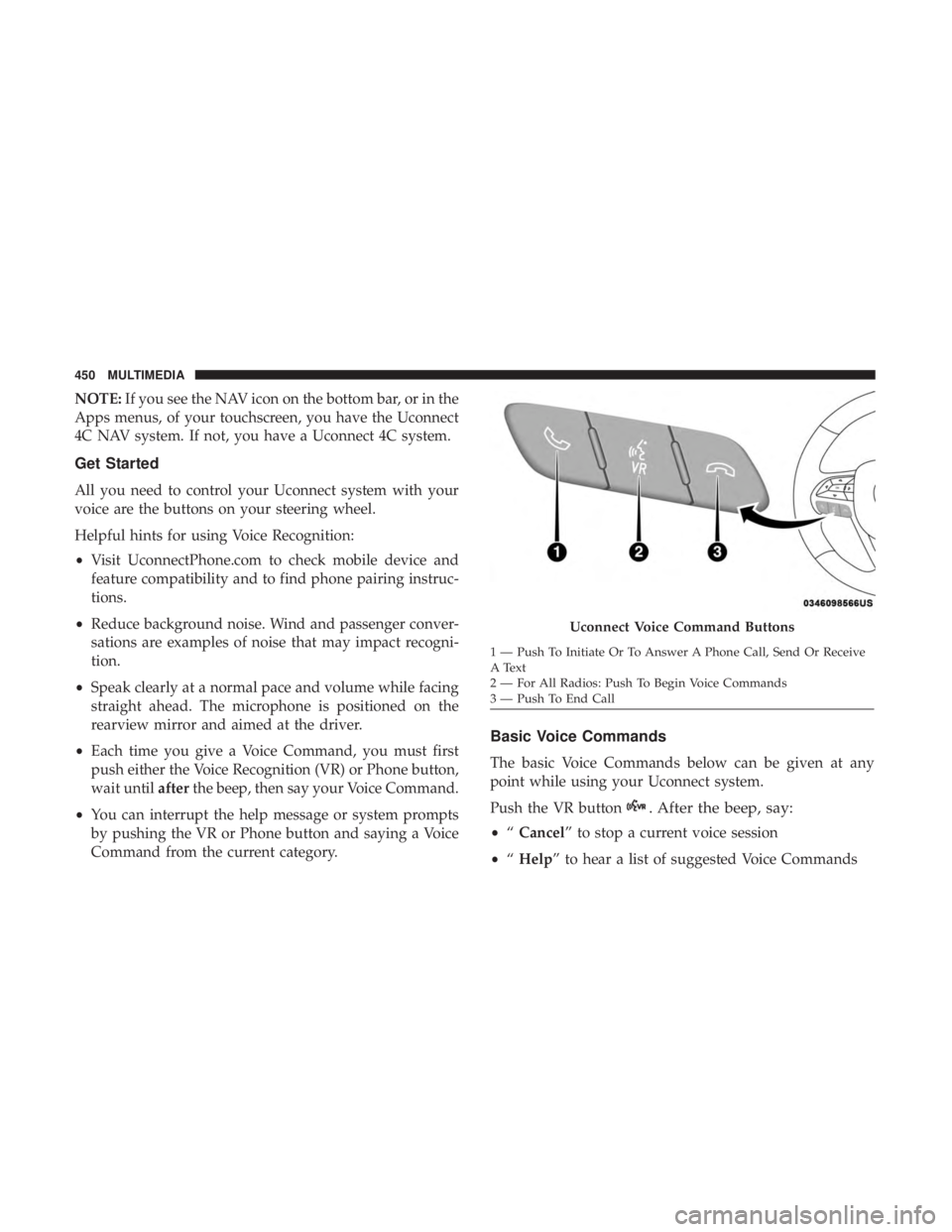
All you need to control your Uconnect system with your
voice are the buttons on your steering wheel.
Helpful hints for using Voice Recognition:
• Visit UconnectPhone.com to check mobile device and
feature compatibility and to find phone pairing instruc-
tions.
• Reduce background noise. Wind and passenger conver-
sations are examples of noise that may impact recogni-
tion.
• Speak clearly at a normal pace and volume while facing
straight ahead. The microphone is positioned on the
rearview mirror and aimed at the driver.
• Each time you give a Voice Command, you must first
push either the Voice Recognition (VR) or Phone button,
wait until afterthe beep, then say your Voice Command.
• You can interrupt the help message or system prompts
by pushing the VR or Phone button and saying a Voice
Command from the current category.
Basic Voice Commands
The basic Voice Commands below can be given at any
point while using your Uconnect system.
Push the VR button
. After the beep, say:
• “Cancel” to stop a current voice session
• “Help” to hear a list of suggested Voice Commands
Uconnect Voice Command Buttons
1 — Push To Initiate Or To Answer A Phone Call, Send Or Receive
A Text
2 — For All Radios: Push To Begin Voice Commands
3 — Push To End Call
450 MULTIMEDIA
Page 458 of 492
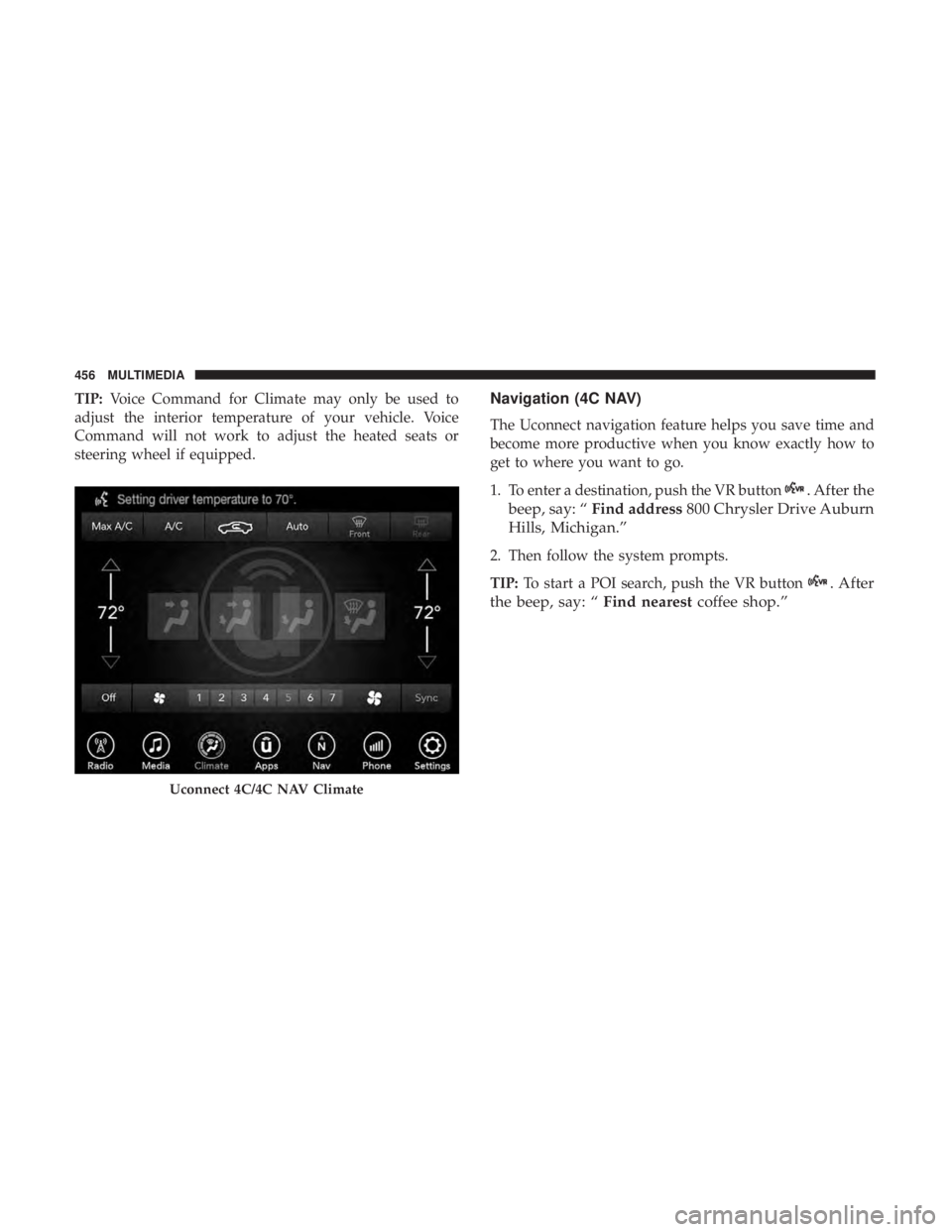
TIP:Voice Command for Climate may only be used to
adjust the interior temperature of your vehicle. Voice
Command will not work to adjust the heated seats or
steering wheel if equipped.Navigation (4C NAV)
The Uconnect navigation feature helps you save time and
become more productive when you know exactly how to
get to where you want to go.
1. To enter a destination, push the VR button
. After the
beep, say: “ Find address 800 Chrysler Drive Auburn
Hills, Michigan.”
2. Then follow the system prompts.
TIP: To start a POI search, push the VR button
. After
the beep, say: “ Find nearestcoffee shop.”
Uconnect 4C/4C NAV Climate
456 MULTIMEDIA
Page 462 of 492
Siri Eyes Free — If Equipped
Siri lets you use your voice to send text messages, select
media, place phone calls and much more. Siri uses your
natural language to understand what you mean and re-
sponds back to confirm your requests. The system is
designed to keep your eyes on the road and your hands on
the wheel by letting Siri help you perform useful tasks.
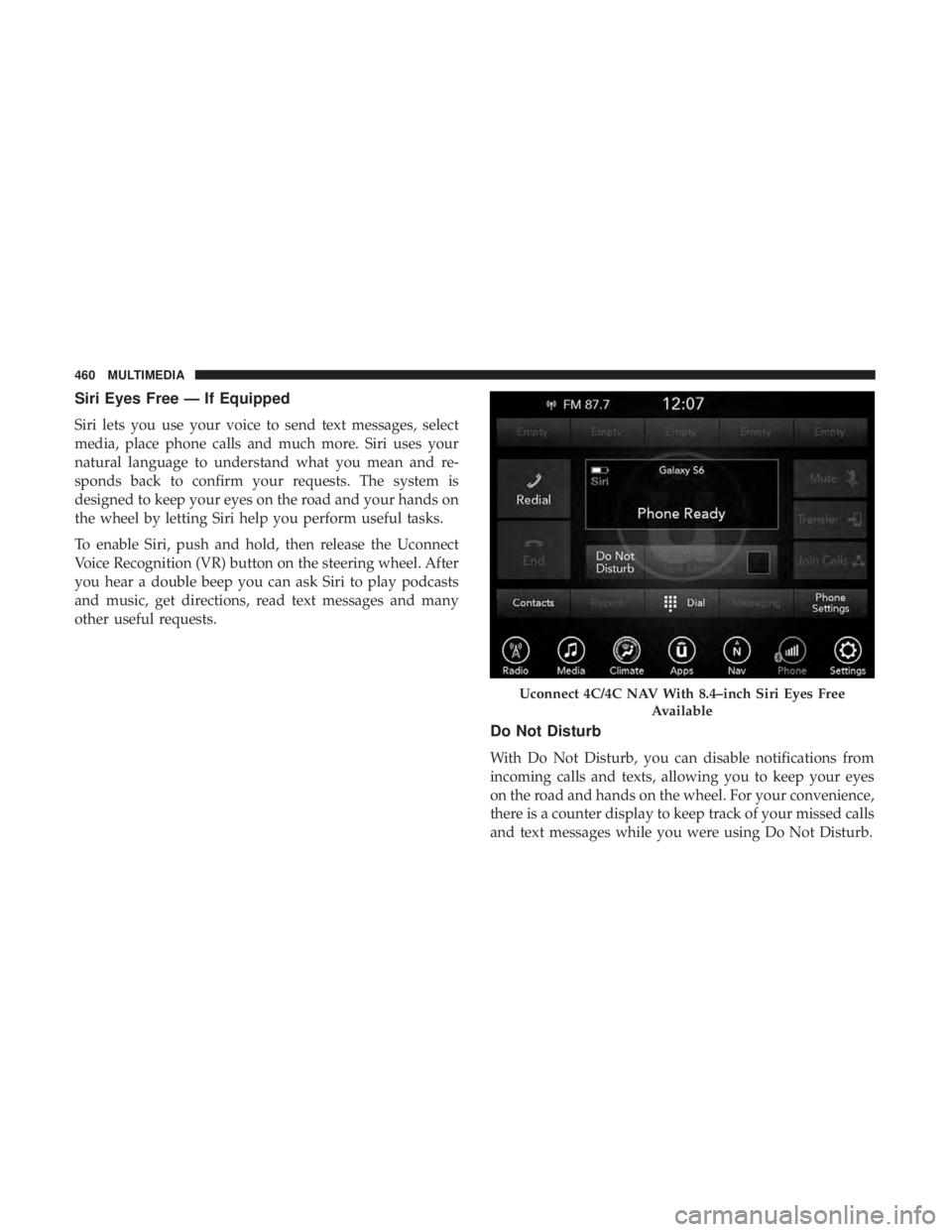
To enable Siri, push and hold, then release the Uconnect
Voice Recognition (VR) button on the steering wheel. After
you hear a double beep you can ask Siri to play podcasts
and music, get directions, read text messages and many
other useful requests.
Do Not Disturb
With Do Not Disturb, you can disable notifications from
incoming calls and texts, allowing you to keep your eyes
on the road and hands on the wheel. For your convenience,
there is a counter display to keep track of your missed calls
and text messages while you were using Do Not Disturb.
Uconnect 4C/4C NAV With 8.4–inch Siri Eyes FreeAvailable
460 MULTIMEDIA