Page 448 of 492

The right-hand control is a rocker-type switch with a
push-button in the center and controls the volume and
mode of the sound system. Pushing the top of the rocker
switch will increase the volume, and pushing the bottom of
the rocker switch will decrease the volume.
Pushing the center button will make the radio switch
between the various modes available (AM/FM/SXM/
AUX/VES, etc.).
The left-hand control is a rocker-type switch with a push-
button in the center. The function of the left-hand control is
different depending on which mode you are in.
The following describes the left-hand control operation in
each mode.Radio Operation
Pushing the top of the switch will “Seek” up for the next
listenable station and pushing the bottom of the switch will
“Seek” down for the next listenable station.
The button located in the center of the left-hand control
will tune to the next preset station that you have pro-
grammed in the radio preset button.
Media Mode
Pushing the top of the switch once goes to the next track on
the selected media (AUX/USB/Bluetooth). Pushing the
bottom of the switch once goes to the beginning of the
current track, or to the beginning of the previous track if it
is within eight seconds after the current track begins to
play.
446 MULTIMEDIA
Page 449 of 492
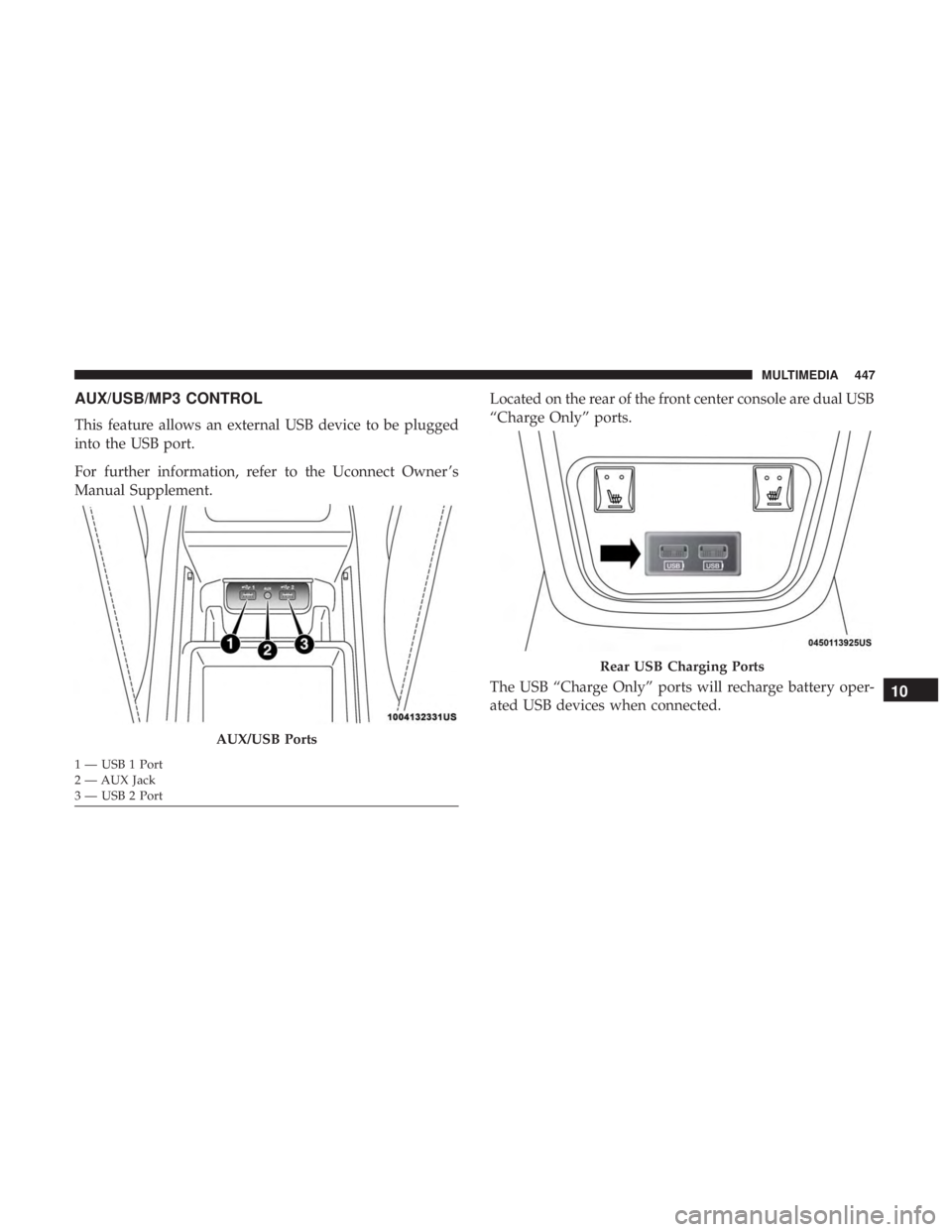
AUX/USB/MP3 CONTROL
This feature allows an external USB device to be plugged
into the USB port.
For further information, refer to the Uconnect Owner ’s
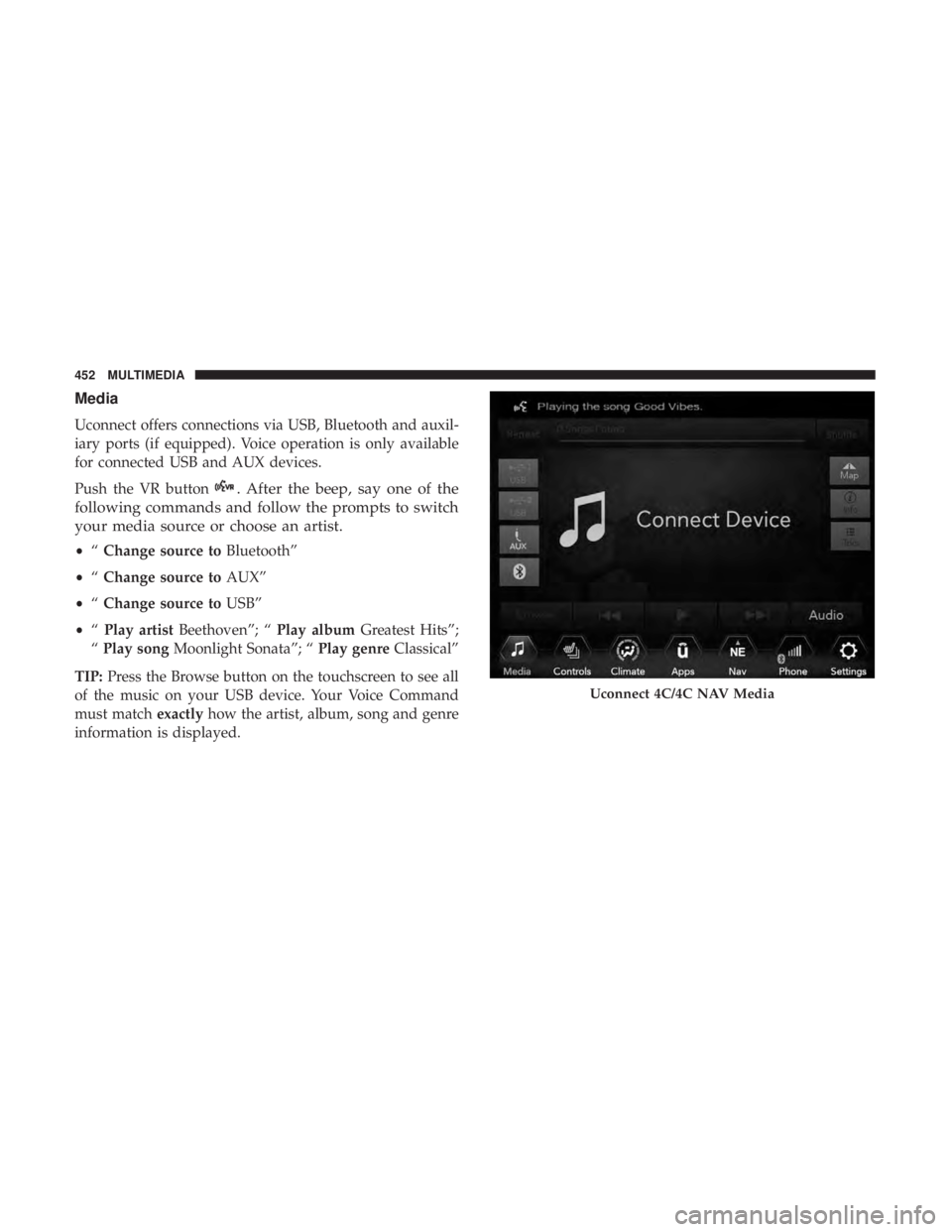
Manual Supplement.Located on the rear of the front center console are dual USB
“Charge Only” ports.
The USB “Charge Only” ports will recharge battery oper-
ated USB devices when connected.
AUX/USB Ports
1 — USB 1 Port
2 — AUX Jack
3 — USB 2 Port
Rear USB Charging Ports
10
MULTIMEDIA 447
Page 454 of 492
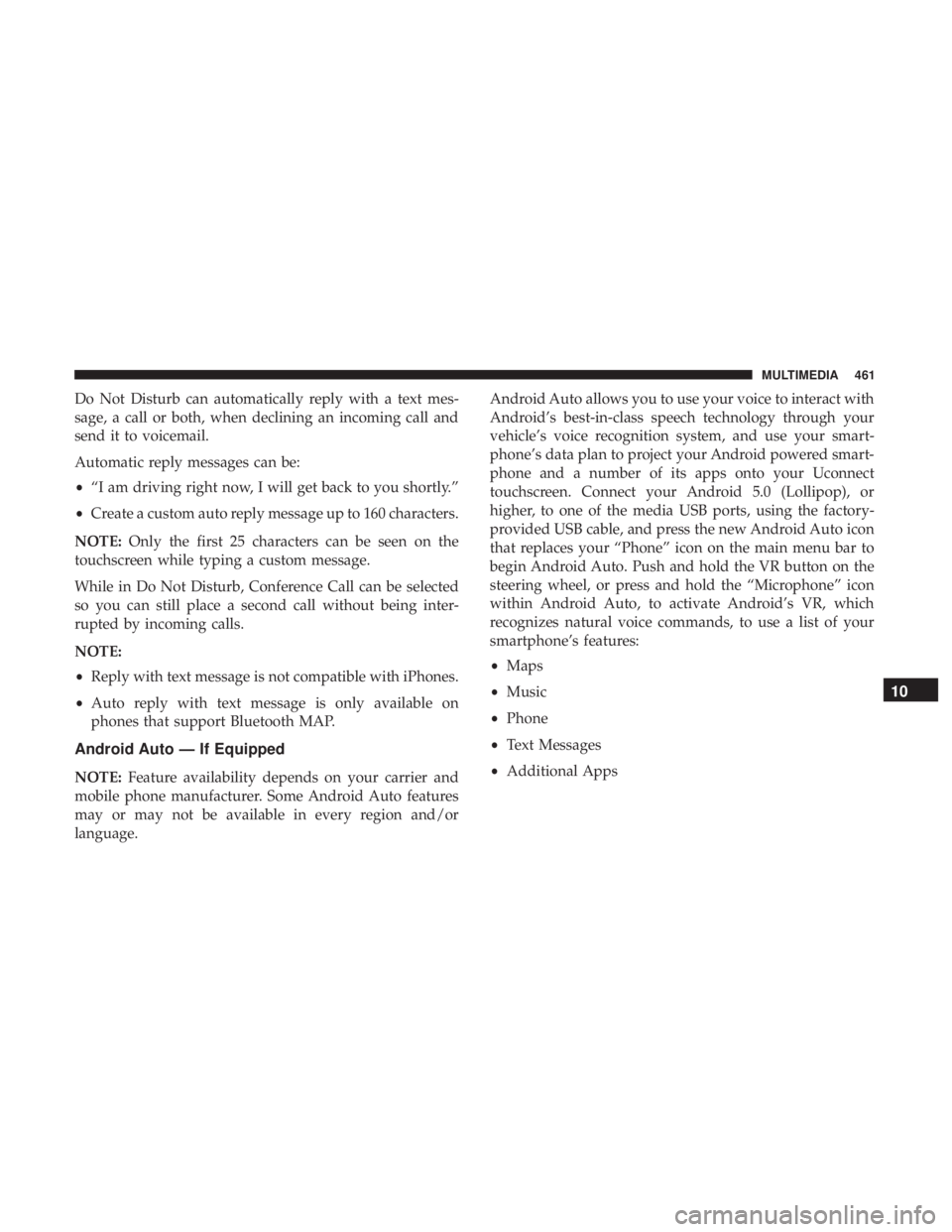
Media
Uconnect offers connections via USB, Bluetooth and auxil-
iary ports (if equipped). Voice operation is only available
for connected USB and AUX devices.
Push the VR button
. After the beep, say one of the
following commands and follow the prompts to switch
your media source or choose an artist.
• “Change source to Bluetooth”
• “Change source to AUX”
• “Change source to USB”
• “Play artist Beethoven”; “ Play albumGreatest Hits”;
“ Play song Moonlight Sonata”; “ Play genreClassical”
TIP: Press the Browse button on the touchscreen to see all
of the music on your USB device. Your Voice Command
must match exactlyhow the artist, album, song and genre
information is displayed.
Uconnect 4C/4C NAV Media
452 MULTIMEDIA
Page 463 of 492
Do Not Disturb can automatically reply with a text mes-
sage, a call or both, when declining an incoming call and
send it to voicemail.
Automatic reply messages can be:
•“I am driving right now, I will get back to you shortly.”
• Create a custom auto reply message up to 160 characters.
NOTE: Only the first 25 characters can be seen on the
touchscreen while typing a custom message.
While in Do Not Disturb, Conference Call can be selected
so you can still place a second call without being inter-
rupted by incoming calls.
NOTE:
• Reply with text message is not compatible with iPhones.
• Auto reply with text message is only available on
phones that support Bluetooth MAP.
Android Auto — If Equipped
NOTE: Feature availability depends on your carrier and
mobile phone manufacturer. Some Android Auto features
may or may not be available in every region and/or
language. Android Auto allows you to use your voice to interact with
Android’s best-in-class speech technology through your
vehicle’s voice recognition system, and use your smart-
phone’s data plan to project your Android powered smart-
phone and a number of its apps onto your Uconnect
touchscreen. Connect your Android 5.0 (Lollipop), or
higher, to one of the media USB ports, using the factory-
provided USB cable, and press the new Android Auto icon
that replaces your “Phone” icon on the main menu bar to
begin Android Auto. Push and hold the VR button on the
steering wheel, or press and hold the “Microphone” icon
within Android Auto, to activate Android’s VR, which
recognizes natural voice commands, to use a list of your
smartphone’s features:
•
Maps
• Music
• Phone
• Text Messages
• Additional Apps
10
MULTIMEDIA 461
Page 464 of 492
Refer to your Uconnect Owner ’s Manual Supplement for
further information.
NOTE:Requires compatible smartphone running Android
5.0 Lollipop or higher and download app on Google Play.
Android, Android Auto, and Google Play are trademarks
of Google Inc.
Apple CarPlay — If Equipped
NOTE: Feature availability depends on your carrier and
mobile phone manufacturer. Some Apple CarPlay features
may or may not be available in every region and/or
language.
Apple CarPlay allows you to use your voice to interact
with Siri through your vehicle’s voice recognition system,
and use your smartphone’s data plan to project your
iPhone and a number of its apps onto your Uconnect
touchscreen. Connect your iPhone 5, or higher, to one of
the media USB ports, using the factory-provided Lightning
cable, and press the new CarPlay icon that replaces your
“Phone” icon on the main menu bar to begin Apple
CarPlay. Press and hold the VR button on the steering
wheel, or press and hold the “Home” button within Apple
CarPlay, to activate Siri, which recognizes natural voice
commands to use a list of your iPhone’s features:
• Phone
• Music
• Messages
• Maps
• Additional Apps
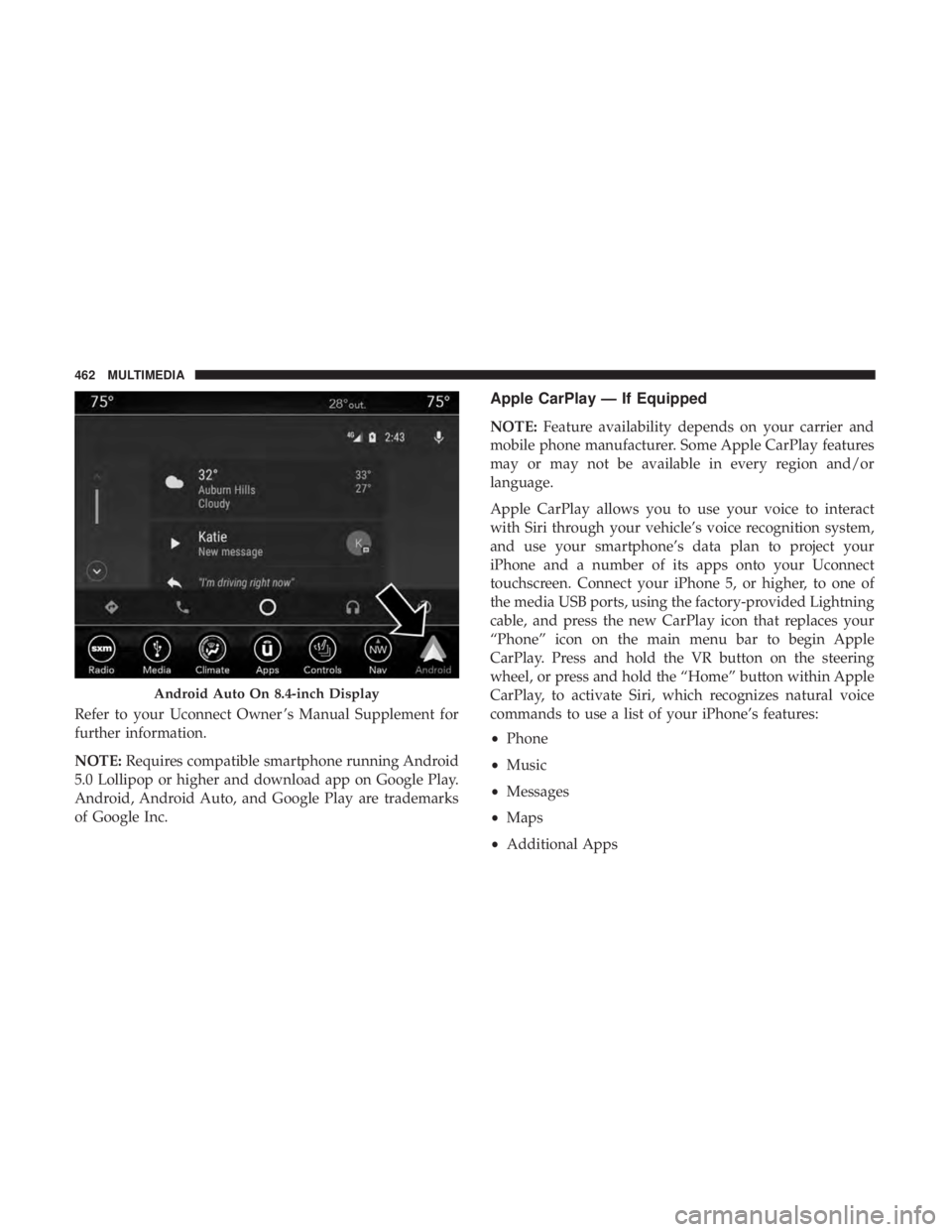
Android Auto On 8.4-inch Display
462 MULTIMEDIA
Page 488 of 492
Hitches............................... .288
Minimum Requirements ....................291
Tips ................................. .295
Trailer And Tongue Weight ..................290
Wiring ............................... .293
Trailer Towing Guide ....................... .289
Trailer Weight ............................ .289
Transfer Case Fluid .......................... .372, 415, 417
Maintenance ........................... .372
Transmission ............................. .230
Automatic ......................... .230, 371
Fluid ............................. .415, 417
Maintenance ........................... .371
Shifting .............................. .228
Transporting Pets ......................... .212
Tread Wear Indicators ...................... .387
Trunk Lid (Deck Lid) .........................95
Trunk Release Remote Control ..................95
Turn Signals ........................... .70, 141
Uconnect Uconnect Settings .................21, 22, 33, 423
Uconnect 4C/4C Nav With 8.4-Inch Display ........424Uconnect Settings
Customer Programmable Features ........33, 39, 423
Passive Entry Programming ..................39
Uniform Tire Quality Grades ..................396
Universal Garage Door Opener (HomeLink) ........100
Universal Transmitter ....................... .100
Unleaded Gasoline ........................ .407
Untwisting Procedure, Seat Belt ................179
USB................................... .447
Vanity Mirrors .............................65
Vehicle Certification Label ....................285
Vehicle Identification Number (VIN) .............405
Vehicle Loading .....................285, 286, 380
Vehicle Modifications/Alterations .................5
Vehicle Security Alarm ........................35
Vehicle Storage ......................... .86,
397
Vehicle User Guide In Vehicle Help ...........................17
Navigation ..............................17
Operating Instructions ......................17
Searching User Guide ......................17
Viscosity, Engine Oil .....................353, 354
Voice Command .......................... .449
486 INDEX