Chevrolet Traverse Owner Manual (GMNA-Localizing-U.S./Canada/Mexico-
12146157) - 2019 - CRC - 11/1/18
370 Vehicle Care
Floor Mats
{Warning
If a floor mat is the wrong size or
is not properly installed, it can
interfere with the pedals.
Interference with the pedals can
cause unintended acceleration
and/or increased stopping
distance which can cause a crash
and injury. Make sure the floor
mat does not interfere with the
pedals.
Use the following guidelines for
proper floor mat usage.
. The original equipment floor
mats were designed for your
vehicle. If the floor mats need
replacing, it is recommended
that GM certified floor mats be
purchased. Non-GM floor mats
may not fit properly and may
interfere with the accelerator or
brake pedal. Always check that
the floor mats do not interfere
with the pedals. .
Do not use a floor mat if the
vehicle is not equipped with a
floor mat retainer on the driver
side floor.
. Use the floor mat with the
correct side up. Do not turn
it over.
. Do not place anything on top of
the driver side floor mat.
. Use only a single floor mat on
the driver side.
. Do not place one floor mat on
top of another.
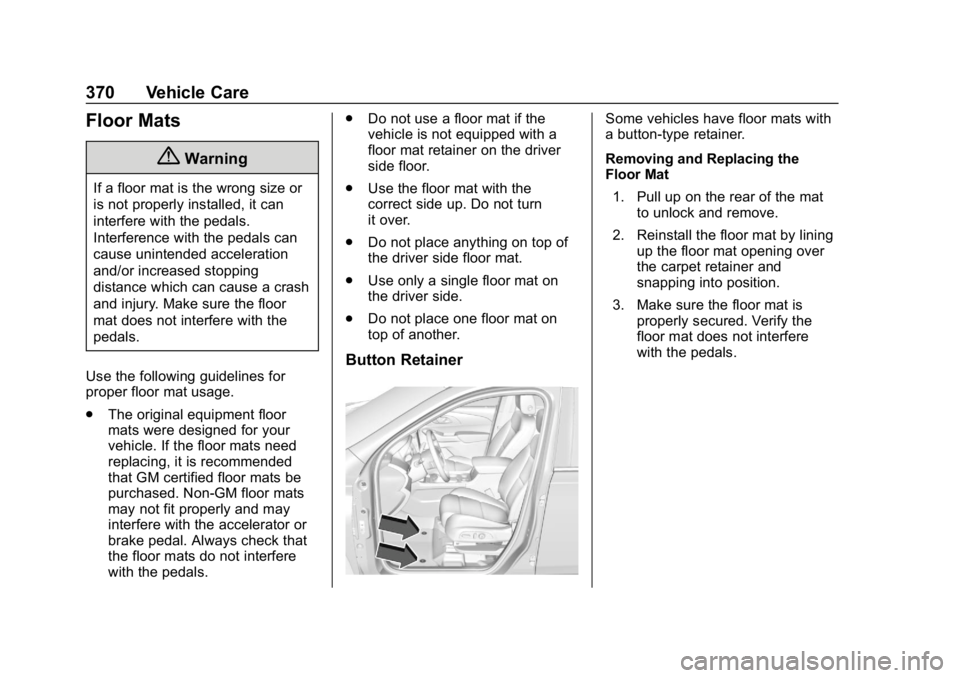
Button Retainer
Some vehicles have floor mats with
a button-type retainer.
Removing and Replacing the
Floor Mat
1. Pull up on the rear of the mat to unlock and remove.
2. Reinstall the floor mat by lining up the floor mat opening over
the carpet retainer and
snapping into position.
3. Make sure the floor mat is properly secured. Verify the
floor mat does not interfere
with the pedals.
Chevrolet Traverse Owner Manual (GMNA-Localizing-U.S./Canada/Mexico-
12146157) - 2019 - CRC - 10/31/18
Connected Services 411
Connected
Services
Connected Services
Navigation . . . . . . . . . . . . . . . . . . . . 411
Connections . . . . . . . . . . . . . . . . . . 412
Diagnostics . . . . . . . . . . . . . . . . . . . 414
Connected Services
Navigation
Navigation requires a specific
OnStar or connected service plan.
Press
Qto receive Turn-by-Turn
directions or have them sent to the
vehicle’s navigation screen,
if equipped.
Turn-by-Turn Navigation
1. PressQto connect to an
Advisor.
2. Request directions to be downloaded to the vehicle.
3. Follow the voice-guided commands.
Using Voice Commands
During a Planned Route
Functionality of the Voice Command
button, if equipped, may vary by
vehicle and region. For some
vehicles, press
=to open the OnStar app on the infotainment
display. For other vehicles press
=
as follows.
Cancel Route
1. Press
=. System responds:
“OnStar ready,” then a tone.
2. Say “Cancel route.” System
responds: “Do you want to
cancel directions?”
3. Say “Yes.”System responds:
“OK, request completed, thank
you, goodbye.”
Route Preview
1. Press
=. System responds:
“OnStar ready,” then a tone.
2. Say “Route preview.” System
responds with the next three
maneuvers.
Repeat
1. Press
=. System responds:
“OnStar ready,” then a tone.