2019 CHEVROLET SONIC infotainment
[x] Cancel search: infotainmentPage 193 of 351

Chevrolet Sonic Owner Manual (GMNA-Localizing-U.S./Canada-12461769) -
2019 - crc - 5/21/18
192 Driving and Operating
Check the heater cord for
damage. If it is damaged, do
not use it. See your dealer for
a replacement. Inspect the
cord for damage yearly.
3. Plug it into a normal, grounded 110-volt AC outlet.
{Warning
Improper use of the heater cord
or an extension cord can damage
the cord and may result in
overheating and fire.
. Plug the cord into a
three-prong electrical utility
receptacle that is protected
by a ground fault detection
function. An ungrounded
outlet could cause an
electric shock.
. Use a weatherproof,
heavy-duty, 15 amp-rated
extension cord if needed.
Failure to use the
recommended extension
cord in good operating
(Continued)
Warning (Continued)
condition, or using a
damaged heater or
extension cord, could make
it overheat and cause a fire,
property damage, electric
shock, and injury.
. Do not operate the vehicle
with the heater cord
permanently attached to the
vehicle. Possible heater
cord and thermostat
damage could occur.
. While in use, do not let the
heater cord touch vehicle
parts or sharp edges. Never
close the hood on the
heater cord.
. Before starting the vehicle,
unplug the cord, reattach
the cover to the plug, and
securely fasten the cord.
Keep the cord away from
any moving parts. 4. Before starting the engine, be
sure to unplug and store the
cord as it was before to keep it
away from moving engine
parts. If you do not it could be
damaged.
The length of time the heater should
remain plugged in depends on
several factors. Ask a dealer in the
area where you will be parking the
vehicle for the best advice on this.
Retained Accessory
Power (RAP)
Some vehicle accessories may be
used after the ignition is turned off.
The power windows and sunroof,
if equipped, will continue to work for
up to 10 minutes or until any door is
opened.
The infotainment system will
continue to work for 10 minutes,
until the driver door is opened,
or until the ignition is turned on or
placed in ACC/ACCESSORY.
Page 210 of 351
Chevrolet Sonic Owner Manual (GMNA-Localizing-U.S./Canada-12461769) -
2019 - crc - 5/21/18
Driving and Operating 209
Warning (Continued)
Complete attention is always
required while driving, and you
should be ready to take action
and apply the brakes and/or steer
the vehicle to avoid crashes.
Audible Alert
Some driver assistance features
alert the driver of obstacles by
beeping. To change the volume of
the warning chime, see “Comfort
and Convenience” underVehicle
Personalization 0132.
Cleaning
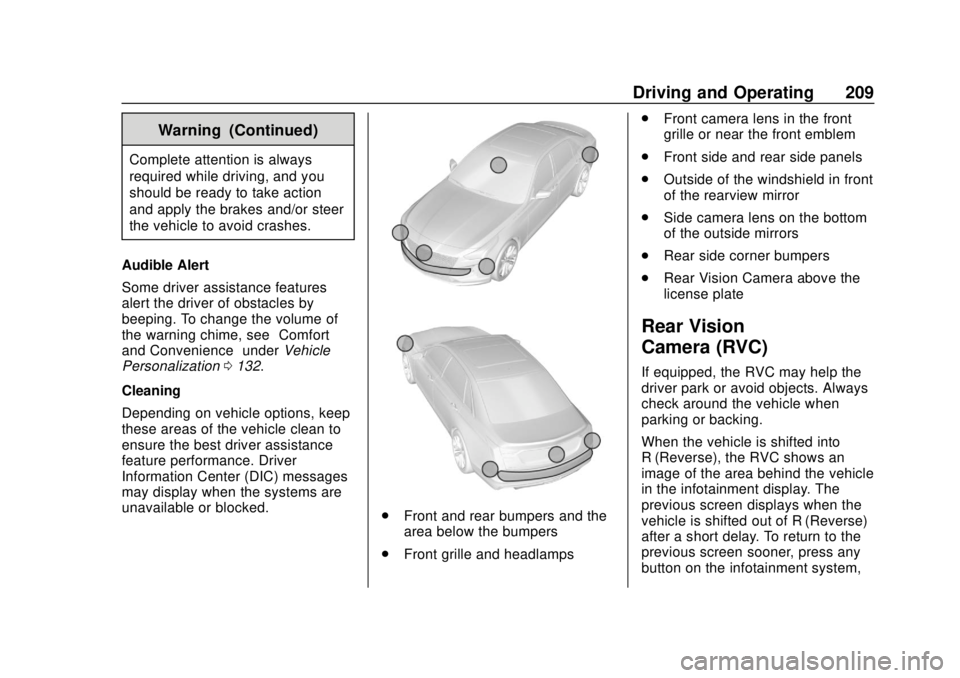
Depending on vehicle options, keep
these areas of the vehicle clean to
ensure the best driver assistance
feature performance. Driver
Information Center (DIC) messages
may display when the systems are
unavailable or blocked.
. Front and rear bumpers and the
area below the bumpers
. Front grille and headlamps .
Front camera lens in the front
grille or near the front emblem
. Front side and rear side panels
. Outside of the windshield in front
of the rearview mirror
. Side camera lens on the bottom
of the outside mirrors
. Rear side corner bumpers
. Rear Vision Camera above the
license plate
Rear Vision
Camera (RVC)
If equipped, the RVC may help the
driver park or avoid objects. Always
check around the vehicle when
parking or backing.
When the vehicle is shifted into
R (Reverse), the RVC shows an
image of the area behind the vehicle
in the infotainment display. The
previous screen displays when the
vehicle is shifted out of R (Reverse)
after a short delay. To return to the
previous screen sooner, press any
button on the infotainment system,
Page 212 of 351
Chevrolet Sonic Owner Manual (GMNA-Localizing-U.S./Canada-12461769) -
2019 - crc - 5/21/18
Driving and Operating 211
The RVC system may have a
feature that lets the driver view park
assist symbols on the infotainment
display while using the RVC. Rear
Park Assist (RPA) must not be
disabled to use the caution symbols.
The error message Rear Park Assist
Symbols Unavailable may display if
RPA has been disabled and the
symbols have been turned on. See
Park Assist0211.
When the System Does Not
Seem to Work Properly
The RVC system may not work
properly or display a clear image if:
.
The RVC is turned off.
. It is dark.
. The sun or the beam of
headlamps is shining directly
into the camera lens.
. Ice, snow, mud, or anything else
builds up on the camera lens.
Clean the lens, rinse it with
water, and wipe it with a soft
cloth. .
The back of the vehicle is in a
crash. The position and
mounting angle of the camera
can change, or the camera can
be affected. Be sure to have the
camera and its position and
mounting angle checked at your
dealer.
Park Assist
If equipped, Rear Park Assist (RPA)
assists the driver with parking and
avoiding objects while in
R (Reverse). RPA operates at
speeds less than 8 km/h (5 mph).
The sensors on the rear bumper
detect objects up to 1.5 m (4.9 ft)
behind the vehicle, and at least
20 cm (8 in) off the ground. The
distance at which objects can be
detected may be less during warmer
or humid weather.
{Warning
The Park Assist system does not
detect children, pedestrians,
bicyclists, animals, or objects
below the bumper or that are too
close or too far from the vehicle.
It is not available at speeds
greater than 8 km/h (5 mph). To
prevent injury, death, or vehicle
damage, even with Park Assist,
always check the area around the
vehicle and check all mirrors
before backing.
How the System Works
RPA comes on automatically when
the shift lever is moved into
R (Reverse). A single beep sounds
to indicate the system is working.
RPA operates only at speeds less
than 8 km/h (5 mph).
An obstacle is indicated by audible
beeps. The time between the beeps
becomes shorter as the vehicle gets
Page 213 of 351
Chevrolet Sonic Owner Manual (GMNA-Localizing-U.S./Canada-12461769) -
2019 - crc - 5/21/18
212 Driving and Operating
closer to the obstacle. When the
distance is less than 30 cm (12 in),
the beeping is a continuous tone.
Turning the System On and Off
The RPA system can be turned on
and off using the infotainment
system controls. SeeVehicle
Personalization 0132.
When the system is off, PARK
ASSIST OFF displays on the Driver
Information Center (DIC). The
message disappears after a short
period of time.
RPA defaults to the on setting each
time the vehicle is started.
When the System Does Not
Seem to Work Properly
The following messages may be
displayed on the DIC: SERVICE PARK ASSIST :
If this
message occurs, check the
following conditions:
. The sensors are not clean. Keep
the vehicle's rear bumper free of
mud, dirt, snow, ice, and slush.
For cleaning instructions, see
Exterior Care 0286.
. The Park Assist sensors are
covered by frost or ice. Frost or
ice can form around and behind
the sensors and may not always
be seen; this can occur after
washing the vehicle in cold
weather. The message may not
clear until the frost or ice has
melted.
If the above conditions do not exist,
take the vehicle to your dealer to
repair the system. PARK ASSIST OFF :
If the RPA
system does not activate due to a
temporary condition, the message
displays on the DIC. This can occur
under the following conditions:
. An object was hanging out of the
trunk during the last drive cycle.
Once the object is removed,
RPA will return to normal
operation.
. The bumper is damaged. Take
the vehicle to your dealer to
repair the system.
. Other conditions, such as
vibrations from a jackhammer or
the compression of air brakes on
a very large truck, are affecting
system performance.Forward Collision Alert
(FCA) System
If equipped, the FCA system may
help to avoid or reduce the harm
caused by front-end crashes. When
approaching a vehicle ahead too
quickly, FCA provides a red flashing
alert on the windshield and rapidly
beeps.
Page 323 of 351
Chevrolet Sonic Owner Manual (GMNA-Localizing-U.S./Canada-12461769) -
2019 - crc - 5/21/18
322 Customer Information
.Vehicle make, model, and
model year
. Vehicle Identification
Number (VIN)
. Insurance company and policy
number
. General description of the
damage to the other vehicle
Choose a reputable repair facility
that uses quality replacement parts.
See “Collision Parts” earlier in this
section.
If the airbag has inflated, see What
Will You See after an Airbag
Inflates? 075.
Managing the Vehicle Damage
Repair Process
In the event that the vehicle requires
damage repairs, GM recommends
that you take an active role in its
repair. If you have a pre-determined
repair facility of choice, take the
vehicle there, or have it towed there.
Specify to the facility that any
required replacement collision parts
be original equipment parts, either
new Genuine GM parts or recycled original GM parts. Remember,
recycled parts will not be covered by
the GM vehicle warranty.
Insurance pays the bill for the repair,
but you must live with the repair.
Depending on your policy limits,
your insurance company may
initially value the repair using
aftermarket parts. Discuss this with
the repair professional, and insist on
Genuine GM parts. Remember,
if the vehicle is leased, you may be
obligated to have the vehicle
repaired with Genuine GM parts,
even if your insurance coverage
does not pay the full cost.
If another party's insurance
company is paying for the repairs,
you are not obligated to accept a
repair valuation based on that
insurance company's collision policy
repair limits, as you have no
contractual limits with that company.
In such cases, you can have control
of the repair and parts choices as
long as the cost stays within
reasonable limits.
Publication Ordering
Information
Service Manuals
Service manuals have the diagnosis
and repair information on the
engine, transmission, axle,
suspension, brakes, electrical
system, steering system, body, etc.
Customer Literature
Owner
’s manuals are written
specifically for owners and are
intended to provide basic
operational information about the
vehicle. The owner ’s manual
includes the Maintenance Schedule
for all models.
Customer literature publications
available for purchase include
owner ’s manuals, warranty
manuals, infotainment manuals, and
portfolios. Portfolios include an
owner ’s manual, warranty manual,
infotainment manual, if applicable,
and zip lock bag or pouch.
Page 329 of 351

Chevrolet Sonic Owner Manual (GMNA-Localizing-U.S./Canada-12461769) -
2019 - crc - 5/21/18
328 OnStar
Press=to:
. Open the OnStar app on the
infotainment display. See the
infotainment manual for
information on how to use the
OnStar app.
Or
. Make a call, end a call,
or answer an incoming call.
. Give OnStar Hands-Free Calling
voice commands.
. Give OnStar Turn-by-Turn
Navigation voice commands.
. Obtain and customize the Wi-Fi
hotspot name or SSID and
password, if equipped.
Press
Qto connect to an
Advisor to:
. Verify account information or
update contact information.
. Get driving directions. .
Receive a Diagnostic check of
the vehicle's key operating
systems.
. Receive Roadside Assistance.
. Manage Wi-Fi Settings,
if equipped.
Press
>to get a priority connection
to an OnStar Advisor available 24/
7 to:
. Get help for an emergency.
. Be a Good Samaritan or
respond to an AMBER Alert.
. Get assistance in severe
weather or other crisis situations
and find evacuation routes.
OnStar Services
Emergency
Emergency Services require an
active safety and security plan. With
Automatic Crash Response, built-in
sensors can automatically alert a
specially trained OnStar Advisor
who is immediately connected in to
the vehicle to help.
Press
>for a priority connection to
an OnStar Advisor who can contact
emergency service providers, direct
them to your exact location, and
relay important information.
With OnStar Crisis Assist, specially
trained Advisors are available
24 hours a day, 7 days a week, to
provide a central point of contact,
assistance, and information during a
crisis.
With Roadside Assistance, Advisors
can locate a nearby service provider
to help with a flat tire, a battery
jump, or an empty gas tank.
Page 331 of 351

Chevrolet Sonic Owner Manual (GMNA-Localizing-U.S./Canada-12461769) -
2019 - crc - 5/21/18
330 OnStar
.PressQto speak with an
Advisor.
OnStar or connected services
cannot work unless the vehicle is in
a place where OnStar has an
agreement with a wireless service
provider for service in that area. The
wireless service provider must also
have coverage, network capacity,
reception, and technology
compatible with OnStar or
connected services. Service
involving location information about
the vehicle cannot work unless GPS
signals are available, unobstructed,
and compatible with the OnStar
hardware. OnStar or connected
services may not work if the OnStar
equipment is not properly installed
or it has not been properly
maintained. If equipment or software
is added, connected, or modified,
OnStar or connected services may
not work. Other problems beyond
the control of OnStar —such as
hills, tall buildings, tunnels, weather,
electrical system design and
architecture of the vehicle, damage to the vehicle in a crash, or wireless
phone network congestion or
jamming
—may prevent service.
See Radio Frequency Statement
0 323.
Services for People with
Disabilities
Advisors provide services to help
with physical disabilities and
medical conditions.
Press
Qto help:
. Locate a gas station with an
attendant to pump gas.
. Find a hotel, restaurant, etc.,
that meets accessibility needs.
. Provide directions to the closest
hospital or pharmacy in urgent
situations.
TTY Users
OnStar has the ability to
communicate to deaf,
hard-of-hearing, or speech-impaired
customers while in the vehicle. The
available dealer-installed TTY
system can provide in-vehicle access to all OnStar services,
except Virtual Advisor and OnStar
Turn-by-Turn Navigation.
If equipped, TTY mode can be
turned on or off by touching
Settings, then Apps, and then
Phone. When TTY mode is on,
phone calls can be made or
received with OnStar using the
infotainment display.
OnStar Personal Identification
Number (PIN)
A PIN is needed to access some
OnStar services. The PIN will need
to be changed the first time when
speaking with an Advisor. To
change the OnStar PIN, contact an
OnStar Advisor by pressing
Qor
calling 1-888-4ONSTAR.
Warranty
OnStar equipment may be
warranted as part of the vehicle
warranty.
Page 336 of 351
Chevrolet Sonic Owner Manual (GMNA-Localizing-U.S./Canada-12461769) -
2019 - crc - 5/21/18
Connected Services 335
Connected
Services
Connected Services
Navigation . . . . . . . . . . . . . . . . . . . . 335
Connections . . . . . . . . . . . . . . . . . . 336
Diagnostics . . . . . . . . . . . . . . . . . . . 338
Connected Services
Navigation
Navigation requires a specific
OnStar or connected service plan.
Press
Qto receive Turn-by-Turn
directions or have them sent to the
vehicle’s navigation screen,
if equipped.
Turn-by-Turn Navigation
1. PressQto connect to an
Advisor.
2. Request directions to be downloaded to the vehicle.
3. Follow the voice-guided commands.
Using Voice Commands
During a Planned Route
Functionality of the Voice Command
button, if equipped, may vary by
vehicle and region. For some
vehicles, press
=to open the OnStar app on the infotainment
display. For other vehicles press
=
as follows.
Cancel Route
1. Press
=. System responds:
“OnStar ready,” then a tone.
2. Say “Cancel route.” System
responds: “Do you want to
cancel directions?”
3. Say “Yes.”System responds:
“OK, request completed, thank
you, goodbye.”
Route Preview
1. Press
=. System responds:
“OnStar ready,” then a tone.
2. Say “Route preview.” System
responds with the next three
maneuvers.
Repeat
1. Press
=. System responds:
“OnStar ready,” then a tone.