2019 CHEVROLET CORVETTE page 1
[x] Cancel search: page 1Page 20 of 90

Chevrolet Corvette MyLink Infotainment System(GMNA-Localizing-U.S./
Canada-12145685) - 2019 - crc - 4/16/18
Audio Players 19
connected phone is made, the
system will automatically mute the
iPhone audio.
If there is a loss of audio, playback
can be resumed by changing the
audio flow from Bluetooth to USB
cable.
To change the audio flow:1. While the iPhone is connected, double tap the phone’s
home page.
2. Swipe a finger to the left on the phone’s display. A box with a
triangle on the lower line of the
box that is highlighted shows.
Touch this box to display the
dock connector option.
3. Touch “Dock Connector.”
Other phones such as the Android
phones may have a similar reaction.
Bluetooth Streaming Audio and
Voice Recognition
See Bluetooth Audio 020 for
information using voice recognition
with Bluetooth streaming audio. Make sure all devices have the
latest software downloaded.
Storing and Recalling Media
Favorites
To store media favorites, touch and
hold an open favorite during media
playback to display a list of media
types. Select from this list.
The media types that may
display are:
Genres :
Touch and hold a preset
to store the current genre as a
favorite. Touch a saved favorite to
recall a favorite genre. The first
song of the genre begins to play.
Artists : Touch and hold a preset to
store the current artist as a favorite.
Touch a saved favorite to recall a
favorite artist. The first song in the
artist list begins to play.
Albums : Touch and hold a preset
to store the current album as a
favorite. Touch a saved favorite to
recall a favorite album. The first
song in the album list begins to play. Playlists :
Touch and hold a preset
to store the current playlist as a
favorite. Touch a saved favorite to
recall a favorite playlist. The first
song in the playlist begins to play.
Songs : Touch and hold a preset to
store the current song as a favorite.
Touch a saved favorite to recall a
favorite song.
Podcasts or Podcast Episode :
Touch and hold a preset to store the
current podcast as a favorite. Touch
a saved favorite to recall a favorite
podcast or podcast episode. The
podcast or podcast episode begins
to play.
Audiobooks : Touch and hold a
preset to store the current
audiobook as a favorite. Touch a
saved favorite to recall a favorite
audiobook. The first chapter in the
audiobook begins to play.
Page 21 of 90

Chevrolet Corvette MyLink Infotainment System(GMNA-Localizing-U.S./
Canada-12145685) - 2019 - crc - 4/16/18
20 Audio Players
SD Card Reader
This vehicle may have an SD card
reader in the glove box.
This SD card reader is used with the
Performance Data Recorder system
and is used to store recorded
driving information. See
“Performance Data Recorder (PDR)”
in the owner’s manual.
Auxiliary Jack
This vehicle has an auxiliary input
jack in the center console under the
armrest. Possible auxiliary audio
sources include:
.
Laptop computer
. Audio music player
. Portable CD player
This jack is not an audio output. Do
not plug headphones into the
auxiliary input jack. Set up an
auxiliary device while the vehicle is
in P (Park).
Connect a 3.5 mm (1/8 in) cable
from the auxiliary device to the
auxiliary input jack. When a device is connected, the system can play
audio from the device over the
vehicle speakers.
If an auxiliary device has already
been connected, but a different
source is currently active, press
MEDIA on the center stack or touch
the Media icon on the infotainment
display to scroll through audio
source displays, until AUX Input
source displays.
Playing from the AUX Port
An auxiliary device is played
through the audio system and
controlled through the device itself.
AUX Menu
Press the MENU knob to display the
AUX Input menu and the following
may display:
Tone Settings :
Touch to adjust
Bass, Midrange, Treble, Balance,
Fade, and EQ (Equalizer). See
AM-FM Radio 010.
Bose AudioPilot Noise
Compensation Technology (If
Equipped) : This feature adjusts the volume based on the noise in
the vehicle and speed. See
AM-FM
Radio 010.
DSP Modes (If Equipped) : With a
Bose Centerpoint surround sound
system, this feature adjusts the DSP
modes. See “DSP Modes (If
Equipped)” inAM-FM Radio 010.
Bluetooth Audio
If equipped, music may be played
from a paired Bluetooth device.
See Bluetooth 062 orBluetooth
0 63 orBluetooth 066 for help
pairing a device.
The music can be controlled by
either the infotainment controls or
the controls on the device.
Music can be launched by touching
the Audio icon on the Home Page.
To play music through Bluetooth:
1. Power on the device, and pair to connect the device.
2. Once paired, go into the audio application from the Home
Page or through the
Page 22 of 90

Chevrolet Corvette MyLink Infotainment System(GMNA-Localizing-U.S./
Canada-12145685) - 2019 - crc - 4/16/18
Audio Players 21
applications tray. Touch the
Media icon on the infotainment
display until Bluetooth displays.
Bluetooth Audio Menu
Touch the Menu icon on the
infotainment display or press MENU
on the center stack to display the
Bluetooth Audio menu. The
following may be available:
Tone : Touch + or −to adjust the
tone settings. See AM-FM Radio
0 10.
Bose AudioPilot Noise
Compensation Technology (If
Equipped) : This feature adjusts
the volume based on the noise in
the vehicle and the speed. See
AM-FM Radio 010.
Manage Bluetooth Devices :
Touch to go to the Bluetooth page to
add or delete devices.
When using the Bluetooth audio
source, the radio may not be able to
launch specific applications on your
device. Use the device to start audio
playback when it is safe to do so. All devices launch audio differently.
When touching Bluetooth audio as a
source, the radio may show as
paused on the display. Press play
on the device or touch
rto begin
playback.
Some phones support sending
Bluetooth music information to
display on the radio. When the radio
receives this information, it will
check to see if any is available and
display it. For more information
about supported Bluetooth features,
see www.gm.com/bluetooth.
Touch the Back icon on the
infotainment display to go back to
the previous menu.
Page 23 of 90

Chevrolet Corvette MyLink Infotainment System(GMNA-Localizing-U.S./
Canada-12145685) - 2019 - crc - 4/16/18
22 OnStar System
OnStar System
4G LTE
If equipped with 4G LTE, up to
seven devices, such as
smartphones, tablets, and laptops,
can be connected to high-speed
Internet through the vehicle’s built-in
Wi-Fi hotspot.
Call 1-888-4ONSTAR
(1-888-466-7827) to connect to an
OnStar Advisor for assistance. See
www.onstar.com for vehicle
availability, details, and system
limitations. Service and connectivity
may vary by make, model, year,
carrier, availability, and conditions.
4G LTE service is available in select
markets. 4G LTE performance is
based on industry averages and
vehicle systems design. Some
services require a data plan.
The OnStar App
If equipped, the infotainment system
has OnStar controls in the
embedded OnStar app on the Home
Page. All OnStar functions that can
be performed with the buttons canbe done using the app. To open the
app, select the OnStar icon on the
Home Page. Features vary by
region and model. Features are
subject to change. For more
information on this feature, see
my.chevrolet.com/learn.
Page 24 of 90

Chevrolet Corvette MyLink Infotainment System(GMNA-Localizing-U.S./
Canada-12145685) - 2019 - crc - 4/16/18
Navigation 23
Navigation
Using the Navigation
System
Touch the Nav icon on the Home
Page or the Nav icon in the
applications tray to access the
navigation application.
Touch the Menu icon from the map
view to access the Navigation
Menu. Features displayed in the
Navigation Menu can be touched to
adjust navigation preferences.
It is advised to set up preferences
before setting a destination. To set a
destination, seeDestination032. The displays on the infotainment
display will time out when not
interacting. Touch anywhere on the
display to show the features, then
touch the desired option.
Additional navigation features are:
.
Cancel Route/Resume To
. Navigation Voice Preferences
. Current Location
. Map View
. Traffic
. Routing Preferences
. Display “Places of Interest”
Icons
. Personal Data Cancel Route/Resume To
.
While under route guidance, this
option displays Cancel Route.
Touch Cancel Route to cancel
route guidance. No further
prompts will be given. The
option then changes to
Resume To.
. Touch Resume To on the
infotainment display to resume
route guidance to the last
entered destination.
. The last location that the system
has provided guidance to can be
resumed by touching on this
option.
. If the route includes waypoints,
the entire route can be
suspended using the Cancel
Route option. When Resume To
is touched, all waypoints are
resumed for guidance.
Navigation Voice Preferences
Touch the Navigation Voice
Preferences option to adjust the
voice preferences.
Page 33 of 90

Chevrolet Corvette MyLink Infotainment System(GMNA-Localizing-U.S./
Canada-12145685) - 2019 - crc - 4/16/18
32 Navigation
This symbol indicates the
recommended maneuver that
should be performed. Touch it to
display the turn list or waypoint list.
The No GPS symbol appears when
there is no Global Positioning
System (GPS) satellite signal. When
the GPS is gone, the vehicle
position on the map may not be
accurate.
Autozoom
As a maneuver is being
approached, the map automatically
zooms in to give greater detail.If lane guidance is available for the
maneuver, this is also shown.
When the system begins to
autozoom, it zooms in to its
minimum level. After the maneuver
is performed, the system slowly
zooms back out.
Destination
If route guidance is not active, touch
the Nav icon on the Home Page to
access the map view. Touch the
Destination icon on the infotainment
display from the map view to enter a
destination. Available methods of
entering a destination are Voice
Recognition, Address, Recent
Destinations, Contacts, and POIs.
Several options can be selected to
plan a route. Some destination
items may be grayed out if no
destination was previously entered
or saved.
Another way to enter a destination
is to touch the blue OnStar icon and
ask an OnStar Advisor to download
a destination into the embedded
navigation system. See
OnStar
System 050.
Touch the Destination icon to go to
the destination entry views.
Available Methods of Search
. Voice Recognition
. Address
. Recent Destinations
. Contacts
. POIs
Touch the Destination icon and the
last used destination view is shown.
Navigation Next Turn Maneuver
Alert
The navigation system has an alert
feature. The navigation system may
need to get the attention of the
driver.
If not in the navigation application
when a near maneuver prompt is
given, it is shown as an alert. The
alert contains the turn indicator and
option to display the main
navigation view, or dismiss the alert.
Page 38 of 90

Chevrolet Corvette MyLink Infotainment System(GMNA-Localizing-U.S./
Canada-12145685) - 2019 - crc - 4/16/18
Navigation 37
Spelling Mistakes
The system is able to offer
alternatives if the searched term is
not found exactly. The system uses
the closest term it finds and
provides those results.
The system first searches the
entered term exactly. If no matches
are found, partial words are used.
Search in Process
Touch Search, the results will
display with the activity indicator.
There is a non-selectable List item
in the list that says“Searching”to
indicate that it is in process.
Once the results are found, the
correct list will display.
No Results Found
If no results are found from an
entered search term, a popup
displays indicating there are no
results found. Touch OK to return to
the keyboard view. Results Display
If only a single match is found at the
end of a search, the list is not
shown but the Destination Details
view is shown. Touch Back from the
Destination Details view to go back
to the results list display. If it was a
POI search, the Continue POI
Search option is available in case
that was not the desired POI.
Places of Interest (POI)
While at the Home Page, touch the
Nav icon to display a view of the
map. Touch Destination on the
infotainment display to go to the
destination entry views.
1. Touch the POIs option to
display a list of POI categories. The first list item in every POI
list is a search function. For the
highest level of categories,
touch the Spell Name option or
touch a category and search
within that selection.
2. Touch a POI category to display subcategories.
3. If a selected subcategory has no results in the surrounding
area, the search is expanded
until a result is found.
4. If a high-level category is touched, such as restaurants,
the map zooms in to the region
near the vehicle’s position to
show the nearest matches.
When a list displays, it can be
filtered for a particular type by
touching the filter option along
the top of the display. If there
are no particular results for a
selected filter type, it is
indicated in the list.
5. Pan or zoom the map using the finger gestures to minimize the
POI list and to interact with the
map. The icons that were
Page 47 of 90
Chevrolet Corvette MyLink Infotainment System(GMNA-Localizing-U.S./
Canada-12145685) - 2019 - crc - 4/16/18
46 Navigation
.A pop-up displays asking for
confirmation of the waypoint
deletion.
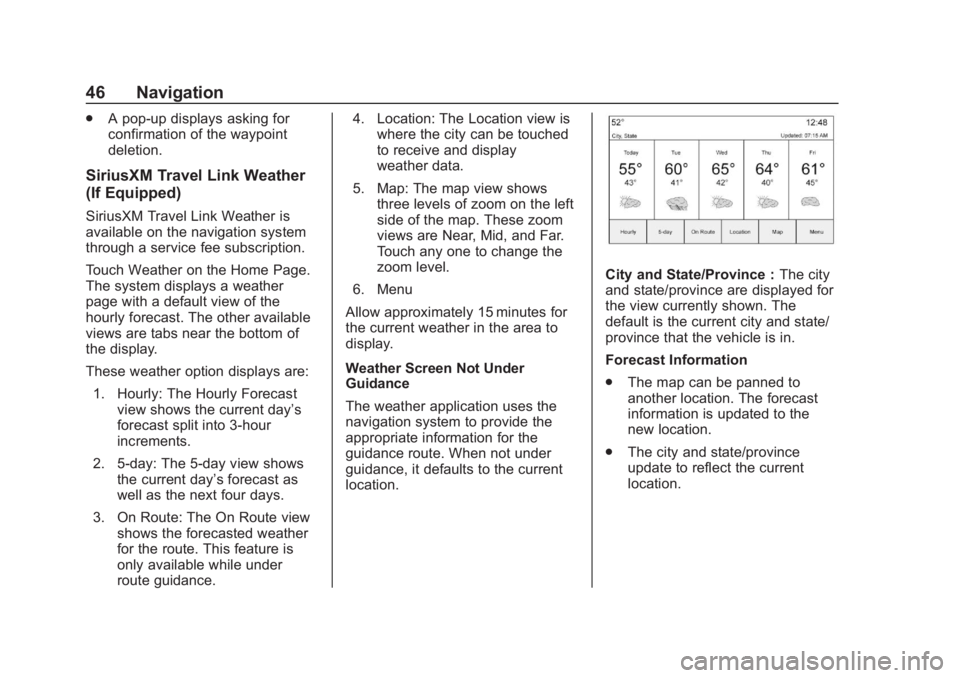
SiriusXM Travel Link Weather
(If Equipped)
SiriusXM Travel Link Weather is
available on the navigation system
through a service fee subscription.
Touch Weather on the Home Page.
The system displays a weather
page with a default view of the
hourly forecast. The other available
views are tabs near the bottom of
the display.
These weather option displays are:
1. Hourly: The Hourly Forecast view shows the current day’s
forecast split into 3-hour
increments.
2. 5-day: The 5-day view shows the current day’s forecast as
well as the next four days.
3. On Route: The On Route view shows the forecasted weather
for the route. This feature is
only available while under
route guidance. 4. Location: The Location view is
where the city can be touched
to receive and display
weather data.
5. Map: The map view shows three levels of zoom on the left
side of the map. These zoom
views are Near, Mid, and Far.
Touch any one to change the
zoom level.
6. Menu
Allow approximately 15 minutes for
the current weather in the area to
display.
Weather Screen Not Under
Guidance
The weather application uses the
navigation system to provide the
appropriate information for the
guidance route. When not under
guidance, it defaults to the current
location.
City and State/Province : The city
and state/province are displayed for
the view currently shown. The
default is the current city and state/
province that the vehicle is in.
Forecast Information
. The map can be panned to
another location. The forecast
information is updated to the
new location.
. The city and state/province
update to reflect the current
location.