2019 CHEVROLET CAMARO system
[x] Cancel search: systemPage 155 of 375

Chevrolet Camaro Owner Manual (GMNA-Localizing-U.S./Canada/Mexico-
12461811) - 2019 - crc - 11/5/18
154 Infotainment System
Infotainment
System
Introduction
Infotainment . . . . . . . . . . . . . . . . . . 154
Performance Data
Recorder (PDR)
Performance DataRecorder (PDR) . . . . . . . . . . . . . 154
Introduction
Infotainment
See the infotainment manual for
information on the radio, audio
players, phone, navigation system,
and voice or speech recognition.
It also includes information on
settings.
Active Noise Cancellation (ANC)
If equipped, ANC reduces engine
noise in the vehicle’s interior. ANC
requires the factory-installed audio
system, radio, speakers, amplifier (if
equipped), induction system, and
exhaust system to work properly.
Deactivation is required by your
dealer if related aftermarket
equipment is installed.
Performance Data
Recorder (PDR)
If equipped, the PDR icon displays
on the Home Page.
Important Information
Use of the PDR may be prohibited
or legally restricted in certain
countries and situations. Ensure
compliance with applicable laws and
regulations, including, but not
limited to: privacy laws, laws related
to camera surveillance and
recordings, road traffic and security
laws, and laws on the protection of
publicity and personality rights.
. Do not use the PDR if it causes
distraction.
. Do not rely on camera footage to
steer the vehicle.
. Comply with any notice and
consent requirements before
capturing and/or recording the
voices or images of other
persons or before collecting
other personal data.
Page 156 of 375
Chevrolet Camaro Owner Manual (GMNA-Localizing-U.S./Canada/Mexico-
12461811) - 2019 - crc - 11/5/18
Infotainment System 155
.Notify other drivers of your
vehicle of the above rules and
require them to comply.
. General Motors does not accept
any responsibility or liability in
connection with use that is not
permitted.
. Law enforcement authorities
may have the right to seize
video recordings and use them
as evidence of criminal/driving
offenses against you or third
parties.
The PDR records video, audio, and
vehicle data. This data is stored on
a removable SD card. The SD card
reader is below the instrument panel
to the left of the steering wheel and
just above the hood release.
The recorded data is not stored
anywhere else and is only
accessible from the SD card.
To begin, insert a FAT32 formatted
SD card, Class 10 required, 8, 16,
or 32 GB recommended, into the SD
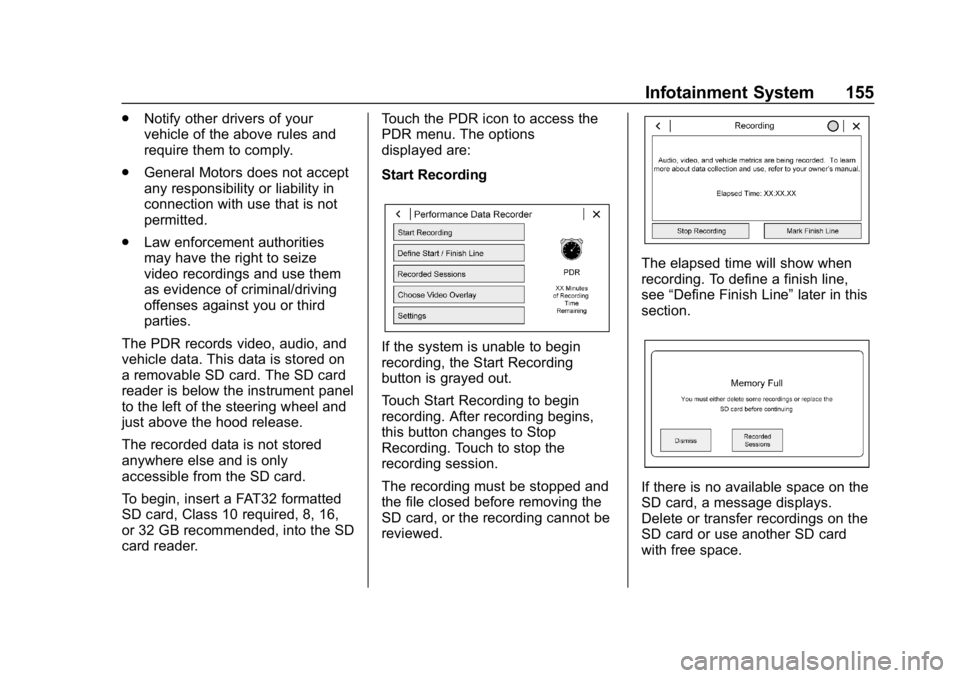
card reader. Touch the PDR icon to access the
PDR menu. The options
displayed are:
Start Recording
If the system is unable to begin
recording, the Start Recording
button is grayed out.
Touch Start Recording to begin
recording. After recording begins,
this button changes to Stop
Recording. Touch to stop the
recording session.
The recording must be stopped and
the file closed before removing the
SD card, or the recording cannot be
reviewed.
The elapsed time will show when
recording. To define a finish line,
see
“Define Finish Line” later in this
section.
If there is no available space on the
SD card, a message displays.
Delete or transfer recordings on the
SD card or use another SD card
with free space.
Page 157 of 375

Chevrolet Camaro Owner Manual (GMNA-Localizing-U.S./Canada/Mexico-
12461811) - 2019 - crc - 11/5/18
156 Infotainment System
To delete a recording, go to the
Recorded Sessions menu and touch
Vnext to the item. See“Recorded
Sessions” later in this section.
If no SD card is inserted, a message
displays.
Define Finish Line
To track and record the vehicle’s lap
times, the starting point of a lap
must be set. Crossing this point
activates the lap timer when
recording.
To set the finish line, position the
vehicle with the front bumper at the
start/finish point. From the PDR
menu, touch Define Finish Line and
then touch Mark Finish Line. This
can be done with the vehicle
moving.
Recorded Sessions
To view recorded videos, touch
Recorded Sessions.
A list of recordings displays.
Select the recording to start
playback.
Touch
Vnext to an item to delete
that recording. Touch Yes to delete
or No to cancel on the confirmation
screen.
Video playback is not allowed while
the vehicle is in motion.
Tap the screen while the video is
playing to display the video controls:
Video Scrubber : Changes the
position and playback. The length of
the bar corresponds to the time of
the video. Advance or rewind the
video by dragging along the bar.
Page 158 of 375
Chevrolet Camaro Owner Manual (GMNA-Localizing-U.S./Canada/Mexico-
12461811) - 2019 - crc - 11/5/18
Infotainment System 157
Delete Recording :Touch to delete
the video. A confirmation screen
displays. Touch Yes to delete or No
to cancel.
Pause/Play : Touch to play or
pause the video. The button will
change when touched.
/: Touch to display the previous
screen.
Exit : Touch to exit the current
display.
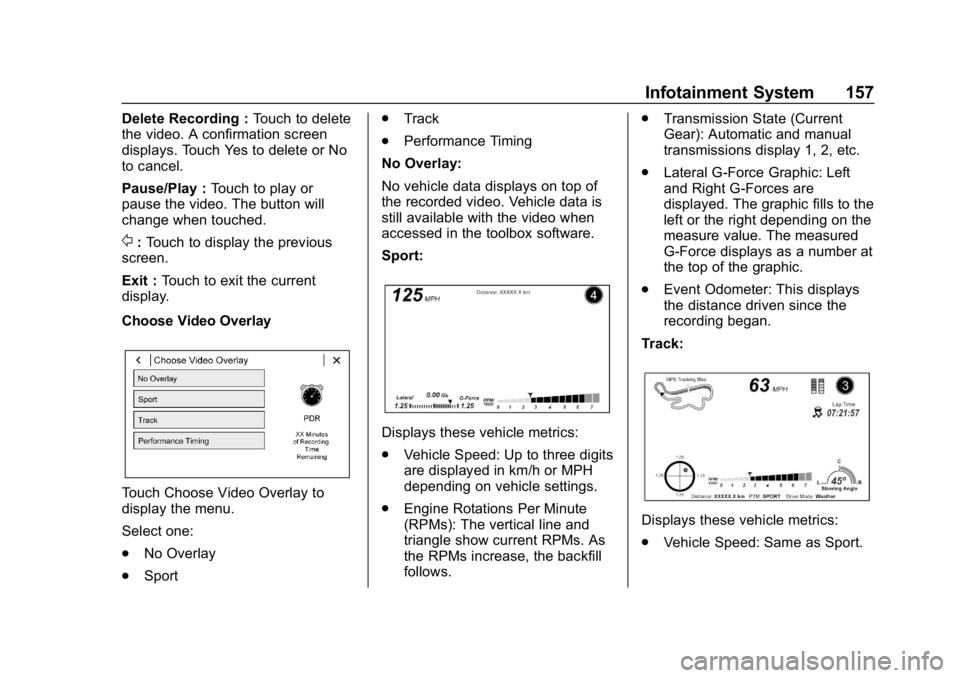
Choose Video Overlay
Touch Choose Video Overlay to
display the menu.
Select one:
. No Overlay
. Sport .
Track
. Performance Timing
No Overlay:
No vehicle data displays on top of
the recorded video. Vehicle data is
still available with the video when
accessed in the toolbox software.
Sport:
Displays these vehicle metrics:
. Vehicle Speed: Up to three digits
are displayed in km/h or MPH
depending on vehicle settings.
. Engine Rotations Per Minute
(RPMs): The vertical line and
triangle show current RPMs. As
the RPMs increase, the backfill
follows. .
Transmission State (Current
Gear): Automatic and manual
transmissions display 1, 2, etc.
. Lateral G-Force Graphic: Left
and Right G-Forces are
displayed. The graphic fills to the
left or the right depending on the
measure value. The measured
G-Force displays as a number at
the top of the graphic.
. Event Odometer: This displays
the distance driven since the
recording began.
Track:
Displays these vehicle metrics:
. Vehicle Speed: Same as Sport.
Page 159 of 375

Chevrolet Camaro Owner Manual (GMNA-Localizing-U.S./Canada/Mexico-
12461811) - 2019 - crc - 11/5/18
158 Infotainment System
.GPS Tracking Map: Shows the
vehicle’s current position relative
to a known route.
. Engine Rotations Per Minute
(RPMs): The vertical line and
triangle indicate current RPMs.
As the RPMs increase, the
backfill follows.
. Transmission State (Current
Gear): Same as Sport.
. Friction Bubble Graphic: Lateral
and longitudinal G-Forces are
displayed as a dot within a
bubble. A red dot displays when
the vehicle starts braking and
turns green when the vehicle
accelerates. The dot is white
when the vehicle is not moving.
A white dot is the default.
. Brake and Throttle Graphic:
Displays the percentage value of
brake and throttle pedal position
from 0–100%.
. Steering Angle: The graphic fills
from the center to the left or right
depending on the direction of steering. The numerical steering
angle displays below the
graphic.
. StabiliTrak/Electronic Stability
Control (ESC) Active Indicator:
The graphic only displays if the
active handling systems are
activated.
. Performance Traction
Management (PTM) Mode:
Displays the current PTM mode.
The options are Wet, Dry, Sport
1, Sport 2, or Race.
. Current Lap Time: Displays the
elapsed lap time if the finish line
is defined and the vehicle has
crossed the defined finish line at
least once.
. Event Odometer: Displays the
distance driven since the
recording began.
. Drive Mode: Displays the
vehicle’s current drive mode. Performance Timing:
Displays these vehicle metrics:
.
Vehicle Speed: Same as Sport.
. Engine Rotations Per Minute
(RPMs): Same as Sport.
. Transmission State (Current
Gear): Same as Sport.
. 0–100 km/h (0–60 mph),
0–200 km/h (0–100 mph),
400 m (1/4 mi), and 0–200–
0 km/h (0–100–0 mph): The
timer starts recording as soon as
the vehicle accelerates. As the
vehicle passes each speed and
distance milestone, it is
displayed on the overlay.
Page 160 of 375

Chevrolet Camaro Owner Manual (GMNA-Localizing-U.S./Canada/Mexico-
12461811) - 2019 - crc - 11/5/18
Infotainment System 159
.Throttle Position: Displays
the percentage of throttle applied
from 0–100%.
. StabiliTrak/ESC Active Indicator:
The graphic only displays if the
active handling systems are
activated.
Naming Convention
The recorded video file name is
stored as the recorded date and the
length of the recording.
If the recorded session was
recorded while the system was in
Valet Mode, the file name will
display the mode, date, and length
of time.
SettingsTouch Settings on the PDR menu to
display settings.
Valet Mode Recording : Allows
recording preferences to be
selected. It is recommended that a
blank SD card be used. Available
choices are:
. Automatically record when in
Valet Mode: Enables the PDR to
begin recording as soon as the
vehicle is in Valet Mode.
. Overwrite existing data when
memory full: Allows manual
overwriting of previous
recordings, one at a time starting
with the oldest, when the current
recording requires additional
storage to continue. Audio will not record during
Valet Mode.
Record Audio :
Allows audio to be
recorded along with video.
Audio will not record during
Valet Mode.
Software Information : Displays
PDR software information and
version numbers.
Toolbox Software : Allows for the
evaluation of the driver and the
vehicle performance on a personal
computer after a recorded event.
See www.chevrolet.com or your
dealer for details to download the
software.
Page 161 of 375

Chevrolet Camaro Owner Manual (GMNA-Localizing-U.S./Canada/Mexico-
12461811) - 2019 - crc - 11/5/18
160 Climate Controls
Climate Controls
Climate Control Systems
Automatic Climate ControlSystem . . . . . . . . . . . . . . . . . . . . . . 160
Dual Automatic Climate Control System . . . . . . . . . . . . . 163
Air Vents
Air Vents . . . . . . . . . . . . . . . . . . . . . 167
Maintenance
Passenger Compartment AirFilter . . . . . . . . . . . . . . . . . . . . . . . . 167
Service . . . . . . . . . . . . . . . . . . . . . . . 167
Climate Control Systems
Automatic Climate Control System
The heating, cooling, defrosting, and ventilation for the vehicle can be
controlled with this system.
1. Temperature Control
2. Air Delivery Mode Controls
3.
O(Power)
4. AUTO (Automatic Operation)
5. A/C (Air Conditioning) 6. Recirculation
7. Fan Control
8. Rear Window Defogger
9. Defrost
Page 162 of 375

Chevrolet Camaro Owner Manual (GMNA-Localizing-U.S./Canada/Mexico-
12461811) - 2019 - crc - 11/5/18
Climate Controls 161
Climate Control Display
1. Temperature Setting
2. Fan Control
3. Air Delivery Mode Control
4. Air Recirculation
5. Auto (Automatic Operation)
6. A/C (Air Conditioning)
7. On/Off (Power)
8. Driver Temperature Controls
Climate Control Status Display
The climate control status display
appears briefly when the climate
controls on the center stack are
adjusted.
Automatic Operation
The system automatically controls
the fan speed, air delivery, air
conditioning, and recirculation in
order to heat or cool the vehicle to
the desired temperature:
When AUTO is lit, all four functions
operate automatically. Each function
can also be manually set and the
setting is displayed. Functions not manually set will continue to be
automatically controlled, even if the
AUTO indicator is not lit.
For automatic operation:
1. Press AUTO.
2. Set the temperature. Allow the system time to stabilize. Adjust
the temperature as needed for
best comfort.
O:Press to turn the fan off or on.
Temperature Control : Turn the
outer ring of the air vent clockwise
or counterclockwise to increase or
decrease the temperature setting.
Fan Control : Turn the outer ring of
the air vent clockwise or
counterclockwise to increase or
decrease the fan speed.
Air Delivery Mode Controls :
Press
X,Y, or[to change the
direction of the airflow. Any
combination of the three buttons
can be selected. The indicator light
in the button will turn on. The
current mode appears in the display
screen. Pressing any of the three
buttons cancels automatic air