2019 CHEVROLET BOLT EV bluetooth
[x] Cancel search: bluetoothPage 179 of 371
Chevrolet BOLT EV Owner Manual (GMNA-Localizing-U.S./Canada/Mexico-
12163003) - 2019 - crc - 5/18/18
178 Infotainment System
.Due to the variety of Bluetooth
devices and their firmware
versions, the device may
respond differently when
performing over Bluetooth.
. See the device’ s user guide for
questions about Bluetooth
functionality.
. Multi-pairing is not supported.
Pairing and Connecting
Bluetooth
To use the Bluetooth feature, make
sure the Bluetooth on the device is
turned on and the device is in
discoverable mode. See the
Bluetooth device’ s user guide.
When There Is no Paired Device
on the Infotainment System
1. Touch
T.
2. Touch Phone, then Add Device.
3. From the device’s Bluetooth settings list, select
myChevrolet.
4. Touch Code Matches. 5. Verify phone matches.
When the Bluetooth device and
infotainment system are
successfully paired, the Phone
screen appears on the infotainment
display.
When the connection fails, a failure
message appears on the
infotainment display.
When There Is a Paired Device on
the Infotainment System
1. Touch
T.
2. Touch Settings, then Devices on the display.
3. Touch the device to pair from the list, and then follow Step 5.
To add a device not in the list,
touch Add Device.
4. From the device’s Bluetooth settings list, select
myChevrolet.
5. When the Bluetooth device and the infotainment system are
successfully paired,
e/5is
displayed. ‐
The connected mobile phone
is highlighted by a
5mark.
‐ The
e/5mark indicates the
hands-free and mobile phone
music function are enabled.
‐ The
5mark indicates only
Hands-Free function is
enabled.
‐ The
emark indicates only
Bluetooth music is enabled.
. When the Bluetooth device and
the infotainment system are
successfully paired, the contact
list downloads automatically,
depending on the type of mobile
phone. If the contact list does
not download automatically,
proceed with the download on
the mobile phone. Always
accept the contact list request
on the initial pairing of the
mobile phone.
. The infotainment system can
register up to 10 Bluetooth
devices.
Page 180 of 371
Chevrolet BOLT EV Owner Manual (GMNA-Localizing-U.S./Canada/Mexico-
12163003) - 2019 - crc - 5/18/18
Infotainment System 179
.When the connection fails, the
failure message displays on the
infotainment system.
. If the contact list has more than
5,000 contacts, the infotainment
system may not properly list the
remaining entries.
. Depending on the number of
contact entries, pairing time
may vary.
Checking the Connected
Bluetooth Device
1. TouchT.
2. Touch Settings, then Devices.
3. The connected device will be displayed on the top of the list.
Disconnecting the Bluetooth
Device
1. TouchT.
2. Touch Settings, then Devices.
3. Touch the name of the device to disconnect.
4. Touch Disconnect Device.
Connecting the Bluetooth
Device
1. TouchT.
2. Touch Settings, then Devices.
3. Touch the device to connect.
Deleting the Bluetooth Device
1. TouchT.
2. Touch Settings, then Devices.
3. Touch Delete next to the device to delete.
4. Touch Delete.
Apple CarPlay and
Android Auto
If equipped, Android Auto and/or
Apple CarPlay capability may be
available through a compatible
smartphone. If available, Projection
will appear on the Home Page of
the infotainment display.
To use Android Auto or Apple
CarPlay: 1. Download the Android Auto
app to your phone from the
Google Play store. No app is
required for Apple CarPlay.
2. Connect an Android phone or iPhone by using the compatible
phone USB cable and plugging
into a USB data port. For best
performance, use the device’ s
factory-provided USB cable.
Aftermarket or third-party
cables may not work.
3. When the phone is first connected to activate Apple
CarPlay or Android Auto, the
message “Device Projection
Privacy Consent” will appear.
. Select Continue to launch
Apple CarPlay or
Android Auto.
. Select Disable to remove
Apple CarPlay and Android
Auto capability from the
vehicle Settings menu.
Other functions may
still work.
Page 181 of 371
Chevrolet BOLT EV Owner Manual (GMNA-Localizing-U.S./Canada/Mexico-
12163003) - 2019 - crc - 5/18/18
180 Infotainment System
Projection on the Home Page will
change to Android Auto or Apple
CarPlay depending on the phone.
Android Auto and/or Apple CarPlay
may automatically launch upon USB
connection. If not, touch the Android
Auto and/or Apple CarPlay icon on
the Home Page to launch.
Press
{on the center stack to
return to the Home Page.
For further information on how to set
up Android Auto and Apple CarPlay
in the vehicle, see
www.my.chevrolet.com or see
Customer Assistance Offices 0335.
Android Auto is provided by Google
and is subject to Google’s terms
and privacy policy. Apple CarPlay is
provided by Apple and is subject to
Apple’ s terms and privacy policy.
Data plan rates apply. For Android
Auto support see https://
support.google.com/androidauto.
For Apple CarPlay support see
www.apple.com/ios/carplay/. Apple
or Google may change or suspend
availability at any time. Android
Auto, Android, Google, Google Play, and other marks are trademarks of
Google Inc.; Apple CarPlay is a
trademark of Apple Inc.
Hands-Free Phone
Making a Call by Entering the
Phone Number
1. TouchT.
2. Touch Phone.
3. Enter the phone number using the keypad on the Phone
screen.
4. Touch
5on the display to call
the phone number.
If the wrong number is entered,
touch
zto delete the entered
number one digit at a time. Or touch
and hold
zto delete all entered
numbers.
Switching a Call to the Mobile
Phone (Private Mode)
1. To switch the call to the mobile phone instead of the Bluetooth
hands-free, touch
0. 2. To switch the call back to the
Bluetooth hands-free, touch
0
again.
Switching the Microphone
On/Off
Switch the microphone on/off by
touching
3.
Calling by Re-Dial
Touch5on the display.
Taking Calls
1. When a phone call comesthrough the Bluetooth
connected mobile phone, the
playing track will be cut off and
the phone will ring with the
relevant information displayed.
2. To talk on the phone, press
g
on the steering wheel control or
touch
5on the display.
To reject the call, press
con
the steering wheel control or
touch
Kon the display.
Page 182 of 371
Chevrolet BOLT EV Owner Manual (GMNA-Localizing-U.S./Canada/Mexico-
12163003) - 2019 - crc - 5/18/18
Infotainment System 181
Using the Contacts Menu
1. Touch the contacts menu onthe Phone screen.
2. Select the contact entry to call. .To call another phone
number in the same
contacts, touch More in the
Contacts screen and touch
the desired phone number.
. In the Contacts screen,
touch
qto add the contact
to favorites. Touch
qagain
to remove the contact from
favorites.
Making a Call from Favorites
1. Touch the favorites menu on the Phone screen.
2. Select the contact to call.
The Favorites list is not
synchronized with the mobile phone
and is stored separately.
Making a Call from Call History
1. TouchWRECENT on the
Phone screen.
2. Select the contact to call.
.
9: Incoming call
.
2: Outgoing call
.
4: Missed call
Making a Call with Speed Dial
Numbers
Touch and hold a speed dial number
using the keypad on the Phone
screen.
Only speed dial numbers already
stored on the mobile phone can be
used for speed dial calls. Up to
two-digit speed dial numbers are
supported.
For two-digit speed dial numbers,
touch and hold the second digit to
make a call to the speed dial
number.
Voice Mail
The default voice mail number is the
phone number of the currently
connected mobile phone. The voice
mail number can be changed in
Bluetooth settings.
To dial a voice mail number:
1. Touch
T.
2. Touch Phone, then Voice Mail.
Page 183 of 371
Chevrolet BOLT EV Owner Manual (GMNA-Localizing-U.S./Canada/Mexico-
12163003) - 2019 - crc - 5/18/18
182 Infotainment System
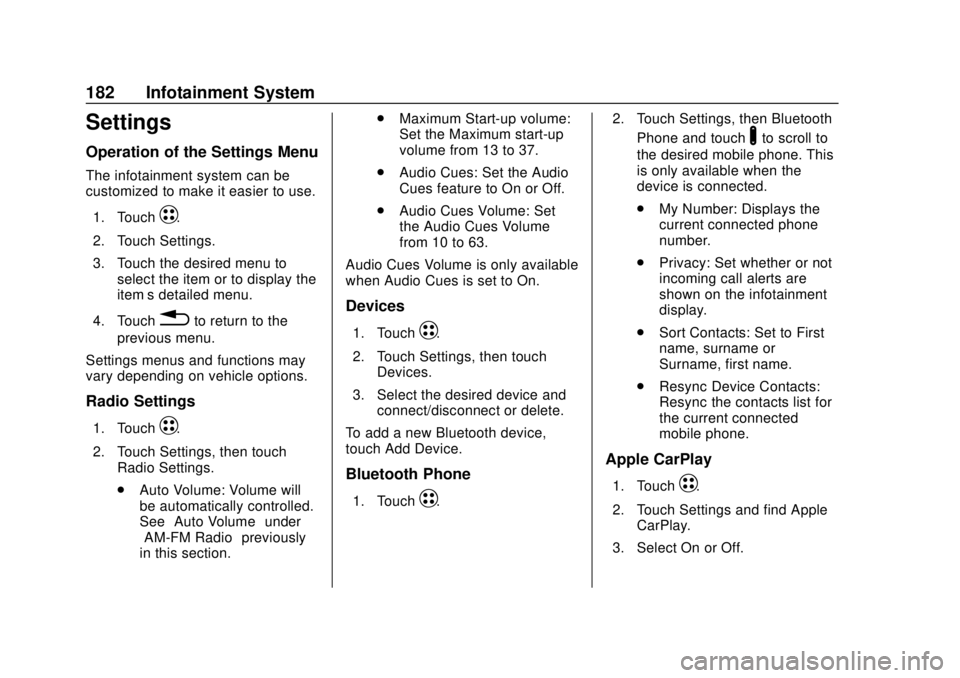
Settings
Operation of the Settings Menu
The infotainment system can be
customized to make it easier to use.1. Touch
T.
2. Touch Settings.
3. Touch the desired menu to select the item or to display the
item’s detailed menu.
4. Touch
0to return to the
previous menu.
Settings menus and functions may
vary depending on vehicle options.
Radio Settings
1. TouchT.
2. Touch Settings, then touch Radio Settings.
.Auto Volume: Volume will
be automatically controlled.
See “Auto Volume” under
“AM-FM Radio” previously
in this section. .
Maximum Start-up volume:
Set the Maximum start-up
volume from 13 to 37.
. Audio Cues: Set the Audio
Cues feature to On or Off.
. Audio Cues Volume: Set
the Audio Cues Volume
from 10 to 63.
Audio Cues Volume is only available
when Audio Cues is set to On.
Devices
1. TouchT.
2. Touch Settings, then touch Devices.
3. Select the desired device and connect/disconnect or delete.
To add a new Bluetooth device,
touch Add Device.
Bluetooth Phone
1. TouchT. 2. Touch Settings, then Bluetooth
Phone and touch
Yto scroll to
the desired mobile phone. This
is only available when the
device is connected.
. My Number: Displays the
current connected phone
number.
. Privacy: Set whether or not
incoming call alerts are
shown on the infotainment
display.
. Sort Contacts: Set to First
name, surname or
Surname, first name.
. Resync Device Contacts:
Resync the contacts list for
the current connected
mobile phone.
Apple CarPlay
1. TouchT.
2. Touch Settings and find Apple CarPlay.
3. Select On or Off.
Page 187 of 371

Chevrolet BOLT EV Owner Manual (GMNA-Localizing-U.S./Canada/Mexico-
12163003) - 2019 - crc - 5/18/18
186 Infotainment System
Trademarks and
License Agreements
FCC Information
SeeRadio Frequency Statement
0 343.
Bluetooth
®
The Bluetooth word mark and logos
are owned by the Bluetooth®SIG,
Inc. and any use of such marks by
General Motors is under license.
Other trademarks and trade names
are those of their respective owners.
“Made for iPod” and“Made for
iPhone” mean that an electronic
accessory has been designed to
connect specifically to iPod or
iPhone and has been certified by
the developer to meet Apple
performance standards. iPod and iPhone are trademarks of
Apple Computer, Inc., registered in
the U.S. and other countries.
Fees and Taxes: Subscription fee,
taxes, one time activation fee, and
other fees may apply. Subscription
fee is consumer only. All fees and
programming subject to change.
Subscriptions subject to Customer
Agreement available at
www.siriusxm.com or
www.siriusxm.ca. SiriusXM
®service
only available in the 48 contiguous
United States and Canada.
In Canada: Some deterioration of
service may occur in extreme
northern latitudes. This is beyond
the control of SiriusXM
®Satellite
Radio. It is prohibited to copy, decompile,
disassemble, reverse engineer,
hack, manipulate, or otherwise
make available any technology or
software incorporated in receivers
compatible with the SiriusXM
Satellite Radio System or that
support the SiriusXM website, the
Online Service or any of its content.
Furthermore, the AMBER voice
compression software included in
this product is protected by
intellectual property rights including
patent rights, copyrights, and trade
secrets of Digital Voice
Systems, Inc.
General Requirements:
1. A License Agreement from SiriusXM is required for any
product that incorporates
SiriusXM Technology and/or for
use of any of the SiriusXM
marks to be manufactured,
distributed, or marketed in the
SiriusXM Service Area.
Page 361 of 371

Chevrolet BOLT EV Owner Manual (GMNA-Localizing-U.S./Canada/Mexico-
12163003) - 2019 - crc - 5/18/18
360 Index
ArmrestRear Seat . . . . . . . . . . . . . . . . . . . . . . 64
Assistance Program, Roadside . . . . . . . . . . . . . . . . . . . . . . 337
Assistance Systems for Driving . . . . . . . . . . . . . . . . . . . . . . . . 227
Assistance Systems for
Parking and Backing . . . . . . . . . . 224
Audio Bluetooth . . . . . . . . . . . . . . . . . . . . . 174
Theft-Deterrent Feature . . . . . . . 160
Automatic Climate Control System . . . . . . . 188
Door Locks . . . . . . . . . . . . . . . . . . . . . 44
Forward Braking . . . . . . . . . . . . . . 229
Headlamp System . . . . . . . . . . . . 155
Auxiliary Devices . . . . . . . . . . . . . . . . . . . . . . . 174
B
Battery . . . . . . . . . . . . . . . . . . . . . . . . . 123Exterior Lighting BatterySaver . . . . . . . . . . . . . . . . . . . . . . . 158
Power Protection . . . . . . . . . . . . . 158
Battery - North America . . . . 265, 306
Battery Gauge High Voltage . . . . . . . . . . . . . . . . . . 123
Blade Replacement, Wiper . . . . . 267 Bluetooth
Overview . . . . . . . . . . . . . . . . . . . . . 177
Bluetooth Audio . . . . . . . . . . . . . . . . 174
Brake Parking, Electric . . . . . . . . . . . . . . 215
System Warning Light . . . . . . . . 127
Brakes . . . . . . . . . . . . . . . . . . . . . . . . . . 263
Antilock . . . . . . . . . . . . . . . . . . . . . . . 214
Assist . . . . . . . . . . . . . . . . . . . . . . . . . 216
Fluid . . . . . . . . . . . . . . . . . . . . . . . . . . 264
Regenerative Braking . . . . . . . . . 217
Braking . . . . . . . . . . . . . . . . . . . . . . . . . 197 Automatic Forward . . . . . . . . . . . 229
Braking System Front Pedestrian (FPB) . . . . . . . 230
Break-In, New Vehicle . . . . . . . . . . 205
Bulb Replacement
Halogen Bulbs . . . . . . . . . . . . . . . . 270
Headlamp Aiming . . . . . . . . . . . . . 270
Headlamps . . . . . . . . . . . . . . . . . . . 270
High Intensity Discharge(HID) Lighting . . . . . . . . . . . . . . . 270
License Plate Lamps . . . . . . . . . 271
Taillamps, Turn Signal, Stoplamps, and Back-up
Lamps . . . . . . . . . . . . . . . . . . . . . . 271
Buying New Tires . . . . . . . . . . . . . . . 293
C
Calibration . . . . . . . . . . . . . . . . . . . . . . 114
California Perchlorate MaterialsRequirements . . . . . . . . . . . . . . . 257
California Proposition
65 Warning . . . . . . . . . .256, 265, 306, Back Cover
Canadian Vehicle Owners . . . . . . . . 2
Capacities and
Specifications . . . . . . . . . . . . . . . . . 332
Carbon Monoxide Liftgate . . . . . . . . . . . . . . . . . . . . . . . . . 47
Winter Driving . . . . . . . . . . . . . . . . 200
Cargo Cover . . . . . . . . . . . . . . . . . . . . . . . . . 107
Management System . . . . . . . . . 108
Caution, Danger, and Warning . . . . 3
Center Console Storage . . . . . . . . 107
Chains, Tire . . . . . . . . . . . . . . . . . . . . 298
Charge Cord . . . . . . . . . . . . . . . . . . . . 246
Charging Delay Override . . . . . . . . . . . . . . . 241
Electrical Requirements . . . . . . 253
Plug-In . . . . . . . . . . . . . . . . . . . . . . . 237
Programmable . . . . . . . . . . . . . . . . 132
Utility Interruption . . . . . . . . . . . . . 252
Page 366 of 371

Chevrolet BOLT EV Owner Manual (GMNA-Localizing-U.S./Canada/Mexico-
12163003) - 2019 - crc - 5/18/18
Index 365
MirrorsAutomatic Dimming
Rearview . . . . . . . . . . . . . . . . . . . . . . 51
Convex . . . . . . . . . . . . . . . . . . . . . . . . . 50
Folding . . . . . . . . . . . . . . . . . . . . . . . . . 50
Manual Rearview . . . . . . . . . . . . . . . 51
Power . . . . . . . . . . . . . . . . . . . . . . . . . . 50
Mirrors, Interior Rearview . . . . . . . . 51
Mobile Applications KeyPass . . . . . . . . . . . . . . . . . . . . . . . . 45
Modes
Driver Selected . . . . . . . . . . . . . . . 210
Monitor System, Tire Pressure . . . . . . . . . . . . . . . . . . . . . . 286
Multi-band Antenna . . . . . . . . . . . . . 167
N
Navigation Connected Services . . . . . . . . . . 355
New Vehicle Break-In . . . . . . . . . . . 205
O
Odometer . . . . . . . . . . . . . . . . . . . . . . . 122 Trip . . . . . . . . . . . . . . . . . . . . . . . . . . . 122
Off-Road Recovery . . . . . . . . . . . . . . . . . . . . . 198
Older Children, Restraints . . . . . . . 84
Online Owner Center . . . . . . . . . . . 336
OnStar . . . . . . . . . . . . . . . . . . . . . . . . . 346 OnStar Additional
Information . . . . . . . . . . . . . . . . . . . . 349
OnStar Emergency . . . . . . . . . . . . . 348
OnStar Overview . . . . . . . . . . . . . . . 347
OnStar Security . . . . . . . . . . . . . . . . 349
OnStar System . . . . . . . . . . . . . . . . . 177
Operation Infotainment System . . . . . . . . . . 161
Options Charging . . . . . . . . . . . . . . . . . . . . . 142
Outlets
Power . . . . . . . . . . . . . . . . . . . . . . . . .115
Overview . . . . . . . . . . . . . . . . . . . . . . . 160 Underhood Compartment . . . . . 260
Owner Checks and Services . . . . 325
P
Park Shifting Into . . . . . . . . . . . . . . . . . . . 208
Shifting Out of . . . . . . . . . . . . . . . . 208
Park Assist . . . . . . . . . . . . . . . . . . . . . 224
Parking
Extended . . . . . . . . . . . . . . . . . . . . . 209
Parking or Backing Assistance Systems . . . . . . . . . . 224
Passenger Airbag Status
Indicator . . . . . . . . . . . . . . . . . . . . . . 125 Passenger Compartment Air
Filter . . . . . . . . . . . . . . . . . . . . . . . . . . 193
Passenger Sensing System . . . . . 78
Pedestrian Ahead Indicator . . . . . 129
Pedestrian Safety Signal . . . . . . . 111
Perchlorate Materials Requirements, California . . . . . . 257
Personalization Vehicle . . . . . . . . . . . . . . . . . . . . . . . 146
Phone Apple CarPlay and
Android Auto . . . . . . . . . . . . . . . . 179
Bluetooth . . . . . . . . . . . . . . . . . . . . . 177
Hands-Free . . . . . . . . . . . . . . . . . . . 180
Plug-In Charging . . . . . . . . . . . . . . . 237
Port USB . . . . . . . . . . . . . . . . . . . . . . . . . . 168
Power Button . . . . . . . . . . . . . . . . . . . . . . . . 205
Door Locks . . . . . . . . . . . . . . . . . . . . . 43
Flows . . . . . . . . . . . . . . . . . . . . . . . . . 132
Indicator Gauge . . . . . . . . . . . . . . 124
Mirrors . . . . . . . . . . . . . . . . . . . . . . . . . . 50
Outlets . . . . . . . . . . . . . . . . . . . . . . . .115
Protection, Battery . . . . . . . . . . . . 158
Retained Accessory (RAP) . . . 208
Windows . . . . . . . . . . . . . . . . . . . . . . . 53
Pregnancy, Using Seat Belts . . . . 70