2019 CADILLAC ESCALADE high
[x] Cancel search: highPage 130 of 415

Cadillac Escalade Owner Manual (GMNA-Localizing-U.S./Canada/Mexico-
12460268) - 2019 - crc - 9/14/18
INSTRUMENTS AND CONTROLS 129
or until the driver door is opened
within 10 minutes of turning off
the vehicle. SeeRetained Accessory
Power (RAP) 0206.
. The power outlets in the third row
seat and in the rear cargo area are
powered at all times.
{Warning
Power is always supplied to the
outlets. Do not leave electrical
equipment plugged in when the
vehicle is not in use because the
vehicle could catch fire and cause
injury or death.
Caution
Leaving electrical equipment
plugged in for an extended period
of time while the vehicle is off will
drain the battery. Always unplug
electrical equipment when not in
use and do not plug in equipment
that exceeds the maximum 15 amp
rating. Certain power accessory plugs may
not be compatible with the accessory
power outlet and could overload
vehicle or adapter fuses. If a problem
is experienced, see your dealer.
When adding electrical equipment, be
sure to follow the proper installation
instructions included with the
equipment. See
Add-On Electrical
Equipment 0275.
Caution
Hanging heavy equipment from the
power outlet can cause damage not
covered by the vehicle warranty.
The power outlets are designed for
accessory power plugs only, such as
cell phone charge cords.
Power Outlet 110/120 Volt
Alternating Current
This power outlet can be used to plug
in electrical equipment that uses a
maximum limit of 150 watts.
The 110/120 volt power outlet is on
the rear of the center console. An indicator light on the outlet turns
on to show it is in use. The light
comes on when the vehicle is started,
equipment requiring less than 150
watts is plugged into the outlet, and
no system fault is detected.
The indicator light does not come on
when the ignition is off or if the
equipment is not fully seated into the
outlet.
If equipment is connected using more
than 150 watts or a system fault is
detected, a protection circuit shuts off
the power supply and the indicator
light turns off. To reset the circuit,
unplug the item and plug it back in or
turn the ignition off and then back to
on. The power restarts when
equipment using 150 watts or less is
plugged into the outlet and a system
fault is not detected.
The power outlet is not designed for
the following, and may not work
properly if they are plugged in:
.
Equipment with high initial peak
wattage, such as
compressor-driven refrigerators
and electric power tools
Page 135 of 415

Cadillac Escalade Owner Manual (GMNA-Localizing-U.S./Canada/Mexico-
12460268) - 2019 - crc - 9/14/18
134 INSTRUMENTS AND CONTROLS
Reconfigurable Instrument
Cluster
The cluster display layout can be
changed.
Balanced Configuration
The Balanced configuration has three
interactive display zones: one in the
center of each of the gauges.
Enhanced Configuration
The Enhanced configuration has three
interactive display zones.
Use the five-way control on the right
side of the steering wheel to move
between the different display zones
and scroll through the different
displays.
To change the cluster configuration:
1. Find the Options page in one of the interactive display zones on
the cluster.
2. Press SEL to enter the Options menu.
3. Scroll down to highlight Display Layout. Then press SEL to
select it. 4. Each layout in the menu is
represented by a small preview
image of the display layout.
Scroll up or down and highlight
the selection. Press SEL to select
the desired cluster configuration.
5. Exit the Display Layout menu by pressing
S.
Cluster Application Displays
The cluster can display information
regarding Navigation, Audio, and
Phone.
Navigation
If there is no active route, a compass
will be displayed. If there is an active
route, press SEL to end route guidance
or turn the voice prompts on or off.
Audio
While the Audio application page is
displayed, press SEL to enter the
Audio menu. In the Audio menu,
search for music, select from favorites,
or change the audio source.
Page 136 of 415

Cadillac Escalade Owner Manual (GMNA-Localizing-U.S./Canada/Mexico-
12460268) - 2019 - crc - 9/14/18
INSTRUMENTS AND CONTROLS 135
Phone
While the Phone application page is
displayed, press SEL to enter the
Phone menu. In the Phone menu,
if there is no active phone call, view
recent calls, select from favorites,
or scroll through contacts. If there is
an active call, mute the phone or
switch to handset operation.
Cluster Options Menu
To enter the cluster Options menu:1. Use the five-way control on the right side of the steering wheel
to find the Options page in one
of the interactive display zones
on the cluster.
2. Press SEL on the center of the five-way control to enter the
Options menu.
Units : Press SEL while Units is
highlighted to enter the Unit menu.
Choose US or metric units by pressing
SEL while the desired item is
highlighted. A checkmark will be
displayed next to the selected item. Info Pages :
Press SEL while Info
Pages is highlighted to select the
items to be displayed in the DIC info
displays. See Driver Information Center
(DIC) 0148.
Fav Button Options : Press SEL while
Fav Button Options is highlighted to
select between FAV Primary and SEEK
Primary. This selection allows for
configuration of the
CandB
steering wheel controls. When FAV
Primary is selected, pressing
Cand
Bwill go to the next or previous
favorite and pressing and holding
C
andBwill seek. When SEEK Primary
is selected, pressing
CandBwill
seek and pressing and holding
Cand
Bwill go to the next or previous
favorite.
Display Layout : Press SEL while
Display Layout is highlighted to
change the configuration of the
cluster. See “Reconfigurable
Instrument Cluster” earlier in this
section. Head-up Display (HUD) Rotation :
This feature allows for adjusting the
angle of the HUD image. Press SEL on
the steering wheel controls while
Head-up Display Rotation is
highlighted to enter Adjust Mode.
Press
yorzto adjust the angle of
the HUD display. Press
SorTto
highlight OK, then press SEL to save
the setting. Cancel can also be
selected to cancel the setting. The
vehicle must be in P (Park).
Open Source Software : Press SEL
while Open Source Software is
highlighted to display open source
software information.
Speedometer
The speedometer shows the vehicle's
speed in either kilometers per hour
(km/h) or miles per hour (mph).
Odometer
The odometer shows how far the
vehicle has been driven, in either
kilometers or miles.
Page 148 of 415
Cadillac Escalade Owner Manual (GMNA-Localizing-U.S./Canada/Mexico-
12460268) - 2019 - crc - 9/14/18
INSTRUMENTS AND CONTROLS 147
serviced by your dealer. If the system
is working normally, the indicator
light turns off.
If the light stays on and the engine
does not start, there could be a
problem with the theft-deterrent
system. SeeImmobilizer Operation
0 50.
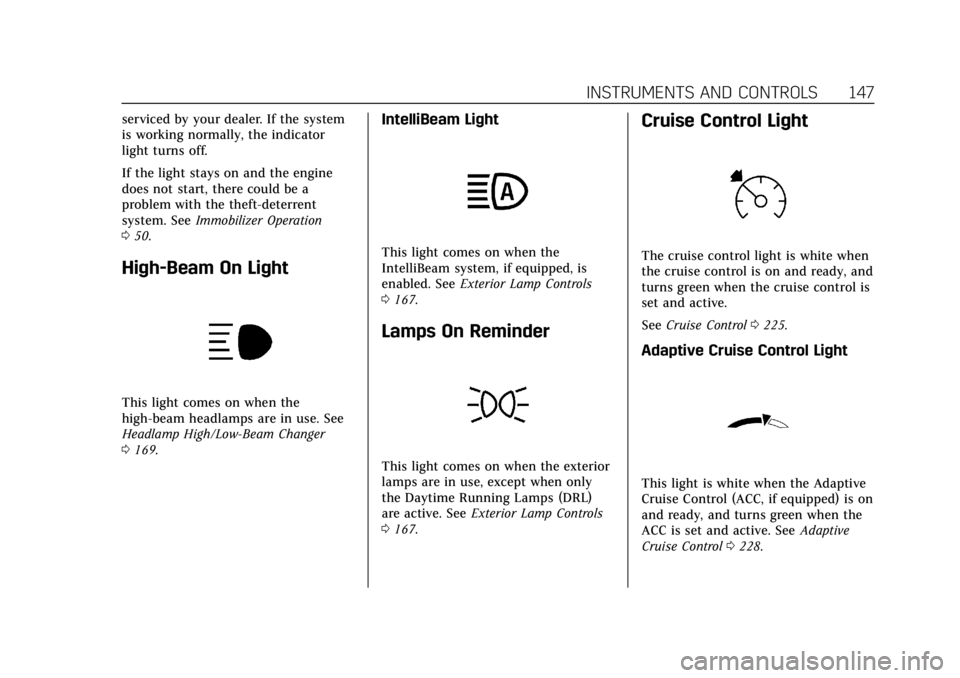
High-Beam On Light
This light comes on when the
high-beam headlamps are in use. See
Headlamp High/Low-Beam Changer
0169.
IntelliBeam Light
This light comes on when the
IntelliBeam system, if equipped, is
enabled. See Exterior Lamp Controls
0 167.
Lamps On Reminder
This light comes on when the exterior
lamps are in use, except when only
the Daytime Running Lamps (DRL)
are active. See Exterior Lamp Controls
0 167.
Cruise Control Light
The cruise control light is white when
the cruise control is on and ready, and
turns green when the cruise control is
set and active.
See Cruise Control 0225.
Adaptive Cruise Control Light
This light is white when the Adaptive
Cruise Control (ACC, if equipped) is on
and ready, and turns green when the
ACC is set and active. See Adaptive
Cruise Control 0228.
Page 149 of 415

Cadillac Escalade Owner Manual (GMNA-Localizing-U.S./Canada/Mexico-
12460268) - 2019 - crc - 9/14/18
148 INSTRUMENTS AND CONTROLS
Door Ajar Light
For vehicles equipped with this light,
it comes on when a door is open or
not securely latched. Before driving,
check that all doors are properly
closed.
Information Displays
Driver Information
Center (DIC)
The DIC is displayed in the
instrument cluster. It shows the status
of many vehicle systems.
yorz:Move SEL up or down to
go to the previous or next selection.
SorT: Press to move between the
interactive display zones in the
cluster. Press
Sto go back to the
previous menu. SEL :
Press to open a menu or select a
menu item. Press and hold to reset
values on certain screens.
DIC Information Display Options
The info displays on the DIC can be
turned on or off through the
Settings menu.
1. Press SEL while viewing the Settings page in one of the
interactive display zones on the
cluster.
2. Scroll to Info Pages and press SEL.
3. Press
yorzto move through
the list of possible info displays.
4. Press SEL while an item is highlighted to select or deselect
that item. When an item is
selected, a checkmark will appear
next to it.
DIC Information Displays
The following is the list of all possible
DIC information displays. Some of the
information displays may not be
available for your particular vehicle.
Page 151 of 415

Cadillac Escalade Owner Manual (GMNA-Localizing-U.S./Canada/Mexico-
12460268) - 2019 - crc - 9/14/18
150 INSTRUMENTS AND CONTROLS
speed limit is exceeded, a pop-up
warning is displayed and a chime may
sound.
Cruise Set Speed :Shows the speed
the cruise control or Adaptive Cruise
Control is set to.
Follow Distance Indicator : When
Adaptive Cruise Control (ACC) is not
engaged, the current follow time to
the vehicle ahead is displayed as a
time value on this page. When ACC
has been engaged, the display
switches to the gap setting page. This
page shows the current gap setting
along with the vehicle ahead indicator.
Battery Voltage : Shows the current
battery voltage.
Oil Life : Shows an estimate of the
oil's remaining useful life.
If REMAINING OIL LIFE 99% is
displayed, that means 99% of the
current oil life remains.
When the remaining oil life is low, the
CHANGE ENGINE OIL SOON message
will appear on the display. The oil
should be changed as soon as
possible. See Engine Oil0281. In
addition to the engine oil life system monitoring the oil life, additional
maintenance is recommended. See
Maintenance Schedule
0360.
The Oil Life display must be reset
after each oil change. It will not reset
itself. Do not reset the Oil Life display
accidentally at any time other than
when the oil has just been changed.
It cannot be reset accurately until the
next oil change. To reset the engine
oil life system, press and hold SEL for
several seconds while the Oil Life
display is active. See Engine Oil Life
System 0283.
Oil Pressure : Shows the engine oil
pressure in kPa (kilopascals)
or psi (pounds per square inch).
Engine Hours : Shows the total
number of hours the engine has run.
Transmission Fluid Temperature :
Shows the temperature of the
automatic transmission fluid in either
degrees Celsius (°C) or degrees
Fahrenheit (°F).
Tire Pressure : Shows the
approximate pressures of all four tires.
Tire pressure is displayed in either
kilopascal (kPa) or in pounds per square inch (psi). If the pressure is
low, the value for that tire is shown in
amber.
See
Tire Pressure Monitor System 0319
and Tire Pressure Monitor Operation
0 320.
Blank Page : Allows for no
information to be displayed in the
cluster info display areas.
Head-Up Display (HUD)
{Warning
If the HUD image is too bright or
too high in your field of view, it
may take you more time to see
things you need to see when it is
dark outside. Be sure to keep the
HUD image dim and placed low in
your field of view.
If equipped with HUD, some
information concerning the operation
of the vehicle is projected onto the
windshield. The image is projected
through the HUD lens on top of the
Page 153 of 415

Cadillac Escalade Owner Manual (GMNA-Localizing-U.S./Canada/Mexico-
12460268) - 2019 - crc - 9/14/18
152 INSTRUMENTS AND CONTROLS
!:Press to select the display view.
Each press will change the
display view.
D: Lift and hold to brighten the
display. Press and hold to dim the
display. Continue to hold to turn the
display off.
The HUD image will automatically
dim and brighten to compensate for
outside lighting. The HUD brightness
control can also be adjusted as
needed.
The HUD image can temporarily light
up depending on the angle and
position of sunlight on the HUD
display. This is normal.
Polarized sunglasses could make the
HUD image harder to see.
Head-Up Display (HUD) Rotation
Option
This feature allows for adjusting the
angle of the HUD image.
Press SEL on the steering wheel
controls while Head-up Display
Rotation is highlighted to enter Adjust
Mode. Press
yorzto adjust the angle of the HUD display. Press
Sor
Tto highlight OK, then press SEL to
save the setting. CANCEL can also be
selected to cancel the setting. The
vehicle must be in P (Park). See
Instrument Cluster 0133.
HUD Views
There are four views in the HUD.
Some vehicle information and vehicle
messages or alerts may be displayed
in any view.
Metric
English Speed View :
This displays digital
speed in English or metric units,
speed limit, vehicle ahead indicator,
Lane Departure Warning/Lane Keep
Assist, and Adaptive Cruise Control
and set speed. Some information only
appears on vehicles that have these
features, and when they are active.
Metric
English
Audio/Phone View : This displays
digital speed, indicators from speed
view along with audio/phone
information. The current radio station,
media type, and incoming calls will be
displayed.
Page 157 of 415

Cadillac Escalade Owner Manual (GMNA-Localizing-U.S./Canada/Mexico-
12460268) - 2019 - crc - 9/14/18
156 INSTRUMENTS AND CONTROLS
To enable valet mode:1. Enter a four-digit code on the keypad.
2. Select Enter to go to the confirmation screen.
3. Re-enter the four-digit code.
Touch Lock or Unlock to lock or
unlock the system. Touch Back to go
back to the previous menu.
Teen Driver
See “Teen Driver” under“Settings ”in
the infotainment manual.
Radio
Select to display the Radio menu and
the following may display:
. Manage Favorites
. Number of Favorites Shown
. Audible Touch Feedback
. Bose AudioPilot
. Auto Volume
. Maximum Startup Volume Manage Favorites
This allows favorites to be edited. See
“Manage Favorites
”in “Settings” under
“Radio ”in the infotainment manual.
Number of Favorites Shown
Touch to set the number of favorites
to display.
Select the desired number or select
Auto and the infotainment system will
automatically adjust the number of
favorites shown.
Audible Touch Feedback
This allows Audible Touch Feedback
to be turned on or off.
Select Off or On.
Bose AudioPilot
This allows Bose AudioPilot to be
turned on or off.
Select Off or On.
Auto Volume
This feature adjusts the volume based
on vehicle speed and ambient noise.
Select Off, Low, Medium-Low,
Medium, Medium-High, or High. Maximum Startup Volume
This feature sets the maximum
startup volume. If the vehicle is
started and the volume is greater than
this level, the volume is adjusted to
this level. To set the maximum
startup volume, touch + or
−to
increase or decrease.
Vehicle
Select and the following may display:
. Climate and Air Quality
. Collision/Detection Systems
. Comfort and Convenience
. Lighting
. Power Door Locks
. Remote Lock, Unlock, Start
Climate and Air Quality
Select and the following may display:
.Auto Fan Speed
. Auto Cooled Seats
. Auto Heated Seats
. Auto Defog
. Auto Rear Defog