2019 BUICK REGAL SPORTBACK radio controls
[x] Cancel search: radio controlsPage 4 of 78
Buick Regal Infotainment System (GMNA-Localizing-U.S./Canada-
12680696) - 2019 - crc - 6/25/18
Introduction 3
Before driving:
.Become familiar with the
operation, controls on the center
stack, steering wheel controls,
and infotainment display.
. Set up the audio by presetting
favorite stations, setting the
tone, and adjusting the
speakers.
. Set up cell phone and mobile
device numbers in advance so
they can be called easily by
pressing a single control or by
using a single voice command.
See “Distracted Driving” in the
owner ’s manual.
Infotainment System
The infotainment system is
controlled by using the infotainment
display, the controls on the center
stack, steering wheel controls, and
voice recognition.
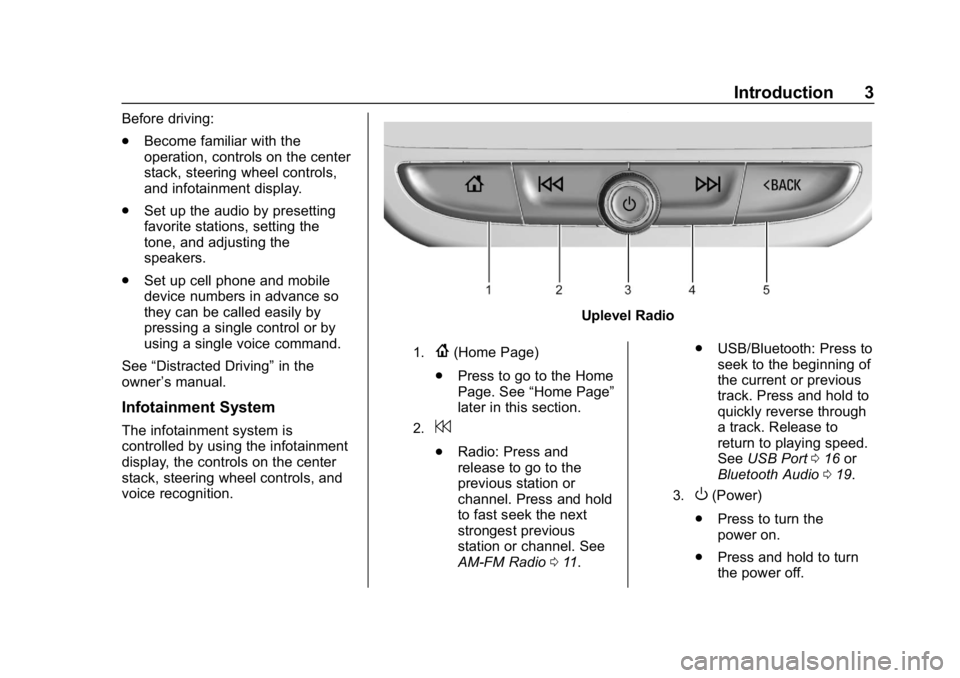
Uplevel Radio
1.{(Home Page)
. Press to go to the Home
Page. See “Home Page”
later in this section.
2.7
. Radio: Press and
release to go to the
previous station or
channel. Press and hold
to fast seek the next
strongest previous
station or channel. See
AM-FM Radio 011. .
USB/Bluetooth: Press to
seek to the beginning of
the current or previous
track. Press and hold to
quickly reverse through
a track. Release to
return to playing speed.
See USB Port 016 or
Bluetooth Audio 019.
3.O(Power)
. Press to turn the
power on.
. Press and hold to turn
the power off.
Page 7 of 78
Buick Regal Infotainment System (GMNA-Localizing-U.S./Canada-
12680696) - 2019 - crc - 6/25/18
6 Introduction
.Press to mute/unmute
the system when on.
When the power is on
and the system is not
muted, a quick status
pane will display when
Ois pressed. PressingOwill mute the system
and trigger this pane to
show a long press is
required to actually
power down the system.
. Turn to decrease or
increase the volume.
4.d
.
Radio: Press and
release to go to the next
station or channel.
Press and hold to fast
seek the next or
strongest station or
channel.
. USB/Bluetooth: Press to
seek the next track.
Press and hold to fast
forward through a track.
Release to return to playing speed.
See
USB Port 016 or
Bluetooth Audio 019.
5.5
.
Press and release to
access the phone
display or answer an
incoming call.
Home Page
The Home Page is where vehicle
application icons are accessed.
Some applications are disabled
when the vehicle is moving.
Depending on your system, the
Home Page can be set up to have
up to four pages with eight icons
per page.
Swipe left or right across the display
to access the pages of icons.
Managing Home Page Icons 1. Touch and hold any of the Home Page icons to enter
edit mode.
2. Continue holding the icon and drag it to the desired position. 3. Release your finger to drop the
icon in the desired position.
4. To move an application to another page, drag the icon to
the edge of the display toward
the desired page.
5. Continue dragging and dropping application icons as
desired.
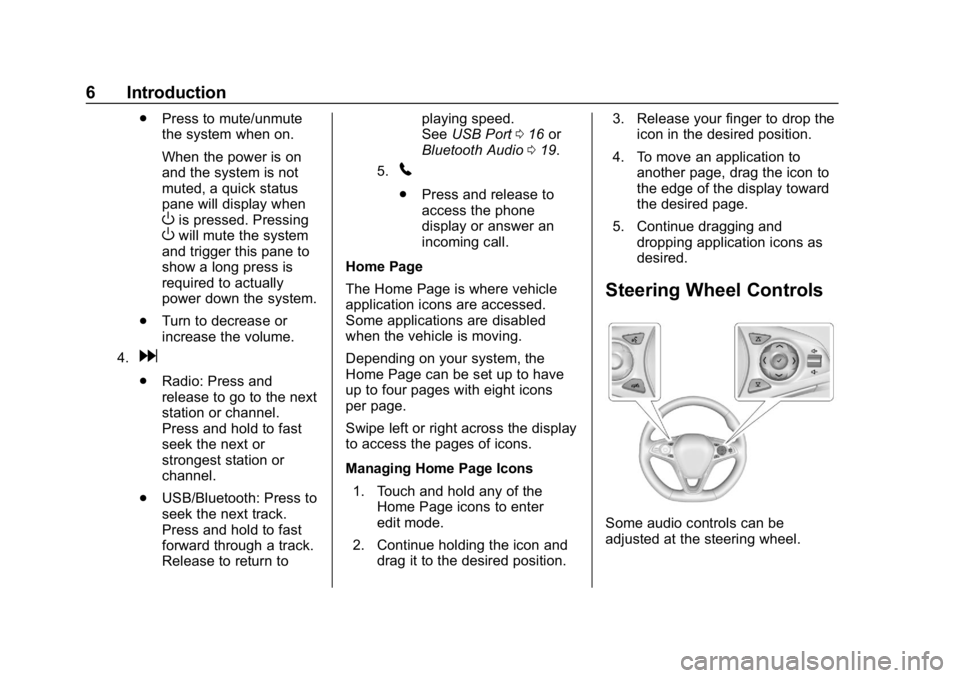
Steering Wheel Controls
Some audio controls can be
adjusted at the steering wheel.
Page 20 of 78
Buick Regal Infotainment System (GMNA-Localizing-U.S./Canada-
12680696) - 2019 - crc - 6/25/18
Audio Players 19
Podcasts :TouchHnext to any
podcast to store the podcast as a
favorite. Touch a saved favorite to
recall a favorite podcast. The
podcast begins to play.
Audiobooks : Touch
Hnext to
any audiobook to store the
audiobook as a favorite. Touch a
saved favorite to recall a favorite
audiobook. The first chapter in the
audiobook begins to play.
Media Playback and Mute
USB playback will be paused if the
system is muted. If the steering
wheel mute control is pressed
again, playback will resume.
If the source is changed while in
mute, playback resumes and audio
will unmute.
Auxiliary Jack
This vehicle has an auxiliary input
jack in the center console. Possible
auxiliary audio sources include:
. Laptop computer
. Audio music player This jack is not an audio output. Do
not plug headphones into the
auxiliary input jack. Set up an
auxiliary device while the vehicle is
in P (Park).
Connect a 3.5 mm (1/8 in) cable
from the auxiliary device to the
auxiliary input jack. When a device
is connected, the system can play
audio from the device over the
vehicle speakers.
If an auxiliary device has already
been connected, but a different
source is currently active, touch
More and then touch AUX to make
the source active.
Shuffle and Browse are not
available in the AUX source menu.
Bluetooth Audio
Music may be played from a paired
Bluetooth device.
See
Bluetooth (Overview) 046 or
Bluetooth (Pairing and Using the
Phone) 047 for help pairing a
device. Volume and song selection may be
controlled by using the infotainment
controls or the mobile device.
If Bluetooth is selected and no
volume is present, check the
volume setting on both your mobile
device and the infotainment system.
Launch music by touching Bluetooth
from the recent sources list on the
left of the display or by touching
More and then touching the
Bluetooth device.
To play music via Bluetooth:
1. Power on the device, and pair to connect the device.
2. Once paired, touch the Audio icon from the Home Page, then
touch Bluetooth from the recent
sources list on the left of the
display.
Bluetooth Sound Menu
See “Infotainment System Sound
Menu” underAM-FM Radio 011.
Manage Bluetooth Devices
From the Home Page: 1. Touch the Audio icon.
Page 56 of 78

Buick Regal Infotainment System (GMNA-Localizing-U.S./Canada-
12680696) - 2019 - crc - 6/25/18
Settings 55
.Calibrate Touchscreen: Touch to
calibrate the infotainment display
and follow the prompts.
. Turn Display Off: Touch to turn
the display off. Touch anywhere
on the infotainment display or
press any infotainment control
on the center stack again to turn
the display on.
Sounds
Touch and the following may
display:
. Maximum Startup Volume: This
feature adjusts the maximum
volume of the infotainment
system when you start your
vehicle. To set the maximum
startup volume, touch the
controls on the infotainment
display to increase or decrease.
. Audio Cues: This feature
determines if sounds play when
the infotainment system starts
up and shutdown. This feature
can be turned off or on. .
Set Audio Cue Volume: This
setting controls the volume of
Audio Cues played on startup
and shut down. Touch the
controls on the infotainment
display to increase or decrease.
. Audible Touch Feedback: This
setting determines if a sound
plays when touching the
infotainment display or radio
controls. This feature can be
turned off or on.
Voice
Touch and the following may
display:
. Confirm More/Less: This setting
specifies how often the voice
recognition system confirms
commands. Touch Confirm More
to have the system check with
you more often before acting on
your commands.
. Prompt Length: This setting
specifies the amount of detail
the voice recognition system
provides when giving you
feedback. Touch Auto to have the system automatically adjust
to your speech habits. Touch
Informative, Short, or Auto.
. Audio Feedback Speed: Touch
Slow, Medium, or Fast to adjust
how quickly the voice
recognition system speaks.
. Friendly Prompts: This setting
adjusts the formality of voice
prompts. Touch Off for shorter
prompts. Touch On to hear
prompts with more personality.
Touch Auto to have the prompt
match your command style.
. Tutorial Mode: Touch Off or On
to provide tutorial feedback on
the display.
. Allow Prompt Interuptions: This
setting controls whether voice
commands can be spoken
before voice prompts finish. Turn
this on to speak commands
without hearing the full prompt.
Speaking while the prompt is still
playing will immediately stop
playing the current prompt and
recognize your command.
Page 58 of 78
Buick Regal Infotainment System (GMNA-Localizing-U.S./Canada-
12680696) - 2019 - crc - 6/25/18
Settings 57
About
Touch to view the infotainment
system software information.
Running Applications
If equipped, touch to see a complete
list of applications that are currently
running on the infotainment system.
Return to Factory Settings
Touch and the following may
display:
.Reset Vehicle Settings: Resets
all vehicle settings for the
current user.
Touch Reset or Cancel.
. Erase Settings and Personal
Data: Erases app data settings,
user profiles, and personal data
including navigation and mobile
device data.
Touch Erase or Cancel.
. Clear Default Applications:
Resets preferred applications
that have been set to open when
selecting a function. No
application data will be lost. Touch Clear or Cancel.
Apps
The menu may contain the
following:
Android Auto
This feature allows you to interact
directly with your mobile device on
the infotainment display. See
Apple
CarPlay and Android Auto 051.
Touch the controls on the
infotainment display to disable or
enable.
Apple CarPlay
This feature allows you to interact
directly with your mobile device on
the infotainment display. See Apple
CarPlay and Android Auto 051.
Touch the controls on the
infotainment display to disable or
enable.
Audio
Depending on the current audio
source, different options will be
available. Touch and the following may
display:
.
Tone Settings: Touch to adjust
Equalizer, Fade/Balance,
or Sound Mode. See
“Infotainment System Sound
Menu” inAM-FM Radio 011.
. Auto Volume: This feature
adjusts the volume based on the
vehicle speed.
Touch Off, Low, Medium-Low,
Medium, Medium-High, or High.
. Bose AudioPilot Noise
Compensation Technology: This
feature adjusts the volume
based on the noise in the
vehicle and the speed.
Touch Off or On.
. Manage Favorites: Touch to
display a list of Audio, Mobile
Devices, and Navigation
favorites.
Favorites can be moved,
renamed, or deleted.
To move, touch and hold the
favorite, and then drag up or
down to rearrange the position.
Page 59 of 78

Buick Regal Infotainment System (GMNA-Localizing-U.S./Canada-
12680696) - 2019 - crc - 6/25/18
58 Settings
.Set Number of Audio Favorites:
Touch to select how many
favorites pages can be viewed
from the audio application. The
Auto setting will automatically
adjust this number based on the
number of favorites you have
saved. Touch Auto, 5, 10, 15,
20, 25, 30, 35, or 40.
. RDS: This allows the Radio Data
System (RDS) to be turned on
or off.
Touch the controls on the
infotainment display to disable or
enable.
. HD Radio: This allows HD Radio
reception to be turned on or off.
Touch the controls on the
infotainment display to disable or
enable.
. Explicit Content Filter: This
setting prevents access to
explicit content SiriusXM
channels.
Touch Off or On. .
Manage Phones: Select to
connect to a different phone
source, disconnect a phone,
or delete a phone.
. Reset Music Index: This allows
the music index to be reset if
you are having difficulty
accessing all of the media
content on your device.
Touch Yes or No.
Climate
If equipped, touch and the following
may display:
. Auto Fan Speed: This setting
specifies the amount of airflow
when the climate control fan
setting is Auto Fan.
Touch Low, Medium, or High.
. Air Quality Sensor: This setting
switches the system into
Recirculation Mode based on the
quality of the outside air.
Touch Off, Low Sensitivity,
or High Sensitivity. .
Auto Cooled Seats: This setting
automatically turns on and
regulates the ventilated seats
when the cabin temperature
is warm.
Touch the controls on the
infotainment display to disable or
enable.
. Auto Heated Seats: This setting
automatically turns on and
regulates the heated seats when
the cabin temperature is cool.
The auto heated seats can be
turned off by using the heated
seat controls on the center
stack.
Touch the controls on the
infotainment display to disable or
enable.
. Auto Defog: This setting
automatically turns the front
defogger on when the vehicle
engine is started.
Touch the controls on the
infotainment display to disable or
enable.
Page 75 of 78

Buick Regal Infotainment System (GMNA-Localizing-U.S./Canada-
12680696) - 2019 - crc - 6/25/18
74 Index
Index4
4G LTE . . . . . . . . . . . . . . . . . . . . . . . . . . 21
A
Accepting or Declining a Call . . . . 50
Active Guidance View . . . . . . . . . . . 30
AgreementsTrademarks and License . . . . . . . . 64
AM . . . . . . . . . . . . . . . . . . . . . . . . . . . . . . 14
AM-FM Radio . . . . . . . . . . . . . . . . . . . . 11
AM, FM, and SXM Categories . . . 12
Android Auto . . . . . . . . . . . . . . . . . . . . . 8
Antenna Multi-band. . . . . . . . . . . . . . . . . . . . . . . 15
Apple CarPlay . . . . . . . . . . . . . . . . . . . . 7
Apple CarPlay and
Android Auto . . . . . . . . . . . . . . . . . . . 51
Apps . . . . . . . . . . . . . . . . . . . . . . . . . . . . . 57
Apps or Shop (Chevrolet, GMC, Buick), or Apps or
Collection (Cadillac) . . . . . . . . . . . . . 8
Audio . . . . . . . . . . . . . . . . . . . . . . . . . . . . . 7 Bluetooth. . . . . . . . . . . . . . . . . . . . . . . . 19
Audio System . . . . . . . . . . . . . . . . . . . . 46
Auxiliary Jack . . . . . . . . . . . . . . . . . . . . 19
Avoiding Untrusted Media
Devices . . . . . . . . . . . . . . . . . . . . . . . . 16
B
BluetoothOverview. . . . . . . . . . . . . . . . . . . . 46, 47
Bluetooth Audio . . . . . . . . . . . . . . . . . 19
Bluetooth Voice Recognition . . . . . 45
C
Call Waiting . . . . . . . . . . . . . . . . . . . . . . 50
Camera . . . . . . . . . . . . . . . . . . . . . . . . . . . 8
Canceling Voice Recognition . . . . 40
Cleaning High Gloss Surfaces and Vehicle Information and
Radio Displays . . . . . . . . . . . . . . . . . 10
Climate . . . . . . . . . . . . . . . . . . . . . . . . . . . 7
Connected Navigation . . . . . . . . . . . 34
Controls . . . . . . . . . . . . . . . . . . . . . . . . . 46 Steering Wheel. . . . . . . . . . . . . . . . . . . 6
Coverage Explanations . . . . . . . . . . 37
D
Database Coverage Explanations . . . . . . . . . . . . . . . . . . . 37
Destination . . . . . . . . . . . . . . . . . . . . . . 28
Driver Teen . . . . . . . . . . . . . . . . . . . . . . . . . . . . 60
Dual Tone Multi-Frequency (DTMF) Tones . . . . . . . . . . . . . . . . . . 51
Page 77 of 78

Buick Regal Infotainment System (GMNA-Localizing-U.S./Canada-
12680696) - 2019 - crc - 6/25/18
76 Index
R
RadioHD Radio Technology . . . . . . . . . . . 13
Radio Data System (RDS) . . . . . . . 13
Radio Reception . . . . . . . . . . . . . . . . . 14
Radios AM-FM Radio . . . . . . . . . . . . . . . . . . . 11
Satellite . . . . . . . . . . . . . . . . . . . . . . . . . 14
Rear Climate . . . . . . . . . . . . . . . . . . . . . 8
Recents . . . . . . . . . . . . . . . . . . . . . . . . . 33
Recognition Voice. . . . . . . . . . . . . . . . . . . . . . . . . . . . 39
S
Satellite Radio . . . . . . . . . . . . . . . . . . . 14
Schedule I: Gracenote EULA . . . . 66
Searching Contacts Using theKeypad . . . . . . . . . . . . . . . . . . . . . . . . . 50
Servicing System . . . . . . . . . . . . . . . . 37
Settings . . . . . . . . . . . . . . . . . . . . . . 53, 7
Shortcut Tray . . . . . . . . . . . . . . . . . . . . . 8
Show POI Icons . . . . . . . . . . . . . . . . . 33
SiriusXM Satellite Radio Service . . . . . . . . . . . . . . . . . . . . . . . . . 14
Software Updates . . . . . . . . . . . . . . . 10
Steering Wheel Controls . . . . . . . . . . 6
Storing and Recalling Media Favorites . . . . . . . . . . . . . . . . . . . . . . . 18 Storing Radio Station
Favorites . . . . . . . . . . . . . . . . . . . . . . . 12
Switching to Handset or Handsfree Mode . . . . . . . . . . . . . . . 49
Symbols Navigation. . . . . . . . . . . . . . . . . . . . . . . 27
System . . . . . . . . . . . . . . . . . . . . . . . . . . 53
Global Positioning. . . . . . . . . . . . . . . 35
OnStar . . . . . . . . . . . . . . . . . . . . . . . . . . 34
T
Teen Driver . . . . . . . . . . . . . . . . . . . . . . 60
The OnStar App . . . . . . . . . . . . . . . . . 21
Three-Way Calling . . . . . . . . . . . . . . . 51
Trademarks and LicenseAgreements . . . . . . . . . . . . . . . . . . . . 64
U
UpdatesMap Data . . . . . . . . . . . . . . . . . . . . . . . 37
Software . . . . . . . . . . . . . . . . . . . . . . . . 10
USB Port . . . . . . . . . . . . . . . . . . . . . . . . 16
Users . . . . . . . . . . . . . . . . . . . . . . . . . . . . . 7
Using the Navigation System . . . . 23
Using the System . . . . . . . . . . . . . . . . . 7
Using Voice Recognition . . . . . . . . . 39
Using Voice Recognition for
List Options . . . . . . . . . . . . . . . . . . . . 41
V
Vehicle . . . . . . . . . . . . . . . . . . . . . . . . . . 59
Vehicle Positioning . . . . . . . . . . . . . . 36
Voice Recognition . . . . . . . . . . . . . . . 39
Voice Recognition for AudioMyMedia . . . . . . . . . . . . . . . . . . . . . . . 42
Voice Recognition for Navigation . . . . . . . . . . . . . . . . . . . . . 44
Voice Recognition for the Phone . . . . . . . . . . . . . . . . . . . . . . . . . . 44
Voice Recognition for the Radio . . . . . . . . . . . . . . . . . . . . . . . . . . 42
W
Waypoints . . . . . . . . . . . . . . . . . . . . . . . 28
Z
Zoom Control . . . . . . . . . . . . . . . . . . . . 29