2019 BUICK ENVISION park assist
[x] Cancel search: park assistPage 218 of 377

Buick Envision Owner Manual (GMNA-Localizing-U.S./Canada/Mexico-
12032235) - 2019 - CRC - 6/27/18
Driving and Operating 217
.Front and rear bumpers and the
area below the bumpers
. Front grille and headlamps
. Front camera lens in the front
grille or near the front emblem
. Front side and rear side panels
. Outside of the windshield in front
of the rearview mirror
. Side camera lens on the bottom
of the outside mirrors
. Rear side corner bumpers
. Rear Vision Camera above the
license plate
Assistance Systems for
Parking or Backing
If equipped, the Rear Vision Camera
(RVC), Rear Park Assist (RPA),
Front Park Assist (FPA), Surround
Vision, Front Vision Camera, Rear
Cross Traffic Alert (RCTA), and
Automatic Parking Assist (APA) may
help the driver park or avoid objects.
Always check around the vehicle
when parking or backing.
Rear Vision Camera (RVC)
When the vehicle is shifted into
R (Reverse), the RVC displays an
image of the area behind the vehicle
in the infotainment display. The
previous screen displays when the
vehicle is shifted out of R (Reverse)
after a short delay. To return to the
previous screen sooner, press any
button on the infotainment system,
shift into P (Park), or reach a vehicle
speed of approximately 12 km/h
(8 mph).
1. View Displayed by the
Camera
1. View Displayed by theCamera
2. Corners of the Rear Bumper
Page 220 of 377

Buick Envision Owner Manual (GMNA-Localizing-U.S./Canada/Mexico-
12032235) - 2019 - CRC - 6/27/18
Driving and Operating 219
shows after shifting from
R (Reverse) to D (Drive) and when
the vehicle is moving forward slower
than 8 km/h (5 mph), or when the
Park Assist system detects an
object within 30 cm (12 in).
{Warning
The camera(s) do not display
children, pedestrians, bicyclists,
crossing traffic, animals, or any
other object outside of the
cameras’field of view, below the
bumper, or under the vehicle.
Shown distances may be different
from actual distances. Do not
drive or park the vehicle using
only these camera(s). Always
check behind and around the
vehicle before driving. Failure to
use proper care may result in
injury, death, or vehicle damage.
Park Assist
With RPA, and if equipped with FPA,
as the vehicle moves at speeds of
less than 8 km/h (5 mph) the sensors on the bumpers may detect
objects up to 1.8 m (6 ft) behind and
1.2 m (4 ft) in front of the vehicle
within a zone 25 cm (10 in) high off
the ground and below bumper level.
These detection distances may be
shorter during warmer or humid
weather. Blocked sensors will not
detect objects and can also cause
false detections. Keep the sensors
clean of mud, dirt, snow, ice, and
slush; and clean sensors after a car
wash in freezing temperatures.
{Warning
The Park Assist system does not
detect children, pedestrians,
bicyclists, animals, or objects
located below the bumper or that
are too close or too far from the
vehicle. It is not available at
speeds greater than 8 km/h
(5 mph). To prevent injury, death,
or vehicle damage, even with
Park Assist, always check the
area around the vehicle and
check all mirrors before moving
forward or backing.
The instrument cluster may have a
park assist display with bars that
show
“distance to object” and object
location information for RPA, and on
some vehicles, FPA. As the object
gets closer, more bars light up and
the bars change color from yellow to
amber to red.
When an object is first detected in
the rear, one beep will be heard
from the rear, or both sides of the
Safety Alert Seat will pulse two
times. When an object is very close
(<0.6 m (2 ft) in the vehicle rear,
or <0.3 m (1 ft) in the vehicle front),
five beeps will sound from the front
or rear depending on object
Page 221 of 377

Buick Envision Owner Manual (GMNA-Localizing-U.S./Canada/Mexico-
12032235) - 2019 - CRC - 6/27/18
220 Driving and Operating
location, or both sides of the Safety
Alert Seat will pulse five times.
Beeps for FPA are higher pitched
than for RPA.
Rear Cross Traffic Alert (RCTA)
If equipped, when the vehicle is
shifted into R (Reverse), RCTA
displays a red warning triangle with
a left or right pointing arrow on the
infotainment display to warn of
traffic coming from the left or right.
This system detects objects coming
from up to 20 m (65 ft) from the left
or right side of the vehicle. When an
object is detected, either three
beeps sound from the left or right,
or three Safety Alert Seat pulses
occur on the left or right side,
depending on the direction of the
detected vehicle.
Turning the Features On or Off
PressXon the center stack to
turn on or off the Front and Rear
Park Assist and the Rear Cross
Traffic Alert (RCTA). The indicator
light in the button comes on when the features are on and turns off
when the features have been
disabled.
RCTA can also be turned off
through vehicle personalization. See
“Collision/Detection Systems”
under
Vehicle Personalization 0150.
To turn the RPA symbols or
guidance lines on or off, select the
guidance lines button on the
infotainment display, or on some
models, see “Rear Camera” under
Vehicle Personalization 0150.
Automatic Parking
Assist (APA)
If equipped, APA searches for and
steers the vehicle into parallel and
perpendicular parking spots. When
using APA, you must still shift gears,
and control the brakes and
accelerator. A display and audible
beeps help to guide parking
maneuvers.
{Warning
APA does not apply the brakes.
APA may not detect objects in the
parking space, objects that are
soft or narrow, objects high off the
ground such as flatbed trucks,
or objects below ground level
such as large potholes. Always
verify that the parking space is
appropriate for parking a vehicle.
APA does not respond to changes
in the parking space, such as
movement of an adjacent vehicle,
or a person or object entering the
parking space. APA does not
detect or avoid traffic that is
behind or alongside of the
vehicle. Always be prepared to
stop the vehicle during the
parking maneuver.
Press
Oon the center stack to
enable the system to search for a
parking space that is large enough
and within 1.5 m (5 ft) of the vehicle.
Page 226 of 377

Buick Envision Owner Manual (GMNA-Localizing-U.S./Canada/Mexico-
12032235) - 2019 - CRC - 6/27/18
Driving and Operating 225
Warning (Continued)
.Detect all vehicles,
especially vehicles with a
trailer, tractors, muddy
vehicles, etc.
. Detect a vehicle when
weather limits visibility, such
as in fog, rain, or snow.
. Detect a vehicle ahead if it
is partially blocked by
pedestrians or other objects.
Complete attention is always
required while driving, and you
should be ready to take action
and apply the brakes and/or steer
the vehicle to avoid crashes.
FAB may slow the vehicle to a
complete stop to try to avoid a
potential crash. If this happens, FAB
may engage the Electric Parking
Brake (EPB) to hold the vehicle at a
stop. Release the EPB or firmly
press the accelerator pedal.
{Warning
FAB may automatically brake the
vehicle suddenly in situations
where it is unexpected and
undesired. It could respond to a
turning vehicle ahead, guardrails,
signs, and other non-moving
objects. To override FAB, firmly
press the accelerator pedal, if it is
safe to do so.
Intelligent Brake Assist (IBA)
IBA may activate when the brake
pedal is applied quickly by providing
a boost to braking based on the
speed of approach and distance to
a vehicle ahead.
Minor brake pedal pulsations or
pedal movement during this time is
normal and the brake pedal should
continue to be applied as needed.
IBA will automatically disengage
only when the brake pedal is
released.
{Warning
IBA may increase vehicle braking
in situations when it may not be
necessary. You could block the
flow of traffic. If this occurs, take
your foot off the brake pedal and
then apply the brakes as needed.
FAB and IBA can be disabled
through vehicle personalization. See
“Collision/Detection Systems” under
Vehicle Personalization 0150.
A system unavailable message may
display if:
. The front of the vehicle or
windshield is not clean.
. Heavy rain or snow is interfering
with object detection.
. There is a problem with the
StabiliTrak/Electronic Stability
Control (ESC) system.
The FAB system does not need
service.
Page 236 of 377

Buick Envision Owner Manual (GMNA-Localizing-U.S./Canada/Mexico-
12032235) - 2019 - CRC - 6/27/18
Driving and Operating 235
.Vehicles can tow in D (Drive).
If the transmission downshifts
too often, a lower gear may be
selected using Manual Mode
See Manual Mode 0199.
If equipped, the following driver
assistance features should be
turned off when towing a trailer:
. Adaptive Cruise Control (ACC)
. Super Cruise Control
. Lane Keep Assist (LKA)
. Parking Assist
. Automatic Parking Assist (APA)
. Reverse Automatic
Braking (RAB)
If equipped, the following driver
assistance features should be
turned to alert or off when towing a
trailer:
. Forward Automatic Braking
System (FAB)
. Intelligent Brake Assist (IBA)
. Front Pedestrian Braking (FPB) If equipped with Lane Change Alert
(LCA), the LCA detection zones that
extend back from the side of the
vehicle do not move further back
when a trailer is towed. Use caution
while changing lanes when towing a
trailer.
If equipped with Rear Cross Traffic
Alert (RCTA), use caution while
backing up when towing a trailer, as
the RCTA detection zones that
extend out from the back of the
vehicle do not move further back
when a trailer is towed.
{Warning
To prevent serious injury or death
from carbon monoxide (CO),
when towing a trailer:
. Do not drive with the
liftgate, trunk/hatch,
or rear-most window open.
. Fully open the air outlets on
or under the instrument
panel.
(Continued)
Warning (Continued)
.Adjust the climate control
system to a setting that
brings in only outside air.
See “Climate Control
Systems” in the Index.
For more information about
carbon monoxide, see Engine
Exhaust 0196.
Towing a trailer requires experience.
The combination of the vehicle and
trailer is longer and not as
responsive as the vehicle itself. Get
used to the handling and braking of
the combination by driving on a
level road surface before driving on
public roads.
The trailer structure, the tires, and
the brakes must be all be rated to
carry the intended cargo.
Inadequate trailer equipment can
cause the combination to operate in
an unexpected or unsafe manner.
Before driving, inspect all trailer
hitch parts and attachments, safety
chains, electrical connectors, lamps,
Page 276 of 377
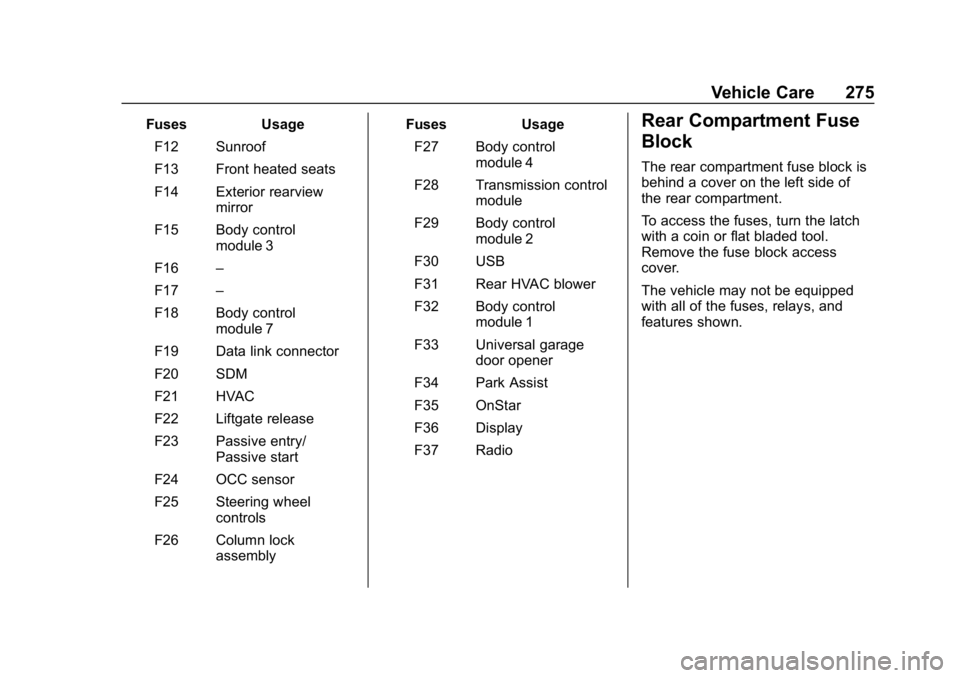
Buick Envision Owner Manual (GMNA-Localizing-U.S./Canada/Mexico-
12032235) - 2019 - CRC - 6/27/18
Vehicle Care 275
FusesUsage
F12 Sunroof
F13 Front heated seats
F14 Exterior rearview mirror
F15 Body control module 3
F16 –
F17 –
F18 Body control module 7
F19 Data link connector
F20 SDM
F21 HVAC
F22 Liftgate release
F23 Passive entry/ Passive start
F24 OCC sensor
F25 Steering wheel controls
F26 Column lock assembly Fuses
Usage
F27 Body control module 4
F28 Transmission control module
F29 Body control module 2
F30 USB
F31 Rear HVAC blower
F32 Body control module 1
F33 Universal garage door opener
F34 Park Assist
F35 OnStar
F36 Display
F37 RadioRear Compartment Fuse
Block
The rear compartment fuse block is
behind a cover on the left side of
the rear compartment.
To access the fuses, turn the latch
with a coin or flat bladed tool.
Remove the fuse block access
cover.
The vehicle may not be equipped
with all of the fuses, relays, and
features shown.
Page 358 of 377

Buick Envision Owner Manual (GMNA-Localizing-U.S./Canada/Mexico-
12032235) - 2019 - CRC - 6/27/18
OnStar 357
Languages
The vehicle can be programmed to
respond in multiple languages.
Press
Qand ask for an Advisor.
Advisors are available in English,
Spanish, and French. Available
languages may vary by country.
Potential Issues
OnStar cannot perform Remote
Door Unlock or Stolen Vehicle
Assistance after the vehicle has
been off continuously for 10 days
without an ignition cycle. If the
vehicle has not been started for
10 days, OnStar can contact
Roadside Assistance or a locksmith
to help gain access to the vehicle.
Global Positioning
System (GPS)
. Obstruction of the GPS can
occur in a large city with tall
buildings; in parking garages;
around airports; in tunnels and
underpasses; or in an area with
very dense trees. If GPS signals
are not available, the OnStar
system should still operate to call OnStar. However, OnStar
could have difficulty identifying
the exact location.
. In emergency situations, OnStar
can use the last stored GPS
location to send to emergency
responders.
A temporary loss of GPS can cause
loss of the ability to send a
Turn-by-Turn Navigation route. The
Advisor may give a verbal route or
may ask for a call back after the
vehicle is driven into an open area.
Cellular and GPS Antennas
Cellular reception is required for
OnStar to send remote signals to
the vehicle. Do not place items over
or near the antenna to prevent
blocking cellular and GPS signal
reception.
Unable to Connect to OnStar
Message
If there is limited cellular coverage
or the cellular network has reached
maximum capacity, this message may come on. Press
Qto try the
call again or try again after driving a
few miles into another cellular area.
Vehicle and Power Issues
OnStar services require a vehicle
electrical system, wireless service,
and GPS satellite technologies to be
available and operating for features
to function properly. These systems
may not operate if the battery is
discharged or disconnected.
Add-on Electrical Equipment
The OnStar system is integrated
into the electrical architecture of the
vehicle. Do not add any electrical
equipment. See Add-On Electrical
Equipment 0242. Added electrical
equipment may interfere with the
operation of the OnStar system and
cause it to not operate.
Vehicle Software Updates
OnStar or GM may remotely deliver
software updates or changes to the
vehicle without further notice or
consent. These updates or changes
may enhance or maintain safety,
Page 364 of 377

Buick Envision Owner Manual (GMNA-Localizing-U.S./Canada/Mexico-
12032235) - 2019 - CRC - 6/27/18
Connected Services 363
vehicles, the SSID and
password can be changed in
the Wi-Fi Hotspot menu.
After initial set-up, your vehicle’s
Wi-Fi hotspot will connect
automatically to your mobile
devices. Manage data usage by
turning Wi-Fi on or off on your
mobile device, by using the myBuick
mobile app, or by contacting an
OnStar Advisor. On some vehicles,
Wi-Fi can also be managed from the
Wi-Fi Hotspot menu.
MyBuick Mobile App (If Available)
Download the myBuick mobile app
to compatible Apple and Android
smartphones. Buick users can
access the following services from a
smartphone:
. Remotely start/stop the vehicle,
if factory-equipped.
. Lock/unlock doors, if equipped
with automatic locks.
. Activate the horn and lamps. .
Check the vehicle’s fuel level, oil
life, or tire pressure,
if factory-equipped with the Tire
Pressure Monitor System.
. Send destinations to the vehicle.
. Locate the vehicle on a map
(U.S. market only).
. Turn the vehicle's Wi-Fi hotspot
on/off, manage settings, and
monitor data consumption,
if equipped.
. Locate a dealer and schedule
service.
. Request roadside assistance.
. Set a parking reminder with pin
drop, take a photo, make a note,
and set a timer.
. Connect with Buick on social
media.
Features are subject to change. For
myBuick mobile app information and
compatibility, see my.buick.com.
An active OnStar or connected
service plan may be required.
A compatible device,
factory-installed remote start, and power locks are required. Data rates
apply. See www.onstar.com for
details and system limitations.
Remote Services
Contact an OnStar Advisor to
unlock the doors or sound the horn
and flash the lamps.
Marketplace
OnStar Advisors can provide offers
from restaurants and retailers on
your route, help locate hotels,
or book a room. These services
vary by market.
OnStar Hands-Free Calling
Make and receive calls with the
built-in wireless calling service,
which requires available minutes.
Functionality of the Voice Command
button may vary by vehicle and
region. For some vehicles, press
=
to open the OnStar app on the
infotainment display, then select
Hands-Free calling. For other
vehicles press
=as follows.