Buick Infotainment System (GMNA-Localizing-U.S./Canada-12690019) -
2019 - crc - 6/26/18
Introduction 7
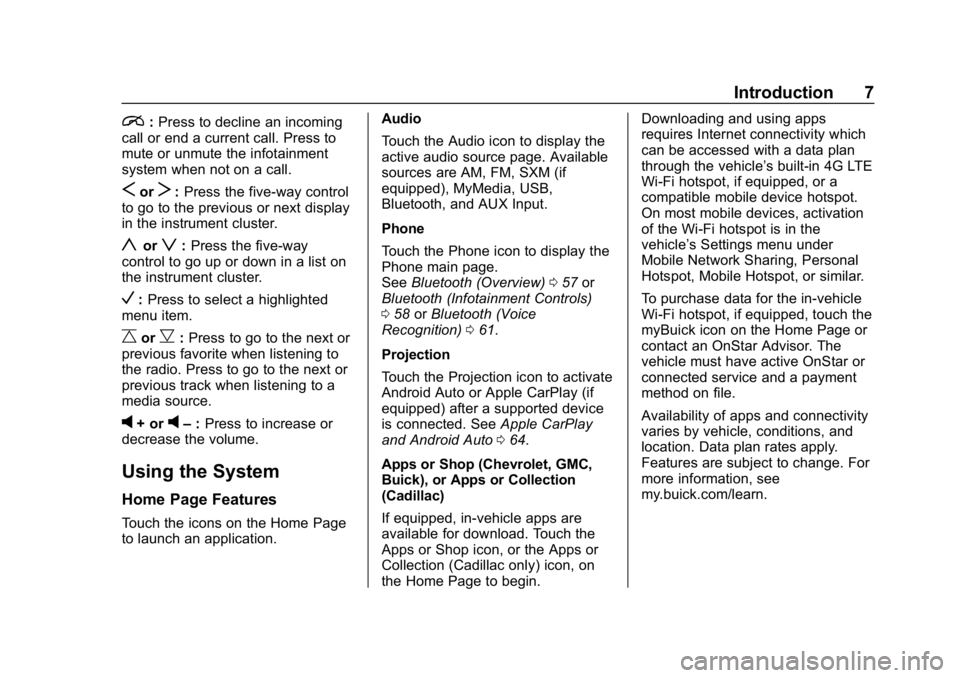
i:Press to decline an incoming
call or end a current call. Press to
mute or unmute the infotainment
system when not on a call.
SorT: Press the five-way control
to go to the previous or next display
in the instrument cluster.
yorz: Press the five-way
control to go up or down in a list on
the instrument cluster.
V: Press to select a highlighted
menu item.
CorB: Press to go to the next or
previous favorite when listening to
the radio. Press to go to the next or
previous track when listening to a
media source.
v+ orv– :Press to increase or
decrease the volume.
Using the System
Home Page Features
Touch the icons on the Home Page
to launch an application. Audio
Touch the Audio icon to display the
active audio source page. Available
sources are AM, FM, SXM (if
equipped), MyMedia, USB,
Bluetooth, and AUX Input.
Phone
Touch the Phone icon to display the
Phone main page.
See
Bluetooth (Overview) 057 or
Bluetooth (Infotainment Controls)
0 58 orBluetooth (Voice
Recognition) 061.
Projection
Touch the Projection icon to activate
Android Auto or Apple CarPlay (if
equipped) after a supported device
is connected. See Apple CarPlay
and Android Auto 064.
Apps or Shop (Chevrolet, GMC,
Buick), or Apps or Collection
(Cadillac)
If equipped, in-vehicle apps are
available for download. Touch the
Apps or Shop icon, or the Apps or
Collection (Cadillac only) icon, on
the Home Page to begin. Downloading and using apps
requires Internet connectivity which
can be accessed with a data plan
through the vehicle’
s built-in 4G LTE
Wi-Fi hotspot, if equipped, or a
compatible mobile device hotspot.
On most mobile devices, activation
of the Wi-Fi hotspot is in the
vehicle’s Settings menu under
Mobile Network Sharing, Personal
Hotspot, Mobile Hotspot, or similar.
To purchase data for the in-vehicle
Wi-Fi hotspot, if equipped, touch the
myBuick icon on the Home Page or
contact an OnStar Advisor. The
vehicle must have active OnStar or
connected service and a payment
method on file.
Availability of apps and connectivity
varies by vehicle, conditions, and
location. Data plan rates apply.
Features are subject to change. For
more information, see
my.buick.com/learn.
Buick Infotainment System (GMNA-Localizing-U.S./Canada-12690019) -
2019 - crc - 6/26/18
64 Phone
Apple CarPlay and
Android Auto
If equipped, Android Auto and/or
Apple CarPlay capability may be
available through a compatible
smartphone. If available,
PROJECTION will appear on the
Home Page of the infotainment
display.
To use Android Auto and/or Apple
CarPlay:1. Download the Android Auto app to your phone from the
Google Play store. No app is
required for Apple CarPlay.
2. Connect an Android phone or iPhone by using the compatible
phone USB cable and plugging
into a USB data port. For best
performance, use the device’ s
factory-provided USB cable.
Aftermarket or third-party
cables may not work. 3. When the phone is first
connected to activate Apple
CarPlay or Android Auto, the
message “Device Projection
Privacy Consent” will appear.
. Touch Continue to launch
Apple CarPlay or
Android Auto.
. Touch Disable to remove
Apple CarPlay and Android
Auto capability from the
vehicle Settings menu.
Other functions may
still work.
PROJECTION on the Home Page
will change to Android Auto or Apple
CarPlay depending on the phone.
Android Auto and/or Apple CarPlay
may automatically launch upon USB
connection. If not, touch the
ANDROID AUTO and/or APPLE
CARPLAY icon on the Home Page
to launch.
Press Home on the center stack to
return to the Home Page. Features are subject to change. For
further information on how to set up
Android Auto and Apple CarPlay in
the vehicle, see my.buick.com or
see
“Customer Assistance” in the
owner ’s manual.
Android Auto is provided by Google
and is subject to Google’s terms
and privacy policy. Apple CarPlay is
provided by Apple and is subject to
Apple’ s terms and privacy policy.
Data plan rates apply. For Android
Auto support see https://
support.google.com/androidauto.
For Apple CarPlay support see
www.apple.com/ios/carplay/. Apple
or Google may change or suspend
availability at any time. Android
Auto, Android, Google, Google Play,
and other marks are trademarks of
Google Inc.; Apple CarPlay is a
trademark of Apple Inc.