Page 358 of 649

357
uuHomeLink ® Universal Transceiver uTraining HomeLink
Features
■Programming a Button1Training HomeLink
Reprogramming a Button
If you want to retrain a programmed button for a
new device, you do not ha ve to erase all button
memory. You can replace the existing memory code
using this procedure:
Erasing Button Memory
To erase programming from the buttons, press and hold
the two outside HomeLink buttons until the HomeLink
indicator changes from
orange to rapidly flashing green.
This should take about 10 seconds. You should erase all
programming before selling the vehicle.
Operating
To operate, simple pr ess and release the
programmed HomeLink butto n. Activation will now
occur for the trained device.
Questions
For questions or comments, visit
www.HomeLink.com, www.youtube.com/
HomeLinkGentex , or by calling the HomeLink Hotline
(North America only) at (800) 355-3515.
HomeLink® is a registered tra demark of Gentex
Corporation.
2.
1. Press and hold the desired HomeLink button until
the HomeLink indi
cator begins to slowly flash
orange . This should take about 20 seconds.
Release the HomeLink button and position the
remote transmitter you wish to link 1 - 3 inches
(3 - 8 cm) from the HomeLink button you want to
program, then follow steps 3 - 6 under
“programming a button.”
Training
CompleteHomeLink LED is
continuously on green .
YES
YES
1.Position the remote transmitter you wish to link 1 to 3 inches (3 - 8 cm) from the
HomeLink® button you want to program.
3b.Canadian Garage Door Opener
A. Press and release the HomeLink
button. Press, hold and release the
button on the remote every 2 secs.
Does the HomeLink indicator (LED)
change from slowly flashing orange to
rapidly flashing or continuously on
green ? The process should take less
than 60 seconds.
NO
2. Press and release the desired HomeLink but ton. Is the HomeLink indicator (LED) slowly
flashing orange ?
NO
3a.Hold the button on the remote
transmitter. Does HomeLink indicator
(LED) change from slowly flashing
orange to rapidly flashing green or
continuously on green ? The process
should take less than 60 seconds.
5. Press and hold the HomeLink button again.
HomeLink indicator rapidly flashes
green .
5a.The remote has a rolling code. Press the
“learn” button on the remote-controlled
device (e.g. garage door opener).6.Press and hold the HomeLink button
again.
The remote-controll ed device should
operate.
Training Complete
5b.Within 30 secs, press and hold the
programmed HomeLink button for 2
secs.
4.Press and hold the programmed HomeLink
button for about a second. Does the device
(garage door opener) work?
19 ACURA RDX-31TJB6000.book 357 ページ 2018年4月26日 木曜日 午後4時51分
Page 360 of 649

Continued359
uuBluetooth ® HandsFreeLink ®u Using HFL
Features
Left Selector Wheel:
• Incomming call: Move the selector wheel to the ri ght to answer the call. Move it
to the left to decline the call.
• During a call: Move the selector wheel to the ri ght to display the call options
menu. Move it to the left to end the call.
• (back) button: Press the button to go back to the previous screen or to
cancel a command.
• (talk) button: Press the button to start voice recognition.
To go to the phone screen of the multi-information display or the head-up display
*:
1. Press the APPS button on the steering wheel.
2. Using the selector wheel, scroll to Phone on the multi-information display or the
head-up display
*, and then press the left selector wheel.
u You can select Favorites or Recents by moving the selector wheel to the left
or the right.
1 Bluetooth ® HandsFreeLink ®
Bluetooth ® Wireless Technology
The Bluetooth ® word mark and logos are registered
trademarks owned by Bluetooth SIG, Inc., and any
use of such marks by Honda Motor Co., Ltd., is under
license. Other trademarks and trade names are those
of their respective owners.
HFL Limitations
An incoming call on HFL will interrupt the audio
system when it is playing. It will resume when the call
is ended.
* Not available on all models
19 ACURA RDX-31TJB6000.book 359 ページ 2018年4月26日 木曜日 午後4時51分
Page 361 of 649
uuBluetooth ® HandsFreeLink ®u Using HFL
360
Features
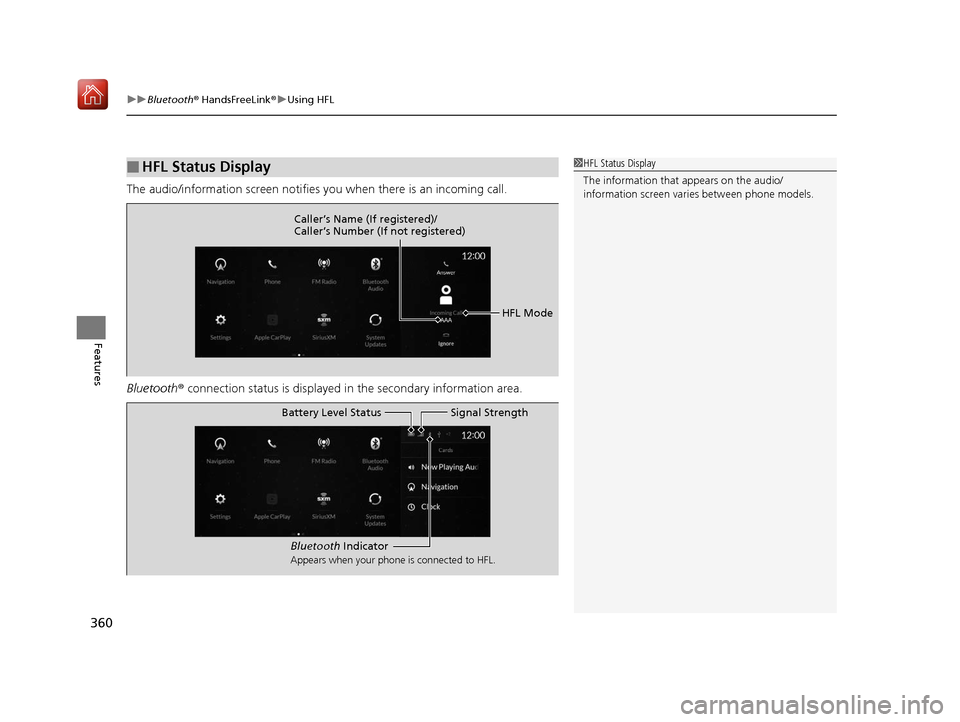
The audio/information screen notifies you when there is an incoming call.
Bluetooth ® connection status is displayed in the secondary information area.
■HFL Status Display1HFL Status Display
The information that appears on the audio/
information screen vari es between phone models.
HFL Mode
Caller’s Name (If registered)/
Caller’s Number (If not registered)
Bluetooth
Indicator
Appears when your phone is connected to HFL.
Signal Strength
Battery Level Status
19 ACURA RDX-31TJB6000.book 360 ページ 2018年4月26日 木曜日 午後4時51分
Page 375 of 649

uuBluetooth ® HandsFreeLink ®u HFL Menus
374
Features
When there is an incoming call, an audible
notification sounds (i f activated) and the
Incoming Call... screen appears.
Move the left selector wheel to the right to
answer the call. Move it to the left to decline
or end the call. u You can also select Answer or Ignore
on the audio/information screen to use
hands-free calling.
■Receiving a Call1 Receiving a Call
Call Waiting
To put a call on hold so that you can answer an
incoming call, move the left selector wheel to the
right.
Move the left selector wheel to the right to resume
the call.
Select Ignore to ignore the incoming call if you do
not want to answer it.
Move the left selector wheel to the left to end a call.
Instead of using the selector wheel, you can use the
icons on the audio/information screen to perform the
above mentione d functions.
When a screen other than the phone screen is
displayed in the primar y information area, the
incoming call screen is displayed in the secondary
information area.
19 ACURA RDX-31TJB6000.book 374 ページ 2018年4月26日 木曜日 午後4時51分
Page 379 of 649
uuBluetooth ® HandsFreeLink ®u Text Message
378
Features
■To turn on or off the text message
notice
1. Press the (home) button.
2. Select Messages .
3. Select MENU .
4. Select Notifications .
5. Select On or Off .
■To Set Up Text Message Options1To Set Up Text Message Options
To use the text message func tion, it may be necessary
to set up on your phone.
1 To turn on or off the text message notice
On: A pop-up notification comes on every time you
receive a new message.
Off: The message you receive is stored in the system
without not ification.
When a screen other than the Messages function
screen is displayed in the primary information area, a
text message notificati on is displayed in the
secondary information area.
19 ACURA RDX-31TJB6000.book 378 ページ 2018年4月26日 木曜日 午後4時51分
Page 380 of 649

Continued379
uuBluetooth ® HandsFreeLink ®u Text Message
Features
HFL can display newly received text mess ages as well as the last 20 messages
received on a linked cell phone. Each received message can be read aloud and
replied to using a fixed common phrase. 1.A pop-up appears and notifies you of a new
text message.
2. Select Open.
3. Select to listen to th e message. To stop
listening to the message, select .
u Select to hear the message from the
beginning.
■Receiving a Text Message1Receiving a Text Message
Some cell phones might not be able to read the
transmission log of data sent and data received.
The system does not display any received messages
while you are driving. You can only hear them read
aloud.
The system can only receive messages that are sent a
text (SMS) messages. The message sent using the
data services will not be displayed in the list.
With some phones, you may be able to display up to
20 of the last text messages received.
State or local laws may limit your use of the HFL text
message feature. Only use the text message feature
when conditions allow you to do so safely.
Depending on the status of primary information area,
the received message screen may be displayed on the
secondary information area.
19 ACURA RDX-31TJB6000.book 379 ページ 2018年4月26日 木曜日 午後4時51分
Page 389 of 649
uuAcuraLink ®u
388
Features
■To link with AcuraLink
You may see the connection guide screen
after launching AcuraLink when there is no
phone connecti on available.
Continue Without Connecting: Displays
the AcuraLink menu screen without phone
connection.
Connect Phone: Displays the Bluetooth®
setup screen.
2 To change the currently paired phone
P. 366
1.Press the (home) button.
2. Select AcuraLink .
1To link with AcuraLink
We recommend that you install AcuraLink app in
your smartphone to make AcuraLink more
functional, contact an Acura dealer, or visit
owners.acura.com (U.S.) or www.acura.ca/owners/
acuralink (Canada).
If you do not connect a phone to AcuraLink, Last Mile
function of AcuraLink app is disabled.
■AcuraLink1 AcuraLink
You can also select AcuraLink from the All Apps
screen.
2 Audio/Information Screen P. 249
AcuraLink
19 ACURA RDX-31TJB6000.book 388 ページ 2018年4月26日 木曜日 午後4時51分
Page 391 of 649

uuAcuraLink ®u
390
Features
You can check the messages that are rece ived quickly in the shortcut operation.
1. A notification appears and notifies you of a
new message on the secondary information
area.
2. Select the system status icon then press the
true touchpad B.
u The status area list appears on the
primary information area.
u A notification is continuously displayed in
the header area until the new message is
read.
3. Select a new message to open.
u If you have selected the update option
for AcuraLink, follow the directions on
the screen to complete the process.
■AcuraLink Message1AcuraLink Message
When you update AcuraLink, you must keep the
engine running and maintain a constant connection
with AcuraLink.
If the update is interr upted, the system will
automatically resume the process. If, however, a
week has elapsed since the process was first
interrupted, you must repeat the process from the
beginning.
Notification
New Message
19 ACURA RDX-31TJB6000.book 390 ページ 2018年4月26日 木曜日 午後4時51分