2018 OPEL ASTRA J Eco
[x] Cancel search: EcoPage 101 of 155

CD Player101CD PlayerGeneral information...................101
Usage ........................................ 102General information
The Infotainment system's CD player
can play audio CDs and MP3/
WMA CDs.
Important information about audio CDs and MP3/WMA CDsCaution
Under no circumstances place
DVDs, single-CDs with a diameter of 8 cm or shaped CDs in the audio
player.
You must not put any stickers on
CDs. These discs can get jammed in the CD drive and ruin the player. Replacement of the device will
then be necessary.
● The following CD formats can be
used:
CD-ROM Mode 1 and Mode 2
CD-ROM XA Mode 2, Form 1 and
Form 2
● The following file formats can be used:
ISO9660 Level 1, Level 2,
Romeo, Joliet
MP3 and WMA files written in any
format other than listed above
may not play correctly, and their
file names and folder names may not be displayed correctly.
Note
ISO 13346 is not supported. It may
be required to manually select
ISO 9660 when burning an audio
CD, e.g. with Windows 7.
● Audio CDs with copy protection, which are not in compliance withthe audio CD standard, may not
play correctly or not at all.
● Self-recorded CD-Rs and CD- RWs are more vulnerable to
mishandling than prerecorded
CDs. Correct handling,
especially in the case of self-
recorded CD-Rs and CD-RWs,
must be ensured. See below.
● Self-recorded CD-Rs and CD- RWs may not play correctly or not
at all. In such cases it is not the
equipment that is at fault.
Page 102 of 155

102CD Player● On mixed mode CDs (audiotracks and compressed files,
e.g. MP3, are stored), the audio
tracks part and the compressed
files part can be played
separately.
● Avoid leaving fingerprints when you change CDs.
● Put CDs back in their sleeves immediately after removing themfrom the CD player in order to
protect them from damage and
dirt.
● Dirt and liquids on CDs can smear the lens of the CD player
inside the device and cause
faults.
● Protect CDs from heat and direct
sunlight.
● The following restrictions apply for the data stored on an MP3/
WMA CD:
Number of tracks: max. 999. Number of folders: max. 255.
Folder structure depth: max.
64 levels (recommended: max.
8 levels).Number of playlists: max. 15.
Number of songs per playlist:
max. 255.
Applicable playlist
extensions: .m3u, .pls , .asx , .wpl.
● This chapter deals only with playing MP3 files since the
operation for MP3 and WMA files
is identical. When a CD with
WMA files is loaded MP3 related
menus are displayed.
Usage
Starting CD playbackPress CD to open the CD or MP3
menu.
If there is a CD in the CD player, CD
playback is started.
Depending on the data stored on the
audio CD or MP3 CD differing
information about the CD and the
current music track will be shown on
the display.
Inserting a CDInsert a CD with the printed side
facing up into the CD slot until it is
drawn in.
Note
If a CD is inserted, a CD symbol is
shown in the top line of the display.
Changing the standard page view
(only with CD 300)
During audio CD or MP3 playback:
press the multifunction knob and then select Default CD page view or
Default MP3 page view .
Select the desired option.
Page 104 of 155

104CD PlayerTo open a menu with additionaloptions for track search and
selection: select Search. The options
available depend on the data saved
on the MP3 CD.
The search process on the MP3 CD
may take several minutes. During this
time the station last played will be
received.
Removing a CDPress d.
The CD is pushed out of the CD slot.
If the CD is not removed after
ejection, it will be drawn back in again
automatically after a few seconds.
Page 117 of 155

Introduction117Usage
Control elements
The Infotainment system is operated
via function buttons, a multifunction
knob and menus that are shown on
the display.
Inputs are made optionally via: ● the control panel on the Infotainment system 3 114
● audio controls on the steering wheel 3 114
Switching the Infotainment
system on or off
Press X briefly. After switching on,
the last selected Infotainment source becomes active.
Press X again to turn the system off.
Automatic switch-off
If the Infotainment system is switched
on pressing X while the ignition is
turned off, it will switch off again automatically 10 minutes after the last user input.Setting the volume
Turn m. The current setting is shown
on the display.
When the Infotainment system is
switched on, the last selected volume is set, provided this setting is lower
than the maximum start-up volume
(see below).
The following inputs can be made
separately:
● the maximum start-up volume 3 121
● the volume of traffic announcements 3 121
Speed compensated volume
When speed compensated volume is
activated 3 121, the volume is
adapted automatically to make up for
the road and wind noises as you
drive.
Mute function
Press PHONE (if Phone portal
available: press for a few seconds) to mute the audio sources.To cancel the mute function: turn m or
press PHONE (if Phone portal
available: press for a few seconds).
Volume limitation at high
temperatures
At very high temperatures inside the
vehicle the Infotainment system limits
the maximum adjustable volume. If
necessary, the volume is decreased
automatically.
Modes of operation
Radio
Press RADIO to open the radio main
menu or to change between the
different wavebands.
Press the multifunction knob to open
the waveband menus with options for the station selection.
For a detailed description of the radio functions 3 122.
Audio players
Press CD or AUX once or several
times to open the USB, iPod ®
or AUX
main menu (if available) or to switch
between these menus.
Page 118 of 155
118IntroductionPress the multifunction knob to open
the relevant menus with options for
the track selection.
For a detailed description of CD
player functions 3 131, AUX
functions 3 134, USB port functions
3 135 and Bluetooth music functions
3 138.
Phone
Press PHONE briefly to open the
telephone menu.
Press the multifunction knob to open
the phone menu with options for the
input and selection of numbers.
For a detailed description of the
Phone portal 3 140.
System settings Adjusting the language
The menu texts on the Infotainment
system's display can be displayed in
various languages.
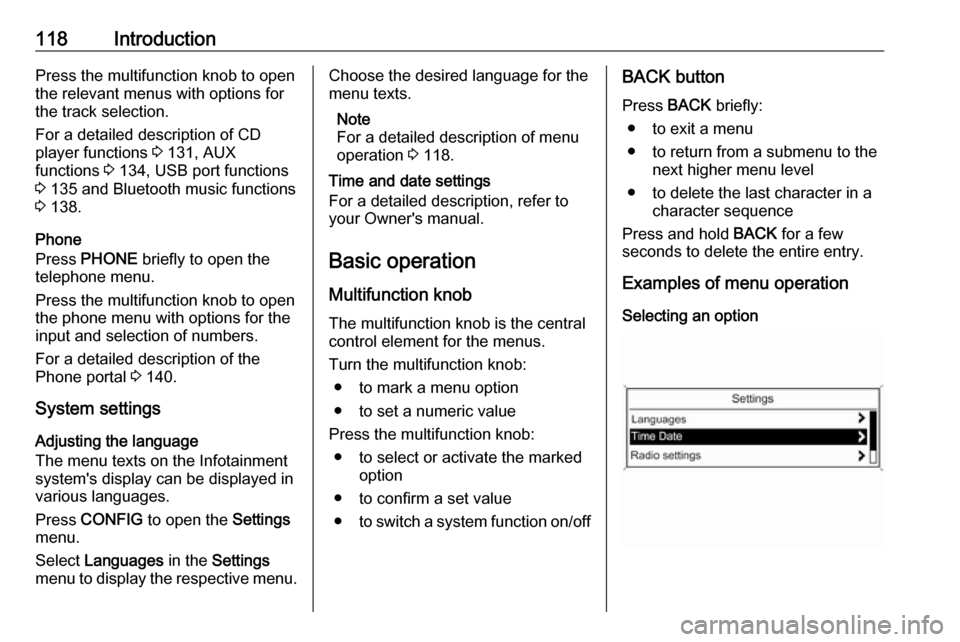
Press CONFIG to open the Settings
menu.
Select Languages in the Settings
menu to display the respective menu.Choose the desired language for the
menu texts.
Note
For a detailed description of menu
operation 3 118.
Time and date settings
For a detailed description, refer to
your Owner's manual.
Basic operation
Multifunction knob The multifunction knob is the central
control element for the menus.
Turn the multifunction knob: ● to mark a menu option
● to set a numeric value
Press the multifunction knob: ● to select or activate the marked option
● to confirm a set value ● to switch a system function on/offBACK button
Press BACK briefly:
● to exit a menu
● to return from a submenu to the next higher menu level
● to delete the last character in a character sequence
Press and hold BACK for a few
seconds to delete the entire entry.
Examples of menu operation
Selecting an option
Page 121 of 155

Introduction121Selecting a tone styleScroll through the list and select EQ
(Equaliser). The EQ presets menu is
displayed.
The displayed options offer optimised
bass, middle, and treble presettings
for the relevant style of music.
Select the desired option.
Setting an individual setting to "0" Select the desired option and press
the multifunction knob for a few
seconds.
The value is reset to "0".
Setting all settings to "0" or " OFF"
Press TONE for a few seconds.
All values are reset to "0", the EQ
preset is set to " OFF".
Volume settings
Adjusting the speed
compensated volume
Press CONFIG to open the Settings
menu.
Select Radio settings and then Auto
volume control .
The Auto volume control function can
be deactivated or the degree of the
volume adaptation can be selected in the menu displayed.
Select the desired option.
Adjusting the maximum startup
volume
Press CONFIG to open the Settings
menu.
Select Radio settings and then
Maximum startup volume .
Set the desired value.Adjusting the volume of traffic
announcements
The volume of traffic announcements
can be preset to increase or decrease
in proportion to the normal audio
volume.
Press CONFIG to open the Settings
menu.
Select Radio settings , RDS options
and then TA volume .
Set the desired value.
Adjusting the volume of the ring
tone
Press CONFIG to open the Settings
menu.
Select Phone settings , Sound &
Signals and then Ring Volume .
Set the desired value.
Page 131 of 155

CD Player131CD PlayerGeneral information...................131
Usage ........................................ 132General information
The Infotainment system's CD player
can play audio CDs and MP3/
WMA CDs.
Important informationCaution
Under no circumstances place
single-CDs with a diameter of
8 cm or shaped CDs in the audio
player.
You must not put any stickers on
CDs. These discs can get jammed in the CD drive and ruin the player. Replacement of the device will
then be necessary.
● The following CD formats can be
used:
CD-ROM Mode 1 and Mode 2
CD-ROM XA Mode 2, Form 1 and
Form 2
● The following file formats can be used:
ISO 9660 Level 1, Level 2,
Romeo, Joliet
MP3 and WMA files written in any
format other than listed above
may not play correctly and their
file names and folder names may not be displayed correctly.
● Audio CDs with copy protection, which are not in compliance with
the audio CD standard, may not
play correctly or not at all.
● Self-recorded CD-Rs and CD- RWs are more vulnerable to
mishandling than prerecorded
CDs. Correct handling,
especially in the case of self-
recorded CD-Rs and CD-RWs,
must be ensured (see below).
● Self-recorded CD-Rs and CD- RWs may not play correctly or not
at all. In such cases it is not the
equipment that is at fault.
● On mixed mode CDs (audio tracks and compressed files,
e.g. MP3, are stored), the audio
tracks part and the compressed
files part can be played
separately.
● Avoid leaving fingerprints when you change CDs.
Page 133 of 155

CD Player133
Shuffle songs
To play all tracks in a random order:
set this function to On.
Note
If this function is activated, 2 is
shown in the respective main menu.
Repeat
To repeatedly listen to a track: set this
function to On.
Note
If this function is activated, 1 is
shown in the respective main menu.
Track list
To select a track on the CD: select
Track list and then select the desired
track.
Folders
To select a track from a folder: select
Folders . A list of the folders stored on
the CD is displayed.
Select one of the folders and then
select the desired track.
Note
This menu item is only available if an MP3 CD is inserted.
Search...
To open a menu for track search and
selection: select Search....
Select one of the categories and then select the desired track.
Note
This menu item is only available if an MP3 CD is inserted.
Removing a CD
Press d.
The CD is pushed out of the CD slot.If the CD is not removed after
ejection, it will be drawn back in again
automatically after a few seconds.