2018 NISSAN SENTRA CD player
[x] Cancel search: CD playerPage 244 of 507

Pressing the button again during this
5 second period will stop SCAN tuning and
the radio will remain tuned to that station. If
the SCAN button is not pressed within
5 seconds, SCAN tuning moves to the next
station.
1 to 6 Station memory operations
Twelve stations can be set for the FM band
(6 for FM1, 6 for FM2) and six stations can be
set for the AM band.1. Choose the radio band AM, FM1 or FM2 using the AM or FM button.
2. Tune to the desired station using manual, SEEK or SCAN tuning. Press
and hold any of the desired station
memory buttons (1 – 6) until a beep
sound is heard.
3. The channel indicator will then come on and the sound will resume. Pro-
gramming is now complete.
4. Other buttons can be set in the same manner.
If the battery cable is disconnected or if the
fuse opens, the radio memory will be can-
celed. In that case, reset the desired sta-
tions.Compact disc (CD) player
operation
If the radio is already operating, it automati-
cally turns off and the compact disc begins
to play.
CD button
When the CD button is pressed with a com-
pact disc loaded and the radio playing, the
radio turns off and the last used compact
disc starts to play.
CD/MP3 display mode
While listening to an MP3/WMA CD, certain
text may be displayed on the screen if the
CD has been encoded with text informa-
tion. Depending on how the MP3/WMA CD
is encoded, information such as Artist,
Song and Folder will be displayed.
The track number and the total number of
tracks in the current folder or on the cur-
rent disc are displayed on the screen as
well.
SEEK/TRACK (Reverse or Fast Forward) button
Press and hold the SEEK/TRACK
button
orfor 1.5 seconds while
the compact disc is playing to reverse or fast forward the track being played. The
compact disc plays at an increased speed
while reversing or fast forwarding. When
the button is released, the compact disc
returns to normal play speed.
SEEK/TRACK button
Press the SEEK/TRACK button
while a
CD or MP3/WMA CD is playing to return to
the beginning of the current track. Press
the SEEK/TRACK button
several
times to skip backward several tracks.
Press the SEEK/TRACK button
while a
CD or MP3/WMA CD is playing to advance
one track. Press the SEEK/TRACK
button
several times to skip forward
several tracks. If the last track on a CD is
skipped, the first track on the disc is played.
If the last track in a folder of an MP3/WMA
CD is skipped, the first track of the next
folder is played.
TUNE/FOLDER knob (MP3/WMA CD only)
If an MP3/WMA CD with multiple folders is
playing, turn the TUNE/FOLDER knob to
change folders. Turn the knob to the lef t to
skip back a folder. Turn the knob to the right
to skip ahead a folder.
4-46Monitor, climate, audio, phone and voice recognition systems
Page 245 of 507
RPT (repeat) button
When the RPT button is pressed while a
compact disc is playing, the play pattern
can be changed as follows:
CD:
1 Track Repeat←→OFF
CD with MP3 or WMA:
1 Folder Repeat →1 Track Repeat →OFF
1 Track Repeat: the current track will be
repeated.
1 Folder Repeat: the current folder will be
repeated.
OFF: No repeat play pattern is applied. The
indicator on the display will turn off.
The current play pattern of the CD is dis-
played on the screen unless no pattern is
applied.
RDM (random) button
When the RDM button is pressed while a
compact disc is playing, the play pattern
can be changed as follows:
CD:
1 Disc Random ←→OFF CD with MP3 or WMA:
1 Disc Random
→1 Folder Random →OFF
1 Disc Random: all tracks on the disc will be
played randomly.
1 Folder Random: all tracks in the current
folder will be played randomly.
OFF: No random play pattern is applied. The
indicator on the display will turn off.
The current play pattern of the CD is dis-
played on the screen unless no pattern is
applied.
CD EJECT
When the
CD eject button is pressed
with a compact disc loaded, the compact
disc will be ejected.
When the
CD eject button is pressed
while the compact disc is playing, the com-
pact disc will eject and the system will turn
off.
Additional features
For additional information, refer to “iPod®
player operation without Navigation Sys-
tem” in this section. For additional information, refer to “USB
(Universal Serial Bus) connection port
(models without Navigation System)” in this
section.
For additional information, refer to
“Bluetooth® streaming audio without Navi-
gation System” in this section.
Microsof t (WMA) Obligation of Labeling
Additional Obligation of Labeling
This product is protected by certain intel-
lectual property rights of Microsof t
Corporation and third parties. Use or distri-
bution of such technology outside of this
product is prohibited without a license
from Microsof t or an authorized Microsof t
subsidiary and third parties.
Monitor, climate, audio, phone and voice recognition systems4-47
Page 246 of 507
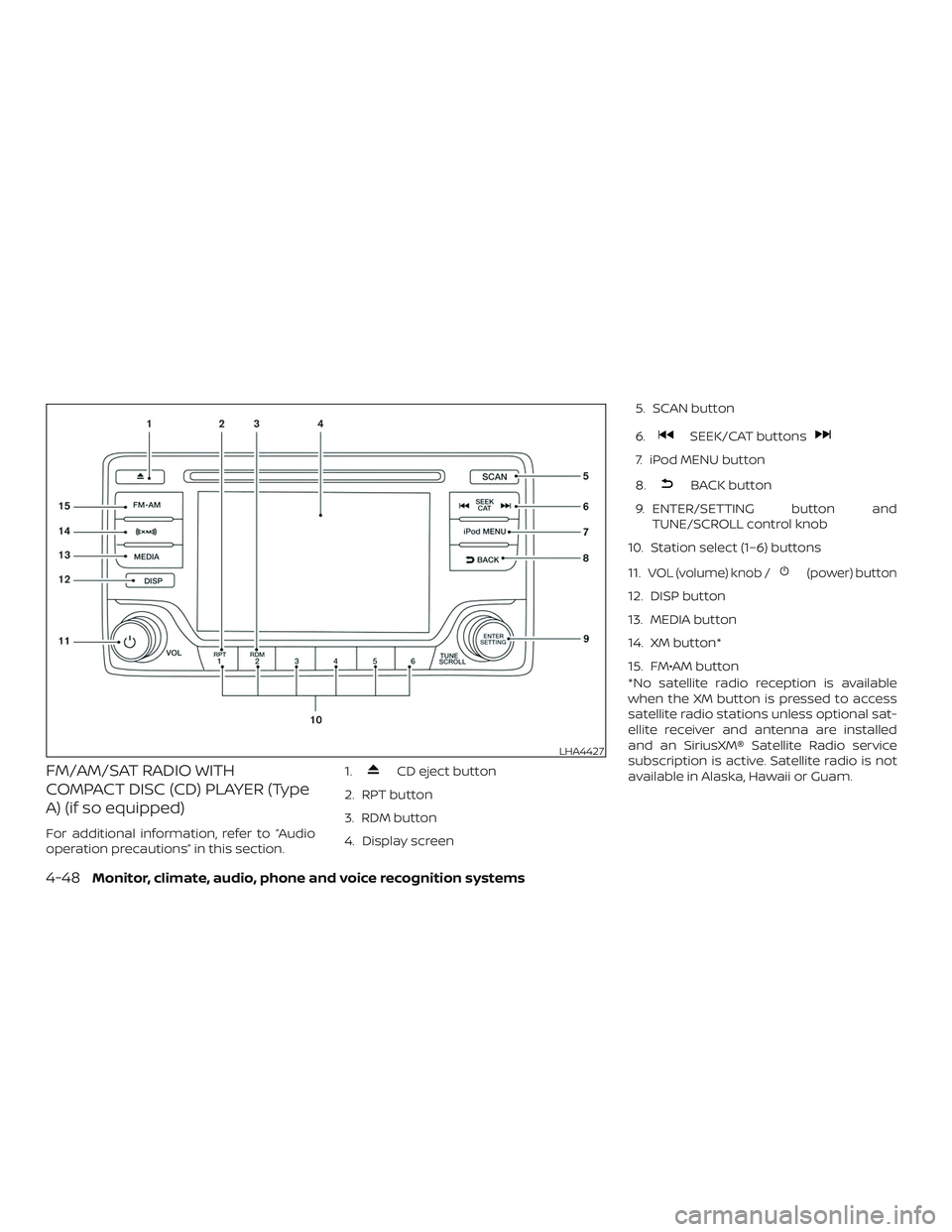
FM/AM/SAT RADIO WITH
COMPACT DISC (CD) PLAYER (Type
A) (if so equipped)
For additional information, refer to “Audio
operation precautions” in this section.1.
CD eject button
2. RPT button
3. RDM button
4. Display screen 5. SCAN button
6.
SEEK/CAT buttons
7. iPod MENU button
8.
BACK button
9. ENTER/SETTING button and TUNE/SCROLL control knob
10. Station select (1–6) buttons
11.
VOL (volume) knob /(power) button
12. DISP button
13. MEDIA button
14. XM button*
15. FM•AM button
*No satellite radio reception is available
when the XM button is pressed to access
satellite radio stations unless optional sat-
ellite receiver and antenna are installed
and an SiriusXM® Satellite Radio service
subscription is active. Satellite radio is not
available in Alaska, Hawaii or Guam.
LHA4427
4-48Monitor, climate, audio, phone and voice recognition systems
Page 248 of 507

Clock Set1. Press the ENTER/SETTING button.
2. Turn the TUNE/SCROLL knob to select CLOCK.
3. Press the ENTER/SETTING button.
4. Turn the TUNE/SCROLL knob to select “set time”.
5. Press the ENTER/SETTING button.
6. Rotate the TUNE/SCROLL knob to ad- just hours.
7. Press the ENTER/SETTING button.
8. Turn the TUNE/SCROLL knob to adjust minutes.
9. Press the ENTER/SETTING button.
10. Press the
BACK button to finish.
BACK button
Press the
BACK button to return to
the previous menu screen.
DISP (display) button
The DISP (display) button turns the display
screen on or off. iPod MENU button
This button can only be used for iPod® op-
erations. For additional information, refer to
“iPod® player operation without Navigation
System” in this section.
FM/AM/SAT radio operation
FM·AM button
Press the FM·AM button to change the
band as follows:
AM
→FM1 →FM2 →AM
If another audio source is playing when the
FM·AM button is pressed, the audio source
playing will automatically be turned off and
the last radio station played will begin play-
ing.
XM band select
Press the XM button to change the band as
follows:
XM1* →XM2* →XM3* →XM1 (satellite, if so
equipped)
When the XM button is pressed while the
ignition switch is in the ACC or ON position,
the radio will come on at the station last
played. The last station played will also come on
when the
(power) button is pressed
on.
*When the XM button is pressed, the satel-
lite radio reception will not be available un-
less an optional satellite receiver and an-
tenna are installed and a SiriusXM® Satellite
Radio service subscription is active. Satel-
lite radio is not available in Alaska, Hawaii
and Guam.
If a compact disc is playing when the XM
button is pressed, the compact disc will
automatically be turned off and the last
radio station played will come on.
TUNE/FOLDER knob (Tuning)
Turn the TUNE/FOLDER knob to the lef t or
right for manual tuning.
SEEK tuning
Press the
SEEK button orTRACK button to tune from low to high or
high to low frequencies and to stop at the
next broadcasting station.
4-50Monitor, climate, audio, phone and voice recognition systems
Page 249 of 507
SCAN tuning
Press the SCAN button to stop at each
broadcasting station for 5 seconds. SCAN
will appear on the screen while the radio is
scan tuning.
Pressing the button again during this
5 second period will stop SCAN tuning and
the radio will remain tuned to that station. If
the SCAN button is not pressed within
5 seconds, SCAN tuning moves to the next
station.
1 to 6 Station memory operations
Six stations can be set for the AM band.
Twelve stations can be set for the FM band
(6 for FM1, 6 for FM2). Eighteen channels can
be set for the satellite radio (6 for XM1, 6 for
XM2, 6 for XM3).1. Choose the radio band AM, FM1 or FM2 using the FM·AM select button, or
choose the satellite band XM1, XM2 or
XM3 using the XM button.
2. Tune to the desired station using manual, SEEK or SCAN tuning. Press
and hold any of the desired station
memory buttons (1 – 6) until the preset
number is updated on the display and
the sound is briefly muted. 3. The channel indicator will then come
on and the sound will resume. Pro-
gramming is now complete.
4. Other buttons can be set in the same manner.
If the battery cable is disconnected, or if the
fuse opens, the radio memory will be can-
celed. In that case, reset the desired sta-
tions.
Compact disc (CD) player
operation
If the radio is already operating, it automati-
cally turns off and the compact disc begins
to play.
MEDIA button
With a CD loaded, press the MEDIA button
until the CD mode is displayed on the
screen.
CD/MP3 display mode
While listening to an MP3/WMA CD, certain
text may be displayed on the screen if the
CD has been encoded with text informa-
tion. Depending on how the MP3/WMA CD
is encoded, information such as Artist,
Song and Folder will be displayed. The track number and the total number of
tracks in the current folder or on the cur-
rent disc are displayed on the screen as
well.
SEEK/CAT (Reverse or
Fast Forward) button
Press and hold the SEEK/CAT button
orfor 1.5 seconds while the compact
disc is playing to reverse or fast forward the
track being played. The compact disc plays
at an increased speed while reversing or
fast forwarding. When the button is re-
leased, the compact disc returns to normal
play speed.
SEEK/CAT button
Press the SEEK/CAT button
while a
CD or MP3/WMA CD is playing to return to
the beginning of the current track. Press
the SEEK/CAT button
several times
to skip backward several tracks.
Press the SEEK/CAT button
while a
CD or MP3/WMA CD is playing to advance
one track. Press the SEEK/CAT button
several times to skip forward several
tracks. If the last track on a CD is skipped,
the first track on the disc is played. If the last
Monitor, climate, audio, phone and voice recognition systems4-51
Page 250 of 507
track in a folder of an MP3/WMA CD is
skipped, the first track of the next folder is
played.
TUNE/SCROLL knob (MP3/WMA CD only)
If a MP3/WMA CD with multiple folders is
playing, turn the TUNE/SCROLL knob to
change folders. Turn the knob to the lef t to
skip back a folder. Turn the knob to the right
to skip ahead a folder.
RPT (repeat) button
When the RPT button is pressed while a
compact disc is playing, the play pattern
can be changed as follows:
CD:
1 Track Repeat←→OFF
CD with MP3 or WMA:
1 Folder Repeat →1 Track Repeat →OFF
1 Track Repeat: the current track will be
repeated.
1 Folder Repeat: the current folder will be
repeated.
OFF: No repeat play pattern is applied. The
indicator on the display will turn off. The current play pattern of the CD is dis-
played on the screen unless no pattern is
applied.
RDM (random) button
When the RDM button is pressed while a
compact disc is playing, the play pattern
can be changed as follows:
CD:
1 Disc Random
←→OFF
CD with MP3 or WMA:
1 Disc Random →1 Folder Random →OFF
1 Disc Random: all tracks on the disc will be
played randomly.
1 Folder Random: all tracks in the current
folder will be played randomly.
OFF: No random play pattern is applied. The
indicator on the display will turn off.
The current play pattern of the CD is dis-
played on the screen unless no pattern is
applied.
EJECT button
When the
button is pressed with a
compact disc loaded, the compact disc will
eject and the last source will be played. When the
button is pressed twice
with a compact disc loaded, the compact
disc will be ejected further for easier CD
removal. If the disc is not removed within
20 seconds, the disc will reload.
Additional features
For additional information, refer to “iPod®
player operation without Navigation Sys-
tem” in this section.
For additional information, refer to “USB
(Universal Serial Bus) connection port
(models without Navigation System)” in this
section.
For additional information, refer to
“Bluetooth® streaming audio without Navi-
gation System” in this section.
Microsof t (WMA) Obligation of Labeling
Additional Obligation of Labeling
This product is protected by certain intel-
lectual property rights of Microsof t
Corporation and third parties. Use or distri-
bution of such technology outside of this
product is prohibited without a license
from Microsof t or an authorized Microsof t
subsidiary and third parties.
4-52Monitor, climate, audio, phone and voice recognition systems
Page 251 of 507
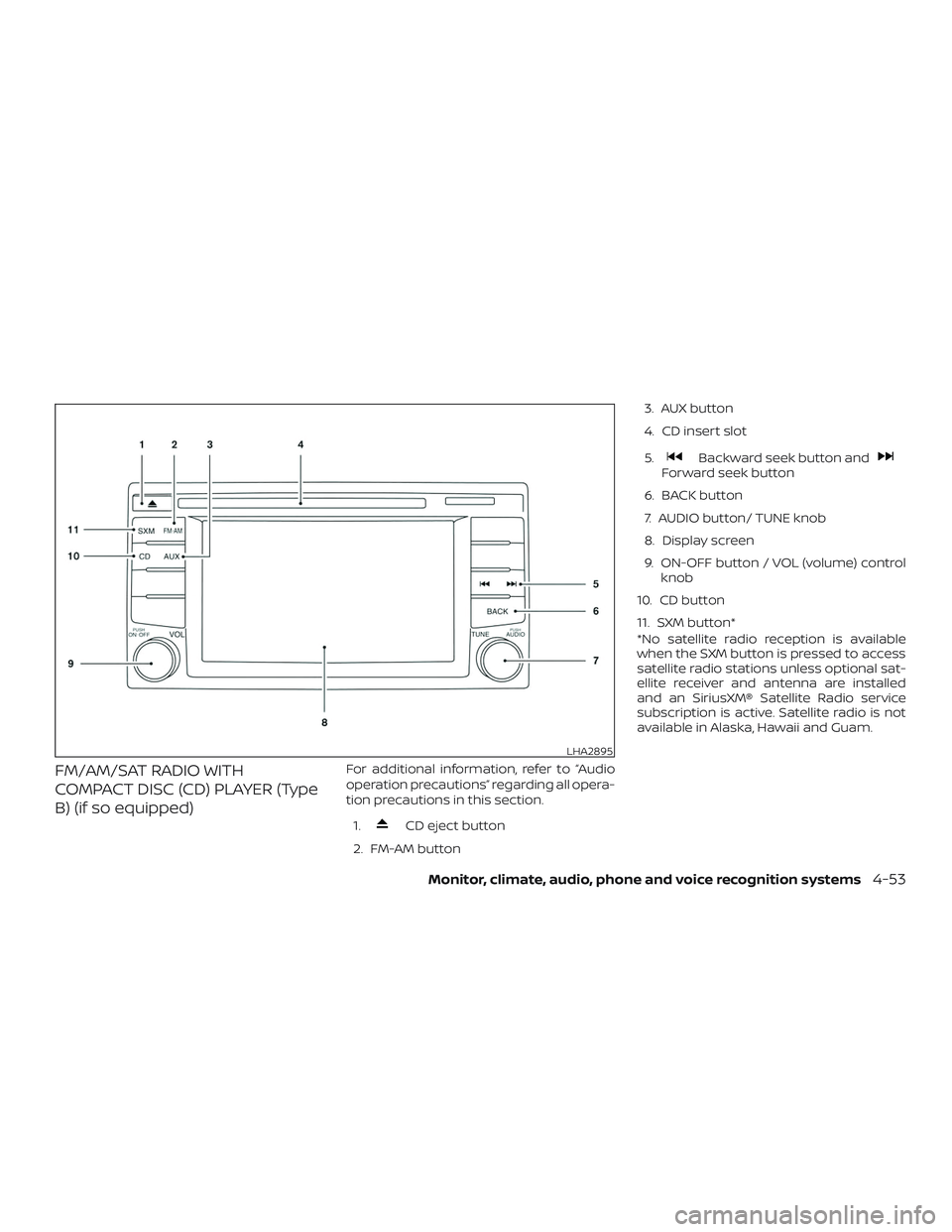
FM/AM/SAT RADIO WITH
COMPACT DISC (CD) PLAYER (Type
B) (if so equipped)For additional information, refer to “Audio
operation precautions” regarding all opera-
tion precautions in this section.1.
CD eject button
2. FM-AM button 3. AUX button
4. CD insert slot
5.
Backward seek button andForward seek button
6. BACK button
7. AUDIO button/ TUNE knob
8. Display screen
9. ON-OFF button / VOL (volume) control knob
10. CD button
11. SXM button*
*No satellite radio reception is available
when the SXM button is pressed to access
satellite radio stations unless optional sat-
ellite receiver and antenna are installed
and an SiriusXM® Satellite Radio service
subscription is active. Satellite radio is not
available in Alaska, Hawaii and Guam.
LHA2895
Monitor, climate, audio, phone and voice recognition systems4-53
Page 256 of 507
PAUSETo pause a track, press
the
pause key.
REWIND/
FA ST
FORWARD To rewind/ fast forward a
track, hold the
orseek key.
Compact disc (CD) player
operation
If the radio is already operating, it automati-
cally turns off and the compact disc begins
to play. CD button
When the CD button is pressed with the
system off and the compact disc loaded,
the system will turn on and the compact
disc will start to play.
When the CD button is pressed with a com-
pact disc loaded and the radio playing, the
radio will automatically be turned off and
the compact disc will start to play.
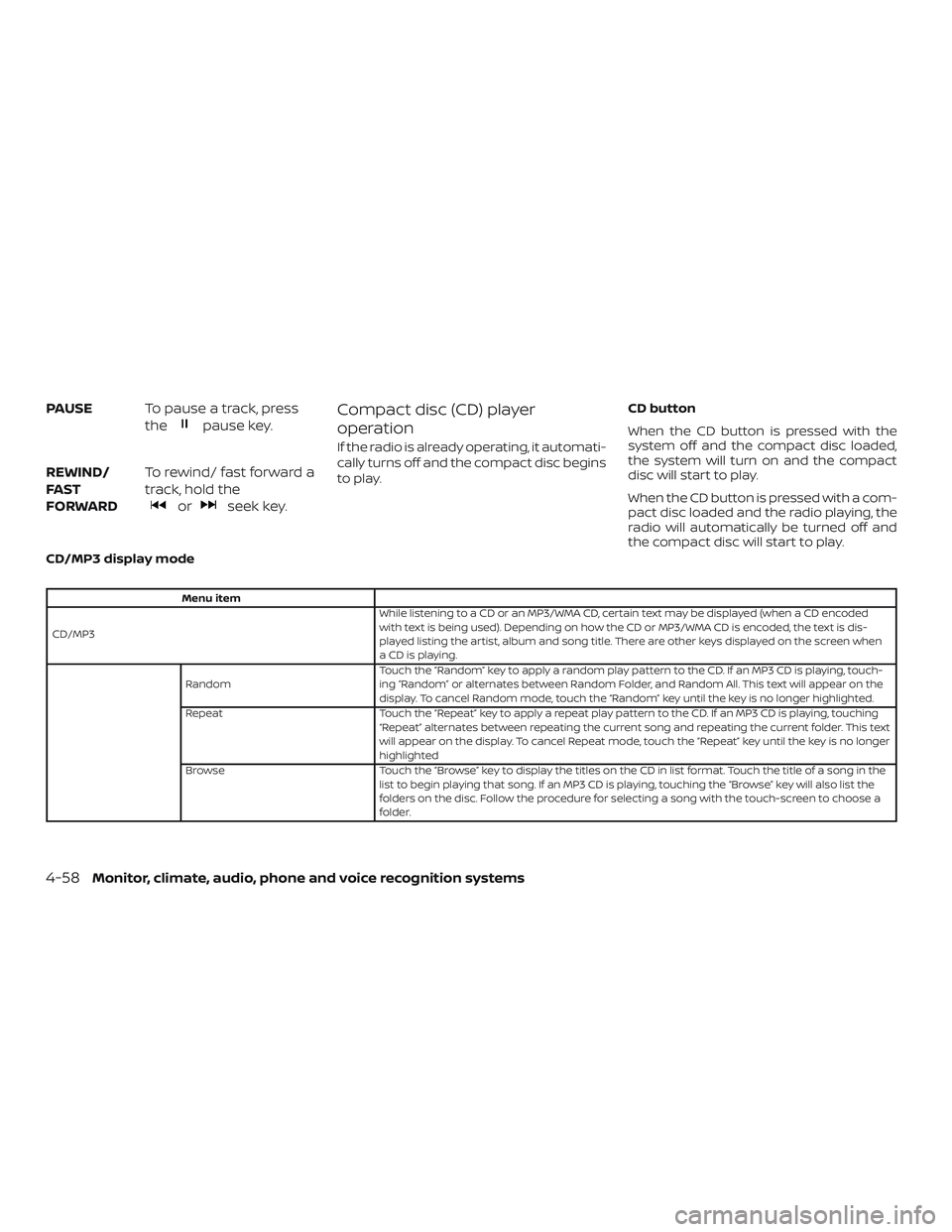
CD/MP3 display mode
Menu item
CD/MP3 While listening to a CD or an MP3/WMA CD, certain text may be displayed (when a CD encoded
with text is being used). Depending on how the CD or MP3/WMA CD is encoded, the text is dis-
played listing the artist, album and song title. There are other keys displayed on the screen when
aCDisplaying.
Random Touch the “Random” key to apply a random play pattern to the CD. If an MP3 CD is playing, touch-
ing “Random” or alternates between Random Folder, and Random All. This text will appear on the
display. To cancel Random mode, touch the “Random” key until the key is no longer highlighted.
Repeat Touch the “Repeat” key to apply a repeat play pattern to the CD. If an MP3 CD is playing, touching
“Repeat” alternates between repeating the current song and repeating the current folder. This text
will appear on the display. To cancel Repeat mode, touch the “Repeat” key until the key is no longer
highlighted
Browse Touch the “Browse” key to display the titles on the CD in list format. Touch the title of a song in the
list to begin playing that song. If an MP3 CD is playing, touching the “Browse” key will also list the
folders on the disc. Follow the procedure for selecting a song with the touch-screen to choose a
folder.
4-58Monitor, climate, audio, phone and voice recognition systems