2018 NISSAN ALTIMA ignition
[x] Cancel search: ignitionPage 208 of 467
∙ When thefront defroster button is
pressed, the air conditioner will auto-
matically be turned on at outside tem-
peratures above 36°F (2°C). The air recir-
culate mode automatically turns off,
allowing outside air to be drawn into the
passenger compartment to further im-
prove the defogging performance.
Remote Engine Start with
Intelligent Climate Control (if so
equipped)
Vehicles equipped with automatic climate
controls and Remote Engine Start function
may go into automatic heating or cooling
mode when Remote Engine Start is acti-
vated depending on outside and cabin
temperatures. During this period, the cli-
mate control display and buttons will be
inoperable until the ignition switch is
turned on. In Remote Engine Start defrost-
ing mode, the rear window defroster and
heated steering wheel (if so equipped) may
be activated automatically.
MANUAL OPERATION
Fan speed control
Press thefan speed control buttons
to manually control the fan speed.
Press the AUTO button to return to auto-
matic control of the fan speed.
Temperature control dial
The temperature control dial allows you to
adjust the temperature of the outlet air. To
lower the temperature, turn the dial to the
lef t. To increase the temperature, turn the
dial to the right. Temperature can be ad-
justed on the driver’s and passenger’s side.
Air recirculation
Press theair recirculation button to
recirculate interior air inside the vehicle.
The
indicator light on the button will
come on.
The air recirculation cannot be activated
when the air conditioner is in the
front defrosting mode.
When the outside temperature exceeds 70°F
(21°C), the air conditioning system may de-
fault to air recirculation mode automatically
to reduce overall power consumption. To exit
air recirculation mode, select the fresh air
intake button to enter fresh air mode.
Fresh air intake
Press thefresh air intake button to
draw outside air into the passenger com-
partment.
Air conditioner button
Start the engine, press thefan control
buttons to the desired position and press
the
button to turn on the air condi-
tioner. To turn off the air conditioner, press
the
button again.
The air conditioner cooling function op-
erates only when the engine is running.
Air flow control
Pressing the MODE button manually con-
trols air flow and selects the air outlet:
— Air flows from center and side vents.
— Air flows from center and sidevents and foot outlets.
— Air flows mainly from footoutlets.
— Air flows from defroster andfoot outlets.
4-22Monitor, climate, audio, phone and voice recognition systems
Page 210 of 467
∙ If you feel that the air flow mode youhave selected and the outlets the air is
coming out do not match, select
the
mode.
∙ When you change the air flow mode, you may feel air flow from the feet vents
for just a moment. This is not a mal-
function. The air conditioner system in your NISSAN
vehicle is charged with a refrigerant de-
signed with the environment in mind.
This refrigerant does not harm the
earth’s ozone layer.
Special charging equipment and lubricant
is required when servicing your NISSAN air
conditioner. Using improper refrigerants or
lubricants will cause severe damage to
your air conditioner system. For additional
information, refer to “Air conditioner sys-
tem refrigerant and oil recommendations”
in the “Technical and consumer informa-
tion” section of this manual.
It is recommended that you visit a NISSAN
dealer to service your “environmentally
friendly” air conditioner system.
WARNING
The air conditioner system contains re-
frigerant under high pressure. To avoid
personal injury, any air conditioner ser-
vice should be done only by an experi-
enced technician with proper
equipment.
RADIO
With the ignition placed in the ACC or ON
position, press the
POWER button to
turn the radio on. If you listen to the radio
with the engine not running, the ignition
should be placed in the ACC position.
Radio reception is affected by station sig-
nal strength, distance from radio transmit-
ter, buildings, bridges, mountains and other
external influences. Intermittent changes
in reception quality normally are caused by
these external influences.
Using a cellular phone in or near the ve-
hicle may influence radio reception qual-
ity.
Radio reception
Your NISSAN radio system is equipped with
state-of-the-art electronic circuits to en-
hance radio reception. These circuits are
designed to extend reception range, and to
enhance the quality of that reception.
However, there are some general charac-
teristics of both FM and AM radio signals
that can affect radio reception quality in a
moving vehicle, even when the finest
equipment is used. These characteristics
are completely normal in a given reception
SERVICING AIR CONDITIONER AUDIO SYSTEM
4-24Monitor, climate, audio, phone and voice recognition systems
Page 219 of 467
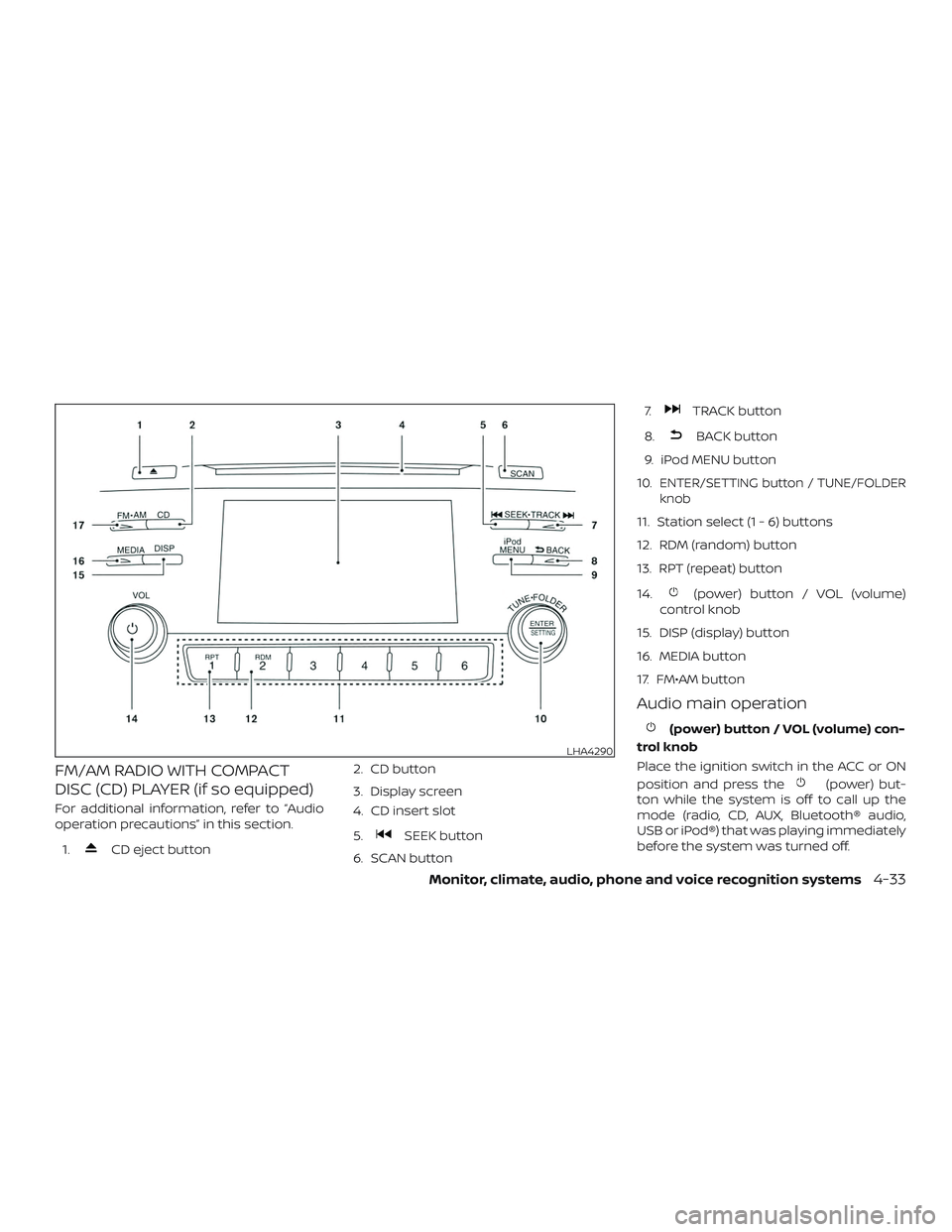
FM/AM RADIO WITH COMPACT
DISC (CD) PLAYER (if so equipped)
For additional information, refer to “Audio
operation precautions” in this section.1.
CD eject button 2. CD button
3. Display screen
4. CD insert slot
5.SEEK button
6. SCAN button 7.
TRACK button
8.
BACK button
9. iPod MENU button
10.
ENTER/SETTING button / TUNE/FOLDER
knob
11. Station select (1 - 6) buttons
12. RDM (random) button
13. RPT (repeat) button
14.
(power) button / VOL (volume)
control knob
15. DISP (display) button
16. MEDIA button
17. FM•AM button
Audio main operation
(power) button / VOL (volume) con-
trol knob
Place the ignition switch in the ACC or ON
position and press the
(power) but-
ton while the system is off to call up the
mode (radio, CD, AUX, Bluetooth® audio,
USB or iPod®) that was playing immediately
before the system was turned off.
LHA4290
Monitor, climate, audio, phone and voice recognition systems4-33
Page 224 of 467
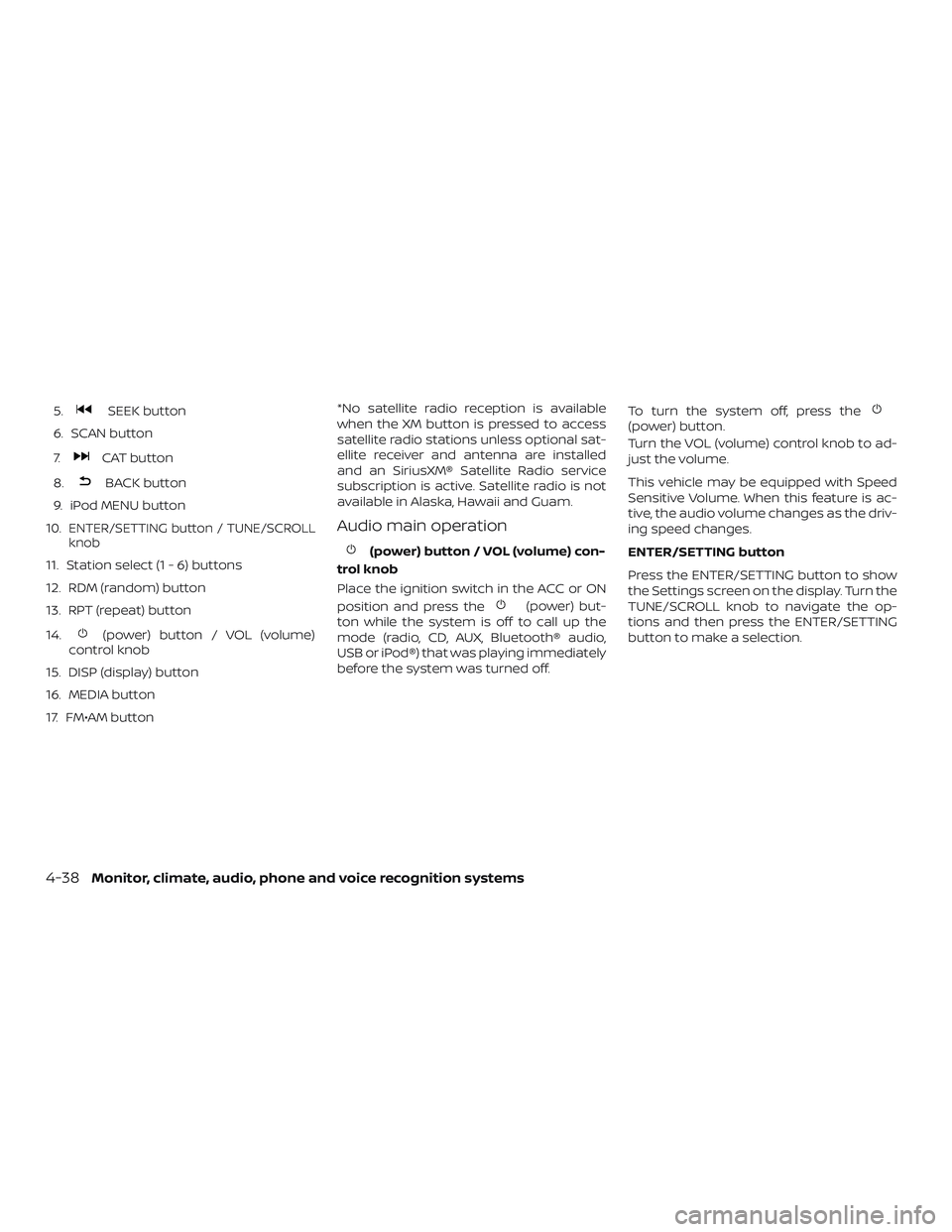
5.SEEK button
6. SCAN button
7.
CAT button
8.
BACK button
9. iPod MENU button
10.
ENTER/SETTING button / TUNE/SCROLL
knob
11. Station select (1 - 6) buttons
12. RDM (random) button
13. RPT (repeat) button
14.
(power) button / VOL (volume)
control knob
15. DISP (display) button
16. MEDIA button
17. FM•AM button *No satellite radio reception is available
when the XM button is pressed to access
satellite radio stations unless optional sat-
ellite receiver and antenna are installed
and an SiriusXM® Satellite Radio service
subscription is active. Satellite radio is not
available in Alaska, Hawaii and Guam.
Audio main operation
(power) button / VOL (volume) con-
trol knob
Place the ignition switch in the ACC or ON
position and press the
(power) but-
ton while the system is off to call up the
mode (radio, CD, AUX, Bluetooth® audio,
USB or iPod®) that was playing immediately
before the system was turned off. To turn the system off, press the
(power) button.
Turn the VOL (volume) control knob to ad-
just the volume.
This vehicle may be equipped with Speed
Sensitive Volume. When this feature is ac-
tive, the audio volume changes as the driv-
ing speed changes.
ENTER/SETTING button
Press the ENTER/SETTING button to show
the Settings screen on the display. Turn the
TUNE/SCROLL knob to navigate the op-
tions and then press the ENTER/SETTING
button to make a selection.
4-38Monitor, climate, audio, phone and voice recognition systems
Page 226 of 467
iPod MENU button
This button can only be used for iPod® op-
erations. For additional information, refer to
“iPod® player operation (models without
navigation system)” in this section.
DISP (display) button
The DISP (display) button turns the display
screen on or off.
FM/AM/SAT radio operation
FM·AM button
Press the FM·AM button to change the
band as follows:
AM→FM1 →FM2 →AM
If another audio source is playing when the
FM·AM button is pressed, the audio source
playing will automatically be turned off and
the last radio station played will begin play-
ing.
XM band select
Press the XM button to change the band as
follows:
XM1* →XM2* →XM3* →XM1 (satellite, if so
equipped) When the XM button is pressed while the
ignition switch is in the ACC or ON position,
the radio will come on at the station last
played.
The last station played will also come on
when the
(power) button is pressed
on.
*When the XM button is pressed, the satel-
lite radio reception will not be available un-
less an optional satellite receiver and an-
tenna are installed and a SiriusXM® Satellite
Radio service subscription is active. Satel-
lite radio is not available in Alaska, Hawaii
and Guam.
If a compact disc is playing when the XM
button is pressed, the compact disc will
automatically be turned off and the last
radio station played will come on.
TUNE/SCROLL knob (Tuning)
Turn the TUNE/SCROLL knob to the lef t or
right for manual tuning.
SEEK/CAT tuning
Press the
SEEK button orCAT
button to tune from low to high or high to
low frequencies and to stop at the next
broadcasting station. SCAN (tuning) button
Press the SCAN button to stop at each
broadcasting station for 5 seconds. SCAN
will illuminate in the display while scan tun-
ing. Pressing the SCAN button again during
this 5 second period will stop the scan tun-
ing and the radio will remain tuned to that
station. If the SCAN button is not pressed
within 5 seconds, scan tuning moves to the
next station.
1 to 6 Station memory operations
Six stations can be set for the AM band.
Twelve stations can be set for the FM band
(6 for FM1, 6 for FM2). Eighteen channels can
be set for the satellite radio (6 for XM1, 6 for
XM2, 6 for XM3).
1. Choose the radio band AM, FM1 or FM2 using the FM·AM select button, or
choose the satellite band XM1, XM2 or
XM3 using the XM button.
2. Tune to the desired station using manual, SEEK or SCAN tuning. Press
and hold any of the desired station
memory buttons (1 – 6) until the preset
number is updated on the display and
the sound is briefly muted.
4-40Monitor, climate, audio, phone and voice recognition systems
Page 229 of 467
CAUTION
∙ Do not force the USB device into theUSB connection port. Inserting the
USB device tilted or up-side-down
into the port may damage the port.
Make sure that the USB device is con-
nected correctly into the USB connec-
tion port.
∙ Do not grab the USB port cover (if so equipped) when pulling the USB de-
vice out of the port. This could dam-
age the port and the cover.
∙ Do not leave the USB cable in a place where it can be pulled unintentionally.
Pulling the cable may damage the
port.
For additional information, refer to your de-
vice manufacturer’s owner information re-
garding the proper use and care of the
device.
The USB port is located in the center con-
sole. Insert the USB device into the connec-
tion port.
When a compatible storage device is
plugged into the connection port, compat-
ible audio files on the storage device can be
played through the vehicle’s audio system.
Audio file operation
MEDIA button
Place the ignition switch in the ON or ACC
position and press the MEDIA button to
switch to the USB input mode. If a CD is
playing or another audio source is plugged
in through the AUX IN jack, the MEDIA but-
ton toggles between the three sources.
Play information
Information about the audio files being
played can be displayed on the display
screen of the vehicle’s audio system. De-
pending on how the audio files are en-
coded, information such as Folder, Song
and Artist will be displayed.
The track number and number of total
tracks in the folder are displayed on the
screen as well.
SEEK/CAT and TRACK (Reverse or Fast For-
ward) buttons
Press and hold the
orSEEK/CAT
and TRACK buttons for 1.5 seconds while an
audio file on the USB device is playing to
reverse or fast forward the track being
played. The track plays at an increased
speed while reversing or fast forwarding. When the button is released, the audio file
returns to normal play speed.
SEEK/CAT and TRACK
buttons
Press the SEEK/CAT and TRACK
buttons
while an audio file on the
USB device is playing to return to the begin-
ning of the current track. Press the
SEEK/CAT and TRACK buttons
sev-
eral times to skip backward several tracks.
Press the SEEK/CAT and TRACK
buttons
while an audio file on the
USB device is playing to advance one track.
Press the SEEK/CAT and TRACK
buttons
several times to skip forward
several tracks. If the last track in a folder on
the USB device is skipped, the first track of
the next folder is played.
RDM (random) button
When the RDM button is pressed while an
audio file on the USB device is playing, the
play pattern can be changed as follows:
All Random →1 Folder Random →OFF
All Random: all tracks on the USB device will
be played randomly.
1 Folder Random: all tracks in the current
folder will be played randomly.
Monitor, climate, audio, phone and voice recognition systems4-43
Page 231 of 467
CAUTION
∙ Do not force the USB device into theUSB port. Inserting the USB device
tilted or up-side-down into the port
may damage the port. Make sure that
the USB device is connected correctly
into the USB connection port.
∙ Do not grab the USB port cover (if so equipped) when pulling the USB de-
vice out of the port. This could dam-
age the port and the cover.
∙ Do not leave the USB cable in a place where it can be pulled unintentionally.
Pulling the cable may damage the
port.
For additional information, refer to your de-
vice manufacturer’s owner information re-
garding the proper use and care of the
device.
To connect an iPod® to the vehicle so that
the iPod® can be controlled with the audio
system controls and display screen, use
the USB connection port located in the
center console. Connect the iPod®-specific
end of the cable to the iPod® and the USB
end of the cable to the USB connection
port. on the vehicle. If your iPod® supports
charging via a USB connection, its battery will be charged while connected to the ve-
hicle with the ignition switch in the ACC or
ON position.
While connected to the vehicle, the iPod®
can only be operated by the vehicle audio
controls.
To disconnect the iPod® from the vehicle,
remove the USB end of the cable from the
USB connection port. on the vehicle, then
remove the cable from the iPod®.
* iPod® is a trademark of Apple Inc., regis-
tered in the U.S. and other countries.
Compatibility
The following models are compatible:
∙ iPod® Classic - 5th Generation (firmware version 1.3.0 or later)
∙ iPod® Classic - 6th Generation (firm- ware version 2.0.1 or later)
∙ iPod® Classic - 7th Generation (firmware version 2.0.4 or later)
∙ iPod® nano - 1st generation (firmware version 1.3.1 or later)
∙ iPod® nano - 2nd generation (firmware version 1.1.3 or later) ∙ iPod® nano - 3rd generation (firmware
version 1.1.3 or later)
∙ iPod® nano - 4th generation (firmware version 1.0.4 or later)
∙ iPod® nano - 5th generation (firmware version 1.0.2 or later)
∙ iPod® nano - 6th generation (firmware version 1.1 or later)
∙ iPod® Touch - 2nd generation (firmware version 4.2.1 or later)
∙ iPod® Touch - 3rd generation (firmware version 5.1 or later) (minimum iOS 5.0
required for smartphone integration)
∙ iPod® Touch - 4th generation (firmware version 5.1 or later) (minimum iOS 5.0
required for smartphone integration)
∙ iPhone® 3G (firmware version 4.2.1 or later)
∙ iPhone® 3GS (firmware version 5.1 or later) (minimum iOS 5.0 required for
smartphone integration)
∙ iPhone® 4 (firmware version 5.1 or later) (minimum iOS 5.0 required for smart-
phone integration)
Monitor, climate, audio, phone and voice recognition systems4-45
Page 232 of 467
∙ iPhone® 4S (firmware version 5.1 or later)(minimum iOS 5.0 required for smart-
phone integration)
∙ iPhone®5 (firmware version 5.1 or later) (minimum iOS 5.0 required for smart-
phone integration)
Make sure that your iPod® firmware is up-
dated to the version indicated above.
Audio main operation
Place the ignition switch in the ACC or ON
position. Press the MEDIA button repeat-
edly to switch to the iPod® mode.
If the system has been turned off while the
iPod® was playing, pressing the
ENTER/SETTING or MENU button will start
the iPod®.
iPod MENU button
Press the iPod MENU button while the
iPod® is connected to show the iPod® op-
eration menu on the audio display. Scroll
through the menu list using the
TUNE/FOLDER or TUNE/SCROLL control
dial. Press ENTER/SETTING button to select
a menu item. Items in the iPod® menu ap-
pear on the display in the following order: ∙ Now playing ∙ Playlists
∙ Artists
∙ Albums
∙ Songs
∙ Podcasts
∙ Genres
∙ Composers
∙ Audiobooks
∙ Shuffle songs
For additional information about each
item, refer to the iPod® Owner’s Manual.
SEEK/CAT and TRACK buttons
When the
SEEK orCAT/TRACK
button is pressed for less than 1.5 seconds
while the iPod® is playing, the next track or
the beginning of the current track on the
iPod® will be played.
When the
SEEK orCAT/TRACK
button is pressed for more than 1.5 sec-
onds while the iPod® is playing, the iPod®
will play while fast forwarding or rewinding.
When the button is released, the iPod® will
return to the normal play speed. REPEAT (RPT)
When the RPT button is pressed while a
track is being played, the play pattern can
be changed as follows:
Repeat Off
→1 Track Repeat →All Repeat →
Repeat Off
1 Track Repeat: the current track will be
repeated.
All Repeat: all songs in the current list are
repeated.
Repeat Off: no repeat play pattern is ap-
plied.
RANDOM (RDM)
When the RDM button is pressed while a
track is being played, the play pattern can
be changed as follows:
Shuffle Off →Track Shuffle →Album Shuffle
→ Shuffle Off
Track Shuffle: the tracks in the current list
will be played randomly.
Album Shuffle: the albums in the current list
will be played randomly.
Shuffle Off: no random play pattern is ap-
plied.
4-46Monitor, climate, audio, phone and voice recognition systems