2018 MERCEDES-BENZ GLS SUV wheel
[x] Cancel search: wheelPage 98 of 194

Selecting and placing a call using the multifunc-
tion steering wheel (see vehicle Operator's Man-ual)
Further information about ending a call
(
Ypage 98).
Using speed dial
Option 1
XTo call up the telephone menu: press the
% button.
XTo highlight a number from the character bar:
turn the controller.
XPress the controller for longer than two sec-
onds.
The telephone menu displays the selected
entry. The number is dialed.
Option 2
XTo call up the telephone menu: press the
% button.
XTo switch to the menu bar: slide 6the con-
troller.
XTo select Call Lists: turn and press the
controller.
XTo select Speed Dial Preset List: turn
and press the controller.
The speed dial list is displayed.
XTo select an entry and make a call: turn and
press the controller.
The telephone menu displays the selected
entry. The number is dialed.
Further information on setting up speed dial
(
Ypage 110).
Further information about ending a call
(
Ypage 98).
Functions available during a call
Overview
:Adds a call (Ypage 96)
;Person you are calling
=Symbol for active telephone connection
?Ends a call
ASwitches the microphone on/off
(Ypage 97)
BSends DTMF tones (not possible with all
mobile phones) (Ypage 97)
Other functions:
RAccepting a waiting call (Ypage 98)
RCall waiting (Ypage 97)
RConducting a conference call (Ypage 97)
Availability depends on the network (only pos-
sible on GSM networks) and the Bluetooth
®
mobile phone.
Adding a call
:Adds a call
If the mobile phone network provider and the
mobile phone support the function, you can
make another call during an existing call. The
previously active call is held.
XTo select °2: turn and press the controller.
XTo make a call, e.g.:
96Using the telephone
Telephone
Page 99 of 194

RUsing the telephone menu (Ypage 95)
RUsing redial (Ypage 95)
RUsing the call lists (Ypage 95)
RUsing the phone book (Ypage 95)
RUsing speed dial (Ypage 96)
Switching the microphone on or off
This function is available in the telephone menu
during an active phone call.
Switching off the microphone:
XTo switch to the menu bar: slide6the con-
troller.
XTo select Microphone Off: turn and press
the controller.
If the microphone is switched off, the Q
symbol and the The microphone is off.
message are displayed.
Switching on the microphone:
XSelect Microphone On.
The Qsymbol disappears. The The micro‐
phone is on.message is shown.
Sending DTMF tones
This function is not supported by all mobile
phones.
Answering machines or other devices can be
controlled by DTMF tones, e.g. for remote query
functions.
XIf you would like to listen to the messages on
your answering machine, for example, dial the
corresponding number.
Transmitting individual characters
XOnce a connection has been established to
the answer phone, select the desired charac-
ters in the telephone menu: turn and press the
controller each time.
or
XPress the corresponding key on the number
keypad.
Every character selected will be transmitted
immediately.
Calls with several participants
Switching between calls (call waiting)
If you make another call, you can switch
between the two calls (call waiting). This func-
tion depends on your mobile phone network
provider and the mobile phone (see the manu-
facturer's operating instructions).
The calls are marked 1 and 2. The active call is
highlighted.
Switching between the calls
XPress 6on the multifunction steering
wheel.
or
XTo select °1or°2: turn and press the con-
troller.
The selected call is active. The other call is on
hold.
Ending the active call
XTo select =in the telephone menu: turn
and press the controller.
or
XPress ~on the multifunction steering
wheel.
The other call is still on hold.
XTo activate the call on hold: select wResume.
The call on hold is activated. If you select
=
HangUp, the call on hold is also ended.
iOn some mobile phones, the call on hold is
activated as soon as the active call is ended.
Conference call
This function depends on your mobile phone
network provider and the mobile phone (see the
manufacturer's operating instructions). You can
interconnect active and held calls. This permits
Using the telephone97
Telephone
Z
Page 100 of 194

several parties to hear one another and speak
with one another.
XAdd a call (Ypage 96).
or
XAnswer an incoming call (Ypage 98).
XTo select Conferencein the telephone menu:
turn and press the controller.
The new participant is included in the confer-
ence call. Conference Call
is displayed in
the telephone menu.
Incoming call during an existing call
(call waiting)
The call waiting function depends on your
mobile phone network provider and your mobile
phone. Depending on the mobile phone used,
behavior when answering a call may vary (see
the manufacturer's operating instructions).
Call waiting: if you receive a call while already
in a call, a message is shown. You also hear a
tone. You can decide whether to accept or reject
the call.
Accepting
XTo select wAccept: press the controller.
or
XPress 6on the multifunction steering
wheel.
The incoming call is active. Depending on the
mobile phone used, the call which was previ-
ously active is put on hold or ended (see the
manufacturer's operating instructions). If the
call is on hold, you can switch back and forth
between the two calls (call waiting)
(
Ypage 97).
iDepending on the mobile phone, you may
also be able to accept the incoming call (call
waiting) on your mobile phone. This function
and behavior depends on your mobile phone network provider and the mobile phone (see
the manufacturer's operating instructions).
Rejecting
XTo select =Reject: turn and press the
controller.
or
XPress ~on the multifunction steering
wheel.
The behavior after the call is rejected depends
on your mobile phone and mobile phone net-
work provider.
Option 1: The originally active call is ended
and the incoming call is accepted.
Option 2: Both calls are ended.
Ending an active call
XTo select =in the telephone menu: turn
and press the controller.
or
XPress ~on the multifunction steering
wheel.
The active call is ended.
Mobile phone voice recognition
You can start or end voice recognition on your
mobile phone with this function. Further infor-
mation on the voice recognition service; see the
manufacturer's operating instructions.
Starting the mobile phone voice recognition
XConnect the mobile phone to the multimedia
system (Ypage 90).
XPress and hold the óbutton on the multi-
function steering wheel for more than one
second.
You can now use the mobile phone voice rec-
ognition.
Ending the mobile phone voice recognition
XPress 8on the multifunction steering
wheel.
The mobile phone voice recognition is stop-
ped.
98Mobile phone voice recognition
Telephone
Page 101 of 194

Phone book
Introduction
The phone book displays the contacts from the
address book which have a phone number.
The phone book of the mobile phone is auto-
matically displayed in the multimedia system
after the connection is established (default set-
ting). You can deactivate automatic calling up
(
Ypage 106).
In the telephone book, you can:
RCreate new contacts (Ypage 100)
RAdd information to contacts (Ypage 101)
RSearch for contacts (Ypage 99)
RStore contacts (Ypage 102)
RDelete contacts (Ypage 102)
Further information on importing contacts
(
Ypage 107).
When you import, save, edit or add contacts,
they will be permanently saved in the multime-
dia system. These contacts will remain available
even when you connect the multimedia system
to a different mobile phone. You can view these contacts even without a mobile phone.
Calling up the phone book
XTo call up the telephone menu: press the
% button.
XTo select Namein the telephone menu: turn
and press the controller.
If the phone book contains contacts, they will
be displayed in alphabetical order. The char-
acter bar at the bottom of the display is active.
You can now search for a contact
(
Ypage 99).
Further information on the symbols shown
(
Ypage 99).
iYou can also call up the phone book with the
multifunction steering wheel; see the Vehi-
cles Operator's Manual.
Symbol overview
Sym-
bolExplanation
ÆContact that has been entered, edi-
ted or saved in the multimedia sys-
tem
\Contact with voice tag
These contacts have also been
assigned a voice tag. For more infor-
mation, see the separate operating
instructions.
ÃContact that was called up from a
mobile phone
¯Contact imported from the SD mem-
ory card or USB device
®Contact imported via the Bluetooth®
interface
Searching for a contact
Using the character bar
You determine the first letter of the contact you
are looking for with the first character you enter.
XTo select characters: turn the controller and
press to confirm.
The first contact with the selected first char-
acter is highlighted in the phone book. If there
are similar contacts, the next different char-
acter is shown. For example, with contacts
such as Jana
andJohn, the beginnings of the
Phone book99
Telephone
Z
Page 102 of 194
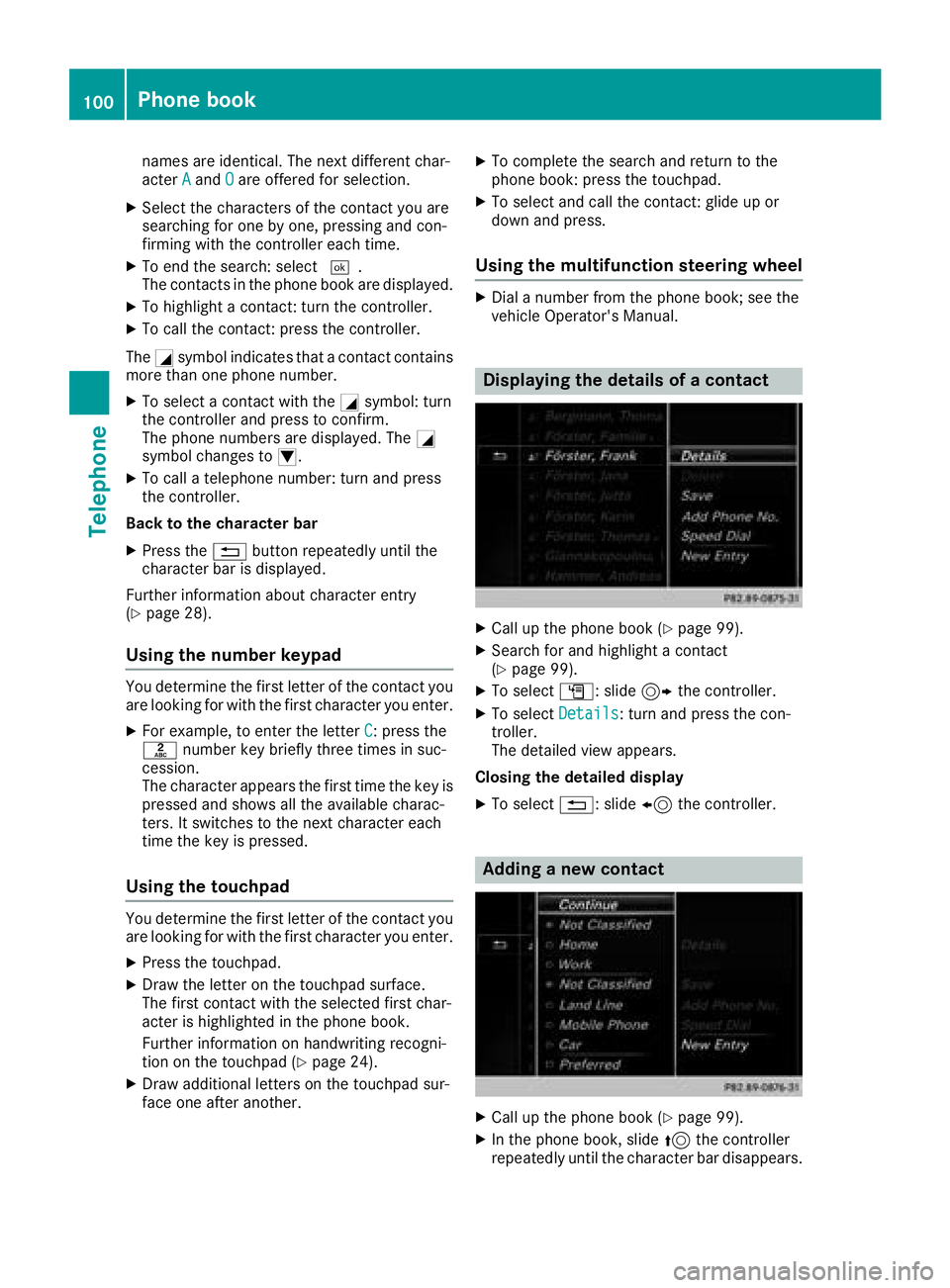
names are identical. The next different char-
acterAandOare offered for selection.
XSelect the characters of the contact you are
searching for one by one, pressing and con-
firming with the controller each time.
XTo end the search: select ¬.
The contacts in the phone book are displayed.
XTo highlight a contact: turn the controller.
XTo call the contact: press the controller.
The Gsymbol indicates that a contact contains
more than one phone number.
XTo select a contact with the Gsymbol: turn
the controller and press to confirm.
The phone numbers are displayed. The G
symbol changes to I.
XTo call a telephone number: turn and press
the controller.
Back to the character bar
XPress the %button repeatedly until the
character bar is displayed.
Further information about character entry
(
Ypage 28).
Using the number keypad
You determine the first letter of the contact you
are looking for with the first character you enter.
XFor example, to enter the letter C: press the
l number key briefly three times in suc-
cession.
The character appears the first time the key is
pressed and shows all the available charac-
ters. It switches to the next character each
time the key is pressed.
Using the touchpad
You determine the first letter of the contact you
are looking for with the first character you enter.
XPress the touchpad.
XDraw the letter on the touchpad surface.
The first contact with the selected first char-
acter is highlighted in the phone book.
Further information on handwriting recogni-
tion on the touchpad (
Ypage 24).
XDraw additional letters on the touchpad sur-
face one after another.
XTo complete the search and return to the
phone book: press the touchpad.
XTo select and call the contact: glide up or
down and press.
Using the multifunction steering wheel
XDial a number from the phone book; see the
vehicle Operator's Manual.
Displaying the details of a contact
XCall up the phone book (Ypage 99).
XSearch for and highlight a contact
(Ypage 99).
XTo select G: slide 9the controller.
XTo select Details: turn and press the con-
troller.
The detailed view appears.
Closing the detailed display
XTo select %: slide 8the controller.
Adding a new contact
XCall up the phone book (Ypage 99).
XIn the phone book, slide 5the controller
repeatedly until the character bar disappears.
100Phone book
Telephone
Page 120 of 194

Calling up and using the dictation
function
XSelect theomicrophone.
The app for the dictation function is loaded.
If there was no prior Internet connection, a
connection is now established.
XTo start the dictation function: press the
controller.
XSay your message.
The dictation ends automatically after you
have finished speaking.
After the spoken message has been pro-
cessed, it is shown as text on the display.
XTo select words: turn and press the control-
ler.
XIn the correction menu, you can:
Radjust capitalization of words (if supported
by the character set)
Radd words
Rdelete words
Rreplace the dictated message with a new
one
XTo exit the menu: selectDone.
Send message
The dictated text is displayed in the message
input window.
XEnter the telephone number or e-mail address
into the addressee line.
XTo send the message: select OK.
Apple CarPlay™
Introduction
iPhone®functions can be used via the multime-
dia system using Apple CarPlay™. Apple Car-
Play™ can be operated using the controller or
Siri
®voice-operated control system. Whether
selected buttons are supported in the vehicle
depends on the iOS version of the mobile phone
and the apps available. You will find an overview
of the multimedia system's control panel and
available buttons here (
Ypage 18).
To activate voice-operated control, press and
hold the óbutton on the multifunction steer-
ing wheel (
Ypage 98). Apple CarPlay™ is only available for Apple
®mobile phones (see the
manufacturer's operating instructions). The
availability of Apple CarPlay™ may vary by coun-
try and depending on vehicle equipment.
During Apple CarPlay™ use, various multimedia system functions, such as navigation, are not
available.
The provider is responsible for its application
and related services and content.
Requirements
RApple CarPlay™ is available from the iPhone®
5. Mercedes-Benz recommends that you use
the latest operating system on the iPhone®.
RYou require a connector cable for the
iPhone®.
RThe full range of functions for Apple CarPlay™is only possible when the Apple CarPlay™-
capable mobile phone is connected to the
Internet.
Connecting the iPhone®with the mul-
timedia system
In order to be able to use Apple CarPlay™, a
connection must be established between the
iPhone
®and the multimedia system.
XConnect the iPhone®via a connection cable
to the USB port ç.
The first time you connect an Apple CarPlay™-
capable mobile phone to the multimedia sys-
tem or switch between Apple CarPlay™-capa-
ble mobile phones, a prompt appears asking
whether you want future activation to be auto-
matic or manual.
Activating Apple CarPlay™
Automatic activation
XTo select Auto: press the controller.
Apple CarPlay™ will start automatically each
time a connection has been established
between the iPhone
®and the multimedia sys-
tem.
Manual activation
118Apple CarPlay™
Telephone
Page 123 of 194

XPress and hold the?button on the multi-
function steering wheel.
Depending on the mobile phone a tone
sounds.
Ending Android Auto™
Mercedes-Benz recommends that you cancel
Android Auto™ only when the vehicle is station-
ary.
XTerminate the USB connection between the
mobile phone and the multimedia system.
The No
AndroidAutoDeviceConnectedPlease ensure that your device isconnected to the correct USB port.message appears in the multifunction display
Transmitted vehicle data
When using Android Auto™, specific vehicle
data are transmitted to the mobile phone. This
makes it possible to use selected mobile phone
services efficiently. The mobile phone does not
have active access to vehicle data.
The following system information is transmitted:
RVehicle model
RVehicle model year
RMultimedia system software version
These data are transmitted in order to optimize
communication between the vehicle and mobile
phone.
A random vehicle code is generated for this pur-
pose and in order to assign multiple vehicles to
the mobile phone.
This code is not related to the vehicle identifi-
cation number (VIN) and is deleted if the multi-
media system is reset (
Ypage 42).
The following driving status data is transmitted:
RGear position engaged
RDifference between parked, stationary,
coasting and driving
RInstrument cluster day/night mode
These data are transmitted in order to adapt the
content displayed to the driving situation.
The following position data is transmitted:
RGPS coordinates
RSpeed
RCompass direction
RAcceleration direction
RGyroscopic effects
These data are transmitted only when naviga-
tion is active in order to improve navigation (e.g.
when driving through a tunnel).
If you do not wish to have your vehicle data
transmitted, you can deactivate automatic start-
ing of Android Auto™ (
Ypage 120) and briefly
terminate the mobile phone's USB connection
to the vehicle.
Android Auto™121
Telephone
Z
Page 154 of 194

XTo selectConnectviaAudioDevice: turn
and press the controller.
A message appears.
XStart the authorization on your Bluetooth®
audio device (see the manufacturer's operat- ing instructions).
After successful authorization, the Blue-
tooth
®audio device is connected and starts
playing.
With some Bluetooth
®audio devices, playback
must initially be started on the device itself, so
that the multimedia system can play the audio
data.
Displaying details
XTo select a Bluetooth®audio device from the
Bluetooth®device list: turn the controller
(Ypage 151).
XTo select G: slide 9the controller.
XTo select Details: turn and press the con-
troller.
The following information concerning the
selected mobile phone is shown:
RBluetooth®name
RBluetooth®address
RAvailability status (shown after an update)
RAuthorization status
XTo close the detailed display: press the
% button.
Starting/stopping playback
XTo selectstart play back Ì:turn and
press the controller.
Playback starts. Ëis selected.
XTo stop playback:selectË.
A message appears. Ìis selected.
XTo continue playback: select Ì.
A message appears. Ëis selected.
Starting playback if the Bluetooth®
audio device has been stopped
During the search for mobile phones
(
Ypage 91), the connection with the Bluetooth®
audio device is terminated. The NoBluetooth
AudioDeviceConnectedmessage appears in
the Bluetooth®audio basic display
(Ypage 150). The ConnectLastUsedPlayermessage cannot be confirmed.
When the search is finished, the Bluetooth®
audio device can be reconnected.
XTo select start playback Ì:slide6
and press the controller.
Playback resumes from the beginning.
XTo confirm the ConnectLastUsedPlayermessage in the basic display: press the con-
troller.
Depending on the Bluetooth
®audio device
used, playback starts immediately or you
must start playback manually.
In this case, you will see the Bluetooth
Audio Device Pausedmessage.
Selecting a track
The function is not supported by all Bluetooth®
audio devices.
Some mobile phones impair function with
regard to the following criteria:
Rthe number of tracks that can be selected.
Rthe time period until the next or previous track
is played.
XUse the multifunction steering wheel to
switch to the media menu in the on-board
computer; see the vehicle Operator's Manual.
XTo skip forward or back to a track: press
the 9 or: button on the multifunction
steering wheel.
XRapid scroll: press and hold the 9
or : button on the multifunction steering
wheel until the desired track is reached.
If you press and hold the 9or: but-
tons, the rapid scrolling speed increases after a short time.
Further ways to select tracks (
Ypage 146).
iIn rapid scroll, track names are not shown,
but instead only Track1, Track2 etc. The play-
back times for the tracks played are not dis-
played. This is available as an optional func-
tion starting with AVRCP Version 1.3. There is also no music search option available with
Bluetooth
®Audio.
152Bluetooth®audio mode
Media