2018 MERCEDES-BENZ C-CLASS COUPE key
[x] Cancel search: keyPage 298 of 593

Wi
-Fi Wi
-Fi connection overview
Yo u can use Wi-Fi toestablish a connection with
a Wi -Fi network and toaccess the Internet or
ot her network devices.
The following connection options are available:
R Wi-Fi connection
The Wi-Fi connection toaWi -Fi-capable
device, e.g. the cus tomer's mobile phone or
a ta blet PC is es tablished.
R Multimedia sy stem as a Wi-Fi hotspot
Using this function, a tablet PC or no tebook
can be connec ted, forex ample.
To establish a connection, you can use thefo l‐
lowing me thods:
R WPS PIN
The connection toa secure Wi-Fi network is
made via a PIN.
R WPS PBC
The connection toa secure Wi-Fi network is
made bypressing a button (push button).
R Security key The connection
toa secure Wi-Fi network is
made via a secu rity key.
Setting up Wi-Fi
Requ irements:
R The device tobe connec ted supports one of
th eth re e means of connection described
(0013 page 295).
Multimedia sy stem:
0018 System 0019
ö Connectivity
Ac tivating/deactivating Wi-Fi 0007
Switch Wi-Fion0073 or off 0053.
If Wi-Fi is deactivated 0053, communication via
Wi -Fi toall devices is inter rupte d. This also
means that a connection tothe HERMES
communication module cann otbe es tab‐
lished. Then functions such as dynamic route
guidance with Live Traf fic Information are not
av ailable.
Connecting the multimedia sy stem with a
device via Wi-Fi
This function is available if a HERMES communi‐
cation module is not ins talled. The type of connection es
tablished must be
selected on the multimedia sy stem and on the
device tobe connec ted.
0009 The connection procedure may dif fer
depending on the device. Follow the instruc‐
tions that are shown in the displa y.Fu rther
information (see the manufacturer's operat‐
ing instructions). 0007
Select Internet settings . 0007
Select Search for Wi-Fi networks.
Using a security key 0007
Select a Wi-Fi network in the list. 0007
Have the security key displa yed on the device
to be connec ted (see the manufacturer's
operating instructions). 0007
Ente rth is security key on the multimedia sys‐
te m. 0007
Confirm the entry with¡.
0009 All devices support a security key as a
means of connection. Multimedia sy
stem 295
Page 300 of 593

Connecting using a security
key0007
Select Connect device to vehicle hotspot .
A secu rity key is displa yed. 0007
Select theve hicle from the device tobe con‐
nec ted. The vehicle is displa yed with the
SSID MB Hotspot XXXXX .0007
Enter the security key which is shown in the
media display on the device tobe connec ted. 0007
Confirm the entry.
Connecting using NFC 0007
Select Establish a connection via NFC. 0007
Activate NFC on the mobile device (see the
manufacturer's operating instructions). 0007
Bring the mobile device into the NFC area of
th eve hicle (0013 page 338). 0007
Select Done.
The mobile device is now connected tothe
multimedia sy stem hotspot via NFC.
Generating a new security key: 0007
Select Set up hotspot . 0007
Select Generate security key .
A connection will be es tablished with the
newly crea ted security key. 0007
Tosave a security key:select Save.
When a new security key is sa ved, all existing
Wi -Fi connections are then disconnected. If
th eWi -Fi connections are being re-es tab‐
lished, the new security key must be en tere d. Managing COMAND
Touch devices Re
quirements:
R The COMAND Touch app is ins talled on the
ex tern al device (e.g. tablet or smartphone).
R Wi-Fi is acti vated (0013 page 295) and the
multimedia sy stem is confi gured as a Wi-Fi
hotspot (0013 page 296).
Multimedia sy stem:
0018 System 0019
COMAND Touch
Connecting and authorising a new device 0007
Select Authorise a new device. 0007
Select Connect new device. 0007
Ente rth e security key in theex tern al device.
The Please start COMAND Touch on your
device and follow the instructions. message
appears. 0007
Select Continue. 0007
Accept the connection requ est from the new
device. 0007
Ente rth e PIN shown on theex tern al device.
The device is authorised.
Au thorising a connected device 0007
Select Authorise a new device.
The devices already connec ted are displa yed. 0007
Select Continue using connected devices.
The Please start COMAND Touch on your
device and follow the instructions. message
appears. 0007
Select Continue. 0007
The connection requ est from the device
Accept. 0007
Ente rth e PIN shown on theex tern al device.
The device is authorised. Multimedia sy
stem 297
Page 342 of 593

Multimedia sy
stem:
0018 Telephone 0019
Z Options
0019 Telephone
This function ensures optimal language qualit y. 0007
Select Reception volume orTransmission
volume. 0007
Set thevo lume.
Fu rther information on there commended recep‐
tion and transmission volume: http://
www.me rcedes-benz.com/connect
Ad justing the call and ringtone volume
Multimedia sy stem:
0018 System 0019
õ Audio 0019
Telephone 0007
Select Speech volume orRingtone volume . 0007
Set thevo lume.
St arting/ stopping mobile phone voice recog‐
nition
Re quirements:
R The mobile phone is connec tedto the multi‐
media sy stem (0013 page 335). St
arting mobile phone voice recognition 0007
Press and hold the00E3 button on the multi‐
function steering wheel for more than one
second.
Yo u can use mobile phone voice recognition.
St opping mobile phone voice recognition 0007
Press the0063 or0076 button on the multi‐
function steering wheel. Calls
Te
lephone operation
Multimedia sy stem:
0018 Telephone 0019
ª Contacts
Making a call 0007
Select Numerical keypad. 0007
Ente rth e number. 0007
Select 0097.
The call is made.
Ac cepting a call 0007
Select Accept. Re
jecting a call 0007
Select Reject.
Ending a call 0007
Select 005A.
Ac tivating functions during a call 0007
Toshow all functions, navigate down.
The following functions are available during a
call:
R End call
R Make additional call
R Keyboard (showtosend DTMF tones)
R Switch Mute mic on0073 or off 0053.
R Private mode (an activecall in hands-free
mode is transfer redove rto thete lephone)
Conducting calls with se veral participants
Requ irements:
R There is an active call (0013 page 339).
R Another call is being made. Multimedia sy
stem 339
Page 375 of 593

Ac
tivating/deactivating full-screen mode
Multimedia sy stem:
0018 Media 0019
à Media sources 0007
Select a data storage medium.
Pla yable video files are pla yed bac k. 0007
Toactivate full-screen mode: select0008
Full screen. 0007
Todeactivate full-sc reen mode: pressthe
to uchpad.
Changing video settings
Multimedia sy stem:
0018 Media 0019
Z Options
0019 Picture format
The following picture form ats are available:
R Automatic
R 16:9
R 4:3
R Zoom 0007
Select a picture form at. Ad
justing the brightness manually
If th eAutomatic pictureform at is swit ched off,
yo u can adjust the brightness yourself. 0007
Select Brightness. 0007
Adjust the brightness. Media sear
ch St
arting the media sear ch
Multimedia sy stem:
0018 Media 0019
ª Search
Depending on the connected media sources and
fi les, thefo llowing categories are lis ted:
R Current track list
R Keyword search
R Playlists
R Artists
R Albums
R Tracks
R Folders
R Music genres
R Year R
Composers
R Videos
R Podcasts (Apple®
devices)
R Audiobooks (Apple®
devices) 0007
Select a categor y.
0009 The categories are available as soon as the
entire media conte nt has beenread in and
anal ysed. Media Inter
face Information about
the Media Inter face
Media In terface is a universal inter face forthe
connection of mobile audio equipment. The mul‐
timedia sy stem has two USB ports. The USB
ports are located in thestow age compartment
under the armrest.
Suppor ted devices
The Media Inter face allo wsyouto connect the
fo llowing data storage media:
R iPod ®
R iPhone ® 372
Multimedia sy stem
Page 520 of 593
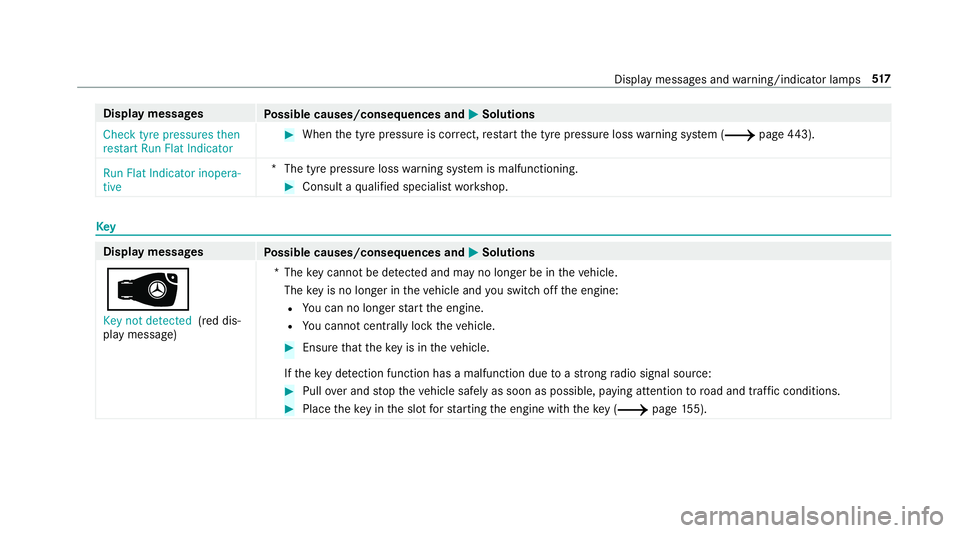
Display messages
Possible causes/consequences and 0050
0050Solutions
Check tyre pressures then
restart Run Flat Indicator 0007
When the tyre pressure is cor rect, restart the tyre pressure loss warning sy stem (0013 page443).
Run Flat Indicator inopera-
tive *T
he tyre pressure loss warning sy stem is malfunctioning. 0007
Consult a qualified specialist workshop. Key
Display messages
Possible causes/consequences and 0050 0050Solutions
00AF Key not detected (red dis‐
play message) *T
hekey cannot be de tected and may no longer be in theve hicle.
The key is no lon ger in theve hicle and you swit choff the engine:
R You can no lon gerst art the engine.
R You cannot centrally lock theve hicle. 0007
Ensure that theke y is in theve hicle.
If th eke y de tection function has a malfunction due toast ro ng radio signal source: 0007
Pull over and stop theve hicle safely as soon as possible, paying attention toroad and traf fic conditions. 0007
Place theke y in the slot forst arting the engine with theke y (0013 page155). Displ
aymessa ges and warning/indicator lamps 517
Page 521 of 593

Display messages
Possible causes/consequences and 0050
0050Solutions
00AF Replace key *T
hekey needs tobe replaced. 0007
Consult a qualified specialist workshop.
00AF Key not detected (white
display message) *T
hekey is cur rently und etected. 0007
Change the location of theke y in theve hicle. 0007
Ifth eke y is still not recognised, start the engine with theke y in the slot (0013 page155).
00AF Cha nge key batteries *T
hekey bat tery is dischar ged. 0007
Replace the battery (0013 page73).
00AF
Place the key in the
marked space See Owner's
Manual *T
hekey de tection function is malfunctioning. 0007
Change the location of theke y in theve hicle. 0007
Start theve hicle with theke y in the slot (0013 page155). 518
Displaymessa ges and warning/indicator lamps
Page 522 of 593

Display messages
Possible causes/consequences and 0050
0050Solutions
, Replace key See Owner's
Manual *
Ve hicles with a digital vehicle key:only a few or no authorisations remain forst arting the engine. 0007
Make sure that the internet connection is not limited bycer tain mobile phone settings. 0007
Open the Mercedes me connect http://www.mercedes.me and call up the digital vehicle key service. 0007
Deactivate the service firs t and then activate it again. 0007
Ifth e display message still appears, con tact the Mercedes-Benz Cus tomer Assis tance Center (C AC).
Ve hicles with a digital vehicle keyst icke r:on lyafe w or no authorisations remain forst arting the engine. 0007
Order a new digital vehicle keyst icke r from a Mercedes-Benz Service Centre or at http://www.mercedes-
benz.com/connect. Ve
hicle Display messages
Possible causes/consequences and 0050 0050Solutions
00CA Trailer coupling extending… *E
xtending or retracting the ball nec k.
Do not attem pttospeed up, slow down or initiate there tracting or extending process using your hand, foot or other
aids. During there tracting or extending process, do not couple a traile r.
When the ball neck has reached an operational position, the display message disappears.
00CA *
Yo u ha veattem pted todisplace the ball neck and the transmission is in position 005E,005Cor005B. 0007
Depress the brake pedal. 0007
Shift the transmission toposition 005D. Display messages and
warning/indicator lamps 519
Page 553 of 593

Making ................................................ 339
Vi ath eove rhead control panel
(Mercedes me connect) ....................... 351
Camera see 360° Camera
see Reversing camera
Car key
see Key
Car wash
see Care
Car wash (care) ........................................4 01
Care .......................................................... 408
Air-water duct ...................................... 400
Car wash ............................................. 401
Carpet .................................................4 08
Decorative foil .................................... .404
Displ ay................................................ 408
Exterior lighting ................................... 406
High-pressure cleaner ......................... 401
Matt finish ........................................... 403
Pa int wo rk ............................................ 403
Plastic trim .......................................... 408
Re alwo od/trim elements ...................4 08
Re versing camera ................................ 406 Ro
of lining ...........................................4 08
Seat belt .............................................. 408
Seat co ver ........................................... 408
Sensors ............................................... 406
Ta ilpipes .............................................. 406
Tr ailer hit ch......................................... 406
Wa shing byhand ................................. 402
Wheels/rims ....................................... 406
Wi ndo ws .............................................. 406
Wi per blades .......................................4 06
Carpet (Care) .......................................... .408
Changing gears ........................................ 16 9
Manually ..............................................1 69
Changing hub caps ................................. 449
Changing the lights
Driving abroad (symm etrical dipped
beam) .................................................. 12 6
Cha rging
Bat tery (vehicle) .................................. 423
Chassis Damping characteristics ...................... 218
DY NA MIC BODY CONTROL .................. 218Child saf
ety lock
Ac tivating/deactivating (multimedia
sy stem) ............................................... 298
Child seat Appr oval categories .............................. .55
At tach ing (no tes) ................................... 54
Basic instructions .................................. 48
Fr ont passenger seat (no tes) ................. 68
Fr ont passenger seat (without auto‐
matic airbag shutoff) ............................. 67
ISOFIX/i-Size (fitting) ............................ 60
No tes on risks and dangers ...................49
Re commended child restra int sys‐
te ms ...................................................... 52
Seats suita blefor belt-secu redch ild
re stra int sy stems ................................... 64
Seats suitable for i‑Size child
re stra int sy stems ................................... 59
Seats suitable for ISOFIX child
re stra int sy stems ................................... 57
Secu ring on the front passenger seat ....69
Secu ring on there ar seat ...................... 66
To pTe ther ..............................................62
Child ren
Av oiding dangers in theve hicle .............49 550
Index