2018 MERCEDES-BENZ AMG GT R-ROADSTER trip computer
[x] Cancel search: trip computerPage 174 of 473
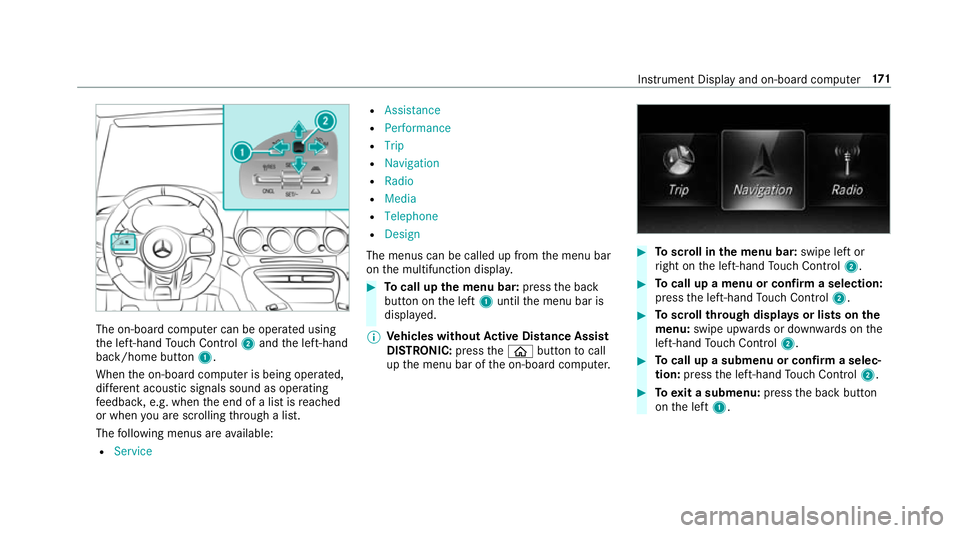
The on-board computer can be operated using
th e left-hand Touch Control 2and the left-hand
back/home button 1.
When the on-board computer is being operated,
dif fere nt acoustic signals sound as operating
fe edbac k,e.g. when the end of a list is reached
or when you are sc rolling thro ugh a list.
The following menus are available:
R Service R
Assistance
R Performance
R Trip
R Navigation
R Radio
R Media
R Telephone
R Design
The menus can be called up from the menu bar
on the multifunction displa y. #
Tocall up the menu bar: pressthe back
button on the left 1until the menu bar is
displa yed.
% Ve
hicles without Active Di stance Assist
DISTRO NIC:press theò button tocall
up the menu bar of the on-board computer. #
Toscroll in the menu bar: swipe left or
ri ght on the left-hand Touch Control 2. #
Tocall up a menu or confirm a selection:
press the left-hand Touch Control 2. #
Toscroll through displa ysor lists on the
menu: swipe upwards or down wards on the
left-hand Touch Control 2. #
Tocall up a submenu or confirm a selec‐
tion: press the left-hand Touch Control 2. #
Toexit a submenu: pressthe back button
on the left 1. Instrument Display and on-board computer
171
Page 175 of 473
Setting
the design
On-board computer: 4 Design
The following designs can be selec ted:
R Supersport
R Sport
R Classic #
Toselect a design: swipe upwards or down‐
wa rds on the left-hand Touch Control. #
Press the left-hand Touch Control.
The instrument displ ayis shown in the selec‐
te d design. Setting
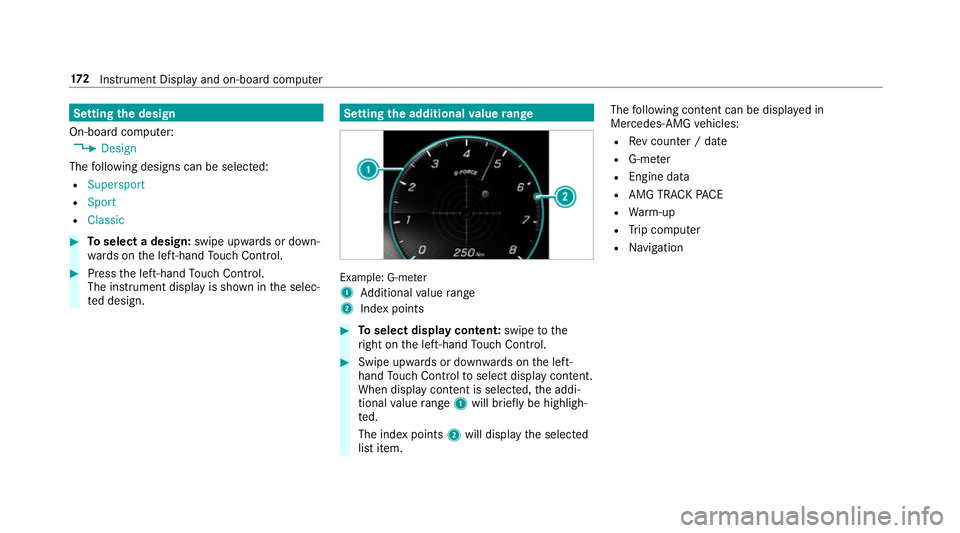
the additional value range Example: G-me
ter
1 Additional value range
2 Index points #
Toselect display content: swipetothe
ri ght on the left-hand Touch Control. #
Swipe upwards or down wards on the left-
hand Touch Control toselect display content.
When display content is selected, the addi‐
tional value range 1will brie fly be highligh‐
te d.
The index points 2will display the selected
list item. The
following con tent can be displ ayed in
Mercedes-AMG vehicles:
R Rev counter / date
R G-me ter
R Engine da ta
R AMG TR ACKPA CE
R Warm-up
R Trip computer
R Navigation 17 2
Instrument Display and on-board computer
Page 180 of 473
#
Select Lap List.
The lap statistics will be displa yed. #
Display thest atistics of the next lap byswip‐
ing up or down on the left-hand Touch Con‐
trol.
The fastest lap is indicated byflashing sym‐
bol 1. #
Torese t:stop RACETIMER and press the
left-hand Touch Control. #
Select Resetand press the left-hand Touch
Control.
All laps will be dele ted. Calling up displa
yson the trip menu On-board computer:
4 Trip
% You can view information about the journey
in the left-hand area of the instrument dis‐
pla y. #
Toselect a displa y:swipe upwards or down‐
wa rds on the left-hand Touch Control. Displa
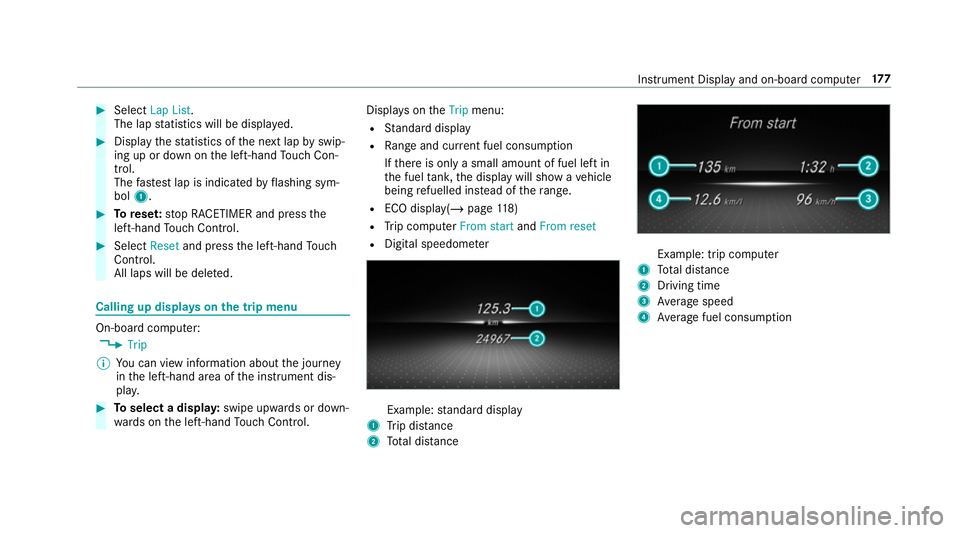
yson theTrip menu:
R Standard display
R Range and cur rent fuel consu mption
If th ere is only a small amount of fuel left in
th e fuel tank, the display will show a vehicle
being refuelled ins tead of thera nge.
R ECO displ ay(/ page 118)
R Trip computer From startandFrom reset
R Digital speedom eter Example:
standard display
1 Trip dis tance
2 Total dis tance Example: trip compu
ter
1 Total dis tance
2 Driving time
3 Average speed
4 Average fuel consum ption Instrument Display and on-board computer
17 7
Page 181 of 473
Re
setting values on the trip menu of the on-
board compu terOn-board computer:
4 Trip
% The spelling on the main menu displa yed
may dif fer. Therefore, obser vethe menu
ove rview forth e instrument display
(/ page 170).
Yo u can reset theva lues of thefo llowing func‐
tions:
R Trip dis tance
R Trip computer From startandFrom reset
R ECO displa y(/ page 118) #
Toselect the function tobe rese t:swipe
upwards or down wards on the left-hand
To uch Control. #
Press the left-hand Touch Control. #
Select Yes. #
Press the left-hand Touch Control. If
yo u press and hold the left-hand Touch Con‐
trol, theva lues of the function will be reset
immediatel y. Calling up navigation instructions on
the on-
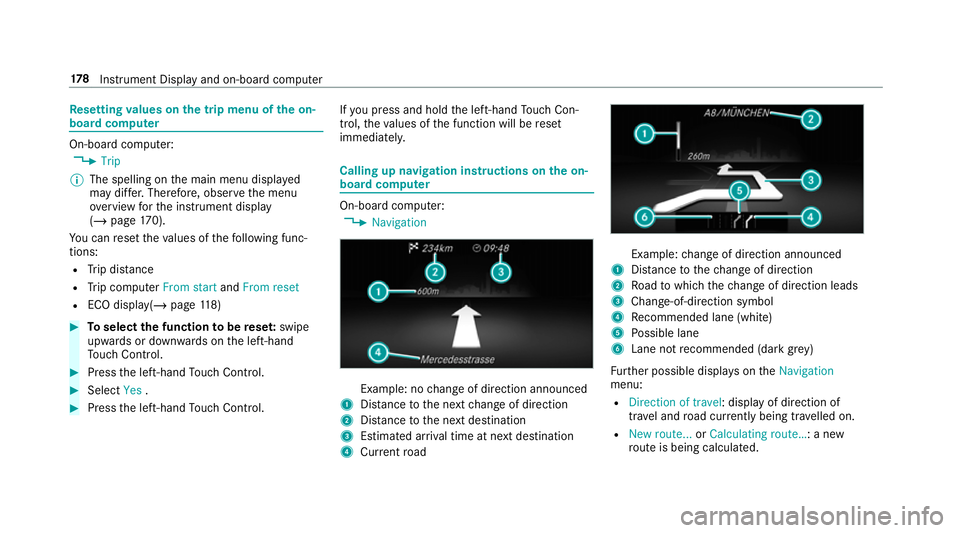
board compu ter On-board computer:
4 Navigation Example: no
change of direction announced
1 Distance tothe next change of direction
2 Distance tothe next destination
3 Estimated ar riva l time at next destination
4 Current road Example:
change of direction announced
1 Distance tothech ange of direction
2 Road towhich thech ange of direction leads
3 Chan ge-of-direction symbol
4 Recommended lane (white)
5 Possible lane
6 Lane not recommended (da rkgrey)
Fu rther possible displa yson theNavigation
menu:
R Direction of travel: display of direction of
tra vel and road cur rently being tr avelled on.
R New route... orCalculating route… : a new
ro ute is being calculated. 17 8
Instrument Display and on-board computer
Page 464 of 473
Extending a Li
veTraf fic Information
subscription ........................................ 236
Issuing hazard warnings ...................... 238
Live Traf fic Information ....................... 236
Overview ............................................. 236
Re gis tering Live Traf fic Information ..... 236
Tr af fic information service volume
increase
Setting ................................................ .295
Tr af fic map
see Map
Tr af fic Sign Assist .................................. .164
Fu nction/no tes ................................... 16 4
Setting ................................................. 16 6
Sy stem limitations ...............................1 64
Tr ansfer redve hicle data
Android Auto ....................................... 263
Apple CarPl ay™ ................................... 263
Tr ansmission position display ................121
Tr anspo rting
Ve hicle ................................................ 339
Tr im element (Care) .................................321 Tr
ip
Menu (on-board computer) .................. 17 7
Tr ip computer
Displaying ............................................ 17 7
Re setting ............................................. 178
Tr ip distance ............................................ 17 7
Displ aying ............................................ 17 7
Re setting ............................................. 178
Tr ip me ter
see Trip dis tance
Tu rn signal indicator
see Turn signal lights
Tu rn signal lights ....................................... 99
Switching on/off ................................... 99
TV .............................................................. 189
Ac tivating ............................................ 297
Ad justing the brightness ..................... 303
Calling up the menu (CI+ module) .......3 03
Displ ays in theTV control menu .......... 299
Fu nction/no tes (audio language,
subtitles) ............................................. 301
Information .......................................... 295
Overview ............................................. 298
Picture settings ................................... 303 Picture settings
overview .................... 302
Setting subtitles .................................. 302
Setting the audio language .................. 301
Showing telete xt ................................. .302
Showing/hiding full screen ................. 299
Te lete xt overview ................................. 302
Vo ice commands (LINGU ATRO NIC) .....1 89
TV channel
Ac tivating/deactivating channel fix ..... 300
Channel fix .......................................... 300
Channel li stove rview .......................... 300
EPG (elect ronic programme guide) ...... 300
Overview of favo urites ........................ .300
Quick sa ve........................................... 301
Selecting from thech annel list ............ 299
Selecting from the control menu ......... 299
Selecting from thefa vo urites .............. 299
Selecting in the bac kground ................ 299
St oring .................................................3 01
Tw o phone mode
see Second telephone
Ty re inflation compressor
see TIREFIT kit Index
461