2018 MERCEDES-BENZ AMG GT R-ROADSTER steering wheel
[x] Cancel search: steering wheelPage 165 of 473
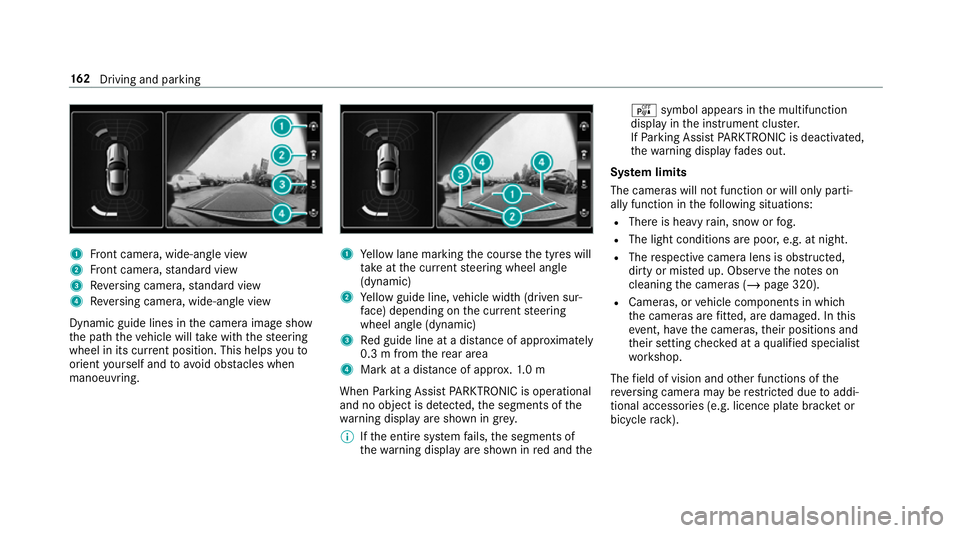
1
Front camera, wide-angle view
2 Front camera, standard view
3 Reversing camera, standard view
4 Reversing camera, wide-an gle view
Dynamic guide lines in the camera image show
th e path theve hicle will take with thesteering
wheel in its cur rent position. This helps youto
orient yourself and toavoid obs tacles when
manoeuvring. 1
Yellow lane marking the course the tyres will
ta ke atthe cur rent steering wheel angle
(dynamic)
2 Yellow guide line, vehicle width (driven sur‐
fa ce) depending on the cur rent steering
wheel angle (dynamic)
3 Red guide line at a dis tance of appr oximately
0.3 m from there ar area
4 Mark at a dis tance of appr ox.1. 0 m
When Parking Assist PARKTRONIC is operational
and no object is de tected, the segments of the
wa rning display are shown in grey.
% Ifth e entire sy stem fails, the segments of
th ewa rning display are shown in red and the é
symbol appears inthe multifunction
display in the instrument clus ter.
If Pa rking Assist PARKTRONIC is deacti vated,
th ewa rning display fades out.
Sy stem limits
The cameras will not function or will only parti‐
ally function in thefo llowing situations:
R There is heavy rain, snow or fog.
R The light conditions are poor, e.g. at night.
R The respective camera lens is obstructed,
dirty or mis ted up. Obser vethe no tes on
cleaning the cameras (/ page 320).
R Cameras, or vehicle components in which
th e cameras are fitted, are dama ged. In this
eve nt, ha vethe cameras, their positions and
th eir setting checked at a qualified specialist
wo rkshop.
The field of vision and other functions of the
re ve rsing camera may be restricted due toaddi‐
tional accesso ries (e.g. licence plate brac ket or
bicycle rack ). 16 2
Driving and pa rking
Page 170 of 473
R
Narrow vehicles, e.g. bicycles, are within the
monitoring range.
Wa rnings may be issued in er ror when driving
close tocrash ba rriers or similar solid lane bor‐
ders. Warnings may be inter rupte d when driving
alongside long vehicles, forex ample lor ries, for a
prolonged time.
Blind Spot Assist is not operational when reve rse
ge ar is engaged.
Ac tivating/deactivating Blind Spot Assi stor
Ac tive Blind Spot Assi st
Multimedia sy stem:
4 Vehicle 5
k Assistance
5 Blind Spot Assist #
Activate Oor deacti vate ª the function. Lane
Keeping Assist Fu
nction of Lane Keeping Assist Lane
Keeping Assist monitors the area in front of
yo ur vehicle bymeans of multifunction camera
1. It ser vesto protect you against unin tention‐
ally le aving your lane. You will be warned by
means of a vibration in thesteering wheel.
Yo u are warned byvibration pulses in thesteer‐
ing wheel in thefo llowing circums tances:
R Lane Keeping Assist de tects lane markings.
R A front wheel passes over the lane markings. Whe
ther a warning is issued and when this
occurs also depends on the selected sensitivity
setting (s tanda rdor adaptive).
Lane Keeping Assist can neither reduce therisk
of an accident if youfa ilto adapt your driving
st yle nor override the la wsof ph ysics. It cannot
ta ke into account road, weather or traf fic condi‐
tions. Lane Keeping Assist is only an aid. You are
re sponsible for maintaining a safe dis tance to
th eve hicle in front, forve hicle speed, for braking
in good time and forst ay ing in lane.
Lane Keeping Assist is available in the speed
ra nge between 60 km/h and 200 km/h.
Sy stem limitations
The sy stem may be impaired or may not function
in thefo llowing situations:
R Ifth ere is poor visibility, e.g. due toinsuf fi‐
cient illumination of thero ad, if there are
highly variable shade conditions or in rain,
sno w,fog or heavy spr ay.
R Ifth ere is glare, e.g. from oncoming traf fic,
th e sun or reflections. Driving and parking
167
Page 184 of 473
wa
rds on the left-hand touch cont rolto
select the desired telephone number. #
Press the left-hand Touch Control.
The telephone number will be dialled.
The following displa ysmay appear ins tead of the
te lephone numbers dialled:
R Please wait... :th e application is starting. If a
Blue tooth ®
connection tothe mobile phone
is not es tablished, the menu for auth orising
and connecting a mobile phone will be dis‐
pla yed on the multimedia sy stem
(/ page 247).
R Updating data...: the call list is being upda‐
te d.
R Importing contacts... : contacts are being
impor ted from the mobile phone or a storage
medium.
Ac cepting/rejecting a call #
Swipe upwards or down wards on the left-
hand Touch Control and select 6(Accept)
or ~ (Reject). #
Press the left-hand Touch Control. Yo
u may accept/ reject the call using button
6 or~ onthesteering wheel. Instrument Display and on-board computer
181
Page 185 of 473
Note
s on operating saf ety&
WARNING Risk of di stra ction from infor‐
mation sy stems and communications
equipment
If yo u operate information and communica‐
tion equipment integ rated in theve hicle
when driving, you will be distracted from the
traf fic situation. This could also cause youto
lose control of theve hicle. #
Only operate this equipment when the
traf fic situation permits. #
Ifyo u cannot be sure of this, stop the
ve hicle whilst paying attention toroad
and traf fic conditions and ope rate the
equipment with theve hicle stationar y. &
WARNING Risk of di stra ction from oper‐
ating mobile communication equipment
while theve hicle is in motion
If yo u operate mobile communication equip‐
ment when driving, you will be distracted from
the tra ffic situation. This could also
cause youto lose control of theve hicle. #
Only operate this equipment when the
ve hicle is stationar y. Fo
ryo ur ow n sa fety, al ways obser vethefo llow‐
ing points when operating mobile communica‐
tions equipment and especially your voice con‐
trol sy stem:
R Obser vethe legal requ irements forth e coun‐
try in which you are driving.
R While driving, on ly operate mobile communi‐
cations equipment and your voice control
sy stem when the tra ffic conditions permit it.
Yo u may otherwise be distracted from the
traf fic conditions and cause an accident,
inju ring yourself and others.
R Ifyo u use thevo ice control sy stem in an
emer gency your voice can change and your
te lephone call, e.g. an emer gency call, can
th ereby be unnecessarily dela yed.
R Familiarise yourself with thevo ice control
sy stem functions before starting the journe y. Operation
Overview of operation of LINGU
ATRO NIC on
the multifunction steering wheel LINGU
ATRO NIC is operational appr oximately
th irty seconds af terth e ignition is switched on.
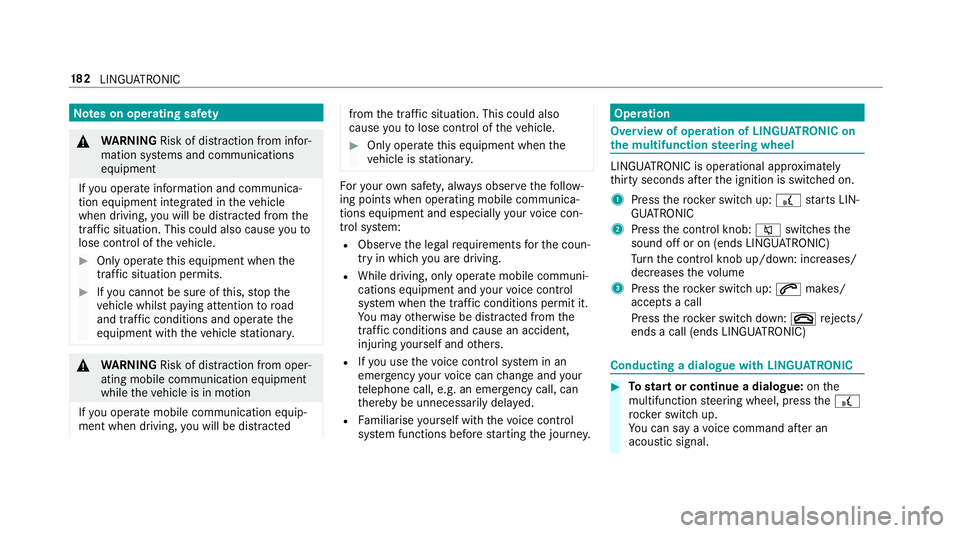
1 Press therock er switch up: £starts LIN‐
GU ATRO NIC
2 Press the control knob: 8switches the
sound off or on (ends LINGU ATRO NIC)
Tu rn the control knob up/down: increases/
decreases thevo lume
3 Press therock er switch up: 6makes/
accepts a call
Press therock er switch down: ~rejects/
ends a call (ends LINGU ATRO NIC) Conducting a dialogue with LINGU
ATRO NIC #
Tostart or continue a dialogue: onthe
multifunction steering wheel, press the£
rock er switch up.
Yo u can say a voice command af ter an
acou stic signal. 18 2
LINGU ATRO NIC
Page 204 of 473
#
Select Rename . #
Enter thech aracters. #
Toconfirm the entr y:select ¡.
Moving favo urites #
Press the© button.
The main functions are displa yed. #
Navigate down wards once. #
Select a favo urite. #
Navigate down wards once.
The Favourites menu appears. #
Select Move. #
Movethefa vo urite tothe desired position.
If a favo urite has already been added at this
position, it will be overwritten.
Deleting favo urites #
Press the© button.
The main functions are displa yed. #
Navigate down wards once. #
Select a favo urite. #
Navigate down wards once.
The Favourites menu appears. #
Todel ete: select Delete. #
Select Yes. #
Toresto reall favo urites: selectReset all.
A prom ptappears. #
Select Yes.
The favo urites are reset tothefa ctory set‐
tings. Switching the sound on/o
ff #
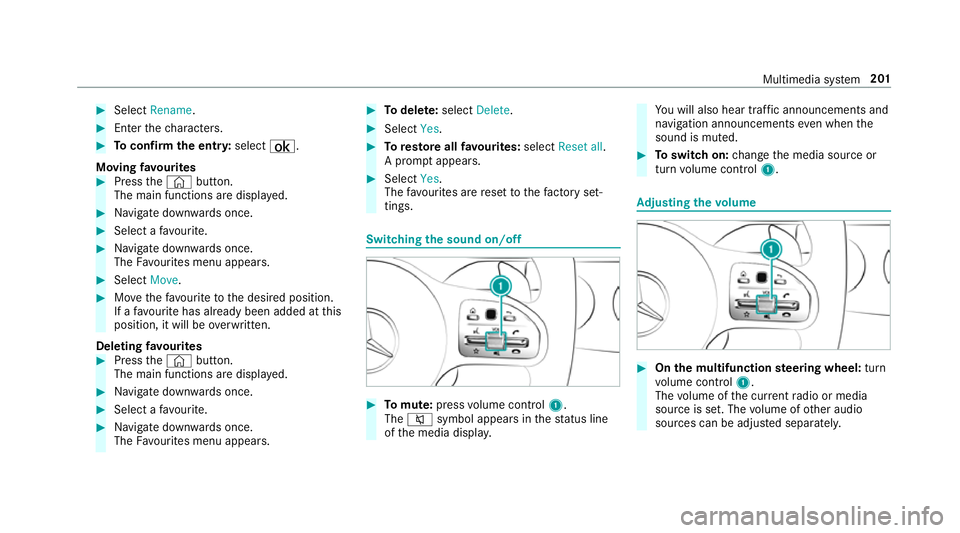
Tomute: pressvolume control 1.
The 8 symbol appears in thest atus line
of the media displa y. Yo
u will also hear traf fic announcements and
navigation announcements even when the
sound is muted. #
Toswitch on: change the media source or
turn volume control 1. Ad
justing the volume #
On the multifunction steering wheel: turn
vo lume control 1.
The volume of the cur rent radio or media
source is set. The volume of other audio
sources can be adjus ted separatel y. Multimedia sy
stem 201
Page 220 of 473
#
Select Start Record .
Measu rement is incremental, in steps of
50 km/h toast andstill. If the braking proce‐
dure is star ted e.g. at a speed of 160 km/h,
measurement starts as soon as 150 km/h
has been reached.
St oring and calling up measurement values
When a measurement has been comple ted or
cancelled, the measured time can be stored. #
After a measu rement, select Save measure-
ment? .
The stored measurements can be displa yed via
th eHistory menu item.
Editing measu rements #
Select History . #
Highlight the desired measurement. #
Select Üoptions. #
Select Weather orDelete.
% The measurements can be displa yedby cate‐
gor y,e.g. acceleration measurements, by
applying a filter. Calling up
thete lemetry display Multimedia sy
stem:
4 Vehicle 5
TRACK PACE 5
Telemetry
The telemetry display sho wscurrent vehicle data
as a digital value and as a diagram. Uptofour
parame ters can be selected that are tobe
shown in the displa y.
Fo rex ample:
R engine speed
R wheel angle
R speed
R steering angle #
Set the desired parame ters. #
Set the time.
The set parame ters are evaluated in the dia‐
gram forth e time set.
% The time can range from a minimum of
30 seconds toa maximum of 20 minutes. Configuring AMG TR
ACKPA CE Re
quirements:
To use the TRACK PACE app:
R the TRA CKPACE app is ins talled on the
mobile end device.
R the mobile end device is connected tothe
multimedia sy stem via Wi-Fi.
Multimedia sy stem:
4 Vehicle 5
TRACK PACE 5
Options
Setting driver profiles #
Select Driver Profile. #
Create a new driver profile.
or #
Select an existing driver profile.
The driver profile is activated.
% Trac ks, laps and times driven are assigned to
th e active driver profile while driving. For an
ex act evaluation of your driving style, you
should alw ays drive with an active driver pro‐
fi le. Multimedia sy
stem 217
Page 235 of 473
Lane
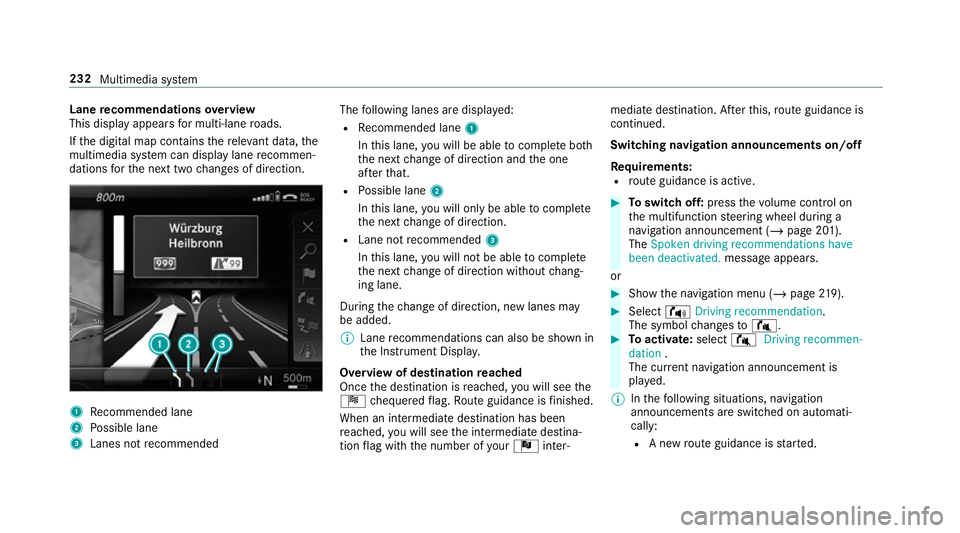
recommendations overview
This display appears for multi-lane roads.
If th e digital map conta insthere leva nt da ta,the
multimedia sy stem can display lane recommen‐
dations forth e next two changes of direction. 1
Recommended lane
2 Possible lane
3 Lanes not recommended The
following lanes are displa yed:
R Recommended lane 1
In this lane, you will be able tocompl ete bo th
th e next change of direction and the one
af te rth at.
R Possible lane 2
In this lane, you will on lybe able tocompl ete
th e next change of direction.
R Lane not recommended 3
In this lane, you will not be able tocompl ete
th e next change of direction without chang‐
ing lane.
During thech ange of direction, new lanes may
be added.
% Lane recommendations can also be shown in
th e Instrument Displa y.
Overview of destination reached
Once the destination is reached, you will see the
Í chequered flag. Route guidance is finished.
When an intermedia tedestination has been
re ached, you will see the intermediate destina‐
tion flag with the number of your Î inter‐ mediate destination. Af
terth is, route guidance is
continued.
Swit ching navigation announcements on/off
Re quirements:
R route guidance is active. #
Toswitch off: pressthevo lume control on
th e multifunction steering wheel during a
navigation announcement (/ page 201).
The Spoken driving recommendations have
been deactivated. message appears.
or #
Show the navigation menu (/ page219). #
Select !Driving recommendation .
The symbol changes to# . #
Toactivate: select#Driving recommen-
dation .
The cur rent navigation announcement is
pl ay ed.
% Inthefo llowing situations, navigation
announcements are switched on automati‐
cally:
R A new route guidance is star ted. 232
Multimedia sy stem
Page 236 of 473
R
The route is recalculated.
% You can add and call up this function as a
fa vo urite under Spoken driving recommenda-
tions on/off.
Swit ching navigation announcements on/off
during a phone call #
Select System. #
Select õAudio. #
Select Navigation and traffic announce-
ments. #
Swit chDriving recommendations during
phone call onO or off ª.
Ad justing the volume of navigation
announcements
Re quirements:
R Route guidance is active. #
On the multifunction steering wheel or
on the multimedia sy stem: turn thevo lume
control on the multifunction steering wheel
during a navigation announcement.
or #
During a navigation announcement press the
vo lume rock er switch on the cent reconsole
up or down (/ page 201).
% Inthefo llowing situations, thevo lume is
ra ised tothe maximum volume or lo weredto
th e minimum volume:
R A new route guidance is star ted.
R The route is recalculated.
% The minimum volume can be individually set
at a Mercedes-Benz Service Cent re. #
Via sy stem settings: selectSystem. #
Select õAudio. #
Select Navigation and traffic announce-
ments. #
Select Driving recommendation volume. #
Set thevo lume. #
Toswitch audio fadeout on/o ffduring
navigation announcements: selectSystem . #
Select õAudio. #
Select Navigation and traffic announce-
ments . #
Switch Audio fadeout during driving recom-
mendation onO or off ª.
Re peating navigation announcements
Re quirements:
R aro ute has already been created.
R route guidance is active.
Multimedia sy stem:
4 Navigation #
Select !Driving recommendation . #
Select #Driving recommendation .
The cur rent navigation announcement is
re peated.
% You can add and call up this function as a
fa vo urite under Repeat spoken driving rec-
ommendation .
Cancelling route guidance
Re quirements:
R Aro ute has already been created.
R Route guidance is active. Multimedia sy
stem 233