2018 MERCEDES-BENZ A-CLASS SALOON service
[x] Cancel search: servicePage 308 of 621

#
Press on a favo urite until theOPTIONS menu
is shown. #
Select Delete. #
Select Yes. No
tifications Centre Overvi
ewoftheNo tifications Centre
The following communications are collec ted in
th e Notifications Centre:
R Communications which are generated bythe
ve hicle or from multimedia sy stem.
R Communications which are recei vedth ro ugh
th e use of services.
The following notification types are available for
yo u:
R Navigable destinations and routes
R Messages (t ext messa ges)
R Calendar entries and reminders, e.g. from In
Car Of fice
This function is not available in all countries. R
System information, e.g. Important software
update available.
R Other notifications, e.g. from additional
online services that can be subsc ribed to
The j Notifications Centre can be found on
th e home screen, in menus and at theto pright
of the navigation map (/ page 289).
A star in thej symbol informs you of new
notifications.
Notifications are no rmally brief lyshown as they
are recei ved. This occurs for nearly everyappli‐
cation that you are cur rently using. If you take
no action, these are stored for future access in
th e Notifications Centre.
The notifications are sor tedch ronological ly. The
most recent notifications are at theto p. A notification sho
wsthefo llowing information:
R Symbol or image 1forth e application
R Title 2, which contains the name, a tele‐
phone number or a navigation destination,
fo rex ample
R The service and additional information 3
R A time stamp 5
R If se veral actions are available, symbol 4to
open or close the notification.
Depending on the type of notification, up tofour
dif fere nt actions 6are available. MBUX multimedia sy
stem 305
Page 329 of 621

R
Activation of the update byrestarting the
sy stem
The multimedia sy stem pr ovides a message
when an update is available.
Depending on the source, you can per form vari‐
ous updates:
Software updates Source of
the
update Up
date type
Interne tN avigation map, sys‐
te m updates, Digital
Owner's Manual
External storage
medium, e.g. USB
fl ash drive Na
vigation maps %
Installation can take several minutes and
cancellation is not possible. If you do not
ins tallth e software updates then thest atus
of your vehicle will not be up-to-date. During
th e ins tallation, individual functions or con‐ trol elements are not
available or on lyavaila‐
ble toa limited deg ree.
Ad vantages of updating software
Software updates ensure your vehicle's tech nol‐
ogy is al ways up-to-date.
In order toimpr oveth equ ality of our services
yo u will recei vefuture updates foryo ur multime‐
dia sy stem, the Mercedes me connect services
and your vehicle's communication module.
These will con veniently be sent to you via the
mobile phone connection in your vehicle and, in
many cases, ins talled automaticall y.Yo u can
monitor thest atus of your updates at any time
on the Mercedes me por tal and find information
about po tential inno vations.
Yo ur advantages at a glance:
R con veniently recei vesoftware update s via
th e mobile phone network
R impr ovesth equ ality and availability of
Mercedes me connect services
R keeps your multimedia sy stem and communi‐
cation module up-to-date Fu
rther information about software updates can
be found at http://me.mercedes-benz.com
Pe rforming a software upda te
Requ irements:
R For online updates: an Internet connection
is es tablished (/ page 405).
R For automatic online updates: your vehicle
has a permanently installed communication
module.
Multimedia sy stem:
4 © 5
Settings 5
System
5 Software update
Au tomatically #
Activate Automatic online updates.
The upda tes will be downloaded and ins talled
automaticall y.
The cur rent status of the updates is dis‐
pla yed.
Manually #
Deactivate Automatic online updates. 326
MBUX multimedia sy stem
Page 335 of 621

ENERGIZING CO
ACHFu
nction of the ENERGIZING CO ACH
Re quirements:
R The ENERGIZING COACH (ENERGIZING
CO ACH) service is activated in the Mercedes
me por tal or the Mercedes me app .
Wi th ENERGIZING CO ACHyo u can evaluate the
driving and driver situation. Depending on the
situation, it of fers recommendations forth est art
of an appropriate ENERGIZING com fort prog ram.
The following programs could be sugges ted:
R Vitality
As an activating program in mono tonous driv‐
ing situations or for long journey times, for
ex ample.
In fo rm ation on the vitality prog ram see
(/ page 329).
R Joy
As a balancing program in demanding driving
situations.
Information on the pleasure prog ram see
(/ page 329). By connecting a GARMIN
fitness trac ker,for
ex ample the GARMIN Vívosmart ®
3, additional
information can be entered into theev aluation
fo rth ere commendation of an ENERGIZING com‐
fo rt program. The additional information
includes thest re ss le vel,th at is calculated by
th efitness trac ker.The stre ss le vel is based pri‐
marily on the pulse.
Re quirements forth e integration of additional
information via a GARMIN fitness trac ker:
R Your fitness trac ker is connected with your
GARMIN account.
R Your GARMIN account is connected with your
Mercedes me account.
If yo uwe aryour GARMIN fitness trac ker at night
also, the sleep data is included in theev aluation
of the ENERG IZINGCOACH.
Re quirement forth e integration of the sleep
data:
R The GARMIN fitness trac ker is synchronised
with the GARMIN account before the begin‐
ning of the journe y. %
IfAT TENTION ASSIST de term ines an exces‐
sive lack of attention, ENERG IZINGCOACH
makes no fur ther suggestions. Further infor‐
mation about ATTENTION ASSIST
(/ page 238).
Calling up the ENERGIZING CO ACH display
Multimedia sy stem:
4 © 5
Comfort #
Select ENERGIZING COACH.
Yo ur cur rent pulse as well as an evaluation of
yo ur pulse forth e last 30 minutes driving
time are shown.
A cor responding er ror messa geis shown if
th ere is no mobile phone connected or no
pulse can be shown. #
Intheeve nt of an er ror messa gemake sure
th at thefo llowing requ irements are fulfilled:
R The fitness trac ker is connected with your
GARMIN account.
R Your GARMIN account is connected with
yo ur Mercedes me account on your
mobile phone. 332
MBUX multimedia sy stem
Page 339 of 621

R
The service is activated.
You can car ryout the activation yourself or
ha ve it car ried out at a Mercedes-Benz
service cent re. Fu
rther information can be found at: http://
www.mercedes.me Multimedia sy
stem:
4 © 5
Navigation 5
ª Where to? On-board sear
chwith theke ypad
De stination ent ryuses the on-board sear chof
th e database stored in the multimedia sy stem. The count
ryin which theve hicle is located is set
1. #
Enter the POI or the address using theke y‐
board (in the image) or using handwriting 336
MBUX multimedia sy stem
Page 341 of 621

#
Select the count ryon list 3.
The destination can be entered. #
Toaccept a destination: selectthe destina‐
tion in list 3. #
Ifth e destination is ambiguous, select the
destination in the list.
The destination address is shown. The route
can be calculated.
Using online sear ch
% Requirements: there is an Internet connec‐
tion.
Online sear chis not available in all countries.
De stination ent ryuses online map services. If
th e on-board sear chfinds no suitable de stina‐
tions or if youch ange countries, the online
sear chisavailable.
Fo rth e destination you can en ter an addre ss, a
POI or a thre e-word address.
% Ente r a 3 wordaddress (/ page 341).#
Select country indicator 1.#
Select the pr ovider forth e online service
from the count ries list. or #
Ifth e on-board sear chdelivers no sear ch
re sults, select Online search. #
Enter the destination in the input line. The
entry order is not releva nt, e.g. stre et and
to wn. Use the functions described forth e on-
board sear ch.
The sear chresults are displa yed. #
Select the destination in the list.
The de tailed view forth ero ute is displ ayed.
Selecting pr evious destinations
Re quirements:
R Prev ious destinations are stored.
R For destination sug gestions: you ha vecre‐
ated a profile (/ page 297).
R The Allow destination suggestions option is
switched on (/ page 302).
R The multimedia sy stem has already gathered
suf ficient da tain order toshow destination
suggestions. Multimedia sy
stem:
4 © 5
Navigation 5
ª Where to?
5 PREV. DESTINATIONS
The following ent ries can be selected in the pre‐
vious destinations:
R Destination suggestions (/ page 357)
R Destinations
R Routes #
Select the destination or route.
The destination address is shown. The route
can be calculated.
% You can sa vea pr evious destination or a des‐
tination suggestion as a favo urite
(/ page 357).
Using thefa vo urites, you ha vequick access
to the destinations (/ page 342).
Selecting a POI
Requ irements:
R For use of personal POIs: a USB device is
connected wi th the multimedia sy stem. 338
MBUX multimedia sy stem
Page 344 of 621

#
Toset the destination: select¥or
¦. #
Calculate thero ute (/ page 342).
Entering the destination as a 3 wordaddress
Requ irements:
R Sear ching for a destination using 3 word
addresses is possible in the online sear ch
( / page 335).
R The media display sho wsan In tern et connec‐
tion wi tha double-ar rowsymbol in thest atus
line.
% Sear ching for a destination using 3 word
addresses is not possible in all countries.
Multimedia sy stem:
4 © 5
Navigation 5
ª Where to? #
Select the count ryindicator. #
Select the pr ovider forth e online service
from the count ries list.
or #
Ifth e on-board sear chdelivers no sear ch
re sults, select Online search. #
Enter the destination address as a 3 word
address. Separate each of thewo rds with a
full stop.
The sear chresults are displa yed. #
Select the destination in the list.
The destination address is shown. The route
can be calculated.
% 3wo rdaddresses from what3words are an
alternative addressing sy stem for multilin‐
gual georeferencing of global locations with
a re solution of thre e metres. Using this grid,
locations on the Ear th's sur face are included
whi chdo not ha vea building address such
as stre et and house number, forex ample.
The Brandenburg Gate in Berlin has thefo l‐
lowing language dependent 3 wordaddress,
fo rex ample:
R German: tapfer.ge bäude.verliehen
R Engl ish:that.lands.winning
R French: posteaux.bobineur.ombrant
3 wo rdaddresses are unique, easy to
re member and suf fice for most routine appli‐
cations. The bidirectional co
nversion of 3 word
addresses can be car ried out here:
R atthewe bsite http://what3words.com
R inthe what3words apps
Selecting a destination on the map
Multimedia sy stem:
4 © 5
Navigation #
Movethe map (/ page 366). #
Using theto uchscreen: press and hold on
th eto uchsc reen.
The destination address is shown.
If se veral destinations are located at the
selected position, a list sho wstheav ailable
ro ads and POIs. #
Select the destination in the list.
The destination address is shown. The route
can be calculated. #
Using theto uchpad: whenthe crosshair
mar ksthe destination, press and hold on the
control element.
The destination address is shown. MBUX multimedia sy
stem 341
Page 352 of 621

Switching
the automatic filling station
sear chon/off
Multimedia sy stem:
4 © 5
Settings 5
Vehicle #
Switch Filling station search on or off.
When the fuel reser veleve l is reached, and
th e display button is switched on, a message
appears tostart sear ching forfilling stations.
St arting an automatic filling station sear ch
Re quirements:
R The automatic filling station sear chis activa‐
te d (/ page 349) .
Driving situation
The fuel le vel in the fuel tank reaches the
re ser vefuel le vel.
The following notification is shown in the media
display Reserve fuel Tap here to search for fill-
ing stations. #
Confirm the notification.
The automatic filling station sear chbegins.
The available filling stations along thero ute or in
the vicinity of theve hicle's cur rent posi‐
tion are displ ayed. #
Select a filling station.
The address of thefilling station is displa yed. #
Calculate thero ute (/ page 342).
The filling station is set as the destination or
th e next intermediate destination. #
Ifth ere are already four intermediate des‐
tinations: selectYesinthe prom pt.
The filling station is entered in thero ute
ove rview. Intermediate destination 4 is
dele ted. Ro ute guidance begins.
St arting the automatic service station
sear ch
Re quirements:
R ATTENTION ASSIST and theSuggest rest
area function are activated
(/ page 238).
R There are service stations along thero ute
section ahead. Driving situation
The
following notification is shown in the media
display ATTENTION ASSIST Tap here to search
for rest areas. #
Confirm the notification.
The service station sear ch starts. The availa‐
ble service stations along thero ute or in the
vicinity of theve hicle's cur rent position are
displ ayed. #
Select a service station.
The service station address is displa yed. #
Calculate thero ute (/ page 342).
The service station is set as the destination
or the next intermediate destination. #
Ifth ere are already four intermediate des‐
tinations: selectYesinthe prom pt.
The service station is entered in thero ute
ove rview. Intermediate destination 4 is
dele ted. Ro ute guidance begins. MBUX multimedia sy
stem 349
Page 357 of 621
Using mo
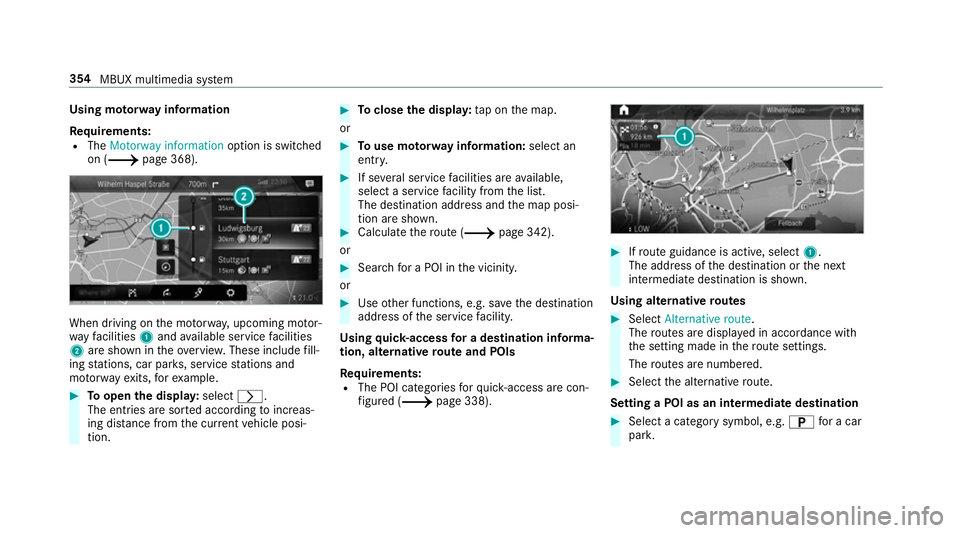
torw ay information
Re quirements:
R The Motorway information option is switched
on (/ page 368). When driving on
the mo torw ay, upcoming mo tor‐
wa yfa cilities 1and available service facilities
2 are shown in theove rview. These include fill‐
ing stations, car par ks, service stations and
mo torw ay ex its,forex ample. #
Toopen the displa y:select r.
The entries are sor ted according toinc reas‐
ing dis tance from the cur rent vehicle posi‐
tion. #
Toclose the displa y:tap on the map.
or #
Touse mo torw ay information: select an
ent ry. #
If se veral service facilities are available,
select a service facility from the list.
The destination address and the map posi‐
tion are shown. #
Calculate thero ute (/ page 342).
or #
Sea rchfo r a POI in the vicinit y.
or #
Use other functions, e.g. sa vethe destination
address of the service facility.
Using quick- access for a destination in form a‐
tion, alternative route and POIs
Re quirements:
R The POI categories forqu ick- access are con‐
fi gured (/ page 338). #
Ifro ute guidance is active, select 1.
The address of the destination or the next
intermediate destination is shown.
Using alternative routes #
Select Alternative route .
The routes are displ ayed in accordance with
th e setting made in thero ute settings.
The routes are numbered. #
Select the alternative route.
Setting a POI as an intermediate destination #
Select a category symbol, e.g. Bfor a car
par k. 354
MBUX multimedia sy stem