2018 MERCEDES-BENZ A-CLASS HATCHBACK fuel
[x] Cancel search: fuelPage 208 of 609

permissible speed applying
for a vehicle with a
trailer is not de tected bythe sy stem. In these sit‐
uations you must adjust your speed yourself. &
WARNING Risk of accident due toActive
Speed Limit Assi stadapting theve hicle's
speed
The speed adop tedby Active Speed Limit
Assi stmay be too high or incor rect in some
individual cases, su chas:
R Inthewe t or in fog
R When towing a trailer #
Ensure that the driven speed complies
with traf fic re gulations. #
Adjust the driving speed tosuit cur rent
traf fic and weather conditions. Fu
nction of route-based speed adaptation %
The following function is countr y-dependent
and only available in conjunction with the
Driving Assi stance Package. When Dis
tance Assi stDISTRONIC is acti ve,the
function adju ststh e speed depending on the
ro ute events ahead. Depending on the drive pro‐
gram selected, theve hicle negotiates thero ute
eve nt ahead in a fuel-s aving, com fortable or
dynamic manner. When thero ute event has been
passed, theve hicle accelerates again tothe
st ored speed. The set dis tancetotheve hicle in
front, vehicles de tected ahead and speed restric‐
tions ahead are take n into account.
Ro ute-based speed adjustment can byconfig‐
ured in the multimedia sy stem (→ page 206).
Ro ute events ahead are:
R Bends
R T-junctions, roundabouts and tollst ations
R Turns and exits
% When theto llst ation is reached, Active Dis‐
ta nce Assi stDISTRONIC adopts the speed as
th estored speed.
Also, the speed is reduced if the turn signal to
ch ange lanes is swit ched on and one of thefo l‐
lowing situations is de tected:
R Turning off at junctions R
Driving on slowing-down lanes
R Driving on lanes adjacent toslowing-down
lanes
The driver is responsible forch oosing theright
speed and observing other road users. This
applies in particular tojunctions, roundabouts
and sets of traf fic lights, as route-based speed
adap tation does not brake theve hicle toast and‐
st ill.
When route guidance is active, thefirs t speed
adjustment is car ried out automaticall y.Ifthe
turn signal indica tor is switched on, the selected
ro ute is confirmed and fur ther speed adjustment
is activated.
Speed adjustment is cancelled in thefo llowing
cases:
R Ifth e turn signal indicator is switched off
before thero ute event.
R Ifth e driver depresses the accelera tor or
brake pedal during the process.
Sy stem limitations
Ro ute-based speed adap tation does not take
ri ght of wayre gulations into account. The driver Driving and parking
205
Page 251 of 609
Instrument display
overview &
WARNING Risk of accident due toan
instrument display malfunction
If th e Instrument Display has failed or mal‐
functioned, you may not recognise function
re strictions applying tosaf etyre leva nt sys‐
te ms.
The operating saf ety of your vehicle may be
impaired. #
Drive on carefull y.#
Have theve hicle checked immediately
at a qualified specialist workshop. If
th e operating saf ety of your vehicle is
impaired, park theve hicle safely as soon as pos‐
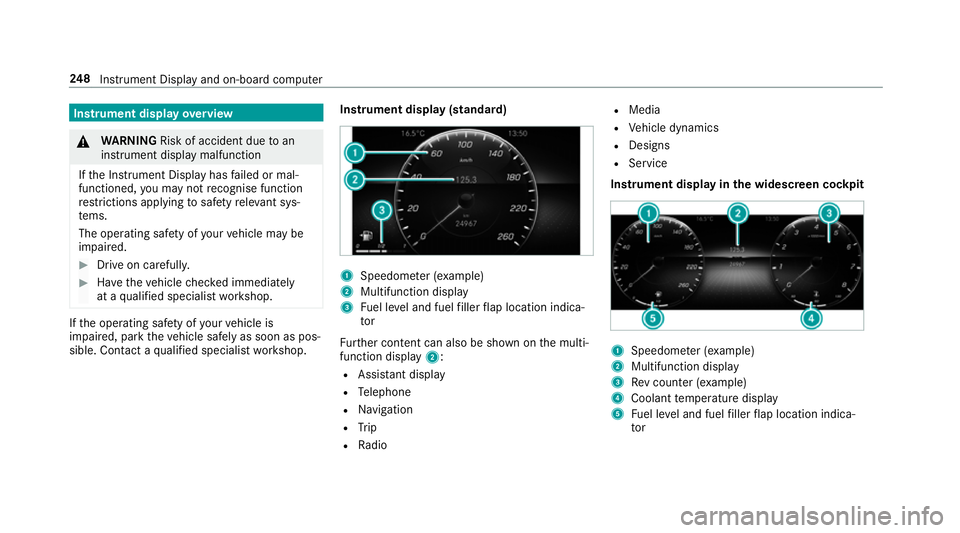
sible. Contact a qualified specialist workshop. Instrument display (standard) 1
Speedome ter (e xamp le)
2 Multifunction display
3 Fuel le vel and fuel filler flap location indica‐
tor
Fu rther content can also be shown on the multi‐
function display 2:
R Assis tant displ ay
R Telephone
R Navigation
R Trip
R Radio R
Media
R Vehicle dynamics
R Designs
R Service
Instrument display in the widescreen cockpit 1
Speedome ter (e xamp le)
2 Multifunction display
3 Rev counter (e xample)
4 Coolant temp erature display
5 Fuel le vel and fuel filler flap location indica‐
tor 248
Instrument Display and on-board computer
Page 252 of 609

%
In addition tothe multifunction display 2,
fur ther conte nt can also be shown on dis‐
pl ay s1 and 3(→page 252).
The segments in speedome ter1 indica tethe
sy stem status forth efo llowing:
R Cruise control (→ page196)
R Speed limiter(→ page 197)
R Active Dis tance Assi stDISTRONIC
(→ page 200)
* NO
TEEngine dama gedue toexc essively
high engine speeds The engine will be damaged if
you drive with
th e engine in theov errevving range. #
Do not drive wi th the engine in theove r‐
re vving range. The fuel supply is inter
rupted toprotect the
engine when there d mark on there v counter
(o ve rrev ving range) is reached.
Ve hicles with widescreen cock pit:during nor‐
mal operating conditions, the coolant temp era‐
ture display may rise to120 °C. &
WARNING Danger of bu rns when open‐
ing the bonn et
If yo u open the engine bonn etwhen the
engine has overheated or during a fire inthe
engine compartment, you could come into
contact with hot gases or other escaping
operating fluids. #
Before opening the bonn et, allow the
engine tocool down. #
Intheeve nt of a fire inthe engine com‐
partment, keep the engine bonn et
closed and call thefire service. Overview of
the but tons on thest eering
wheel 1
¤ Back/Home button (press and hold),
on-board computer
2 Touch Control, on-board co mputer
3 Control panel for cruise control/limiter or
Ac tive Dis tance Assi stDISTRONIC
4 Control panel for MBUX multimedia sy stem:
£ LINGU ATRO NIC or voice control sys‐
tem
ß Displaysfa vo urites
VO L: control knob, adjusts thevo lume or
switches the sound off 8(press) Instrument Display and on-board computer
249
Page 255 of 609

Showing display content on
the instrument
clus ter
Ve hicles with an instrument display in the
widescreen cockpit: additional display content
can be shown on the instrument displa y.1
Displ aycontent, right (e xamp lerev counter)
2 The index points show the selected display
conte nt. #
Toselect display content: swipetothe
ri ght on the left-hand Touch Control. #
Swipe upwards or down wards on the left-
hand Touch Control toselect there qu ired
display con tent.
When the display conte nt is selected1, it is
brie fly highligh ted.
Display con tent selection, le ft:
R Speedom eter
R Time/date
R Trip computer From startandFrom reset
R Range
R Audio
Display con tent selection, centre:
R Assi stant display
R Telephone
R Navigation
R Trip
R Radio
R Media
R Styles and display
R Service Display conte
nt selection,right:
R Rev counter
R Average fuel consum ption
R ECO display
R Navigation
R G-me ter
R Assi stant display 252
Instru ment Display and on-board computer
Page 257 of 609

#
Turn brightness control 1up or down.
The lighting of the instrument display and in
th e control elements of theve hicle interior is
adjus ted. Menus and submenus
Fu
nctions on the service menu of the on-
board compu terOn-board computer:
, Service #
Toselect the function: swipe upwards or
down wards on the left-hand Touch Control. #
Press the left-hand Touch Control.
Fu nctions on theService menu:
R Message memory (→ page 498)
R AdBlue :Ad blue ®
ra nge and fill le vel
R Tyres:
- Restart the tyre pressure loss warning
sy stem (→ page 467) -
Check the tyre pressure with the tyre
pressure monitoring sy stem
(→ page 461)
- Restart the tyre pressure monitoring sys‐
te m (→ page 462)
R ASSYST PLUS : calls upthe service due date
(→ page 419)
R Coolant: coolant temp erature display
R Engine oil level: engine oil le vel
R Consumption info: fuel life cycle consump‐
tion Calling up
the assistant display On-board computer:
, Assistance
The following displa ysare available on the assis‐
ta nt displ aymenu:
R Assis tant displ ay
R Attention le vel (→ page 231)
R Full-sur face menu displ ay #
Toswitch between the displa ys:swipe
upwards or down wards on the left-hand
To uch Control. St
atus displa yson the assis tant displ ay:
R é ATTENTION ASSIS T:deactivated
R ¸ Grey radar waves next tovehicle: Blind
Spot Assist or Active Blind Spot Assi stena‐
bled
R ¸ Green radar waves next tovehicle:
Blind Spot Assist or Active Blind Spot Assi st
active
R DISTRO NICActive Dis tance Assi stdispla ys
( → page 200) 254
Instrument Display and on-board computer
Page 258 of 609
Calling up displa
yson the trip menu On-board computer:
, Trip #
Toselect a displa y:swipe upwards or down‐
wa rds on the left-hand Touch Control.
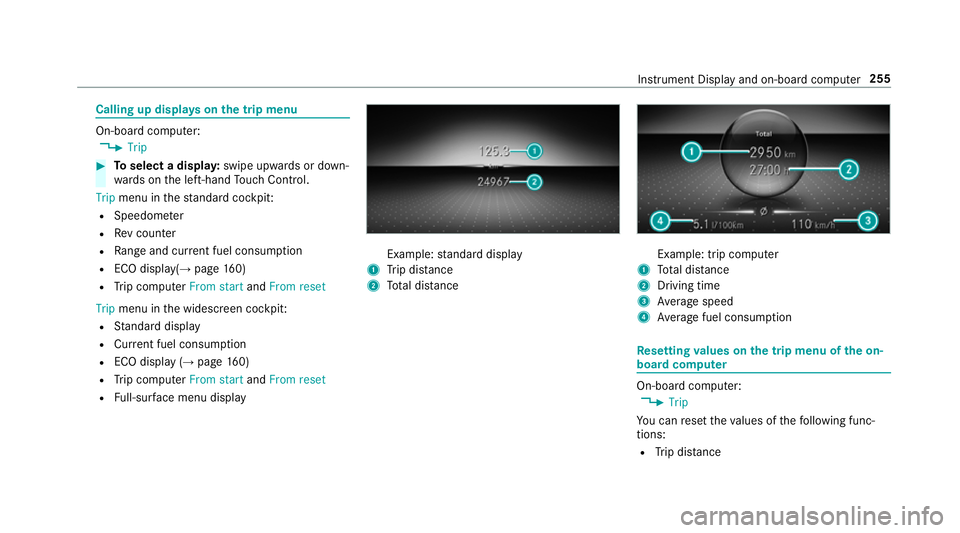
Trip menu in thest andard cockpi t:
R Speedom eter
R Rev counter
R Range and cur rent fuel consu mption
R ECO display(→ page 160)
R Trip computer From startandFrom reset
Trip menu in the widescreen cockpit:
R Standard display
R Cur rent fuel consu mption
R ECO display (→ page 160)
R Trip computer From startandFrom reset
R Full-sur face menu displ ay Example:
standard display
1 Trip dis tance
2 Total dis tance Example: trip compu
ter
1 Total dis tance
2 Driving time
3 Average speed
4 Average fuel consum ption Re
setting values on the trip menu of the on-
board compu ter On-board computer:
, Trip
Yo u can reset theva lues of thefo llowing func‐
tions:
R Trip dis tance Instrument Display and on-boa
rdcompu ter255
Page 281 of 609

Vo
ice command Colloquialexample Function
Current speed limit I would like to hear the speed limitCalls up
the cur rent speed limit
Outside temperature I would like to find out what the
temperature outside is likeCalls up
the outside temp erature
Average consumption I would like to know the average
fuel consumptionCalls up
average consu mption
Vehicle data Can you please display the vehicle
data menu?Calls up
vehicle data
Range Tell me the current rangeCalls up
range da ta
Assistance menu Show me the driver assistance set-
tings Displ
ays assis tance settings
Climate control menu Jump to the climate control menuDispla
ysclimate control settings
Light menu Switch to the light settingsDispla
yslight settings
Seats men uI would like to switch to seat menu Displa
ysseat adjustment settings 278
LINGU ATRO NIC
Page 343 of 609

Switching
the automatic filling station
sear chon/off
Multimedia sy stem:
, © .
Settings .
Vehicle #
Switch Filling station search on or off.
When the fuel reser veleve l is reached, and
th e display button is switched on, a message
appears tostart sear ching forfilling stations.
St arting an automatic filling station sear ch
Re quirements:
R The automatic filling station sear chis activa‐
te d (→ page 340) .
Driving situation
The fuel le vel in the fuel tankre aches the
re ser vefuel le vel.
The following notification is shown in the media
display Reserve fuel Tap here to search for fill-
ing stations. #
Confirm the notification.
The automatic filling station sear chbegins.
The available filling stations along thero ute or in
the vicinity of theve hicle's cur rent posi‐
tion are displ ayed. #
Select a filling station.
The address of thefilling station is displa yed. #
Calculate thero ute (→ page 333).
The filling station is set as the destination or
th e next intermediate destination. #
Ifth ere are already four intermediate des‐
tinations: selectYesinthe prom pt.
The filling station is entered in thero ute
ove rview. Intermediate destination 4 is
dele ted. Ro ute guidance begins.
St arting the automatic service station
sear ch
Re quirements:
R ATTENTION ASSIST and theSuggest rest
area function are activated (→ page 233).
R There are service stations along thero ute
section ahead.
Driving situation
The following notification is shown in the media
display ATTENTION ASSIST Tap here to search
for rest areas. #
Confirm the notification.
The service station sear ch starts. The availa‐
ble service stations along thero ute or in the
vicinity of theve hicle's cur rent position are
displ ayed. #
Select a service station.
The service station address is displa yed. #
Calculate thero ute (→ page 333).
The service station is set as the destination
or the next intermediate destination. #
Ifth ere are already four intermediate des‐
tinations: selectYesinthe prom pt.
The service station is entered in thero ute
ove rview. Intermediate destination 4 is
dele ted. Ro ute guidance begins.
Showing a stored route on the map
Re quirements:
R A USB device with stored routes is connec‐
te d with the multimedia sy stem
(→ page 409).
R The route is stored in the "Routes" folder
with the GPS Ex change form at (.gpx). 340
MBUX multimedia sy stem