Page 134 of 609

Ad
justing the brightness #
Select Brightness .
Ad just the brightness.
Ac tivating the brightness for zones #
Select Brightness . #
Select Brightness zones . #
Activate or deacti vate the function.
The EMPHASIS, AMBIENTandVENTS zones
can be set separatel y.
Ac tivating multi-coloured lighting #
Select Colour. #
Select Multi-colour.
The reare ten preset colour combinations
av ailable. #
Select a colour combination.
Ac tivating multi-coloured animation #
Select Colour. #
Select Multi-colour animat..
The chosen colour combination changes at
predefined inter vals. Ac
tivating welcome lighting #
Select Colour. #
Select Welcome.
When theve hicle is unloc ked, a special ambi‐
ent lighting sequence runs.
Ac tivating dependency on air conditioning
settings #
Select Colour. #
Select Climate.
If ch anges are made tothete mp erature set‐
ting in theve hicle, the colour of the ambient
lighting changes brief ly. Switching
the interior lighting switch-off
delay time on or off Multimedia sy
stem:
, © .
Settings .
Lights .
Int. light.
del. shut-off #
Switch the lighting switch-off delay time on
or off.
When this function is active, the interior light‐
ing lights up again briefly af terth eve hicle
has been loc ked. Changing bulbs (only
forve hicles with halo‐
ge n headla mps) Note
s onchanging bulbs &
WARNING Risk of bu rns from hot com‐
ponent parts whilst replacing a bulb
Bulbs, lamps and plugs can become very hot
during operation.
When replacing a bulb, you could burn your‐
self on these component parts. Light and sight
131
Page 141 of 609

&
WARNING Risk of accident due tomis‐
judgement of dis tances when using the
outside mir ror
The outside mir rors reflect objects on a
smaller scale. The objects in view are in fact
closer than they appear.
As a result, you may misjud gethe dis tance
between you and thero ad user driving
behind you, e.g. when changing lanes. #
Therefore, alw ays look over your shoul‐
der in order toensure that you are
aw are of the actual dis tance between
yo u and thero ad users driving behind
yo u. #
Tofold in or out: brieflypress button 2. #
Toset:press button 1or3 toselect the
outside mir rorto be adjus ted. #
Press button 4toadjust the position of the
mir rorgl ass.
% Ifth e battery has been disconnected or com‐
ple tely discharged, you must reset the out‐ side mir
rors. Only then will the automatic
mir rorfo lding function workproperly. #
Toadjus t:briefly press button 2.
An outside mir rorth at has been pushed out of
position can be engaged in position again as fol‐
lo ws: #
Vehicles without electrical lyfolding out‐
side mir rors: manually mo vethe outside
mir ror into the cor rect position. #
Vehicles with electrical lyfolding outside
mir rors: press and hold button 2.
Yo u will hear a click and the mir ror will audi‐
bly engage in position. The outside mir ror is
set tothe cor rect position. Au
tomatic anti-dazzle mir rors function &
WARNING Risk of bu rns and poisoning
due tothe anti-dazzle mir ror electrolyte
Electrolyte may escape if theglass in an
automatic anti-dazzle mir ror breaks.
The electrolyte is harmful and causes ir rita‐
tion. It mu stnot come into contact wi thyour 13 8
Light and sight
Page 255 of 609
Showing display content on
the instrument
clus ter
Ve hicles with an instrument display in the
widescreen cockpit: additional display content
can be shown on the instrument displa y.1
Displ aycontent, right (e xamp lerev counter)
2 The index points show the selected display
conte nt. #
Toselect display content: swipetothe
ri ght on the left-hand Touch Control. #
Swipe upwards or down wards on the left-
hand Touch Control toselect there qu ired
display con tent.
When the display conte nt is selected1, it is
brie fly highligh ted.
Display con tent selection, le ft:
R Speedom eter
R Time/date
R Trip computer From startandFrom reset
R Range
R Audio
Display con tent selection, centre:
R Assi stant display
R Telephone
R Navigation
R Trip
R Radio
R Media
R Styles and display
R Service Display conte
nt selection,right:
R Rev counter
R Average fuel consum ption
R ECO display
R Navigation
R G-me ter
R Assi stant display 252
Instru ment Display and on-board computer
Page 258 of 609
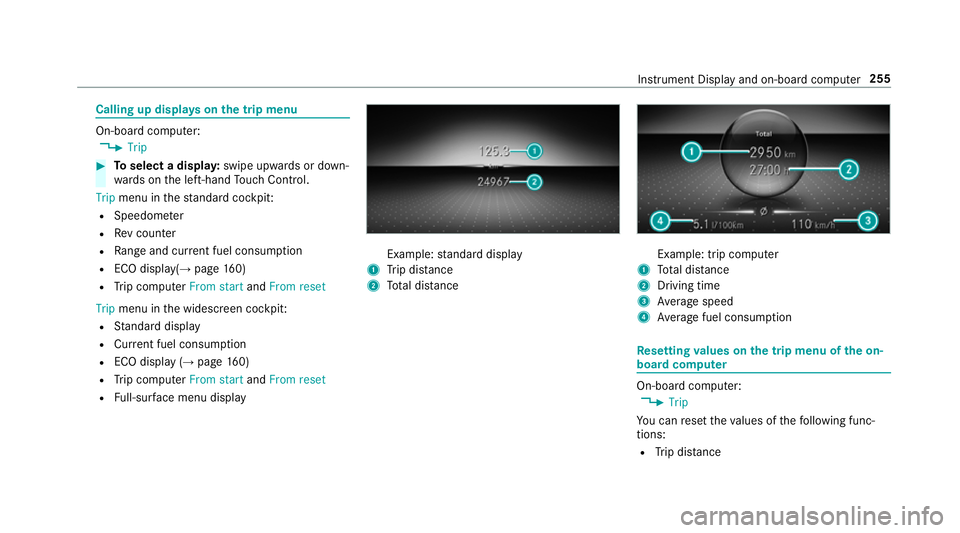
Calling up displa
yson the trip menu On-board computer:
, Trip #
Toselect a displa y:swipe upwards or down‐
wa rds on the left-hand Touch Control.
Trip menu in thest andard cockpi t:
R Speedom eter
R Rev counter
R Range and cur rent fuel consu mption
R ECO display(→ page 160)
R Trip computer From startandFrom reset
Trip menu in the widescreen cockpit:
R Standard display
R Cur rent fuel consu mption
R ECO display (→ page 160)
R Trip computer From startandFrom reset
R Full-sur face menu displ ay Example:
standard display
1 Trip dis tance
2 Total dis tance Example: trip compu
ter
1 Total dis tance
2 Driving time
3 Average speed
4 Average fuel consum ption Re
setting values on the trip menu of the on-
board compu ter On-board computer:
, Trip
Yo u can reset theva lues of thefo llowing func‐
tions:
R Trip dis tance Instrument Display and on-boa
rdcompu ter255
Page 259 of 609

R
Trip computer From startandFrom reset
R ECO displa y(→ page 160) #
Toselect the function tobe rese t:swipe
upwards or down wards on the left-hand
To uch Control. #
Press the left-hand Touch Control. #
Select Yes. #
Press the left-hand Touch Control.
If yo u press and hold the left-hand Touch Con‐
trol, theva lues of the function will be reset
immediatel y. Calling up navigation instructions on
the on-
board compu ter On-board computer:
, Navigation Example: no
change of direction announced
1 Distance tothe next change of direction
2 Distance tothe next destination
3 Estimated ar riva l time at next destination
4 Current road Example:
change of direction announced
1 Distance tothech ange of direction
2 Road towhich thech ange of direction leads
3 Chan ge-of-direction symbol
4 Recommended lane (white)
5 Possible lane
6 Lane not recommended (da rkgrey)
Fu rther possible displa yson theNavigation
menu:
R Direction of travel: display of direction of
tra vel and road cur rently being tr avelled on.
R New route... orCalculating route… : a new
ro ute is being calculated. 256
Instru ment Display and on-board computer
Page 260 of 609

R
Road not mapped :th ero ad is unknown, e.g.
fo r newly built roads.
R No route: no route could be calculated tothe
selected destination.
R Off map: the map forth e cur rent location is
not available.
R Area of destination reached: when an inter‐
mediate destination is reached, the inter‐
mediate destination flag is displa yed with the
number of the intermediate destination
Î. Af terth is, route guidance is continued.
Once the destination is reached, thech eq‐
uered flag Í is displa yed. Ro ute guidance
is finished. #
Toexitth e menu: pressthe back button on
th e left.
Ve hicles with the MBUX multimedia sy stem:
yo u can also start navigation toone of the
re cent destinations on theNavigation menu: #
Press the left-hand Touch Control. #
Toselect a destination: swipe upwards or
down wards on the left-hand Touch Control. #
Press the left-hand Touch Control.
Ro ute guidance is star ted.
If ro ute guidance has already been activated,
a re qu est will appear asking whe ther you
wish toend the cur rent route guidance. #
Select Yes. #
Press the left-hand Touch Control.
Ro ute guidance is star ted. Selecting
radio stations using the on-boa rd
compu ter On-board computer:
, Radio 1
Frequency range
2 Station
3 Name of track
When you select a station from the memory pre‐
sets, the preset will appear next tothest ation
name. When you select a sa vedstation in the
frequency range, an as terisk will appear next to
th est ation name. In
stru ment Display and on-board computer 257
Page 261 of 609

#
Toselect a radio station: swipe upwards or
down wards on the left-hand Touch Control.
Selecting the frequency range or memory
preset #
Press the left-hand Touch Control. #
Swipe upwards or down wards on the left-
hand Touch Control. #
Press the left-hand Touch Control. Media playba
ckusing the on-boa rdcompu ter On-board computer:
, Media 1
Media source
2 Track number and cur rent track
3 Name of artist (e xamp le) #
Tochange trac kson an active media
source: swipe upwards or down wards on the
left-hand Touch Control.
Changing a media source #
Press the left-hand Touch Control. #
Toselect a media source: swipe upwards
or down wards on the left-hand Touch Con‐
trol. #
Press the left-hand Touch Control. Dialling
telephone numbers using the on-
board compu ter &
WARNING Risk of di stra ction from infor‐
mation sy stems and communications
equipment
If yo u operate information and communica‐
tion equipment integ rated in theve hicle
when driving, you will be distracted from the
traf fic situation. This could also cause youto
lose control of theve hicle. #
Only operate this equipment when the
traf fic situation permits. #
Ifyo u cannot be sure of this, stop the
ve hicle whilst paying attention toroad
and traf fic conditions and ope rate the
equipment with theve hicle stationar y. 258
Instrument Display and on-board computer
Page 294 of 609

#
Activate Blu etoo th®
and select Connect
phone, toconnect a mobile phone wi th the
user profile (→ page 369).
Yo u can also set up a user profile without regis‐
te ring a mobile phone. #
Select Finished.
The user profile is sa ved.
Selecting profile options
Multimedia sy stem:
, © .
f Profiles #
Select Äfor a profile. #
Toedit a profile: selectEdit profile . #
Select an avatar. #
Chan gethe name, if necessar y.#
Select Save. #
Toconfigure suggestions: selectSugges-
tions settings (→page 295). #
Resetting favo urites or themes: select
Reset favourites to factory settings orReset
themes to the factory settings . #
Select Yes. #
Toreset a profile: selectReset profile to
factory settings. #
Select Yes. #
Todel ete a profile: selectDelete profile . #
Select Yes.
% The guest profile cannot be dele ted.
Selecting a profile
Multimedia sy stem:
, © .
f Profiles
% When you call up your profile, the driver's
seat and outside mir rors can be set.
Yo u can cancel the setting process with the
fo llowing actions:
R Tap on thePositioning seat and steering
wheel. Please tap to cancel. warning on
th e media displa y.
R Press one of the seat operating buttons
in the driver's door. #
Select a profile. #
Press thea button toconfirm the mes‐
sage.
The profile is loaded and activated.
% Alternatively, the profile can already be
selected when theve hicle is entered
(→ page 292).
Synchronising a profile
Re quirements:
R You ha vea Mercedes me user account.
R The vehicle is connected with your Mercedes
me user account.
R The personalisation service is activated on
Mercedes me connect.
Multimedia sy stem:
, © .
f Profiles .
General set-
tings
Synchronisation enables thefo llowing:
R You can configure theve hicle settings using
th e Mercedes me app.
R The profile on Mercedes me connect and the
profile in theve hicle are aligned (profile man‐
agement). MBUX multimedia sy
stem 291