2018 LINCOLN MKT light
[x] Cancel search: lightPage 418 of 564

You can use the forward, reverse, pause or
play buttons to control the audio playback.
Bluetooth Stereo or USB
Bluetooth Stereo and USB allow you to
access media that you store on your
Bluetooth device or USB device such as
music, audio books or podcasts.
The following buttons are available for Bluetooth and USB: Function
Button
Pressing the repeat button toggles the repeat setting through three mode\
s: repeat off (button not
highlighted), repeat all (button highlighted) and repeat track (butt\
on highlighted with a small number
one).
Repeat
Play the tracks in random order.
Shuffle
You can use the forward, reverse, pause or
play buttons to control the audio playback.
To get more information about the currently
playing track, press the cover art or Info
button. For some devices, SYNC 3 is able to provide
30-second skip buttons when you listen to
audio books or podcasts. These buttons
allow you to skip forward or backward within
a track.
While playing audio from a USB device you
can look for certain music by selecting the
following:
415
MKT (TP4) , enUSA, Edition date: 201703, First Printing SYNC™ 3
Page 422 of 564

Defrost: A pop up appears on the screen to display the defrost options.
C
MAX Defrost:
Touch the button to maximize defrosting. Outside air flows through the wi\
ndshield vents, the fan automatically adjusts
to the highest speed and the temperature dial returns to the full heat p\
osition. You can use this setting to defog or clear a thin
covering of ice from the windshield. The heated rear window also automat\
ically turns on when you select MAX Defrost.
Defrost:
Touch to clear the windshield of fog and thin ice. Touch again to return to the previous airflow selection. When on, defrost\
provides outside air to reduce window fogging and distributes air throug\
h the windshield defroster vents and demister vents.
Note:
To prevent window fogging, you cannot select recirculated air when Defros\
t is on.
Heated rear window: Turns the heated rear window on and off. See the Heated Windows and Mirrors chapter in your owner manual.
AUTO:
Touch the button to switch on automatic operation. Select the desired tem\
perature using the temperature control. The
system adjusts fan speed, air distribution, air conditioning operation, \
and selects outside air or recirculated air to heat or cool the
vehicle in order to maintain the desired temperature.
D
Power:
Touch the button to switch the system on and off. Switching off the climate control system prevents outside air from enteri\
ng
the vehicle.
E
DUAL:
This button lights up when the passenger controls are active. To switch the dual zone operation off and link the passenger
temperature to the driver temperature, touch the DUAL button to switch it off.
F
Passenger temperature:
Touch up or down to adjust the temperature.
G
Passenger heated and climate controlled seats:
H
Touch the heated seat icon to adjust the heated seat off and on (if equi\
pped).
Touch the climate-controlled seat icon to adjust the climate-controlled s\
eat off and on (if equipped).
Fan speed:
Touch up or down to increase or decrease the volume of air circulated in \
your vehicle.
I
Rear:
A pop up appears on the screen to display the rear control options.
J
419
MKT (TP4) , enUSA, Edition date: 201703, First Printing SYNC™ 3
Page 433 of 564

North up (2D map) always shows
the northern direction to be
upward on the screen. 3D map mode
provides an
elevated perspective of the map.
Adjust this viewing angle and
rotate the map 180 degrees by
touching the map twice, and then dragging
your finger along the shaded bar with arrows
at the bottom of the map. Re-center the map by pressing this
icon whenever you scroll the map
away from your vehicle
’s current
location. Points of Interest (POI) grouping
icon:
You can choose up to three
POI icons to display on the map. If
the chosen POIs are located close
together or are at the same location a box is
used to display a single category icon
instead of repeating the same icon, in order
to reduce clutter. When you select the box
on the map, a pop-up appears indicating how
many POIs are in this location. Select the pop
up to see a list of the available POIs. You can
scroll through and select POIs from this list.
If your vehicle is low on charge or fuel,
station icons automatically display on the
map. If you have subscribed to SiriusXM Traffic
and Travel Link (where available), traffic flow
will be indicated on the map by green (clear),
yellow (slowing), and red (stopped) road
highlights. Traffic flow is indicated where the
information is available and varies across the
US.
You can choose to display traffic icons on
the map representing twelve different types
of incidents.
See Settings (page 443).
You can set a destination by hovering above
a location and selecting: Button
Start
Destination Mode
To set a destination, press: Description
Menu Item
Destination
Enter a navigation destination in any of the following formats: Street Address
Search
430
MKT (TP4) , enUSA, Edition date: 201703, First Printing SYNC™ 3E207749 E207748 E207751 E207754
Page 442 of 564

cityseeker, when available, is a service that
provides more information about certain
points of interest such as restaurants, hotels
and attractions.
When you have selected a point of interest,
the location and information appear, such as
address, phone number and a star rating.
Press More Information to see a photo, a
review, a list of services and facilities, the
average room or meal price and the web
address. This screen displays the point of
interest icons.
For restaurants, cityseeker can provide
information such as star rating, average cost,
review, handicap access, hours of operation,
and website address.
For hotels, cityseeker can provide
information such as star rating, price
category, review, check-in and checkout
times, hotel service icons and website
address. Hotel service icons include:
• Restaurant
• Business center
• Handicap facilities
• Laundry •
Refrigerator
• 24 hour room service
• Fitness center
• Internet access
• Pool
• Wi-Fi
Attractions include nearby landmarks,
amusement parks, historic buildings and
more. cityseeker can provide information
such as star rating, reviews, hour of operation
and admission price.
SiriusXM Traffic and Travel Link
SiriusXM Traffic and Travel Link is available
on vehicles equipped with navigation and
only in select markets. You must activate and
subscribe to receive SiriusXM Traffic and
Travel Link information. It helps you locate
the best gas prices, find movie listings, get
current traffic alerts, view the weather map,
get accurate ski conditions and see current
sports scores.
See Apps (page 440). The system calculates a reasonable efficient
route based on available speed limits, traffic,
and road conditions. You may know a local
short cut that is more efficient at a given time
than the route provided by SYNC 3, but you
should expect a slight difference in minutes
or miles with the SYNC 3 route.
Navigation Map Updates
Annual navigation map updates are available
for purchase through your dealership, by
calling 1-866-462-8837 in the United States
and Canada or 01-800-557-5539 in Mexico.
You can also visit:
Website
www.navigation.com/sync
You need to specify the make and model of
your vehicle to determine if there is an
update available.
439
MKT (TP4) , enUSA, Edition date: 201703, First Printing SYNC™ 3
Page 462 of 564

Ambient Lighting (If Equipped)
Tap a color once to active ambient lighting.
This sets the color to the highest intensity.
You can drag the colors up and down to
increase or decrease the intensity.
To switch ambient lighting off, press the
active color once or drag the active color all
the way down to zero intensity. Vehicle
Note:
Your vehicle may not have all of these
features.
You can select the following features to
update their settings. Door Keypad Code
Select this button to add or erase a personal
door keypad code. To add or erase a
personal code, you first need to enter the
five-digit factory set code. You can find this
code on the owner's wallet card in the glove
box or from your authorized dealer.
Camera Settings
To make adjustments using the touchscreen, select: Action and Description
Message
Camera Settings
Then select from the following: You can enable or disable this option using the slider.
Rear Camera Delay
You can find more information on the rear-view camera system in the parki\
ng aids chapter of your owner manual.
459
MKT (TP4) , enUSA, Edition date: 201703, First Printing SYNC™ 3
Page 463 of 564
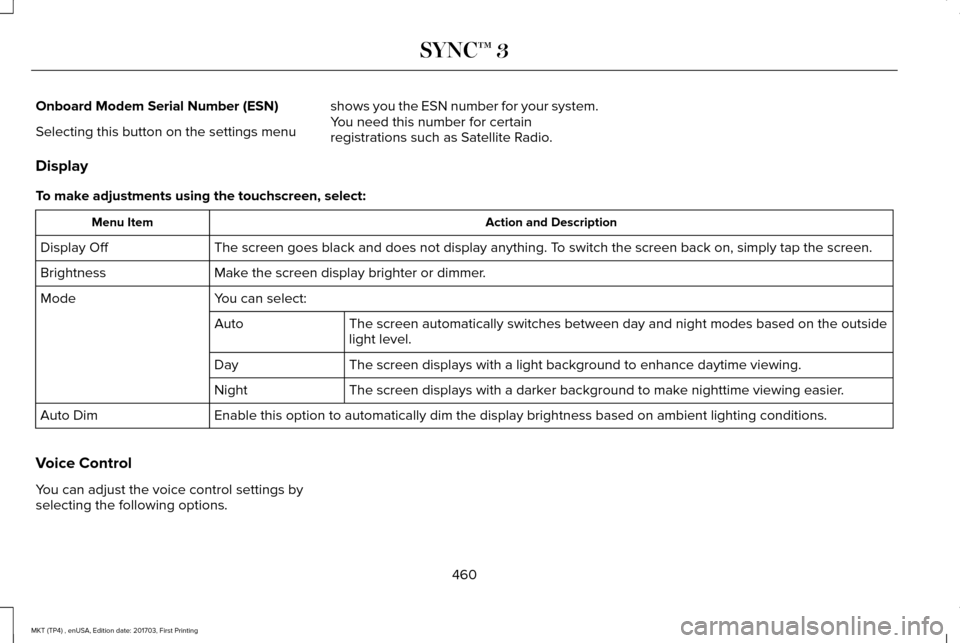
Onboard Modem Serial Number (ESN)
Selecting this button on the settings menu
shows you the ESN number for your system.
You need this number for certain
registrations such as Satellite Radio.
Display
To make adjustments using the touchscreen, select: Action and Description
Menu Item
The screen goes black and does not display anything. To switch the screen back on, simply tap the screen.
Display Off
Make the screen display brighter or dimmer.
Brightness
You can select:
Mode
The screen automatically switches between day and night modes based on t\
he outside
light level.
Auto
The screen displays with a light background to enhance daytime viewing.
Day
The screen displays with a darker background to make nighttime viewing easier.
Night
Enable this option to automatically dim the display brightness based on \
ambient lighting conditions.
Auto Dim
Voice Control
You can adjust the voice control settings by
selecting the following options.
460
MKT (TP4) , enUSA, Edition date: 201703, First Printing SYNC™ 3
Page 465 of 564

Cell phone issues
Possible solution
Possible cause
Issue
Refer to your device's manual about audio adjustments.
The audio control settings on your cell
phone may be affecting SYNC 3
performance.
There is background noise
during a phone call.
Try switching your cell phone off, resetting it or removing the battery,
then try again.
Possible cell phone malfunction.
During a call, I can hear the
other person but they
cannot hear me.
Make sure that the microphone for SYNC 3 is not set to off. Look for
the microphone icon on the phone screen.
To restart your system, shut down the engine, open and close the
door, and then lock the door and wait for 2-3 minutes. Make sure that
your SYNC 3 screen is black and the lighted USB port is off.
The system may need to be restarted.
During a call, I cannot hear
the other person and they
cannot hear me.
Check your cell phone's compatibility.
This is a cell phone-dependent feature.
SYNC 3 is not able to
download my phonebook. Make sure you allow SYNC 3 to retrieve contacts from your phone.
Refer to your cell manual.
Possible cell phone malfunction. You must switch on your cell phone and the automatic phonebook
download feature on SYNC 3.
Try switching your cell phone off, resetting it or removing the battery,
then try again.
462
MKT (TP4) , enUSA, Edition date: 201703, First Printing SYNC™ 3
Page 488 of 564

Check every month
Engine oil level.
Function of all interior and exterior lights.
Tires (including spare) for wear and proper pressure. Windshield washer fluid level. Check every six months
Battery connections. Clean if necessary.
Body and door drain holes for obstructions. Clean if necessary. Cooling system fluid level and coolant strength.
Door weatherstrips for wear. Lubricate if necessary.
Hinges, latches and outside locks for proper operation. Lubricate if necessary. Parking brake for proper operation.
Safety belts and seat latches for wear and function.
Safety warning lamps (brake, ABS, airbag and safety belt) for operation.
Washer spray and wiper operation. Clean or replace blades as necessary.
485
MKT (TP4) , enUSA, Edition date: 201703, First Printing Scheduled Maintenance