Page 353 of 564
ENGINE SPECIFICATIONS - 3.5L ECOBOOST™
3.5L EcoBoost
Engine
214
Cubic inches
1-4-2-5-3-6
Firing order
Coil on plug
Ignition system
0.030 in (0.75 mm) - 0.033 in (0.85 mm)
Spark plug gap
10:1
Compression ratio
Drivebelt Routing 350
MKT (TP4) , enUSA, Edition date: 201703, First Printing Capacities and SpecificationsE191904
Page 354 of 564
ENGINE SPECIFICATIONS - 3.7L
3.7L
Engine
226
Cubic inches
1-4-2-5-3-6
Firing order
Coil on plug
Ignition system
0.049 in (1.25 mm) - 0.053 in (1.35 mm)
Spark plug gap
10.5:1
Compression ratio
Drivebelt Routing 351
MKT (TP4) , enUSA, Edition date: 201703, First Printing Capacities and SpecificationsE191904
Page 380 of 564

Action and Description
Menu Item
Item
This bar displays icons and messages pertaining to current system activi\
ties including climate
settings, voice commands and phone functions such as text messages.
Status Bar
A
This button is available on the main screens. Pressing it takes you to the home screen view.
Home
B
This shows the current time. You can set the clock manually or have it controlled by the vehicle's
GPS location. See Settings (page 443).
Clock
C
This displays the current outside temperature.
Outside Temperature
D
You can touch any of the buttons on this bar to select a feature.
Feature Bar
E
The touchscreen allows you quick access to
all of your comfort, navigation,
communication and entertainment options.
Using the status and feature bar you can
quickly select the feature you want to use. Note:
Your system is equipped with a feature
that allows you to access and control audio
features for 10 minutes after you switch the
ignition off (and no doors open). The Status Bar
Additional icons also display in the status bar
depending on market, vehicle options and
current operation. If a feature is not active,
the icon does not display. Certain icons may
move to the left or right depending on what
options are active.
377
MKT (TP4) , enUSA, Edition date: 201703, First Printing SYNC™ 3
Page 393 of 564

You must also give the system permission
to update automatically. Upon vehicle
delivery, the System asks you if you would
like to use the automatic update feature. If
you agree to automatic updates, you can
press OK to confirm. If this selection does
not appear upon vehicle delivery you can
access it through the General Settings. See
Settings (page 443). You can also perform a
master reset. See SYNC™ 3 Troubleshooting
(page 461).
If you would like to switch this feature on
later, select: Menu Item
Settings
General From this menu, you can
enable automatic updates.
If you have not done so
already, the system prompts
you to set up a Wi-Fi
connection when you
enable this feature.
Automatic
System
Updates When Wi-Fi and automatic updates are
enabled, your system checks for software
updates periodically. If a new version is
available, it downloads at that time. Software
downloads can take place for up to 30
minutes after you have switched your vehicle
off. The updates do not interrupt the normal
use of your SYNC 3 system. If a download
does not complete for any reason, the
download continues where it left off at the
next Wi-Fi connected opportunity. Upon
activation of an update, a banner displays
on the touchscreen indicating the system
update. Select the icon to see more detail.
This icon displays for two ignition cycles.
To switch this feature off:
Menu Item
Settings
General In this menu selection, you
can change the selection for
automatic updates to OFF.
Automatic
System
Updates Support
The SYNC support team is available to help
you with any questions you are not able to
answer on your own.
Monday-Saturday, 8:30am-8:00pm EST.
United States: 1-800-521-4140.
Canada: 1-800-387-9333.
Times are subject to change due to holidays.
Privacy Information
When you connect a cellular phone to SYNC
3, the system creates a profile within your
vehicle that links to that cellular phone. This
profile helps in offering you more cellular
features and operating more efficiently.
Among other things, this profile may contain
data about your cellular phone book, text
messages (read and unread), and call history,
including history of calls when your cell
phone was not connected to the system. In
addition, if you connect a media device, the
system creates and retains an index of
390
MKT (TP4) , enUSA, Edition date: 201703, First Printing SYNC™ 3
Page 412 of 564

SiriusXM Satellite Radio Reception Factors and Troubleshooting
Potential reception issues
For optimal reception performance, keep the antenna clear of snow and ice build-up and keep
luggage and other materials as far away from the antenna as possible.
Antenna obstructions
Hills, mountains, tall buildings, bridges, tunnels, freeway overpasses, \
parking garages, dense tree
foliage and thunderstorms can interfere with your reception.
Terrain
When you pass a ground-based broadcast-repeating tower, a stronger signal may overtake a
weaker one and the audio system may mute.
Station overload
Your display may show ACQUIRING... to indicate the interference and the a\
udio system may mute.
Satellite radio signal interference Troubleshooting tips
Action
Cause
Message
No action required. This message should disap-
pear shortly.
Radio requires more than two seconds to produce
audio for the selected channel.
Acquiring Signal
If this message does not clear shortly, or with an
ignition key cycle, your receiver may have a fault.
See an authorized dealer for service.
There is an internal module or system failure
present.
Satellite antenna fault
SIRIUS system failure
Tune to another channel or choose another preset.
The channel is no longer available.
Invalid Channel
409
MKT (TP4) , enUSA, Edition date: 201703, First Printing SYNC™ 3
Page 441 of 564

Menu Item
The waypoint list then appears and you are able to re-order all of your
waypoints by selecting the menu icon on the right hand side of the
location. You can select up to five waypoints.
Add Waypoint
Optimize Order
You can also have the system set the order for you by pressing:
Go
To return to your route, press:
SYNC AppLink
The AppLink app allows you to use some
SYNC 3 navigation features on your phone.
First Mile Navigation
When you switch your ignition off, the
location of your vehicle is recorded and sent
to your SYNC AppLink app. The location of
your vehicle can be viewed within the app.
You can also view walking directions to your
vehicle. Last Mile Navigation
When you park near your destination, the
system provides walking directions to your
destination.
POI Search
Your paired phone can be used to update
points of interest (POI) on the navigation
system.
Send To Car
You can send destinations to your navigation
system using a computer or phone using
AppLink.cityseeker (If Equipped)
Note: cityseeker point of interest (POI)
information is limited to approximately 1,110
cities (1,049 in the United States, 36 in
Canada and 15 in Mexico). 438
MKT (TP4) , enUSA, Edition date: 201703, First Printing SYNC™ 3E225487
Page 473 of 564

AppLink issues
Possible solution(s)
Possible cause(s)
Issue
Make sure you have a compatible smartphone;
an Android with OS 2.3 or higher or an iPhone
3GS or newer with iOS 5.0 or higher. Addition-
ally, make sure you pair and connect your
phone to SYNC 3 in order to find AppLink-
capable apps on your device. iPhone users
must also connect to a USB port with an Apple
USB cable.
You did not connect an Applink Compatible
phone to SYNC 3.
AppLink Mobile Applications: When I select
"Connect Mobile Apps," SYNC 3 does not find
any applications.
Make sure you have downloaded and installed
the latest version of the app from your phone's
app store. Make sure the app is running on
your phone. Some apps require you to register
or login to the app on the phone before using
them with AppLink. Also, some may have a
"Ford SYNC" setting, so check the app's
settings menu on the phone.
AppLink-enabled apps are not installed and
running on your mobile device.
My phone is connected, but I still cannot find
any apps.
Closing and restarting apps may help SYNC
3 find the application if you cannot discover it
inside the vehicle. On an Android device, if
apps have an 'Exit' or 'Quit' option, then select
it and restart the app. If the app does not have
that option, select the phone's settings menu
Sometimes apps do not properly close and
re-open their connection to SYNC 3, over
ignition cycles, for example.
My phone is connected, my app(s) are running,
but I still cannot find any apps.
470
MKT (TP4) , enUSA, Edition date: 201703, First Printing SYNC™ 3
Page 522 of 564
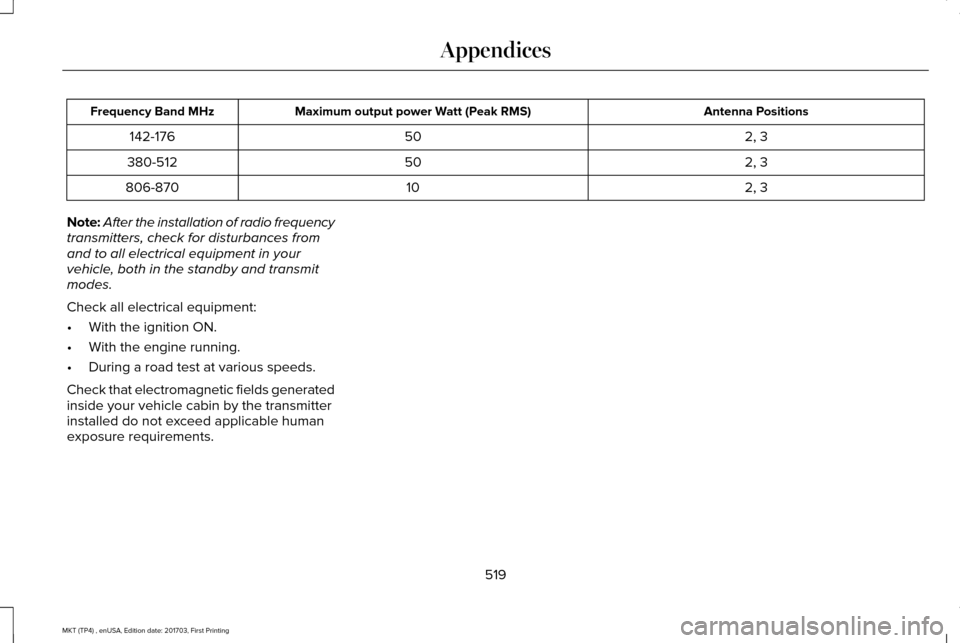
Antenna Positions
Maximum output power Watt (Peak RMS)
Frequency Band MHz
2, 3
50
142-176
2, 3
50
380-512
2, 3
10
806-870
Note: After the installation of radio frequency
transmitters, check for disturbances from
and to all electrical equipment in your
vehicle, both in the standby and transmit
modes.
Check all electrical equipment:
• With the ignition ON.
• With the engine running.
• During a road test at various speeds.
Check that electromagnetic fields generated
inside your vehicle cabin by the transmitter
installed do not exceed applicable human
exposure requirements.
519
MKT (TP4) , enUSA, Edition date: 201703, First Printing Appendices