Page 452 of 792
452 5-7. Connecting Bluetooth ®
RX450h_RX450hL _U_OM48F85UGo to “Bluetooth
* 1
Setup”: “MENU” button → “Setup” → “Bluetooth
* 1
”
Select the device to connect.
Select “Connect XX
* 2
”, “Connect as a Phone” or “Connect as an Audio
Player”.
“Connect XX
* 2
” means connect both the phon e and audio functions of one
device.
If the desired Bluetooth ®
device is not displayed, register the device.
( → P. 451)
* 1
: Bluetooth is a registered trademark of Bluetooth SIG, Inc.
* 2
: XX represents the selected device name.Selecting a Bluetooth ®
deviceIf multiple Bluetooth ®
devices are registered, follow the procedure below to
select the Bluetooth ®
device to be used. You ma y only use one device at a
time.
How to select a Bluetooth ®
device1
2
3
Page 454 of 792
454 5-7. Connecting Bluetooth ®
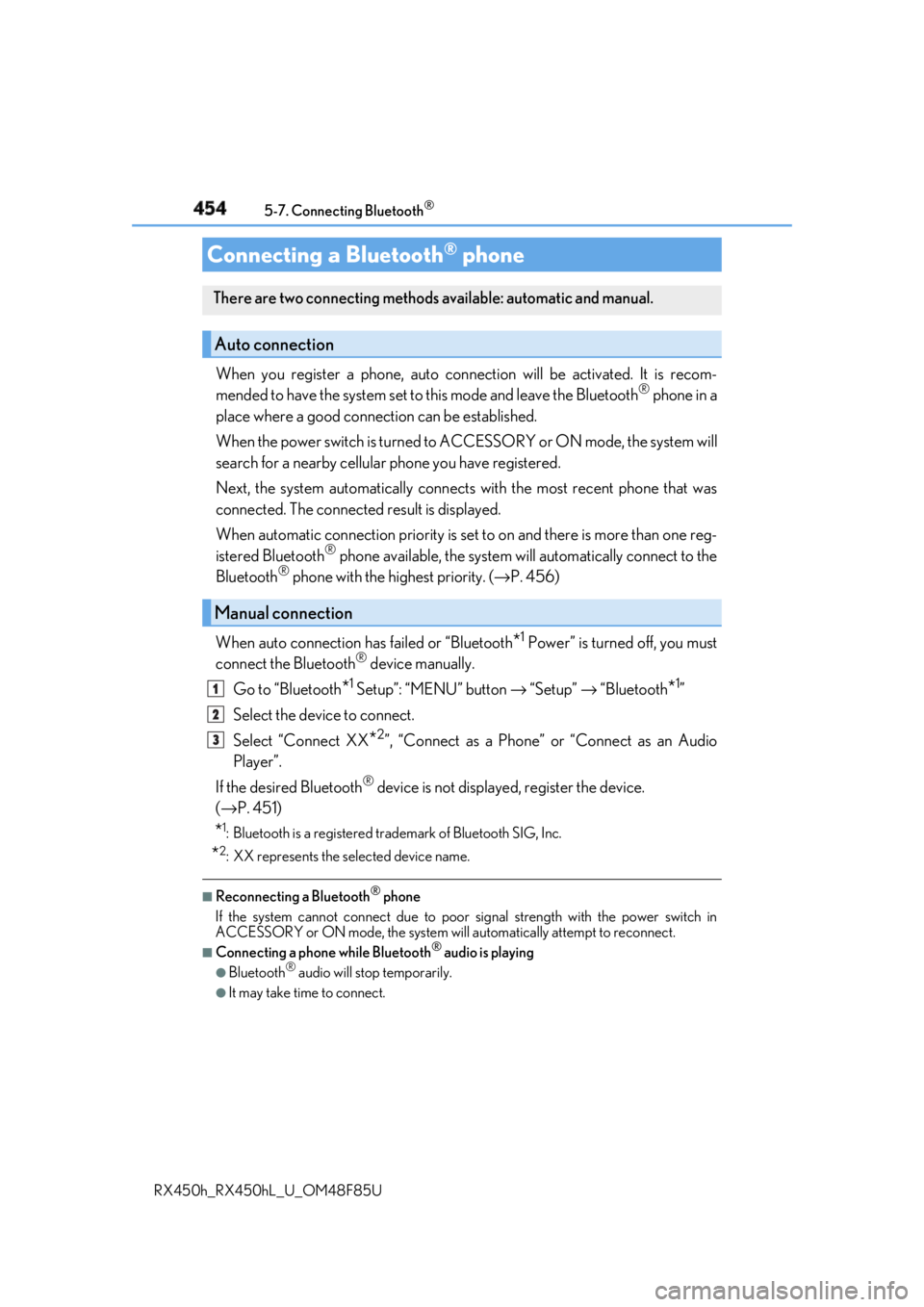
RX450h_RX450hL _U_OM48F85UWhen you register a phone, auto conn ection will be activated. It is recom-
mended to have the system set to this mode and leave the Bluetooth ®
phone in a
place where a good connection can be established.
When the power switch is turned to ACCESSORY or ON mode, the system will
search for a nearby cellular phone you have registered.
Next, the system automatically connects with the most recent phone that was
connected. The connected result is displayed.
When automatic connection priority is se t to on and there is more than one reg-
istered Bluetooth ®
phone available, the system will automatically connect to the
Bluetooth ®
phone with the highest priority. ( → P. 456)
When auto connection has failed or “Bluetooth
* 1
Power” is turned off, you must
connect the Bluetooth ®
device manually.
Go to “Bluetooth
* 1
Setup”: “MENU” button → “Setup” → “Bluetooth
* 1
”
Select the device to connect.
Select “Connect XX
* 2
”, “Connect as a Phone” or “Connect as an Audio
Player”.
If the desired Bluetooth ®
device is not displayed, register the device.
( → P. 451)
* 1
: Bluetooth is a registered trademark of Bluetooth SIG, Inc.
* 2
: XX represents the selected device name. ■
Reconnecting a Bluetooth ®
phone
If the system cannot connect due to poor signal strength with the power switch in
ACCESSORY or ON mode, the system will automatically attempt to reconnect. ■
Connecting a phone while Bluetooth ®
audio is playing●
Bluetooth ®
audio will stop temporarily.●
It may take time to connect.Connecting a Bluetooth ®
phoneThere are two connecting methods available: automatic and manual.
Auto connection
Manual connection 1
2
3
Page 455 of 792
4555-7. Connecting Bluetooth ®
5
Lexus Display Audio system
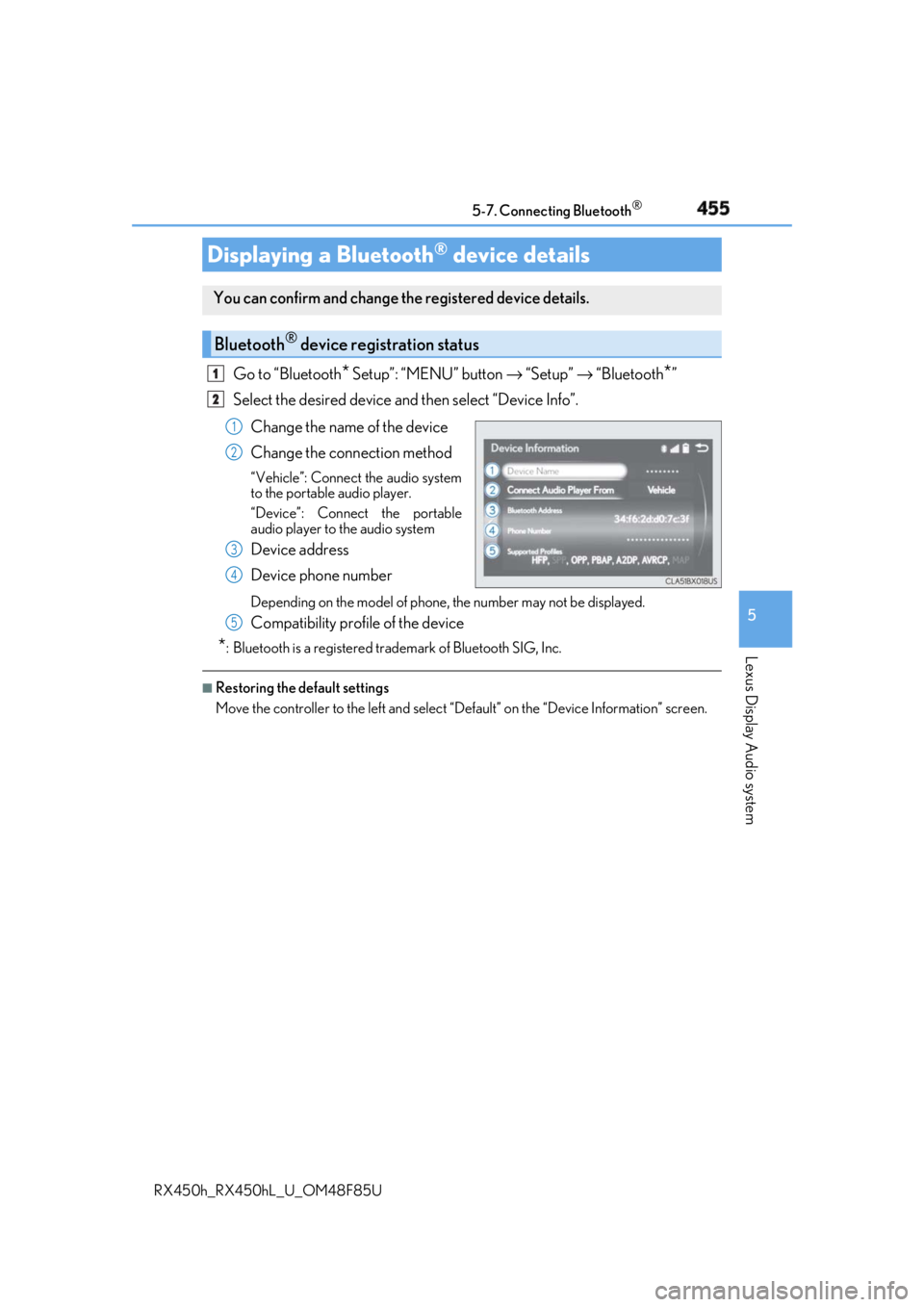
RX450h_RX450hL _U_OM48F85UGo to “Bluetooth
* Setup”: “MENU” button → “Setup” → “Bluetooth
* ”
Select the desired device and then select “Device Info”.
Change the name of the device
Change the connection method “Vehicle”: Connect the audio system
to the portable audio player.
“Device”: Connect the portable
audio player to the audio system
Device address
Device phone number Depending on the model of phone, the number may not be displayed.
Compatibility profile of the device
* : Bluetooth is a registered trademark of Bluetooth SIG, Inc. ■
Restoring the default settings
Move the controller to the left and select “D efault” on the “Device Information” screen.Displaying a Bluetooth ®
device detailsYou can confirm and change th e registered device details.
Bluetooth ®
device registration status 1
2
1
2
3
4
5
Page 456 of 792
456 5-7. Connecting Bluetooth ®
RX450h_RX450hL _U_OM48F85UGo to “Bluetooth
* Setup”: “MENU” button → “Setup” → “Bluetooth
* ”
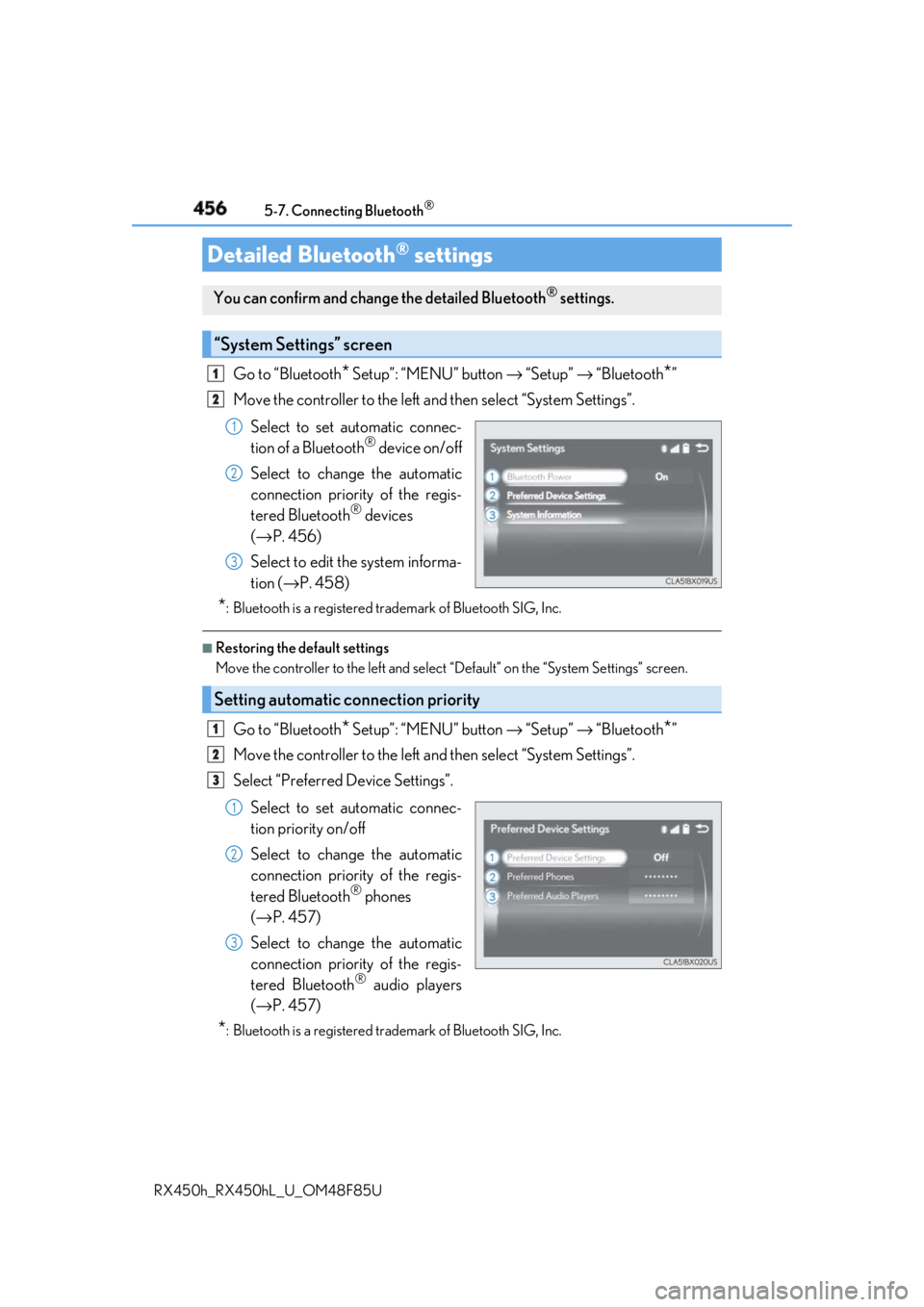
Move the controller to the left an d then select “System Settings”.
Select to set automatic connec-
tion of a Bluetooth ®
device on/off
Select to change the automatic
connection priority of the regis-
tered Bluetooth ®
devices
( → P. 456)
Select to edit the system informa-
tion ( → P. 458)
* : Bluetooth is a registered trademark of Bluetooth SIG, Inc. ■
Restoring the default settings
Move the controller to the left and select “Default” on the “System Settings” screen.
Go to “Bluetooth
* Setup”: “MENU” button → “Setup” → “Bluetooth
* ”
Move the controller to the left an d then select “System Settings”.
Select “Preferred Device Settings”.
Select to set automatic connec-
tion priority on/off
Select to change the automatic
connection priority of the regis-
tered Bluetooth ®
phones
( → P. 457)
Select to change the automatic
connection priority of the regis-
tered Bluetooth ®
audio players
( → P. 457)
* : Bluetooth is a registered trademark of Bluetooth SIG, Inc.Detailed Bluetooth ®
settingsYou can confirm and change the detailed Bluetooth ®
settings.
“System Settings” screen 1
2
1
2
3
Setting automatic connection priority 1
2
3
1
2
3
Page 457 of 792
4575-7. Connecting Bluetooth ®
5
Lexus Display Audio system
RX450h_RX450hL _U_OM48F85U■
Restoring the default settings
Move the controller to the left and select “D efault” on the “Preferred Device Settings”
screen.
Go to “Bluetooth
* Setup”: “MENU” button → “Setup” → “Bluetooth
* ”
Move the controller to the left an d then select “System Settings”.
Select “Preferred Device Settings”.
If “Preferred Device Settings” is set to off, set it to on.
To change the automatic connection pr iority of the registered Bluetooth ®
phones, select “Preferred Phones”. To change the automatic connection pri-
ority of the registered Bluetooth ®
audio players, select “Preferred Audio
Players”.
Select the desired Bluetooth ®
device.
Move the controller to the left and then select “Up” or “Down” to change the
preferred order.
A newly registered Bluetooth ®
device will automatically be given the highest
automatic connection priority.
* : Bluetooth is a registered trademark of Bluetooth SIG, Inc.Changing Bluetooth ®
device automatic connection priority 1
2
3
4
5
6
7
Page 458 of 792
458 5-7. Connecting Bluetooth ®
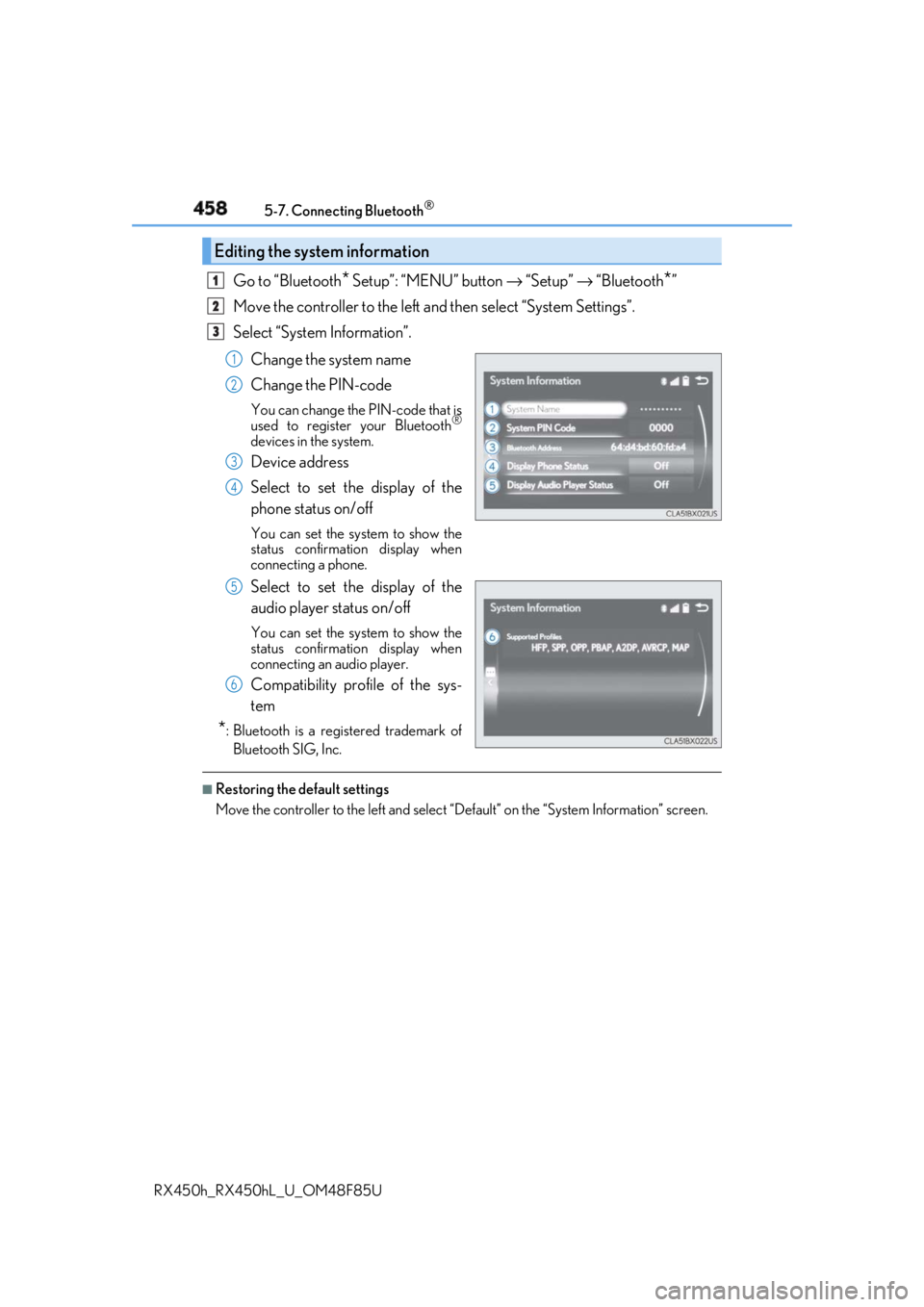
RX450h_RX450hL _U_OM48F85UGo to “Bluetooth
* Setup”: “MENU” button → “Setup” → “Bluetooth
* ”
Move the controller to the left an d then select “System Settings”.
Select “System Information”.
Change the system name
Change the PIN-code You can change the PIN-code that is
used to register your Bluetooth ®
devices in the system.
Device address
Select to set the display of the
phone status on/off You can set the system to show the
status confirmation display when
connecting a phone.
Select to set the display of the
audio player status on/off You can set the system to show the
status confirmation display when
connecting an audio player.
Compatibility profile of the sys-
tem
* : Bluetooth is a registered trademark of
Bluetooth SIG, Inc. ■
Restoring the default settings
Move the controller to the left and select “D efault” on the “System Information” screen.Editing the system information 1
2
3
1
2
3
4
5
6
Page 461 of 792
461
5
Lexus Display Audio system
RX450h_RX450hL _U_OM48F85U 5-9. Bluetooth ®
Phone
Before making a phone call, check the connection status, battery charge, call
area and signal strength. ( →
P. 462)
If a Bluetooth ®
device cannot be connected, chec k the connection status. If the
device is not connected, either register or reconnect it. ( →
P. 451, 454)
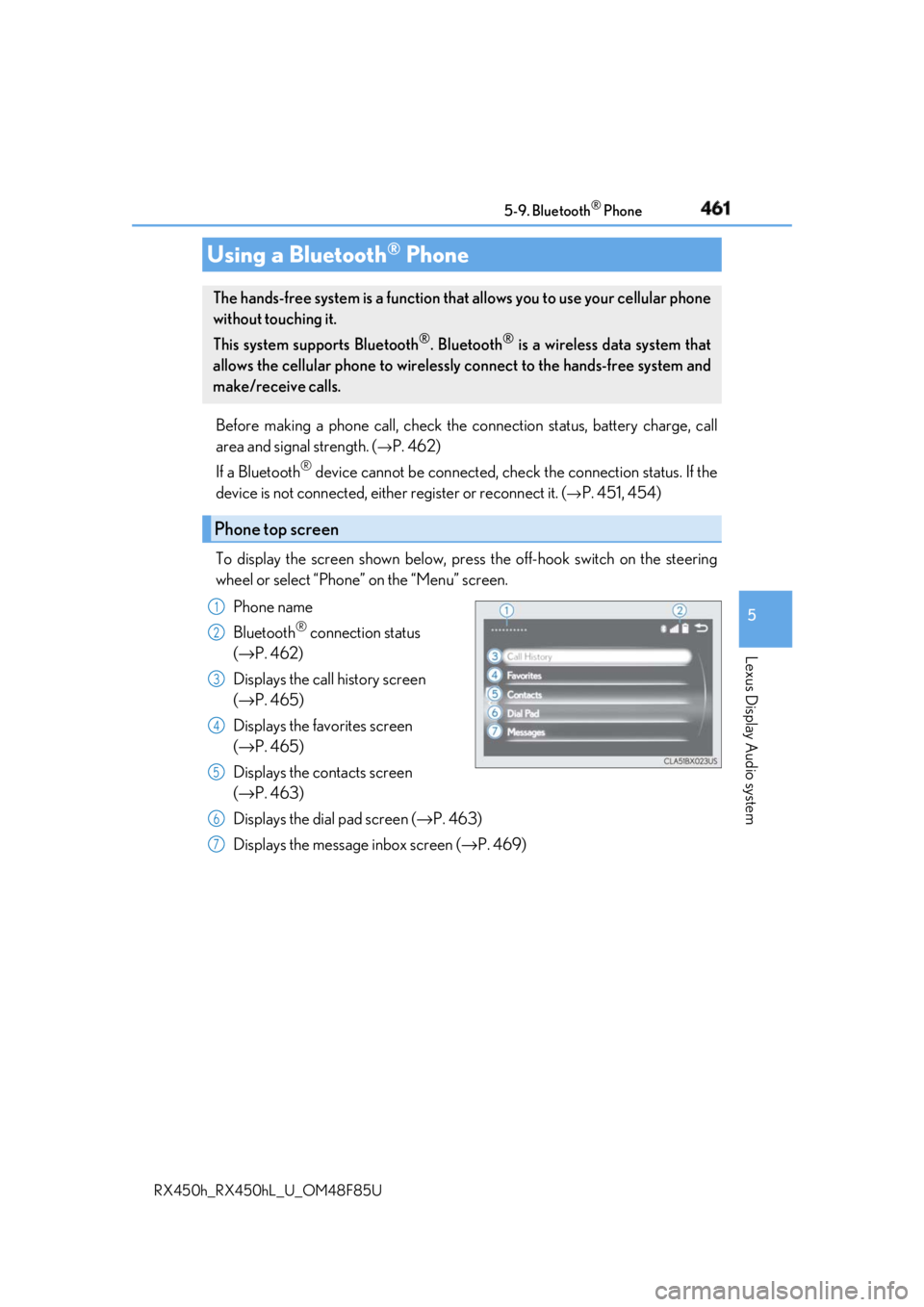
To display the screen shown below, press the off-hook switch on the steering
wheel or select “Phone” on the “Menu” screen.
Phone name
Bluetooth ®
connection status
( → P. 462)
Displays the call history screen
( → P. 465)
Displays the favorites screen
( → P. 465)
Displays the contacts screen
( → P. 463)
Displays the dial pad screen ( → P. 463)
Displays the message inbox screen ( → P. 469)Using a Bluetooth ®
PhoneThe hands-free system is a function that allows you to use your cellular phone
without touching it.
This system supports Bluetooth ®
. Bluetooth ®
is a wireless data system that
allows the cellular phone to wirelessly connect to the hands-free system and
make/receive calls.
Phone top screen 1
2
3
4
5
6
7
Page 462 of 792
462 5-9. Bluetooth ®
Phone
RX450h_RX450hL _U_OM48F85U◆ Phone switch ( → P. 471)
◆ Microphone
The vehicle’s built-in microphone is
used when talking on the phone.
The person to whom you are speak-
ing to can be heard from the front
speakers.
To use the hands-free system, you
must register your Bluetooth ®
phone in the system. ( → P. 451)
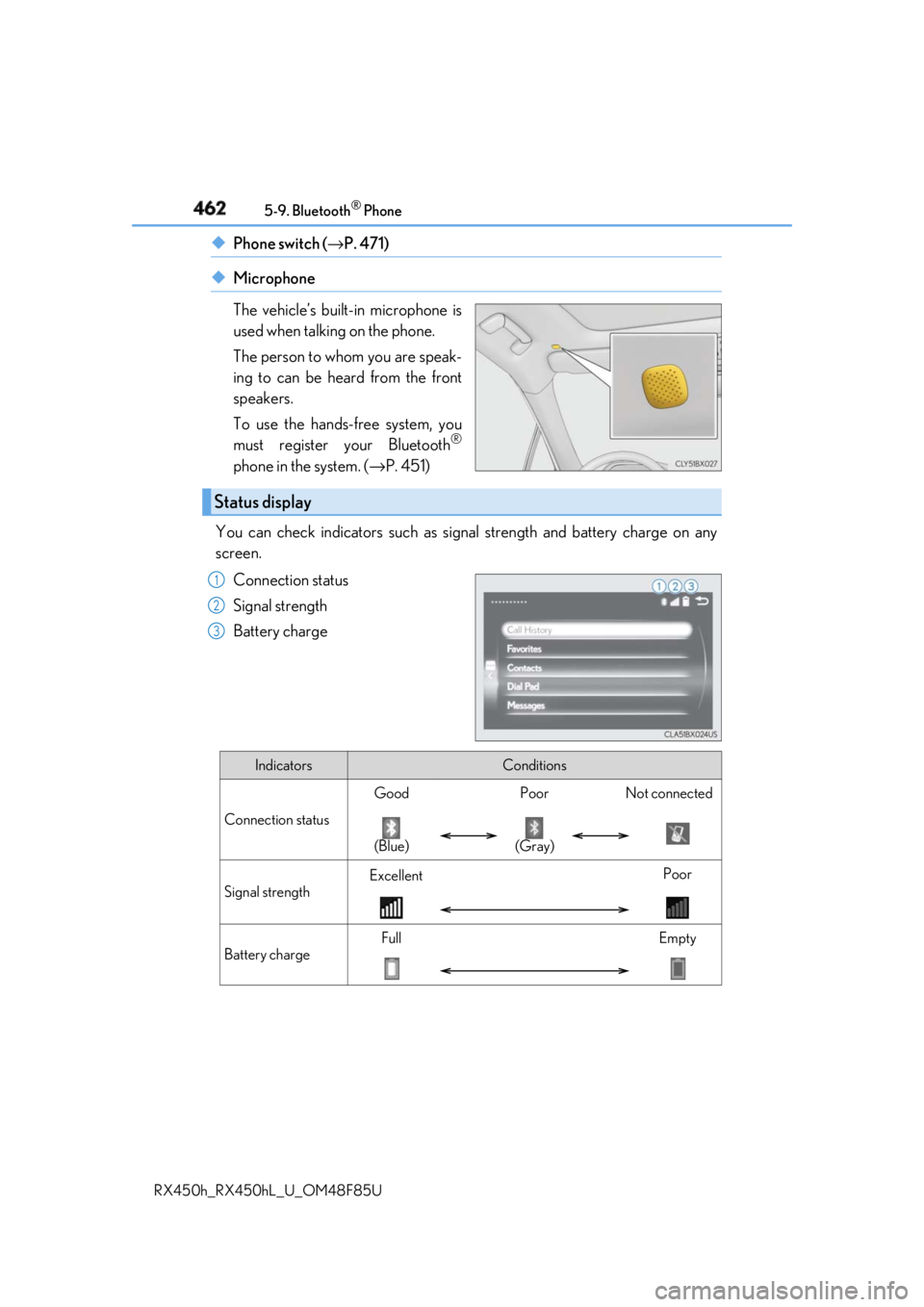
You can check indicators such as signal strength and battery charge on any
screen.
Connection status
Signal strength
Battery chargeStatus display 1
2
3
Indicators Conditions
Connection status Good Poor Not connected
(Blue) (Gray)
Signal strength Excellent Poor
Battery charge Full Empty