Page 470 of 792
470 5-9. Bluetooth ®
Phone
RX450h_RX450hL _U_OM48F85UMove the controller to the left while on the message screen.
Select “Quick Message” to display the “Quick Message” screen.
Select the desired message and then select “Send”. ■
Editing a quick message
Move the controller to the left while on the message screen.
Select “Quick Message” and move th e cursor to the desired message.
Move the controller to the left and select “Edit”. To return to the default message after editing, select “Default”.
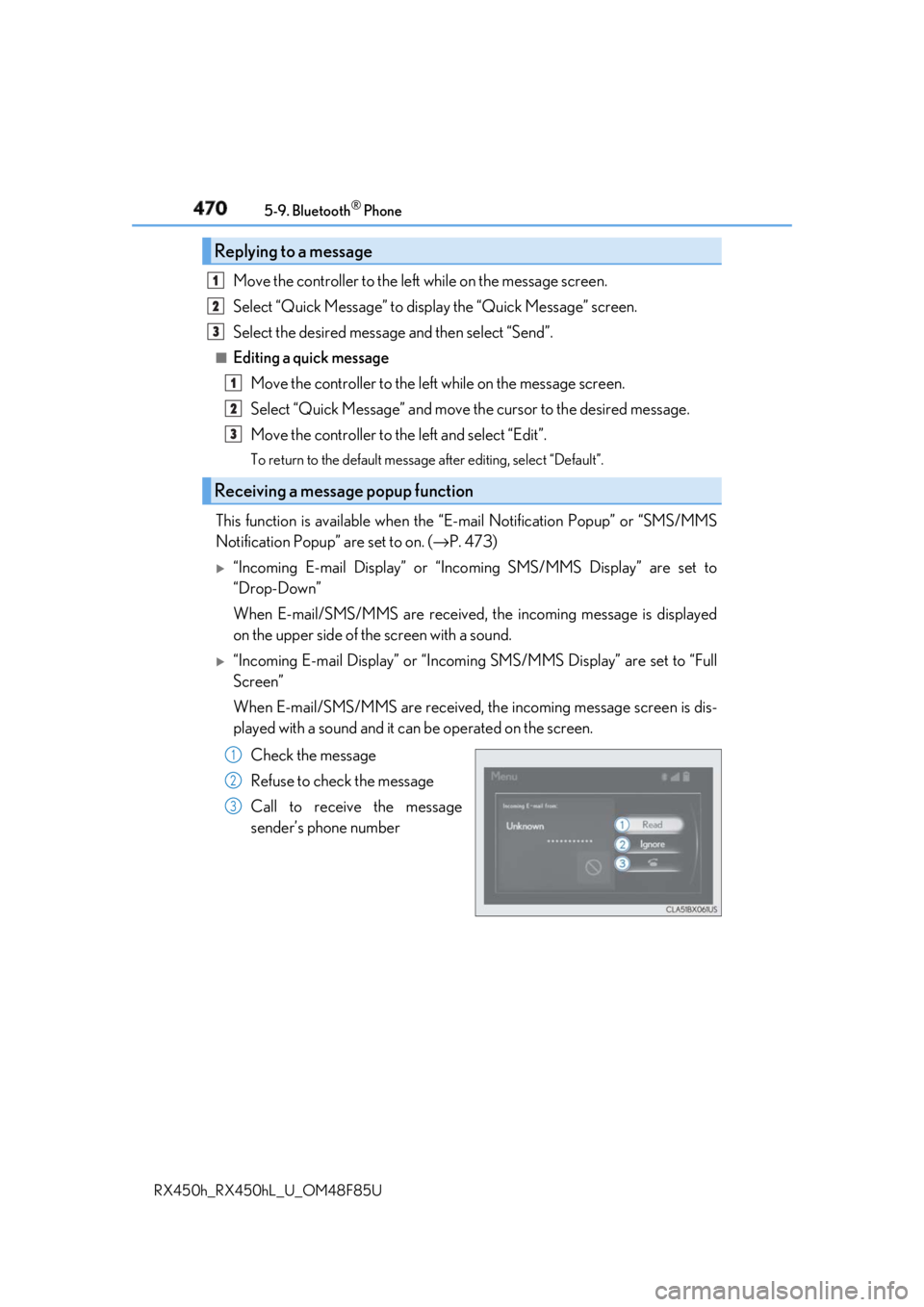
This function is available when the “E-mail Notification Popup” or “SMS/MMS
Notification Popup” are set to on. ( → P. 473)
“Incoming E-mail Display” or “Inco ming SMS/MMS Display” are set to
“Drop-Down”
When E-mail/SMS/MMS are received, the incoming message is displayed
on the upper side of the screen with a sound.
“Incoming E-mail Display” or “Incoming SMS/MMS Display” are set to “Full
Screen”
When E-mail/SMS/MMS are received, th e incoming message screen is dis-
played with a sound and it can be operated on the screen.
Check the message
Refuse to check the message
Call to receive the message
sender’s phone numberReplying to a message
Receiving a message popup function 1
2
3
1
2
3
1
2
3
Page 471 of 792
4715-9. Bluetooth ®
Phone
5
Lexus Display Audio system
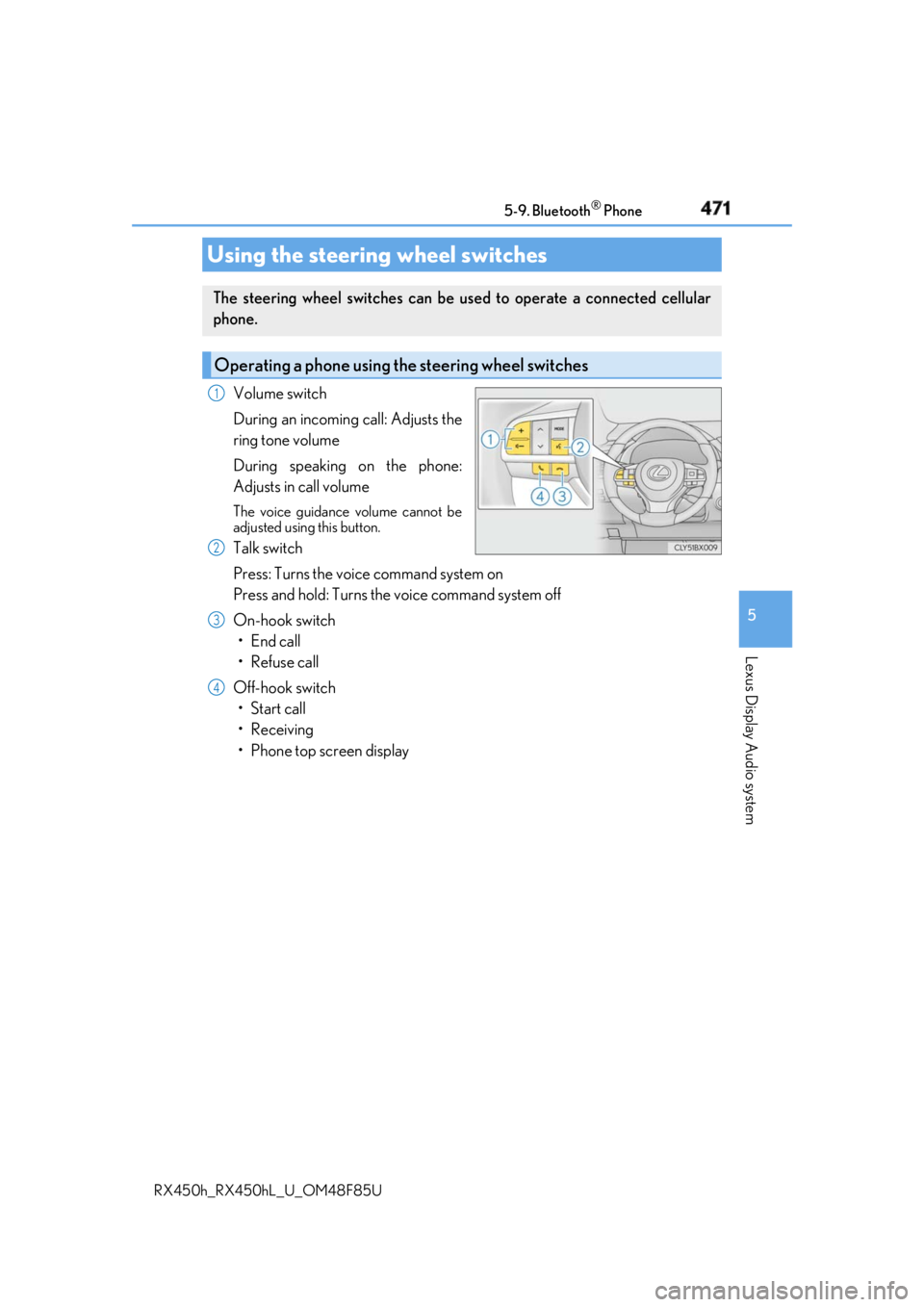
RX450h_RX450hL _U_OM48F85UVolume switch
During an incoming call: Adjusts the
ring tone volume
During speaking on the phone:
Adjusts in call volume The voice guidance volume cannot be
adjusted using this button.
Talk switch
Press: Turns the voice command system on
Press and hold: Turns the voice command system off
On-hook switch
• End call
•Refuse call
Off-hook switch
• Start call
• Receiving
• Phone top screen displayUsing the steering wheel switches The steering wheel switches can be used to operate a connected cellular
phone.
Operating a phone using the steering wheel switches 1
2
3
4
Page 472 of 792
472 5-9. Bluetooth ®
Phone
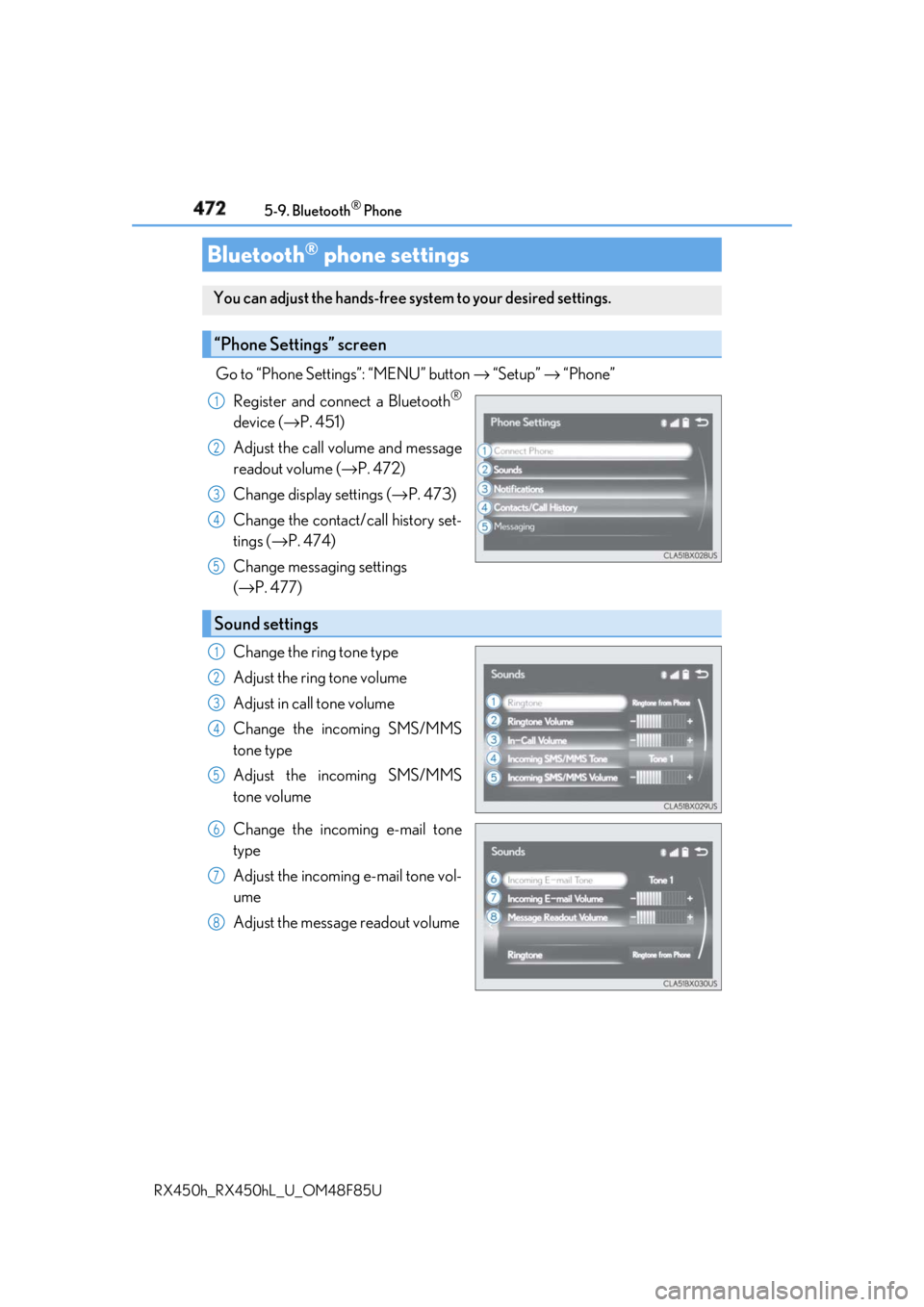
RX450h_RX450hL _U_OM48F85UGo to “Phone Settings”: “MENU” button → “Setup” → “Phone”
Register and connect a Bluetooth ®
device ( → P. 451)
Adjust the call volume and message
readout volume ( → P. 472)
Change display settings ( → P. 473)
Change the contact/call history set-
tings ( → P. 474)
Change messaging settings
( → P. 477)
Change the ring tone type
Adjust the ring tone volume
Adjust in call tone volume
Change the incoming SMS/MMS
tone type
Adjust the incoming SMS/MMS
tone volume
Change the incoming e-mail tone
type
Adjust the incoming e-mail tone vol-
ume
Adjust the message readout volumeBluetooth ®
phone settingsYou can adjust the hands-free sy stem to your desired settings.
“Phone Settings” screen 1
2
3
4
5
Sound settings 1
2
3
4
5
6
7
8
Page 473 of 792
4735-9. Bluetooth ®
Phone
5
Lexus Display Audio system
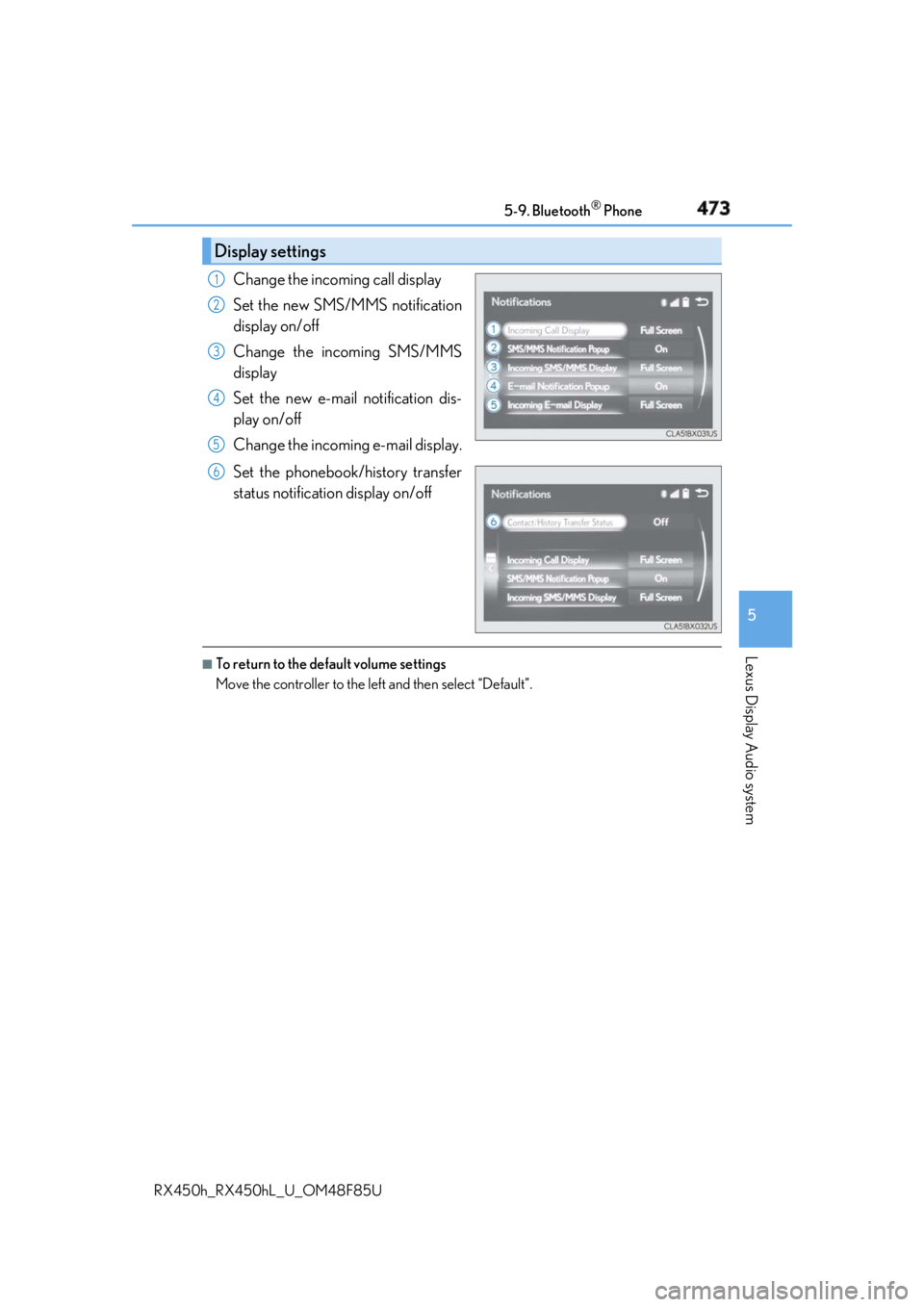
RX450h_RX450hL _U_OM48F85UChange the incoming call display
Set the new SMS/MMS notification
display on/off
Change the incoming SMS/MMS
display
Set the new e-mail notification dis-
play on/off
Change the incoming e-mail display.
Set the phonebook/history transfer
status notification display on/off ■
To return to the default volume settings
Move the controller to the left and then select “Default”.Display settings 1
2
3
4
5
6
Page 475 of 792
4755-10. Phonebook
5
Lexus Display Audio system
RX450h_RX450hL _U_OM48F85U■
Return to the default settings
Move the controller to the left and select “Default”.
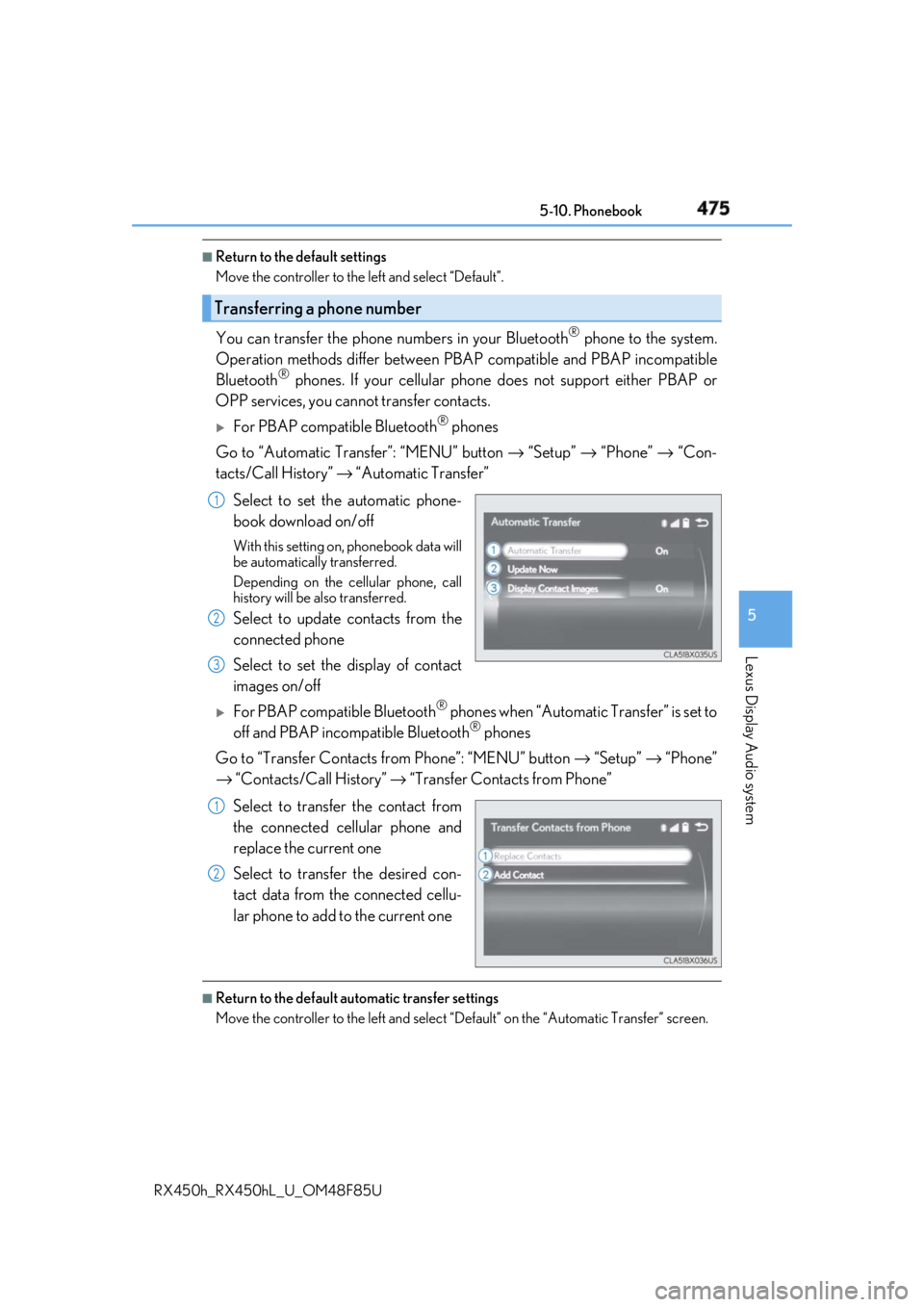
You can transfer the phone numbers in your Bluetooth ®
phone to the system.
Operation methods differ between PBAP compatible and PBAP incompatible
Bluetooth ®
phones. If your cellular phone does not support either PBAP or
OPP services, you canno t transfer contacts.
For PBAP compatible Bluetooth ®
phones
Go to “Automatic Transfer”: “MENU” button → “Setup” → “Phone” → “Con-
tacts/Call History” → “Automatic Transfer”
Select to set the automatic phone-
book download on/off With this setting on, phonebook data will
be automatically transferred.
Depending on the cellular phone, call
history will be also transferred.
Select to update contacts from the
connected phone
Select to set the display of contact
images on/off
For PBAP compatible Bluetooth ®
phones when “Automatic Transfer” is set to
off and PBAP incompatible Bluetooth ®
phones
Go to “Transfer Contacts from Phone”: “MENU” button → “Setup” → “Phone”
→ “Contacts/Call History” → “Transfer Contacts from Phone”
Select to transfer the contact from
the connected cellular phone and
replace the current one
Select to transfer the desired con-
tact data from the connected cellu-
lar phone to add to the current one ■
Return to the default automatic transfer settings
Move the controller to the left and select “D efault” on the “Automatic Transfer” screen.Transferring a phone number 1
2
3
1
2
Page 477 of 792
4775-10. Phonebook
5
Lexus Display Audio system
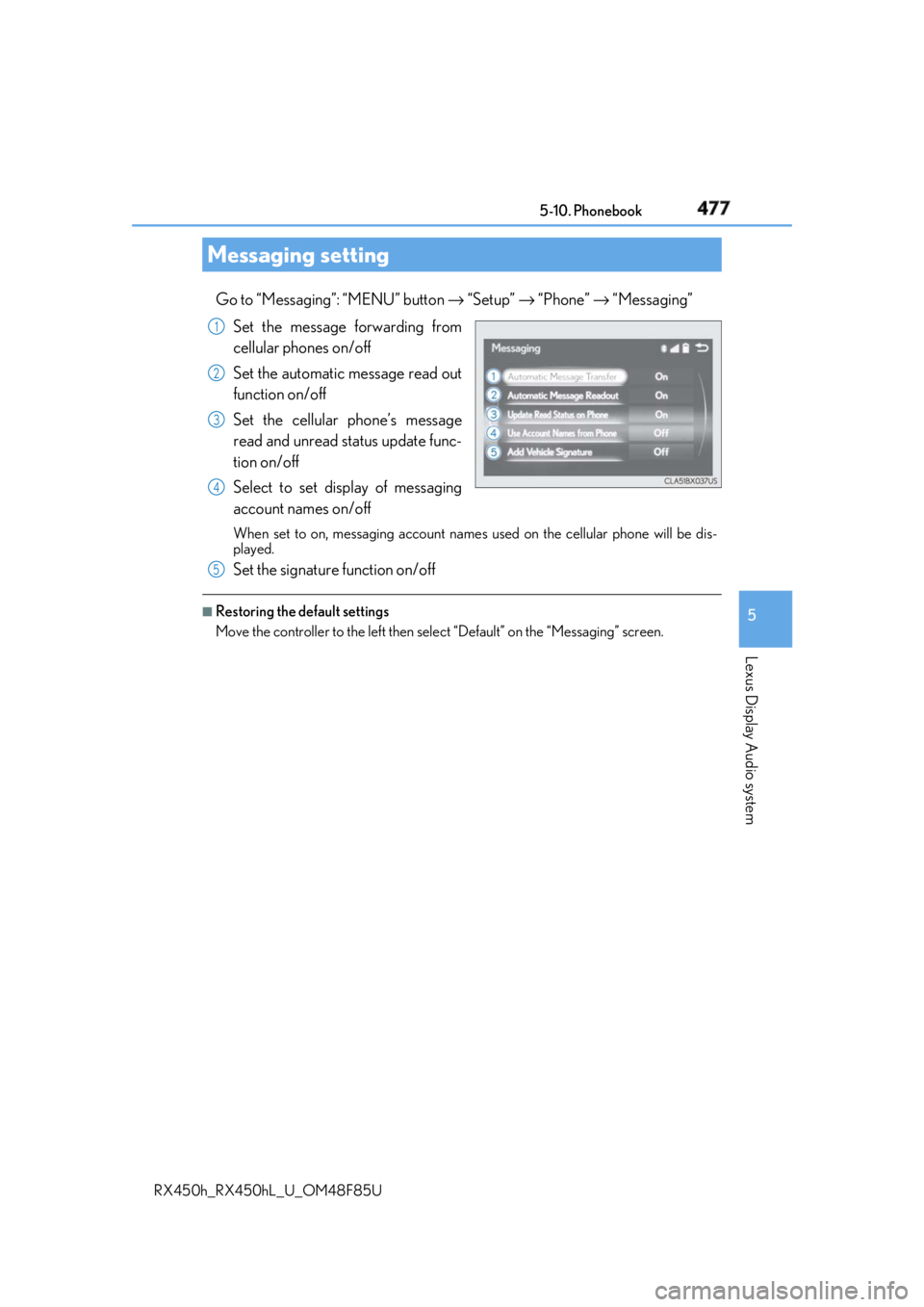
RX450h_RX450hL _U_OM48F85UGo to “Messaging”: “MENU” button → “Setup” → “Phone” → “Messaging”
Set the message forwarding from
cellular phones on/off
Set the automatic message read out
function on/off
Set the cellular phone’s message
read and unread st atus update func-
tion on/off
Select to set display of messaging
account names on/off When set to on, messaging account names used on the cellular phone will be dis-
played.
Set the signature function on/off ■
Restoring the default settings
Move the controller to the left then select “Default” on the “Messaging” screen.Messaging setting 1
2
3
4
5
Page 479 of 792
4795-11. Bluetooth ®
5
Lexus Display Audio system
RX450h_RX450hL _U_OM48F85U
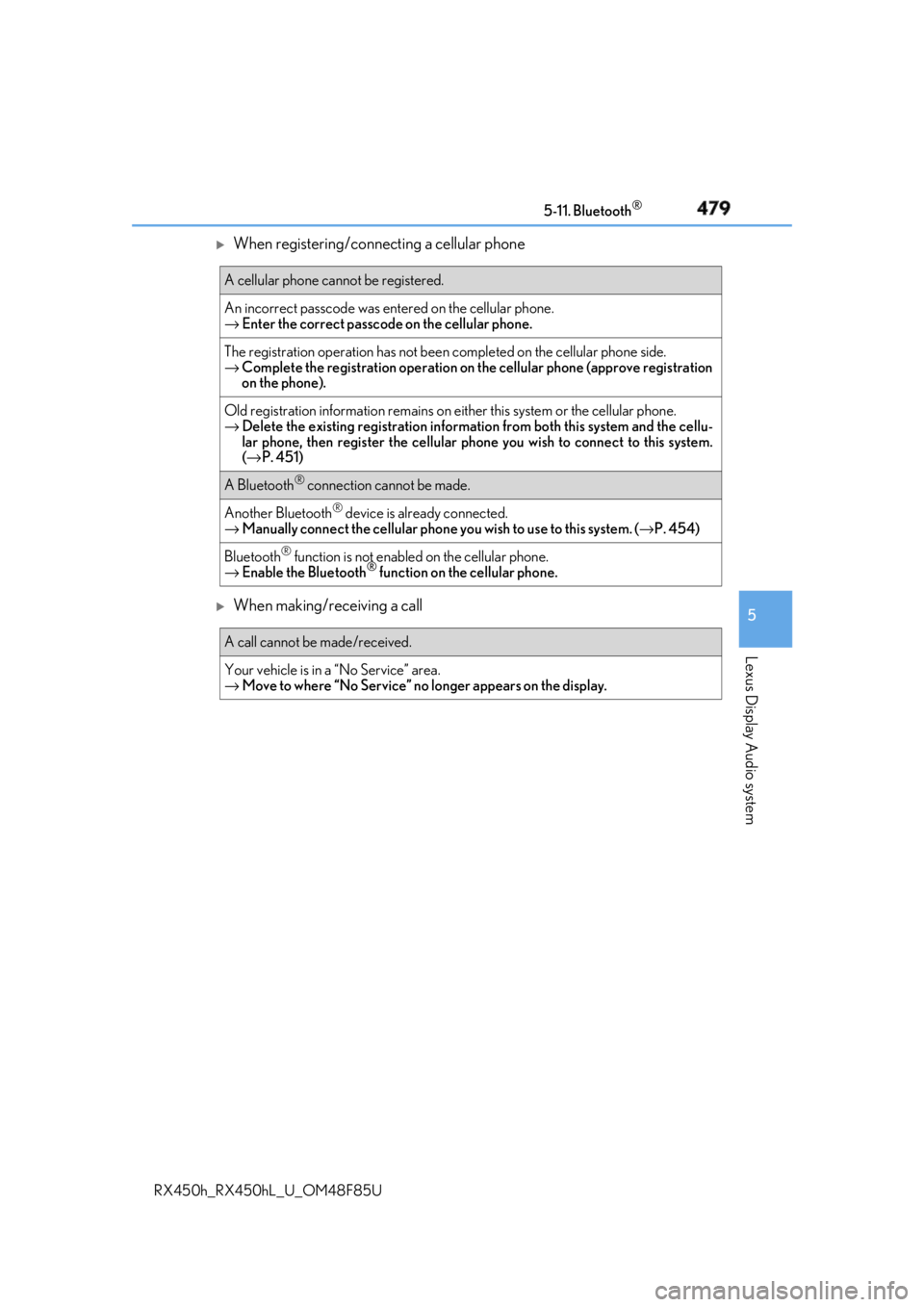
When registering/connecting a cellular phone
When making/receiving a call A cellular phone cannot be registered.
An incorrect passcod e was entered on the cellular phone.
→ Enter the correct passcode on the cellular phone.
The registration operation has not been completed on the cellular phone side.
→ Complete the registration operation on the cellular phone (approve registration
on the phone).
Old registration information remains on either this system or the cellular phone.
→ Delete the existing registration informat ion from both this system and the cellu-
lar phone, then register the cellular phone you wish to connect to this system.
( → P. 451)
A Bluetooth ®
connection cannot be made.
Another Bluetooth ®
device is already connected.
→ Manually connect the cellular phone you wish to use to this system. ( → P. 454)
Bluetooth ®
function is not enabled on the cellular phone.
→ Enable the Bluetooth ®
function on the cellular phone.
A call cannot be made/received.
Your vehicle is in a “No Service” area.
→ Move to where “No Service” no longer appears on the display.
Page 480 of 792
480 5-11. Bluetooth ®
RX450h_RX450hL _U_OM48F85U
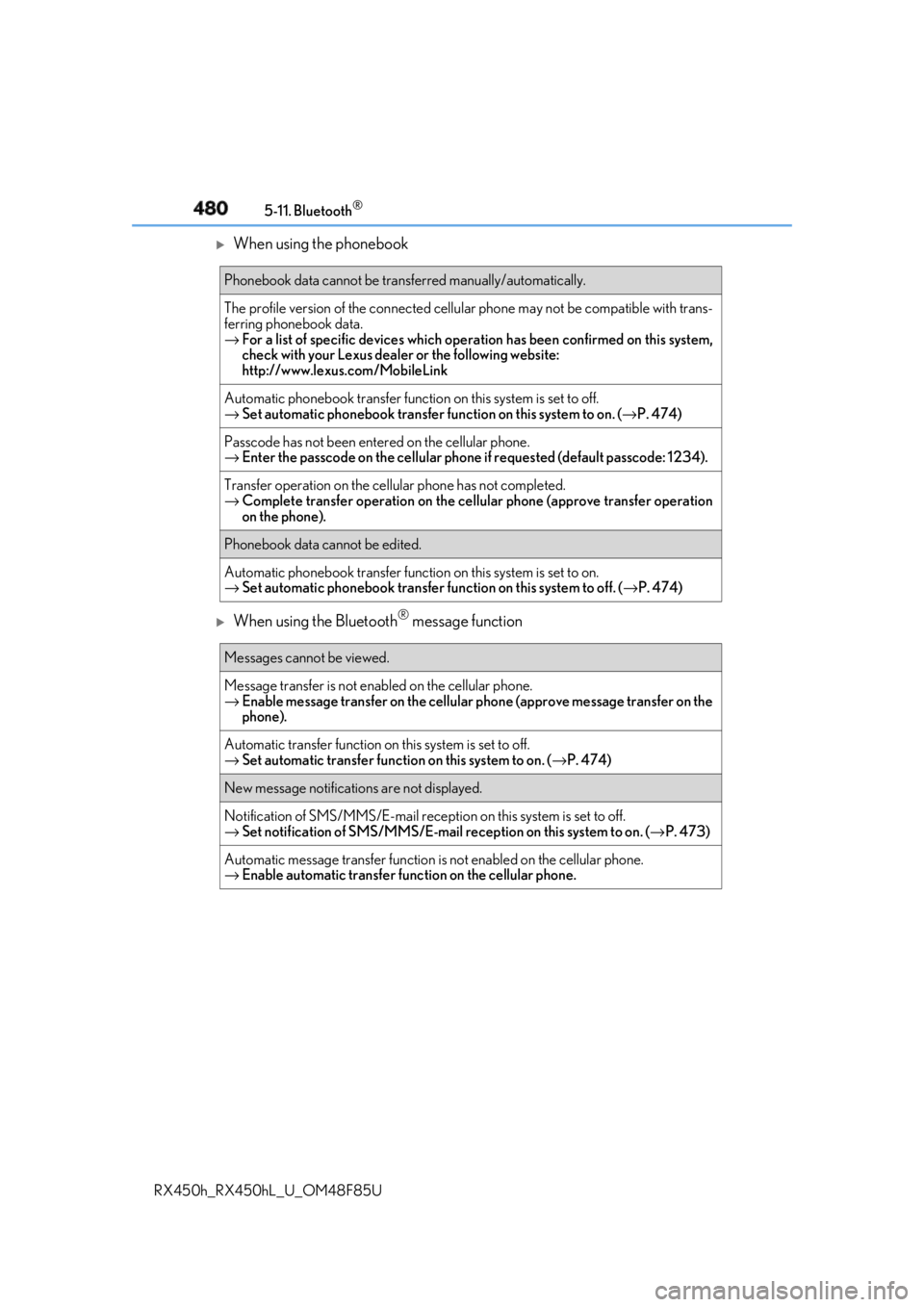
When using the phonebook
When using the Bluetooth ®
message functionPhonebook data cannot be transf erred manually/automatically.
The profile version of the connected cellular phone may not be compatible with trans-
ferring phonebook data.
→ For a list of specific devices which operat ion has been confirmed on this system,
check with your Lexus dealer or the following website:
http://www.lexus. com/MobileLink
Automatic phonebook transfer function on this system is set to off.
→ Set automatic phonebook transfer function on this system to on. ( → P. 474)
Passcode has not been entered on the cellular phone.
→ Enter the passcode on the cellular phone if requested (default passcode: 1234).
Transfer operation on the ce llular phone has not completed.
→ Complete transfer operation on the ce llular phone (approve transfer operation
on the phone).
Phonebook data cannot be edited.
Automatic phonebook transfer function on this system is set to on.
→ Set automatic phonebook transfer function on this system to off. ( → P. 474)
Messages cannot be viewed.
Message transfer is not en abled on the cellular phone.
→ Enable message transfer on the cellular phone (approve message transfer on the
phone).
Automatic transfer function on this system is set to off.
→ Set automatic transfer function on this system to on. ( → P. 474)
New message notifications are not displayed.
Notification of SMS/MMS/E-mail recept ion on this system is set to off.
→ Set notification of SMS/MMS/E-mail re ception on this system to on. ( → P. 473)
Automatic message transfer function is not enabled on the cellular phone.
→ Enable automatic transfer func tion on the cellular phone.