Page 313 of 605
Audio system
551
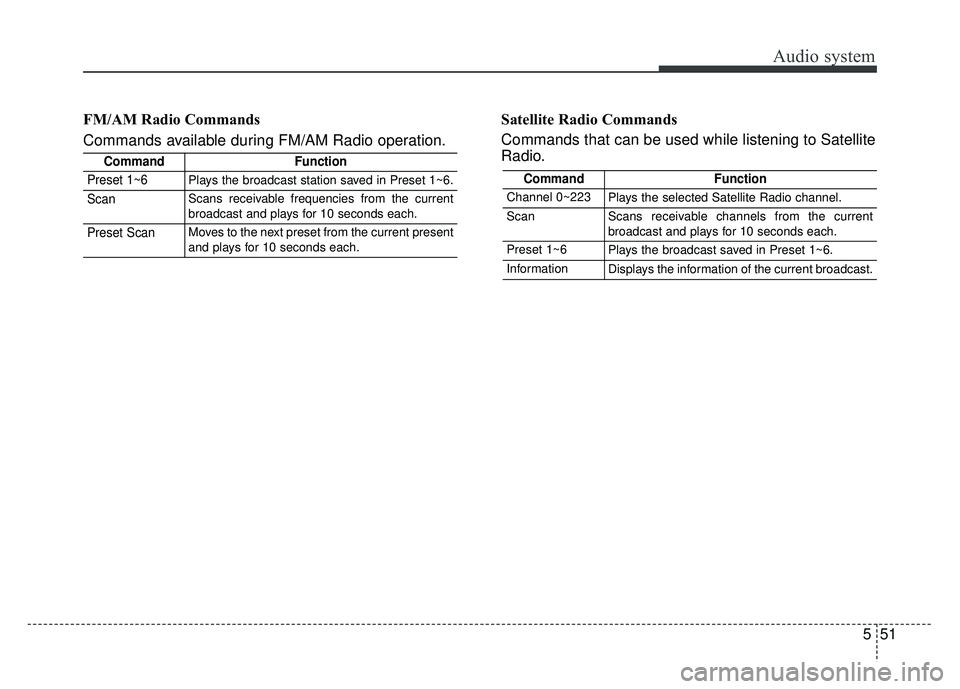
FM/AM Radio Commands
Commands available during FM/AM Radio operation.Satellite Radio Commands
Commands that can be used while listening to Satellite
Radio.
CommandFunction
Preset 1~6Plays the broadcast station saved in Preset 1~6.
ScanScans receivable frequencies from the current
broadcast and plays for 10 seconds each.
Preset ScanMoves to the next preset from the current present
and plays for 10 seconds each.
CommandFunction
Channel 0~223Plays the selected Satellite Radio channel.
ScanScans receivable channels from the current
broadcast and plays for 10 seconds each.
Preset 1~6Plays the broadcast saved in Preset 1~6.
InformationDisplays the information of the current broadcast.
Page 314 of 605
Audio system
52
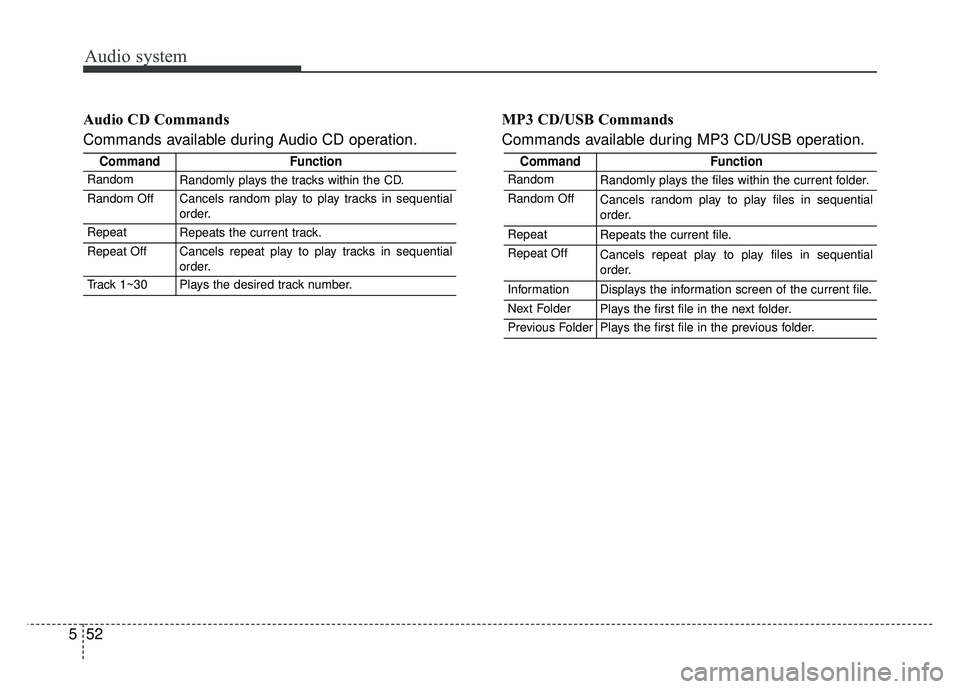
5 Audio CD Commands
Commands available during Audio CD operation.
MP3 CD/USB Commands
Commands available during MP3 CD/USB operation.
CommandFunction
RandomRandomly plays the files within the current folder.
Random OffCancels random play to play files in sequential
order.
RepeatRepeats the current file.
Repeat OffCancels repeat play to play files in sequential
order.
InformationDisplays the information screen of the current file.
Next FolderPlays the first file in the next folder.
Previous FolderPlays the first file in the previous folder.
CommandFunction
RandomRandomly plays the tracks within the CD.
Random OffCancels random play to play tracks in sequential
order.
RepeatRepeats the current track.
Repeat OffCancels repeat play to play tracks in sequential
order.
Track 1~30Plays the desired track number.
Page 317 of 605
![KIA SPORTAGE 2018 Owners Manual Audio system
555
Setup Mode
Press the [SETUP]button to display
the Setup screen.
You can select and control options
related to [Display], [Sound],
[Clock/Calendar], [Phone] and
[System] .
With the Dis](/manual-img/2/54576/w960_54576-316.png "KIA SPORTAGE 2018 Owners Manual Audio system
555
Setup Mode
Press the [SETUP]button to display
the Setup screen.
You can select and control options
related to [Display], [Sound],
[Clock/Calendar], [Phone] and
[System] .
With the Dis")
Audio system
555
Setup Mode
Press the [SETUP]button to display
the Setup screen.
You can select and control options
related to [Display], [Sound],
[Clock/Calendar], [Phone] and
[System] .
With the Display Button
Press the [SETUP] button �Select
[Display]
You can select and control options
related to [Brightness], [Mode Pop
up] and [Media Display].
Adjusting the Brightness
Use the [Left/Right] b uttons to adjust
the screen brightness or set the
Brightness on Automatic, Day or Night
mode.
Press the [Default] button to reset.
Automatic : Adjusts the brightness automatically.
Day : Always maintains the bright- ness on high.
Night : Always maintains the bright- ness on low. Mode Pop up
This feature is used to display the
Mode Pop up screen when entering
radio and media modes.
When this feature is turned on,
pressing the [RADIO]
or [MEDIA]
button will display the Mode Pop up
screen.
✽ ✽ NOTICE
The media Mode Pop up screen can
be displayed only when two or more
media modes have been connected.
Page 318 of 605
Audio system
56
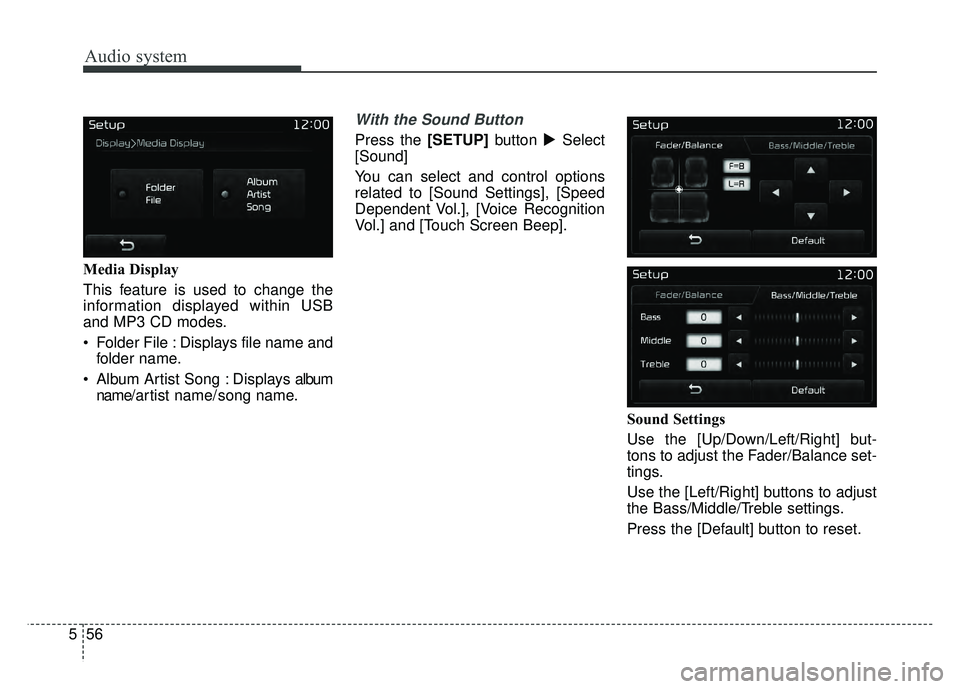
5 Media Display
This feature is used to change the
information displayed within USB
and MP3 CD modes.
Folder File : Displays file name and
folder name.
Album Artist Song : Displays album name/ a r tist name/ song name.
With the Sound Button
Press the [SETUP] button �Select
[Sound]
You can select and control options
related to [Sound Settings], [Speed
Dependent Vol.], [Voice Recognition
Vol.] and [Touch Screen Beep].
Sound Settings
Use the [Up/Down/Left/Right] but-
tons to adjust the Fader/Balance set-
tings.
Use the [Left/Right] buttons to adjust
the Bass/Middle/Treble settings.
Press the [Default] button to reset.
Page 320 of 605
Audio system
58
5
With the Clock/Calendar Button
Press the [SETUP] button �Select
[Clock/Calendar]
You can select and control options
related to [Clock Settings], [Calendar
Settings], [Time Format] and [Clock
Display].
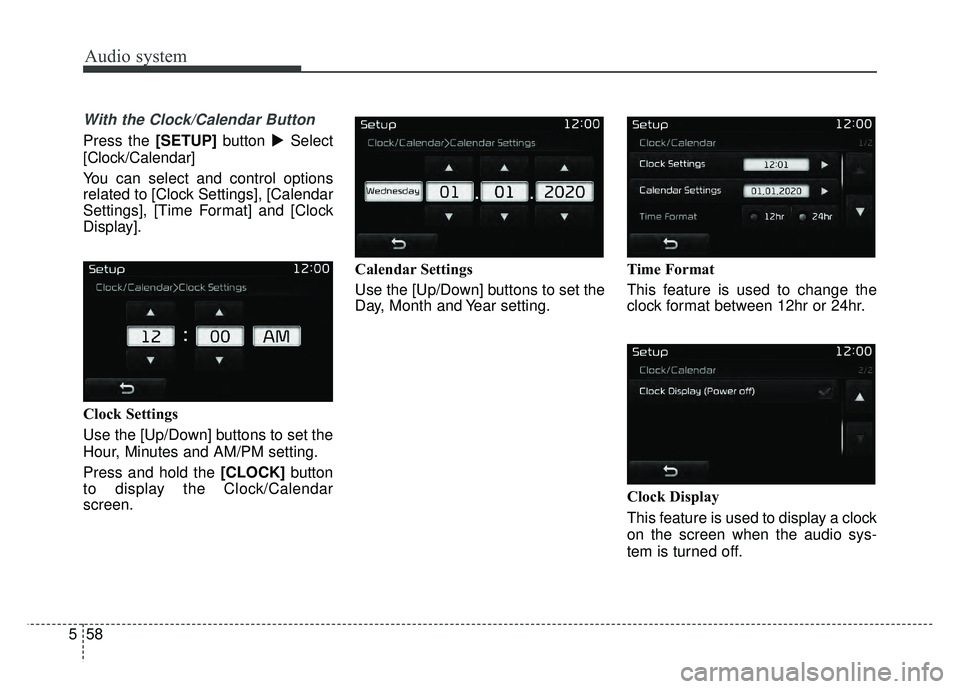
Clock Settings
Use the [Up/Down] buttons to set the
Hour, Minutes and AM/PM setting.
Press and hold the [CLOCK] button
to display the Clock/Calendar
screen. Calendar Settings
Use the [Up/Down] buttons to set the
Day, Month and Year setting.
Time Format
This feature is used to change the
clock format between 12hr or 24hr.
Clock Display
This feature is used to display a clock
on the screen when the audio sys-
tem is turned off.
Page 322 of 605
Audio system
60
5
✽
✽
NOTICE - Before
Downloading Contacts
• Only contacts within connected phones can be downloaded. Also
check to see that your mobile
phone supports the download fea-
ture.
• To learn more about whether your mobile phone supports contact
downloads, refer to your mobile
phone user’s manual.
• The contacts for only the connect- ed phone can be downloaded.
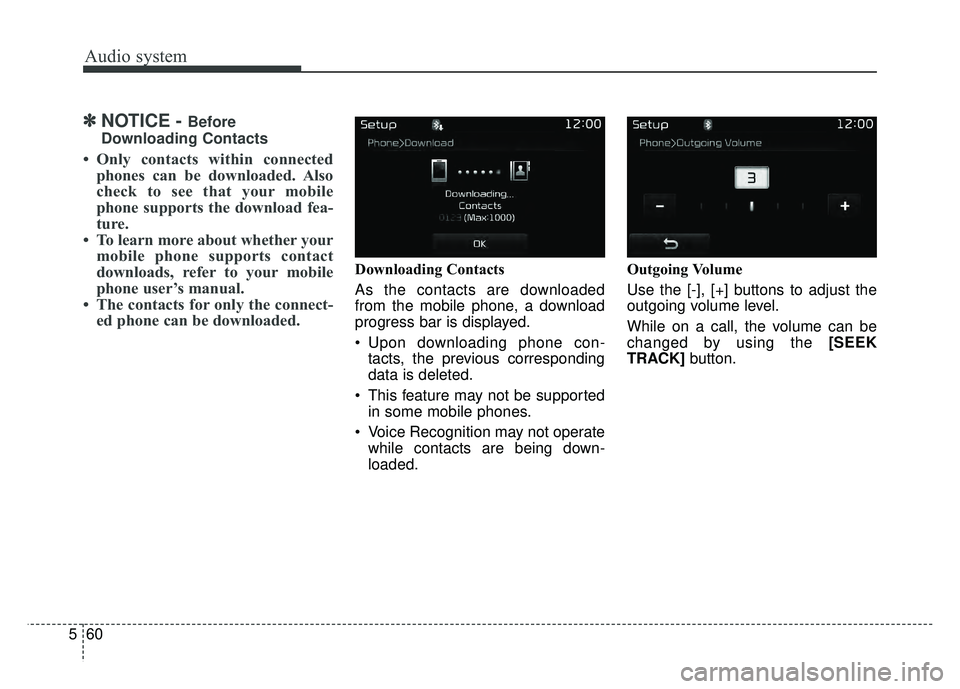
Downloading Contacts
As the contacts are downloaded
from the mobile phone, a download
progress bar is displayed.
Upon downloading phone con-
tacts, the previous corresponding
data is deleted.
This feature may not be supported in some mobile phones.
Voice Recognition may not operate while contacts are being down-
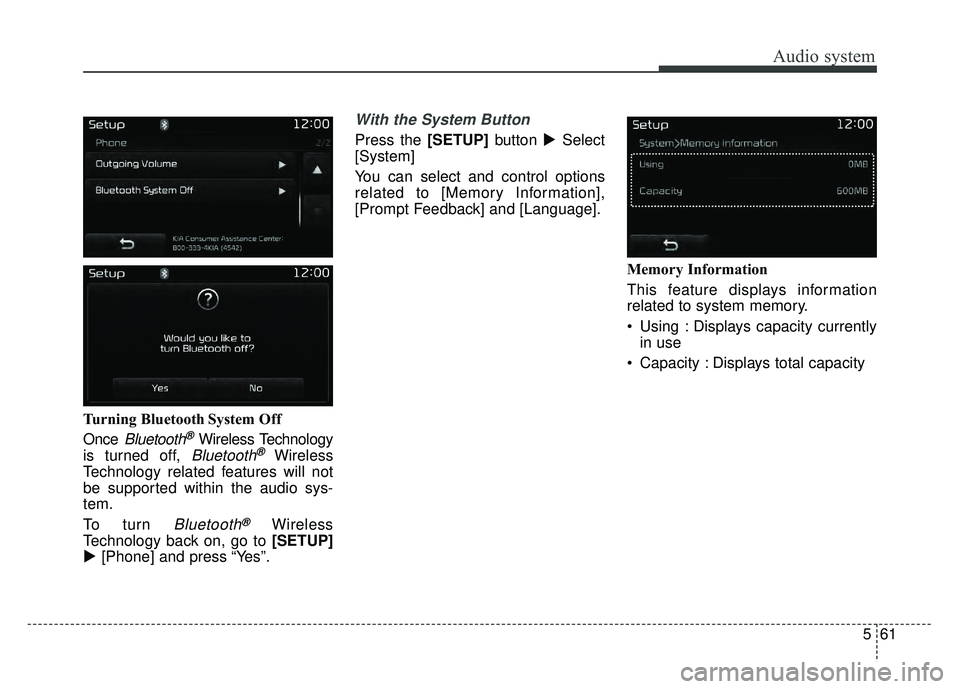
loaded. Outgoing Volume
Use the [-], [+] buttons to adjust the
outgoing volume level.
While on a call, the volume can be
changed by using the [SEEK
TRACK]
button.
Page 323 of 605
Audio system
561
Turning Bluetooth System Off
Once
Bluetooth®Wireless Technology
is turned off,
Bluetooth®Wireless
Technology related features will not
be supported within the audio sys-
tem.
To turn
Bluetooth®Wireless
Technology back on, go to [SETUP]
� [Phone] and press “Yes”.
With the System Button
Press the [SETUP] button �Select
[System]
You can select and control options
related to [Memory Information],
[Prompt Feedback] and [Language].
Memory Information
This feature displays information
related to system memory.
Using : Displays capacity currentlyin use
Capacity : Displays total capacity
Page 339 of 605
Driving your vehicle
12
6
Even if the smart key is in the vehi-
cle, if it is far away from you, the
engine may not start.
When the ENGINE START/STOP button is in the ACC position or
above, if any door is opened, the
system checks for the smart key. If
the smart key is not in the vehicle,
a message "key is not in the vehi-
cle" will appear on the LCD display.
And if all doors are closed, the
chime will sound for 5 seconds. The
indicator or warning will turn off
while the vehicle is moving. Always
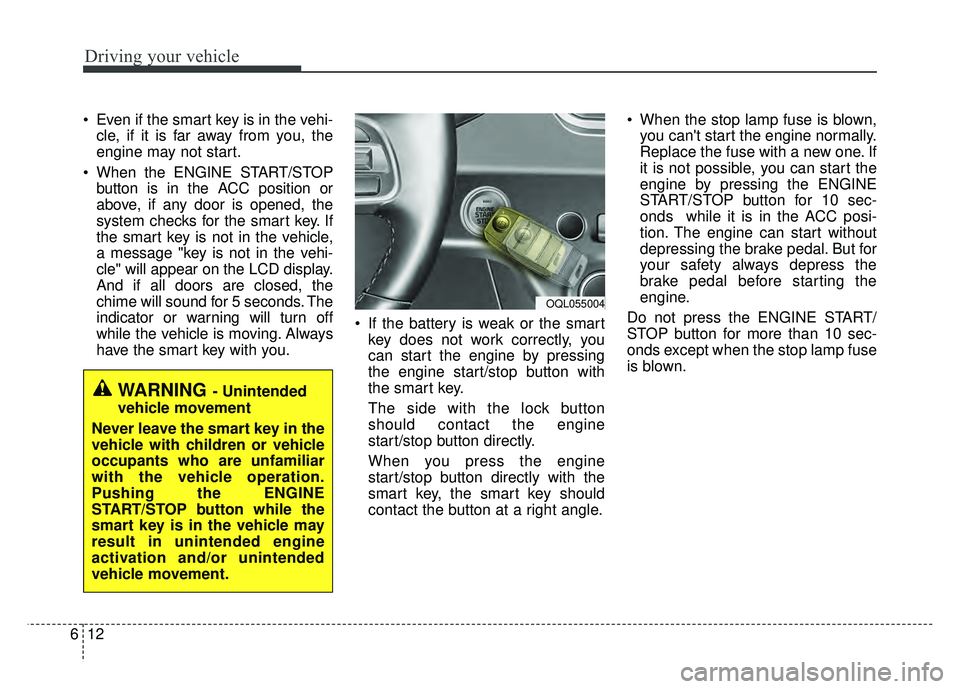
have the smart key with you. If the battery is weak or the smart
key does not work correctly, you
can start the engine by pressing
the engine start/stop button with
the smart key.
The side with the lock button
should contact the engine
start/stop button directly.
When you press the engine
start/stop button directly with the
smart key, the smart key should
contact the button at a right angle. When the stop lamp fuse is blown,
you can't start the engine normally.
Replace the fuse with a new one. If
it is not possible, you can start the
engine by pressing the ENGINE
START/STOP button for 10 sec-
onds while it is in the ACC posi-
tion. The engine can start without
depressing the brake pedal. But for
your safety always depress the
brake pedal before starting the
engine.
Do not press the ENGINE START/
STOP button for more than 10 sec-
onds except when the stop lamp fuse
is blown.
WARNING - Unintended
vehicle movement
Never leave the smart key in the
vehicle with children or vehicle
occupants who are unfamiliar
with the vehicle operation.
Pushing the ENGINE
START/STOP button while the
smart key is in the vehicle may
result in unintended engine
activation and/or unintended
vehicle movement.
OQL055004