Page 240 of 442
![Hyundai Accent 2018 Owners Manual 4-33
Multimedia System
4
Selecting songs from a list
Select [List] to see a list of songs
available for play.
Select and play the desired song.
Repeat play
Select [Repeat] to enable or disable
Repeat](/manual-img/35/14346/w960_14346-239.png "Hyundai Accent 2018 Owners Manual 4-33
Multimedia System
4
Selecting songs from a list
Select [List] to see a list of songs
available for play.
Select and play the desired song.
Repeat play
Select [Repeat] to enable or disable
Repeat")
4-33
Multimedia System
4
Selecting songs from a list
Select [List] to see a list of songs
available for play.
Select and play the desired song.
Repeat play
Select [Repeat] to enable or disable
'Repeat all', 'Repeat current song' or
'Repeat category' play.
Repeat all: All songs in theplaylist are repeated.
Repeat current song: The cur- rently playing song is repeated.
Repeat category: Repeat all songs in the current category.
Shuffle play
Select [Shuffle] to enable or disable
'Shuffle' or 'Shuffle category' play.
Shuffle: Songs are played inrandom order.
Shuffle category: Songs within the current category are played in
random order.
Menu
Select [Menu], and select the desired
function.
Delete Files: You can delete filesfrom My Music.
(1) File: Select saved file.
(2) Mark All: Select all files.
(3) Unmark All: Deselect all files. (4) Delete: Delete the selected file(s).
- Select the file to delete, thenselect [Delete] to delete it.
- If phone calls are received or made during delete, delete will
be canceled.
Add to Playlist: Frequently played songs can be paired in a [Playlist].
- Songs can be played from the[Playlist].
Information: Detailed info on the currently playing song is displayed.
Sound Settings: Audio sound set- tings can be changed.
Delete from Playlist
When a song in the playlist is play-
ing, select [Menu] and select [Delete
from Playlist].
Select the song to delete, then select
[Delete].
Page 242 of 442

4-35
Multimedia System
4
5) Automatic contacts/call historydownload when
Bluetooth®
Wireless Technology is connected
6) Automatic
Bluetooth®Wireless
Technology device connection
when the vehicle is started
7)
Bluetooth®Wireless Technology
audio streaming playback
Before connecting the audio sys- tem to your device, make sure your
device supports
Bluetooth®
Wireless Technology.
Even if your device supports
Bluetooth®Wireless Technology, a
Bluetooth®Wireless Technology
connection cannot be established
if the device's
Bluetooth®Wireless
Technology function is switched
off. Search and connect with the
Bluetooth®Wireless Technology
function enabled.
Pair or connect
Bluetooth®Wireless
Technology devices to the audio
system with the vehicle at a stand-
still. If a
Bluetooth®Wireless Technology
connection is lost due to abnormal
conditions while a
Bluetooth®
Wireless Technology device is con-
nected (communication range
exceeded, device power OFF,
communication errors, etc.), the
disconnected
Bluetooth®Wireless
Technology device is searched for
and automatically reconnected.
If you want to disable the
Bluetooth®Wireless Technology
device auto-connect function, turn
the
Bluetooth®Wireless Technology
function OFF on your device.
Consult the user manuals for indi-
vidual devices to see whether
Bluetooth®Wireless Technology is
supported.
Handsfree call quality and volume may vary depending on the type of
Bluetooth®Wireless Technology
device.
Some
Bluetooth®Wireless Technology
devices are subject to intermittent
Bluetooth®Wireless Technology
connection failures. In this case,
use the following method. 1) Turn the
Bluetooth®Wireless
Technology function off on your
Bluetooth®Wireless Technology
device ➟Turn it on and try
again.
2) Delete the paired device from both the audio system and
Bluetooth®Wireless Technology
device, then pair again.
3) Power down your
Bluetooth®
Wireless Technology device ➟
Turn it on and try again.
4) Completely remove the battery from your
Bluetooth®Wireless
Technology device; reinsert it,
reboot, and attempt connection.
5) Restart the vehicle and reat- tempt connection.
Information
Maximum power output of Bluetooth
is 3mW.
i
Page 250 of 442
![Hyundai Accent 2018 Owners Manual 4-43
Multimedia System
4
Bluetooth (if equipped)
Press the [SETUP]button on the
audio system ➟ Select [Bluetooth].
Connections: Control pairing, dele- tion, connection and disconnection
of
Bluetoo](/manual-img/35/14346/w960_14346-249.png "Hyundai Accent 2018 Owners Manual 4-43
Multimedia System
4
Bluetooth (if equipped)
Press the [SETUP]button on the
audio system ➟ Select [Bluetooth].
Connections: Control pairing, dele- tion, connection and disconnection
of
Bluetoo")
4-43
Multimedia System
4
Bluetooth (if equipped)
Press the [SETUP]button on the
audio system ➟ Select [Bluetooth].
Connections: Control pairing, dele- tion, connection and disconnection
of
Bluetooth®Wireless Technology
devices.
Auto Connection Priority: Set the
connection priority of
Bluetooth®
Wireless Technology de vices when
the vehicle is started.
Download Contacts: Contacts can be downloaded from connected
Bluetooth®Wireless Technology
devices.
Bluetooth Voice Prompts: Play or mute voice prompts for
Bluetooth®
Wireless Technology device pair-
ing, connection and errors.
Information
• When paired devices are deleted,the call history and contacts of the
device saved to the audio system are
deleted.
•For Bluetooth
®Wireless Technology
connections with low connection
priority, some time may be required
for the connection to be established.
• Contacts can be downloaded only from the currently connected
Bluetooth
®Wireless Technology
device.
• If no Bluetooth
®Wireless Technology
device is connected, the Download
Contacts button is disabled.
System
Press the [SETUP] button on the
audio system ➟ Select [System].
Memory Information: View My Music memory usage.
Language: Change the user lan- guage.
Default: Reset the audio system.
System Information: At the System Information screen, Software ver-
sion information, updates are avail-
able.
- System Update: At the SystemInformation screen, insert the
USB memory with the latest file
downloaded, and then select the
[Update] to begin updating. The
system with then reboot auto-
matically.
(if equipped)
i
Page 292 of 442
5-40
Driving your vehicle
(Continued)
If the front bumper becomes damaged in the area around the
radar sensor, the FCA system
may not operate properly. Have
the vehicle inspected by an
authorized HYUNDAI dealer.
Use only genuine HYUNDAI parts to repair or replace a dam-
aged sensor or sensor cover. Do
not apply paint to the sensor
cover.
Playing the vehicle audio sys- tem at high volume may make it
difficult to hear the FCA system
warning sounds.
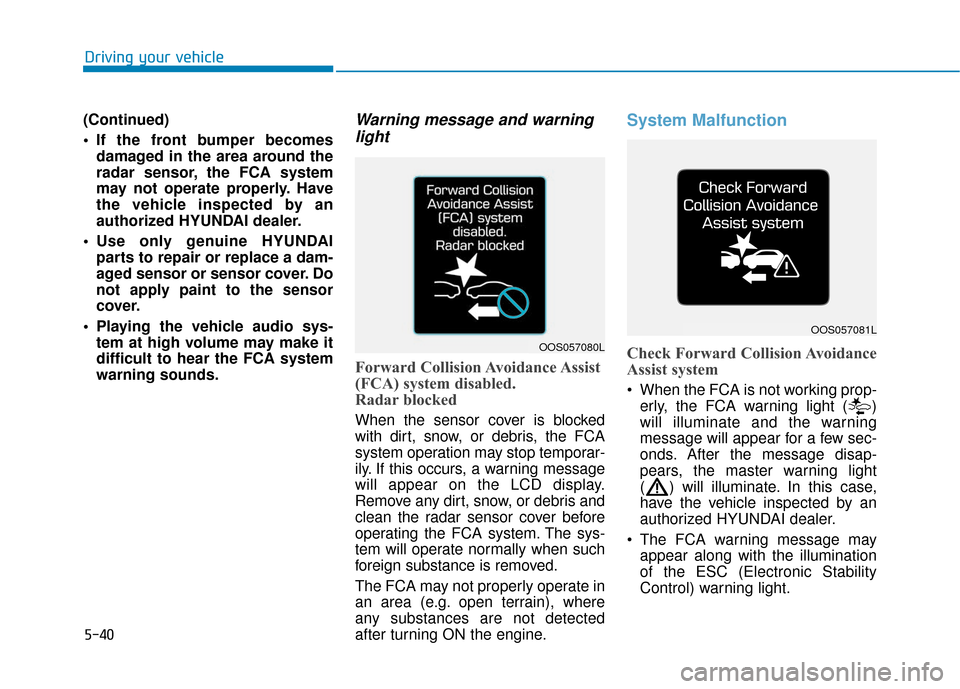
Warning message and warninglight
Forward Collision Avoidance Assist
(FCA) system disabled.
Radar blocked
When the sensor cover is blocked
with dirt, snow, or debris, the FCA
system operation may stop temporar-
ily. If this occurs, a warning message
will appear on the LCD display.
Remove any dirt, snow, or debris and
clean the radar sensor cover before
operating the FCA system. The sys-
tem will operate normally when such
foreign substance is removed.
The FCA may not properly operate in
an area (e.g. open terrain), where
any substances are not detected
after turning ON the engine.
System Malfunction
Check Forward Collision Avoidance
Assist system
When the FCA is not working prop-
erly, the FCA warning light ( )
will illuminate and the warning
message will appear for a few sec-
onds. After the message disap-
pears, the master warning light
( ) will illuminate. In this case,
have the vehicle inspected by an
authorized HYUNDAI dealer.
The FCA warning message may appear along with the illumination
of the ESC (Electronic Stability
Control) warning light.
OOS057080L
OOS057081L