2018 GMC SIERRA DENALI CD player
[x] Cancel search: CD playerPage 197 of 505

GMC Sierra/Sierra Denali Owner Manual (GMNA-Localizing-U.S./Canada/
Mexico-11349177) - 2018 - CRC - 10/17/17
196 Infotainment System to the previous track. If longer
than five seconds, the current
track starts from the beginning.
.
Touch and hold to fast reverse
through a track. Release the
button to return to playing
speed. Elapsed time displays.
u : While on the CD main page:
.
Touch to seek to the next track.
.
Touch and hold to fast forward
through a track. Release the
button to return to playing
speed. Elapsed time displays.
j /
r : While on the CD main page,
touch to pause. Touch again to
resume.
Z : Touch
Z to play the songs in
random order. Touch again to
turn off.
If a Blu-ray Disc or DVD disc is
loaded into the disc player and the
CD screen button is selected, a
message comes on the screen to
use the Video application. The
Video application is only available
on vehicles with Rear Seat
Entertainment (RSE). CD Menu
While on the CD main page, press
the MENU knob to display the CD
menu and the following may display:
Browse : Select to display the files
or songs on the CD.
Tone Settings : Select to adjust
Bass, Midrange, Treble, Balance,
Fade, and EQ (Equalizer). See
“ Tone Settings ” under AM-FM Radio
0 190 .
Auto Volume : If equipped, this
feature adjusts the volume based on
the vehicle speed. Select the level
between Off, Low, Medium-Low,
Medium, Medium-High, and High.
Press BACK to go to the
previous menu.
DSP : If equipped, this feature
adjusts the pre-defined settings.
See “ DSP ” in AM-FM Radio 0 190 .
EQ (Equalizer) : If equipped, this
feature adjusts the equalizer
settings. See “ EQ (Equalizer) ” in
AM-FM Radio 0 190 . Error Messages If Disc Error displays and/or the disc
comes out, it could be for one of the
following reasons:
.
The disc has an invalid or
unknown format.
.
The disc is very hot. Try the disc
again when the temperature
returns to normal.
.
The road is very rough. Try the
disc again when the road is
smoother.
.
The disc is dirty, scratched, wet,
or upside down.
.
The air is very humid. Try the
disc again later.
.
There was a problem while
burning the disc.
.
The label is caught in the CD
player.
If Disc Player Error displays, it could
be for one of the following reasons:
.
The player temperature is
too high.
.
There are load or eject errors.
Page 198 of 505
GMC Sierra/Sierra Denali Owner Manual (GMNA-Localizing-U.S./Canada/
Mexico-11349177) - 2018 - CRC - 10/17/17
Infotainment System 197If the CD is not playing correctly for
any other reason, try a known
good CD.
If any error continues, contact your
dealer.
Playing an MP3 CD To play an MP3 CD, follow the same
instructions as “ Playing an
Audio CD. ”
The following guidelines must be
met when creating an MP3 disc,
otherwise the CD might not play:
.
Sampling rate: 16 kHz,
22.05 kHz, 24 kHz, 32 kHz,
44.1 kHz, and 48 kHz
.
Bit rates supported: 8, 16, 24,
32, 40, 48, 56, 64, 80, 96, 112,
128, 144, 160, 192, 224, 256,
and 320 kbps
.
Maximum number of folders:
eight folders with 255 files per
folder
.
Maximum of 1,000 files on a disc
.
Recorded on a CD-R or CD-RW Root Directory
The root directory is treated as a
folder. All files contained directly
under the root directory are
accessed prior to any root directory
folders.
Empty Folders
If a root directory or folder is empty
or contains only folders, the player
advances to the next folder in the
file structure that contains a
compressed audio file. The empty
folder(s) are not displayed or
numbered.
No Folder
When the CD only contains
compressed audio files without any
folders, all files are under the root
folder.
USB Port Using the USB Port
The infotainment system can play
music by connecting an auxiliary
device to the USB port. USB Support
If equipped, there are USB ports is
in the center stack below the climate
controls, in the glove box, in the
center console under the armrest,
and at the rear of the center
console. All ports use the USB 2.0
standard.
USB Supported Devices
.
USB Flash Drives
.
Portable USB Hard Drives
Not all iPods and USB drives are
compatible with the USB port.
Make sure the iPod has the latest
firmware from Apple for proper
operation. iPod firmware can be
updated using the latest iTunes
application. See www.apple.com/
itunes.
For help with identifying your iPod,
go to www.apple.com/support.
The USB port can play both lower
and upper case .mp3, .wma, .ogg,
and .wav files stored on a USB
storage device.
Page 201 of 505
GMC Sierra/Sierra Denali Owner Manual (GMNA-Localizing-U.S./Canada/
Mexico-11349177) - 2018 - CRC - 10/17/17
200 Infotainment System
.
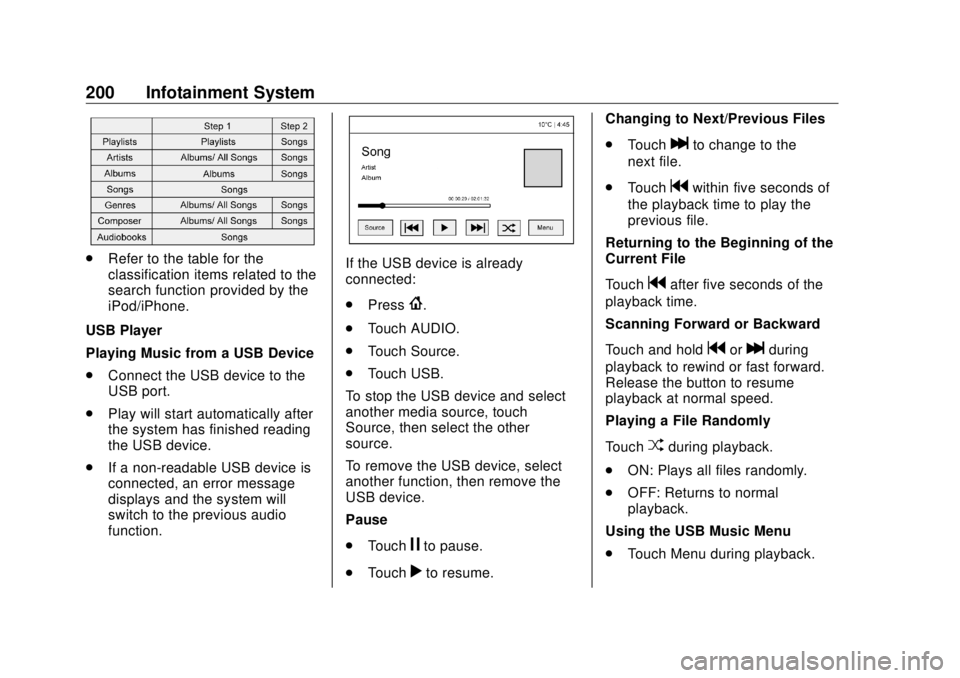
Refer to the table for the
classification items related to the
search function provided by the
iPod/iPhone.
USB Player
Playing Music from a USB Device
.
Connect the USB device to the
USB port.
.
Play will start automatically after
the system has finished reading
the USB device.
.
If a non-readable USB device is
connected, an error message
displays and the system will
switch to the previous audio
function. If the USB device is already
connected:
.
Press
{ .
.
Touch AUDIO.
.
Touch Source.
.
Touch USB.
To stop the USB device and select
another media source, touch
Source, then select the other
source.
To remove the USB device, select
another function, then remove the
USB device.
Pause
.
Touch
j to pause.
.
Touch
r to resume. Changing to Next/Previous Files
.
Touch
l to change to the
next file.
.
Touch
g within five seconds of
the playback time to play the
previous file.
Returning to the Beginning of the
Current File
Touch
g after five seconds of the
playback time.
Scanning Forward or Backward
Touch and hold
g or
l during
playback to rewind or fast forward.
Release the button to resume
playback at normal speed.
Playing a File Randomly
Touch
Z during playback.
.
ON: Plays all files randomly.
.
OFF: Returns to normal
playback.
Using the USB Music Menu
.
Touch Menu during playback.
Page 202 of 505
GMC Sierra/Sierra Denali Owner Manual (GMNA-Localizing-U.S./Canada/
Mexico-11349177) - 2018 - CRC - 10/17/17
Infotainment System 201
.
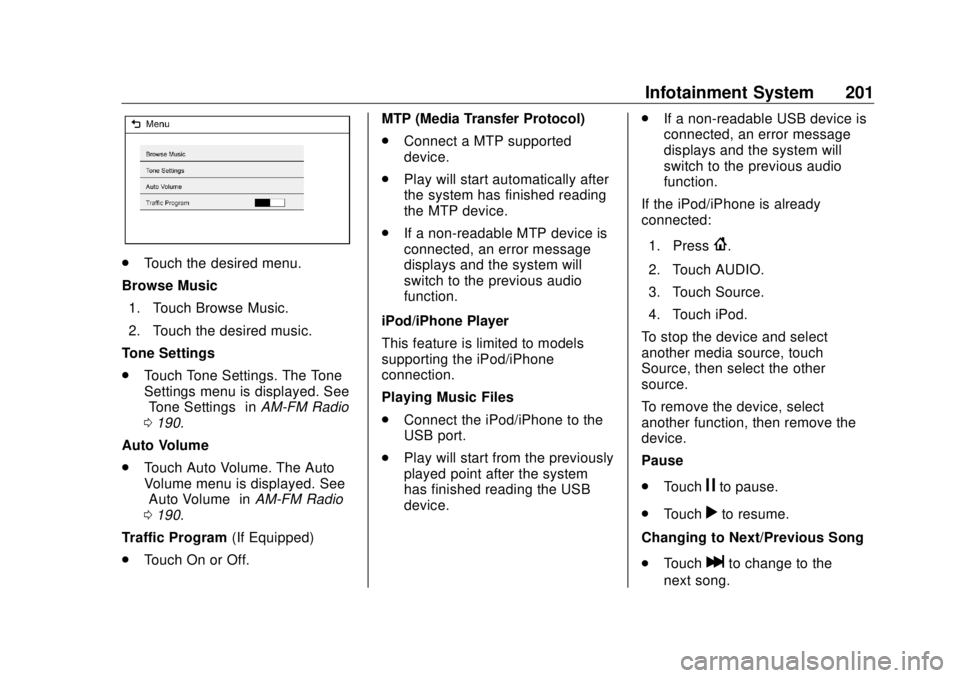
Touch the desired menu.
Browse Music
1. Touch Browse Music.
2. Touch the desired music.
Tone Settings
.
Touch Tone Settings. The Tone
Settings menu is displayed. See
“ Tone Settings ” in AM-FM Radio
0 190 .
Auto Volume
.
Touch Auto Volume. The Auto
Volume menu is displayed. See
“ Auto Volume ” in AM-FM Radio
0 190 .
Traffic Program (If Equipped)
.
Touch On or Off. MTP (Media Transfer Protocol)
.
Connect a MTP supported
device.
.
Play will start automatically after
the system has finished reading
the MTP device.
.
If a non-readable MTP device is
connected, an error message
displays and the system will
switch to the previous audio
function.
iPod/iPhone Player
This feature is limited to models
supporting the iPod/iPhone
connection.
Playing Music Files
.
Connect the iPod/iPhone to the
USB port.
.
Play will start from the previously
played point after the system
has finished reading the USB
device. .
If a non-readable USB device is
connected, an error message
displays and the system will
switch to the previous audio
function.
If the iPod/iPhone is already
connected:
1. Press
{ .
2. Touch AUDIO.
3. Touch Source.
4. Touch iPod.
To stop the device and select
another media source, touch
Source, then select the other
source.
To remove the device, select
another function, then remove the
device.
Pause
.
Touch
j to pause.
.
Touch
r to resume.
Changing to Next/Previous Song
.
Touch
l to change to the
next song.
Page 204 of 505

GMC Sierra/Sierra Denali Owner Manual (GMNA-Localizing-U.S./Canada/
Mexico-11349177) - 2018 - CRC - 10/17/17
Infotainment System 203Rotating a Picture
Touch
w from the picture screen.
Enlarging a Picture
Touch
x from the picture screen.
Using the USB Picture Menu
1. Touch MENU from the picture
screen.
2. Touch the appropriate menu:
.
Slide Show Time: Allows
selection of the slide show
interval.
.
Clock, Temp. Display:
Allows selection of On or
Off to show the clock and
temperature on the full
screen.
.
Display Settings: Adjusts
for Brightness and Contrast.
3. Touch
0 to exit.
Auxiliary Jack This vehicle may have an AUX jack
in the center console or armrest.
See Center Console Storage 0 125 . Possible auxiliary audio sources
include:
.
Laptop computer
.
Audio music player
This jack is not an audio output. Do
not plug headphones into the
auxiliary input jack. Auxiliary
devices should be set up while the
vehicle is in P (Park).
Connect a 3.5 mm (1/8 in) cable
from the auxiliary device to the
auxiliary input jack.
If an auxiliary device has already
been connected, but a different
source is currently active, press the
MEDIA faceplate button repeatedly
to scroll through all of the available
audio source screens, until the AUX
source screen is shown.
Base Radio
Playing from the AUX Jack
An auxiliary device is played
through the audio system and
controlled through the device itself. AUX Menu
Press the MENU knob to display the
AUX menu and the following may
display:
Tone Settings : Select to adjust
Bass, Midrange, Treble, Balance,
Fade, and EQ (Equalizer). See
“ Tone Settings ” in AM-FM Radio
0 190 .
Auto Volume : If equipped, see
“ Playing an Audio CD. ”
DSP : If equipped, this feature
adjusts the pre-defined settings.
See “ DSP ” in AM-FM Radio 0 190 .
EQ (Equalizer) : If equipped, this
feature adjusts the pre-defined
equalizer settings. See “ EQ
(Equalizer) ” in AM-FM Radio 0 190 .
Base Radio with Touchscreen
Play will begin when the system has
finished reading the information on
the device.
Page 205 of 505
GMC Sierra/Sierra Denali Owner Manual (GMNA-Localizing-U.S./Canada/
Mexico-11349177) - 2018 - CRC - 10/17/17
204 Infotainment System Playing Music
To play the music from the device,
if the device is already connected:
1. Press
{ .
2. Touch AUDIO.
3. Touch Source.
4. Touch AUX.
To adjust the tone settings. See
“ Audio Settings ” in “ System
Settings ” under AM-FM Radio
0 190 .
Bluetooth Audio If equipped, music may be played
from a paired Bluetooth device. See
“ Pairing ” under Bluetooth
(Overview) 0 211 or Bluetooth
(Infotainment Controls) 0 213 for
help pairing a device.
Volume and song selection may be
controlled by using the infotainment
controls or the phone/device.
If Bluetooth Audio is selected and
nothing is heard, check the volume
setting on both the phone/device
and the infotainment system. Launch music by touching MEDIA
on the Home Page.
To play music via Bluetooth:
1. Power on the device, and pair
to connect the device.
2. Once paired, go into the audio
application from the Home
Page or via the application tray.
Select MEDIA until Bluetooth
displays.
Bluetooth Audio Menu
Press the MENU screen button to
display the Bluetooth Audio menu.
The following may be available:
Tone: Turn the MENU knob to
adjust the tone settings.
Press
o BACK to go back to the
previous menu.
Manage Bluetooth Devices: Select
to go to the Bluetooth page to add
or delete devices.
When selecting Bluetooth Audio, the
radio may not be able to launch the
audio player on the connected device to start playing. When the
vehicle is not moving, use the
phone to begin playback.
All devices launch audio differently.
When selecting Bluetooth Audio as
a source, the radio may show as
paused on the screen. Press play
on the device or press
r to begin
playback.
Some phones support sending
Bluetooth music information to
display on the radio. When the radio
receives this information, it will
check to see if any is available and
display it. For more information
about supported Bluetooth features,
see www.gm.com/bluetooth for U.S.
and Canada only.
Page 214 of 505

GMC Sierra/Sierra Denali Owner Manual (GMNA-Localizing-U.S./Canada/
Mexico-11349177) - 2018 - CRC - 10/17/17
Infotainment System 213
Bluetooth (Infotainment
Controls) To use infotainment controls to
access the menu system, see
Overview 0 188 .
Pairing A Bluetooth-enabled cell phone
must be paired to the Bluetooth
system and then connected to the
vehicle before it can be used. See
your cell phone manufacturer's user
guide for Bluetooth functions before
pairing the cell phone. If a Bluetooth
phone is not connected, calls will be
made using OnStar Hands-Free
Calling, if available. See OnStar
Overview 0 479 .
Pairing Information
.
A Bluetooth phone with MP3
capability cannot be paired to
the vehicle as a phone and an
MP3 player at the same time.
.
Up to 10 cell phones can be
paired to the Bluetooth system. .
The pairing process is disabled
when the vehicle is moving.
.
Pairing only needs to be
completed once, unless the
pairing information on the cell
phone changes or the cell phone
is deleted from the system.
.
Only one paired cell phone can
be connected to the Bluetooth
system at a time.
.
If multiple paired cell phones are
within range of the system, the
system connects to the first
available paired cell phone in the
order that they were first paired
to the system.
When the Bluetooth device and
infotainment system are
successfully paired, the phone book
is downloaded automatically. This is
dependent on the type of the phone
paired. If the automatic download
does not occur, proceed with the
phone book download on the
phone. Pairing a Phone - SSP and No
Paired Device
When there is no paired device on
the infotainment system and Simple
Secure Pairing (SSP) is supported:
1. Press
{ .
2. Touch PHONE, press
# on the
center stack, or press
g on the
steering wheel without OnStar.
3. Touch Search Device.
4. Touch the desired device to
pair on the searched list
screen.
5. Touch Yes on the pop-up
screen of the Bluetooth device
and infotainment system.
6. When the Bluetooth device and
infotainment system are
successfully paired, the phone
screen is displayed on the
infotainment system.
Page 493 of 505

GMC Sierra/Sierra Denali Owner Manual (GMNA-Localizing-U.S./Canada/
Mexico-11349177) - 2018 - CRC - 10/17/17
492 Index Antilock Brake System
(ABS) (cont'd)
Warning Light . . . . . . . . . . . . . . . . . 152
Appearance Care
Exterior . . . . . . . . . . . . . . . . . . . . . . . 435
Interior . . . . . . . . . . . . . . . . . . . . . . . . 441
Apple CarPlay and
Android Auto . . . . . . . . . . . . . . . . . . 217
Assistance Program,
Roadside . . . . . . . . . . . . . . . . . . . . . . 469
Assistance Systems for
Driving . . . . . . . . . . . . . . . . . . . . . . . . 292
Assistance Systems for
Parking and Backing . . . . . . . . . . 289
Audio
Bluetooth . . . . . . . . . . . . . . . . . . . . . 204
Theft-Deterrent Feature . . . . . . . 187
Audio Players
CD . . . . . . . . . . . . . . . . . . . . . . . . . . . 195
Automatic
Dimming Mirrors . . . . . . . . . . . . . . . . 50
Door Locks . . . . . . . . . . . . . . . . . . . . . 41
Forward Braking . . . . . . . . . . . . . . 294
Headlamp System . . . . . . . . . . . . 179
Transmission . . . . . . . . . . . . . . . . . 265
Transmission Fluid . . . . . . 354, 357
Automatic Transmission
Manual Mode . . . . . . . . . . . . . . . . . 268 Automatic Transmission (cont'd)
Shift Lock Control Function
Check . . . . . . . . . . . . . . . . . . . . . . . 374
Auxiliary
Roof Mounted Lamp . . . . . . . . . . 182
Auxiliary Jack . . . . . . . . . . . . . . . . . . . 203
Avoiding Untrusted Media
Devices . . . . . . . . . . . . . . . . . . . . . . . 195
Axle, Front . . . . . . . . . . . . . . . . . . . . . . 370
Axle, Rear . . . . . . . . . . . . . . . . . . . . . . 371
B Battery
Exterior Lighting Battery
Saver . . . . . . . . . . . . . . . . . . . . . . . 185
Load Management . . . . . . . . . . . . 184
Power Protection . . . . . . . . . . . . . 185
Battery - North America . . . . 369, 426
Blade Replacement, Wiper . . . . . 375
Blind Spot Mirrors . . . . . . . . . . . . . . . 50
Bluetooth
Overview . . . . . . . . . . . . . . . . 211, 213
Bluetooth Audio . . . . . . . . . . . . . . . . 204
Brake
Pedal and Adjustable
Throttle . . . . . . . . . . . . . . . . . . . . . . 256
System Warning Light . . . . . . . . 152
Brakes . . . . . . . . . . . . . . . . . . . . . . . . . . 367 Brakes (cont'd)
Antilock . . . . . . . . . . . . . . . . . . . . . . . 280
Assist . . . . . . . . . . . . . . . . . . . . . . . . . 281
Fluid . . . . . . . . . . . . . . . . . . . . . . . . . . 368
Parking . . . . . . . . . . . . . . . . . . . . . . . 281
Braking . . . . . . . . . . . . . . . . . . . . . . . . . 236
Automatic Forward . . . . . . . . . . . 294
Break-In, New Vehicle . . . . . . . . . . 255
Bulb Replacement
Center High-Mounted
Stoplamp (CHMSL) and
Cargo Lamp . . . . . . . . . . . . . . . . . 380
Halogen Bulbs . . . . . . . . . . . . . . . . 378
Headlamp Aiming . . . . . . . . . . . . . 377
Headlamps . . . . . . . . . . . . . . . . . . . 378
High Intensity Discharge
(HID) Lighting . . . . . . . . . . . . . . . 378
Taillamps, Turn Signal,
Stoplamps, and Back-up
Lamps . . . . . . . . . . . . . . . . . . . . . . 378
Buying New Tires . . . . . . . . . . . . . . . 408
C Calibration . . . . . . . . . . . . . . . . . . . . . . 131
California
Fuel Requirements . . . . . . . . . . . 300