2018 FORD TRANSIT USB
[x] Cancel search: USBPage 8 of 521

Using Snow Chains
....................................286
Tire Pressure Monitoring System ..........
287
Changing a Road Wheel ..........................
292
Technical Specifications ..........................
303
Capacities and Specifications
Engine Specifications - 3.2L Power Stroke Diesel ............................................
305
Engine Specifications - 3.5L Ecoboost™ .......................................................................
306
Engine Specifications - 3.7L ....................
307
Motorcraft Parts - 3.2L Power Stroke Diesel ..........................................................
308
Motorcraft Parts - 3.5L Ecoboost™ .....
308
Motorcraft Parts - 3.7L ..............................
310
Vehicle Identification Number .................
311
Vehicle Certification Label .......................
312
Transmission Code Designation ............
312
Capacities and Specifications - 3.2L Power Stroke Diesel ................................
313
Capacities and Specifications - 3.5L Ecoboost™ ................................................
316
Capacities and Specifications - 3.7L ........................................................................\
.
321
Audio System
General Information ..................................
326
Audio Unit - Vehicles With: AM/FM/CD/ SYNC/Satellite Radio ............................
327
Audio Unit - Vehicles With: Premium AM/ FM/CD ........................................................
329
Audio Unit - Vehicles With: AM/FM/CD/ SYNC ............................................................
331
Audio Unit - Vehicles With: AM/FM/USB Port/Bluetooth ........................................
333
Audio Unit - Vehicles With: AM/FM ......
339
Digital Radio .................................................
342
Satellite Radio .............................................
344
Audio Input Jack ..........................................
347
USB Port .........................................................
347
Media Hub .....................................................
348SYNC™
General Information
..................................
349
Using Voice Recognition ...........................
351
Using SYNC™ With Your Phone ...........
353
SYNC™ Applications and Services ......
365
Using SYNC™ With Your Media Player ........................................................................\
370
SYNC™ Troubleshooting .........................
379
SYNC™ 3
General Information ..................................
387
Home Screen ...............................................
396
Using Voice Recognition ..........................
396
Entertainment .............................................
402
Phone ...............................................................
412
Navigation .......................................................
417
Apps ................................................................
425
Settings ..........................................................
428
SYNC™ 3 Troubleshooting .....................
442
Accessories
Accessories ...................................................
454
Auxiliary Switches ......................................
455
Ford Protect
Ford Protect ..................................................
457
Scheduled Maintenance
General Maintenance Information ......
459
Normal Scheduled Maintenance .........
462
Special Operating Conditions Scheduled Maintenance ............................................
464
Scheduled Maintenance Record ..........
466
Appendices
Electromagnetic Compatibility ..............
477
End User License Agreement .................
479
5
2018 Transit (TTH) Canada/United States of America, JK3J 19A321 AA enUSA, Edition date: 201705, Third-Printing- Table of Contents
Page 336 of 521

AUDIO UNIT - VEHICLES WITH:
AM/FM/USB PORT/
BLUETOOTH
WARNING: Driving while distracted
can result in loss of vehicle control, crash
and injury. We strongly recommend that you use extreme caution when using any
device that may take your focus off the
road. Your primary responsibility is the safe
operation of your vehicle. We recommend
against the use of any hand-held device
while driving and encourage the use of
voice-operated systems when possible.
Make sure you are aware of all applicable
local laws that may affect the use of
electronic devices while driving.
Display:
Shows the status of
the current mode selected.
A
USB socket: Insert to play audio
from a compatible external
device or memory stick.
B SOUND: Press the button to
adjust the sound settings for
bass, treble, balance and fade.
C
333
2018 Transit (TTH) Canada/United States of America, JK3J 19A321 AA enUSA, Edition date: 201705, Third-Printing- Audio SystemE211745
Page 337 of 521

Seek up: Press the button to go
to the next station up the radio
frequency band or the next track.
Seek down: Press the button to
go to the next station down the
radio frequency band or the
previous track. In Bluetooth
audio and USB modes, press the
buttons to go to the next or
previous track.
D
Dial and end call:
Press the
button to make or end a call.
D
Numeric keypad:
Press the
button to recall a previously
stored station. To store a
favorite station press and hold
until the sound returns. In Phone
mode, use these keys to dial the
number.
E
Clock:
Press the button to
select clock setup.
F
Information:
Press the button
to access the complete
information if it does not fit the
display.
G
On, Off and Volume:
Press the
button to switch the audio
system on or off. Turn the dial to
adjust the volume.
H
MENU:
: Press the button to
access different audio system
features, depending on which
mode has been selected.
I
Voice Pass-Through
and
Phone: Press the button to say
commands to your cell phone or
to access the Bluetooth phone
feature of the system by
pressing
PHONE then MENU.
When paired further presses of
this button will display phone
name, signal strength and the
battery level.
J MEDIA:
Press the button to
access Bluetooth audio
streaming, USB or Aux input
playback.
K
RADIO:
Press the button to
select different radio bands.
Press to cancel the menu or list
browsing.
L
Cursor up and down:
Press a
button to scroll through
on-screen choices. In radio mode
press to manual tune.
M
OK, Play and Pause:
Press the
button to confirm on-screen
selections. Press to play or pause
during playback with compatible
external devices.
N
Sound Button
This allows you to adjust the sound
settings (for example bass, treble, balance
and fade).
1. Press the
MINbutton.
2. Use the up and down arrow buttons to
select the required level.
Waveband Button
Press the
MINbutton to select from the
wavebands available (AM, FM1,FM2). You
can use the button to return to radio
reception when you have been listening to
another source.
Station Tuning Control
Seek Tuning
Select a waveband and briefly press one
of the seek buttons. The unit stops at the
first station it finds in the direction you
have chosen.
334
2018 Transit (TTH) Canada/United States of America, JK3J 19A321 AA enUSA, Edition date: 201705, Third-Printing- Audio System
Page 340 of 521

Deleting a Paired Device or Phone
To remove a paired device follow this
process:
1. Press the PHONE button and then
keep pressing the MENU button to
scroll to the DEL DEVICE display.
2. Press the
OK button. The first paired
device name will be shown. Scroll to
the required device name using the up
and down arrow. Once choose the
device, press
OK, the message "DEL
DEVICE" will appear. Press OK, Scroll
to select
"YES" and press OK to
confirm. Select delete all to erase all
paired devices.
3. Press the
OK button multiple times to
unpair the device from the audio unit.
Privacy Mode
You can transfer a call from hands free to
private mode during an active call.
Press the
MENU button until PRIVACY
appears, then press the OK button to
transfer. To return to hands free mode,
press the dial button.
Phone Menu Options
Press the
PHONE button to select phone
mode. Press the PHONE button again to
display information such as phone name,
signal strength and battery level.
When in phone mode, press the
MENU
button to scroll through the various phone
options:
• Dial.
• Phonebook.
• Call History.
• Add Device.
• Select Device.
• Set Primary.
• Delete Device.
• Bluetooth on and off. •
Load Phonebook.
• Reject on or off.
Press the OK button to select the required
option, and use the up and down arrows
to change features.
Making and Receiving Calls
Outgoing calls can be made by:
• Entering a number using the keys on
the radio.
• Saying a command to call someone
after pressing the
Voice
Pass-Through button.
• Selecting a contact from the
downloaded phonebook.
• Selecting a number or contact from the
call history log.
• Using quick dial by pressing one of the
radio preset buttons.
• Using the redial function.
• Using the cell phone.
Incoming calls can be answered by:
• Pressing the call pickup button on the
audio unit.
• Using the cell phone.
Calls can be rejected using the end call
button on the audio unit or by using the cell
phone directly.
USB
Note: Only use USB Mass-Storage device
compliant devices.
Note: Always switch your audio unit to a
different source (for example the radio)
before unplugging the USB device.
Note: Do not install or connect USB hubs
or splitters.
337
2018 Transit (TTH) Canada/United States of America, JK3J 19A321 AA enUSA, Edition date: 201705, Third-Printing- Audio System
Page 341 of 521

Note:
The system is only designed to
recognize and read suitable audio files from
a USB device that conforms to the USB
Mass-Storage device class or an iPod. Not
all available USB devices can be guaranteed
to function with the system.
Note: It is possible to connect compatible
devices with a trailing USB lead as well as
those that plug into the USB socket directly
(for example USB memory sticks and pen
drives).
Note: Some USB devices with a higher
power consumption may not be compatible
(for example some larger hard drives).
Note: Access time to read the files on the
external device will vary depending upon
factors such as the file structure, size and
device content.
The audio unit supports a range of external
devices. Once connected, control of the
external device is possible via the audio
unit.
Operating the USB Device
Note: USB playback will start automatically
when you connect a compatible device. To
turn this feature off, select AUTOPL and
then select OFF using the menu function.
Connect the device to the audio unit.
Select the USB device as the audio source
by pressing the
MEDIA button until the
USB screen appears in the display. After
first connecting the USB device, the first
track within the first folder will start to play
automatically. Following audio source
switching, the position of playback on the
USB device is remembered.
Press the seek up and down keys to skip
backward and forward through tracks.
Press and hold to fast forward and reverse
through the track.
iPod
Connect the iPod to the audio unit. Select the iPod as the audio source by
pressing the
MEDIA button until IPOD
appears in the display. After first
connecting the iPod, the first track within
the first folder will start to play
automatically. Following audio source
switching, the position of playback on the
iPod is remembered.
Press the seek up and down keys to skip
backward and forward through tracks.
Press and hold the seek keys to enable fast
rewind or fast forward through track
content.
Various functions may be controlled from
the audio unit including:
• Next and previous track select.
• Track seek.
• Shuffle.
• Repeat.
Bluetooth Audio Streaming
Note: Make sure the device is paired before
using this feature.
Compatible Bluetooth devices can be
connected to the audio unit to playback
using the vehicle audio system.
Select the device as the audio source by
pressing the
MEDIA button until BT
AUDIO appears in the display.
The device playback can be controlled
using the audio unit buttons play, pause,
next and previous track.
338
2018 Transit (TTH) Canada/United States of America, JK3J 19A321 AA enUSA, Edition date: 201705, Third-Printing- Audio System
Page 344 of 521

Setting 24 Hour or 12 Hour Display
Press the Menu button until the following message is displayed.
Action and Description
Message
Use the cursor up or down arrow buttons to select one of the
following:
24 Hour
12 Hour
24 Hour
Note: The default setting is 24 hour.
Station Tuning Buttons
Seek Tuning
Select a frequency band and briefly press
one of the seek buttons. The unit will stop
at the first station it finds in the direction
you have chosen.
Manual Tuning
Use the cursor up or down arrow buttons
to tune up or down the frequency band in
small increments. To increment quickly,
press and hold until you find a station you
want to listen to.
Station Preset Buttons
This feature allows you to store your
favorite stations. They can be recalled by
selecting the appropriate frequency band
and pressing one of the preset buttons.
1. Select a frequency band.
2. Tune to the station required.
3. Press and hold one of the preset buttons. The audio unit will also mute
momentarily as confirmation.
You can repeat this on each frequency
band and for each preset button. Menu Button
This allows you to adjust all of the audio
system settings. Press the button
repeatedly until the required setting is
displayed. Use the cursor up or down arrow
buttons to adjust the following settings:
•
Clock hour.
• Clock minutes.
• 24 hour, 12 hour.
• Bass.
• Treble.
• Balance.
• Fade.
• RDS.
Sound Button
This allows you to adjust the sound
settings for bass, treble, balance or fade.
1. Press the sound button until the required setting is displayed.
2. Use the cursor up or down arrow buttons to select the required level.
Note: Fade settings are only adjustable if
there are speakers in the rear of your vehicle.
AUX Button
Connect your media device to the audio
unit. See
USB Port (page 347).
341
2018 Transit (TTH) Canada/United States of America, JK3J 19A321 AA enUSA, Edition date: 201705, Third-Printing- Audio System
Page 350 of 521

AUDIO INPUT JACK (If Equipped)
WARNING:
Driving while distracted
can result in loss of vehicle control, crash
and injury. We strongly recommend that
you use extreme caution when using any
device that may take your focus off the
road. Your primary responsibility is the safe
operation of your vehicle. We recommend
against the use of any hand-held device
while driving and encourage the use of
voice-operated systems when possible.
Make sure you are aware of all applicable
local laws that may affect the use of
electronic devices while driving. WARNING:
For safety reasons, do
not connect or adjust the settings on your
portable music player while your vehicle is
moving. WARNING: Store the portable music
player in a secure location when your
vehicle is moving, for example the glove
compartment. Hard objects may become
projectiles in a crash or sudden stop, which
may increase the risk of serious injury. The audio input jack allows you to connect
and play music from a portable music
player through your vehicle speakers. You
can use any portable music player
designed for use with headphones. The
audio extension cable must have a
0.14 in
(3.5 mm) male connector at each end. The
audio extension cable must be long
enough to allow the portable music player
to be safely stored while your vehicle is
moving.
1. Make sure your vehicle is stationary with the audio unit and the portable
music player switched off.
2. Plug the extension cable from the portable music player into the audio
input jack.
3. Switch the audio unit on. Select either a tuned FM station or a CD.
4. Adjust the volume as desired.
5. Switch the portable music player on and adjust the volume to half its
maximum level.
6. Press the
AUX button on the audio
unit. You should hear music from the
portable music player even if it is low.
7. Adjust the volume on the portable music player as desired. Do this by
switching back and forth between the
AUX and FM or CD controls.
USB PORT WARNING:
Driving while distracted
can result in loss of vehicle control, crash
and injury. We strongly recommend that
you use extreme caution when using any
device that may take your focus off the
road. Your primary responsibility is the safe
operation of your vehicle. We recommend
347
2018 Transit (TTH) Canada/United States of America, JK3J 19A321 AA enUSA, Edition date: 201705, Third-Printing- Audio SystemE185568
Page 351 of 521
against the use of any hand-held device
while driving and encourage the use of
voice-operated systems when possible.
Make sure you are aware of all applicable
local laws that may affect the use of
electronic devices while driving.
WARNING: For safety reasons, do
not connect or adjust the settings on your
device while your vehicle is moving. WARNING:
Store all devices in a
secure location when your vehicle is
moving, for example the glove
compartment. Hard objects may become
projectiles in a crash or sudden stop, which
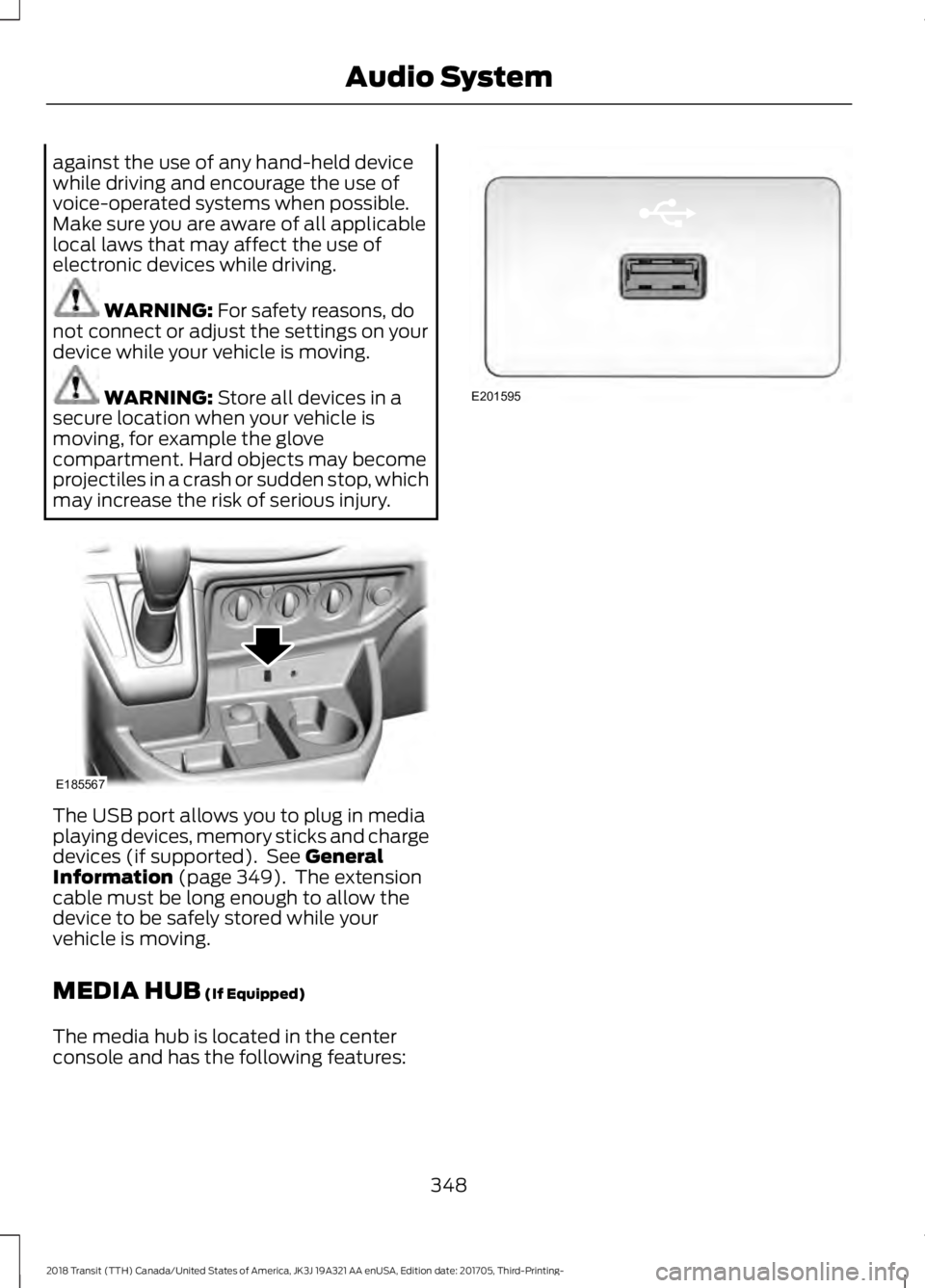
may increase the risk of serious injury. The USB port allows you to plug in media
playing devices, memory sticks and charge
devices (if supported). See
General
Information (page 349). The extension
cable must be long enough to allow the
device to be safely stored while your
vehicle is moving.
MEDIA HUB
(If Equipped)
The media hub is located in the center
console and has the following features: 348
2018 Transit (TTH) Canada/United States of America, JK3J 19A321 AA enUSA, Edition date: 201705, Third-Printing- Audio SystemE185567 E201595