2018 FORD GT fuel
[x] Cancel search: fuelPage 222 of 325

If you do not cancel the call, and SYNC
makes a successful call, a pre-recorded
message plays for the 911 operator, and
then the occupant(s) in your vehicle is able
to talk with the operator. Be prepared to
provide your name, phone number and
location immediately, because not all 911
systems are capable of receiving this
information electronically.
911 Assist May Not Work If
•
Your cellular phone or 911 Assist
hardware sustains damage in a crash.
• The vehicle's battery or the SYNC
system has no power.
• The phone(s) thrown from your vehicle
are the ones paired and connected to
the system.
911 Assist Privacy Notice
When you switch on 911 Assist, it may
disclose to emergency services that your
vehicle has been in a crash involving the
deployment of an airbag or activation of
the fuel pump shut-off. Certain versions or
updates to 911 Assist may also be capable
of electronically or verbally disclosing to
911 operators your vehicle location or other
details about your vehicle or crash to assist
911 operators to provide the most
appropriate emergency services. If you do
not want to disclose this information, do
not switch the feature on. Safety Information WARNING
Driving while distracted can result in
loss of vehicle control, crash and
injury. We strongly recommend that
you use extreme caution when using any
device that may take your focus off the
road. Your primary responsibility is the safe
operation of your vehicle. We recommend
against the use of any hand-held device
while driving and encourage the use of
voice-operated systems when possible.
Make sure you are aware of all applicable
local laws that may affect the use of
electronic devices while driving. •
Do not attempt to service or repair the
system. Have an authorized dealer
check your vehicle.
• Do not operate playing devices if the
power cords or cables are broken, split
or damaged. Place cords and cables
out of the way, so they do not interfere
with the operation of pedals, seats,
compartments or safe driving abilities.
• Do not leave playing devices in your
vehicle during extreme conditions as it
could cause them damage. See your
device's user guide for further
information.
• For your safety, some SYNC 3 functions
are speed-dependent. Their use is
limited to when your vehicle is traveling
at speeds under 3 mph (5 km/h). Make
sure that you review your device's
manual before using it with SYNC 3.
Speed-restricted Features
Some features of this system may be too
difficult to use while your vehicle is moving
so they are restricted from use unless your
vehicle is stationary.
219
Ford GT (CGX), enUSA, Edition date: 201711, First Printing SYNC™ 3 (If Equipped)
Page 243 of 325

Map Mode
Map mode shows advanced viewing
comprised of 2D city maps, 3D landmarks
and 3D city models (when available). 2D
city maps show detailed outlines of
buildings, visible land use, landscape
features, and detailed railroad
infrastructure for the most essential cities
around the globe.
3D landmarks appear as clear, visible
objects that are typically recognizable and
have a certain tourism value.
3D city models are complete 3D models
of entire city areas including navigable
roads, parks, rivers and rendered buildings.
3D landmarks and city models appear in
3D map mode only. Coverage of these
varies and improves with updated map
releases.
Select the zoom in icon to see a
closer view of the map.
Select the zoom out icon to see
a farther away view of the map.
You can adjust the view in preset
increments. You can also pinch to zoom in
or out of the map.
The information bar tells you the names
of streets, cities or landmarks as you hover
over them with the crosshair curser.
You can change your view of the map by
tapping on the location indicator icon on
the right hand side of the screen. You can
choose from the following options: Heading up (2D map) This
always shows the direction of
forward travel to be upward on
the screen. This view is available
for map scales up to
3 mi (5 km). North up (2D map)
always
shows the northern direction to
be upward on the screen. 3D map mode
provides an
elevated perspective of the map.
Adjust this viewing angle and
rotate the map 180 degrees by
touching the map twice, and
then dragging your finger along the shaded
bar with arrows at the bottom of the map. Re-center the map by pressing
this icon whenever you scroll the
map away from your vehicle
’s
current location. Points of Interest (POI)
grouping icon: You can choose
up to three POI icons to display
on the map. If the chosen POIs
are located close together or are
at the same location a box is used to
display a single category icon instead of
repeating the same icon, in order to reduce
clutter. When you select the box on the
map, a pop-up appears indicating how
many POIs are in this location. Select the
pop up to see a list of the available POIs.
You can scroll through and select POIs
from this list.
If your vehicle is low on charge or fuel,
station icons automatically display on the
map.
You can choose to display traffic icons on
the map representing twelve different
types of incidents. See
Settings (page
248).
You can set a destination by hovering
above a location and selecting: Button
Start
240
Ford GT (CGX), enUSA, Edition date: 201711, First Printing SYNC™ 3
(If Equipped)E207752 E207753 E207750 E207749 E207748 E207751 E207754
Page 245 of 325

Description
Menu Item
Select this option to remove all previous destinations.
Delete
All
Select to navigate to your set Home destination.
Home
The time it takes to travel from your current location to Home displays.
To set your Home, press:
A prompt appears asking if you would like to create a
favorite for home. Select:
Home
Enter a location into the search bar and press:
Yes
Save
Select to navigate to your set Work destination.
Work
The time it takes to travel from your current location to Work displays.
To set your Work:
A prompt appears asking if you would like to create a
favorite for work. Select:
Work
Enter a location into the search bar and press:
Yes
Save
Favorites include any location you have previously saved.
Favorites
To add Favorites:
Select this button and enter a location into the destination
bar.
Add a
Favorite
Select this option to have the system locate the address
you have entered.
Search
Select this button when the address you have entered
appears on the screen.
Save
The address saves as a favorite and you see the favorites screen. You
can now select this address from the favorites screen.
POI categories that may display (based on market and vehicle
configuration):
Point of Interest
(POI) Categories
Food
Fuel
Hotel
ATM
242
Ford GT (CGX), enUSA, Edition date: 201711, First Printing SYNC™ 3 (If Equipped)
Page 246 of 325

Description
Menu Item
Press to view additional categories. Once you have selected
a category, follow the menus to find what you are looking
for.
See All
Inside of these categories you can search by:
Nearby
Along Route
Near Destination
In a City
Once you have chosen your destination, press: Action and Description
Menu Item
This saves the destination to your favorites.
Save
This shows you a map of your entire route. You can then choose your
route from three different options.
Start
Uses the fastest moving roads
possible.
Fastest
Uses the shortest distance possible.
Shortest
Uses the most fuel-efficient route.
Economical Route
The time and distance for each route also displays.
On the route screen, you can choose to cancel the current navigation.
The system asks for confirmation then returns you to the map mode
screen.
Cancel
Once you have chosen you destination, press: Action and Description
Menu Item
The system uses a variety of screens and prompts to guide you to your
destination.
Start
During Route guidance, you can press the maneuver arrow icon on the
map if you want the system to repeat route guidance instructions.
When the system repeats the last guidance instruction, it updates the
distance to the next guidance instruction, since it detects that the
vehicle is moving.
243
Ford GT (CGX), enUSA, Edition date: 201711, First Printing SYNC™ 3 (If Equipped)
Page 247 of 325

Action and Description
Menu Item
The navigation map shows your estimated time of arrival, remaining
travel time and the distance to your destination.
SYNC 3 may not always announce vehicle arrival at the exact point
of your destination and you may have to cancel a route manually.
Navigation Menu
In map mode and during active navigation
you can access the navigation menu. During active navigation, touch the bottom
of the screen to view the menu and other
buttons.
To access the Navigation menu, press: Button
Menu
You can then select: A full screen map displays during navigation.
Full Map
Screen View
Highway exit information displays on the right hand side
of the screen during navigation.
Highway
Exit Info
Points of interest icons display for restaurants, hotels,
fuel stations and ATMs when they are present at the
exit. You can select the POI icons to receive a listing of
specific locations. You can select the POI location as a
waypoint or destination if desired.
Only available during an active route. Displays all of the
turns on the current route.
Turn List
You can choose to avoid any road on the turn list by
selecting the road from the list. A screen then appears
and you can press:
Avoid
The system calculates a new route and displays a new
turn list.
Press this button to adjust your preferences. See Settings (page 248).
Navigation
Settings
Provides your current location city and the nearest road.
Where Am I?
The following are only available on the menu during an active navigation route:
The system asks for confirmation and then returns you to the map
mode screen.
Cancel Route
244
Ford GT (CGX), enUSA, Edition date: 201711, First Printing SYNC™ 3 (If Equipped)
Page 320 of 325

Apps........................................................................\
233
Bluetooth Stereo or USB.................................. 231
Sources.................................................................. 230
Supported Media Players, Formats and Metadata Information................................. 233
USB Ports.............................................................. 233
Environment......................................................13
EPB See: Electric Parking Brake............................... 112
Event Data Recording See: Data Recording............................................... 7
Exterior Mirrors................................................62
Fold-Away Exterior Mirrors............................... 62
Power Exterior Mirrors........................................ 62
F
Fastening the Seatbelts..............................26 Seatbelt Locking Modes.................................... 27
Using Seatbelts During Pregnancy................27
Flat Tire Inflation See: Tire Sealant and Inflator Kit.................180
Floor Mats
........................................................135
Foot Pedals See: Adjusting the Pedals................................. 56
Ford Performance...........................................12
Front Passenger Sensing System............35
Fuel and Refueling
........................................94
Fuel Consumption.........................................98 Calculating Fuel Economy............................... 98
Filling the Fuel Tank............................................ 98
Fuel Filler Funnel Location.........................95
Fuel Filter.........................................................167
Fuel Quality
......................................................94
Choosing the Right Fuel.................................... 94
Fuel Shutoff
....................................................136
Fuses.................................................................146
Fuse Specification Chart...........................146 Front Power Distribution Box......................... 146
Passenger Compartment Fuse Panel..........151
Rear Power Distribution Box 1........................ 148
Rear Power Distribution Box 2....................... 150
G
Gauges...............................................................63 Engine Coolant Temperature Gauge............65
Engine Oil Pressure Gauge............................... 65Engine Oil Temperature Gauge.......................
65
Fuel Gauge............................................................. 64
Gauge Mode........................................................... 65
Information Display............................................. 63
Trip Computer....................................................... 64
Gearbox See: Transmission.............................................. 106
General Information on Radio Frequencies..................................................40
Intelligent Access................................................. 40
General Maintenance Information........274 Protecting Your Investment........................... 274
Road Course Maintenance............................. 274
Why Maintain Your Vehicle?.......................... 274
Why Maintain Your Vehicle at Your Certified Ford GT Service Dealership?..................... 274
Getting Assistance Outside the U.S. and Canada..........................................................143
Getting the Services You Need...............140 Away From Home.............................................. 140
Global Opening................................................61 Remote Control Front Windows.................... 62
H
Hazard Flashers
............................................136
Headlamp Adjusting See: Adjusting the Headlamps...................... 170
Heating See: Climate Control.......................................... 80
Hill Start Assist...............................................114 Using Hill Start Assist......................................... 114
Hints on Controlling the Interior Climate............................................................83
Defogging the Side Windows in Cold Weather.............................................................. 84
General Hints......................................................... 83
Quickly Heating the Interior.............................. 83
Recommended Settings for Cooling............84
Recommended Settings for Heating...........84
Hints on Driving With Anti-Lock Brakes...............................................................111
Home Screen.................................................223
Hood Lock See: Opening and Closing the Hood............157
317
Ford GT (CGX), enUSA, Edition date: 201711, First Printing Index
Page 321 of 325
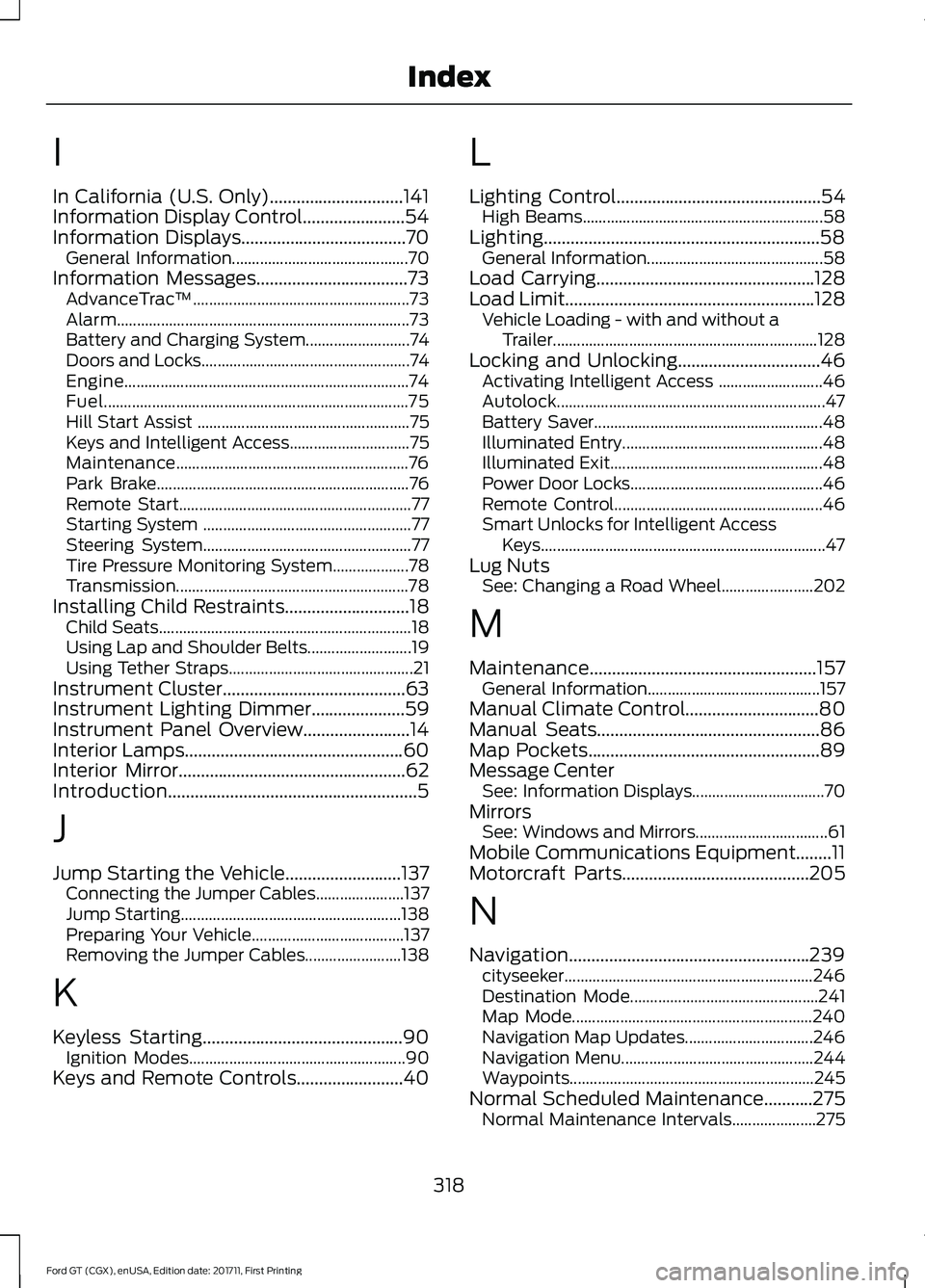
I
In California (U.S. Only)..............................141
Information Display Control.......................54
Information Displays.....................................70
General Information............................................ 70
Information Messages
..................................73
AdvanceTrac ™...................................................... 73
Alarm........................................................................\
. 73
Battery and Charging System.......................... 74
Doors and Locks.................................................... 74
Engine....................................................................... 74
Fuel........................................................................\
.... 75
Hill Start Assist ..................................................... 75
Keys and Intelligent Access.............................. 75
Maintenance.......................................................... 76
Park Brake............................................................... 76
Remote Start.......................................................... 77
Starting System .................................................... 77
Steering System.................................................... 77
Tire Pressure Monitoring System................... 78
Transmission.......................................................... 78
Installing Child Restraints
............................18
Child Seats............................................................... 18
Using Lap and Shoulder Belts.......................... 19
Using Tether Straps.............................................. 21
Instrument Cluster
.........................................63
Instrument Lighting Dimmer.....................59
Instrument Panel Overview........................14
Interior Lamps
.................................................60
Interior Mirror...................................................62
Introduction........................................................5
J
Jump Starting the Vehicle
..........................137
Connecting the Jumper Cables...................... 137
Jump Starting....................................................... 138
Preparing Your Vehicle...................................... 137
Removing the Jumper Cables........................ 138
K
Keyless Starting
.............................................90
Ignition Modes...................................................... 90
Keys and Remote Controls........................40 L
Lighting Control
..............................................54
High Beams............................................................ 58
Lighting..............................................................58 General Information............................................ 58
Load Carrying.................................................128
Load Limit........................................................128 Vehicle Loading - with and without a
Trailer.................................................................. 128
Locking and Unlocking
................................46
Activating Intelligent Access .......................... 46
Autolock................................................................... 47
Battery Saver......................................................... 48
Illuminated Entry.................................................. 48
Illuminated Exit..................................................... 48
Power Door Locks................................................ 46
Remote Control.................................................... 46
Smart Unlocks for Intelligent Access Keys....................................................................... 47
Lug Nuts See: Changing a Road Wheel....................... 202
M
Maintenance...................................................157 General Information........................................... 157
Manual Climate Control
..............................80
Manual Seats..................................................86
Map Pockets....................................................89
Message Center See: Information Displays................................. 70
Mirrors See: Windows and Mirrors................................. 61
Mobile Communications Equipment........11
Motorcraft Parts
..........................................205
N
Navigation......................................................239 cityseeker.............................................................. 246
Destination Mode............................................... 241
Map Mode............................................................ 240
Navigation Map Updates................................ 246
Navigation Menu................................................ 244
Waypoints............................................................. 245
Normal Scheduled Maintenance...........275 Normal Maintenance Intervals..................... 275
318
Ford GT (CGX), enUSA, Edition date: 201711, First Printing Index
Page 322 of 325

O
Oil Check
See: Engine Oil Check........................................ 161
Opening and Closing the Hood...............157 Closing the Front Hood.................................... 158
Closing the Rear Hatch..................................... 159
Opening the Front Hood................................... 157
Opening the Rear Hatch.................................. 158
Opening the Doors........................................48 Opening the Doors from Inside...................... 48
Ordering Additional Owner's Literature......................................................144
P
Parking Aids.....................................................119
Passive Anti-Theft System........................50
SecuriLock.............................................................. 50
PATS See: Passive Anti-Theft System..................... 50
Pedals.................................................................56
Perchlorate..........................................................9
Personal Safety System ™
..........................32
How Does the Personal Safety System
Work?................................................................... 32
Phone...............................................................234 During a Phone Call........................................... 237
Making Calls........................................................ 236
Pairing Your Cell Phone for the First Time................................................................... 234
Phone Menu......................................................... 235
Receiving Calls.................................................... 237
Smartphone Connectivity.............................. 238
Text Messaging................................................... 238
Post-Crash Alert System...........................138
Power Door Locks See: Locking and Unlocking............................. 46
Power Steering Fluid Check......................167
Power Windows
...............................................61
Accessory Delay..................................................... 61
Bounce-Back.......................................................... 61
One-Touch Down.................................................. 61
One-Touch Up........................................................ 61
Protecting the Environment
........................13 R
Rear Under Hatch Storage........................128
Rear View Camera
........................................119
Using the Rear View Camera System..........119
Rear View Camera See: Rear View Camera..................................... 119
Refueling...........................................................96 System Warnings................................................. 98
Remote Control...............................................41 Car Finder................................................................ 45
Intelligent Access Key.......................................... 41
Replacing the Battery......................................... 43
Sounding a Panic Alarm.................................... 45
Using the Key Blade............................................ 42
Repairing Minor Paint Damage................177
Replacement Parts Recommendation........................................10
Collision Repairs.................................................... 10
Scheduled Maintenance and Mechanical Repairs................................................................. 10
Warranty on Replacement Parts.................... 10
Replacing a Lost Key or Remote Control............................................................45
Reporting Safety Defects (Canada Only)...............................................................145
Reporting Safety Defects (U.S. Only)...............................................................144
Roadside Assistance
...................................136
Vehicles Sold in the United States: Getting
Roadside Assistance.................................... 136
Vehicles Sold in the United States: Using Roadside Assistance.................................... 136
Roadside Emergencies...............................136
Running-In See: Breaking-In.................................................. 134
Running Out of Fuel......................................95 Adding Fuel From a Portable Fuel
Container........................................................... 96
Filling a Portable Fuel Container.................... 95
S
Safety Precautions
........................................94
Scheduled Maintenance Record............277
Scheduled Maintenance...........................274
Seatbelt Extension.........................................31
319
Ford GT (CGX), enUSA, Edition date: 201711, First Printing Index