2018 FORD GT reset
[x] Cancel search: resetPage 171 of 325

CHANGING THE 12V BATTERY
WARNING
Battery posts, terminals and related
accessories contain lead and lead
compounds. Wash hands after
handling. The Ford GT uses a lithium Ion battery.
The battery is located inside the right front
fender. For battery maintenance or
replacement, contact an authorized dealer.
When a battery replacement is required,
you must use a recommended
replacement battery that matches the
electrical requirements of the vehicle.
Note:
If you add electrical accessories or
components to the vehicle, it may adversely
affect the low voltage battery performance
and durability. This may also affect the
performance of other electrical systems in
the vehicle.
Because your vehicle ’s engine is
electronically controlled by a computer,
some control conditions are maintained
by power from the battery. When the
battery is disconnected or a new battery
is installed, the engine must relearn its idle
and fuel trim strategy for optimum
driveability and performance.
To restore the settings, do the following:
1. Apply the parking brake.
2. Shift into park (P) or neutral (N).
3. Switch off all accessories.
4. Press the brake pedal and start your vehicle. 5. Run the engine until it reaches normal
operating temperature. While the
engine is warming up, complete the
following: Reset the clock. See Audio
System (page 212). Reset the radio
station presets. See Audio System
(page 212).
6. Allow the engine to idle for at least one
minute.
7. Drive the vehicle at least 10 mi (16 km)
to completely relearn the idle trim and
fuel trim strategy.
Note: If you do not allow the engine to
relearn the idle and fuel trim strategy, the
idle quality of your vehicle may be adversely
affected until the engine computer
eventually relearns the idle trim and fuel
trim strategy.
Make sure that you dispose of old batteries
in an environmentally friendly way. Seek
advice from your local authority about
recycling old batteries.
Battery Charger and Maintainer
If you plan to have your GT parked for more
than two weeks without driving it, connect
the battery charger and maintainer
provided. This charger connects simply to
the jump start(+) and (-) posts as shown
in the illustration below.
168
Ford GT (CGX), enUSA, Edition date: 201711, First Printing Maintenance
Page 172 of 325

1. Connect the positive (+) red cable to
the positive (B) post.
2. Connect the negative (-) black cable to the negative (A) post.
The battery charger and maintainer
charges the battery to a full charge and
then monitor the charge as the car sits. If
the battery charge level drops, the
maintainer turns on to keep the battery
fully charged. You can keep the car stored
with the charger and maintainer attached.
For further information on the charger, see
the instructions provided with the charger.
Note: If the battery state of charge has
dropped below 10.5 volts, the battery will
have gone into its under voltage protection
mode. If this has occurred, connect the
charger and press the reset button on the
charger for 10 seconds. this will wake up the
battery to allow it to receive a charge.
Note: The GT battery charger and
maintainer is designed for the Lithium
battery used on Ford GT. Use only this
device. A charger designed for a lead acid
battery may damage the lithium battery in
your GT. Battery Management System (If
Equipped)
The battery management system monitors
battery conditions and takes actions to
extend battery life. If excessive battery
drain is detected, the system temporarily
disables the electrical systems to protect
the battery.
Use the charger to bring the battery back
to full charge.
Electrical Accessory Installation
Note: If you add electrical accessories or
components to the vehicle, it may adversely
affect battery performance and durability.
This may also affect the performance of
other electrical systems in the vehicle.
CHECKING THE WIPER
BLADES Run the tip of your fingers over the edge of
the blade to check for roughness.
Clean the wiper blades with washer fluid
or water applied with a soft sponge or
cloth.
CHANGING THE WIPER
BLADES
Replacement blades are available at your
Ford dealer.
169
Ford GT (CGX), enUSA, Edition date: 201711, First Printing MaintenanceE235907 E142463
Page 182 of 325

Brakes
•
Make sure the brakes and parking brake
release fully.
Tires
• To minimize flat spots on the tires,
inflate all four tires to the
recommended cold pressures listed on
the Safety Compliance Certification
label or Tire Label. When the vehicle is
taken out of storage, reset the tire
pressures as necessary to the
recommended levels listed on the
Safety Compliance Certification label
or Tire Label affixed to your vehicle.
Note: If you store your vehicle in a location
with low ambient temperatures, follow the
instructions for care of summer tires. See
Using Summer Tires (page 198).
Miscellaneous
• Move vehicles at least
25 ft (7.5 m)
every 15 days to lubricate working parts
and prevent flat spots in the tires.
Removing Vehicle From Storage
When your vehicle is ready to come out of
storage, do the following:
• Wash your vehicle to remove any dirt
or grease film build-up on window
surfaces.
• Check windshield wipers for any
deterioration.
• Check under the hood and engine cover
for any foreign material that may have
collected during storage such as mice
or squirrel nests.
• Check the exhaust for any foreign
material that may have collected
during storage.
• Check tire pressures and set tire
inflation per the Tire Label. •
Check brake pedal operation. Drive
your vehicle
15 ft (4.5 m) back and
forth with the brake lightly applied.
• Check fluid levels (including coolant,
oil and gas) to make sure there are no
leaks, and fluids are at recommended
levels.
See an authorized dealer if you have any
concerns or issues.
179
Ford GT (CGX), enUSA, Edition date: 201711, First Printing Vehicle Care
Page 220 of 325

Note:
Do not use detergent or any type of
solvent to clean the touchscreen.
Note: Do not pour or spray alcohol onto the
touchscreen.
Using Voice Recognition
Using voice commands allows you to keep
your hands on the wheel and focus on
what is in front of you. The system provides
feedback through audible tones, prompts,
questions and spoken confirmations
depending on the situation and the chosen
level of interaction (voice settings).
The system also asks short questions
(confirmation prompts) when it is not sure
of your request or when there are multiple
possible responses to your request.
When using voice commands, words and
icons may appear in the status bar
indicating the status of the voice command
session. See Using Voice Recognition
(page 224).
Using the Steering Wheel Controls
You can use different controls on your
steering wheel to interact with the
touchscreen system in different ways.
VOL:
Control the volume of audio output.
Voice:
Press to start a voice session. Press
again to stop the voice prompt and
immediately begin speaking. Press and
hold to end a voice session.
SEEK NEXT:
• While in radio mode, press to seek
between memory presets.
• While in USB or Bluetooth Audio, press
to seek between songs or press and
hold to fast seek. SEEK PREVIOUS:
•
While in radio mode, press to seek
between memory presets.
• While in USB or Bluetooth Audio, press
to seek between songs or press and
hold to fast seek.
See
Steering Wheel (page 52).
Using Your Bezel Controls
• Power:
Switch the audio system on
and off.
• DISP:
Switch the display on or off. You
can also touch the screen to switch the
display back on.
911 Assist WARNINGS
Unless the 911 Assist setting is set on
before a crash, the system will not
dial for help which could delay
response time, potentially increasing the
risk of serious injury or death after a crash. Do not wait for 911 Assist to make an
emergency call if you can do it
yourself. Dial emergency services
immediately to avoid delayed response
time which could increase the risk of
serious injury or death after a crash. If you
do not hear 911 Assist within five seconds
of the crash, the system or phone may be
damaged or non-functional. Always place your phone in a secure
location in your vehicle so it does not
become a projectile or get damaged
in a crash. Failure to do so may cause
serious injury to someone or damage the
phone which could prevent 911 Assist from
working properly. Note:
The SYNC 911 Assist feature must be
set on before the incident.
217
Ford GT (CGX), enUSA, Edition date: 201711, First Printing SYNC™ 3
(If Equipped)
Page 224 of 325

Website
www.owner.ford.com
www.syncmyride.ca
www.syncmaroute.ca
The website notifies you if an update is
available. You can then select to download
the update.
You will need an empty USB drive. Please
check the website for minimum
requirements. Once you have inserted the
USB drive into your computer, choose to
start the download. Follow the instructions
provided to download the files to the USB
drive.
The installation of most files occurs in the
background, and does not interrupt your
use of the system. Navigation updates
cannot be installed in the background,
because the files are too large.
To install the update in your vehicle,
remove anything that is plugged in the USB
ports on the media hub and plug in the
USB drive containing the update. When
the USB drive is plugged in, the installation
should begin immediately. After a
successful installation, the update is
available the next time the vehicle is
started.
Please refer to the website for any further
actions.
Updating Over Wi-Fi
To update your System over Wi-Fi your
vehicle must be within the range of a Wi-Fi
access point. Data rates may apply. To connect your system to Wi-Fi,
select: Menu Item
Settings
Wi-Fi You can then select your
Wi-Fi network. You may
have to enter the security
code if the network is
secured. The system
confirms when it has
connected to the network.
Available
Wi-Fi
Networks
You must also give the system permission
to update automatically. Upon vehicle
delivery, the System asks you if you would
like to use the automatic update feature.
If you agree to automatic updates, you can
press OK to confirm. If this selection does
not appear upon vehicle delivery you can
access it through the General Settings. See
Settings (page 248). You can also perform
a master reset. See SYNC™ 3
Troubleshooting (page 259).
If you would like to switch this feature
on later, select: Menu Item
Settings
General From this menu, you can
enable automatic updates.
If you have not done so
already, the system
prompts you to set up a
Wi-Fi connection when you
enable this feature.
Automatic
System
Updates
221
Ford GT (CGX), enUSA, Edition date: 201711, First Printing SYNC™ 3
(If Equipped)
Page 225 of 325

When Wi-Fi and automatic updates are
enabled, your system checks for software
updates periodically. If a new version is
available, it downloads at that time.
Software downloads can take place for up
to 30 minutes after you have switched your
vehicle off. The updates do not interrupt
the normal use of your SYNC 3 system. If
a download does not complete for any
reason, the download continues where it
left off at the next Wi-Fi connected
opportunity. Upon activation of an update,
a banner displays on the touchscreen
indicating the system update. Select the
icon to see more detail. This icon displays
for two ignition cycles.
To switch this feature off:
Menu Item
Settings
General In this menu selection, you
can change the selection
for automatic updates to
OFF.
Automatic
System
Updates
Support
The SYNC support team is available to
help you with any questions you are not
able to answer on your own.
Monday-Saturday, 8:30am-8:00pm EST.
United States: 1-800-392-3673.
Canada: 1-800-565-3673.
Times are subject to change due to
holidays. Privacy Information
When you connect a cellular phone to
SYNC 3, the system creates a profile within
your vehicle that links to that cellular
phone. This profile helps in offering you
more cellular features and operating more
efficiently. Among other things, this profile
may contain data about your cellular
phone book, text messages (read and
unread), and call history, including history
of calls when your cell phone was not
connected to the system. In addition, if you
connect a media device, the system
creates and retains an index of supported
media content. The system also records a
short diagnostic log of approximately 10
minutes of all recent system activity. The
log profile and other system data may be
used to improve the system and help
diagnose any problems that may occur.
The cellular profile, media device index,
and diagnostic log remain in your vehicle
unless you delete them and are generally
accessible only in your vehicle when the
cellular phone or media player is
connected.
If you no longer plan to use the system or
your vehicle, we recommend you perform
a Master Reset to erase all stored
information. You can find more information
about the Master Reset in General
Settings. See Settings (page 248). System
data cannot be accessed without special
equipment and access to your vehicle's
SYNC 3 module. Ford Motor Company and
Ford of Canada do not access the system
data for any purpose other than as
described absent consent, a court order,
or where required by law enforcement,
other government authorities, or other third
parties acting with lawful authority. Other
parties may seek to access the information
independently of Ford Motor Company and
Ford of Canada.
222
Ford GT (CGX), enUSA, Edition date: 201711, First Printing SYNC™ 3 (If Equipped)
Page 233 of 325

ENTERTAINMENT
Message and description
Message
Sources
A
Direct Tune
B
Presets
C You can access these options using the
touchscreen or voice commands.
Sources
Press this button to select the source of
media you want to listen to.Menu item
AM
FM The name of the USB that is plugged in displays here.
USB
230
Ford GT (CGX), enUSA, Edition date: 201711, First Printing SYNC™ 3 (If Equipped)E207617
Page 234 of 325
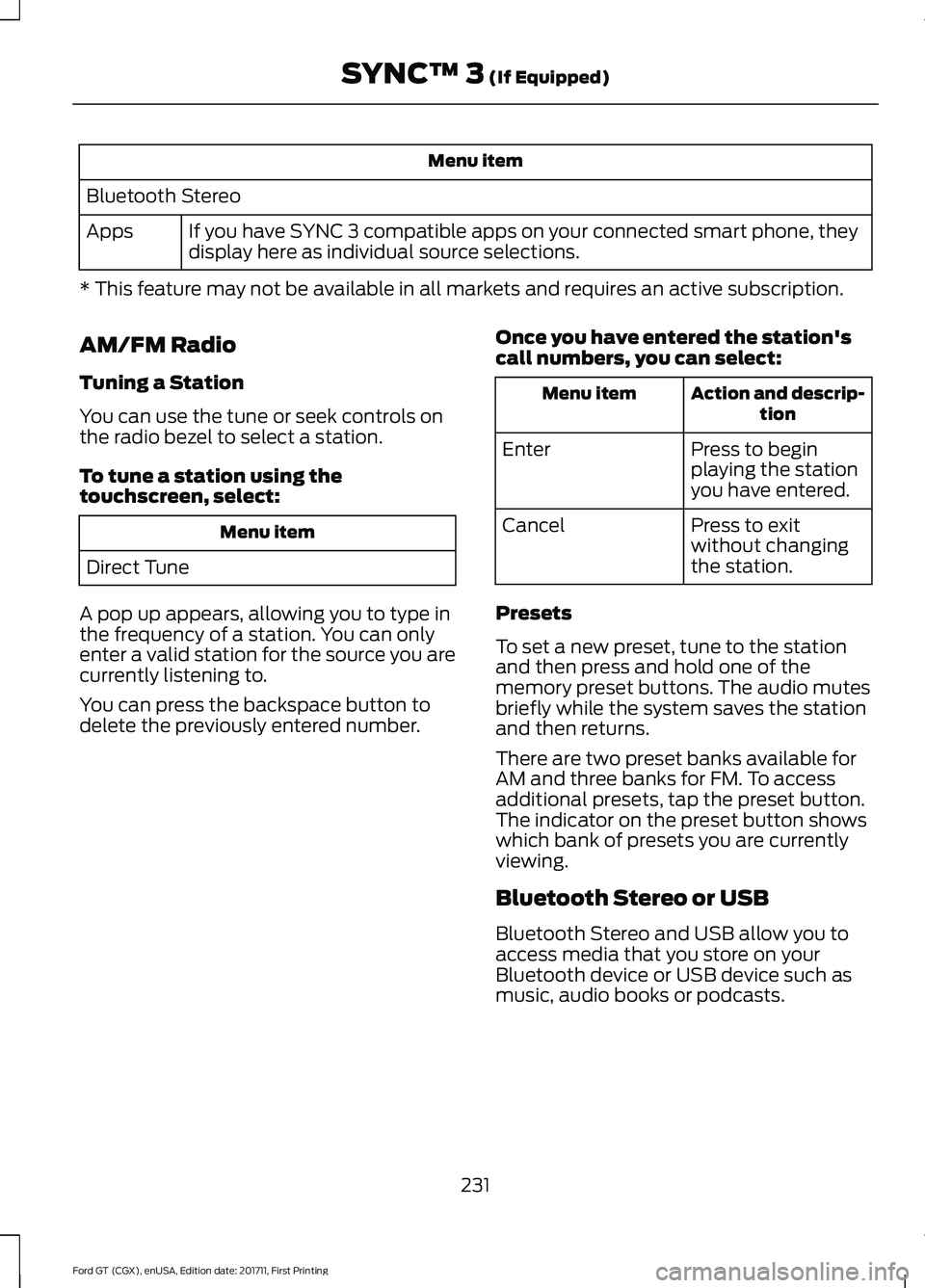
Menu item
Bluetooth Stereo If you have SYNC 3 compatible apps on your connected smart phone, they
display here as individual source selections.
Apps
* This feature may not be available in all markets and requires an active subscription.
AM/FM Radio
Tuning a Station
You can use the tune or seek controls on
the radio bezel to select a station.
To tune a station using the
touchscreen, select: Menu item
Direct Tune
A pop up appears, allowing you to type in
the frequency of a station. You can only
enter a valid station for the source you are
currently listening to.
You can press the backspace button to
delete the previously entered number. Once you have entered the station's
call numbers, you can select: Action and descrip-
tion
Menu item
Press to begin
playing the station
you have entered.
Enter
Press to exit
without changing
the station.
Cancel
Presets
To set a new preset, tune to the station
and then press and hold one of the
memory preset buttons. The audio mutes
briefly while the system saves the station
and then returns.
There are two preset banks available for
AM and three banks for FM. To access
additional presets, tap the preset button.
The indicator on the preset button shows
which bank of presets you are currently
viewing.
Bluetooth Stereo or USB
Bluetooth Stereo and USB allow you to
access media that you store on your
Bluetooth device or USB device such as
music, audio books or podcasts.
231
Ford GT (CGX), enUSA, Edition date: 201711, First Printing SYNC™ 3 (If Equipped)