2018 FORD FUSION/HYBRID buttons
[x] Cancel search: buttonsPage 418 of 538
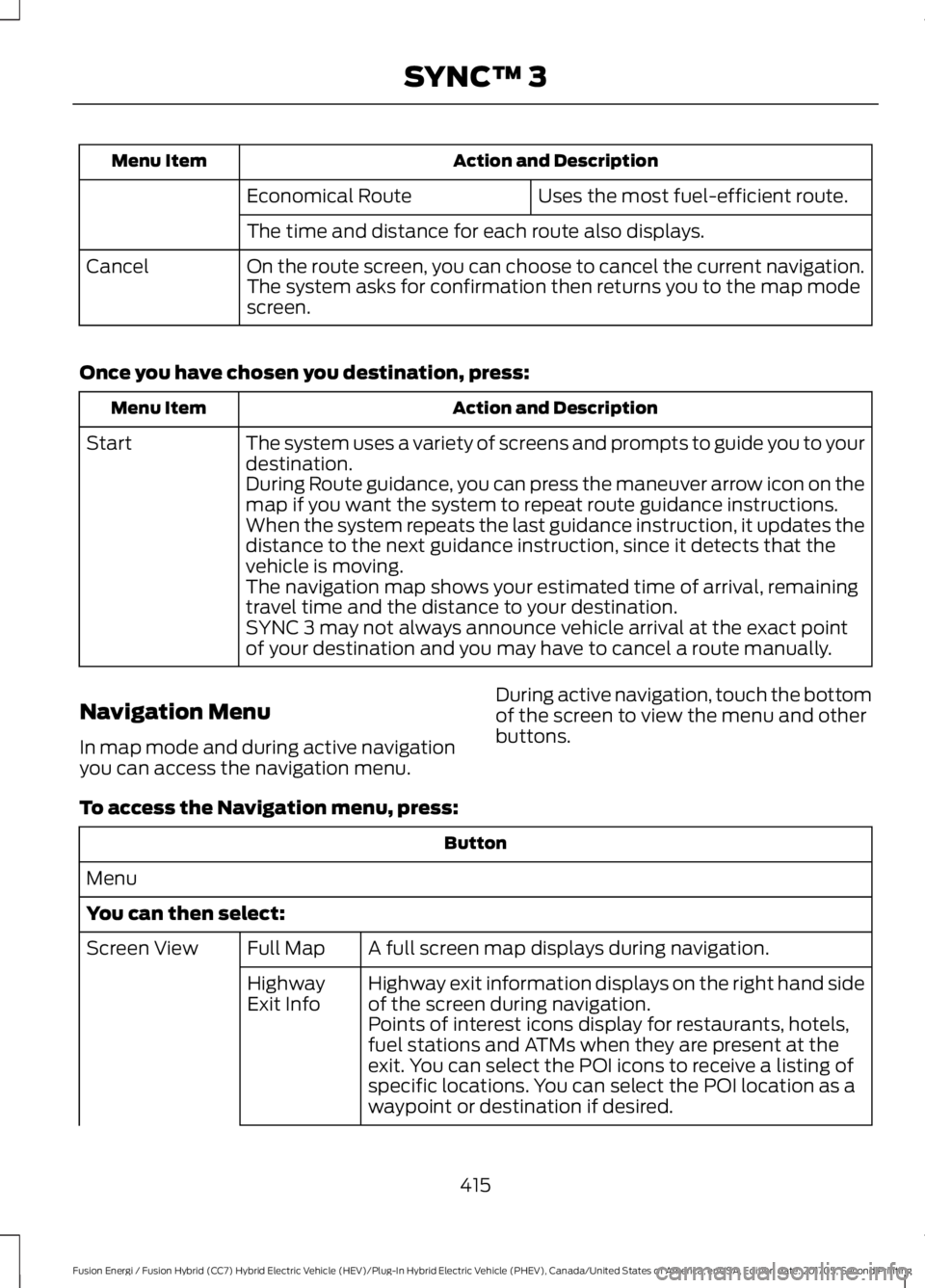
Action and Description
Menu Item
Uses the most fuel-efficient route.
Economical Route
The time and distance for each route also displays.
On the route screen, you can choose to cancel the current navigation.
The system asks for confirmation then returns you to the map mode
screen.
Cancel
Once you have chosen you destination, press: Action and Description
Menu Item
The system uses a variety of screens and prompts to guide you to your
destination.
Start
During Route guidance, you can press the maneuver arrow icon on the
map if you want the system to repeat route guidance instructions.
When the system repeats the last guidance instruction, it updates the
distance to the next guidance instruction, since it detects that the
vehicle is moving.
The navigation map shows your estimated time of arrival, remaining
travel time and the distance to your destination.
SYNC 3 may not always announce vehicle arrival at the exact point
of your destination and you may have to cancel a route manually.
Navigation Menu
In map mode and during active navigation
you can access the navigation menu. During active navigation, touch the bottom
of the screen to view the menu and other
buttons.
To access the Navigation menu, press: Button
Menu
You can then select: A full screen map displays during navigation.
Full Map
Screen View
Highway exit information displays on the right hand side
of the screen during navigation.
Highway
Exit Info
Points of interest icons display for restaurants, hotels,
fuel stations and ATMs when they are present at the
exit. You can select the POI icons to receive a listing of
specific locations. You can select the POI location as a
waypoint or destination if desired.
415
Fusion Energi / Fusion Hybrid (CC7) Hybrid Electric Vehicle (HEV)/Plug-In Hybrid Electric Vehicle (PHEV), Canada/United States of America, enUSA, Edition date: 201705, Second Printing SYNC™ 3
Page 436 of 538

Action and Description
Menu Item
Allows you to edit the GO Time and
cabin conditioning temperature.
My GO Times
Indicates that you can add a GO
Time to this slot.
--:--
GO Time 2
Note: If you set GO Time 2 to occur before GO Time 1, or if you
set GO Time 1 to occur after an existing GO Time 2, the GO Times
will automatically sort themselves and be displayed in the correct
order.
GO Time and Cabin Conditioning
This screen allows you to enter or change
the GO Time and cabin conditioning
temperature. Press any GO Time on the Schedule screen
to enter the editing screen for that GO
Time. Action and Description
Menu Item
These change the hours and minutes of your GO Time. The
minutes change in increments of five. You can also switch the
settings for AM and PM by touching those buttons.
Time (+ and -)
These switch the setting for your selected cabin conditioning
temperature for this GO Time event. You can select from four
settings:
Cabin Conditioning
(+ and -)
Off
85°F (29.5°C)
72°F (22°C)
65°F (18.5°C)
Note:
Cabin conditioning can perform differently depending on
if you plug into a 120V convenience cord or 240V charging station.
The power available for conditioning is limited to the charging
station power available.
Note:
Your vehicle may not always reach the set cabin temper-
ature due to charging and ambient temperature conditions. This
is normal operation.
Touching this button erases the GO Time and cabin conditioning
temperature.
Clear
Touching this button stores the GO Time and temperature
settings.
Save
Note: If you select a GO Time, but choose
Off for the temperature setting, the vehicle
schedules charging to be complete by your GO Time and does not condition the cabin.
Note: Make sure you save your settings before returning to the previous screen. If you do
not touch
Save, the system will not automatically store the settings.
433
Fusion Energi / Fusion Hybrid (CC7) Hybrid Electric Vehicle (HEV)/Plug-In Hybrid Electric Vehicle (PHEV), Canada/United States of America, enUSA, Edition date: 201705, Second Printing SYNC™ 3
Page 437 of 538

Value Charge Profiles
You can access the Value Charge Profile
screen by selecting the edit option in the
bottom right hand corner of the Charge
Settings screen. Action and Description
Menu Item
This displays the charging mode and off-peak times for your
Default Value Charge profile. The system displays off-peak times
for weekdays; the remaining hours of the day are considered peak
time. The system displays similar off-peak times for weekend
days.
Default
If you want your vehicle to immediately
charge when you plug it in at this profile
location.
Charge Now
If you want to take advantage of off-peak
electricity rates. The vehicle optimizes the
charge schedule to be complete by the next
GO Time.
Value Charge
To access your Default Value Charge Profile
settings screen (see Default Value Charge
Profile later in this section).
Edit
Once you create profile names, this section displays the Value
Charge Profile names and current Charge Mode for specific loca-
tions. You can set up and edit these profiles using the MyFord
Mobile internet application. You can program up to nine unique
charge profiles.
Customer Defined
Value Charge
Profiles
Default Value Charge Profile
You can access your Default Value Charge
Profile by selecting the edit option on the
Value Charge Profiles screen. Action and Description
Menu Item
Set the Weekday times and Weekend times by pressing the
Weekday and Weekend buttons.
Weekday
Weekend
This displays the start and finish of off-peak charge times, which
you can modify, using the following:
Weekday Start
Allows you to switch the hours of your start
and finish times.
+ and -
Weekend Start
434
Fusion Energi / Fusion Hybrid (CC7) Hybrid Electric Vehicle (HEV)/Plug-In Hybrid Electric Vehicle (PHEV), Canada/United States of America, enUSA, Edition date: 201705, Second Printing SYNC™ 3
Page 438 of 538

Action and Description
Menu Item
Allows you to switch the time of your start
and finish time. This setting is viewable in
12-hour mode.
AM
Weekday Finish
PM
Weekend Finish
These buttons represent the voltage service that the default profile
is using. The system uses this selection to calculate estimated
charge times.
240V and 120V
Touching this button erases the Default Value Charge preferences.
Clear
Touching this button stores your Default Value Charge preferences.
If you touch the back arrow button to return to the previous screen
without saving your settings, the system does not store them and
you need to enter them again.
Save
Note: Make sure you save your settings before returning to the previous screen. If you do
not touch Save the system does not store your settings.
Power Flow 435
Fusion Energi / Fusion Hybrid (CC7) Hybrid Electric Vehicle (HEV)/Plug-In Hybrid Electric Vehicle (PHEV), Canada/United States of America, enUSA, Edition date: 201705, Second Printing SYNC™ 3E231245
Page 445 of 538

Action and Description
Menu Item
Touch these buttons to identify traffic incidents on your route,
near your vehicle’s current location or near any of your favorite
places, if programmed.
Traffic on Route
Traffic Nearby
Touch this button to view fuel prices at stations close to your
vehicle’s location or on an active navigation route.
Fuel Prices
Touch this button to view nearby movie theaters and their
show times, if available.
Movie Listings
Touch this button to view the nearby weather, current weather,
or the five-day forecast for the chosen area.
Weather
Select to see the weather map,
which can show storms, radar
information, charts and winds.
Map
Select to choose from a listing of
weather locations.
Area
Touch this button to view scores and schedules from a variety
of sports. You can also save up to 10 favorite teams for easier
access. The score automatically refreshes when a game is in
progress.
Sports Info
Touch this button to view ski conditions for a specific area.
Ski Conditions
SETTINGS
Under this menu, you can access and
adjust the settings for many of the system
features. To access additional settings,
swipe the screen left or right. Sound
Pressing this button allows you to adjust
the following:Sound Settings
Returns Treble, Midrange, and Bass sound settings to factory levels.
Reset All
Adjusts the high frequency level.
Treble
Adjusts the middle frequency level.
Midrange
Adjusts the low frequency level.
Bass
Adjusts the sound ratio from side to side or front to back.
Balance / Fade
442
Fusion Energi / Fusion Hybrid (CC7) Hybrid Electric Vehicle (HEV)/Plug-In Hybrid Electric Vehicle (PHEV), Canada/United States of America, enUSA, Edition date: 201705, Second Printing SYNC™ 3
Page 463 of 538

USB and Bluetooth Stereo issues
Possible solution
Possible cause
Issue
Disconnect the device from SYNC 3. Try
switching your device off, resetting it or
removing the battery, then connect it back
to SYNC 3.
This is a device limitation.
When I connect
my device, I
sometimes do
not hear any
sound. To listen to Apple devices through USB,
select AirPlay from the devices Control
Center, then select Dock Connector.
To listen to Apple devices through
Bluetooth Stereo, select AirPlay from the
devices Control Center, then select SYNC.
Connect a compatible device or media
player.
The device or media
player is incompatible.
SYNC 3 does
not display the
song informa-
tion, repeat, or
shuffle buttons. Wi-Fi Issues
Possible solution
Possible cause
Issue
Verify password.
Password error.
Failed connec-
tion.
Check for a poor Wi-Fi signal.
Weak signal.
Use a unique name for your SSID, don ’t use
the default name unless it contains a
unique identifier, such as part of the MAC
address.
Multiple Access points
within range with the
same SSID.
Position the vehicle close to the hotspot
with the front of the vehicle facing the
hotspot direction and remove obstacles if
possible. Other Wi-Fi, Bluetooth, microwave
and cordless phones may cause interfer-
ence.
Weak signal probably
due to distance from the
hotspot, obstruction or
high interference.
Disconnecting
after successful
connection.
460
Fusion Energi / Fusion Hybrid (CC7) Hybrid Electric Vehicle (HEV)/Plug-In Hybrid Electric Vehicle (PHEV), Canada/United States of America, enUSA, Edition date: 201705, Second Printing SYNC™ 3
Page 466 of 538

AppLink issues
Possible solution(s)
Possible cause(s)
Issue
Switch Bluetooth off and then on to reset
it on your phone. If you are in your vehicle,
SYNC 3 should be able to automatically re-
connect to your phone if you press the
"Phone" button.
There is a Bluetooth issue
on some older versions
of the Android operating
system that may cause
apps that were found on
your previous vehicle
drive to not be found
again if you did not
switch Bluetooth off.
My Android
phone is
connected, my
app(s) are
running, I
restarted them,
but I still cannot
find any apps.
Unplug the USB cable from the phone, wait
a moment, and plug the USB cable back in
to the phone. After a few seconds, the app
should appear in SYNC 3's Mobile Apps
Menu. If not, "Force Close" the application
and restart it.
You may need to reset
the USB connection to
SYNC 3.
My iPhone is
connected, my
app is running, I
restarted the
app but I still
cannot find it on
SYNC 3.
Increase the Bluetooth volume of the
device by using the device's volume control
buttons which are most often found on the
side of the device.
The Bluetooth volume on
the phone may be low.
I have an
Android phone.
I found and
started my
media app on
SYNC 3, but
there is no
sound or the
sound is very
low.
Force close or uninstall the apps you do not
want SYNC 3 to find. If the app has a "Ford
SYNC" setting, disable that setting in the
app's settings menu on the phone.
Some Android devices
have a limited number of
Bluetooth ports that
apps can use to connect.
If you have more AppLink
apps on your phone than
the number of available
Bluetooth ports, you will
not see all of your apps
listed in the SYNC 3
mobile apps menu.
I can only see
some of the
AppLink apps
running on my
phone listed in
the SYNC 3
Mobile Apps
Menu.
463
Fusion Energi / Fusion Hybrid (CC7) Hybrid Electric Vehicle (HEV)/Plug-In Hybrid Electric Vehicle (PHEV), Canada/United States of America, enUSA, Edition date: 201705, Second Printing SYNC™ 3