2018 FORD FOCUS buttons
[x] Cancel search: buttonsPage 227 of 473
Service Position
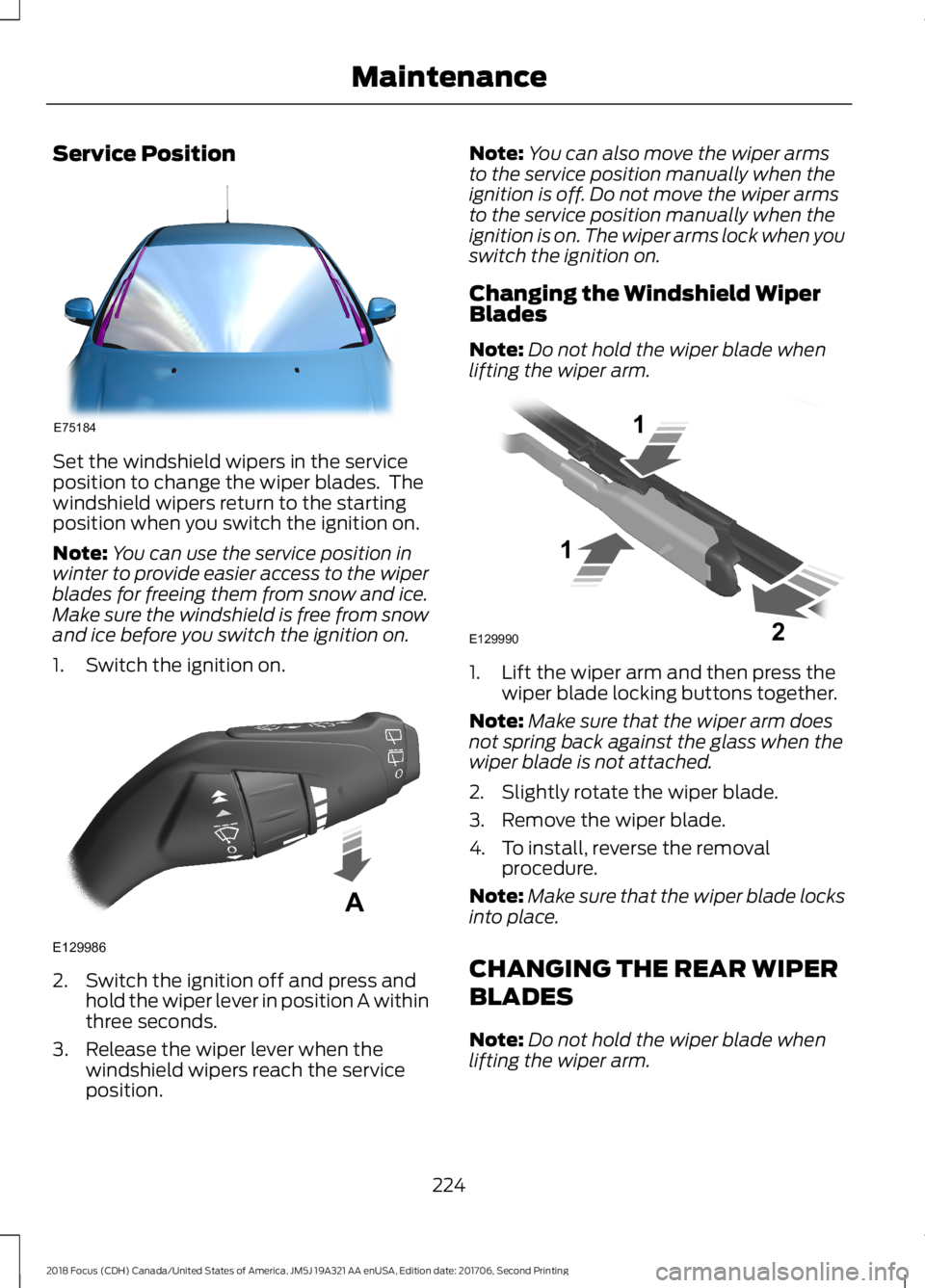
Set the windshield wipers in the serviceposition to change the wiper blades. Thewindshield wipers return to the startingposition when you switch the ignition on.
Note:You can use the service position inwinter to provide easier access to the wiperblades for freeing them from snow and ice.Make sure the windshield is free from snowand ice before you switch the ignition on.
1.Switch the ignition on.
2.Switch the ignition off and press andhold the wiper lever in position A withinthree seconds.
3.Release the wiper lever when thewindshield wipers reach the serviceposition.
Note:You can also move the wiper armsto the service position manually when theignition is off. Do not move the wiper armsto the service position manually when theignition is on. The wiper arms lock when youswitch the ignition on.
Changing the Windshield WiperBlades
Note:Do not hold the wiper blade whenlifting the wiper arm.
1.Lift the wiper arm and then press thewiper blade locking buttons together.
Note:Make sure that the wiper arm doesnot spring back against the glass when thewiper blade is not attached.
2.Slightly rotate the wiper blade.
3.Remove the wiper blade.
4.To install, reverse the removalprocedure.
Note:Make sure that the wiper blade locksinto place.
CHANGING THE REAR WIPER
BLADES
Note:Do not hold the wiper blade whenlifting the wiper arm.
2242018 Focus (CDH) Canada/United States of America, JM5J 19A321 AA enUSA, Edition date: 201706, Second PrintingMaintenanceE75184 E129986A E129990112
Page 286 of 473
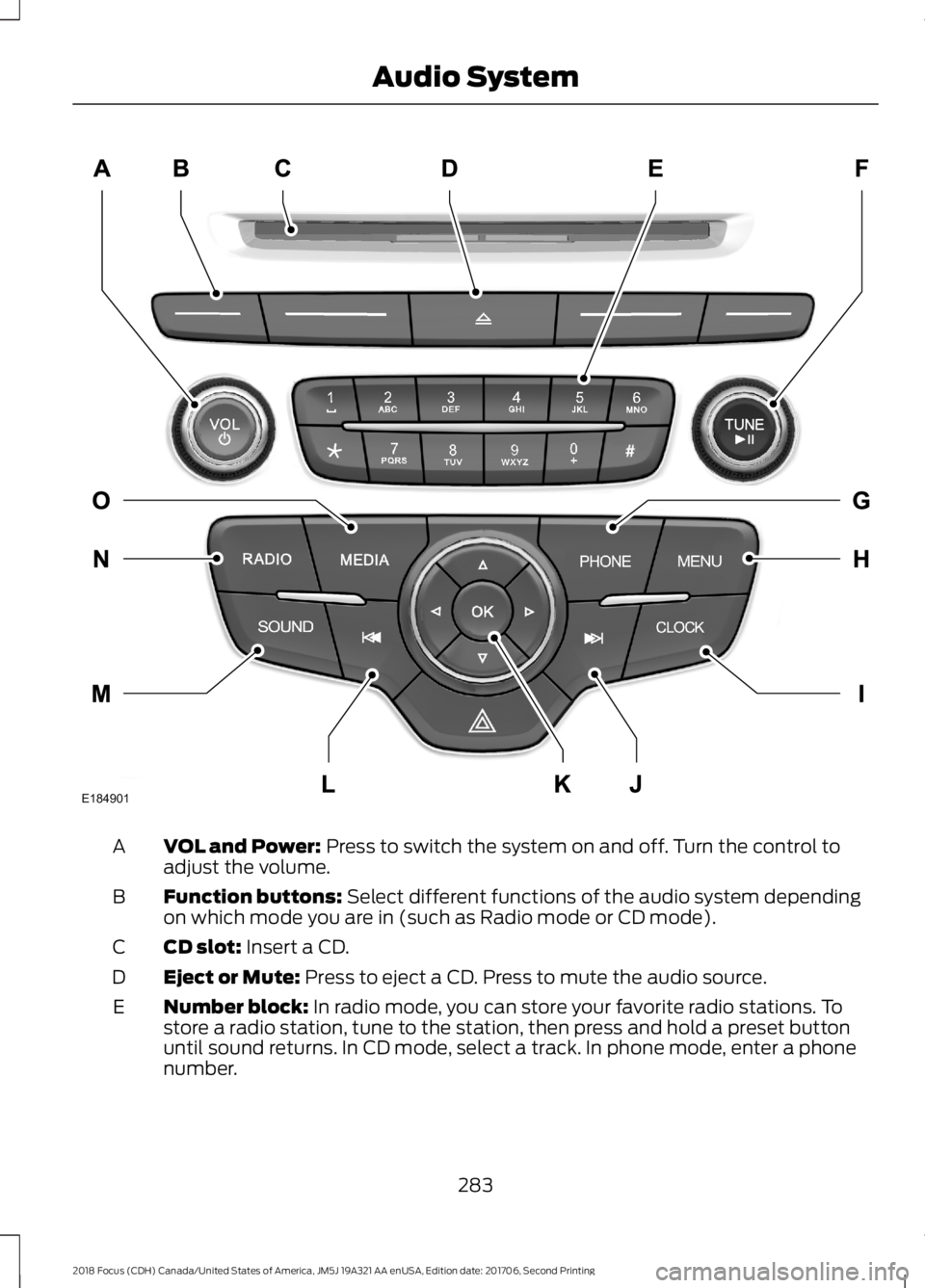
VOL and Power: Press to switch the system on and off. Turn the control toadjust the volume.A
Function buttons: Select different functions of the audio system dependingon which mode you are in (such as Radio mode or CD mode).B
CD slot: Insert a CD.C
Eject or Mute: Press to eject a CD. Press to mute the audio source.D
Number block: In radio mode, you can store your favorite radio stations. Tostore a radio station, tune to the station, then press and hold a preset buttonuntil sound returns. In CD mode, select a track. In phone mode, enter a phonenumber.
E
2832018 Focus (CDH) Canada/United States of America, JM5J 19A321 AA enUSA, Edition date: 201706, Second PrintingAudio SystemE184901
Page 287 of 473
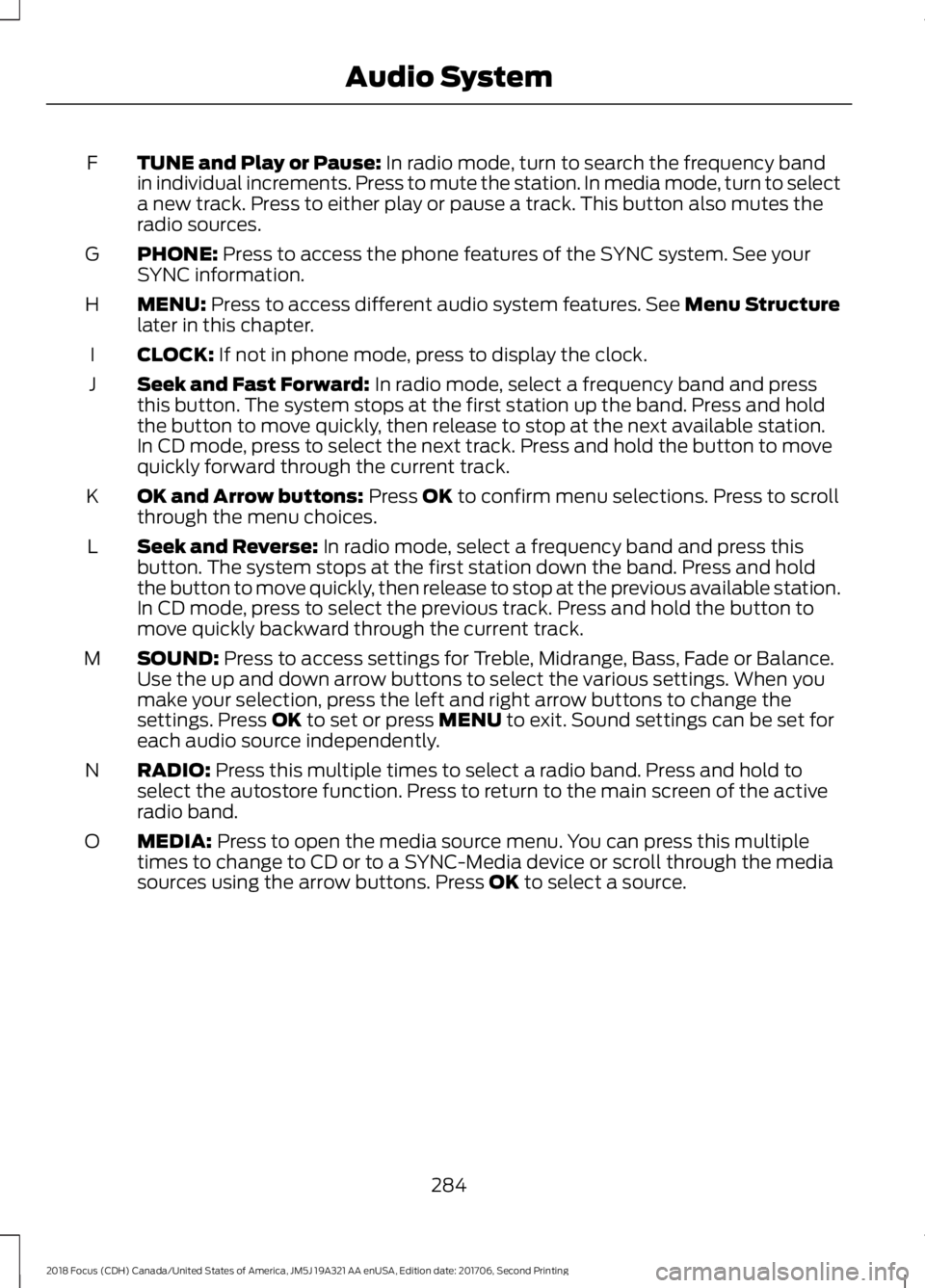
TUNE and Play or Pause: In radio mode, turn to search the frequency bandin individual increments. Press to mute the station. In media mode, turn to selecta new track. Press to either play or pause a track. This button also mutes theradio sources.
F
PHONE: Press to access the phone features of the SYNC system. See yourSYNC information.G
MENU: Press to access different audio system features. See Menu Structurelater in this chapter.H
CLOCK: If not in phone mode, press to display the clock.I
Seek and Fast Forward: In radio mode, select a frequency band and pressthis button. The system stops at the first station up the band. Press and holdthe button to move quickly, then release to stop at the next available station.In CD mode, press to select the next track. Press and hold the button to movequickly forward through the current track.
J
OK and Arrow buttons: Press OK to confirm menu selections. Press to scrollthrough the menu choices.K
Seek and Reverse: In radio mode, select a frequency band and press thisbutton. The system stops at the first station down the band. Press and holdthe button to move quickly, then release to stop at the previous available station.In CD mode, press to select the previous track. Press and hold the button tomove quickly backward through the current track.
L
SOUND: Press to access settings for Treble, Midrange, Bass, Fade or Balance.Use the up and down arrow buttons to select the various settings. When youmake your selection, press the left and right arrow buttons to change thesettings. Press OK to set or press MENU to exit. Sound settings can be set foreach audio source independently.
M
RADIO: Press this multiple times to select a radio band. Press and hold toselect the autostore function. Press to return to the main screen of the activeradio band.
N
MEDIA: Press to open the media source menu. You can press this multipletimes to change to CD or to a SYNC-Media device or scroll through the mediasources using the arrow buttons. Press OK to select a source.
O
2842018 Focus (CDH) Canada/United States of America, JM5J 19A321 AA enUSA, Edition date: 201706, Second PrintingAudio System
Page 289 of 473
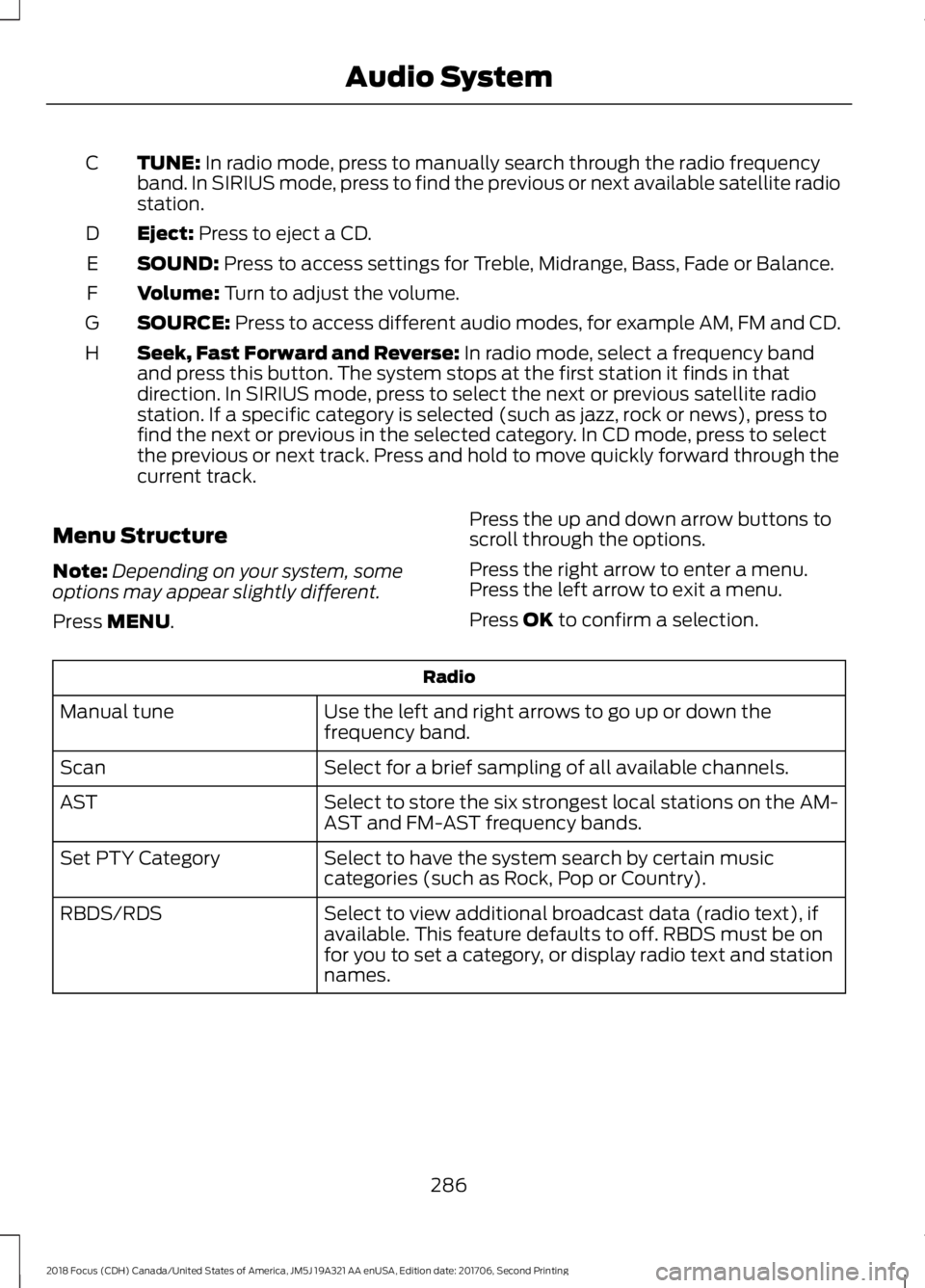
TUNE: In radio mode, press to manually search through the radio frequencyband. In SIRIUS mode, press to find the previous or next available satellite radiostation.
C
Eject: Press to eject a CD.D
SOUND: Press to access settings for Treble, Midrange, Bass, Fade or Balance.E
Volume: Turn to adjust the volume.F
SOURCE: Press to access different audio modes, for example AM, FM and CD.G
Seek, Fast Forward and Reverse: In radio mode, select a frequency bandand press this button. The system stops at the first station it finds in thatdirection. In SIRIUS mode, press to select the next or previous satellite radiostation. If a specific category is selected (such as jazz, rock or news), press tofind the next or previous in the selected category. In CD mode, press to selectthe previous or next track. Press and hold to move quickly forward through thecurrent track.
H
Menu Structure
Note:Depending on your system, someoptions may appear slightly different.
Press MENU.
Press the up and down arrow buttons toscroll through the options.
Press the right arrow to enter a menu.Press the left arrow to exit a menu.
Press OK to confirm a selection.
Radio
Use the left and right arrows to go up or down thefrequency band.Manual tune
Select for a brief sampling of all available channels.Scan
Select to store the six strongest local stations on the AM-AST and FM-AST frequency bands.AST
Select to have the system search by certain musiccategories (such as Rock, Pop or Country).Set PTY Category
Select to view additional broadcast data (radio text), ifavailable. This feature defaults to off. RBDS must be onfor you to set a category, or display radio text and stationnames.
RBDS/RDS
2862018 Focus (CDH) Canada/United States of America, JM5J 19A321 AA enUSA, Edition date: 201706, Second PrintingAudio System
Page 293 of 473
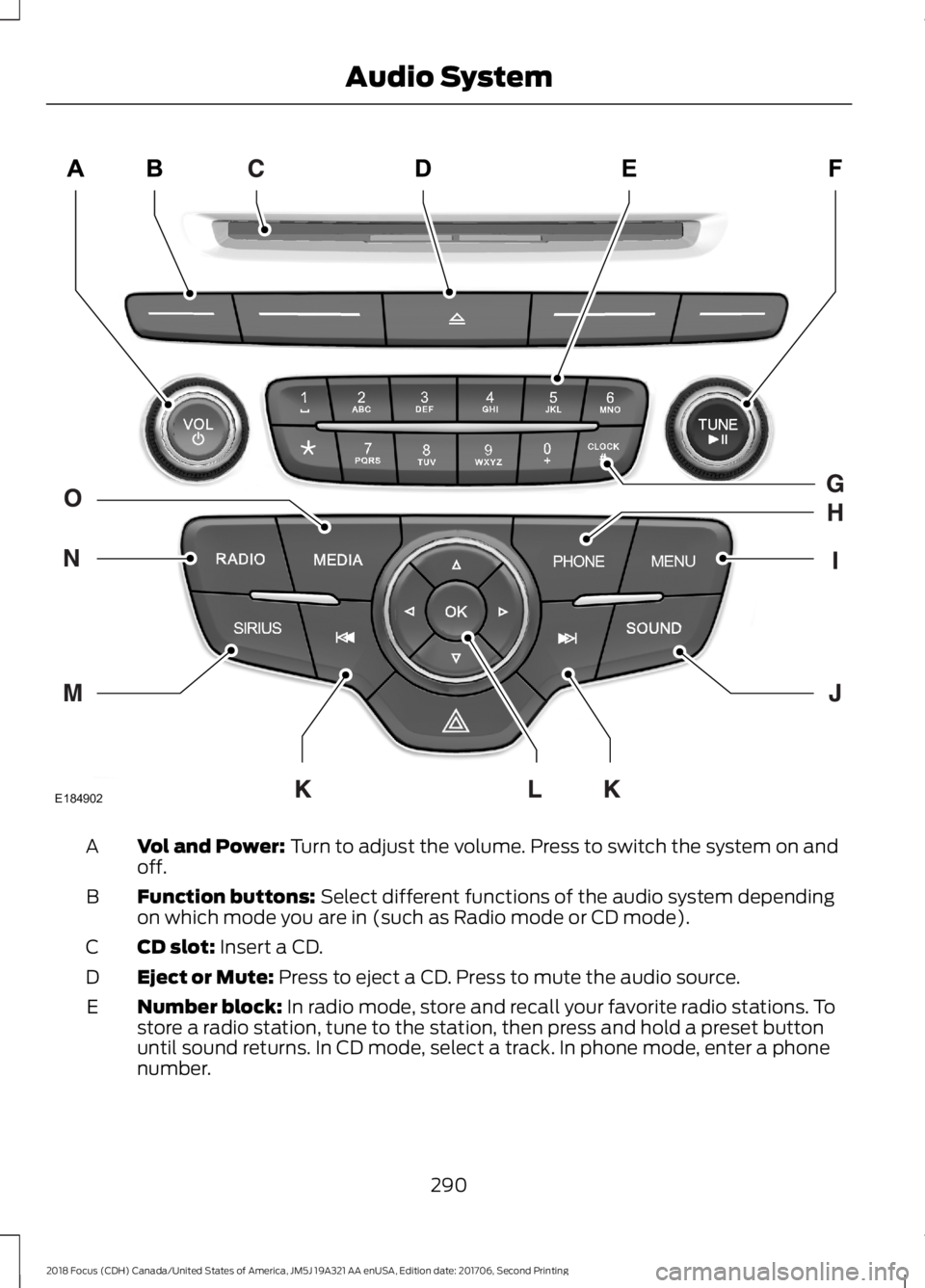
Vol and Power: Turn to adjust the volume. Press to switch the system on andoff.A
Function buttons: Select different functions of the audio system dependingon which mode you are in (such as Radio mode or CD mode).B
CD slot: Insert a CD.C
Eject or Mute: Press to eject a CD. Press to mute the audio source.D
Number block: In radio mode, store and recall your favorite radio stations. Tostore a radio station, tune to the station, then press and hold a preset buttonuntil sound returns. In CD mode, select a track. In phone mode, enter a phonenumber.
E
2902018 Focus (CDH) Canada/United States of America, JM5J 19A321 AA enUSA, Edition date: 201706, Second PrintingAudio SystemE184902
Page 294 of 473

TUNE and Play or Pause: In radio mode, turn to search the frequency bandin individual increments. Press to mute the station. In media mode, turn to selecta new track. Press to either play or pause a track. This button also mutes theradio sources.
F
Clock: Press to access the clock setting. Use the center arrow controls to changethe hours and minutes. You can also set the clock by pressing MENU andscrolling to Clock Settings. If not in phone mode, press to display the clock.
G
PHONE: Press to access the phone features of the SYNC system. See yourSYNC information.H
MENU: Press to access different audio system features. See Menu Structure.I
SOUND: Press to access settings for Treble, Midrange, Bass, Fade and Balance.Use the up and down arrow buttons to select the various settings. When youmake your selection, press the left and right arrow buttons to change thesettings. Press OK to set or press MENU to exit. Sound settings can be set foreach audio source independently.
J
Seek, Fast Forward and Reverse: In radio mode, select a frequency bandand press either button. The system stops at the first station it finds in thatdirection. In SIRIUS mode, press to select the next or previous satellite radiostation. If a specific category is selected (such as jazz, rock or news), press tofind the next or previous station in the selected category. In CD mode, press toselect the next or previous track. Press and hold to move quickly forward orbackward through the current track.
K
OK and cursor arrows: Press the up and down arrow buttons to select thevarious settings. When you make your selection, press the left and right arrowbuttons to change the settings. Press OK to set, or press MENU to exit.
L
SIRIUS: Press to listen to SIRIUS satellite radio.M
RADIO: Press to listen to the radio or change radio stations. Press the functionbuttons below the radio screen to select different radio functions.N
MEDIA: Press to open the media source menu. You can press this multipletimes to change to CD or to a SYNC-Media device or scroll through the mediasources using the arrow buttons. Press OK to select a source.
O
DIGITAL RADIO
Note:HD Radio broadcasts are notavailable in all markets.
HD Radio technology is the digitalevolution of analog AM/FM radio. Yoursystem has a special receiver that allowsit to receive digital broadcasts (whereavailable) in addition to the analogbroadcasts, it already receives. Digitalbroadcasts provide a better sound quality
2912018 Focus (CDH) Canada/United States of America, JM5J 19A321 AA enUSA, Edition date: 201706, Second PrintingAudio System
Page 304 of 473
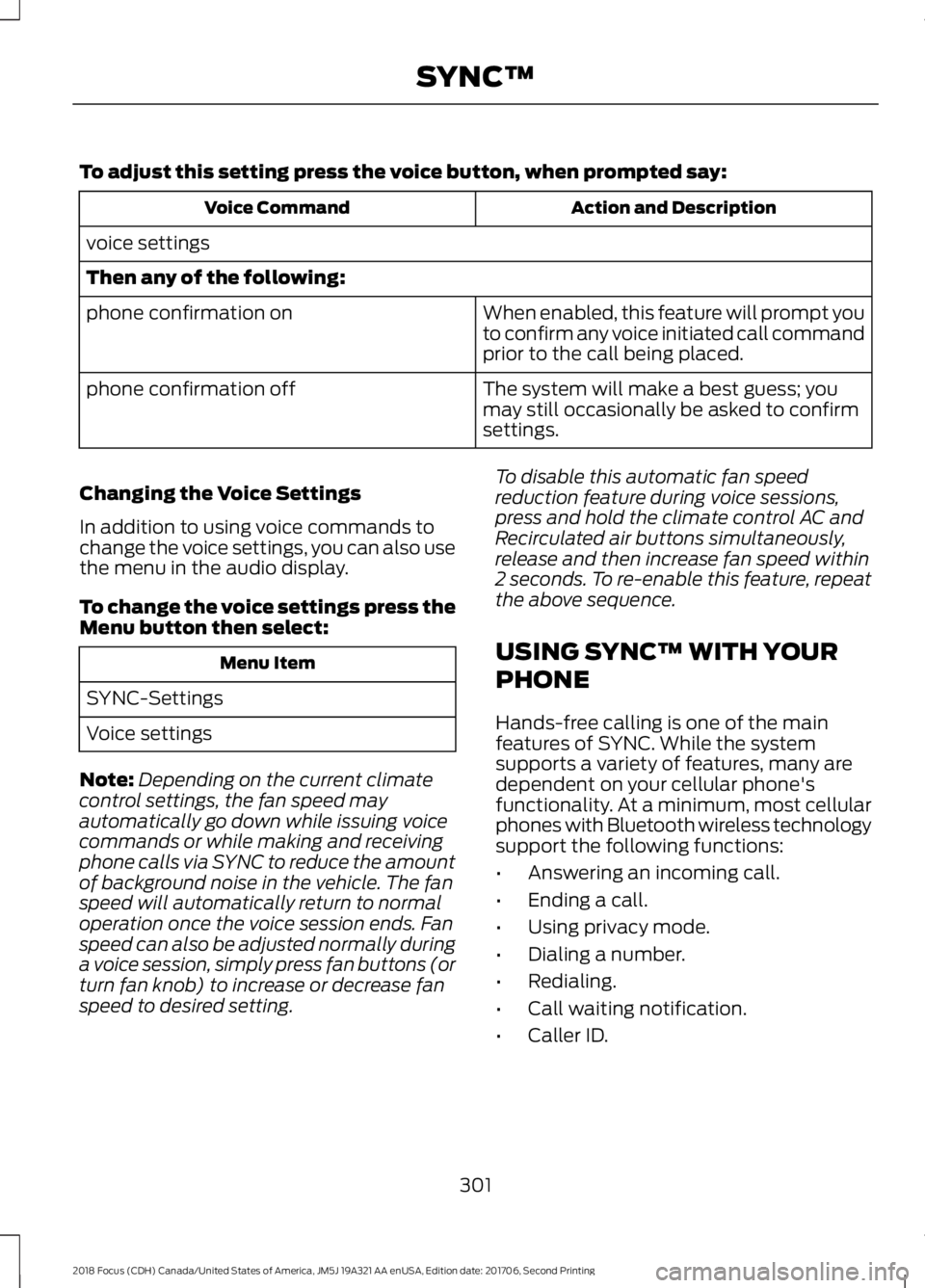
To adjust this setting press the voice button, when prompted say:
Action and DescriptionVoice Command
voice settings
Then any of the following:
When enabled, this feature will prompt youto confirm any voice initiated call commandprior to the call being placed.
phone confirmation on
The system will make a best guess; youmay still occasionally be asked to confirmsettings.
phone confirmation off
Changing the Voice Settings
In addition to using voice commands tochange the voice settings, you can also usethe menu in the audio display.
To change the voice settings press theMenu button then select:
Menu Item
SYNC-Settings
Voice settings
Note:Depending on the current climatecontrol settings, the fan speed mayautomatically go down while issuing voicecommands or while making and receivingphone calls via SYNC to reduce the amountof background noise in the vehicle. The fanspeed will automatically return to normaloperation once the voice session ends. Fanspeed can also be adjusted normally duringa voice session, simply press fan buttons (orturn fan knob) to increase or decrease fanspeed to desired setting.
To disable this automatic fan speedreduction feature during voice sessions,press and hold the climate control AC andRecirculated air buttons simultaneously,release and then increase fan speed within2 seconds. To re-enable this feature, repeatthe above sequence.
USING SYNC™ WITH YOUR
PHONE
Hands-free calling is one of the mainfeatures of SYNC. While the systemsupports a variety of features, many aredependent on your cellular phone'sfunctionality. At a minimum, most cellularphones with Bluetooth wireless technologysupport the following functions:
•Answering an incoming call.
•Ending a call.
•Using privacy mode.
•Dialing a number.
•Redialing.
•Call waiting notification.
•Caller ID.
3012018 Focus (CDH) Canada/United States of America, JM5J 19A321 AA enUSA, Edition date: 201706, Second PrintingSYNC™
Page 312 of 473
Sending a Text Message
Note:You can only send a text message toone recipient at a time.
1.Select the send option when thedesired selection highlights in the audiodisplay.
2.Select the confirmation option whenthe contact appears.
3.Press the OK button again to confirmwhen the system asks if you want tosend the message. A pre-definedsignature appears on each textmessage.
Note:You can send text messages eitherby choosing a contact from the phonebookand selecting the text option from the audiodisplay or by replying to a received messagein the inbox.
Accessing Your Phone Settings
These are phone-dependent features. Yourphone settings allow you to access andadjust features such as your ring tone andtext message notification, modify yourphonebook, and set up automaticdownload.
1.Press the PHONE button.
2.Scroll until the phone settings optionappears, and then press the OK button.
Scroll to select from the following options:
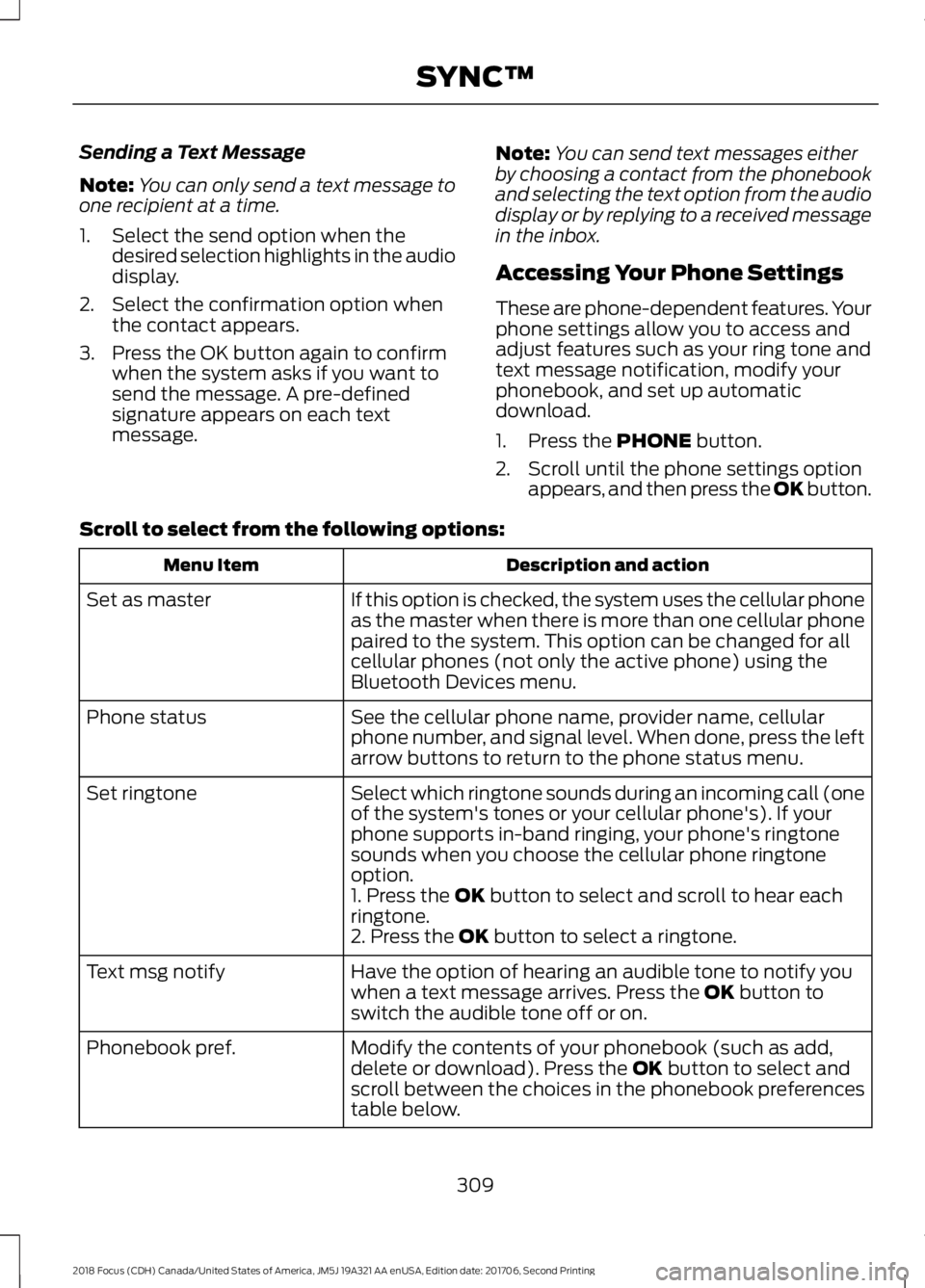
Description and actionMenu Item
If this option is checked, the system uses the cellular phoneas the master when there is more than one cellular phonepaired to the system. This option can be changed for allcellular phones (not only the active phone) using theBluetooth Devices menu.
Set as master
See the cellular phone name, provider name, cellularphone number, and signal level. When done, press the leftarrow buttons to return to the phone status menu.
Phone status
Select which ringtone sounds during an incoming call (oneof the system's tones or your cellular phone's). If yourphone supports in-band ringing, your phone's ringtonesounds when you choose the cellular phone ringtoneoption.
Set ringtone
1. Press the OK button to select and scroll to hear eachringtone.2. Press the OK button to select a ringtone.
Have the option of hearing an audible tone to notify youwhen a text message arrives. Press the OK button toswitch the audible tone off or on.
Text msg notify
Modify the contents of your phonebook (such as add,delete or download). Press the OK button to select andscroll between the choices in the phonebook preferencestable below.
Phonebook pref.
3092018 Focus (CDH) Canada/United States of America, JM5J 19A321 AA enUSA, Edition date: 201706, Second PrintingSYNC™